
Before You Begin
Ensure you have admin access to both Gusto and Empuls. Obtain your Gusto API credentials from the admin settings.How It Works
The Empuls and Gusto integration enables a holistic employee engagement approach for your organisation. It automates user data management by synchronizing employee information from your payroll platform to Empuls. With this integration, you can:- Save time and keep data fresh: Enable an automatic data sync to Empuls to reflect your changes to employee information in Gusto instantly.
- Never miss a special event: Celebrate employee birthdays and work anniversaries with automated greetings and gifts by importing these dates from Gusto.
Data Fields
The data fields can be fetched from your Gusto account and imported to Empuls.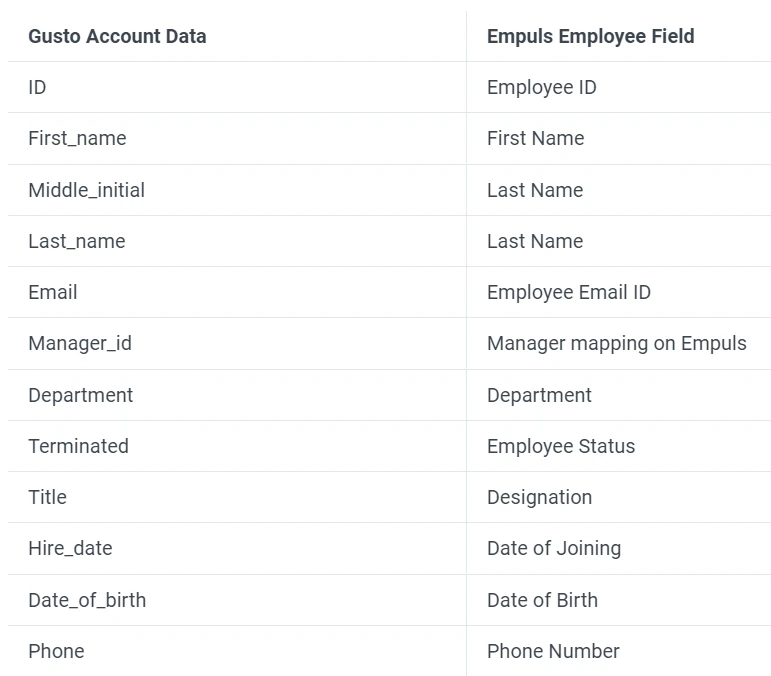
- First name
- Last name
- Official email
- Employee code/ID
- Grade
- Department
- Designation
- Date of birth
- Date of Joining
- Mobile number
- Business Unit
- Cost center
- Location
- Contact/Mobile number, and many more
How to set up this integration?
1
Log in to your Empuls account
Log in to your Empuls account.
2
Go to Admin Dashboard by clicking on Reports
Go to Admin Dashboard by clicking on “Reports and Admin”.
3
Navigate to Integrations
Navigate to “Integrations.”
4
Navigate to the HRMS Applications section and click
Navigate to the HRMS Applications section and click on the Gusto app.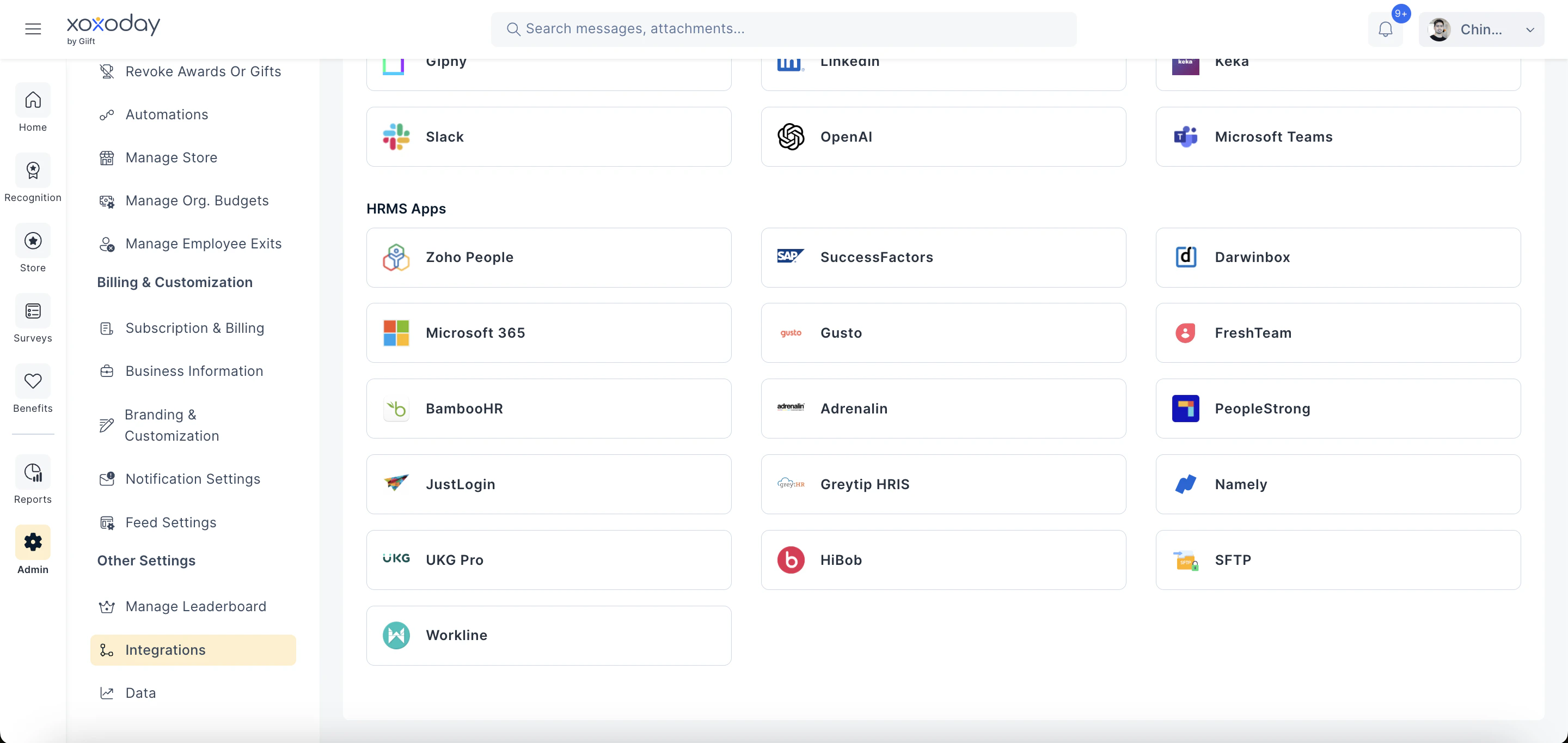
5
Click on Start Setup from the top right
Click on Start Setup from the top right corner of the page to start the integration.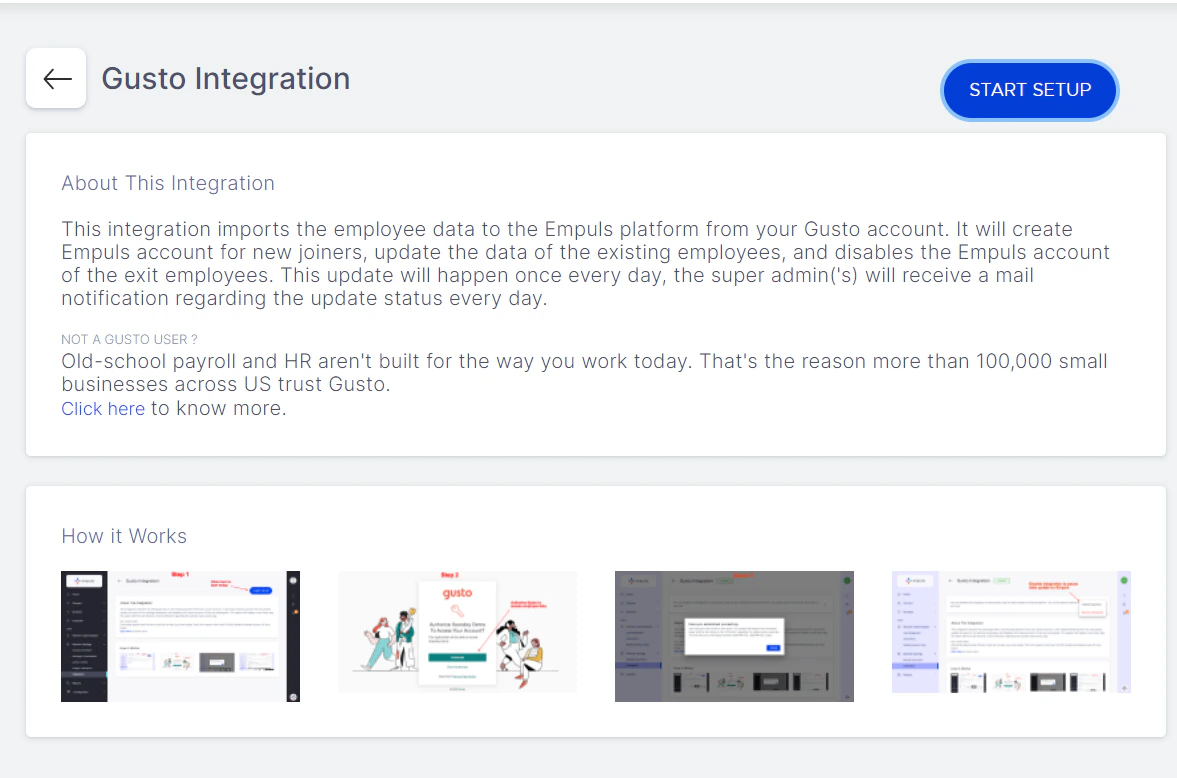
6
Click on PROCEED in the pop-up box
Click on PROCEED in the pop-up box to redirect you to your Gusto account to complete the setup.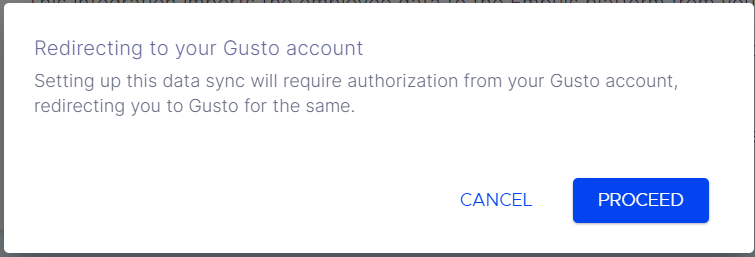
7
Click on Authorise to authorise Empuls to connect
Click on Authorise to authorise Empuls to connect with your Gusto account.Your Gusto and Empuls integration is now successfully enabled.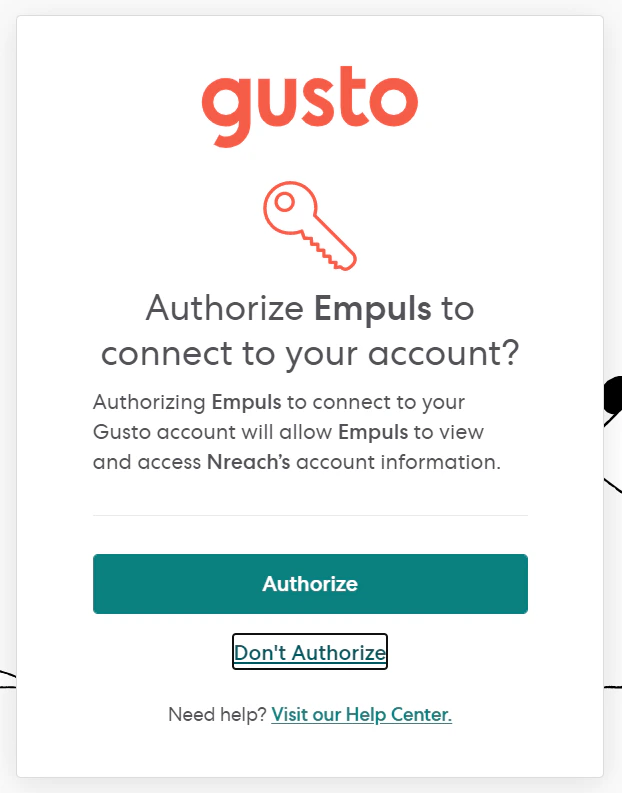
8
You will also see a message confirming
You will also see a message confirming that the data sync between Gusto and Empuls is now active. Click on DONE.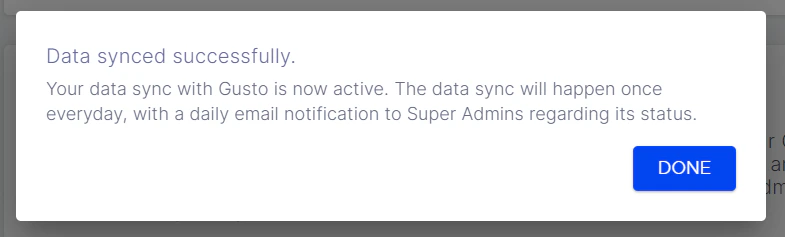
How to disable or remove this integration?
1
Log in to your Empuls account
Log in to your Empuls account.
2
Go to Admin Dashboard by clicking on Reports
Go to Admin Dashboard by clicking on “Reports and Settings”.
3
Navigate to Integrations
Navigate to “Integrations.”
4
Navigate to the Active Integrations and click
Navigate to the Active Integrations and click on the Gusto app.
5
Click on the three dots
Click on the three dots in the first message box to view the options to disable or remove the integration.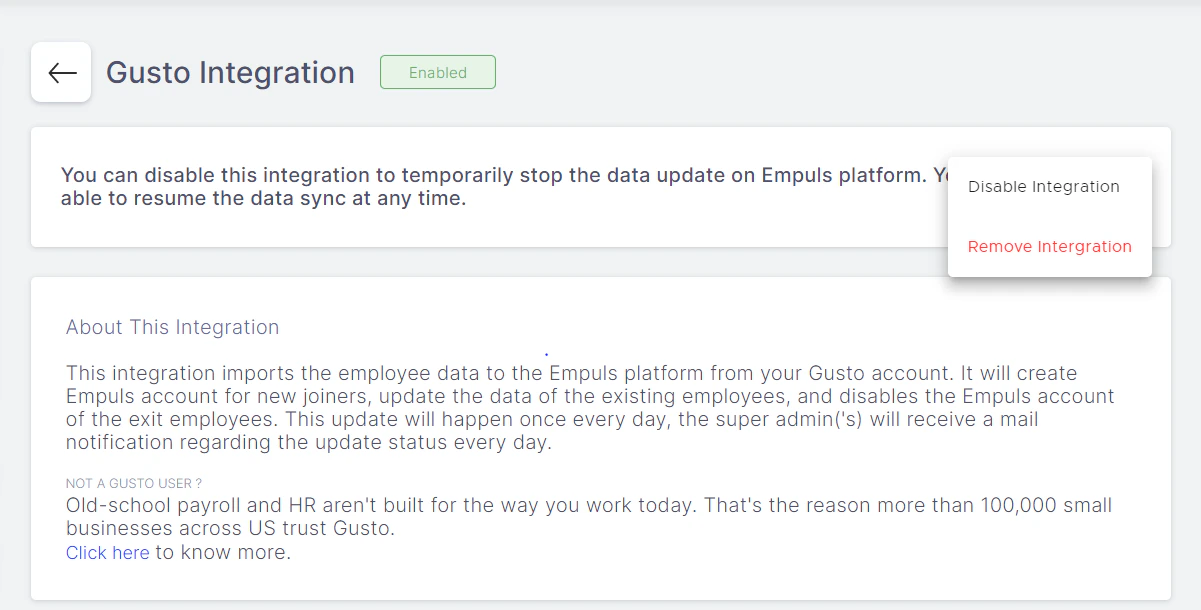
6
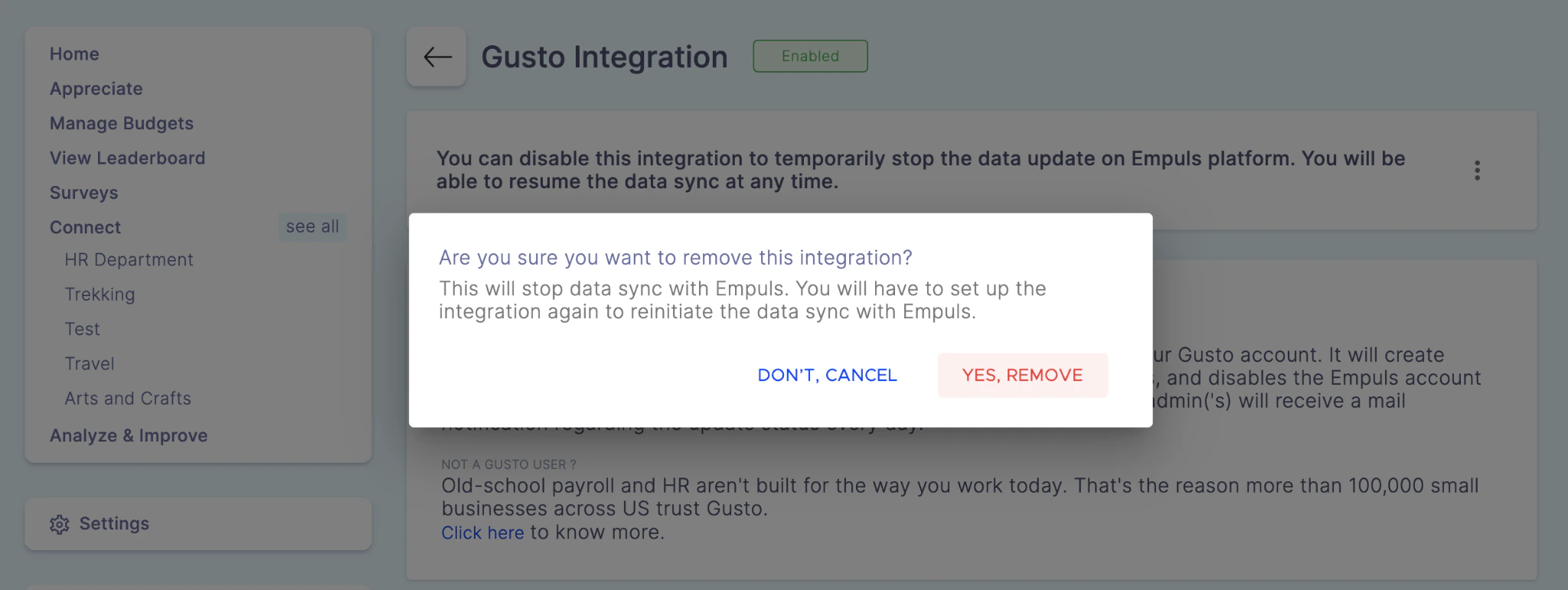
You will have two options
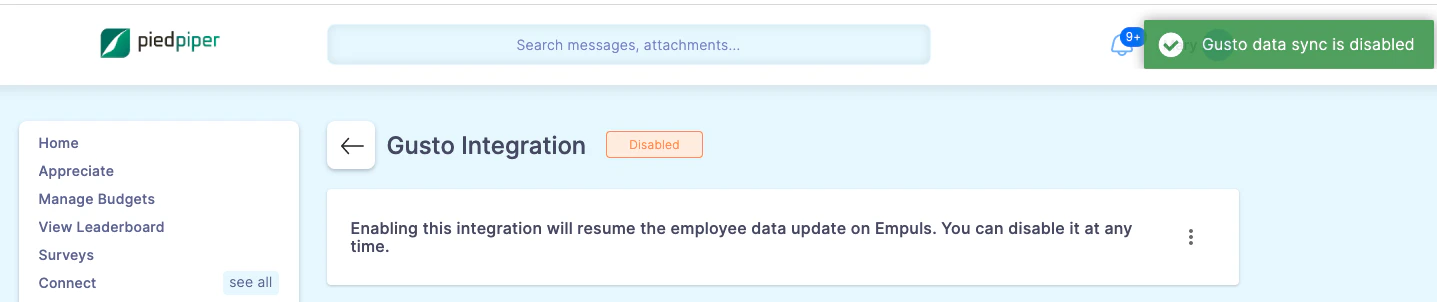
Option 1: Choose Disable integration to stop the data update on the Empuls platform temporarily. You can resume the data sync at any time. Click YES, DISABLE in the pop-up box to confirm.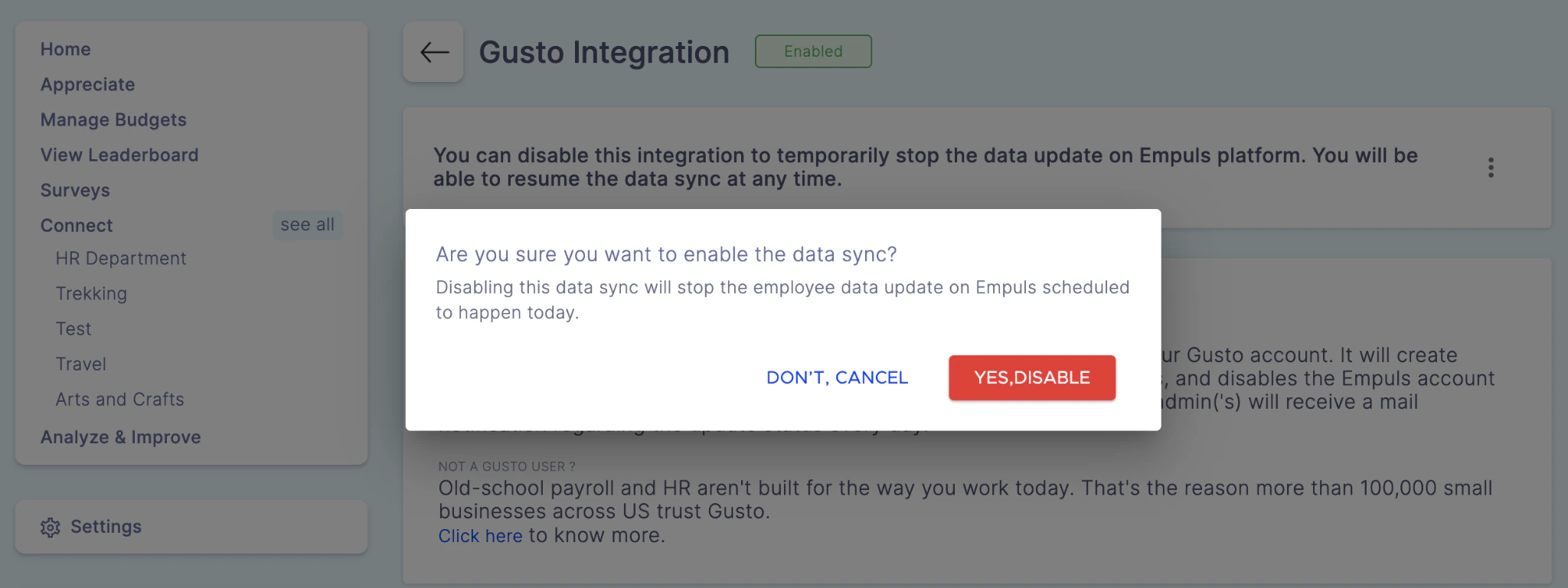
Questions? Contact us through Contact Support. We are more than happy to help you!