
Admins can manage all notifications sent to employees across the organisation. Notifications are delivered via Email, Mobile App, SMS, and In-Product alerts.
Navigate to Admin Settings > Notifications to access this feature. You must have Super Admin or General Admin permissions.
To customise the welcome email, sign-up reminders, and new joiner announcement, see Onboarding notifications.
Step 1: Go to Admin Dashboard
Click Reports and Admin to access the admin dashboard.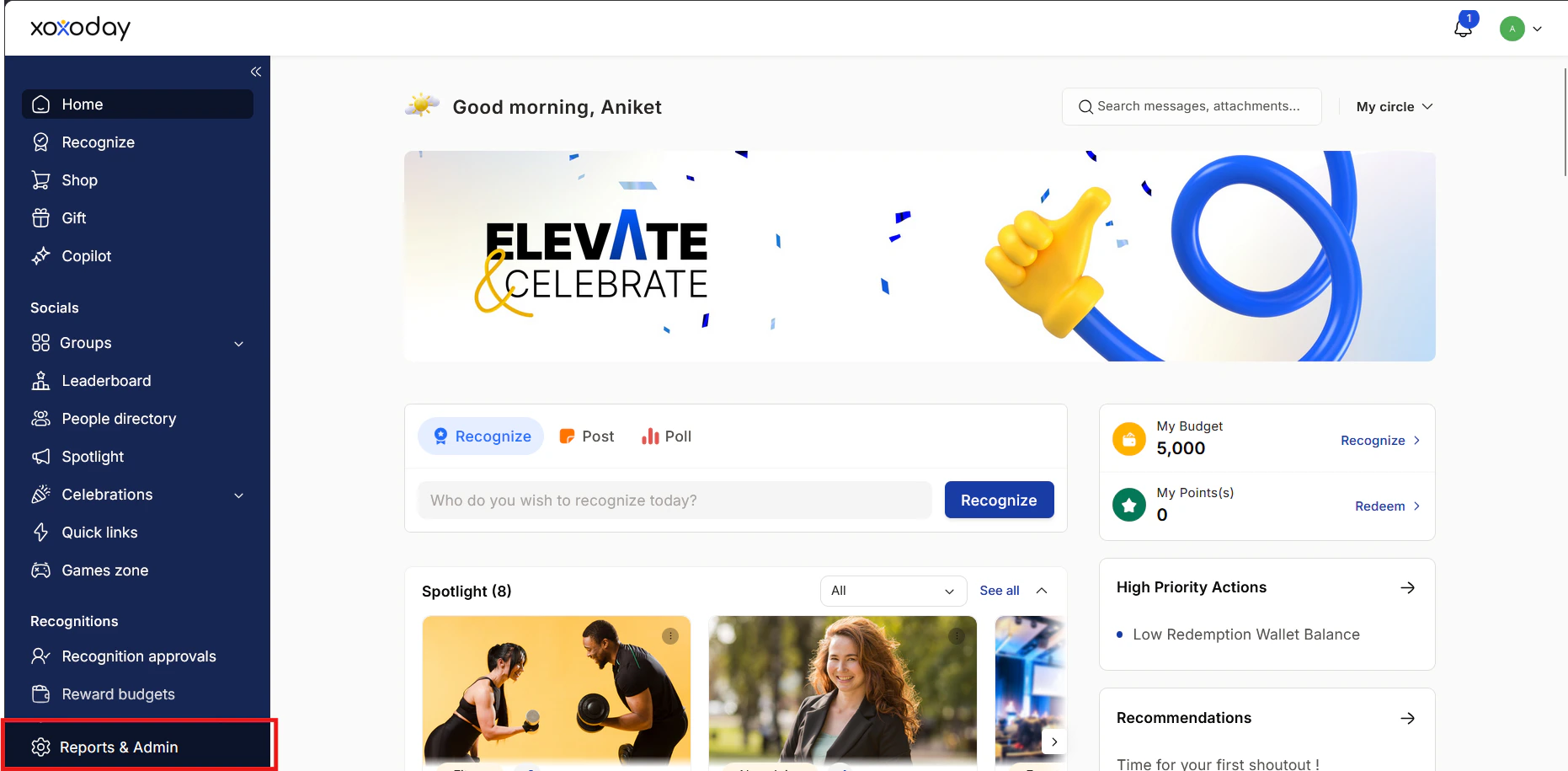
Step 2: Access notification settings
Navigate to Notifications to manage organisation-level notification settings.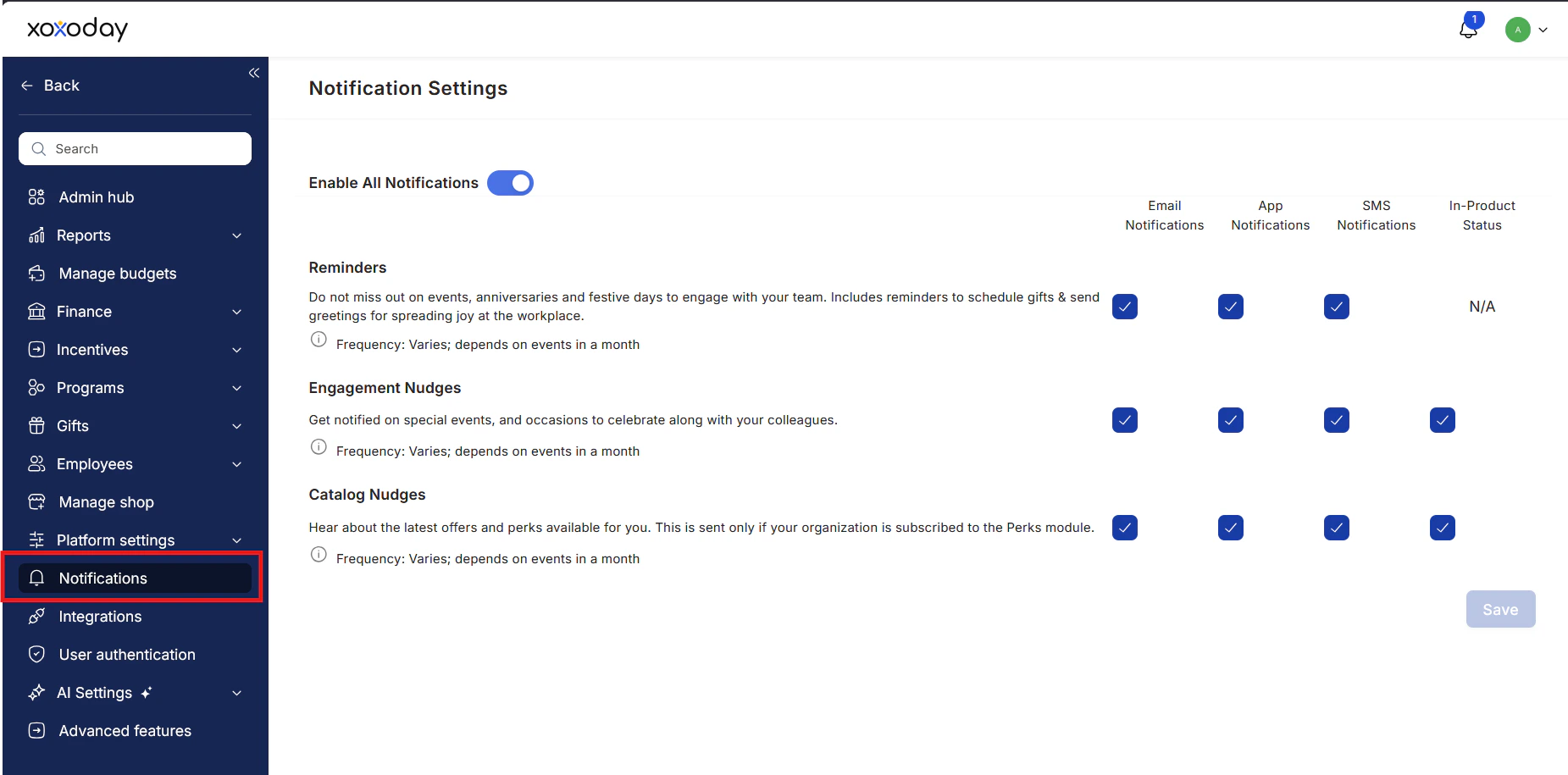
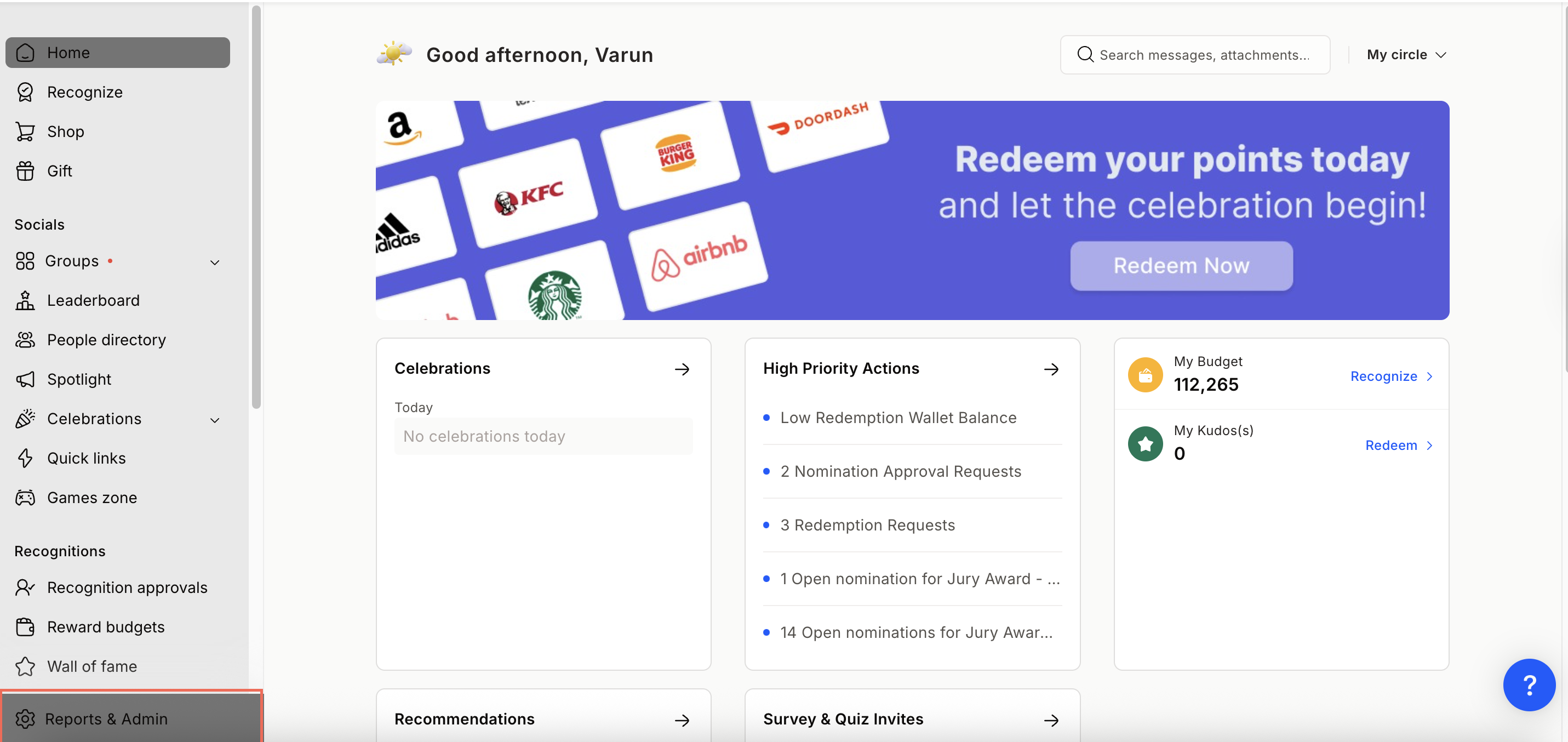
Step 3: Enable or disable notifications
Enable or disable all notifications and customise settings as needed. Click Confirm to apply changes.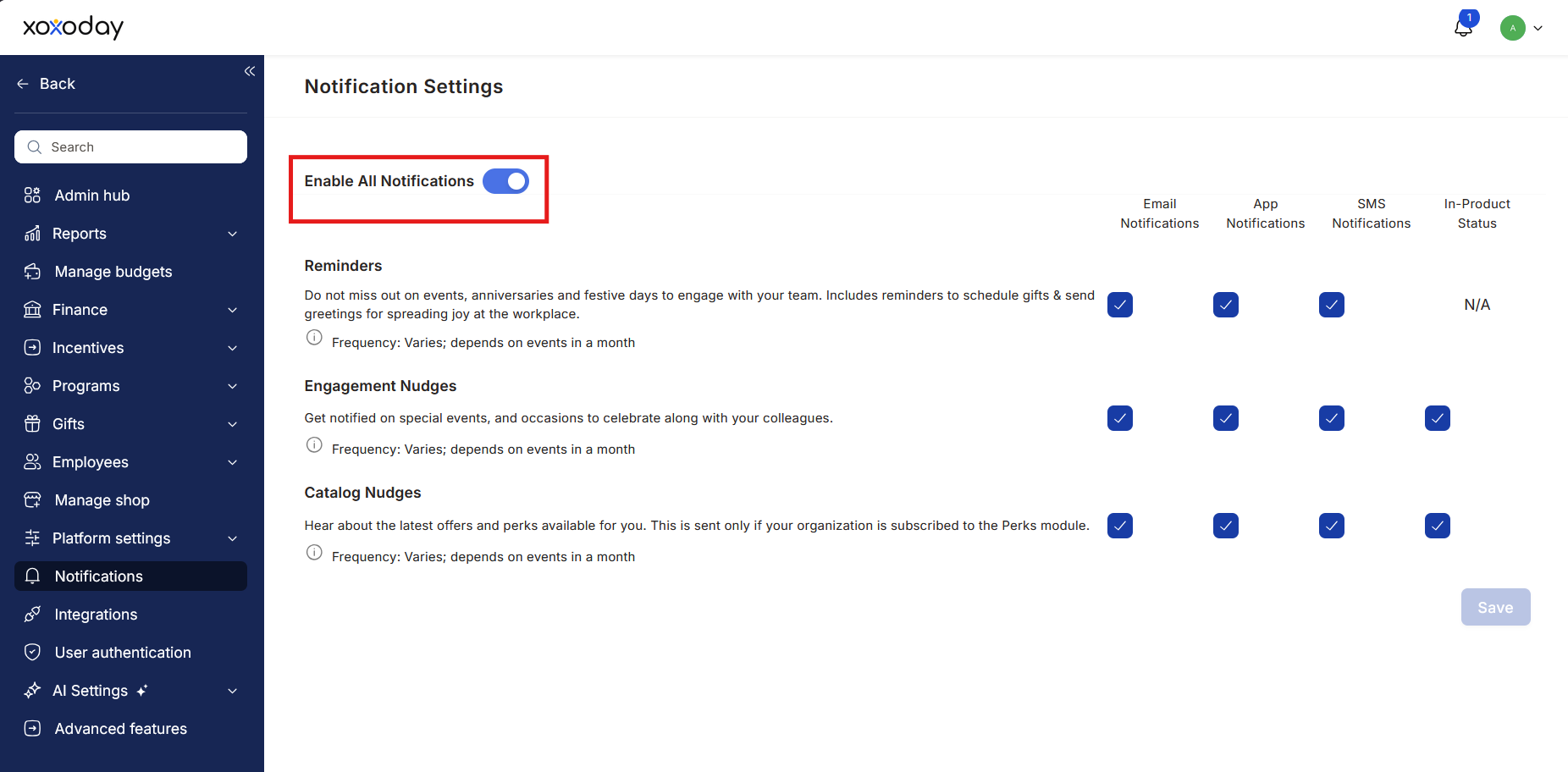
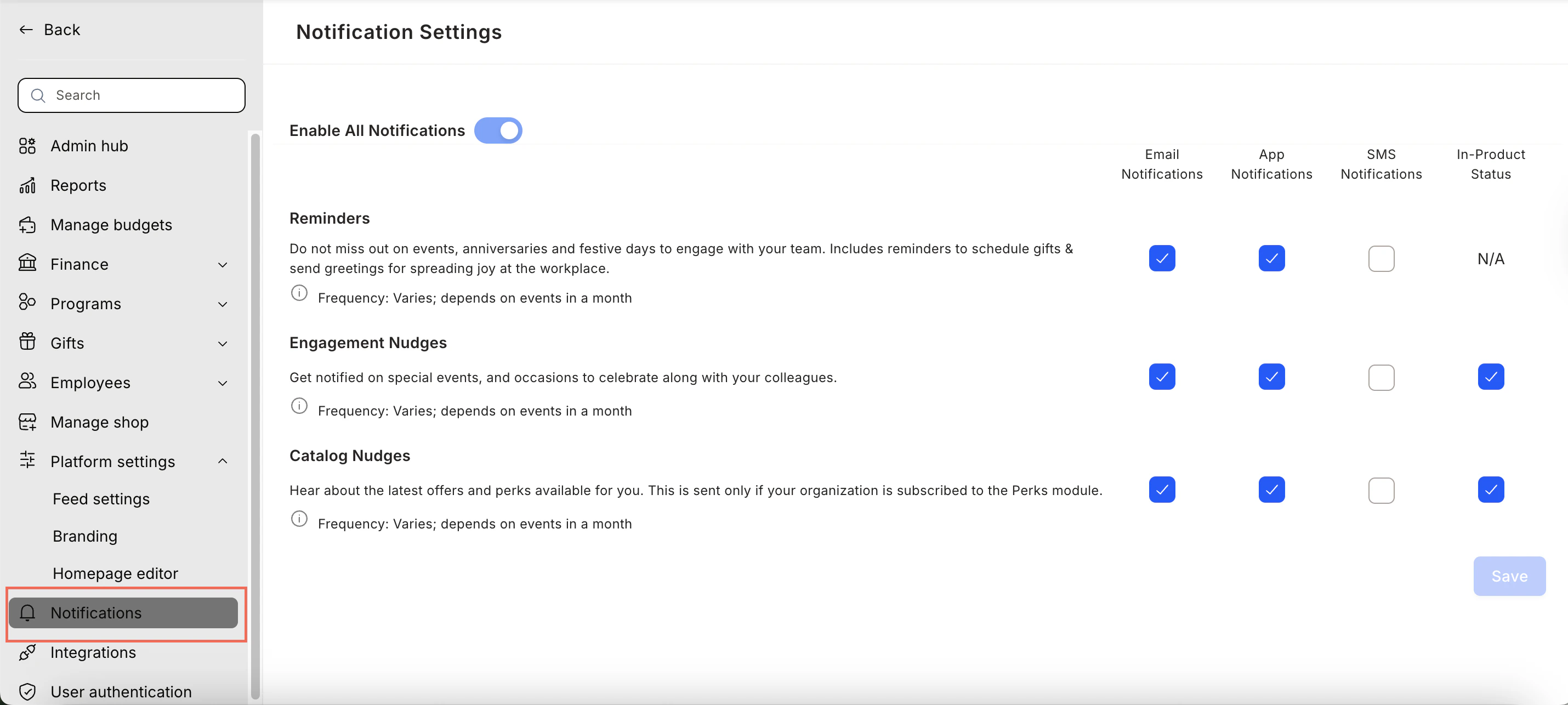
Step 4: Reminders
Reminders notify employees about events, anniversaries, and scheduled gifts or festival greetings. Use the checkbox to enable or disable them.
Step 5: Engagement nudges
Engagement nudges are internal campaign notifications sent by Empuls to drive participation (e.g., HR Day, social events). Enable or disable based on preference.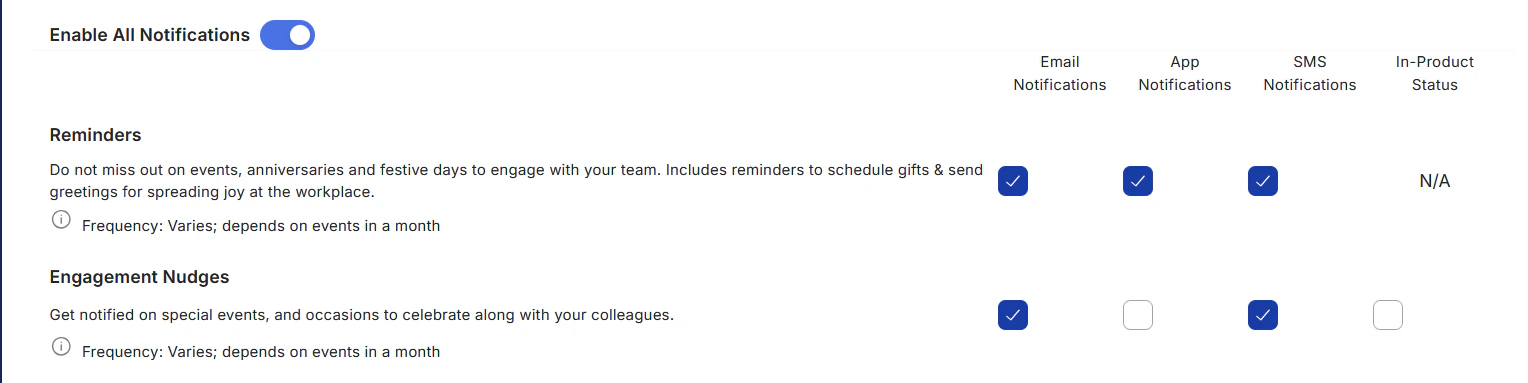
Step 6: Catalogue nudges
Catalogue nudges promote offers and perks available in the Perks and Benefits section. Enable or disable as needed.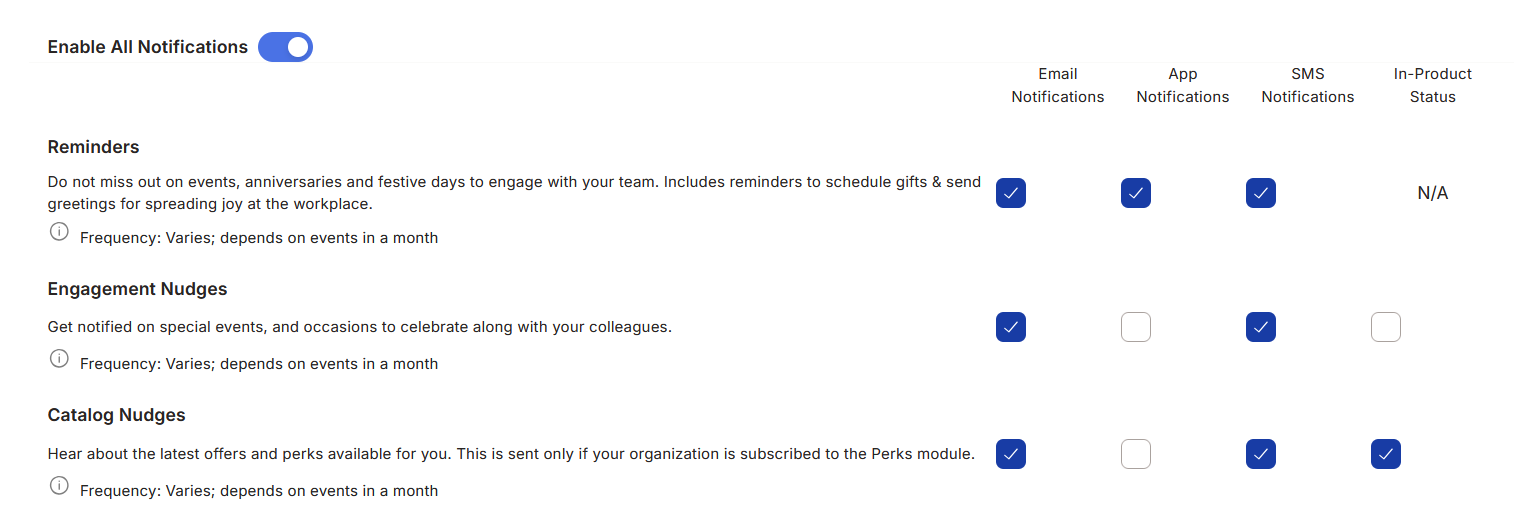
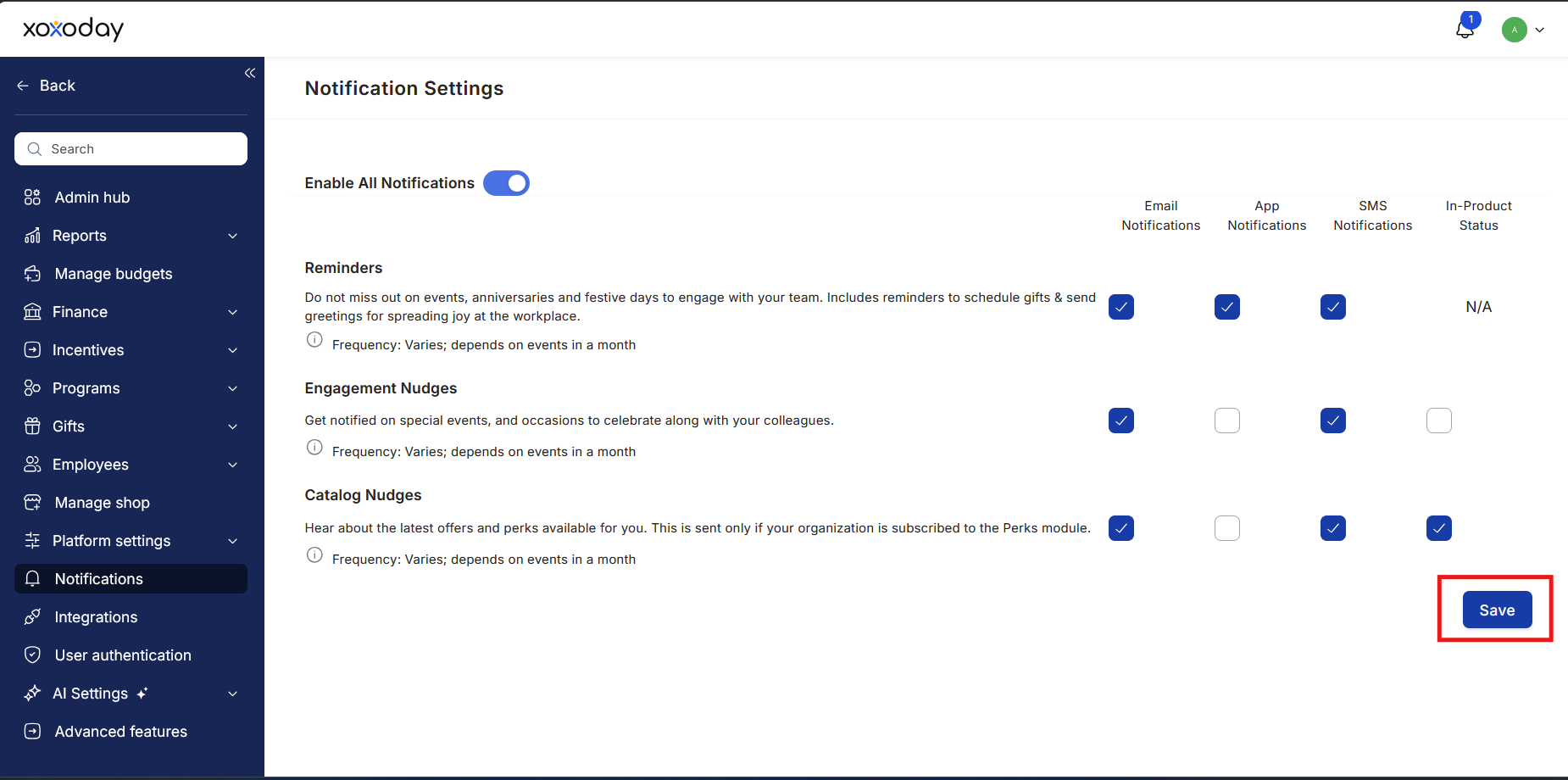
Step 7: Save preferences
Select or deselect the required options and click Save to apply changes.If a Super Admin disables or modifies notification settings, all Super Admins receive an email alert.
FAQs
Who can manage notification settings?
Who can manage notification settings?
Only Super Admins can access and modify notification settings.
Where can I find notification settings?
Where can I find notification settings?
Go to Admin > Billing and Customisation > Notification Settings.
What types of notifications are supported?
What types of notifications are supported?
Email, Mobile App notifications, SMS, and In-Product Alerts.
Can I turn off all notifications?
Can I turn off all notifications?
Yes. You can disable all notifications using a single toggle.
What are Reminders?
What are Reminders?
Notifications for events, birthdays, anniversaries, and gift scheduling.
What are Engagement Nudges?
What are Engagement Nudges?
Internal campaign notifications to drive engagement (e.g., HR Day, social events).
What are Catalogue Nudges?
What are Catalogue Nudges?
Notifications promoting perks and discounts in the benefits catalogue.
How do I save changes?
How do I save changes?
Click Save after updating your preferences.