
Birthday and work anniversary greetings are automatically generated as soon as an employee’s date of birth (DOB) or date of joining (DOJ) is added to their Empuls profile or synced from your HRMS. You do not need to create a separate gift for each employee.
Video walkthrough
Gift delivery modes
When you create a gift, you choose how it is delivered:- Automate: Set up once, and Empuls delivers the gift automatically every time the trigger event occurs (e.g., every birthday, every work anniversary).
- Schedule: Pick a specific date and time to send the gift. Useful for festival greetings or one-off company events.
- Send manually: Deliver the gift immediately to a list of recipients you specify.
Create a gift
1
Navigate to Manage Gifts
Go to Admin Dashboard > Gifts > Manage Gifts and click Create Gift.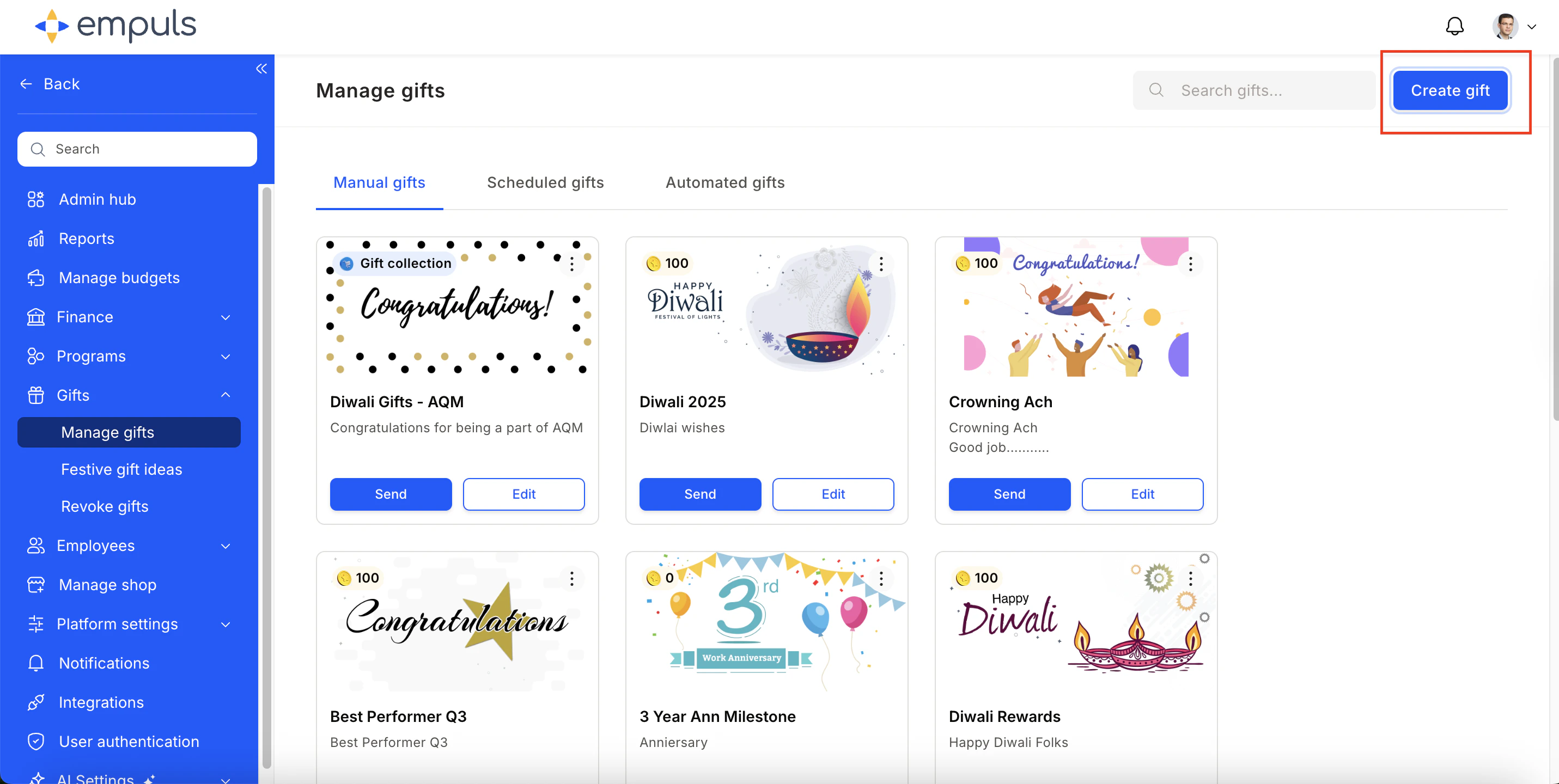
2
Select the delivery mode
Choose Automate, Schedule It, or Send Manually, then click Create.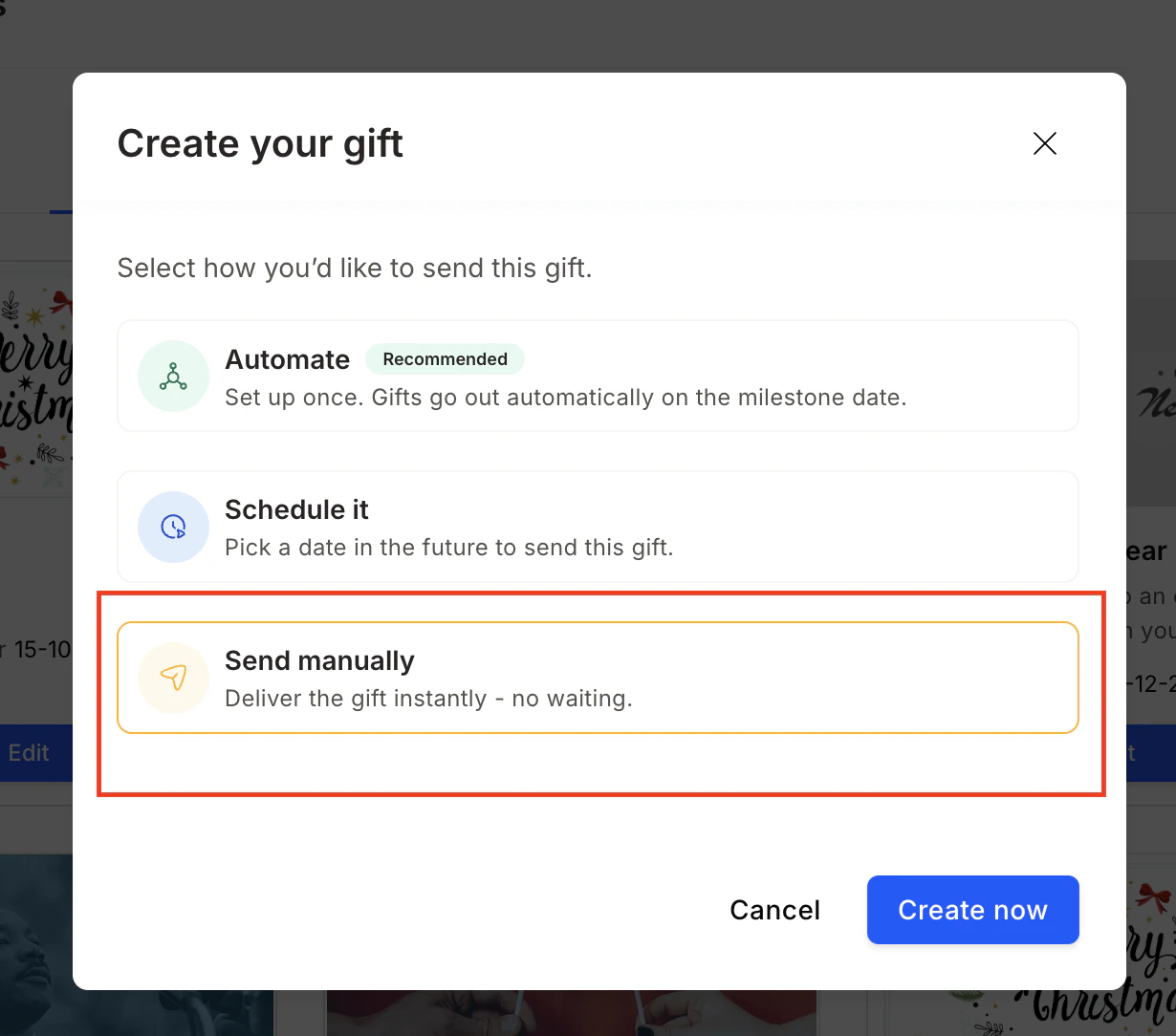
3
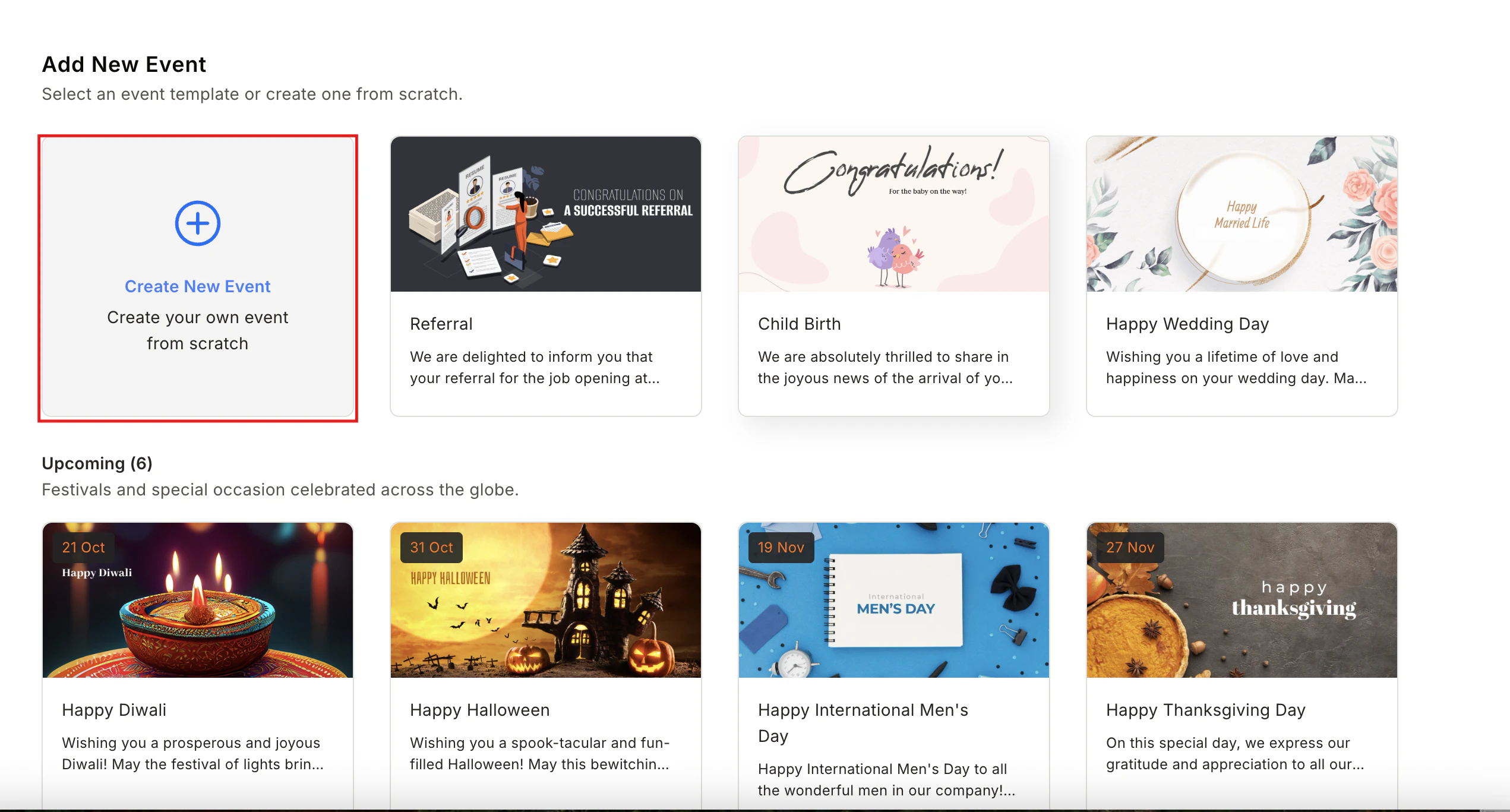
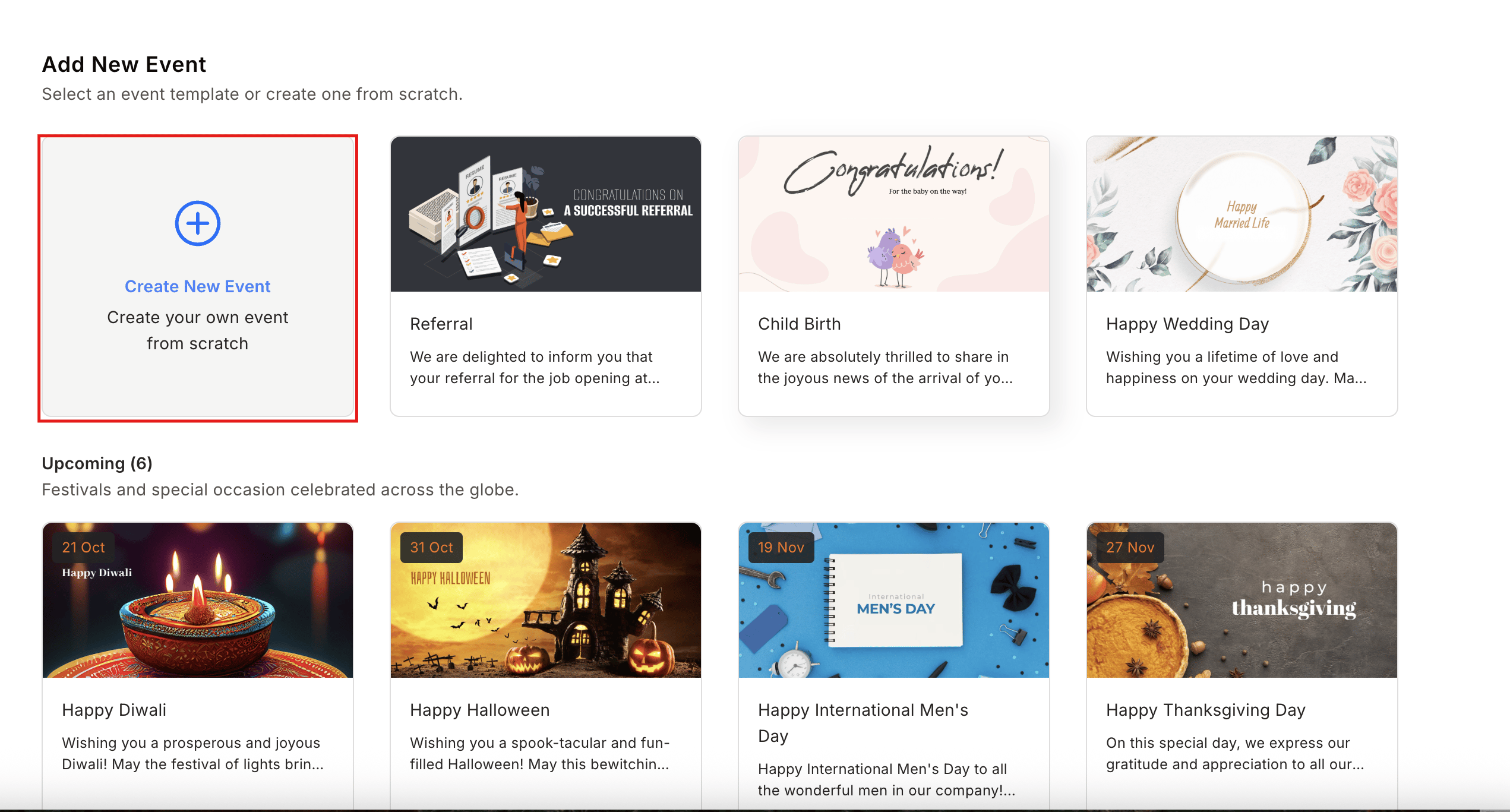
Select or create an event template
Choose from existing event templates (Birthday, Work Anniversary, New Joiner / Onboarding, Festival, Farewell, and more). For new or custom occasions, select Create New Event. Empuls pre-populates editable email content for known templates using AI.
1
Enter gift details
Provide a Greeting Name and Description to identify this gift in your admin panel. If the gift is automated, also choose any stakeholders (such as the recipient’s manager) who should receive a notification when it is sent.
2
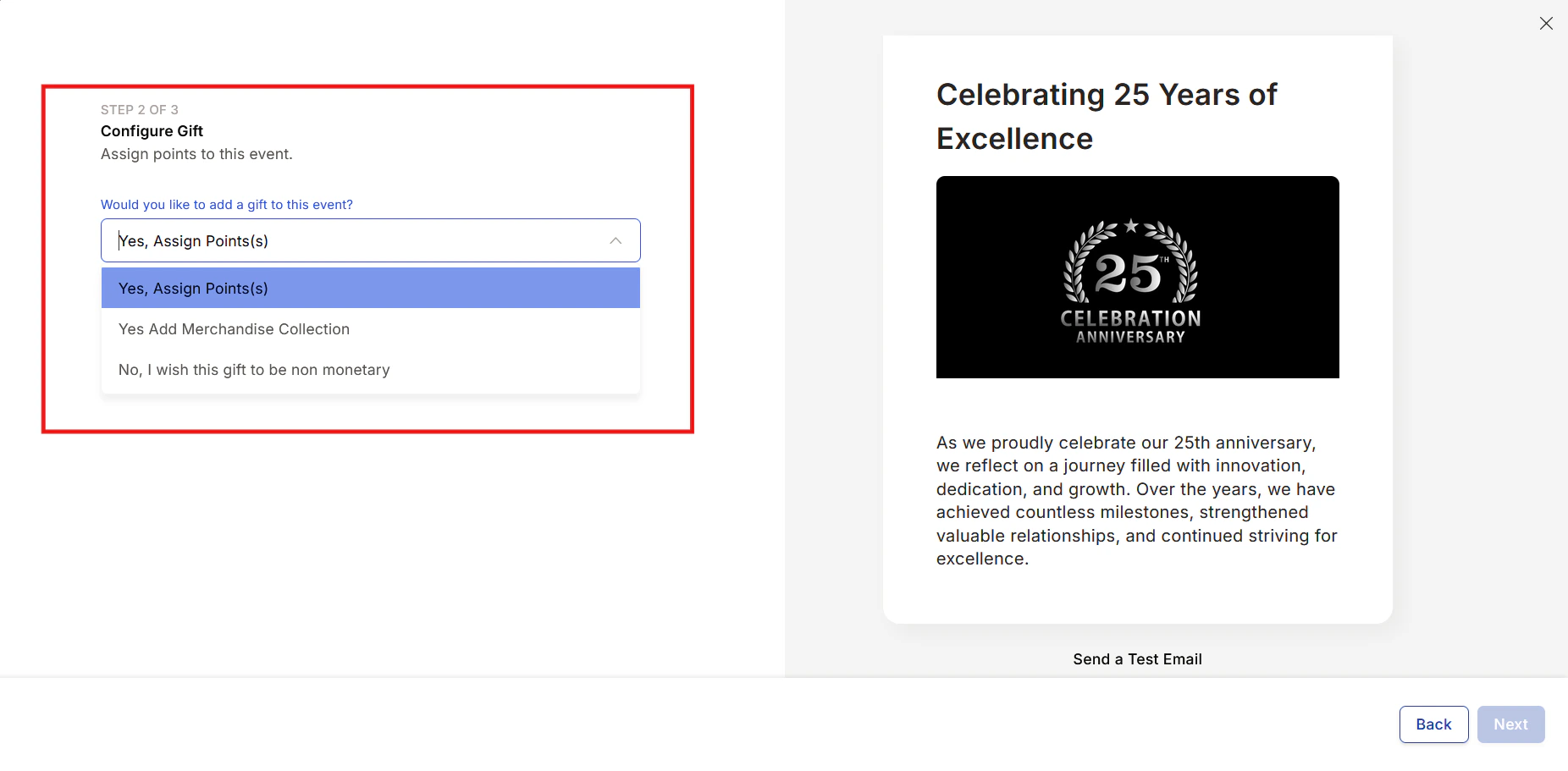
Configure the reward value
Choose one of three reward options:
- Reward points: Enter the number of points to credit to the recipient’s account. These points are deducted from the gift owner’s allocated budget.
- Products from the store: Select a merchandise or gift-card collection (see Set up product-based gifts).
- Non-monetary: Send a personalised greeting, festival card, or digital appreciation without any monetary value. You can optionally add a call-to-action (CTA) button that links to a destination of your choice.
3
Compose the message
Write the greeting message title and body. You can use personalisation placeholders such as 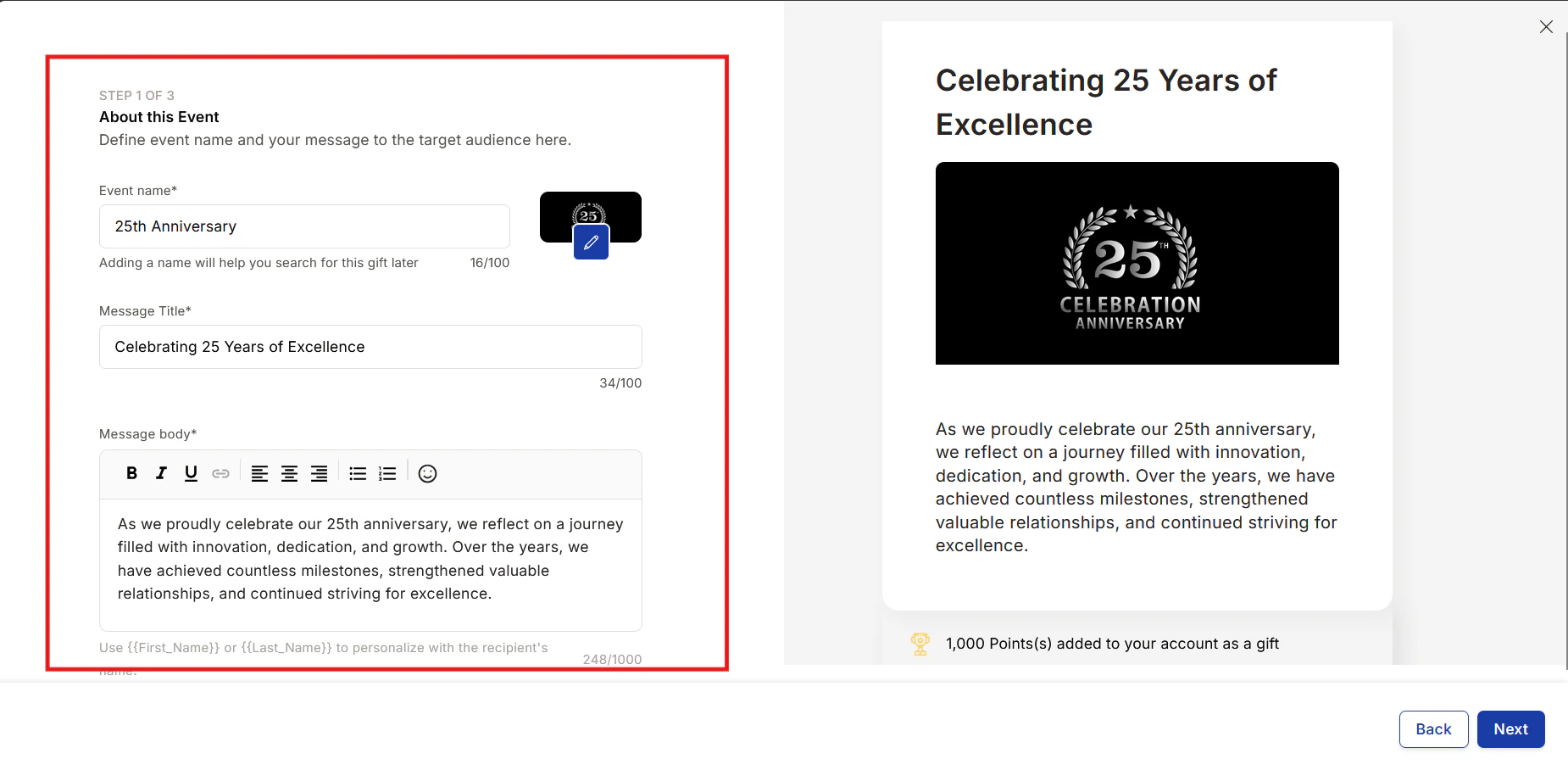
{{First Name}} to address each recipient by name. For work anniversary gifts, use {{completed_year}} to insert the number of years served.4
Select recipients
Add recipients by entering email addresses manually, pasting a list, or uploading a CSV. You can also use audience filters (department, designation, location, and custom fields) to target specific groups. For automated gifts, Empuls uses the trigger event (birthday, anniversary) to determine recipients automatically.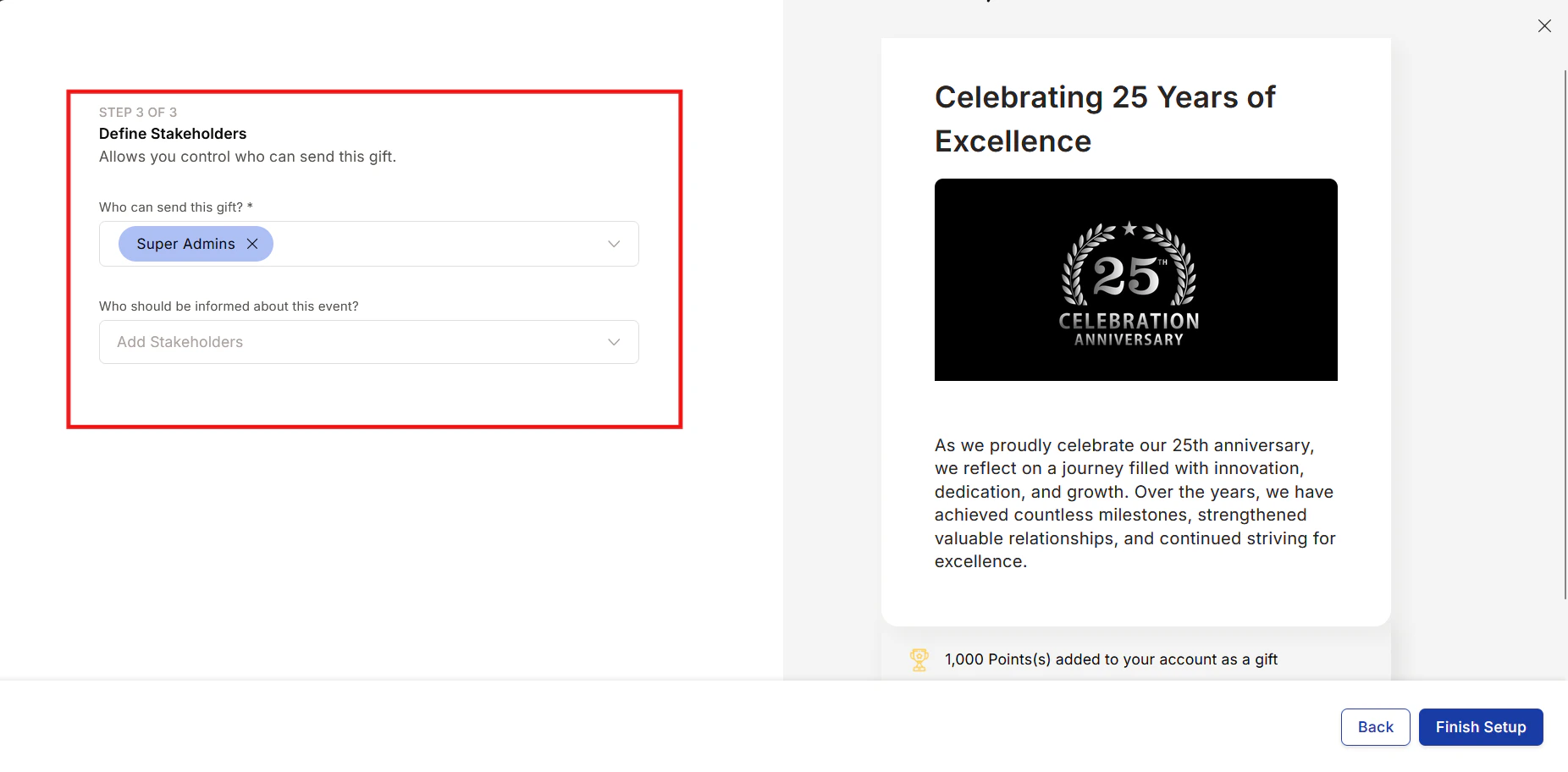
5
Finish setup
Review the gift summary, then click Finish Setup (manual/scheduled) or Confirm and Create (automated). The gift appears in the Manage Gifts panel under the relevant tab: Manual, Scheduled, or Automated.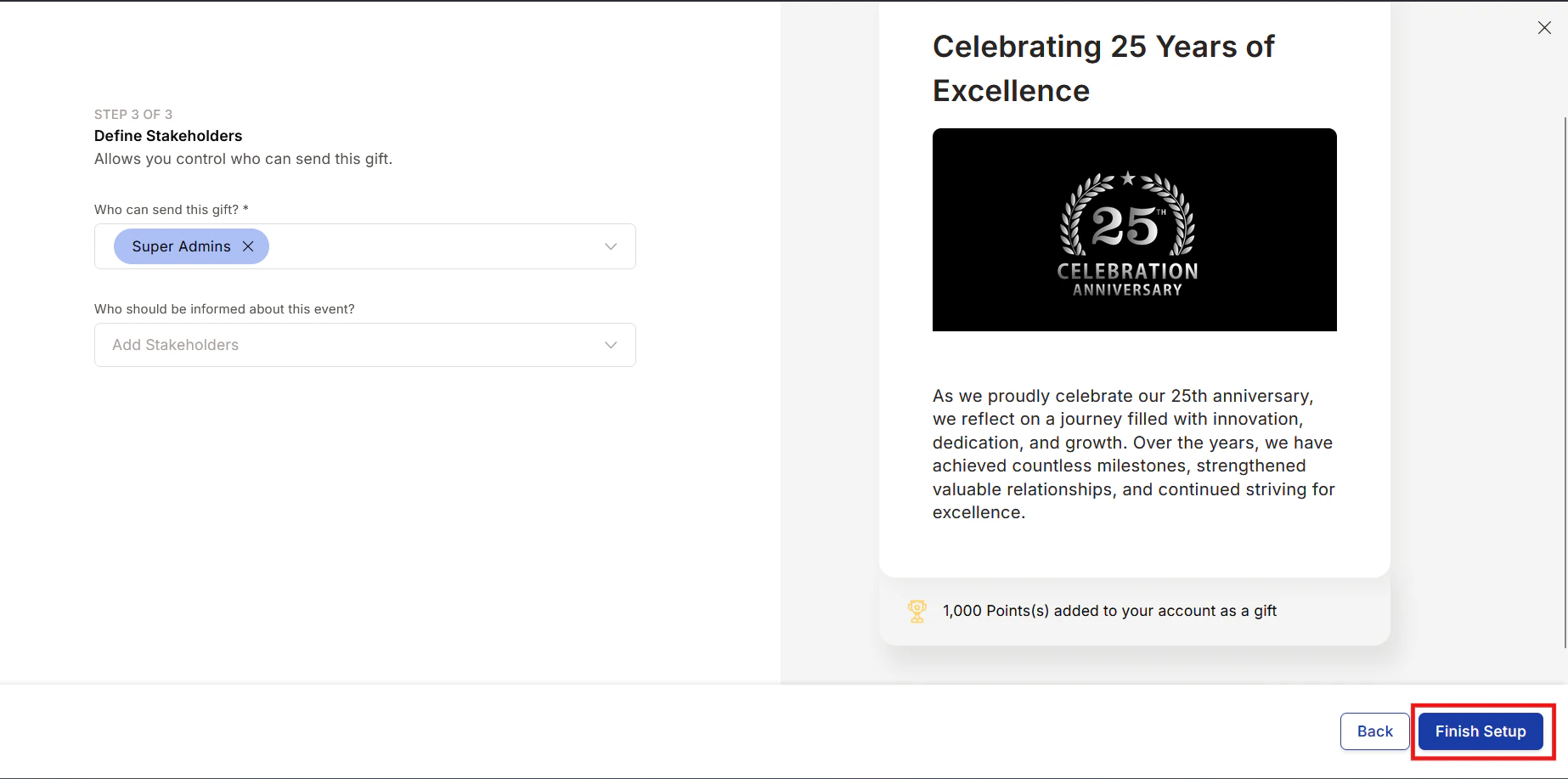
Monetary vs. non-monetary gifts
Non-monetary gifts are ideal when you want to celebrate an occasion without any budget spend, or when tax or compliance regulations restrict monetary gifting in certain markets.
Send gifts manually
For one-off occasions where you want to deliver a pre-created gift immediately:1
Go to Manual Gifts
Navigate to Gifts > Manage Gifts > Manual Gifts.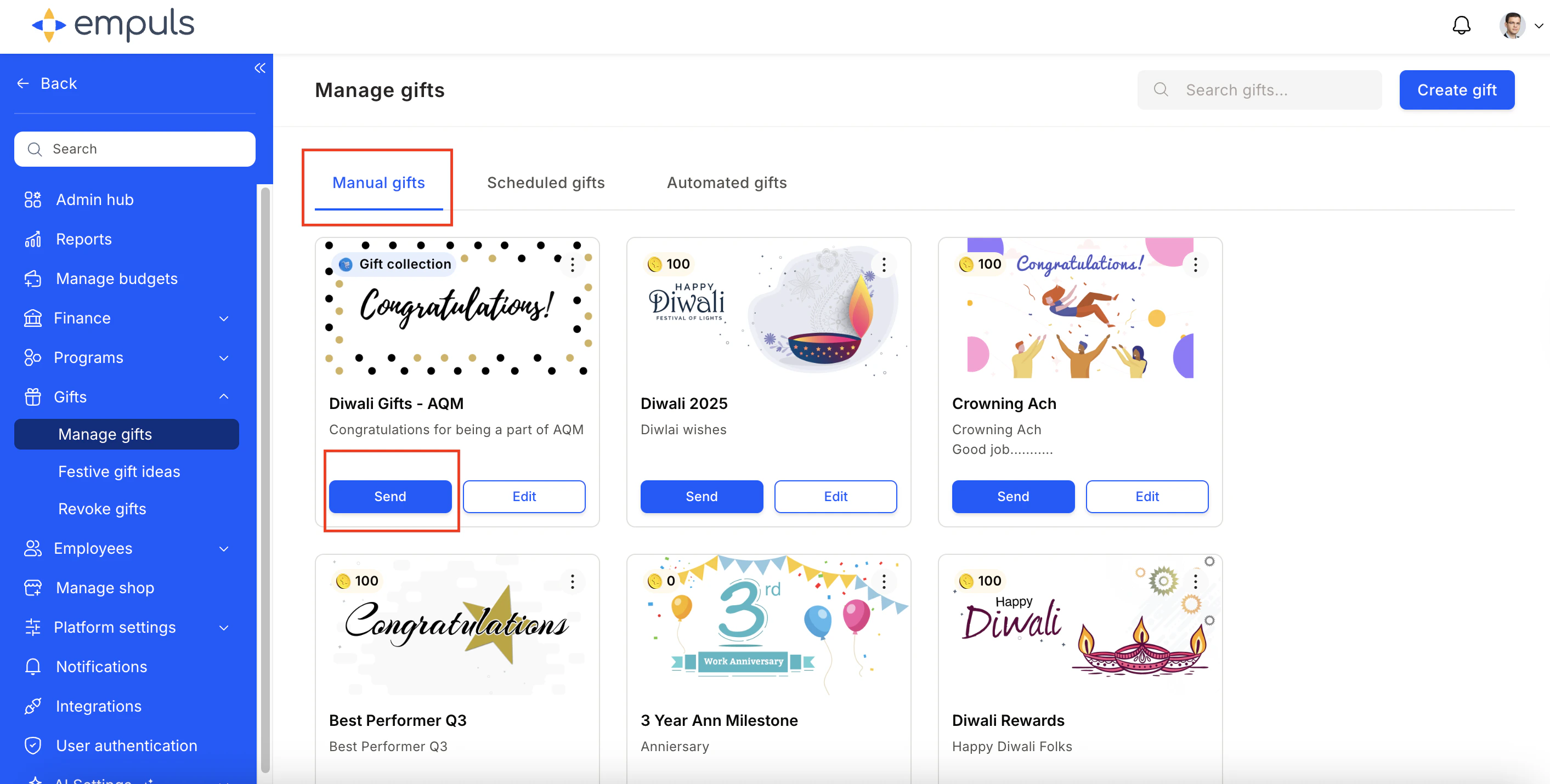
2
Select the event
Find the gift you want to send and click Send Gift.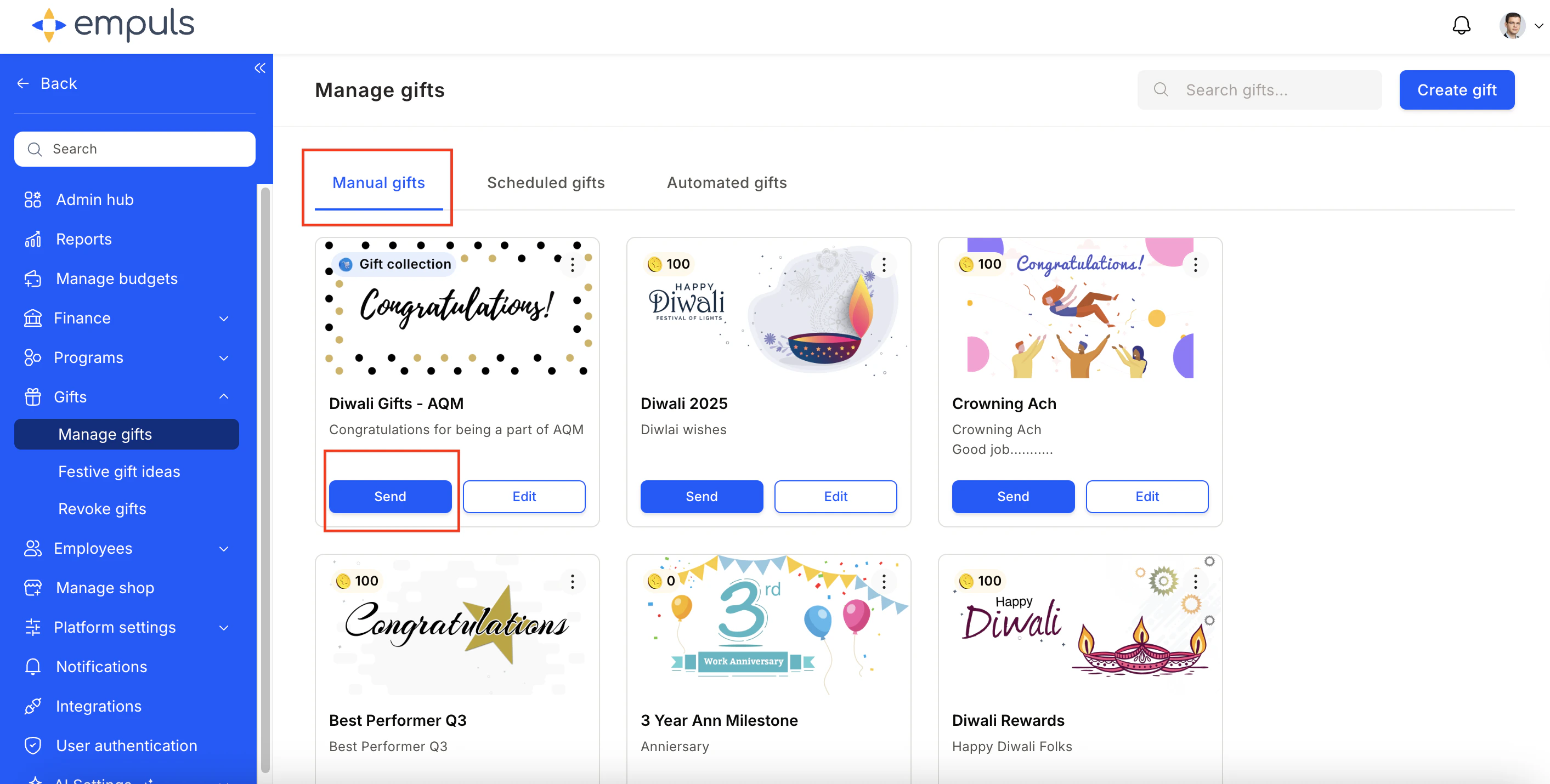
3
Add recipients
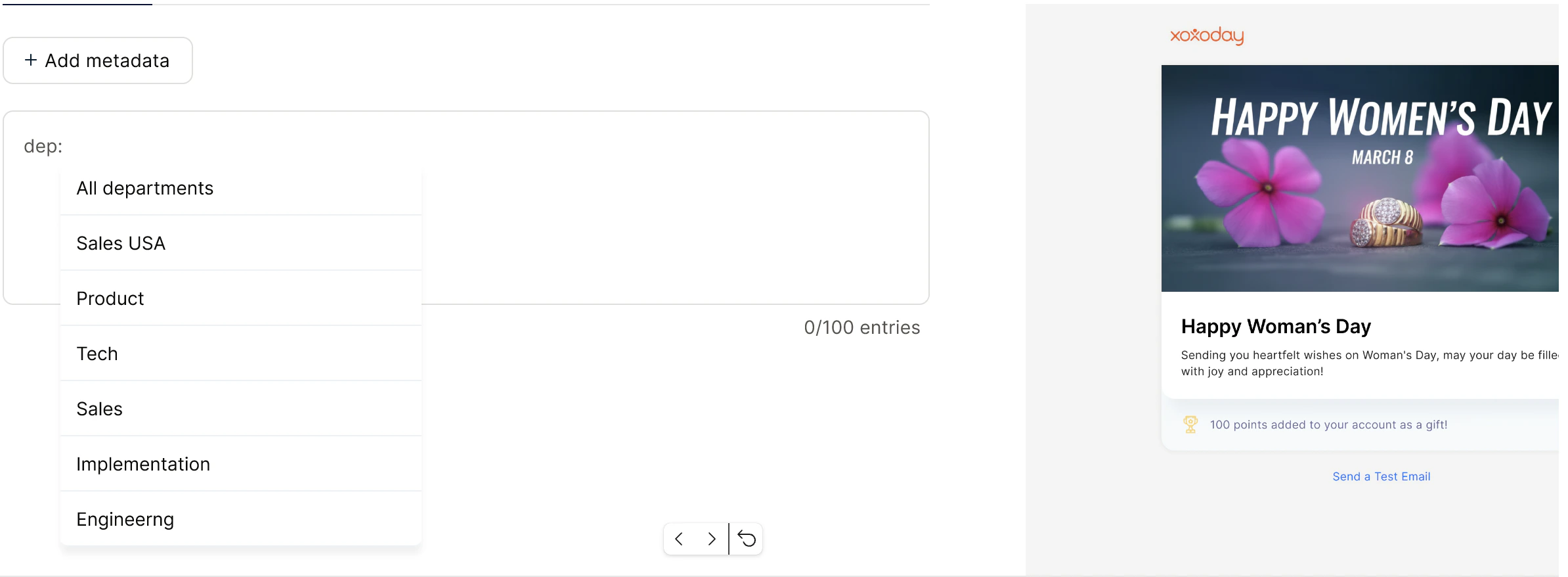
Enter email addresses manually, paste a list, or upload a CSV — up to 300 entries per send. Use audience filters (default metadata fields, custom fields, or relationship fields) to target by department, designation, or other criteria.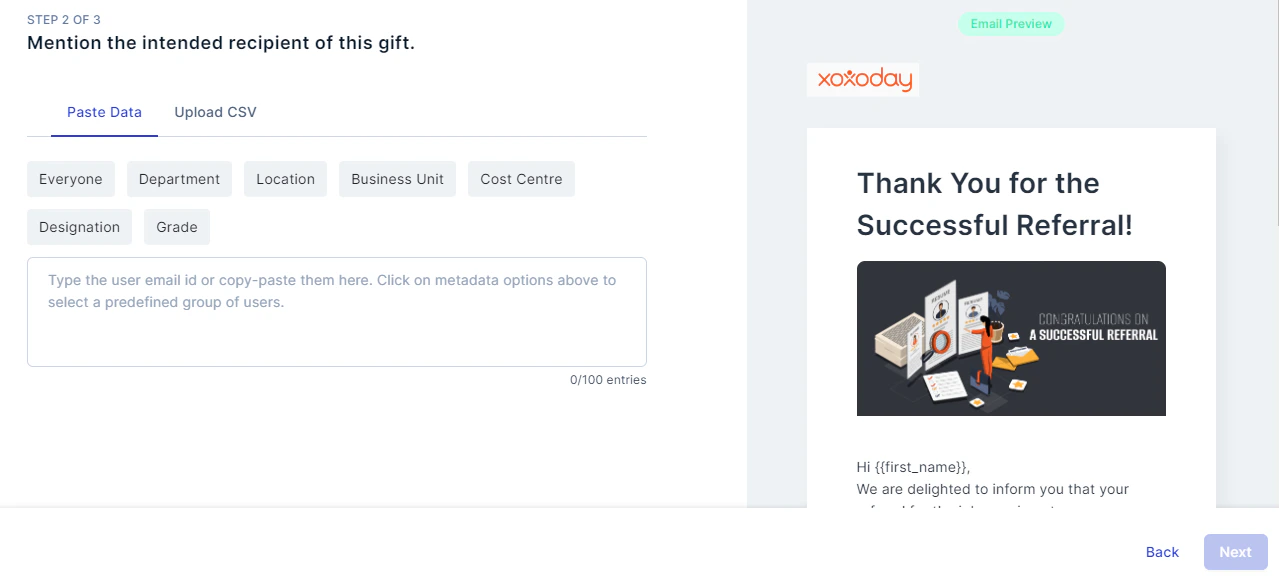
4
Review the gift summary. Click Send Gift to deliver immediately.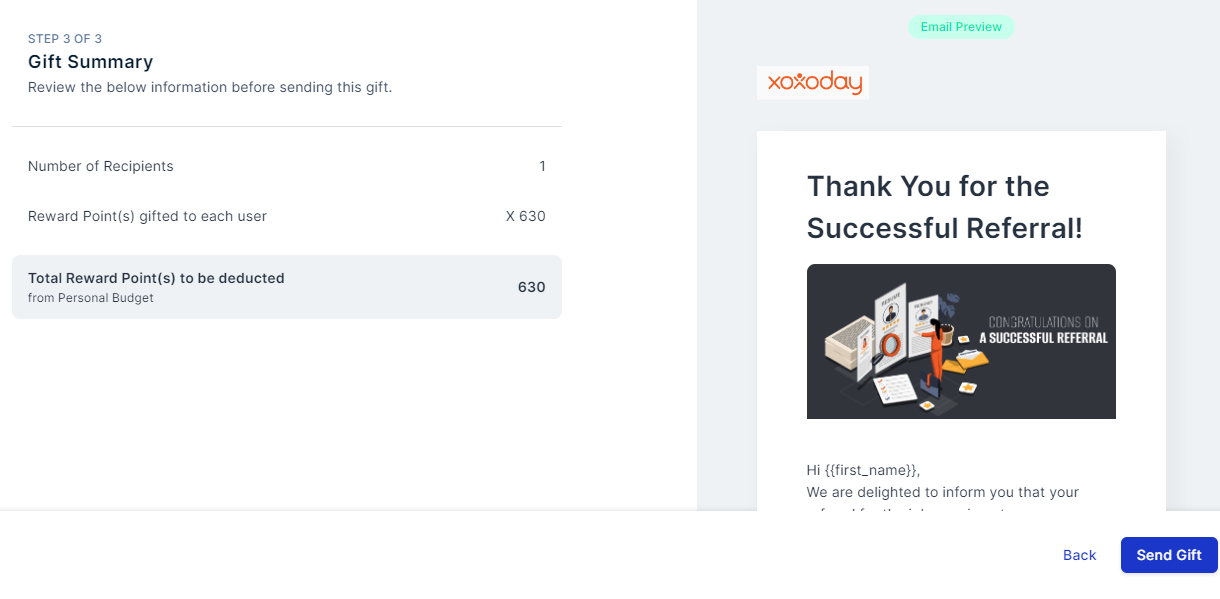
Edit a gift
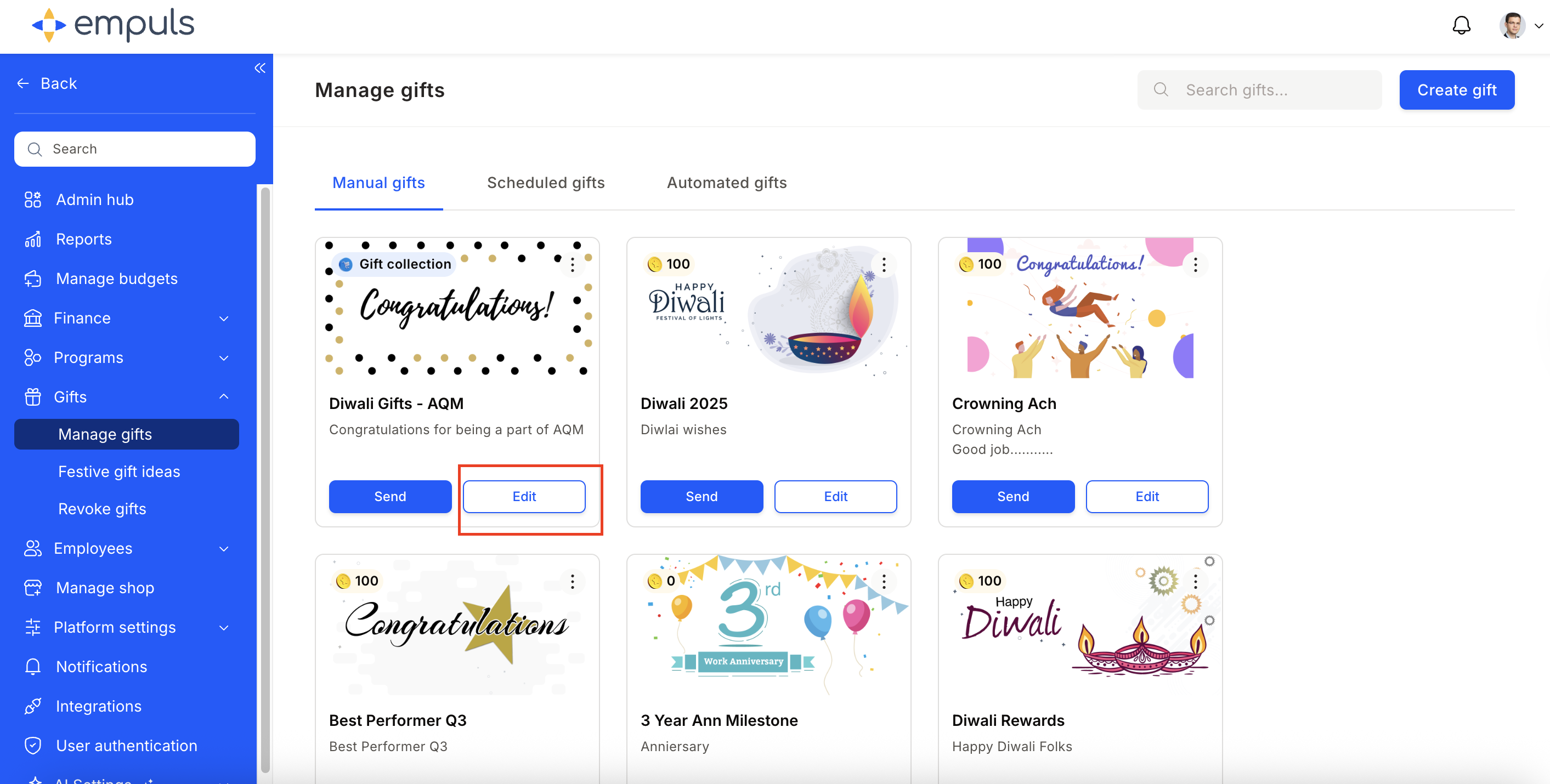
The edit steps differ based on the delivery mode:- Manual gift: Navigate to Gifts > Manage Gifts > Manual Gifts, find the gift, and click Edit.
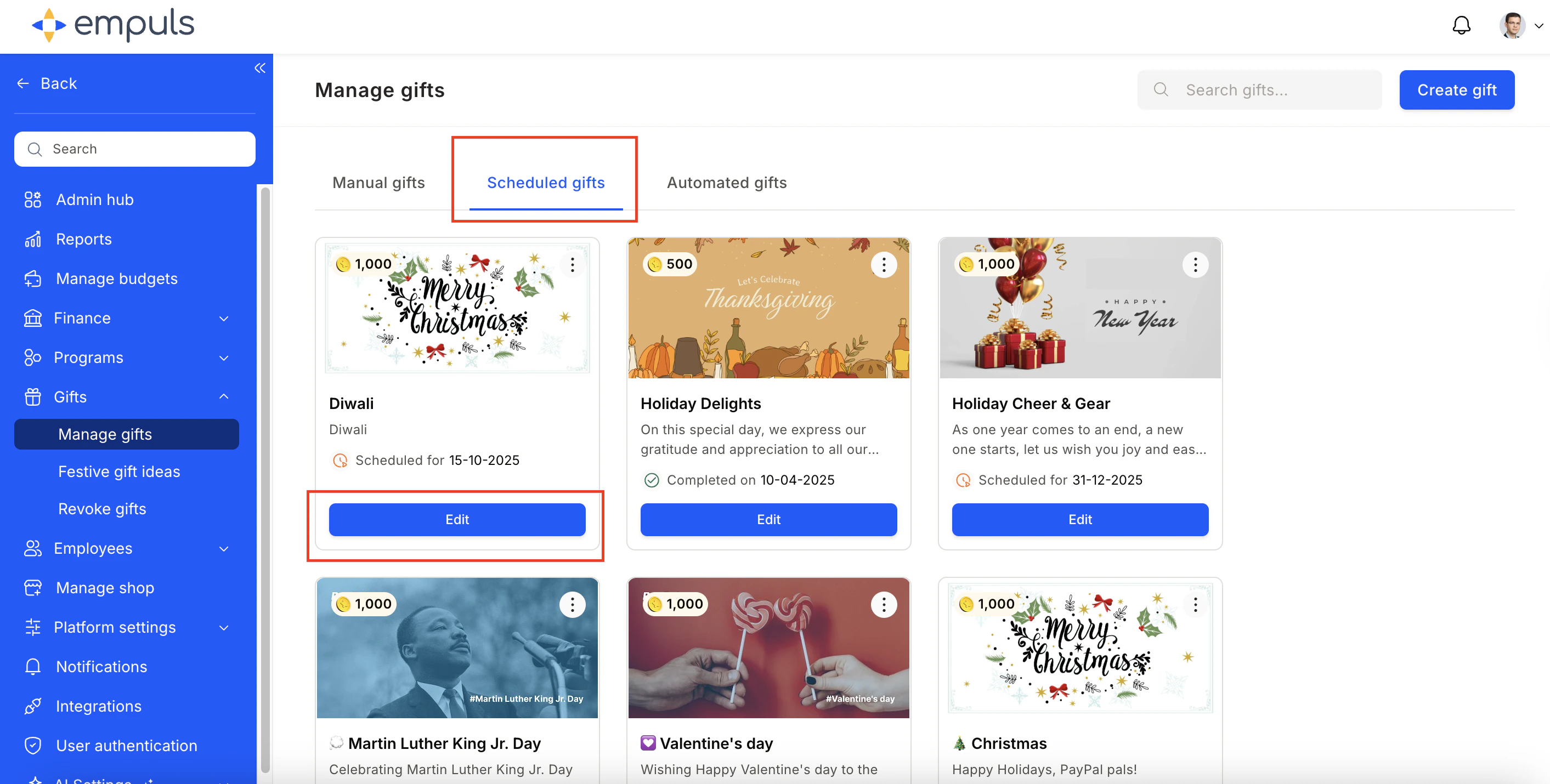
- Scheduled gift: Navigate to Gifts > Manage Gifts > Scheduled Gifts, find the gift, and click Edit.
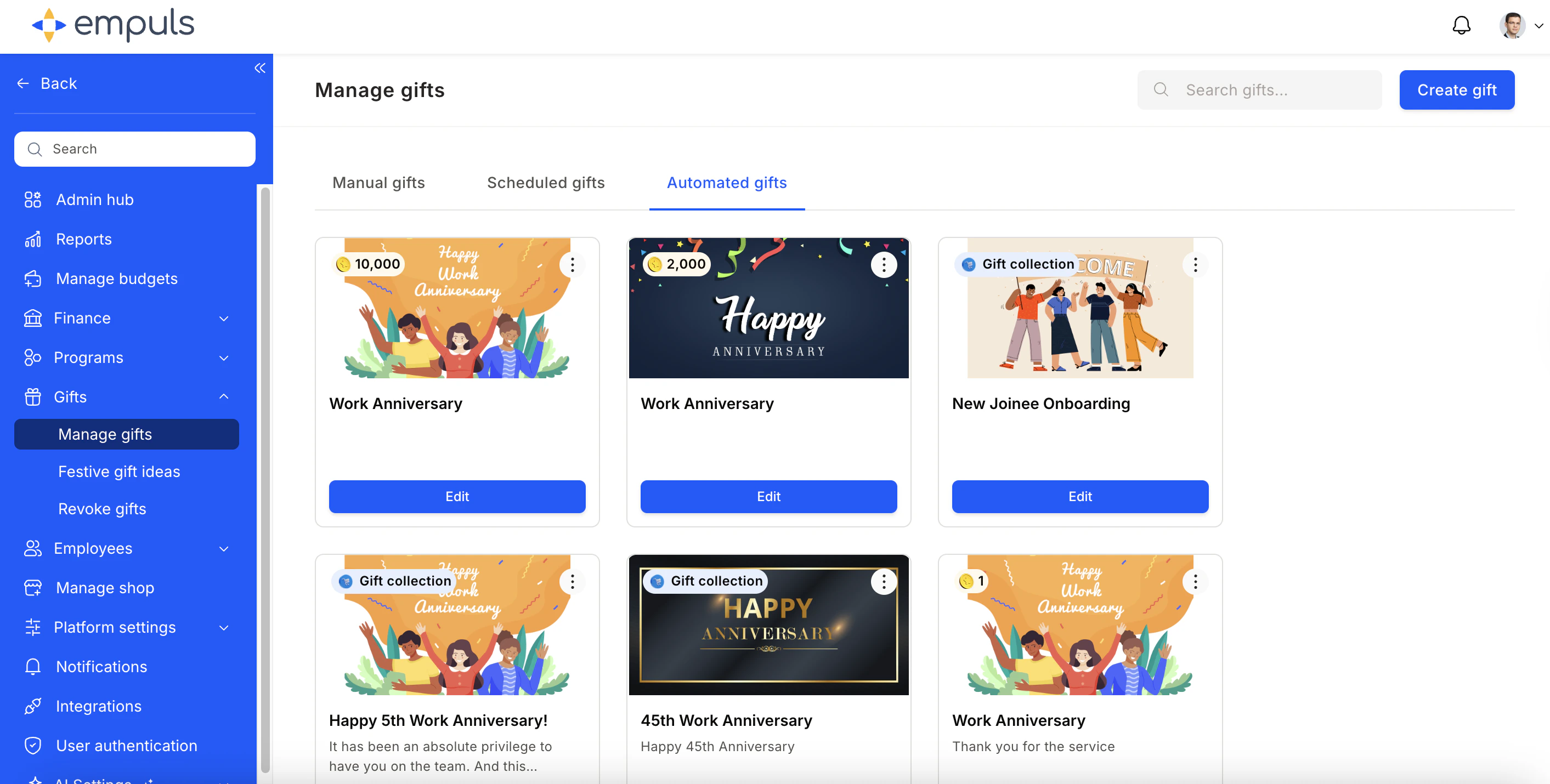
Automated gift: Navigate to Gifts > Manage Gifts > Automated Gifts, find the gift, and click Edit.
Clone a gift
To reuse a manual gift configuration for a new occasion: Navigate to Gifts > Manage Gifts, hover over the gift, and click Make a Copy. A duplicate is created with the same configuration. Update the name, dates, recipients, and visibility settings, then save.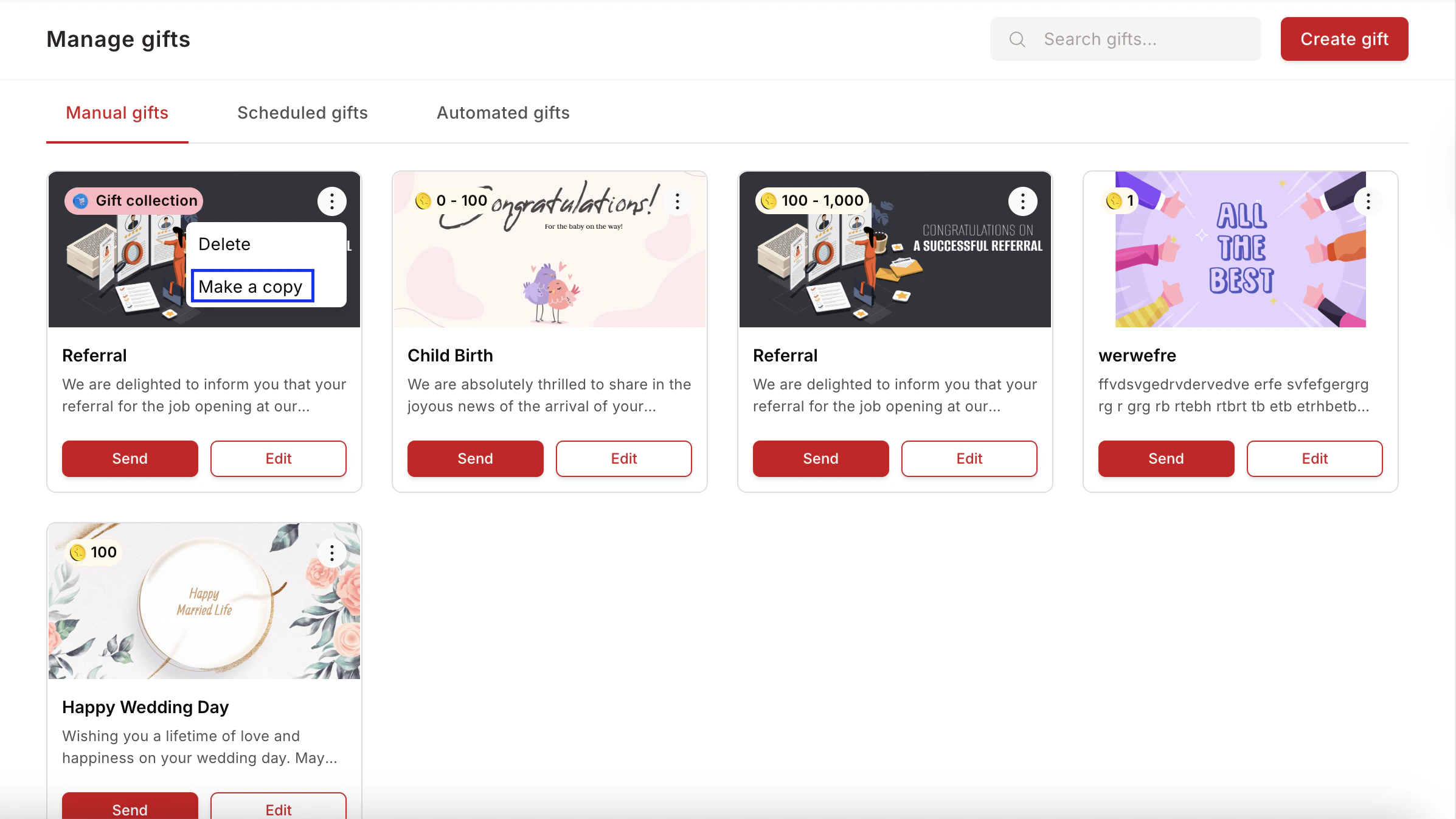
Cloning is available for manual gifts only.
Disable a gift
To stop a scheduled or automated gift from sending further: Navigate to the relevant tab (Scheduled Gifts or Automated Gifts), click the three-dot icon on the gift card, and select Disable. The gift remains in the list but will not trigger until re-enabled.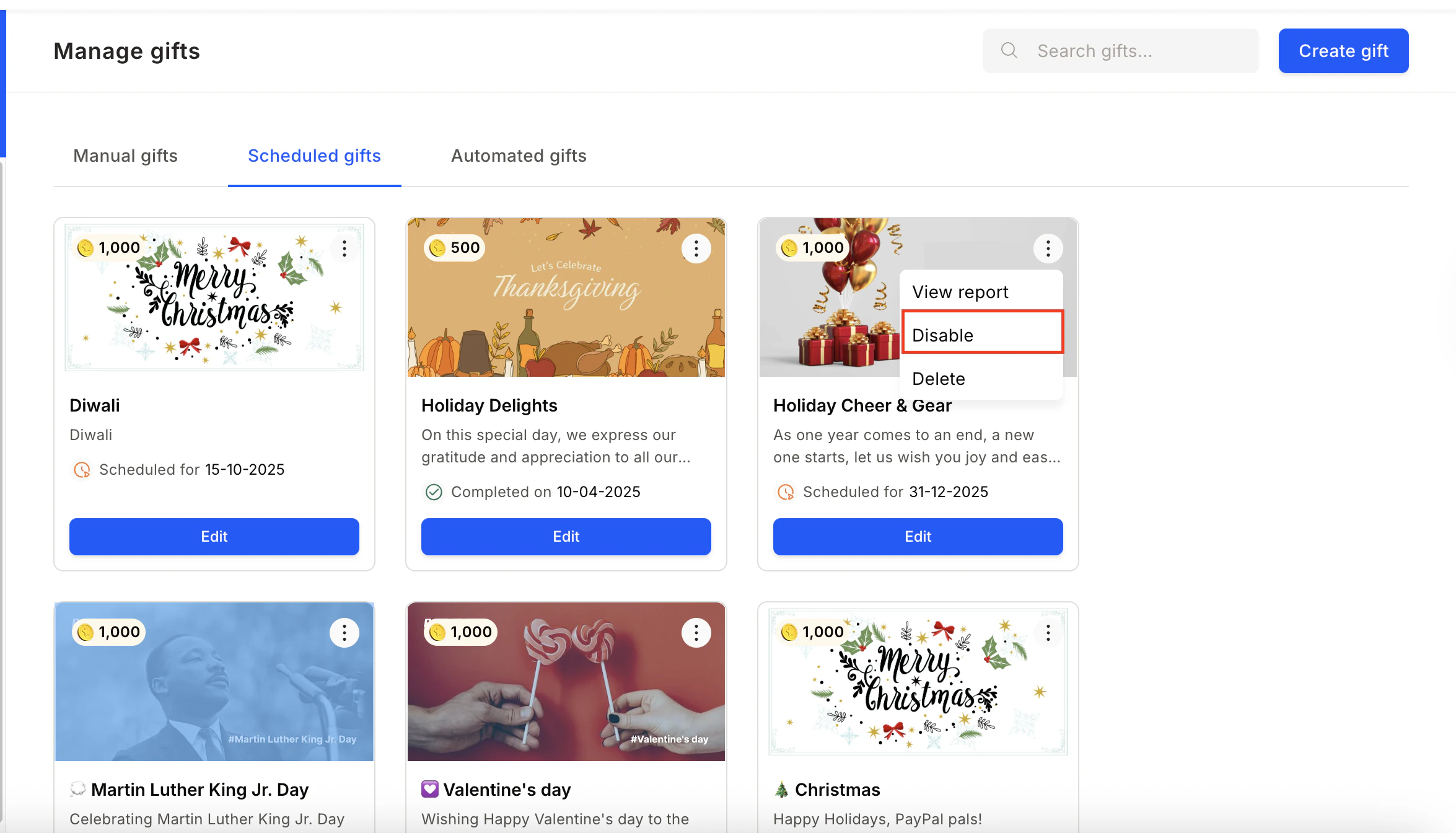
View gift reports
To see the history of a sent or automated gift: Navigate to Gifts > Manage Gifts > Scheduled Gifts or Automated Gifts, click the three-dot icon, and select View Report. The report shows automation details and the full history of individual sends.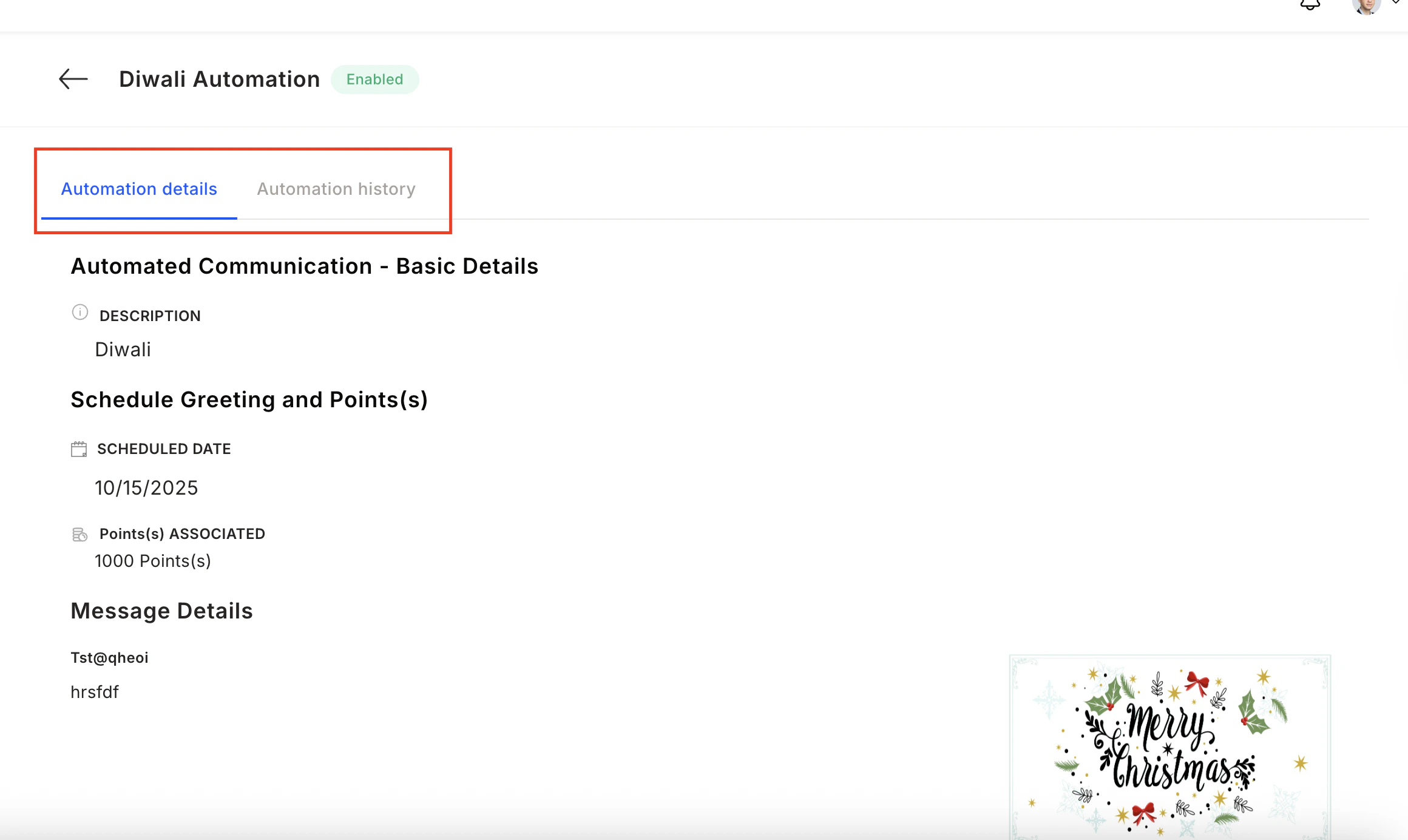
Related
Milestones and service awards
Set up automated work anniversary and birthday recognition programs.
Set up awards and core values
Create performance-based awards with merchandise or point rewards.