
You need a Super Admin, Admin, or Survey Admin role to access survey analytics. Results become visible as soon as sufficient responses are collected.
Navigating to the analytics dashboard
1
Open the survey module
Go to Surveys > Pulse & eNPS Surveys from the left-hand navigation menu.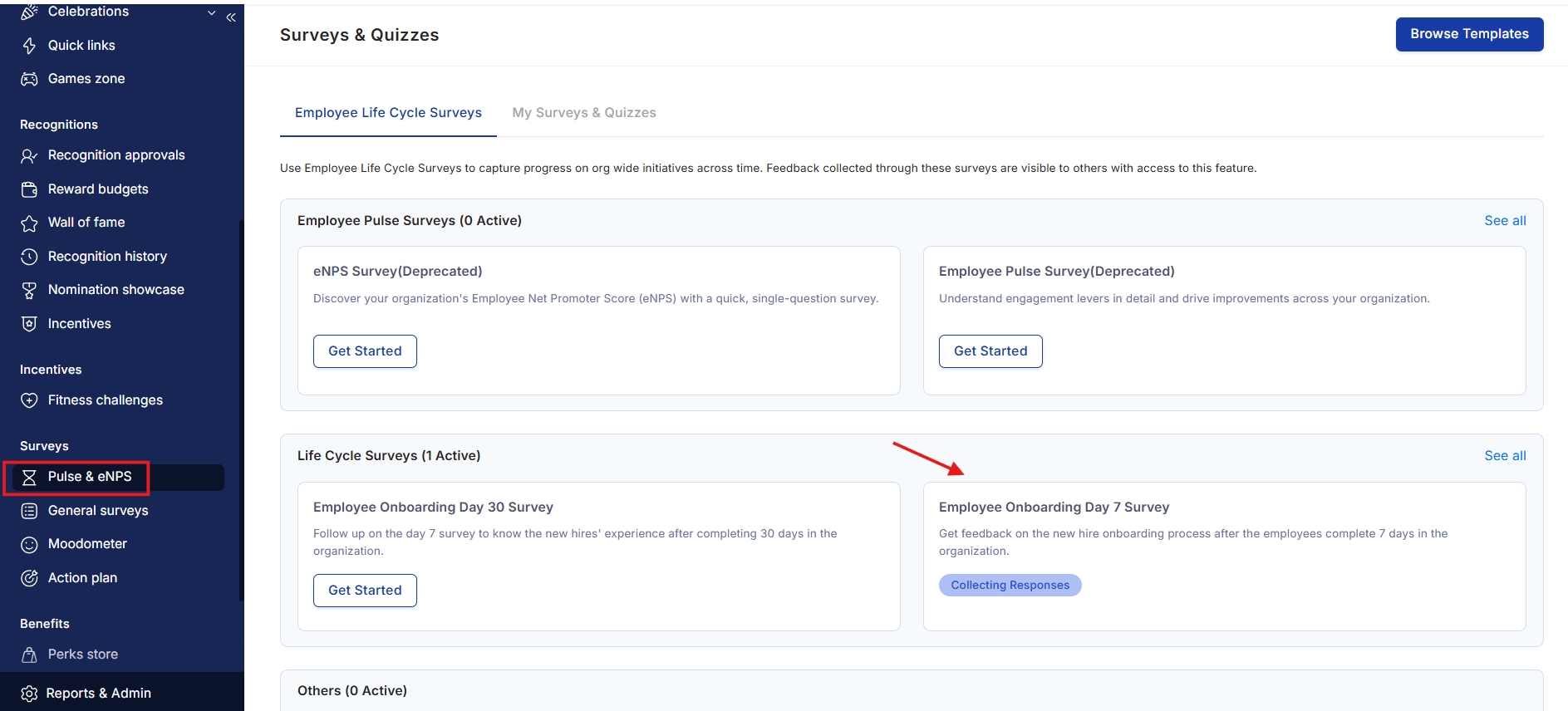
2
Select a survey
Choose any survey that is completed or currently running. Click on the survey name to open its analytics dashboard.
3
Set the time period
Use the date dropdown at the top of the dashboard to select the time period you want to analyze.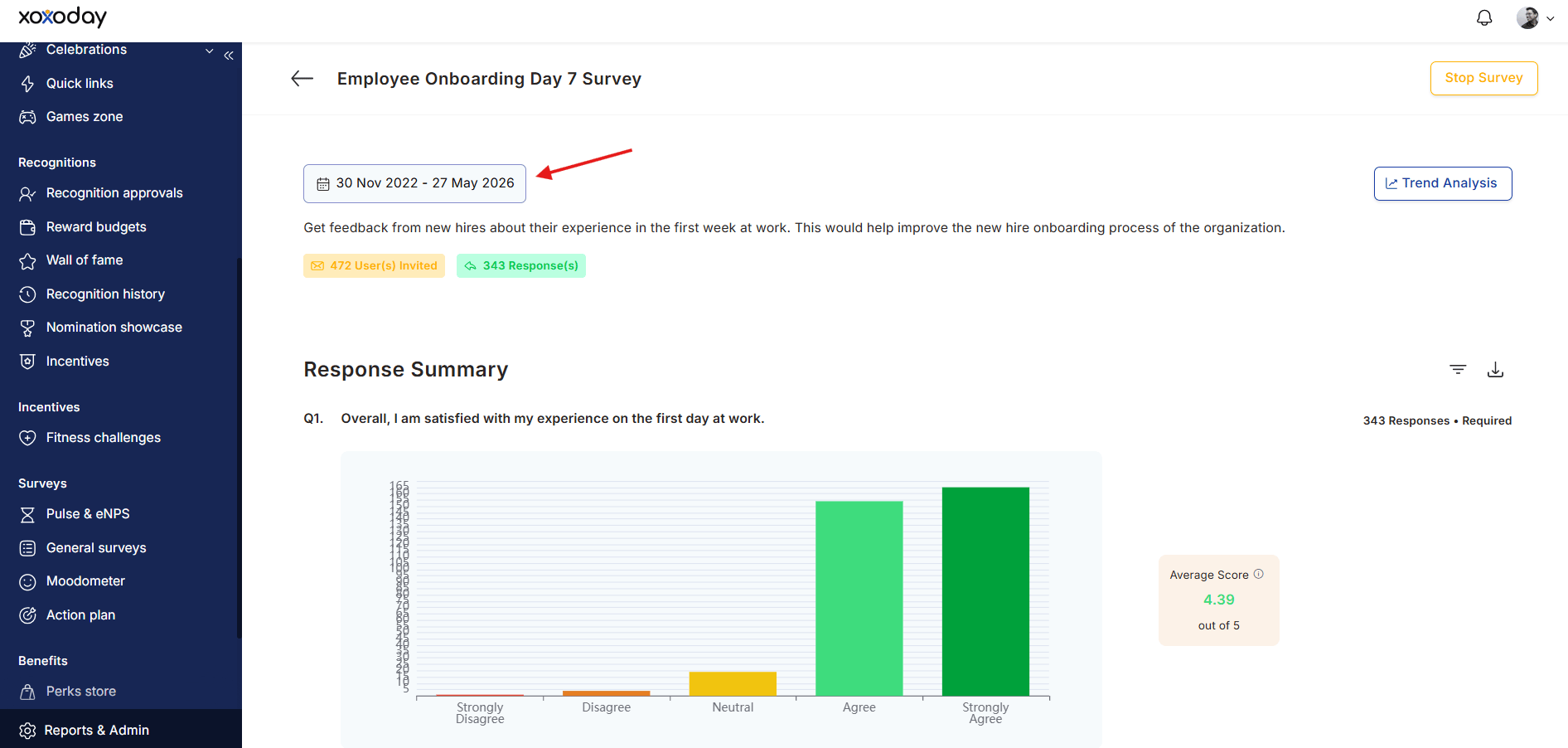
Dashboard sections
Summary — engagement driver scores
The Summary tab displays the average score for each of the four engagement drivers:- Recognition and career growth
- Relationships and culture
- Hygiene factors
- Strategic connect
eNPS scores
The eNPS tab shows the distribution of responses across Detractors, Passives, and Promoters for each eNPS question. Color coding indicates performance level:
The tab also shows your score against a cross-industry benchmark line, helping you contextualize your result.
Engagement drivers detail
The Engagement Drivers tab breaks each of the four drivers into their constituent dimensions — the specific Likert scale questions that feed into each driver. Click the expand icon next to any driver to see its dimensions. Click View next to a dimension to see the specific questions and their responses. Each dimension is categorized as one of: Weakness, At-risk, Acceptable, Improving, or Strength — based on the score and its trend over the last three survey runs. See eNPS and pulse surveys for a full explanation of each category.Feedback comparison (heatmap)
The Feedback Comparison tab displays a color-coded heatmap that lets you compare scores across different employee groups side by side. Higher scores appear in warmer colors; lower scores in cooler colors. Use the dropdown to choose the comparison level:- NPS & engagement drivers — high-level comparison
- NPS, drivers, and dimensions — mid-level comparison
- All NPS & Likert questions — full question-by-question comparison
Compare scores by manager
When you group the heatmap by Manager, a Reports view toggle appears next to the group tabs. Use it to choose whose responses count toward each manager’s row:- Direct: each manager’s row includes only responses from their direct reports.
- All: each manager’s row also includes responses from indirect reports further down their reporting line. Managers appear as an expandable tree under the organization row. Select the expand icon next to a manager to see the managers who report to them, or use Expand all and Collapse all to open or close the whole tree.
Response Rate: 80.00%, i.e 8/10 Responses. The Manager Not Provided row always shows Response Rate: NA.
Groups with fewer than 5 responses display as “NA” to protect respondent confidentiality. Groups not mapped to a user group also display as “NA”.
Likert scale questions
The Likert Scale Questions tab displays every Likert question with its average score and a color-coded response distribution bar. Hover over any bar to see a detailed breakdown of how employees responded across each scale point. Sort questions using the dropdown:- Best to worst — start with your highest-scoring questions
- Worst to best — start with your areas of greatest concern
- Default sort — the original question order
Open-ended feedback and AI summary
The Open Ended Questions tab shows all free-text responses to open-ended questions. Searching responses: Type a keyword in the search box to filter responses and locate specific themes quickly. AI summary: For each open-ended question, Empuls generates an AI-powered summary using Natural Language Processing (NLP). The summary includes:- Sentiment analysis — responses are categorized as Positive, Neutral, or Negative. This gives you an instant read on the overall emotional tone without reading every individual response.
- Insights breakdown by demographics — filter the AI summary by Department, Designation, or Business Unit to pinpoint whether sentiment differs across groups (for example, whether engineers feel differently about work-life balance than sales teams).
- Group analysis — the AI highlights anomalies and contrasts between cohorts. For example, it might flag that one business unit has a 40% lower sentiment score on a specific topic compared to the organizational average.
Filtering and custom views
Filtering data
Click the filter icon to narrow down the dashboard data by:- Business Unit
- Location
- Cost Center
- Designation
- Department
- Tenure
- Grade
Custom views
The custom views dropdown lets you switch between pre-configured views based on access permissions:- Everyone — organization-wide data
- My Team — data for your direct reports
- HRBP View — data for the business units or regions your HRBP role covers
- Custom Access View — any view created and assigned to you
Managing views
Click Manage Views to see all default and custom views. To create a new view:- Click + Create New View at the bottom of the panel.
- Give the view a name.
- Apply the filters that define the audience for this view.
- Click Create to save.
Engagement trends
The trends chart plots eNPS values (on the Y-axis) across the last six survey runs, alongside a confidence range and the industry benchmark line (shown in green). This helps you answer questions like:- Is engagement improving, declining, or holding steady?
- Are we above or below the industry benchmark?
- Did a specific organizational change correlate with a shift in scores?
Downloading survey reports
Click the download icon at the top of the dashboard to export the full survey report. Reports are available as PDF, PowerPoint (PPT), or CSV, and include all scores, distributions, and open-ended responses.Managing download availability
You can control which report formats are available to viewers of a survey run. This is useful when you want to share dashboard access with stakeholders but keep raw response data (CSV) internal, or restrict distribution to a single format.1
Open the survey run
From Surveys > Pulse & eNPS Surveys, open the survey and select the run you want to configure.
2
Open the actions menu
Click the more actions (⋯) menu in the top-right of the survey details page and select Manage downloads.
3
Choose the formats to allow
Turn on the checkboxes for PPT, PDF, and CSV to enable those download options. Turn a checkbox off to hide that format from every viewer of the run.
4
Save
Click Save. The download menu on the dashboard updates immediately.
All formats are enabled by default. Disabling every format hides the download icon entirely for that run.
Adoption summary
Click Adoption Summary to view the response rate across user groups. The graph uses color coding to show:- Completed — employees who finished the survey
- Partial response — employees who started but didn’t finish
- No response — employees who did not open the survey
Sharing results with stakeholders
To share survey highlights with leadership or HR business partners:- Download the full PDF, PPT, or CSV report using the download icon (formats can be restricted per run — see Managing download availability)
- Share a filtered custom view by creating a view scoped to the relevant department or business unit, then sharing the link
- Export individual sections (such as the engagement driver breakdown) directly from the relevant tab
FAQs
When do results appear in the dashboard?
When do results appear in the dashboard?
Results appear in real time as responses come in. A minimum of 5 responses is required for a data point to display — groups with fewer responses show as “NA”.
Can I filter survey results by department or location?
Can I filter survey results by department or location?
Yes. Use the filter icon at the top of the dashboard and select the criteria you want. The entire dashboard updates to reflect the filtered view.
How often should I review survey analytics?
How often should I review survey analytics?
Review results after every completed survey run, and track trends quarterly to identify meaningful patterns. For recurring surveys, check the adoption summary mid-run to send reminders to non-respondents.
Can I compare results across different survey runs?
Can I compare results across different survey runs?
Yes. Use the date selector to navigate between runs, and the trends charts to overlay multiple runs on a single timeline.
Who can see survey analytics?
Who can see survey analytics?
Access is controlled by role. Super Admins and Survey Admins see organization-wide data. HRBP views are scoped to specific business units. Custom views can be configured for specific managers or stakeholders.
Related
eNPS and pulse surveys
Understand how scores are calculated and what engagement drivers mean.
Create surveys
Full guide to building and sending surveys.
Lifecycle surveys
Configure milestone-triggered surveys for onboarding, exit, and more.