
Automated gifts are occasion-based rewards that Empuls delivers without any manual trigger. Configure them once and Empuls fires them every time the trigger condition is met — on every birthday, every work anniversary, or every new joiner’s first day. Each automation can carry reward points, a merchandise or gift-card collection, or just a personalised message.
Birthday and work-anniversary greetings are generated automatically as soon as an employee’s date of birth (DOB) or date of joining (DOJ) is added to Empuls via their profile or HRMS sync. You do not need to create a separate greeting for each individual.
Common automated events
Create an automated gift
1
Navigate to Manage Gifts
Go to Admin Dashboard > Gifts > Manage Gifts and click Create Gift.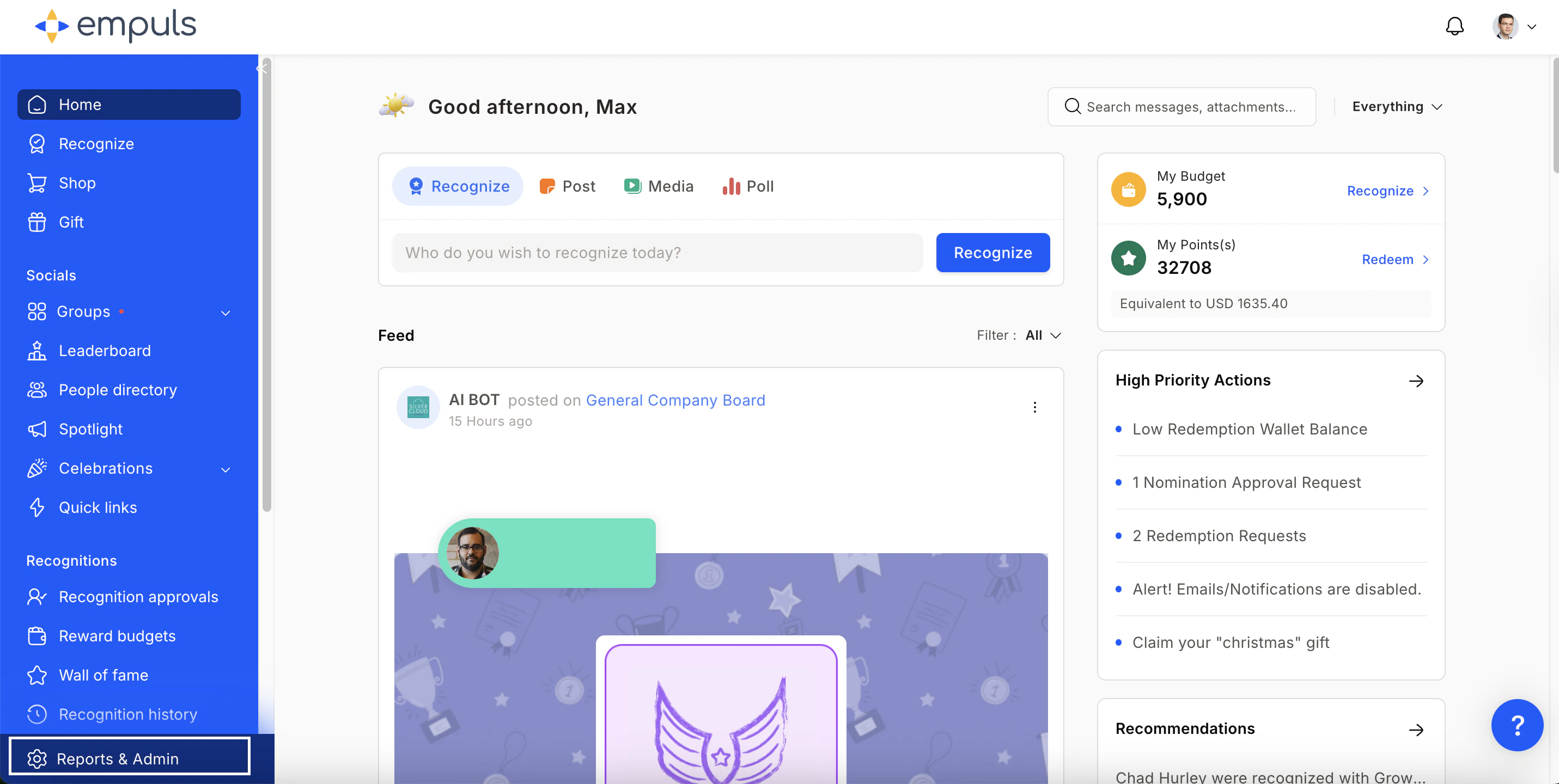
2
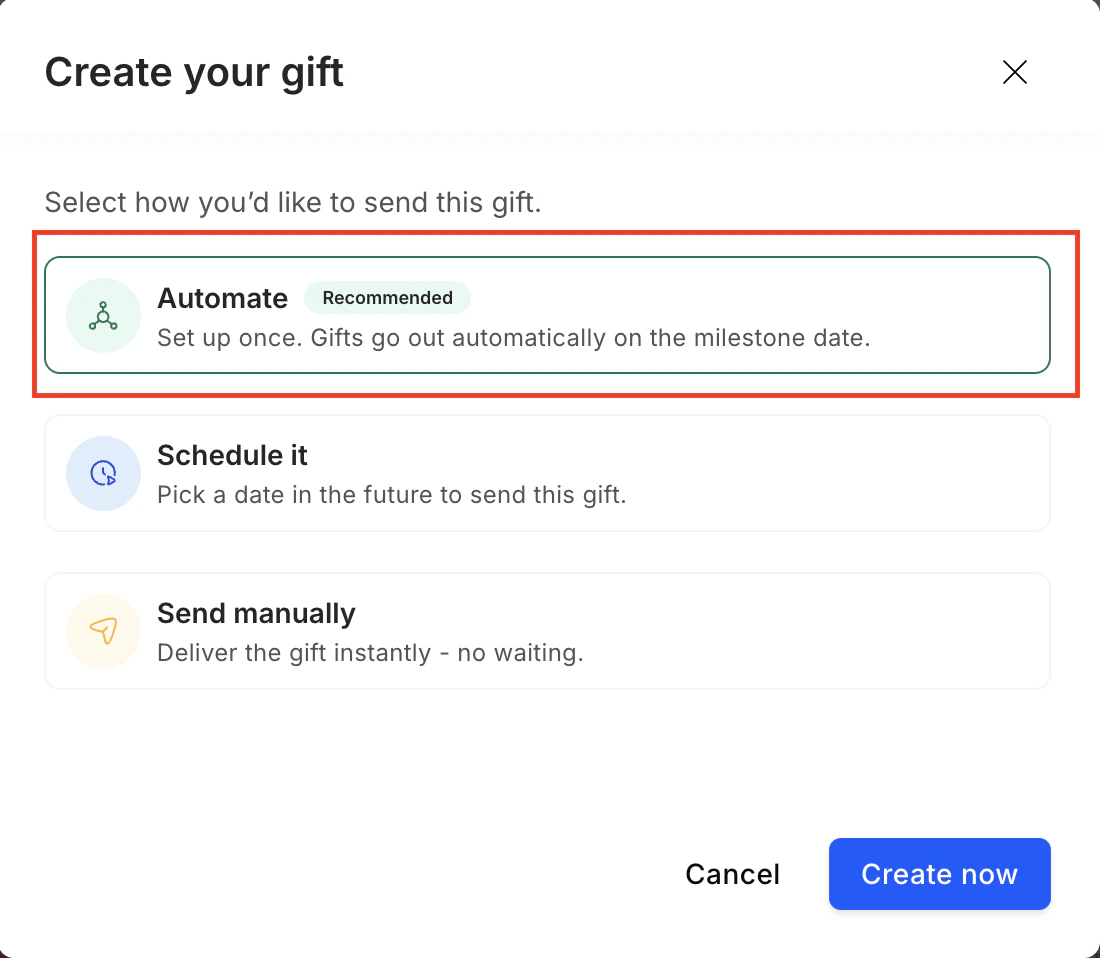
Select Automate
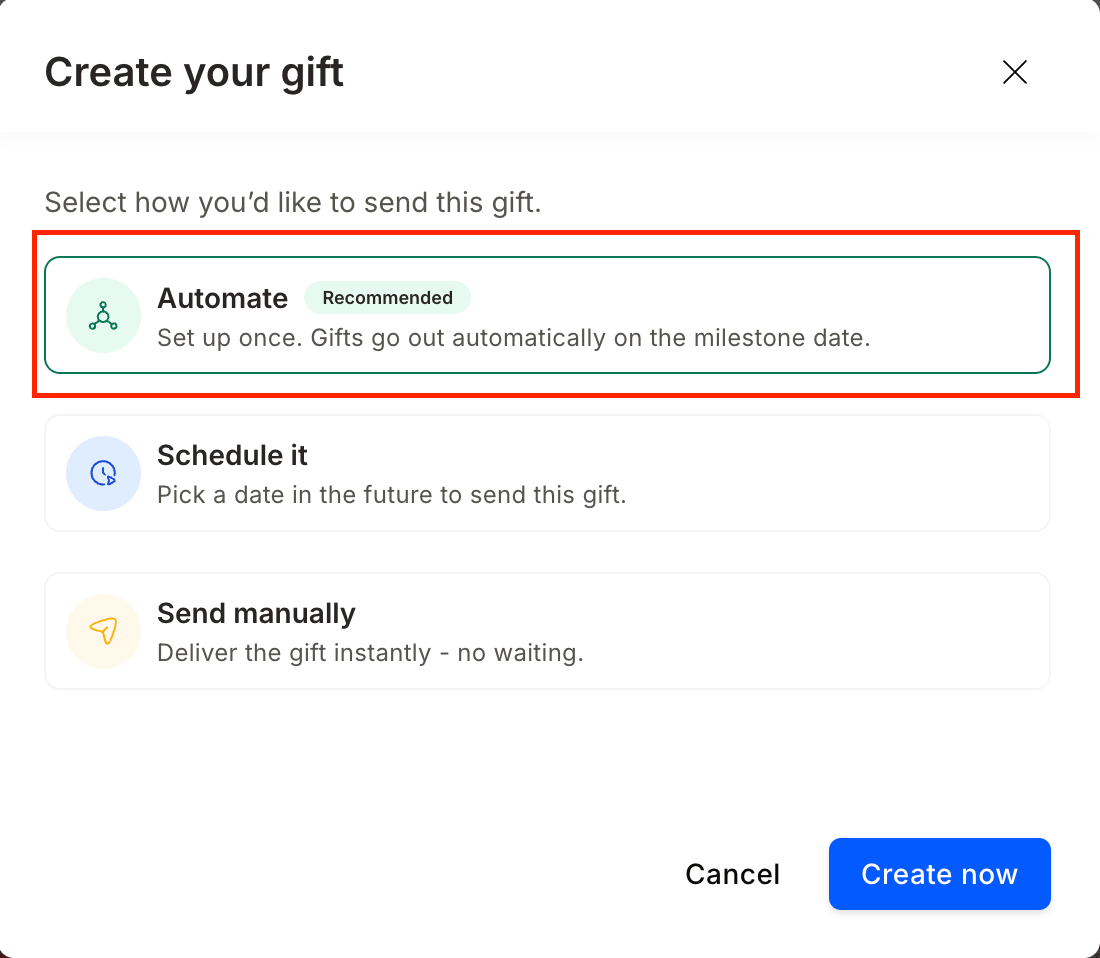
Choose Automate and click Create.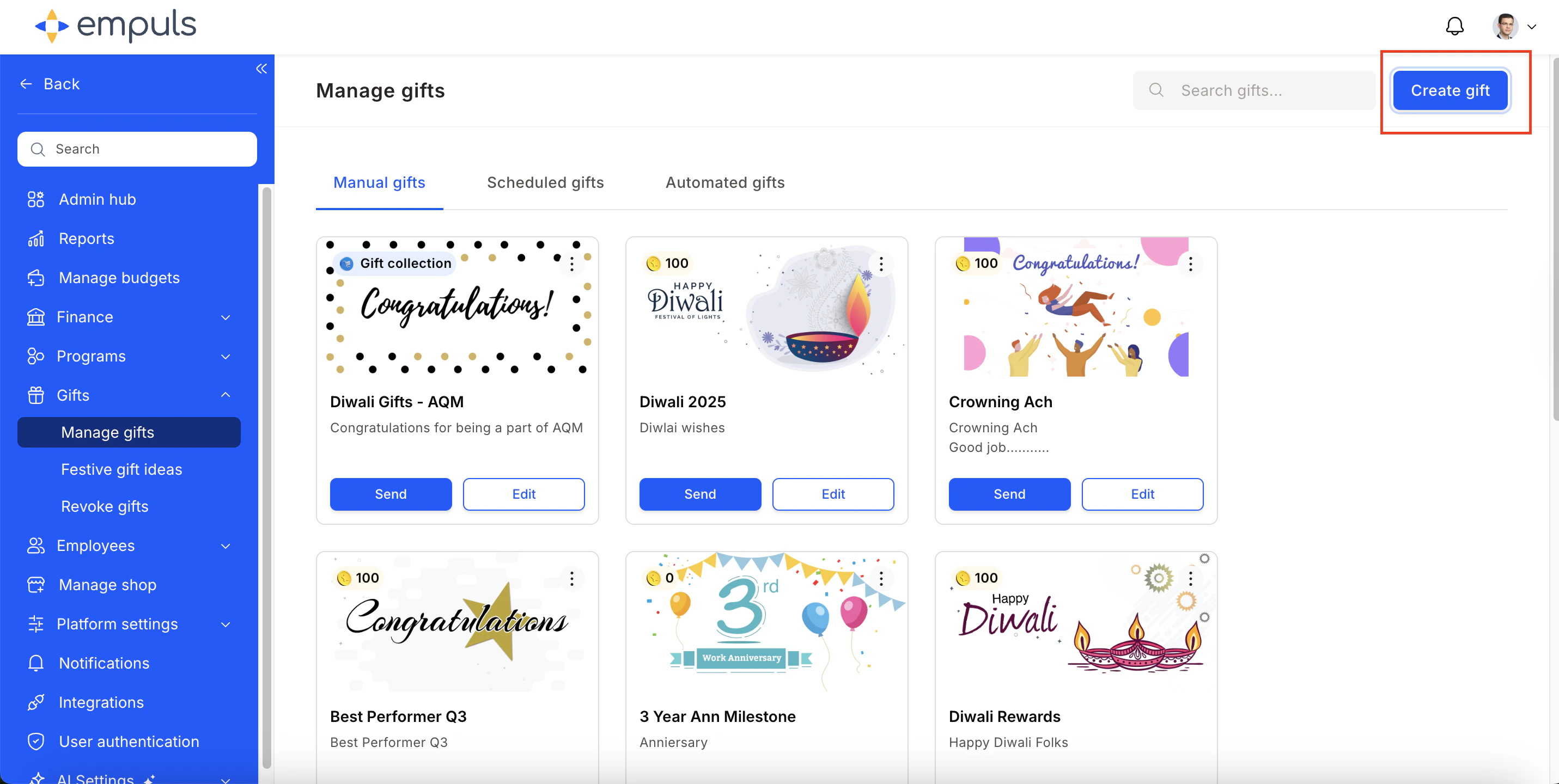
3
Start the setup wizard
Click Let’s Begin to open the step-by-step configuration form.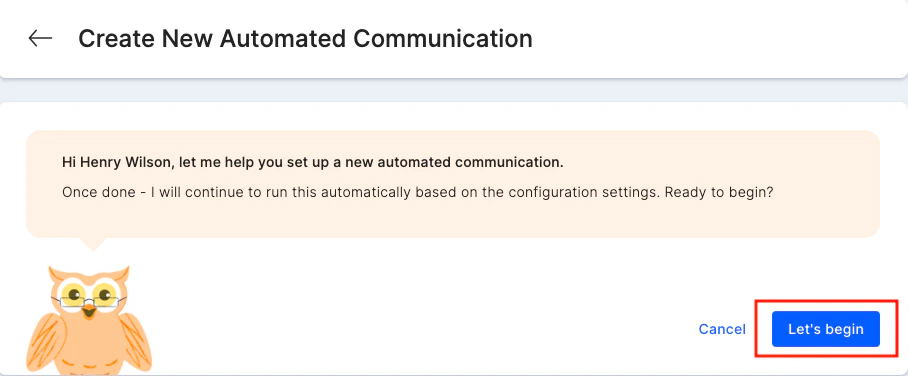
4
Select the trigger event
Choose the lifecycle event — Birthday, Work Anniversary, New Joiner, Festive, or a custom event.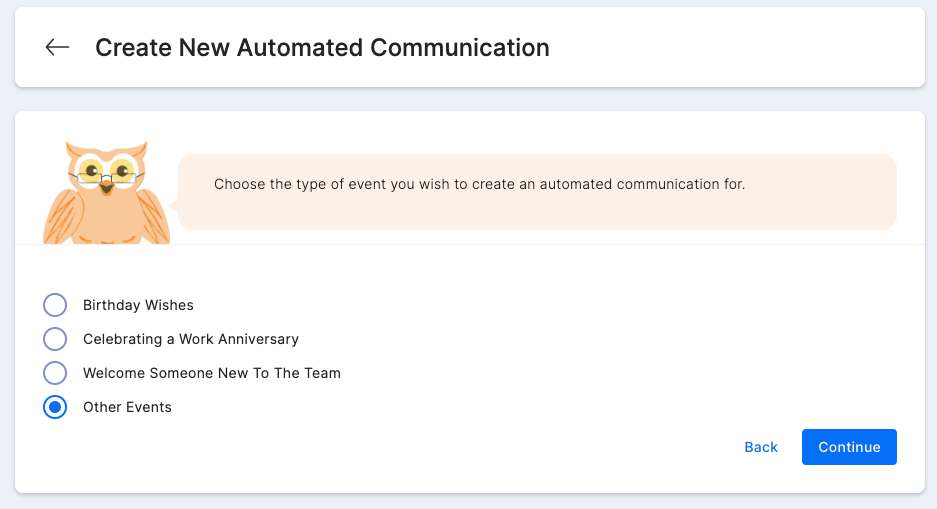
5
Enter gift details
Fill in the Greeting Name, Description, and any stakeholders (such as the recipient’s manager) who should be notified when the gift fires.After you add at least one stakeholder, choose how Empuls notifies them: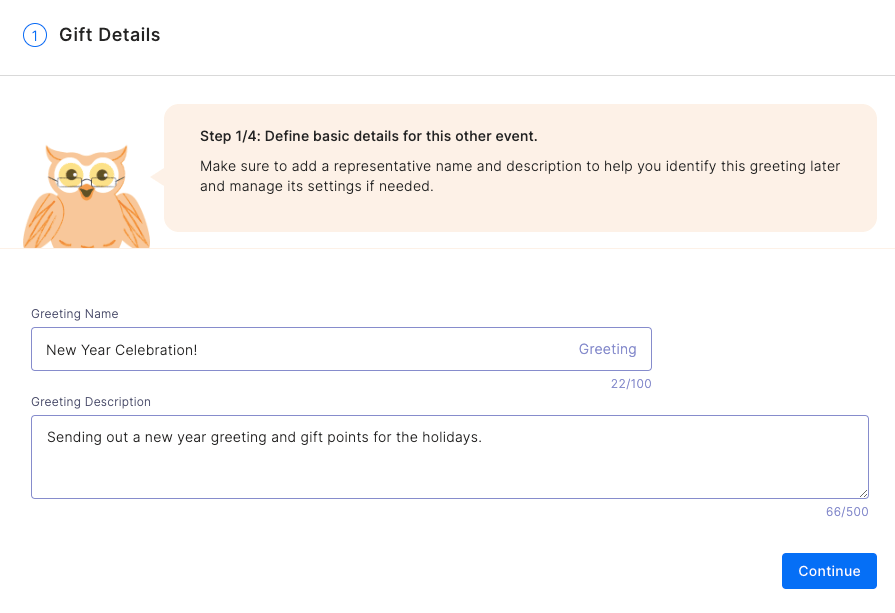
- Send stakeholders a separate email (default): Stakeholders receive their own notification, apart from the recipient’s gift email.
- CC stakeholders on the gift email: Empuls adds stakeholders in CC on the recipient’s gift email instead of sending them a separate one.
6
Configure the reward
Choose one of three reward options: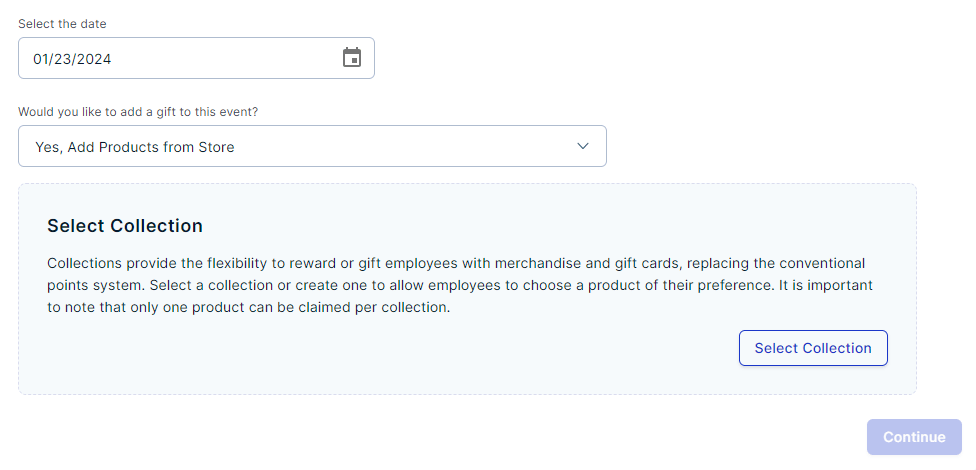
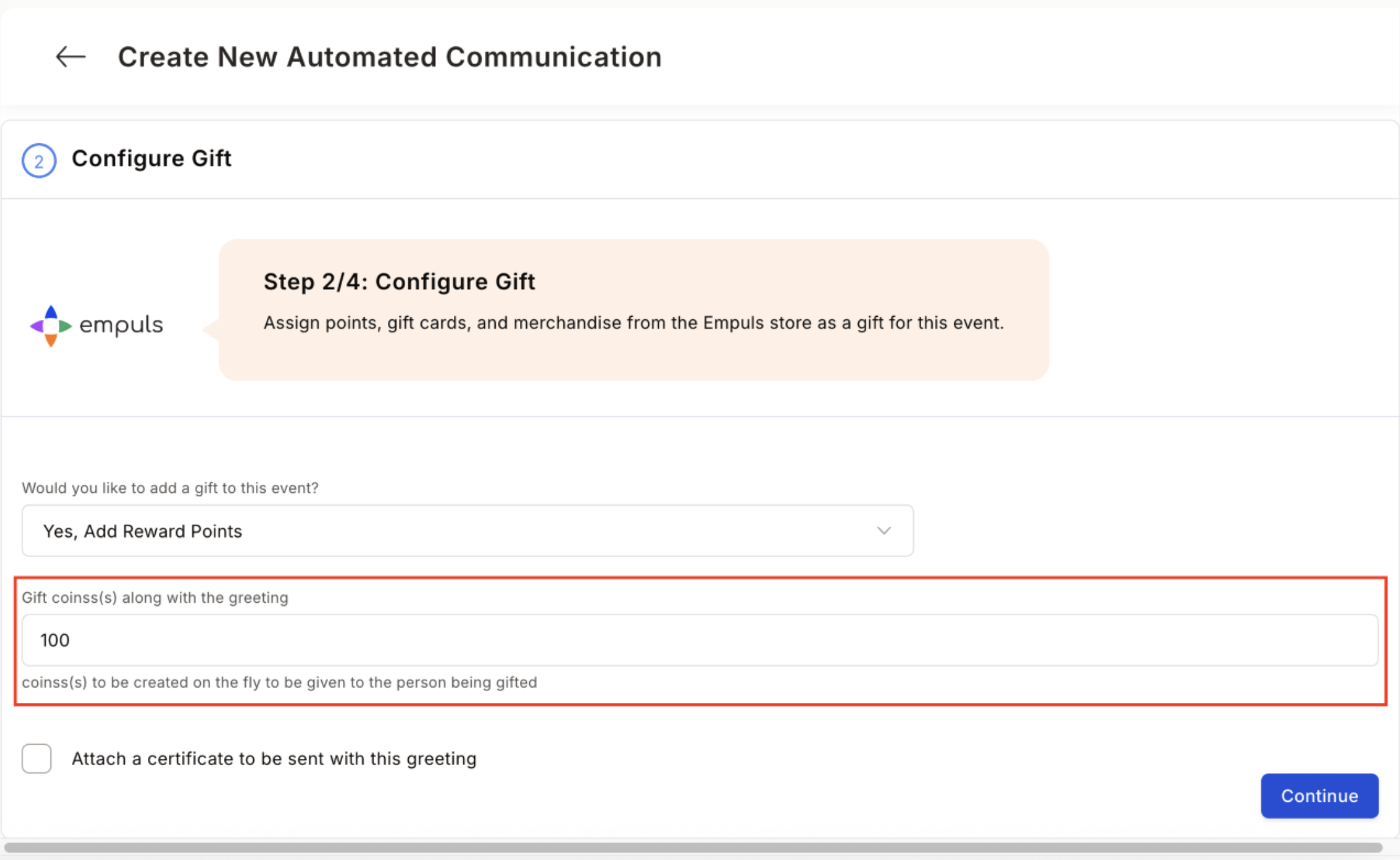
- Reward points — Enter the points amount to credit to the recipient’s account.
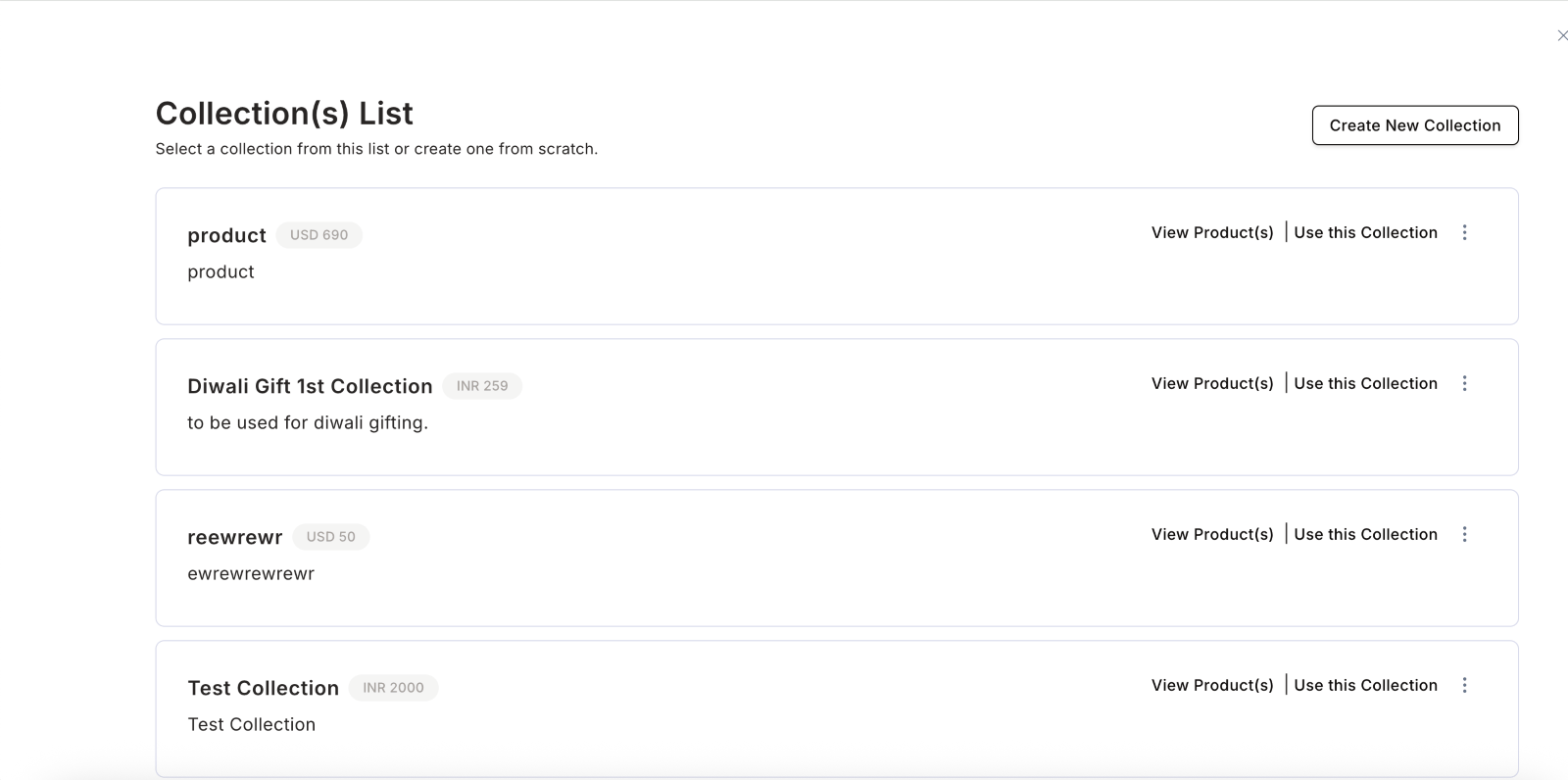
- Products from the store — Link a merchandise or gift-card collection (see Physical and product-based gifts).
- Non-monetary — Send a personalised greeting without any monetary reward.
7
Compose the message
Write the message title and body. Use placeholders — 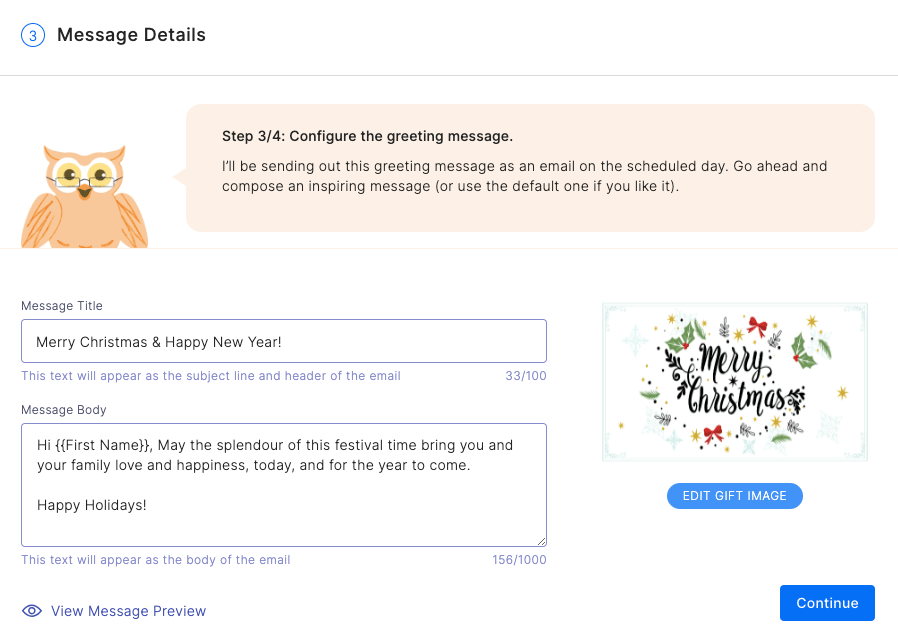
{{First Name}}, {{completed_year}}, {{department}} — so each recipient gets a personalised message.8
Define recipients and confirm
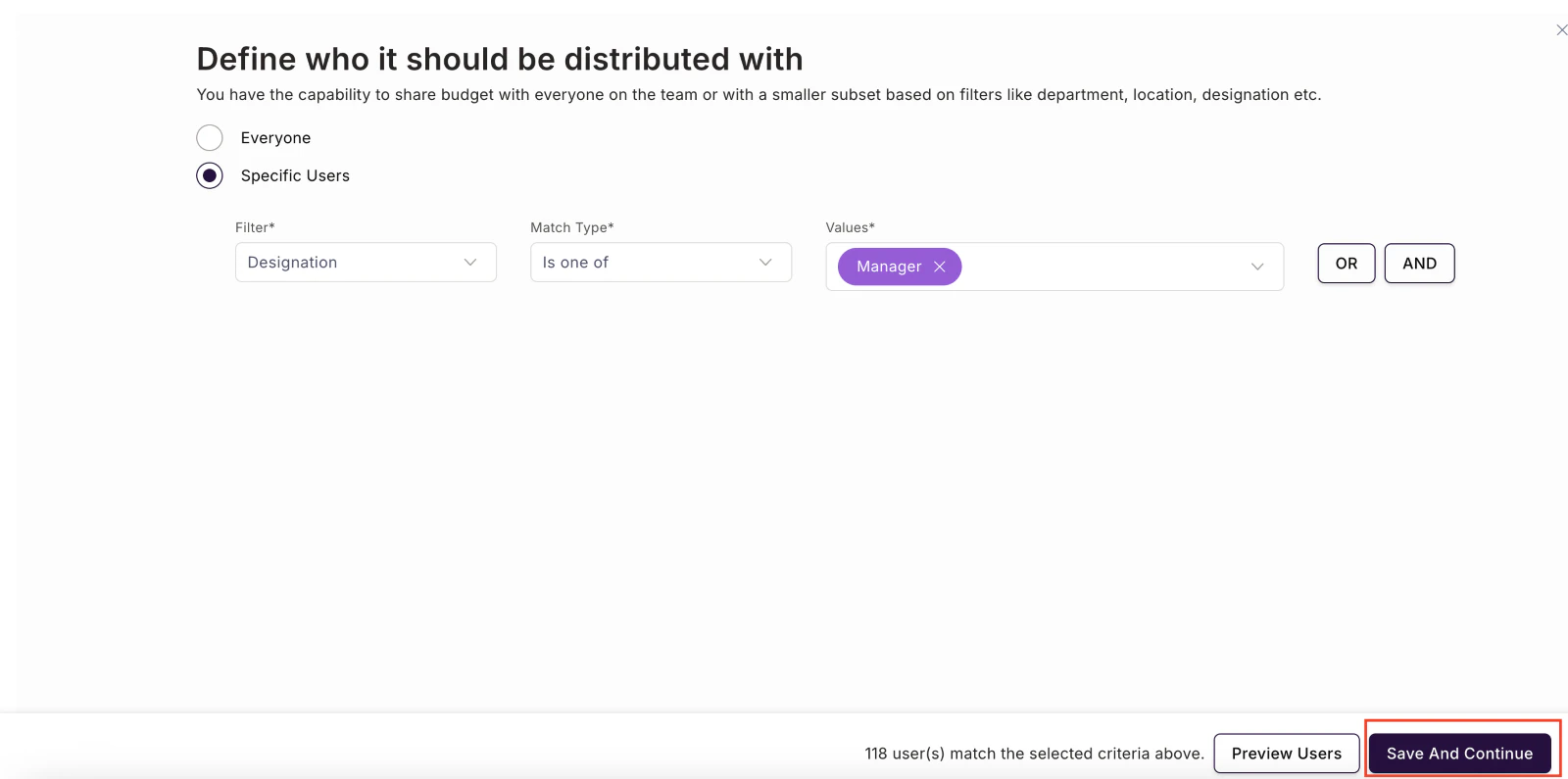
Specify the audience using filters (department, designation, location, or custom fields). For standard lifecycle events, Empuls determines recipients automatically from employee data. Review the summary and click Confirm and Create.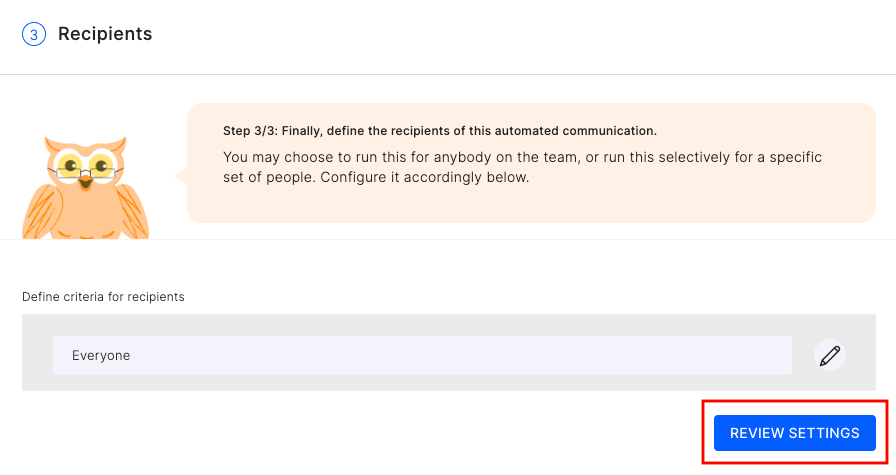
Service award automation (milestone years)
Service awards automatically celebrate employees on their work anniversary milestones — year 1, 3, 5, 10, and beyond. Empuls reads each employee’s date of joining from your HRMS and triggers the award on the anniversary date with no manual effort from HR. Key features of service award automations:- Tiered rewards — Create separate automations for each milestone year with different point values, gift collections, and certificate designs.
- Yearbook — A digital keepsake compiled from all feed posts and wishes on the anniversary day.
- Wishboard — Colleagues post personalised messages; AI suggestions make it quick for busy teammates.
- Branded certificates — Downloadable certificate templates tailored to each milestone year.
- Multi-channel notifications — Award winners are notified via Microsoft Teams, Slack, and email (based on your integrations).
Set up a service award automation
1
Navigate to gift automation
Go to Admin Dashboard > Gifts > Manage Gifts > Create Gift and select Automate.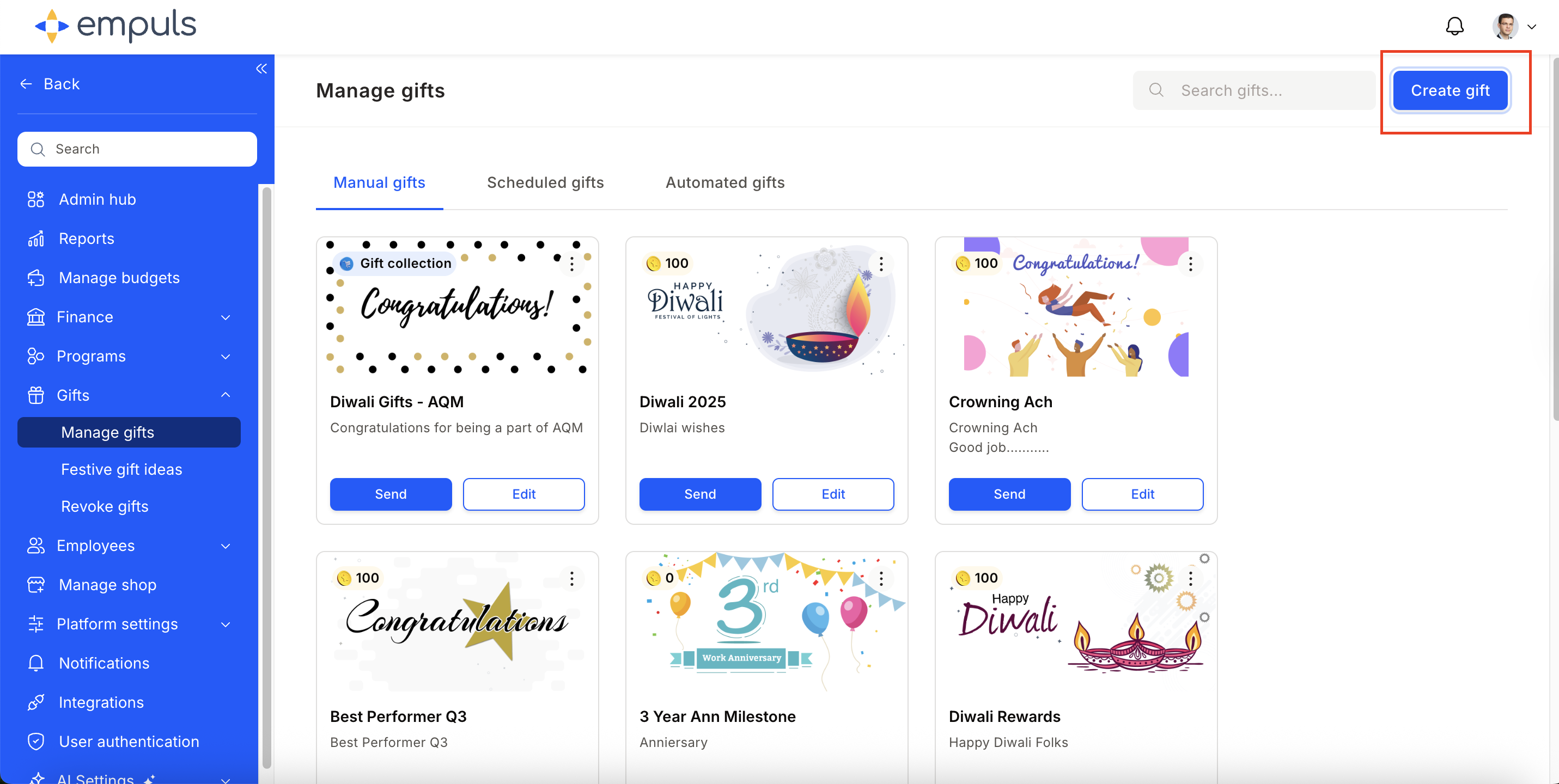
2
Select the work anniversary event
Click Let’s Begin, then select Celebrating a Work Anniversary from the event template list. Click Continue.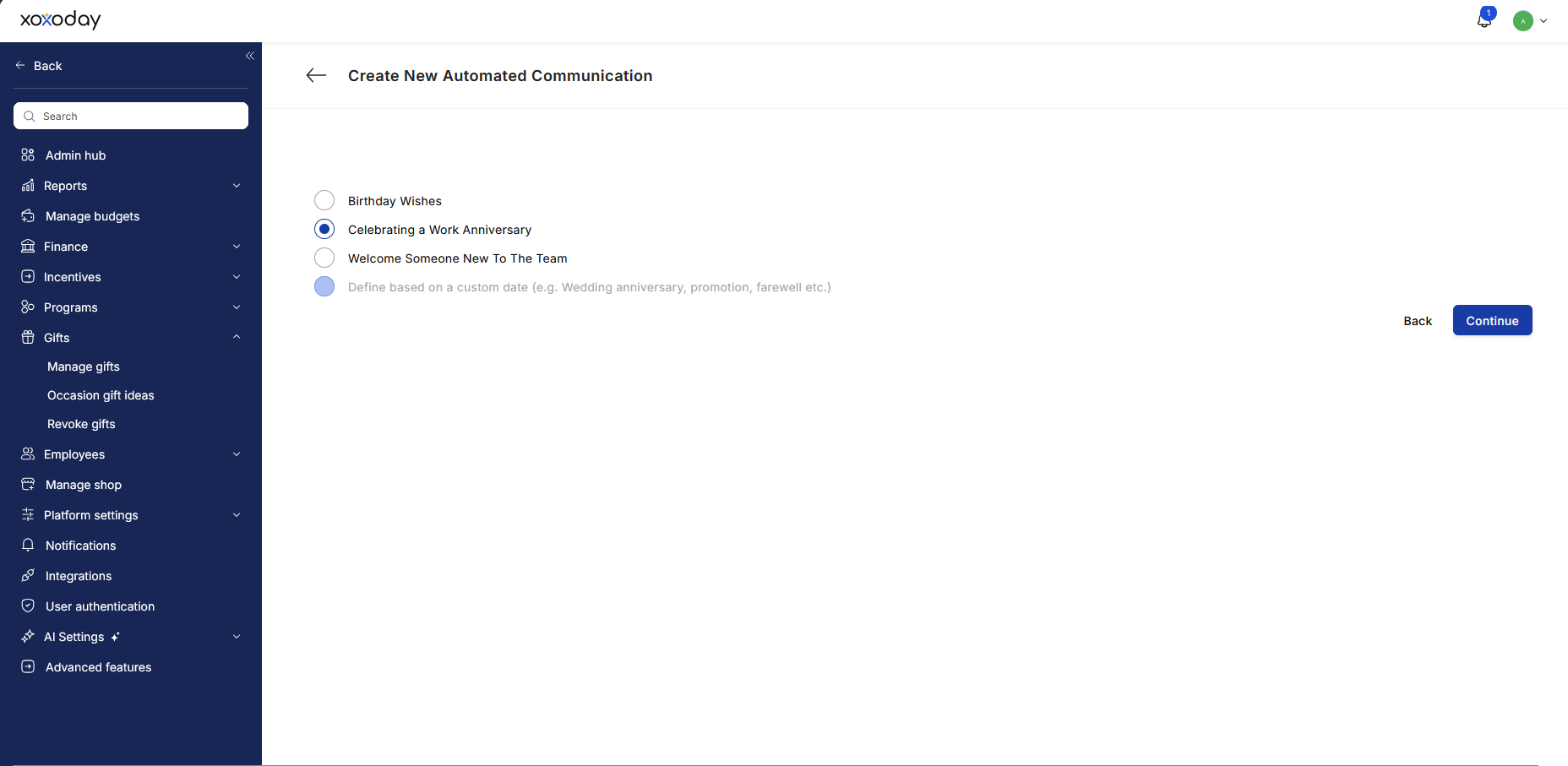
3
Add gift details
Enter a Gift Name and Description (e.g., “5-Year Work Anniversary Award”). Select the anniversary milestone year from the dropdown (1, 3, 5, 10, or a custom value). Add stakeholder notifications if needed, then choose whether stakeholders get a separate email or are CC’d on the recipient’s gift email.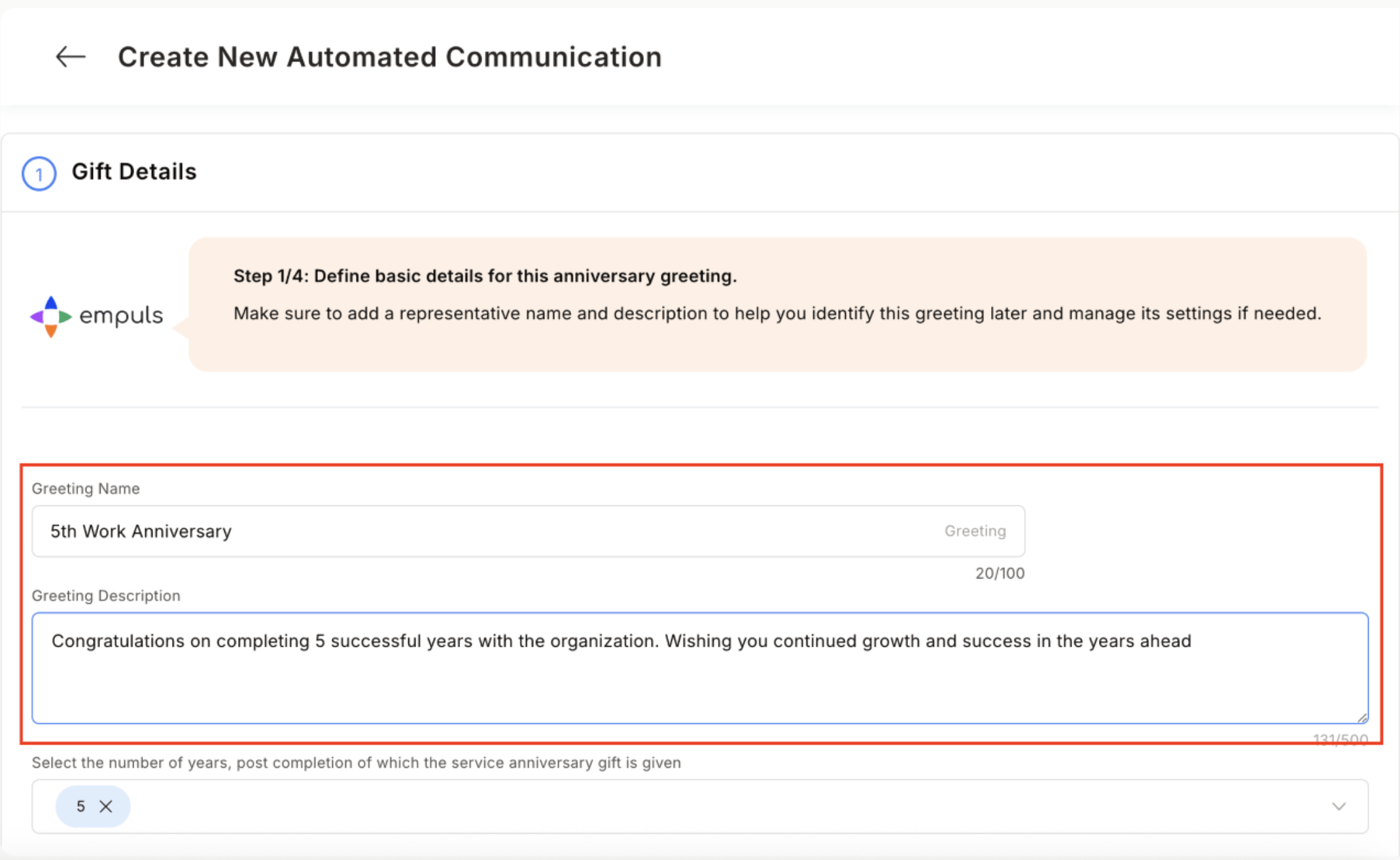
4
Configure the award
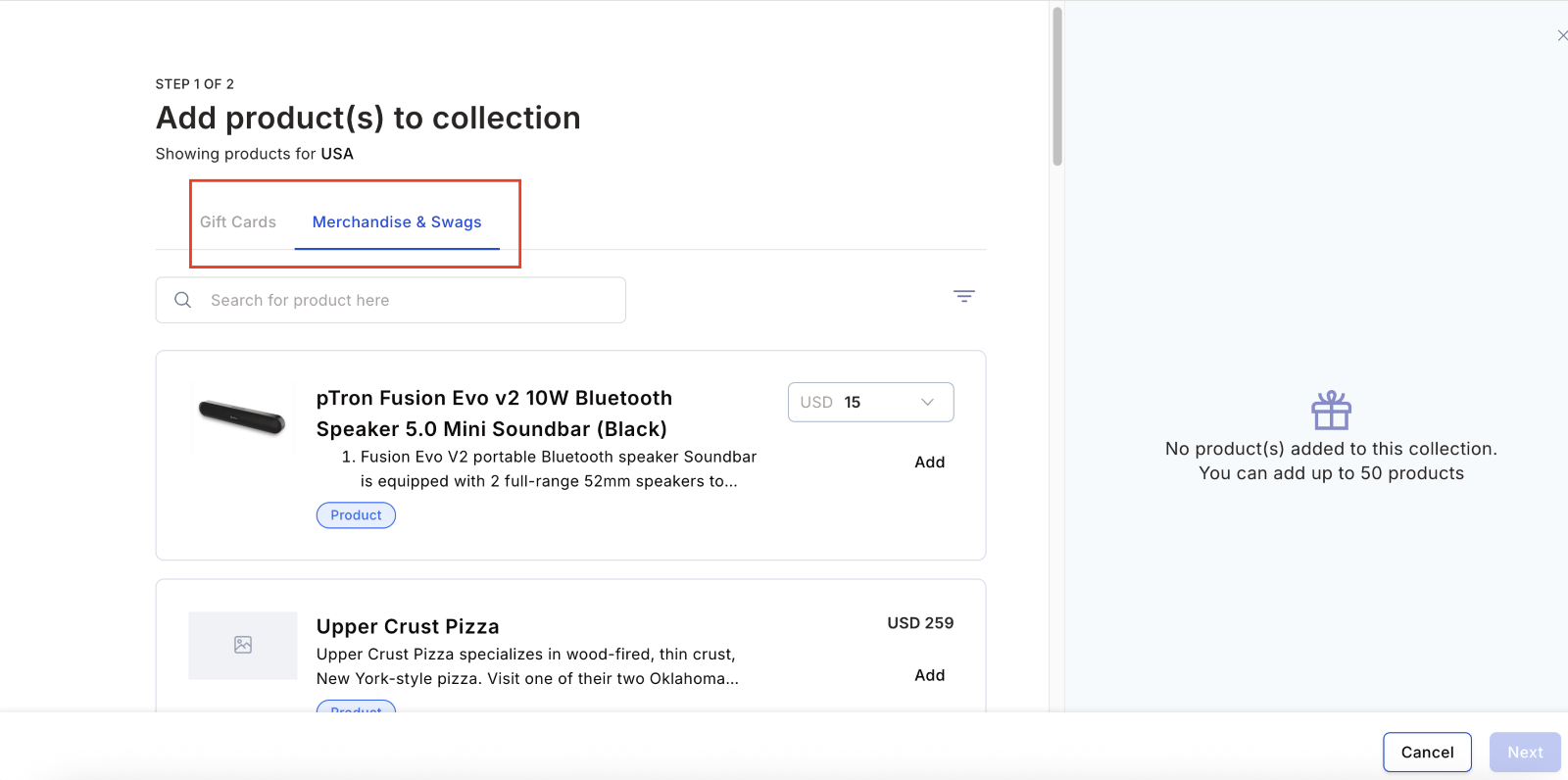
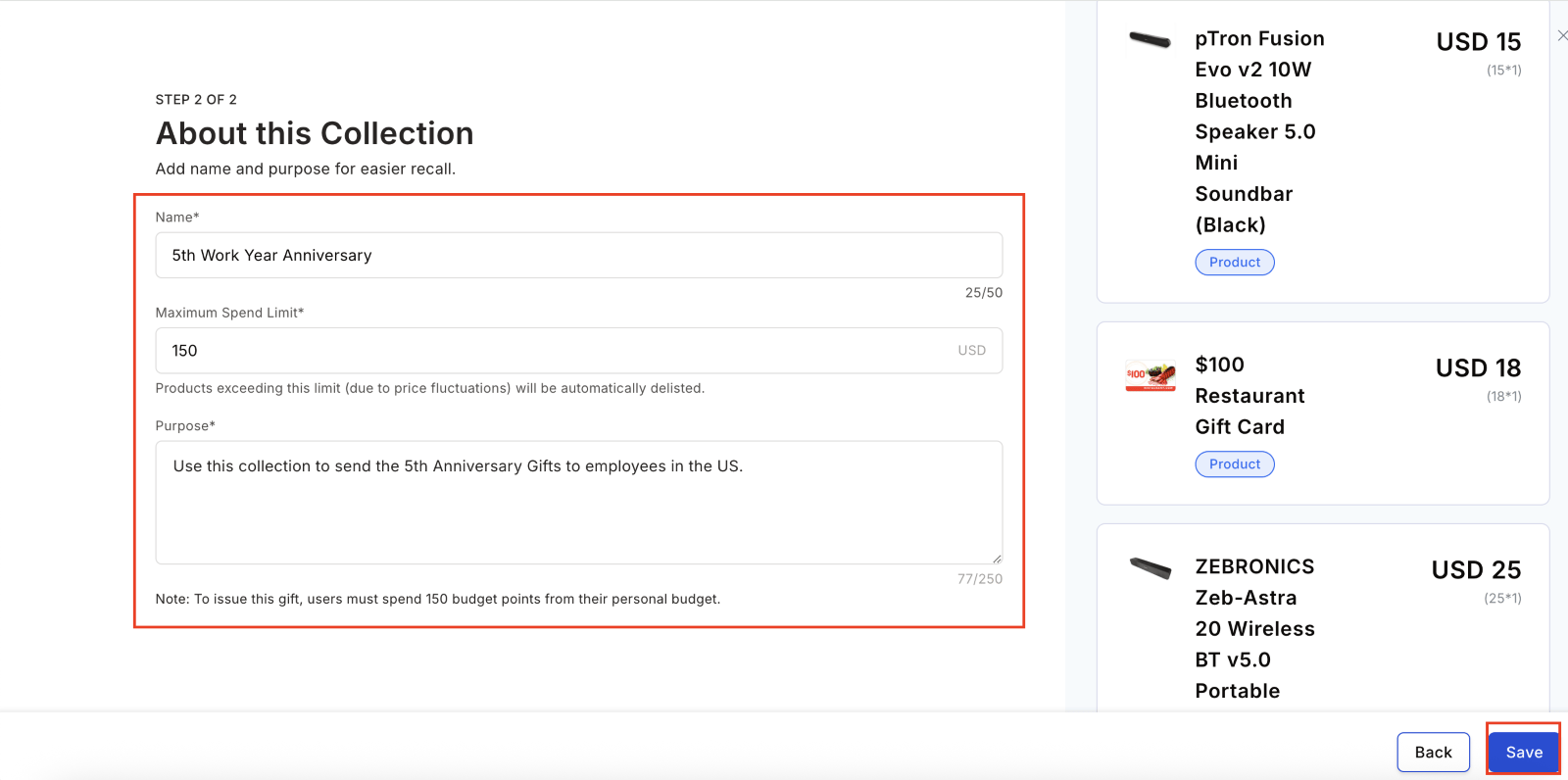
Choose Reward points or Products from the store. For products, select or create a gift collection filtered by country for region-specific relevance.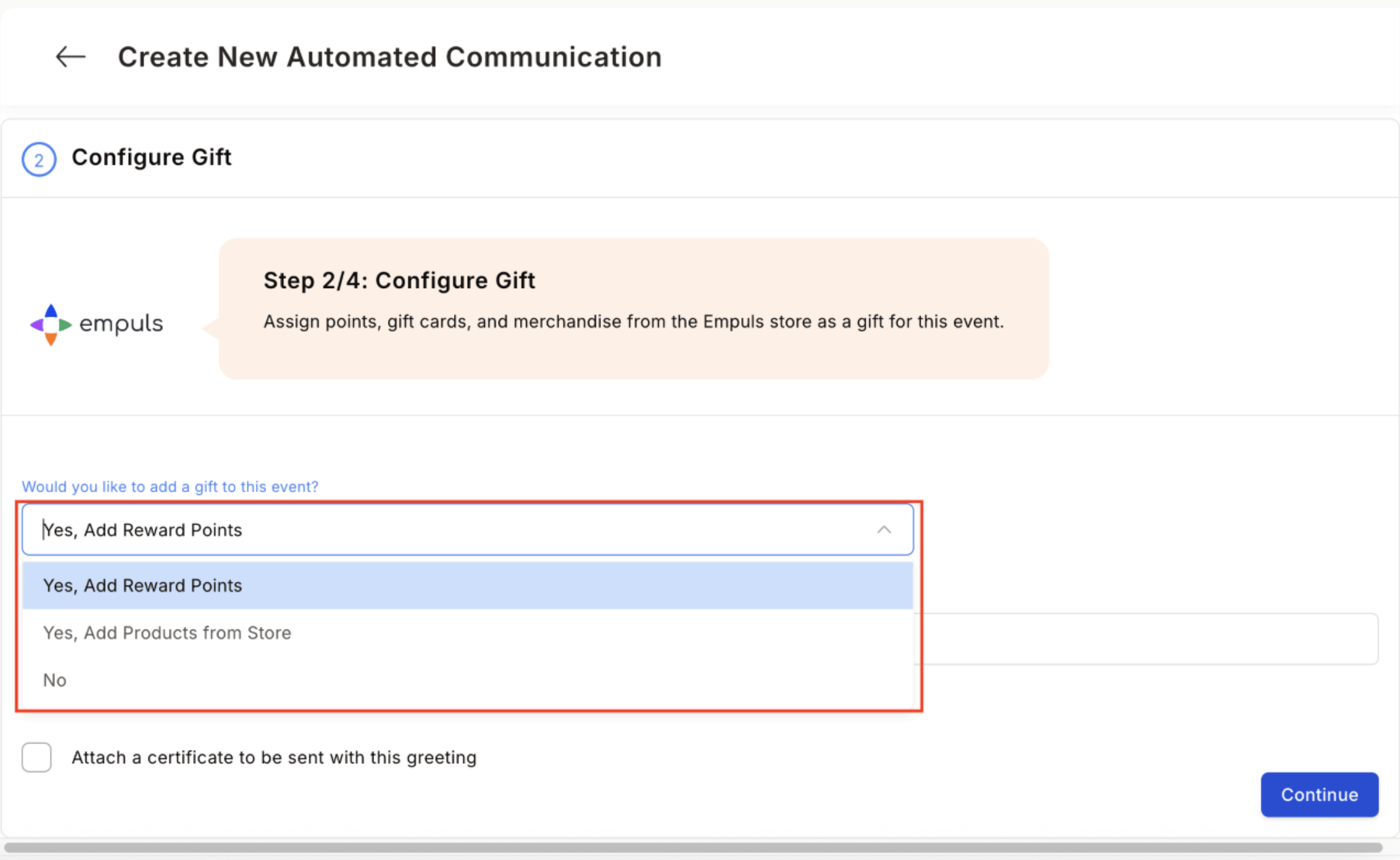
5
Add a certificate (optional)
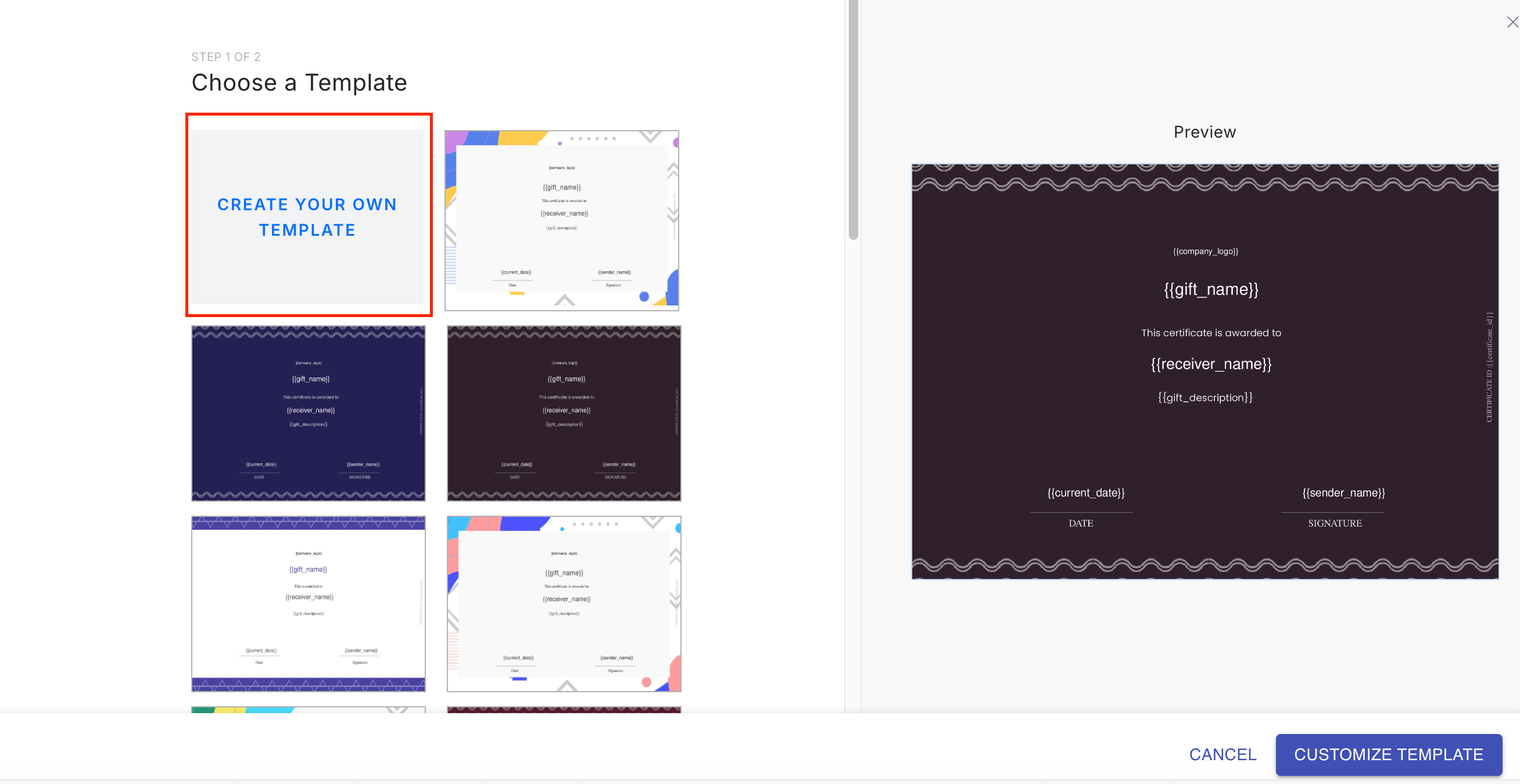
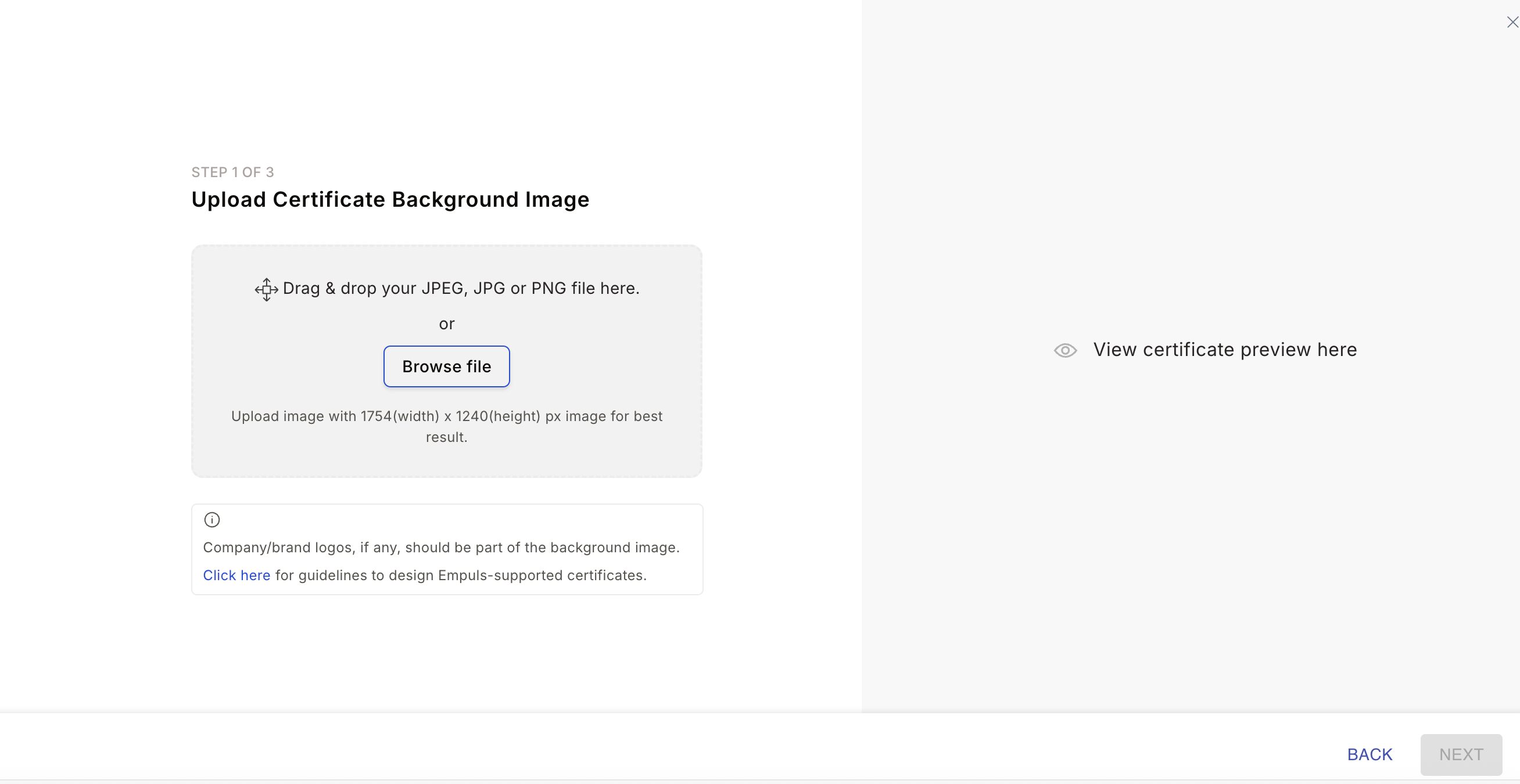
Check the box to include a certificate. Click + Add Certificate, choose a template or upload a custom design, preview it, and click Continue. Use 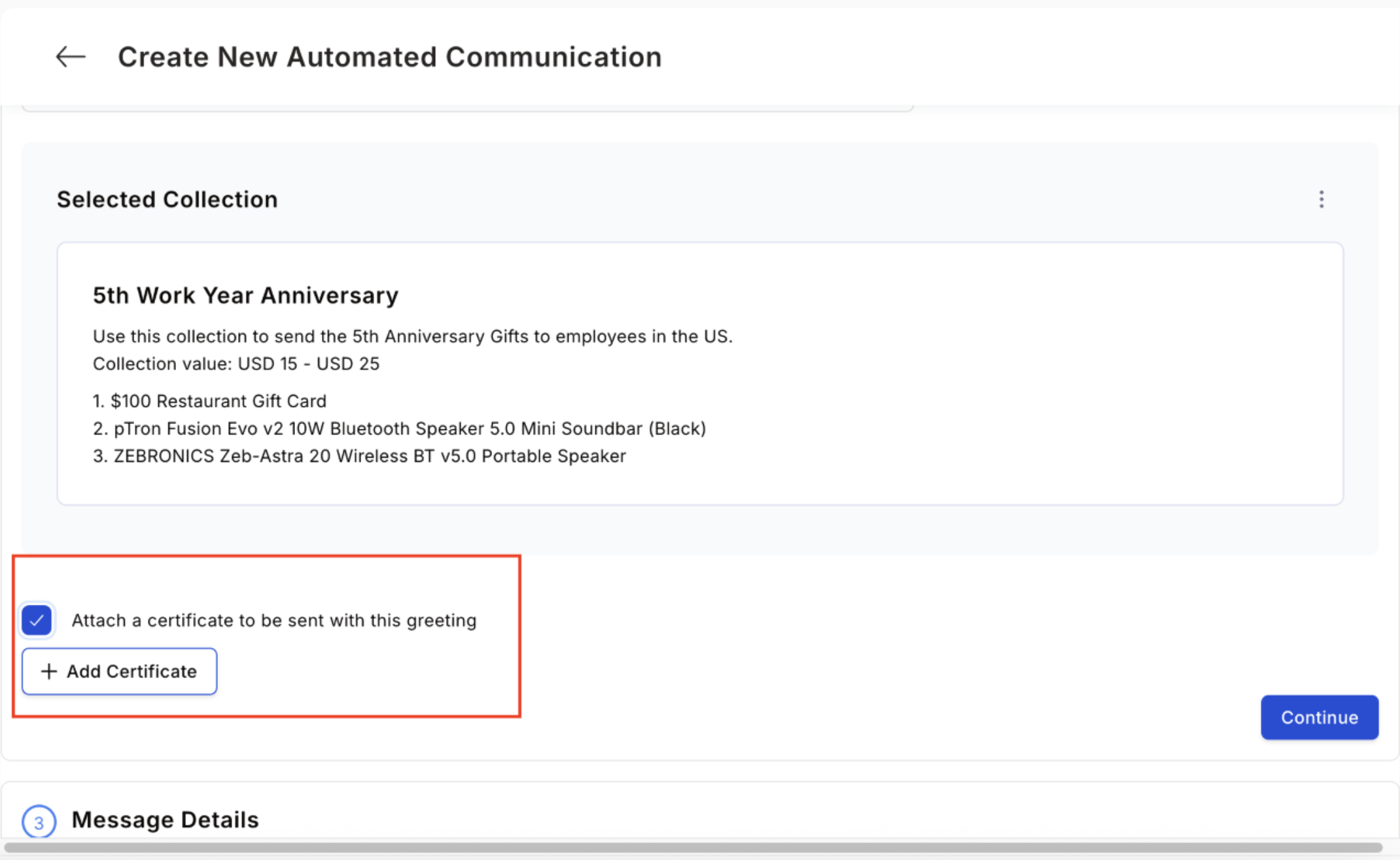
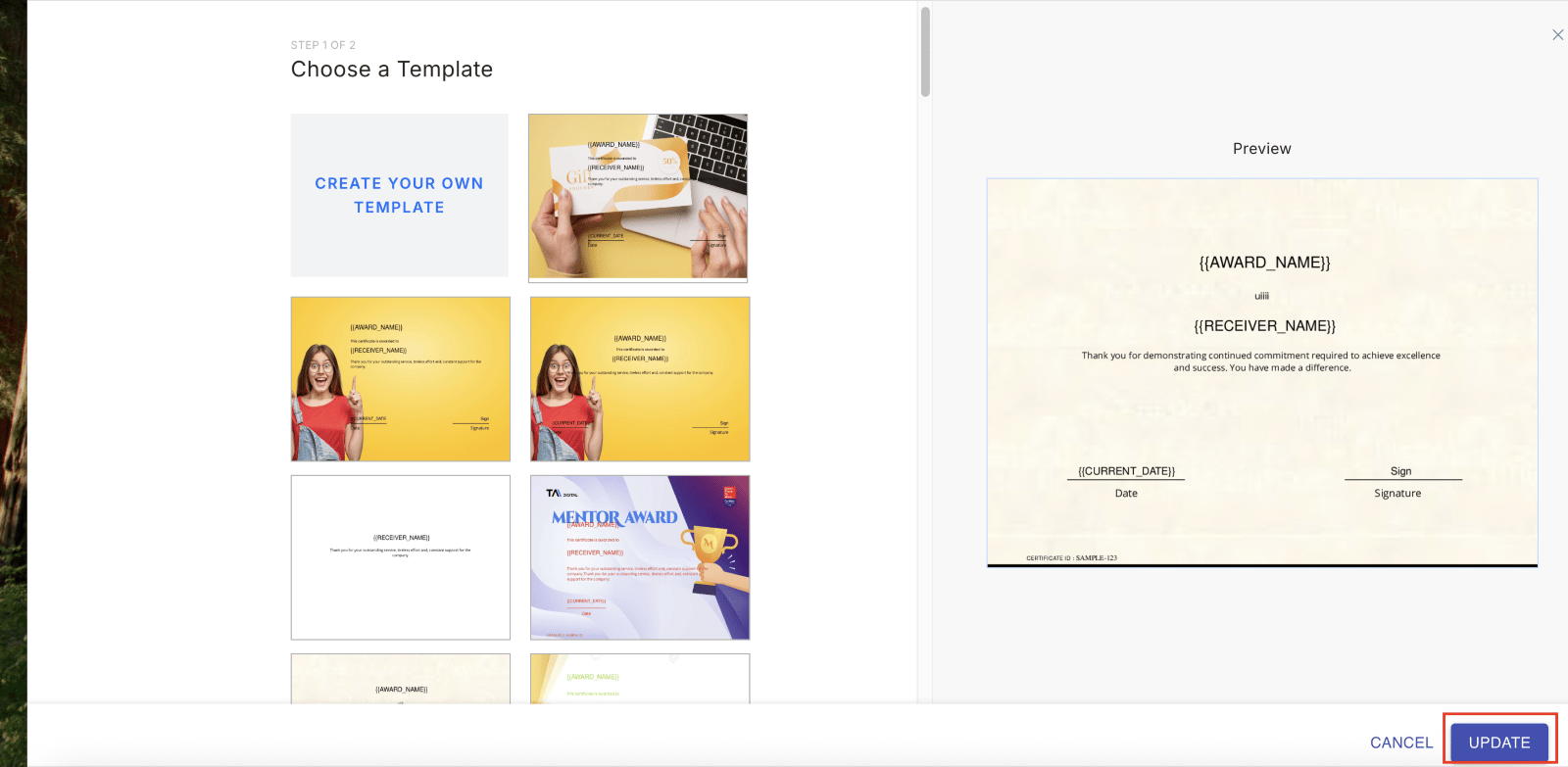
{{completed_year}} in the message to automatically insert the number of years served.6
Compose the message
Write the message title and body with personalisation placeholders. For example:Title: Celebrating 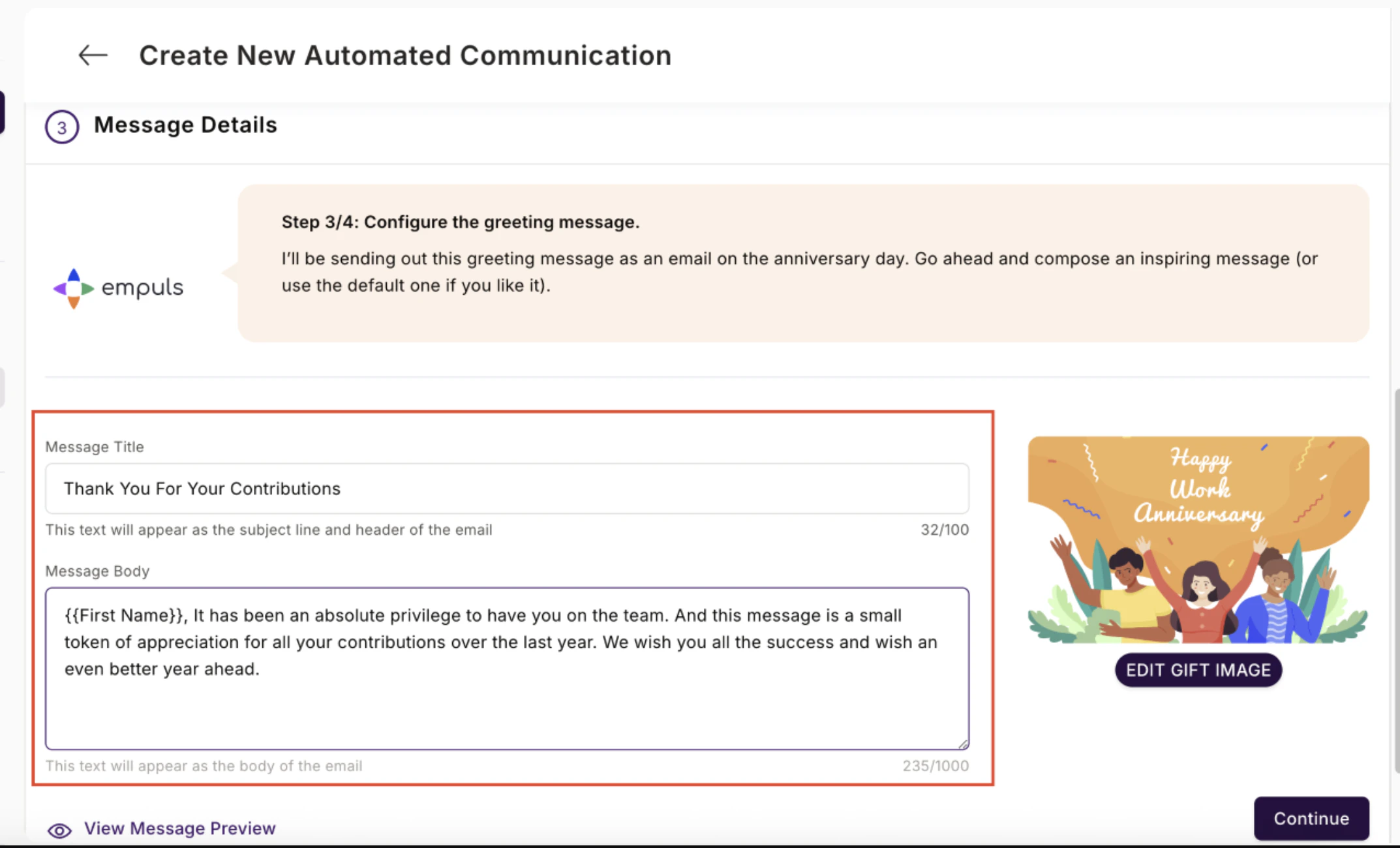
{{completed_year}} year(s) of excellenceBody: {{First Name}}, it’s been a privilege to have you on the team for {{completed_year}} year(s).7
Select recipients and confirm
Choose Everyone or filter by department, designation, or location. Click Save and Continue, review all settings, and click Confirm and Create to activate.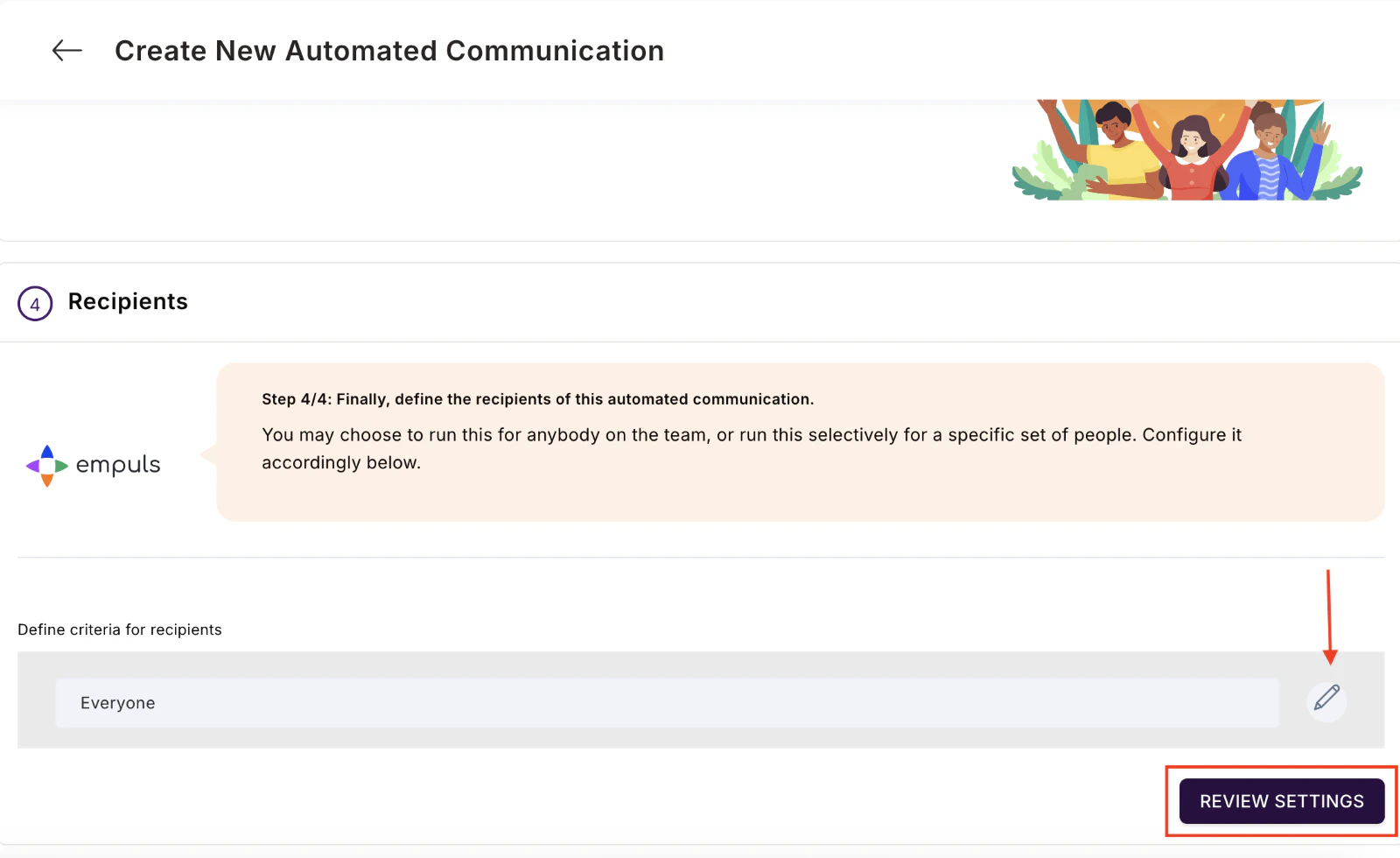
Set up a separate automation for each milestone year (1 yr, 3 yr, 5 yr, 10 yr) with different reward values and certificate designs to create a tiered programme.
Manage existing automated gifts
Navigate to Gifts > Manage Gifts > Automated Gifts. From the three-dot menu on any card you can:- Edit — Update message, points, or recipients. Changes apply from the next trigger date.
- Disable — Stop the automation from firing. Re-enable it at any time.
- View Report — See the full history of sends, automation details, and delivery status.
Greeting template fields
Tips and limits
- Greetings rely on accurate DOB and DOJ in employee records. Keep your HRMS sync healthy or fill in data manually.
- Point gifts draw from the org budget. Set caps in Budgets to control monthly spend.
- A greeting fires once per employee per trigger date. Re-enabling a disabled greeting won’t backfill missed dates.
Related
Physical and product-based gifts
Set up merchandise or gift-card collections to attach to automated gifts.
Budgets
Cap the points budget that funds automated gifts.
HRMS integration
Sync DOB and DOJ so greetings fire accurately.