
- Annual recognition programmes like “Best Innovation” or “Team of the Year”
- Quarterly performance recognition cycles
- Festival or seasonal recognition events
Video walkthrough
Create a reward campaign
1
Navigate to Reward Campaigns
Go to Admin Dashboard > Programs > Reward Campaigns and click Create Reward Program.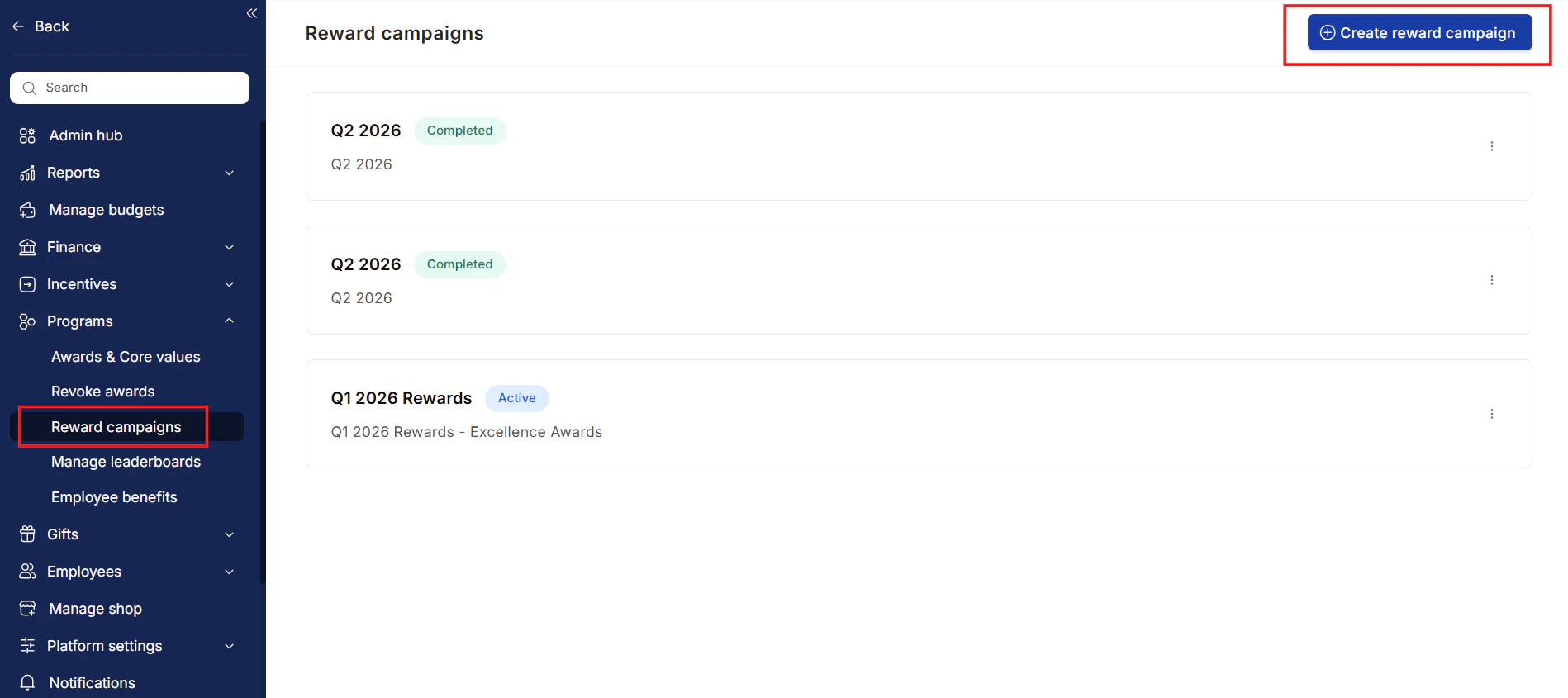
2
Add program details
Enter a Program Name and Description. Select the awards to include in this campaign from the dropdown, and enter the total points budget allocated for the cycle.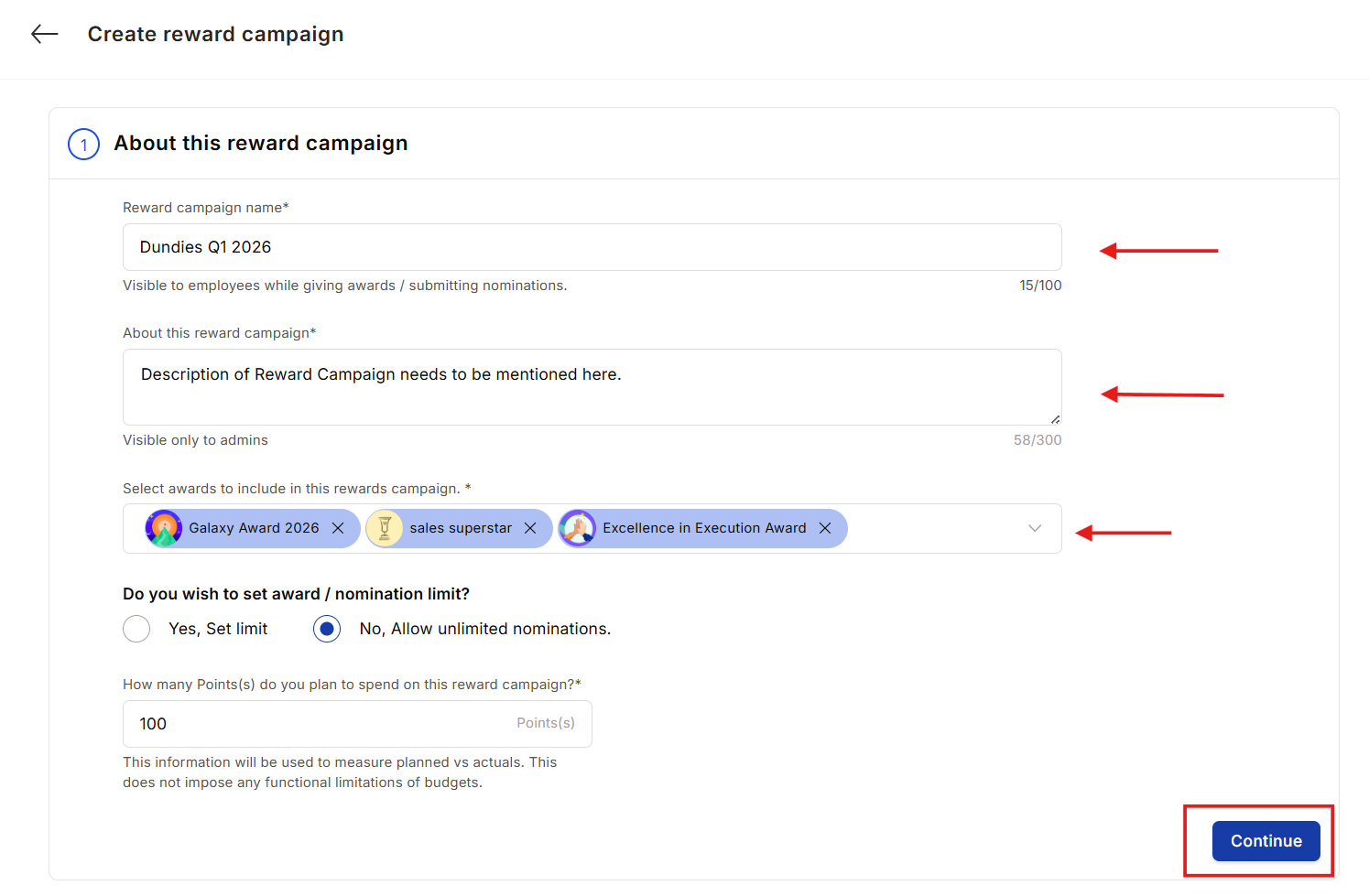
3
Select participants
Click the pen icon to define who can submit nominations in this campaign. You can include everyone or filter by designation, department, location, or other attributes. Click Save and Continue.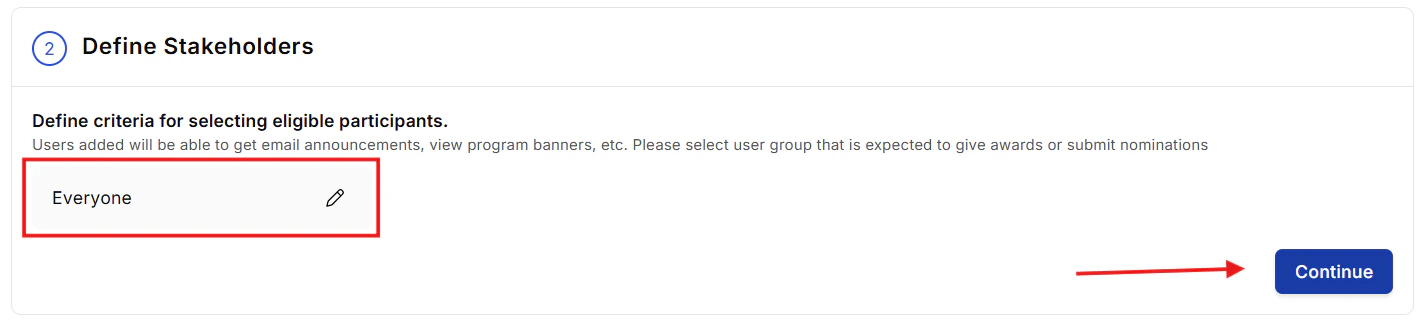
4
Add co-owners (optional)
Under Who can co-own this reward campaign, search for and select the people who should help manage the campaign. Co-owners can manage the campaign and receive its administrator notification emails.
Selecting a person doesn’t grant them access. Their role must have the My Reward Campaigns or All Reward Campaigns permission. Otherwise, they can’t see or manage the campaign. See Campaign access.
5
Set nomination limits (optional)
Toggle Yes, Set Limit to cap the number of nominations per award. Enter the maximum number per award (up to 99). This prevents any single award category from being flooded with nominations.
6
Configure dates
Set the start date and time for collecting nominations, the end date to stop accepting new nominations, and the final program close date. You can also configure a custom announcement email and a home page banner to promote the campaign.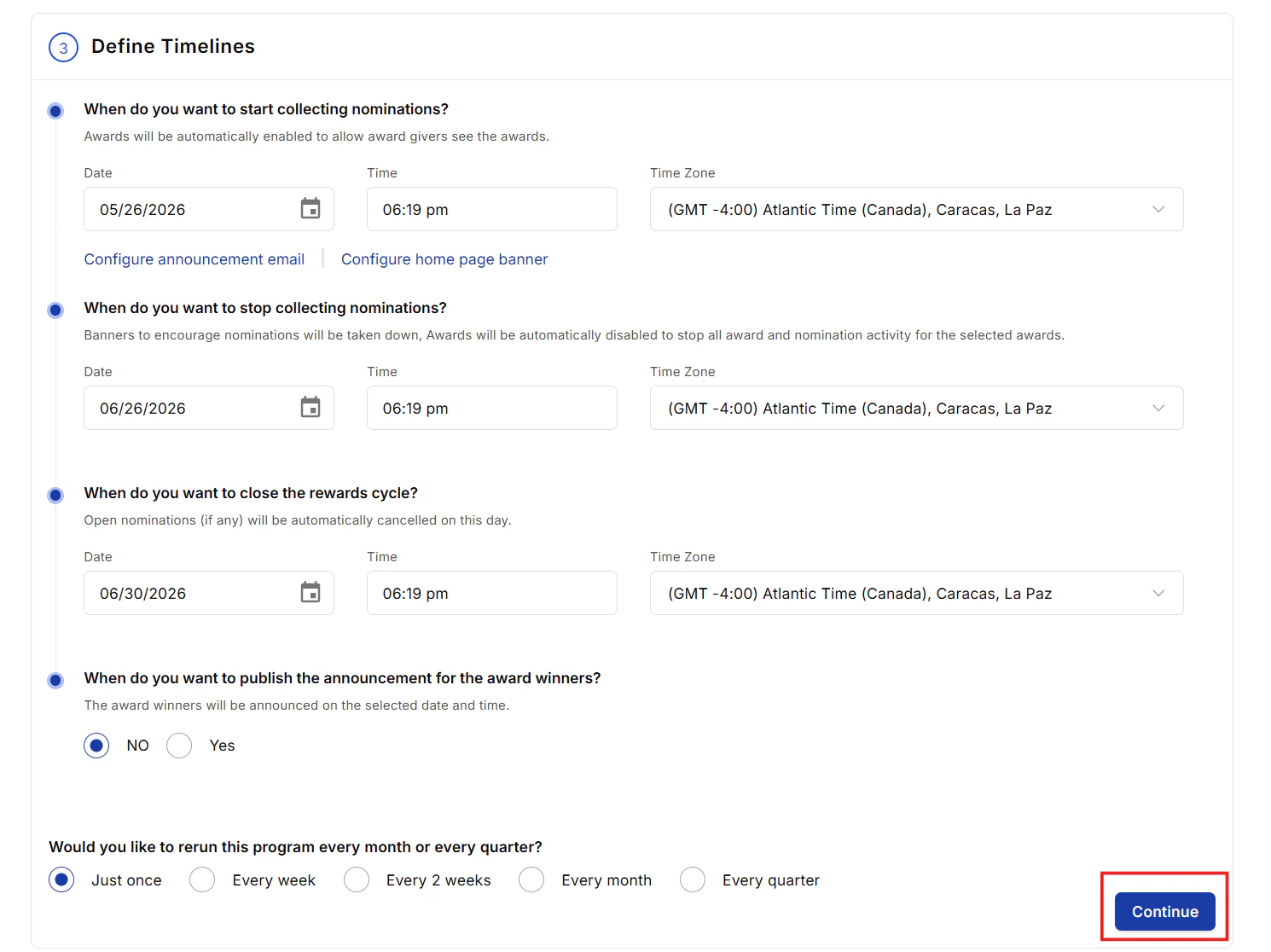
7
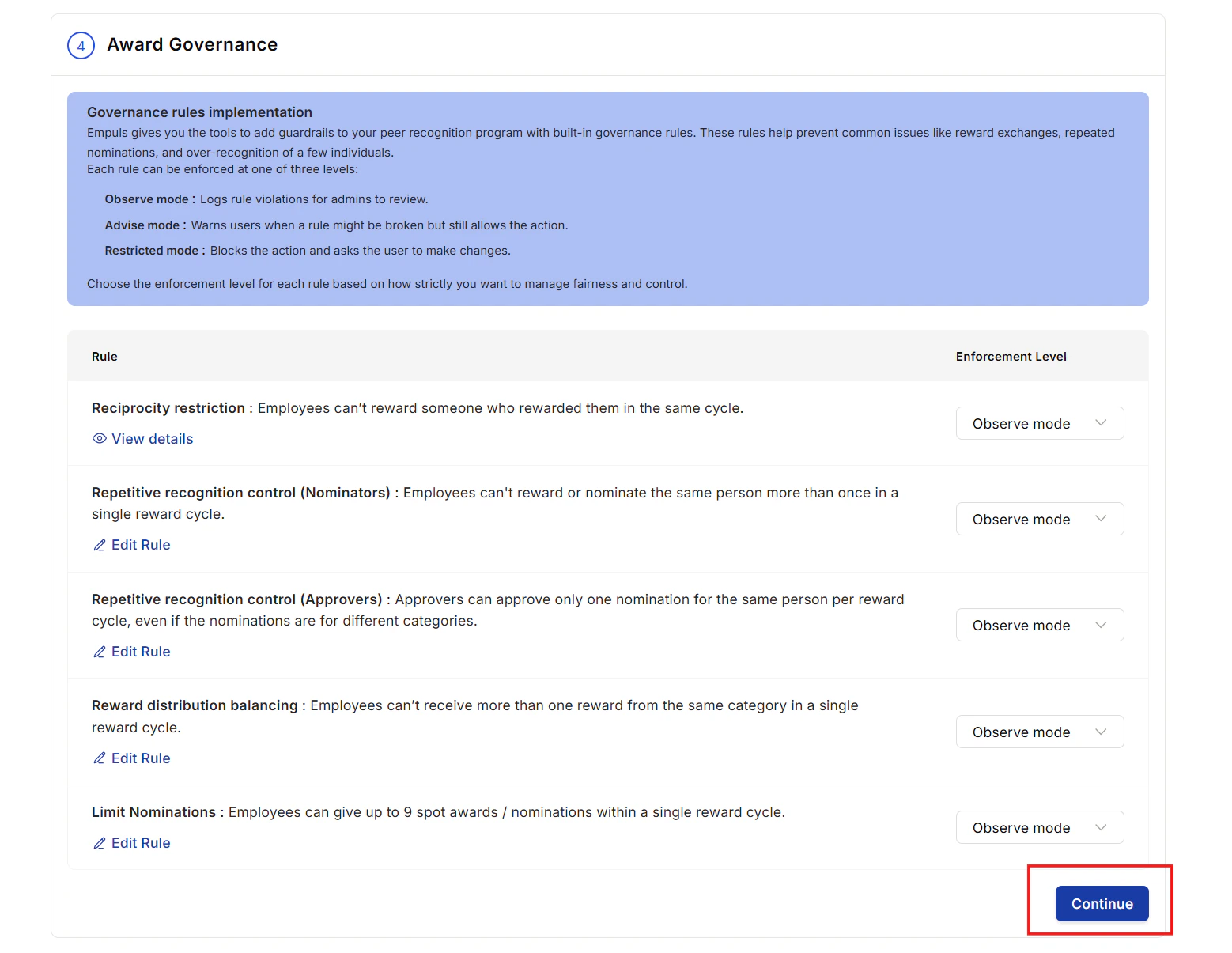
Set governance rules
Empuls includes built-in guardrails to ensure fair recognition:
- Reciprocal recognition: Flags or blocks situations where two employees only nominate each other.
- Repetitive recognition: Flags nominations where the same person is nominated by the same person multiple times within a configurable window.
- Over-recognition: Flags excessive nominations for the same individual.
- Observe mode: Logs violations for admin review without blocking the action.
- Restricted mode: Blocks the action and asks the user to make a change.
8
Save and launch
Review all settings and click Save and Continue to activate the campaign. Selected participants receive an announcement email and see the campaign banner on their home page.
Monitor a running campaign
The Reward Program Dashboard (under Programs > Reward Campaigns) shows active and completed campaigns. Click any campaign to access:- Submission Details: Total nominations received, who submitted them, number of participants. Send reminder nudges to all participants or filter by award and nominator.
- Review Details: Nominations awaiting review, approved, and declined. Send nudges to reviewers with pending actions.
- Governance Report: A log of rule violations in observe mode.
Campaign access
Two role permissions control which reward campaigns an admin can see and manage:
Use My Reward Campaigns for team leads or program managers who run their own campaigns but shouldn’t see or change campaigns that others manage.
Empuls limits the awards you can select in a campaign to the awards available to the campaign’s creator.
Only the campaign creator or an admin with All Reward Campaigns can change the co-owner list. Co-owners can view the list but can’t edit it.
Automated reminders
Rather than chasing people yourself, set the campaign to remind them. Reminders are configured on the campaign’s Communications tab, and there are two independent ones:
Each is configured separately, so you can nudge nominators weekly while chasing approvers daily, or enable only one.
1
Open the Communications tab
Open the campaign and go to Communications.
2
Choose the audience
Send to everyone in that role, or to specific people.
3
Set the frequency
Choose every day, every 2 days, every 3 days, or once a week.
4
Choose the channels
Pick one:
- All channels — email plus any connected collaboration tools.
- Email only.
- Integrated channels only — the connected collaboration tools, without email.
5
Review the message and save
The reminder uses a single template across every channel you selected, so you write the copy once. A preview shows how it will read.
What the reminder can say
The template fills in campaign details automatically, so one message stays accurate for the whole run — the campaign name, the deadline date, how many days remain, and how long the campaign has been open.Reminders stop on their own. A person drops out of the list as soon as they take the action, and all reminders stop once the campaign deadline passes — so nobody is chased for something they’ve already done or can no longer do.
Governance rules
Reward governance lets Super Admins define rules that prevent misuse — circular nominations, repeated nominations, and budget overrun — without requiring manual HR intervention.Available rules
Reciprocity restriction
An employee cannot reward someone who has already rewarded them within the same cycle, preventing point-swapping between friends.
Duplicate recognition control
A user cannot reward or nominate the same person more than once per cycle. Approvers can only approve one nomination per person per category per cycle.
Reward distribution balancing
An employee cannot receive more than one reward in the same award category per cycle, ensuring recognition spreads broadly across the workforce.
Enforcement levels
Real-time messages
When a rule triggers, Empuls shows clear in-product messaging:Governance report
The Governance Report (accessible inside each campaign dashboard) logs every rule violation. Each row shows the date, the giver and receiver, which rule was triggered, the enforcement mode in effect, and the outcome (allowed, warned, or blocked). Use the report to monitor behaviour, assess rule impact, and tune your policies over quarter.Governance rules apply per campaign cycle. The same employees can recognise each other freely across different campaigns.