
Video walkthrough
Adding a single employee
Use single-user entry when onboarding an individual hire outside of your regular bulk import cycle.1
Go to Manage Employees
In the Admin Hub, navigate to Employees > User Management > Manage Employees and click Add New User > Add a single user.
2
Enter required fields
Fill in the employee’s First Name and Email ID, then assign the appropriate User Access Role (Super Admin, General Admin, Manager, or User).
3
Add professional and personal details
Complete the employee’s professional details (department, designation, reporting manager, date of joining) and personal details (date of birth, mobile number if applicable).
4
Click Save
The employee is created. They receive an invitation email to activate their account.
A new email address that does not already exist in the system cannot be mapped to a Manager role. The email must be in the system first before you can assign it manager-level access.
Adding employees in bulk
Bulk import is the fastest way to onboard a large group of employees. Empuls accepts CSV and XLSX files using a standard template.1
Navigate to bulk import
Go to Employees > User Management > Manage Employees > Add New User > Add multiple user accounts.
2
Download the sample CSV template
On the Pre-import data settings screen, review the guidelines and download the sample file. Use this template to format your employee data correctly.
3
Populate the template
Fill in each employee’s details — first name, email, department, designation, reporting manager, date of joining, and any other required fields. Save as CSV or XLSX.
4
Upload the file
Upload your completed file and verify the data in the preview. Click Next to proceed.
5
Send invitations
Choose whether to send invitation emails immediately or click Send Invites Later to add employees to the platform first and invite them at a chosen time. You can trigger invitations later from the Manage Employees page.
Custom data fields (UDF and URF)
Beyond the standard employee fields, you can request additional custom fields from Empuls support:- UDF (User-Defined Fields) — Custom text fields for additional data points, up to 25 fields maximum.
- URF (User-Relationship Fields) — Fields that link employees to one another (e.g., dotted-line manager), up to 25 fields maximum.
Editing employee records
1
Locate the employee
Go to Reports & Settings > Employees > Manage Employees and find the user in the list.
2
Click the edit icon
In the Action column, click the pen icon next to the employee’s row.
3
Update the details and save
Make the necessary changes and click Save.
- Disable a user — Deactivate the account to block access without deleting the record.
- Change email — Update the employee’s email address if it changes.
- Log in as a user — Access the employee’s account for troubleshooting. Enter a reason for logging in and choose whether to notify the employee.
- Change password — Available to Super Admins after enabling the feature by contacting Contact Support. The new password must be 8 to 50 characters and include an uppercase letter, a lowercase letter, a number, and one of these special characters:
! @ # $ % ^ & * ( ) , . ? " : { } | < >. A hyphen or underscore alone won’t satisfy that rule. Empuls rejects weaker passwords and leaves the employee’s current password unchanged.
Access controls and roles
Empuls uses role-based access control (RBAC) with four built-in roles:
Super Admins can also create custom roles for specialized access needs:
1
Navigate to Manage Access Roles
In the top-right menu, click Manage Access Roles.
2
Create a new role
Click Create Access Role, enter a Role Name, and click Submit.
3
Edit permissions as needed
Click the pencil icon next to any role to update its permissions. Click Submit to save changes.
Delegating accounts
When an admin or manager is on leave, you can grant another user temporary access to their account so pending tasks continue without interruption.1
Go to Delegate Accounts
In the Admin Hub, navigate to Employees > Delegate Accounts and click Create Delegation.
2
Select the accounts
Choose the account to delegate and the user who will receive temporary access.
3
Create the delegation
Click Create Delegation. The original account holder is notified every time the delegated user accesses the account.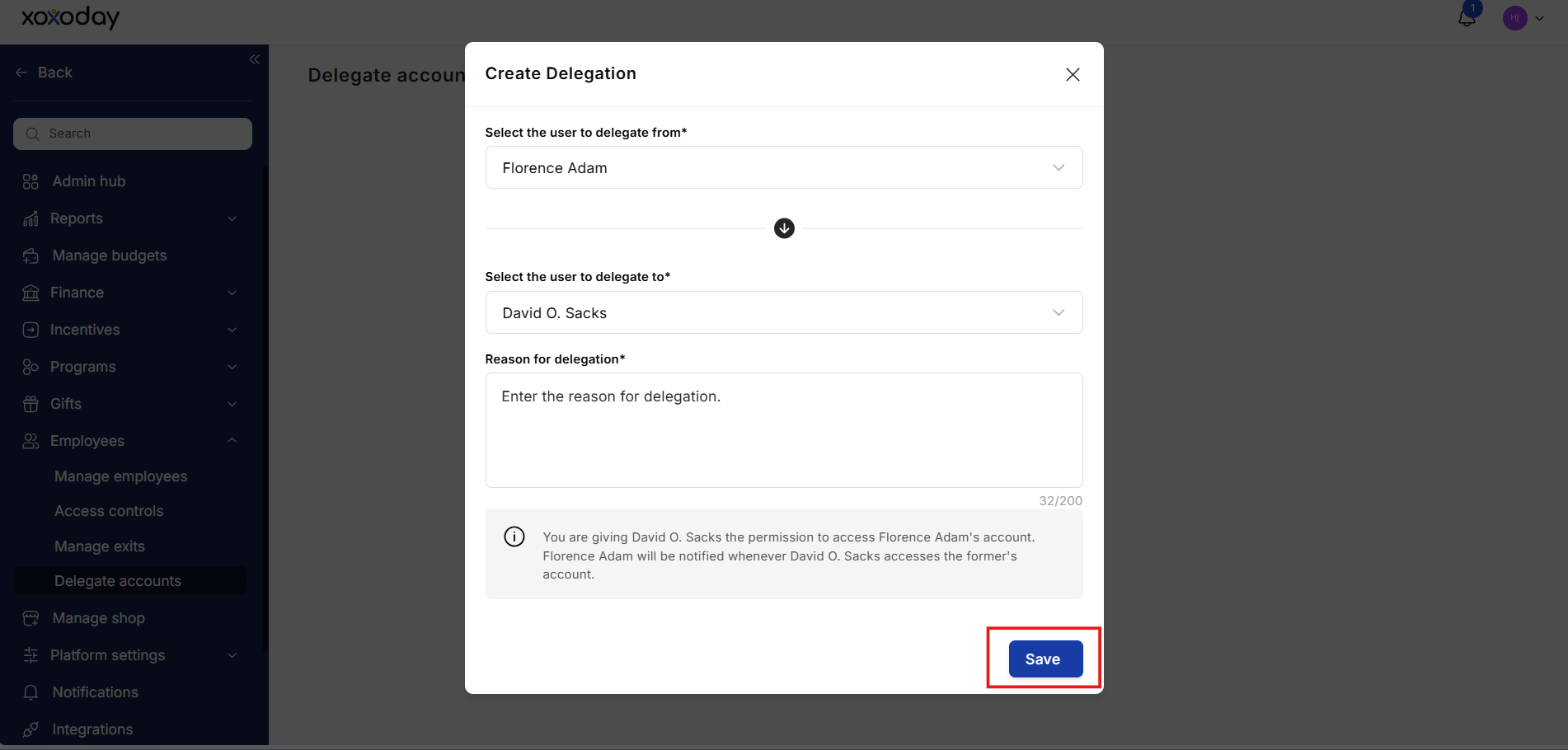
Managing employee exits
When an employee leaves your organization, their unredeemed points and budget allocations need to be handled according to your company policy. Configure this in advance under Employees > Manage Exits. Budget points with co-owners — Transfer to a third party or return to the budget owner by default. Custom budgets held by exiting employees — Choose to delete the budget or transfer ownership and points to another employee. Personal budget points — Transfer to another employee, destroy the points, or disable them. If no recipient is selected, points go to the Super Admin by default. Reward points (earned credits) — Choose to transfer unredeemed points to the employee’s personal email address for later redemption, or destroy the points permanently. Pending nominations — If the exiting employee had pending award nominations to approve, transfer them to the reporting manager, HRBPO, department head, business unit head, or cost center head.Can I add multiple employees without sending invites immediately?
Can I add multiple employees without sending invites immediately?
Yes. During bulk import, select Send Invites Later to add employees to the platform without triggering invitation emails. You can send invites at any time from the Manage Employees page.
Can a new email be assigned to a Manager role during bulk import?
Can a new email be assigned to a Manager role during bulk import?
No. The email address must already exist in the system before it can be mapped to a Manager role. Add the person as a User first, then update their role.
Can I edit a delegation once it's created?
Can I edit a delegation once it's created?
No. Delegations cannot be edited after creation. Deactivate the existing delegation and create a new one to make changes.
What happens if no recipient is set for personal budget points on exit?
What happens if no recipient is set for personal budget points on exit?
Points are automatically transferred to Super Admins if no recipient is specified in the exit policy.