
Feed & Profile Settings
Customise the recommended feed content for your employees.Empuls is committed to enhancing employee engagement and communication within your organisation. As an admin, you can customise the content on your employees’ Recommended Feed. This feature ensures that messages are visible to the right people.
Configure Feed Settings
1
Go to the Admin Dashboard by clicking
Go to the Admin Dashboard by clicking on Reports and Admin at the bottom.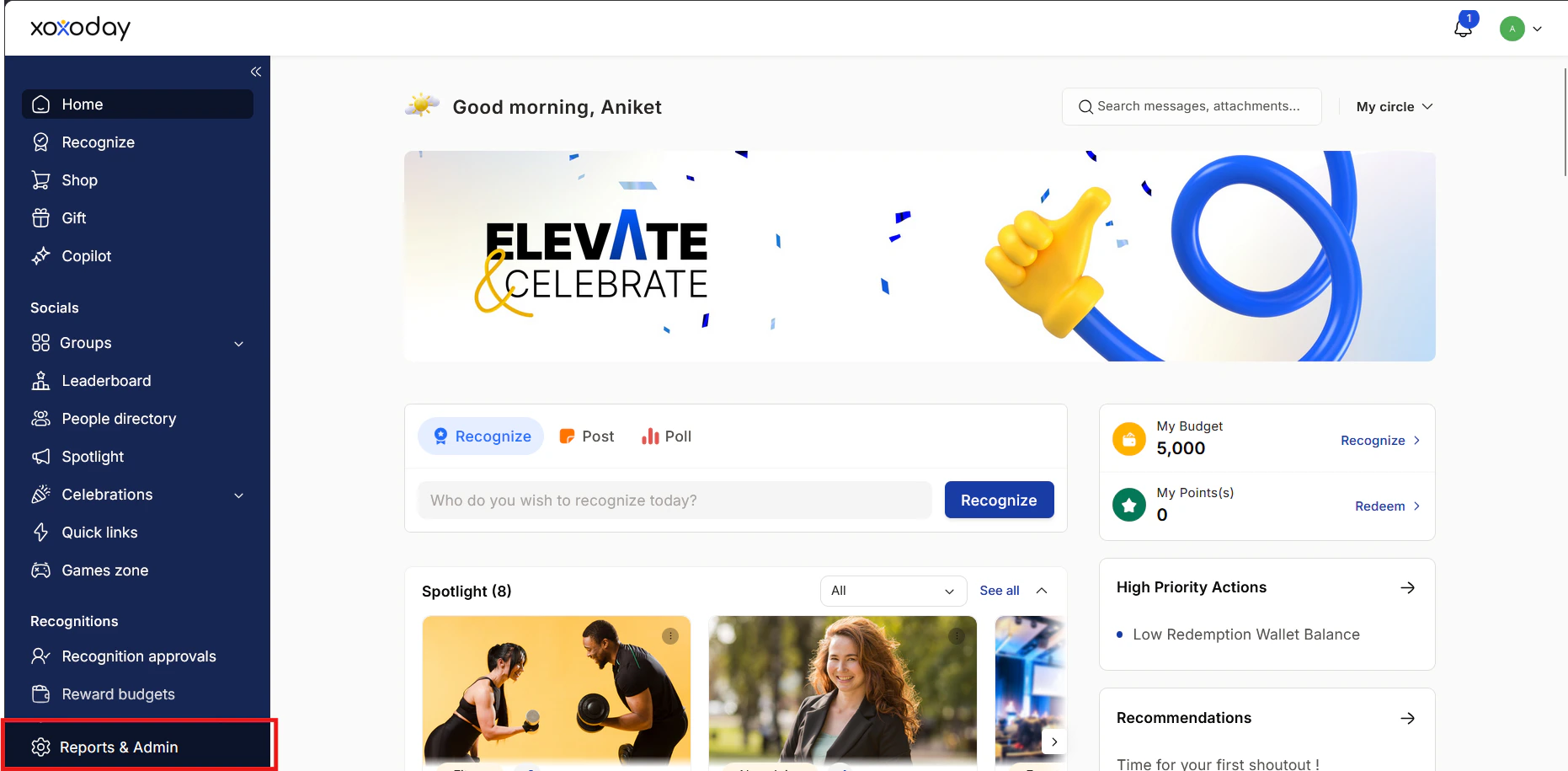
2
Navigate to Platform Settings > Feed Settings
Navigate to Platform Settings > Feed Settings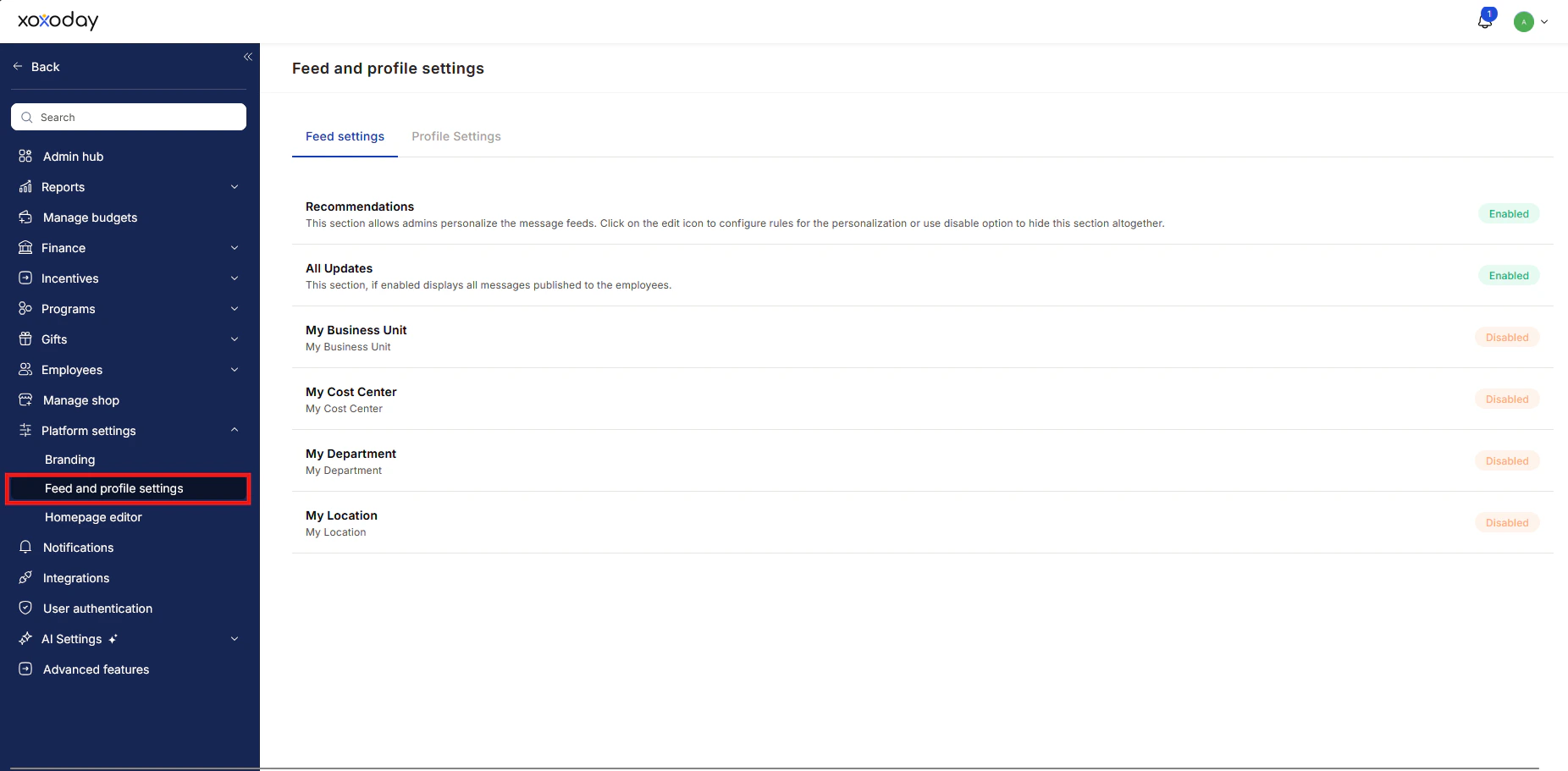
3
The Feed Settings menu has three ways
The Feed Settings menu has three ways to customise your messages.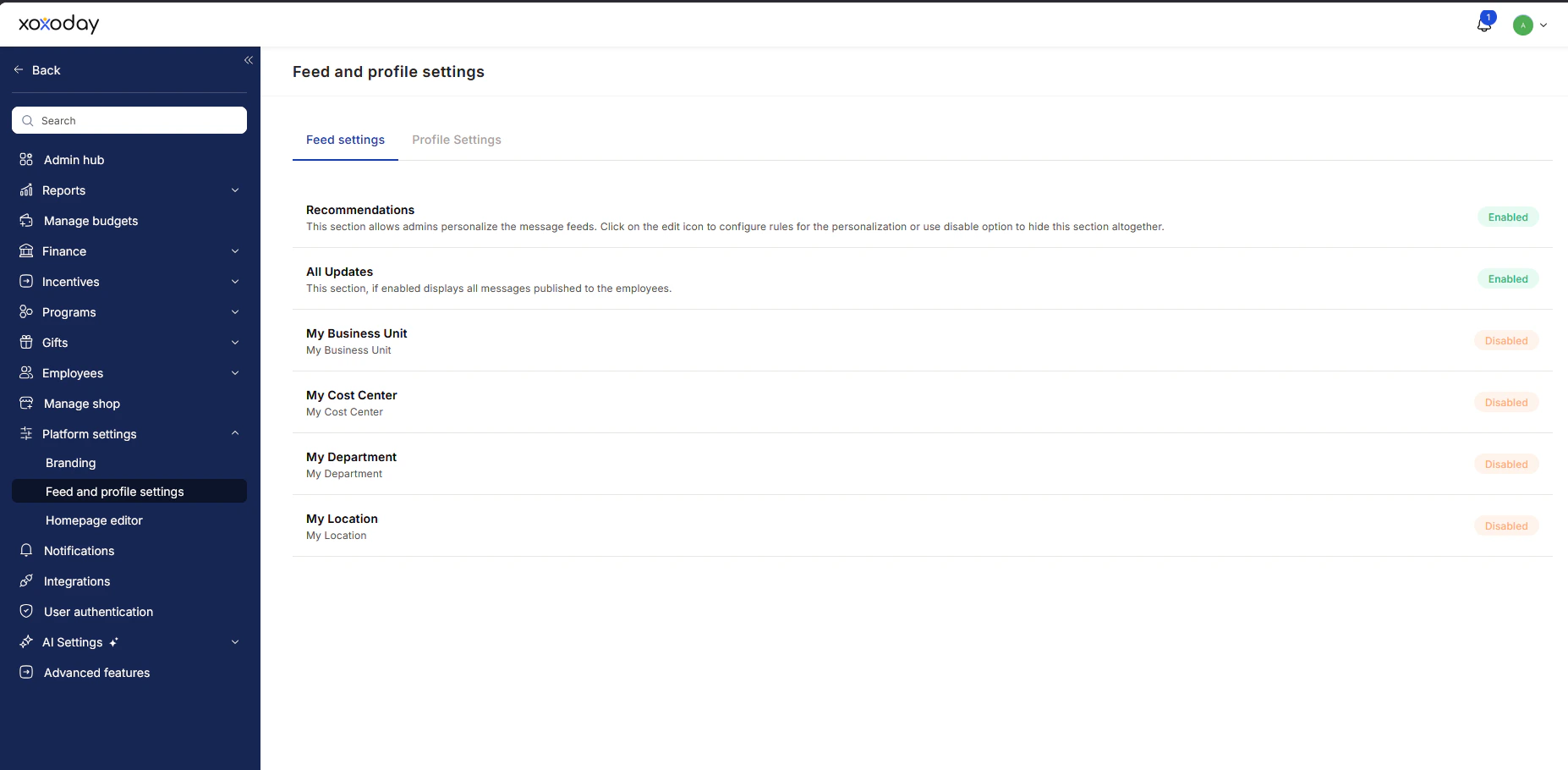
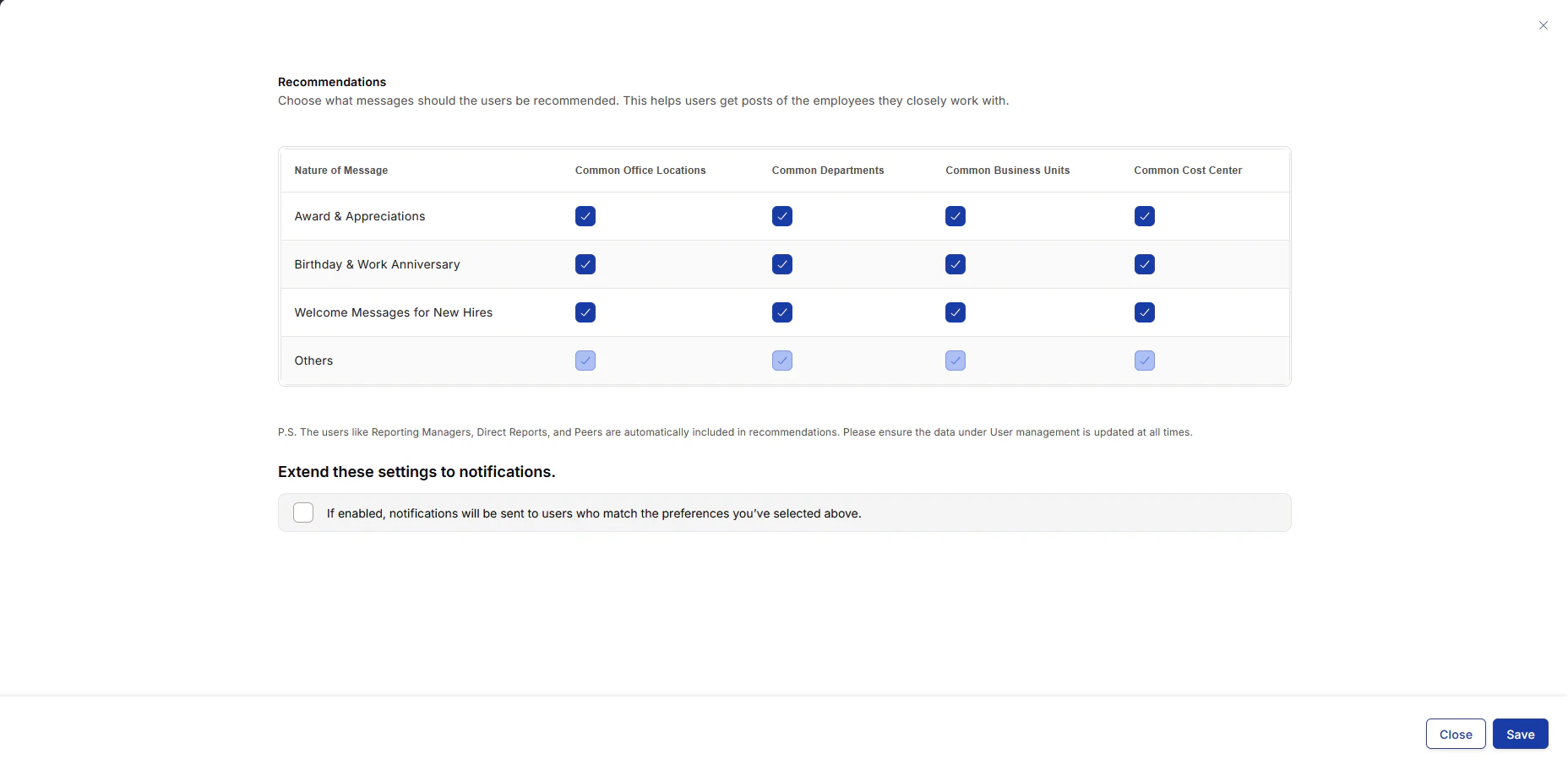
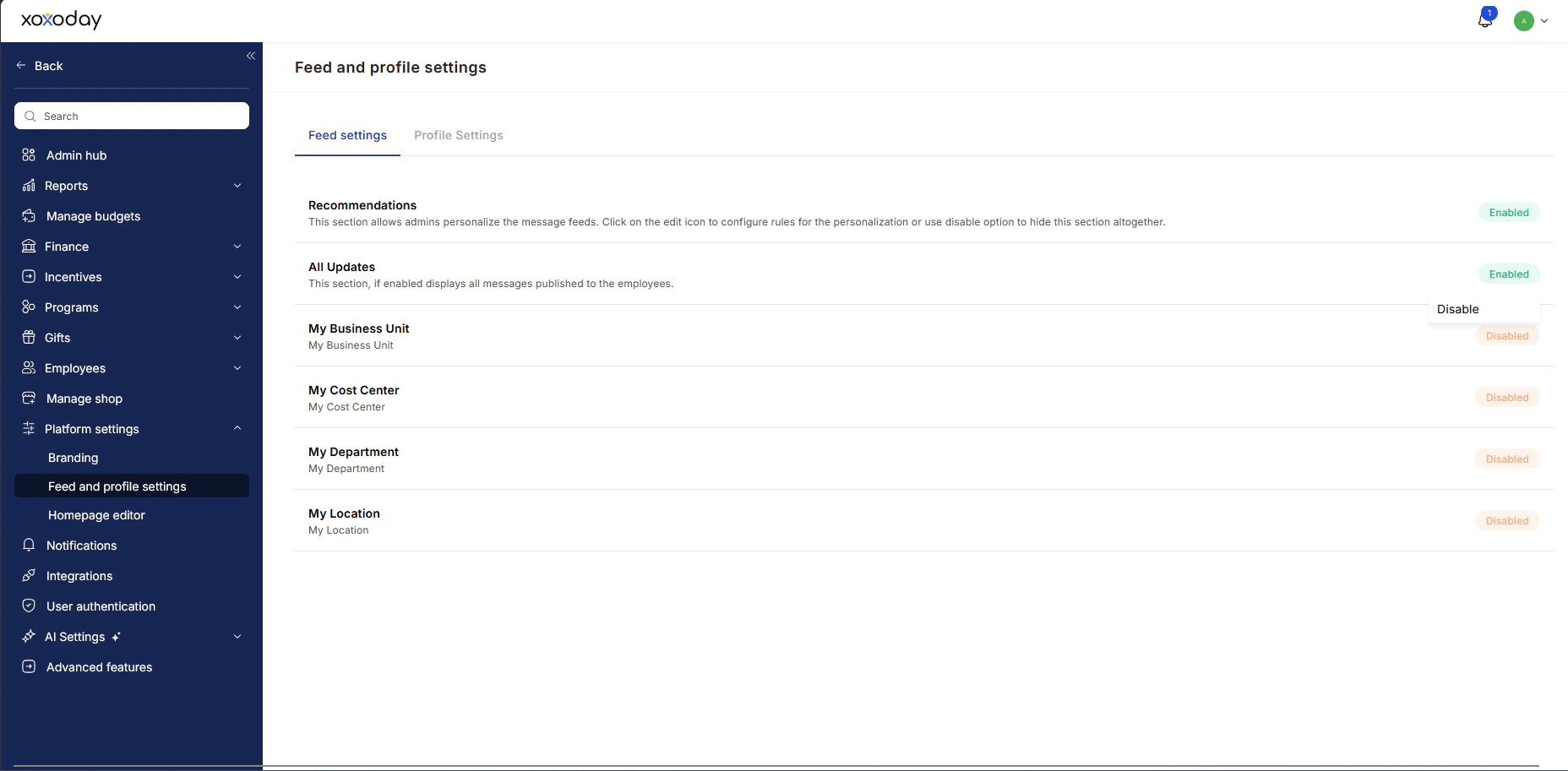
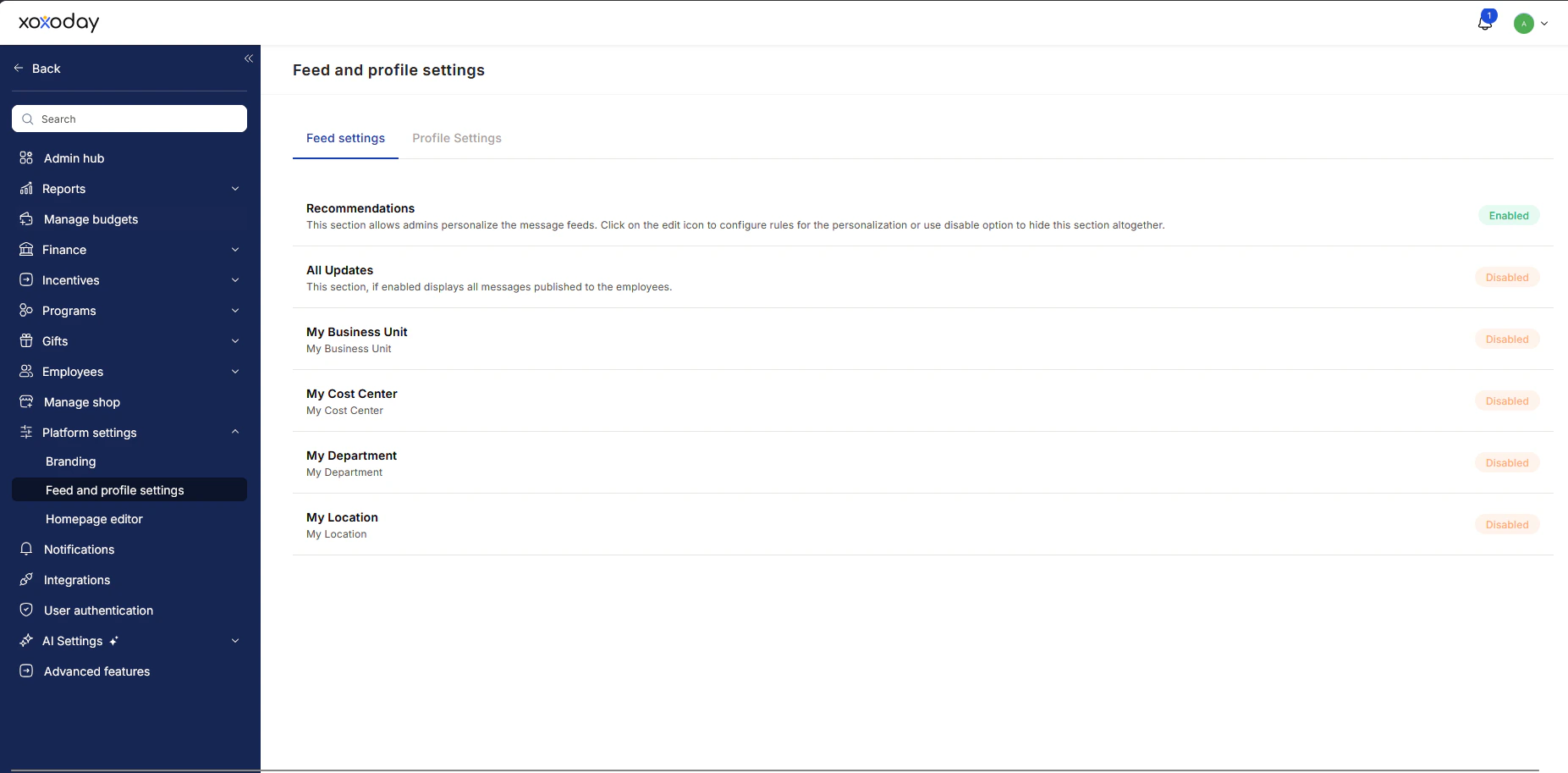
- Option 1: Recommendations - This section allows admins to customise the message feeds.
- How to Edit the Recommendations?
- To edit feed settings, hover to the right and click on the pen icon.
- Nature of Messages: You can define the nature of messages you want to allow or restrict in the recommended feed. Empuls offers various categories and tags to filter messages.
- Header Selection: To customise your recommended feed, you can correspond to the type of content you want to allow or restrict. Check the box to include a category or tag in the feed and uncheck the box to exclude. Once done, click on Save.
- Custom fields: If your company has custom employee fields (UDFs), a Custom fields column appears after the location, department, business unit, and cost center columns. For each message type, open the Select dropdown and check the custom fields to use for recommendations. The column only appears when your company has at least one custom field.
- How to Edit the Recommendations?
- Option 2: All Updates - When enabled, the “All updates” section will show all the messages that have been published to employees. To turn off this feature, click on the Disable option.
- Option 3: Disabling Features for Specific Groups
- You can disable features for the following groups within your organization:
- My Business Unit
- My Cost Center
- My Department
- My Location
- To update settings, navigate to the relevant section and adjust the permissions (by hovering to Enabled/Disabled) for each group as needed.
- You can disable features for the following groups within your organization:
4
Click on Save once you have made your
Click on Save once you have made your choice.
Profile Settings
Customize and manage how user information and fields appear across different screens in the platform.1
Go to the Profile Settings tab
Go to the Profile Settings tab.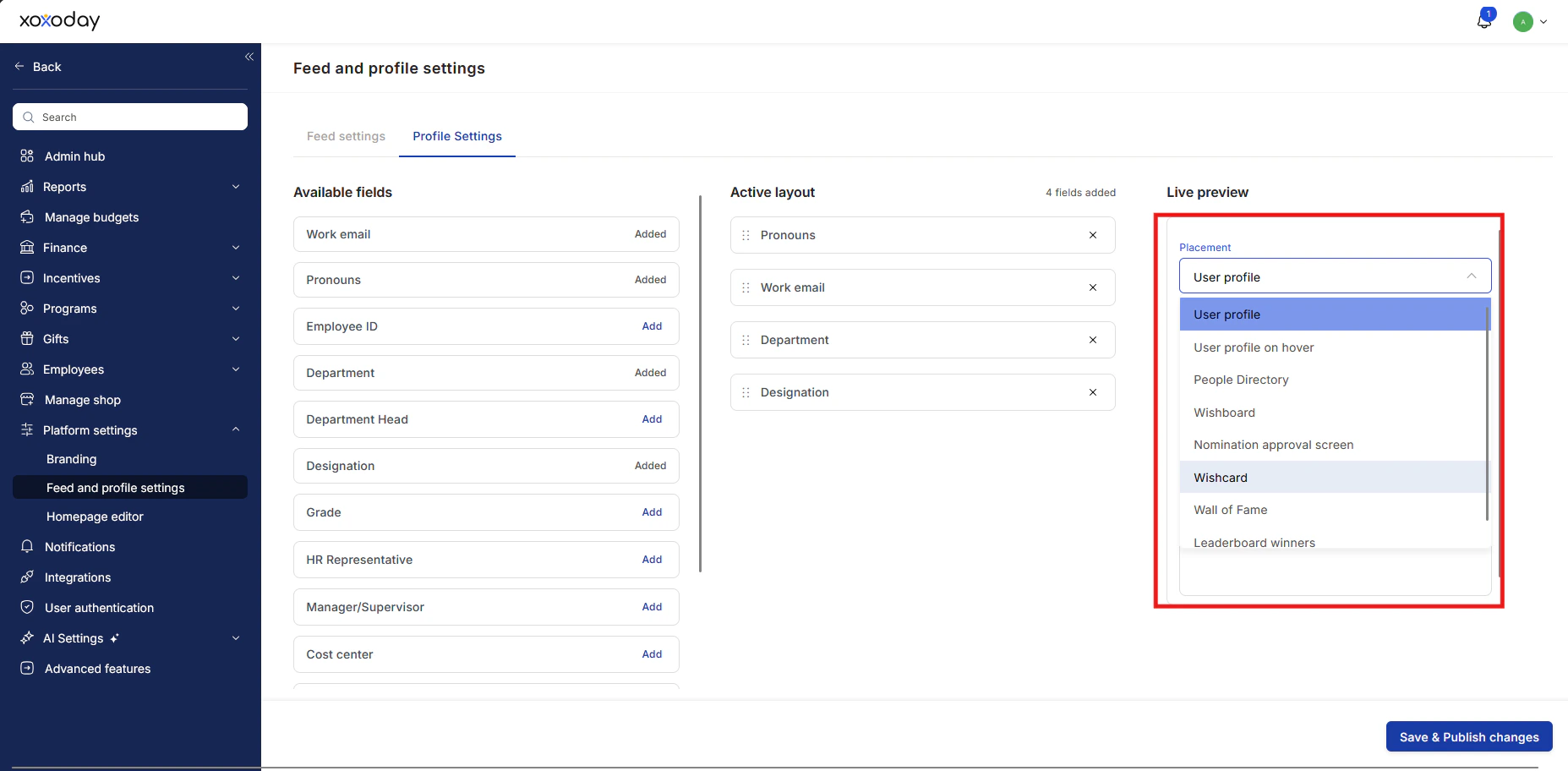
2
Select a screen from the Live Preview dropdown
Select a screen from the Live Preview dropdown menu: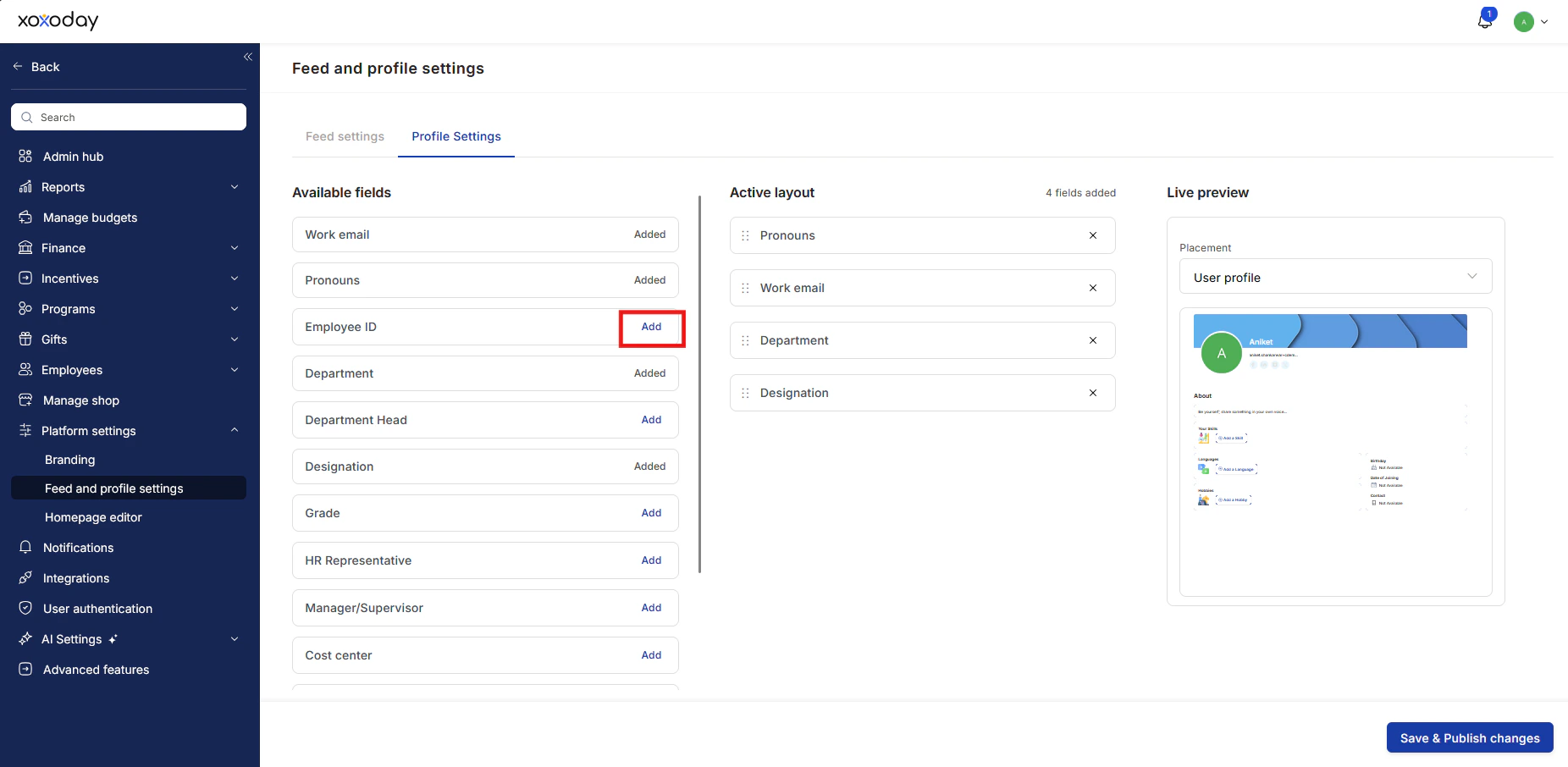
- User Profile
- User Profile on Hover
- People Directory
- Wishboard
- Wishboard User Detail
- Nomination Approval Screen
- Wishcard
- Wall of Fame
- Wall of Fame — User Profile
3
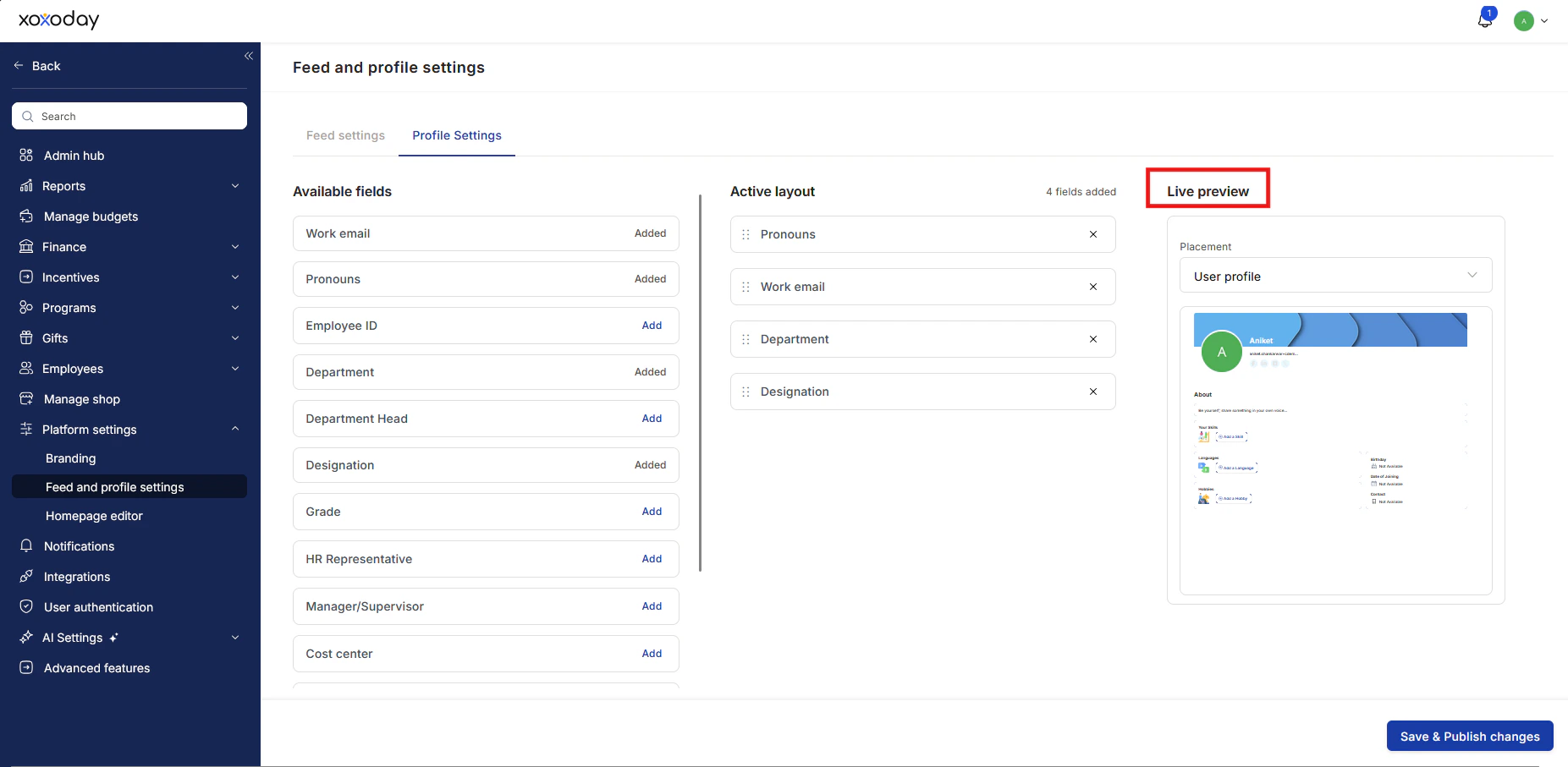
Add fields to the selected screen
- Choose from the available fields.
- Click Add for the field you want to include in that menu.
4
The selected field will now appear under
The selected field will now appear under the active menu.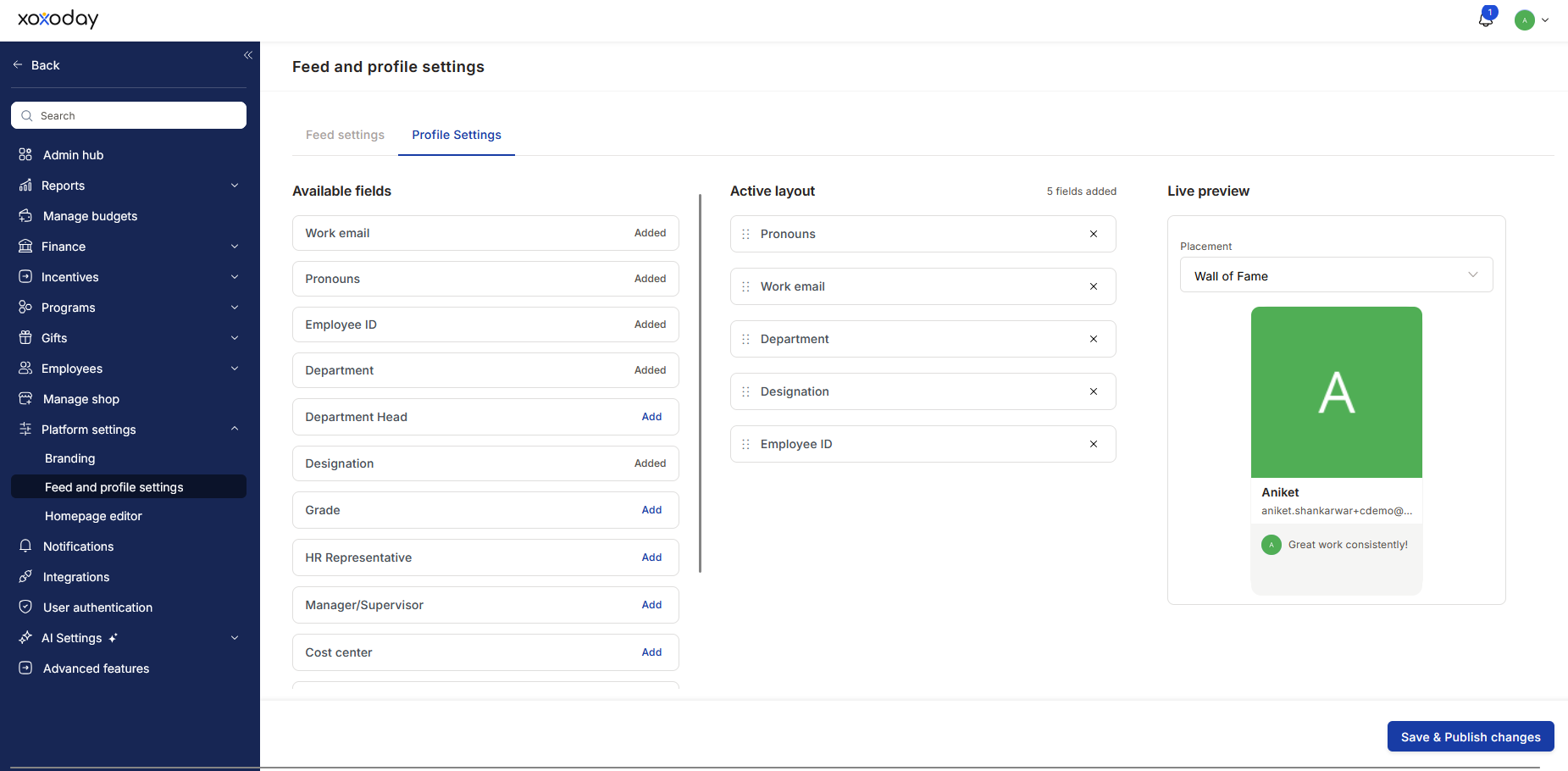
- You can also preview how it will appear under the Live Preview, as shown below.
Configuring the Wall of Fame Display
Admins can customise which metadata fields are shown on the Wall of Fame page and the individual user profile screen that opens when a user card is clicked. Two placements are available under Live Preview:- Wall of Fame — controls the fields visible on the main Wall of Fame listing (e.g. Designation, Department, Employee ID, Location).
- Wall of Fame — User Profile — controls the fields visible when a user’s card is clicked and their internal profile opens.
Configuring the Wishboard User Detail display
The Wishboard User Detail placement controls the profile fields shown under the celebrant’s name in the wishboard header. It applies to birthday, work anniversary, and new joinee wishboards. On these wishboards, the selected fields replace the default subtitle. Keep these rules in mind when you add fields:- Only the first four fields in your configured order appear. Order the most important fields first.
- If a celebrant has no value for a field, Empuls hides that field. It doesn’t show the fifth field in its place.
- If a viewer doesn’t have access to a field, Empuls hides that field for that viewer.
- Values longer than 25 characters are shortened. Hover over a value to see it in full.
FAQs
What is the Recommended Feed on Empuls?
The Recommended Feed is a curated content stream for employees that highlights relevant messages, announcements, and updates. Admins can customise what appears here to ensure visibility to the right audience.Where do I find the Feed Settings?
Navigate to Program Settings > Feed Settings to access the configuration options for controlling the feed content.How do I edit or customise Recommendations?
Go to the Recommendations section and click the pen icon to edit. You can select or deselect content categories and tags that should appear on the feed. Click Save to apply changes.What happens if I enable ‘All Updates’?
Enabling ‘All Updates’ will allow all published messages—regardless of their category—to show on the employees’ feed. Disable this if you prefer showing only specific content.Can I manage feed visibility for specific teams or locations?
Yes, you can control feed access for groups like Business Units, Cost Centers, Departments, or Locations by toggling visibility within Feed Settings.Can I use custom employee fields in feed recommendations?
Yes. If your company has custom employee fields (UDFs), select them in the Custom fields column when you edit Recommendations. Employees can then personalize My Circle by those fields.Please reach out through Contact Support in case of any feedback or questions.Where to find this in the platform? Application URL :
https://#{{tenant_url}}/home/feed-settings