
Navigation
- To configure these rules, navigate to Reports and Admins.
- For the Admin Dashboard go to Employees > Manage Exits and set your preferred treatment for the unused points in the exited employee’s account.
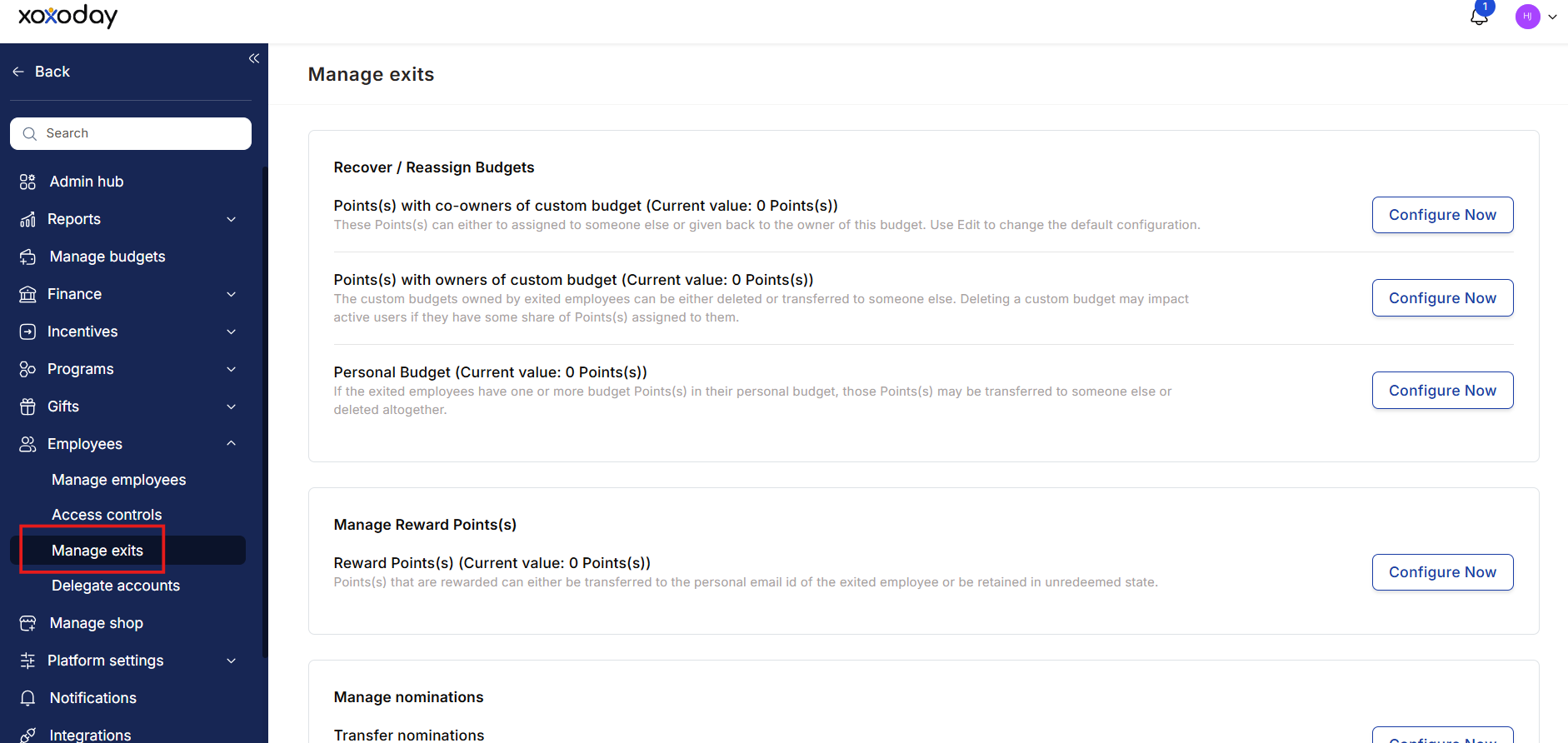
1. Recover / Reassign Budgets
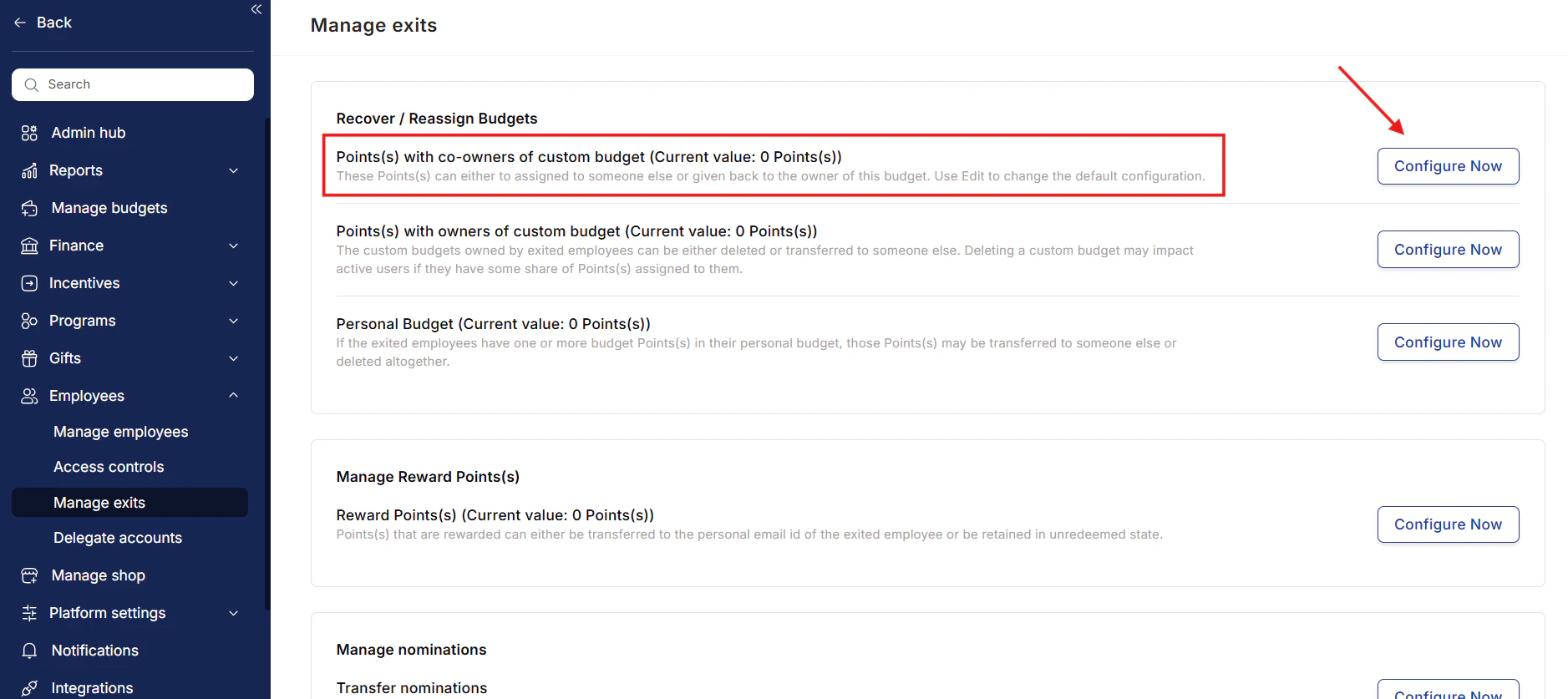
1.1 Manage budget points with custom budget co-owners
- The points can be transferred to a third party or returned to the budget owner by default.
- Click on “Configure Now” to modify or delete.
- Choose the desired option.
- Click Save to confirm your changes.
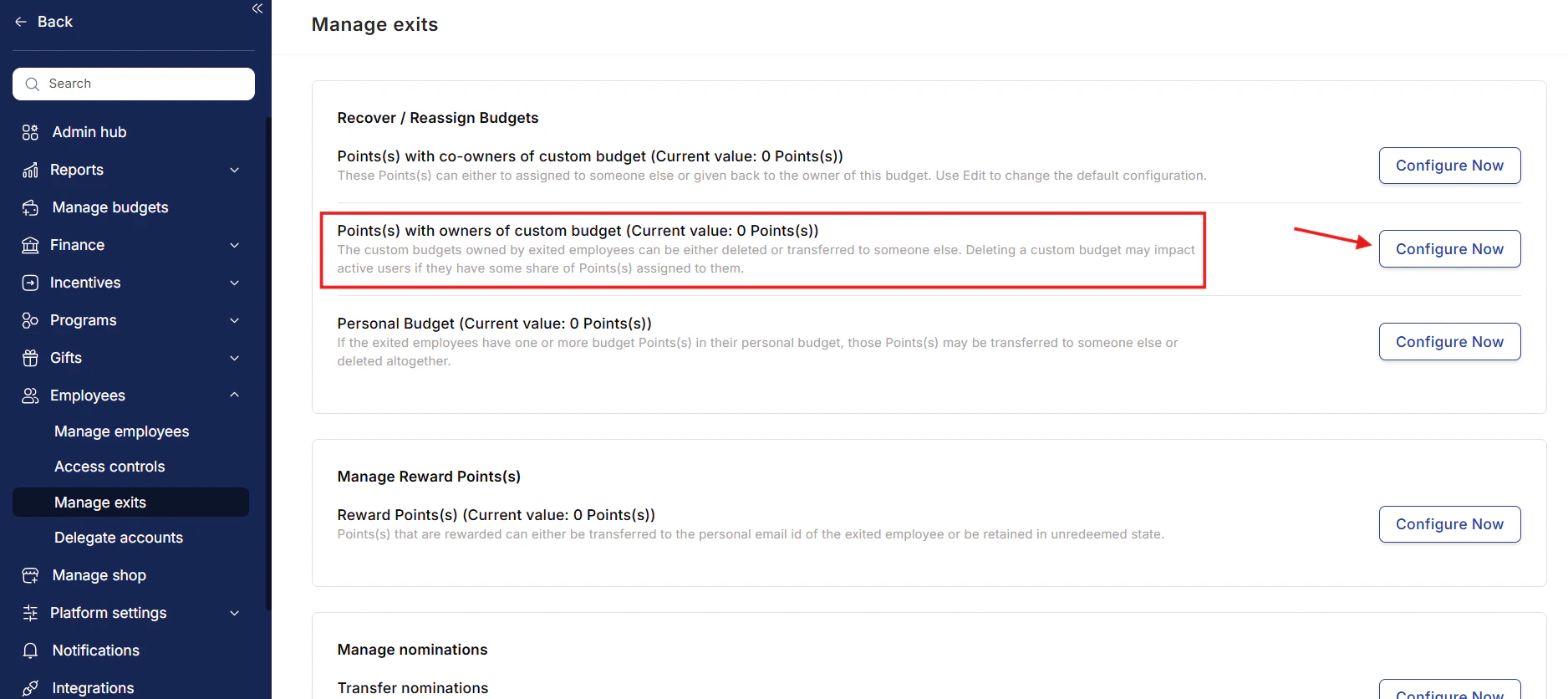
1.2 Manage custom budget custom budget owners
- Click on “Configure Now” next to the point(s) with the exited employee’s custom budget.
-
Choose an option:
- Delete Budgets.
- Transfer ownership and point(s) to someone else.
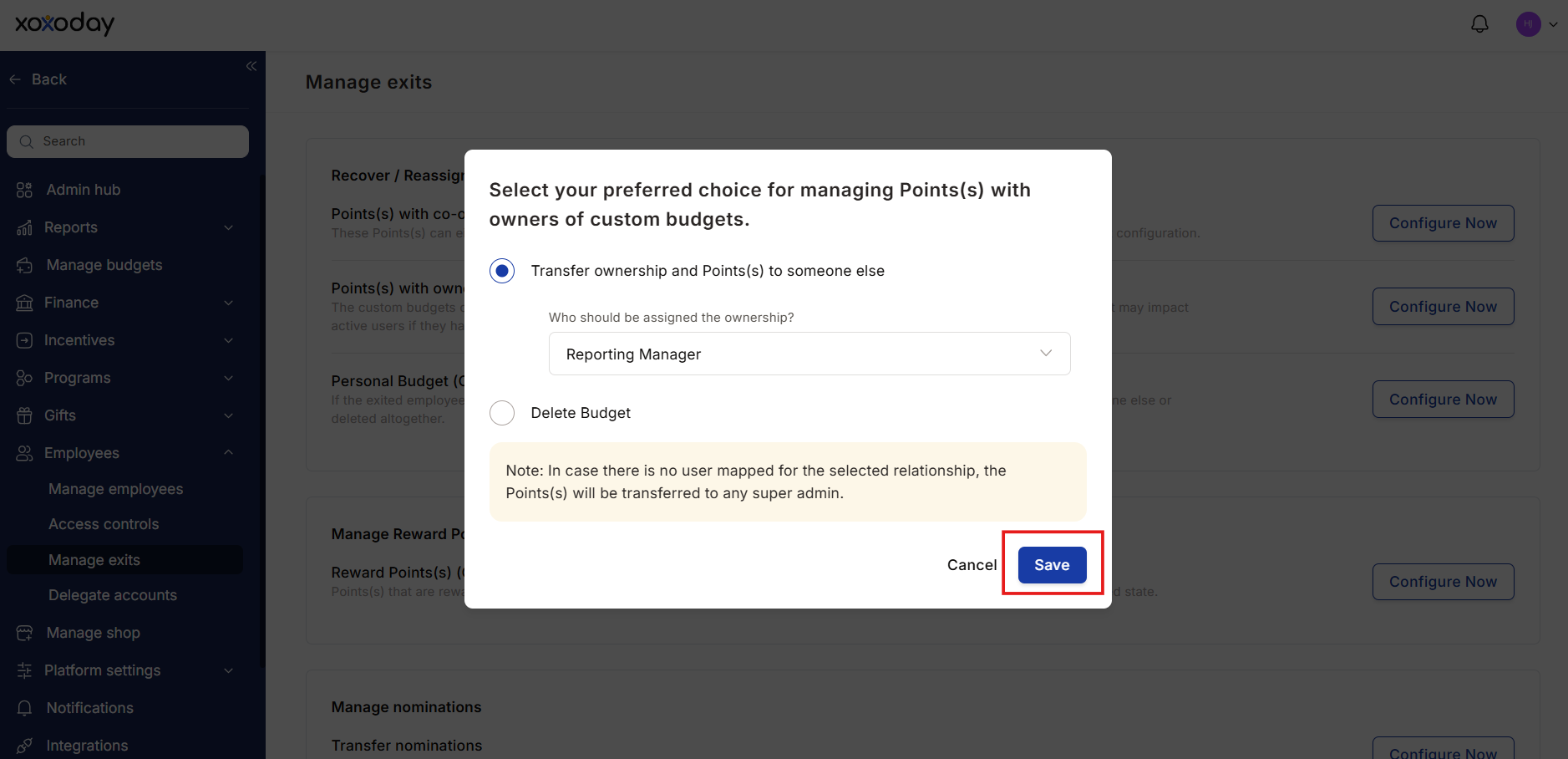
- Click Save to confirm the action.
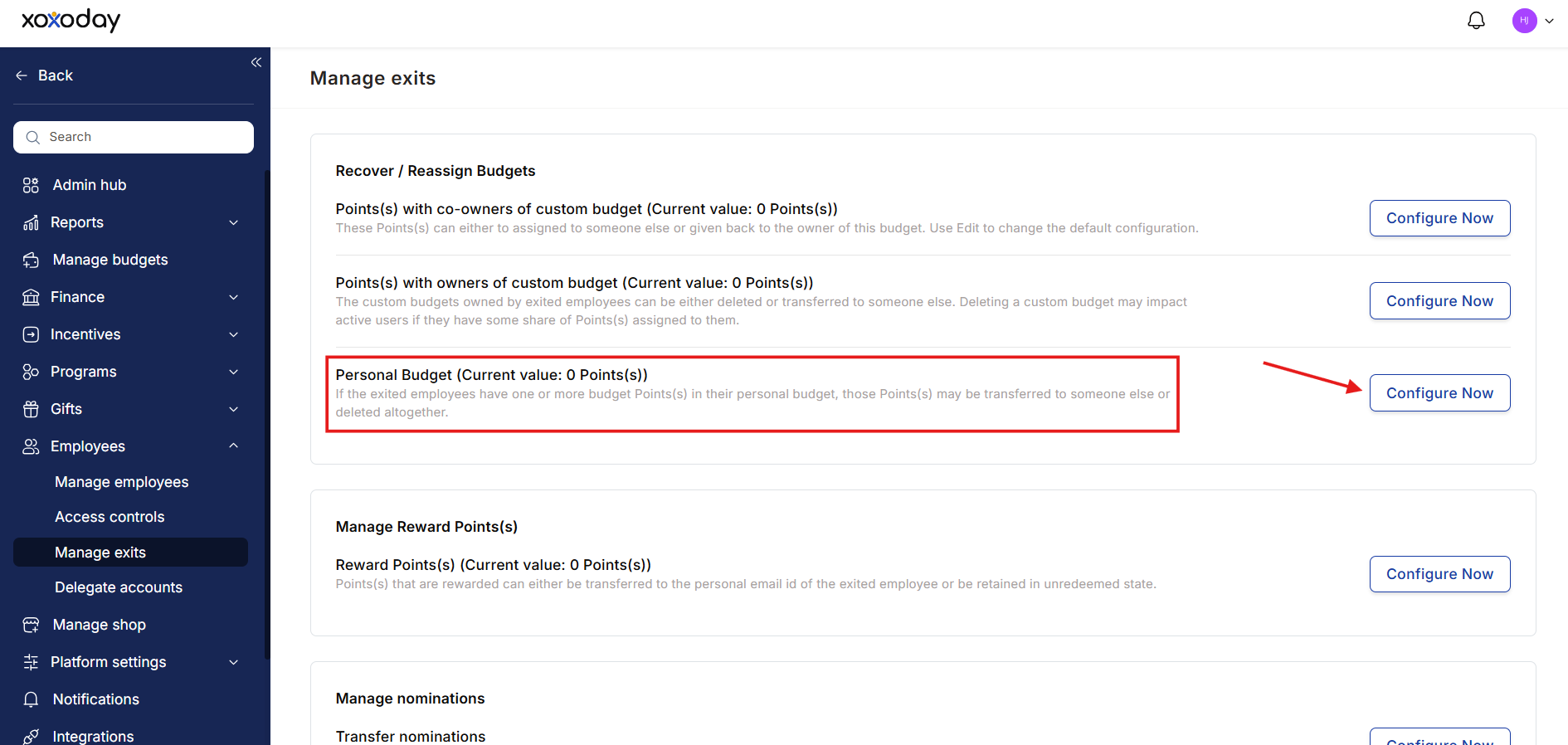
1.3 Manage points under exited employee’s personal budget
-
Click on “Configure Now”. If configured, choose the Edit option to make changes.
-
Choose one of the options:
- Transfer points to another employee (select an employee name).
- Destroy points.
- Click Save to confirm.
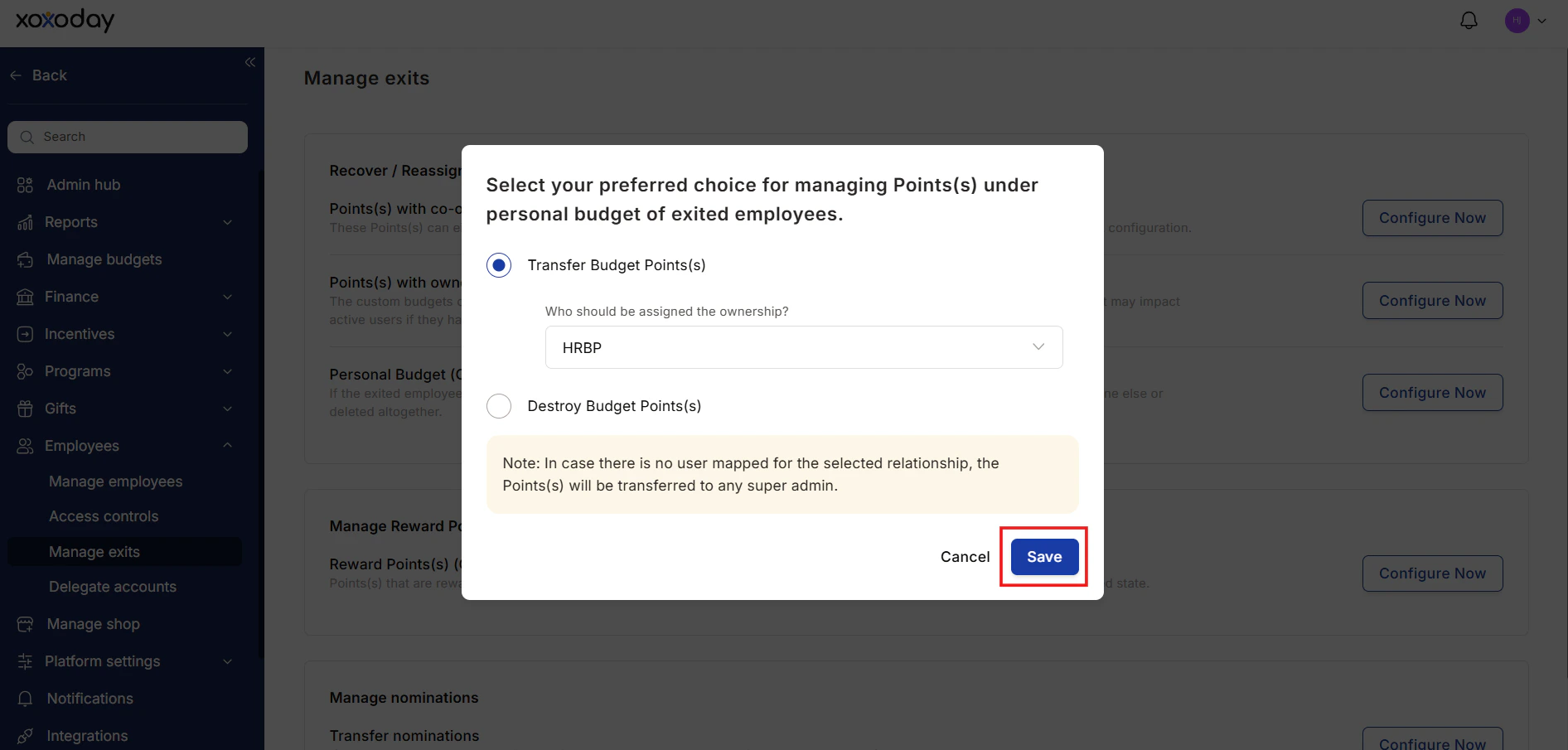
If no employee is selected, points will automatically go to the Super Admins.
2. Manage reward point(s)
Reward points that are allocated to employees can be managed in two ways when an employee exits the organization. These points can either be:- Transferred to the personal email ID of the exited employee.
- Retained in an unredeemed state or destroyed.
Step 1
Under the Manage Reward point(s) card, click on Edit.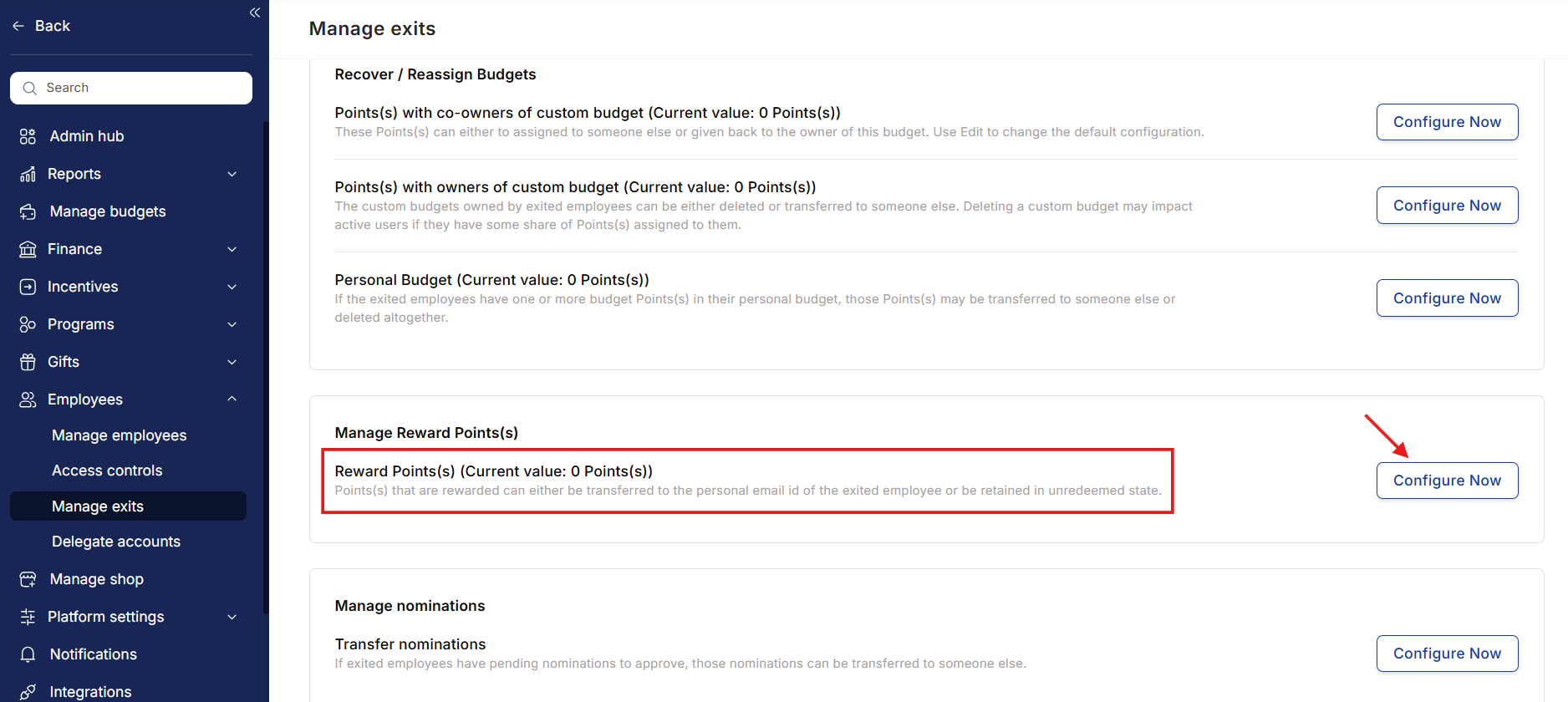
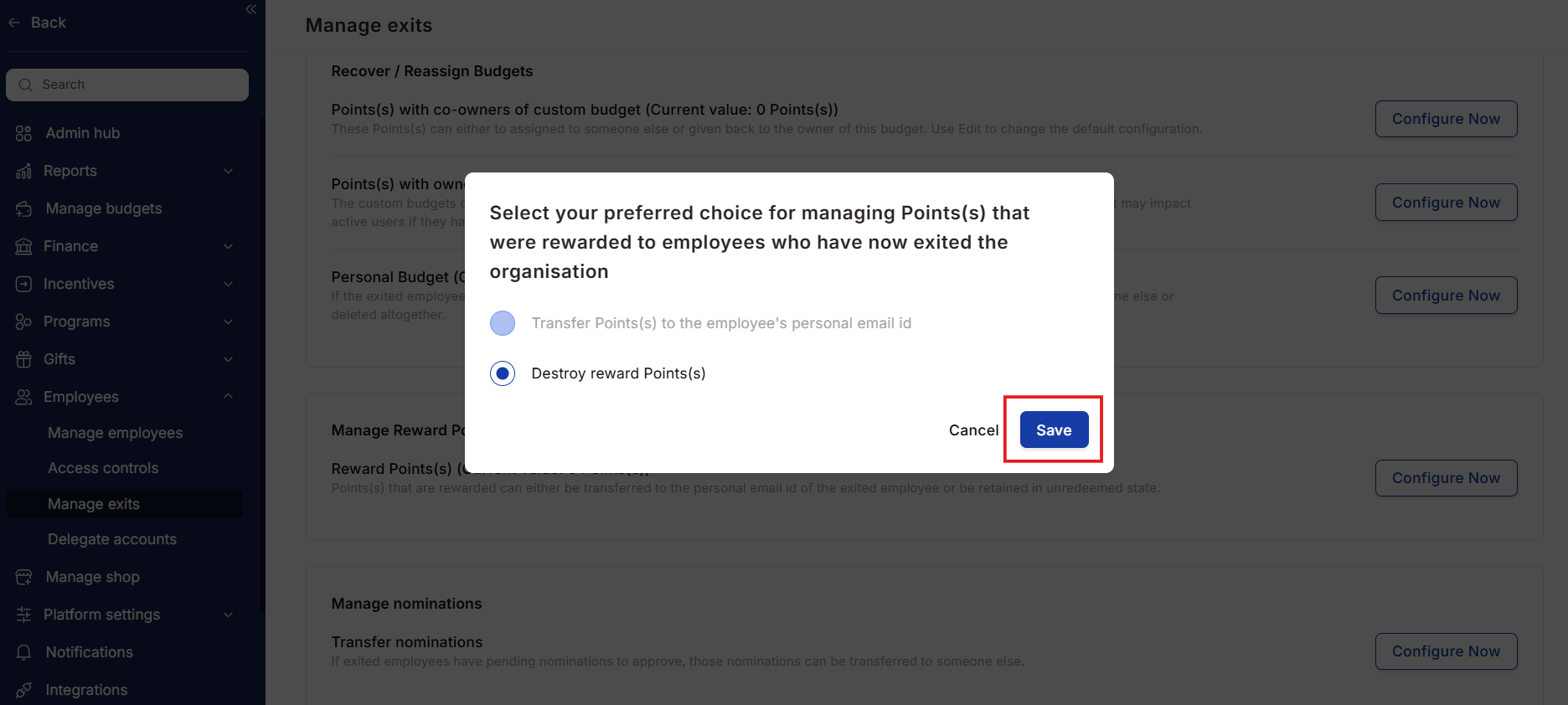
Step 2
Select your preferred option. Choose how you want to handle the reward point(s) of the exited employee:- Transfer Points to Exited Employee’s Personal Email ID
- Destroy Reward Point(s)
3. Manage nominations
In case an exited employee has some pending nominations to approve, those nominations can be transferred to someone else.Step 1
Navigate to Employees > Manage Exits > Manage Nominations.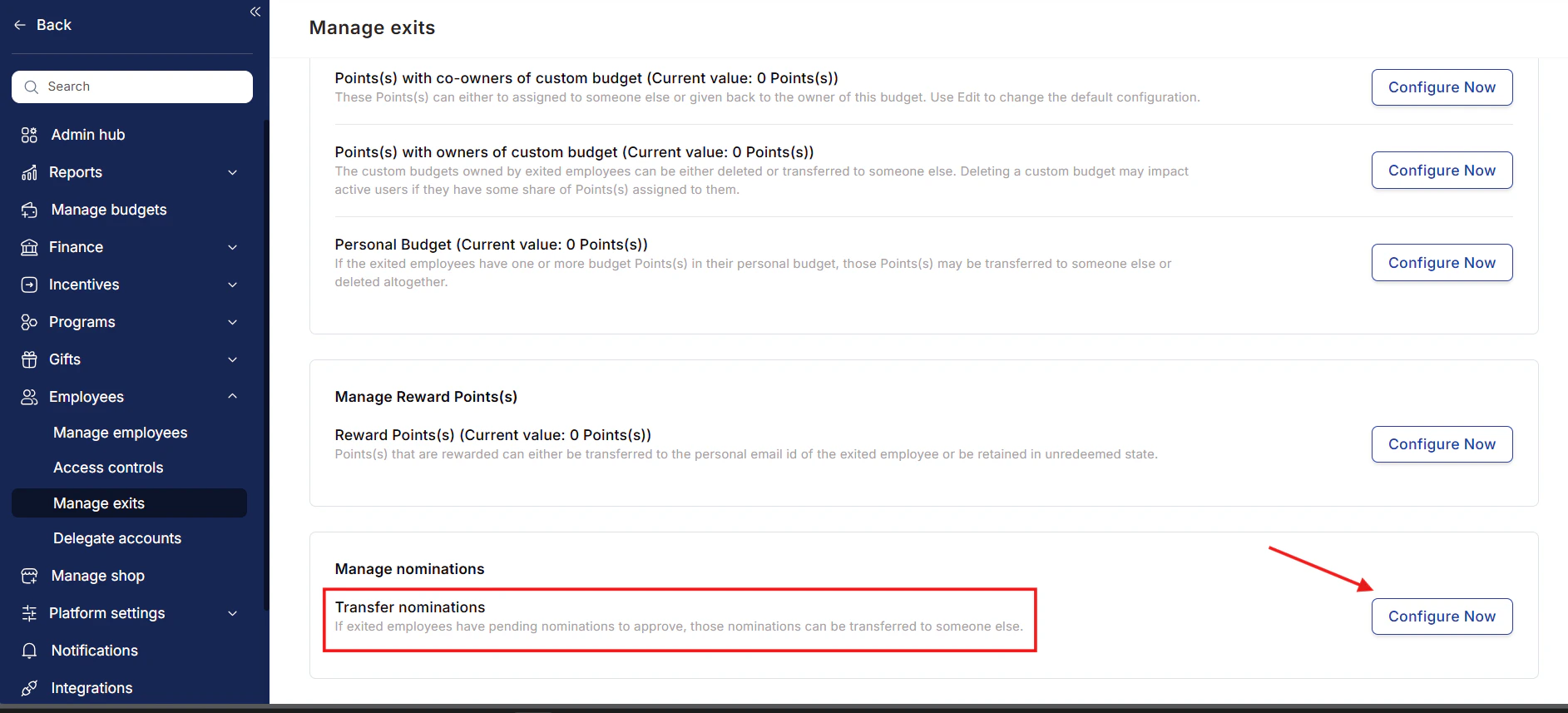
Step 2
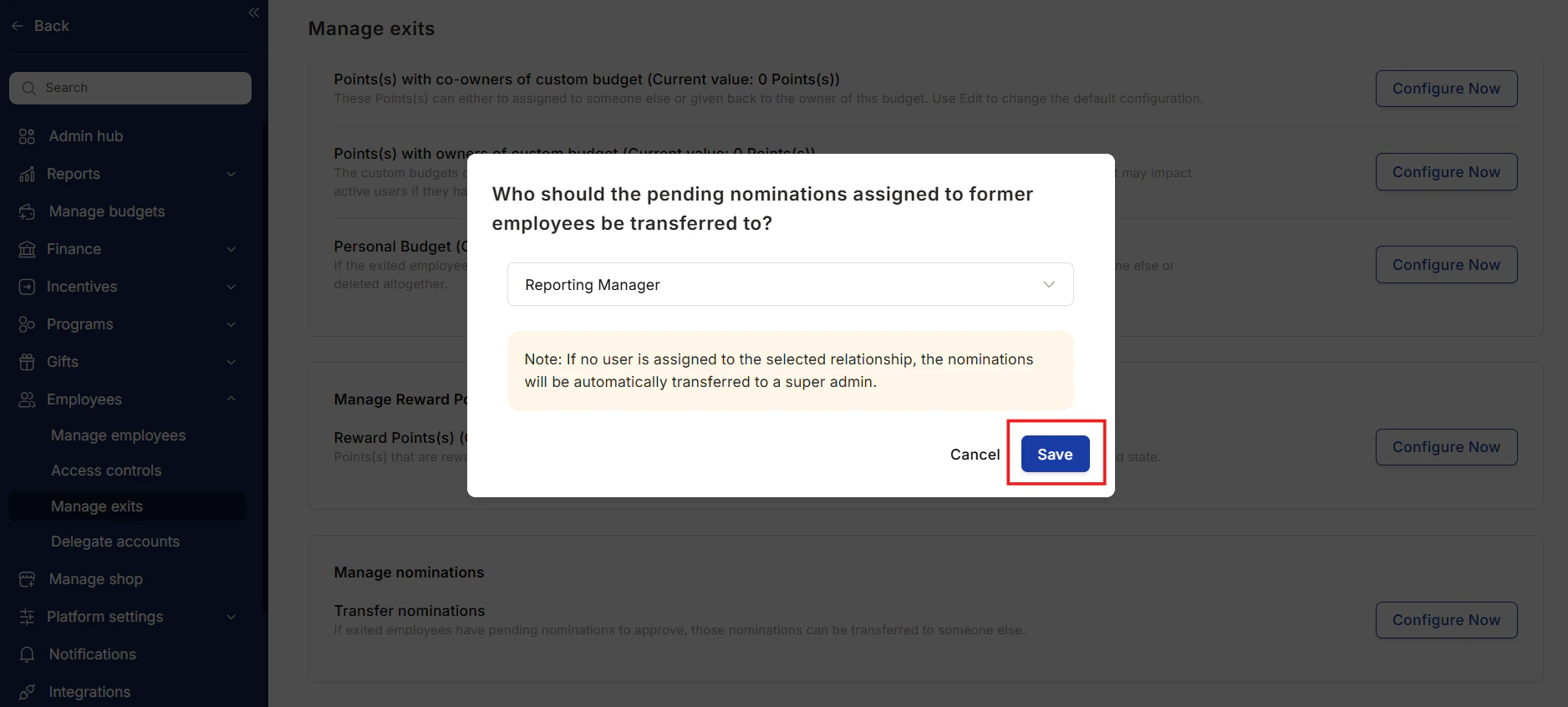
Click on Edit.Step 3
Select the person to whom you wish to transfer the nominations. You can choose from the following options:- Self (the former employee who originally nominated)
- Reporting Manager of the nominated employee
- HRBPO
- Department Head
- Business Unit Head
- Cost Center Head
FAQs
What happens to unused budget points when an employee exits?
What happens to unused budget points when an employee exits?
You can configure whether to transfer, delete, or disable these points under the Manage Exits settings.
Can I transfer reward points to the exited employee?
Can I transfer reward points to the exited employee?
Yes, you can choose to transfer unredeemed reward points to the employee’s personal email for later redemption.
What if I don’t assign a recipient for personal budget points?
What if I don’t assign a recipient for personal budget points?
If no recipient is selected, the points will automatically be transferred to the Super Admins.
https://#{{tenant_url}}/home/manage-employee-exit
Questions, feedback or support? Get in touch through Contact Support