
Video walkthrough
Manage organisational R&R budget
Reward Admins (Super Admins) can control the organization’s reward expenses by managing the total points created in the system.Create points
Points are the currency used in this system for rewarding users or giving gifts (for example, on birthdays). To start the rewarding process, you must first create points. These points are only paid for at the time of redemption. The Super Admin can create these points using their assigned personal budget.1
Open the Admin Dashboard
Go to the Admin dashboard by clicking on Reports and Admin.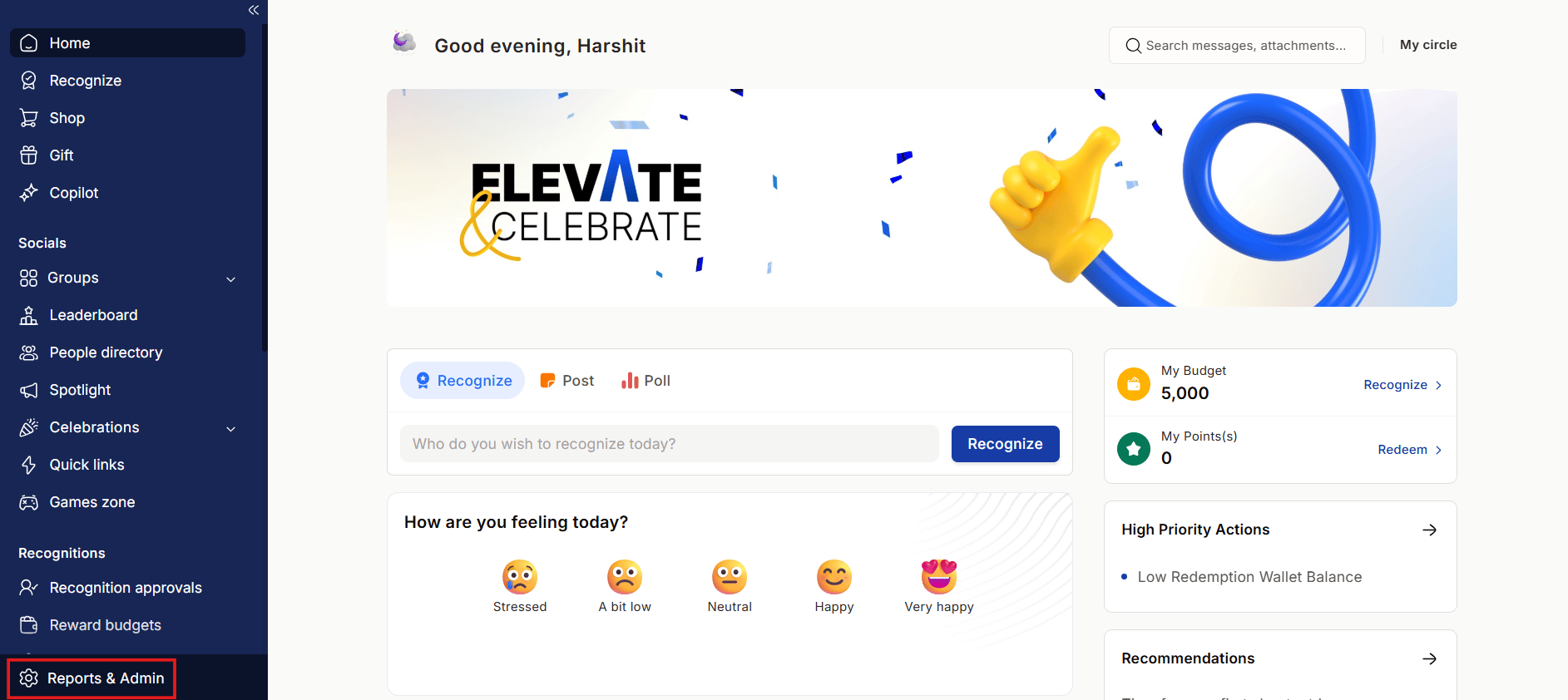
2
Navigate to Manage budgets
Navigate to Manage budgets.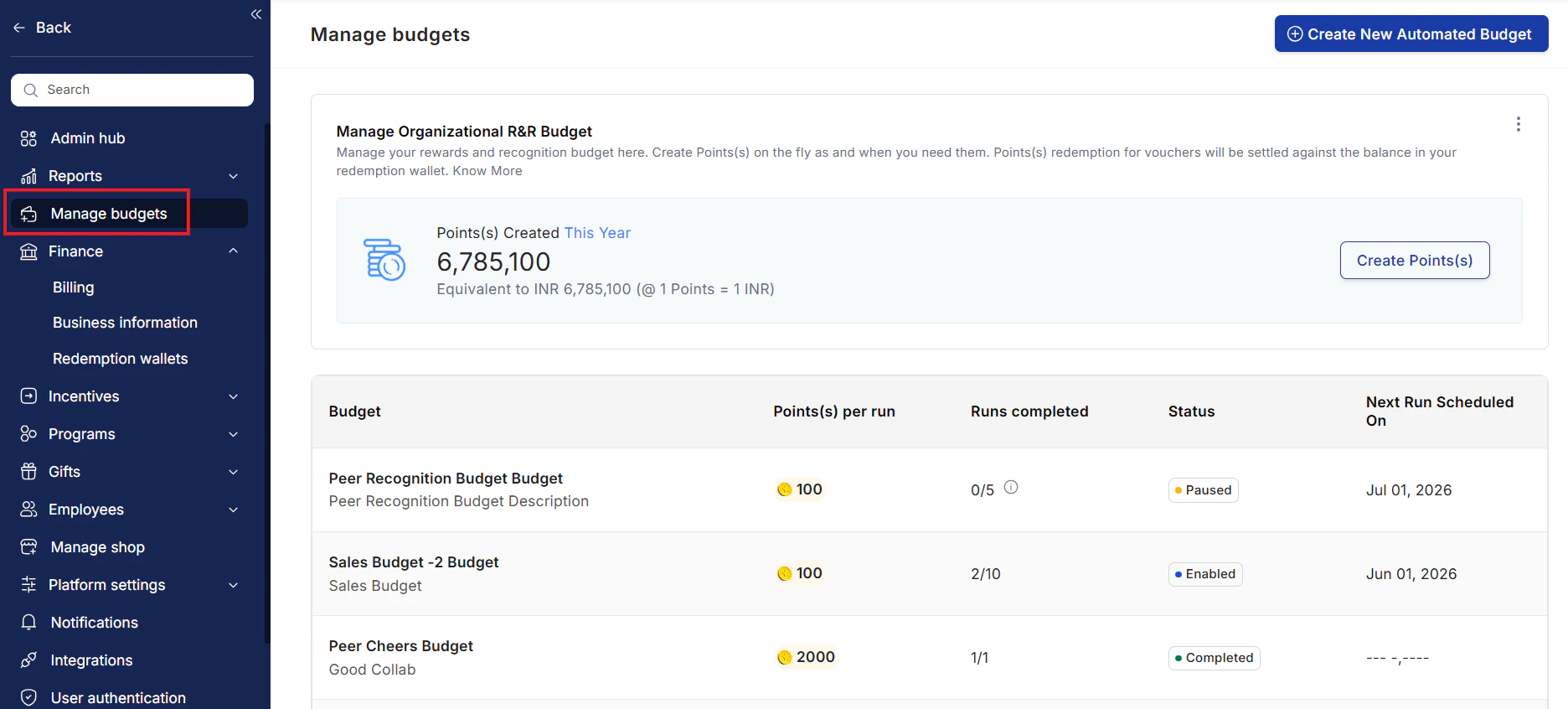
3
Open Create Points
Click on Create Points under the Manage Organizational R&R Budget card.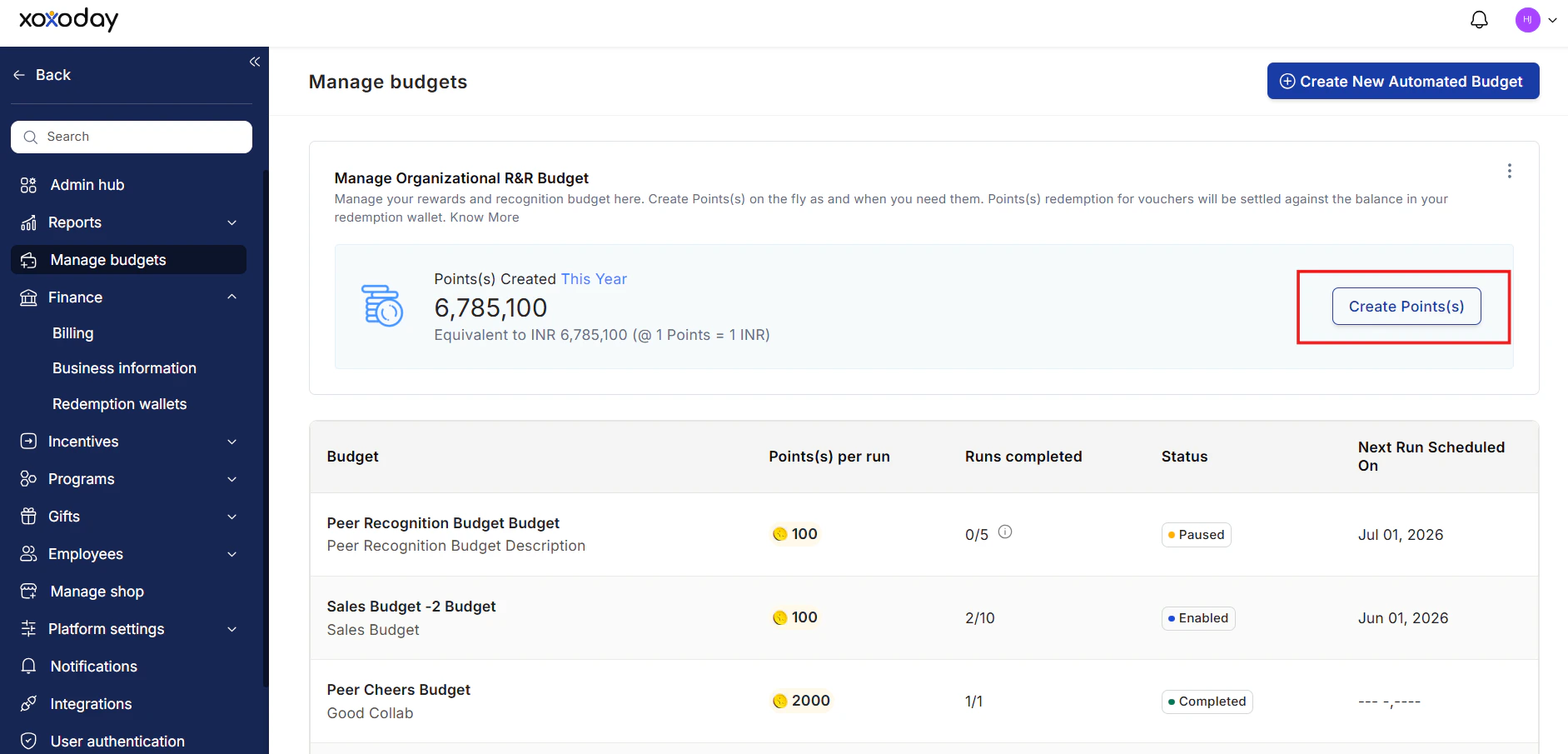
4
Enter the number of points
Enter the total number of points you wish to create. The equivalent currency is shown alongside. Click Create.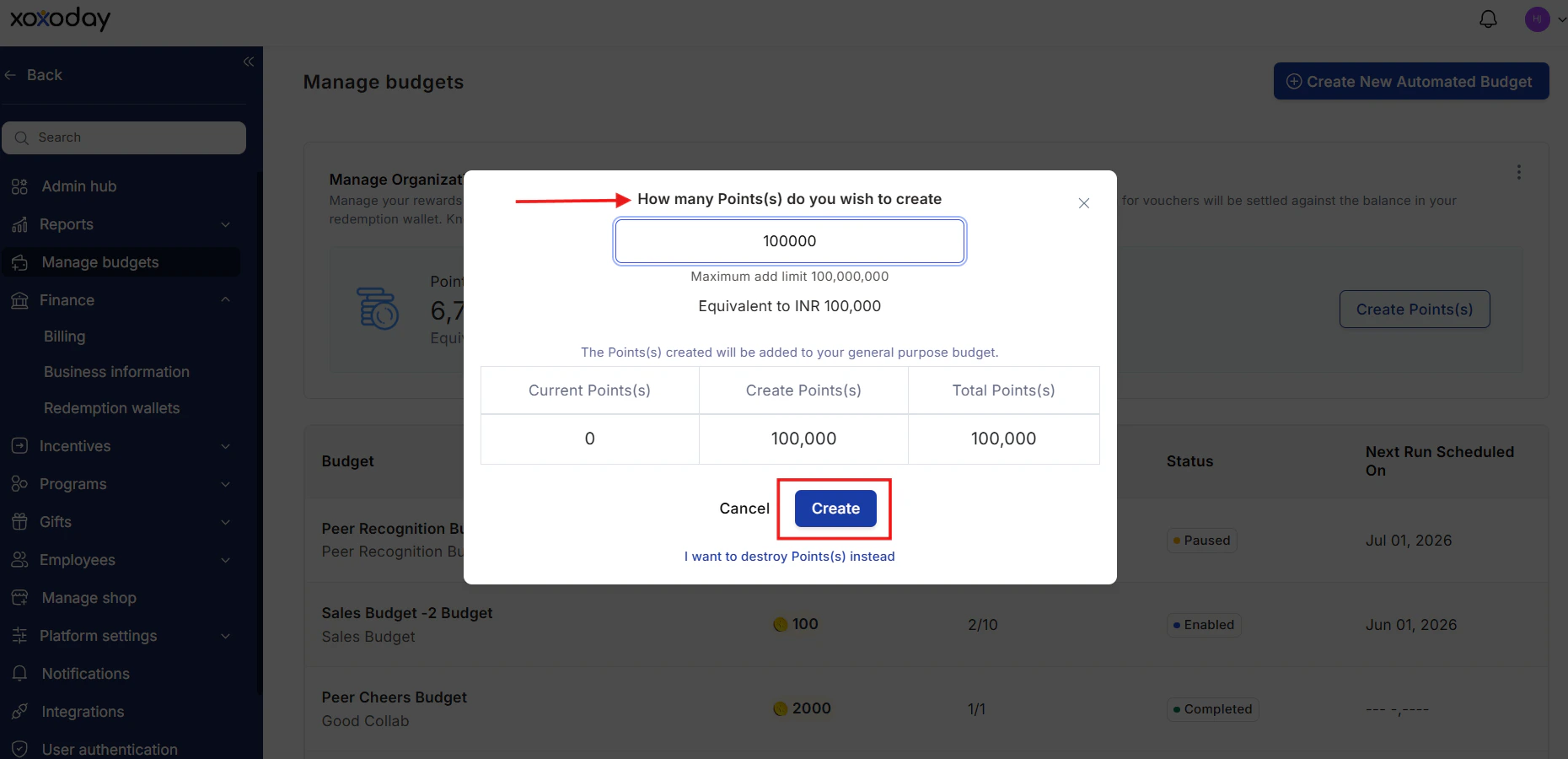
5
Destroy points (optional)
You can also choose to destroy reward points. Click I want to destroy points instead at the bottom. Enter the number of coins you wish to destroy and click Destroy.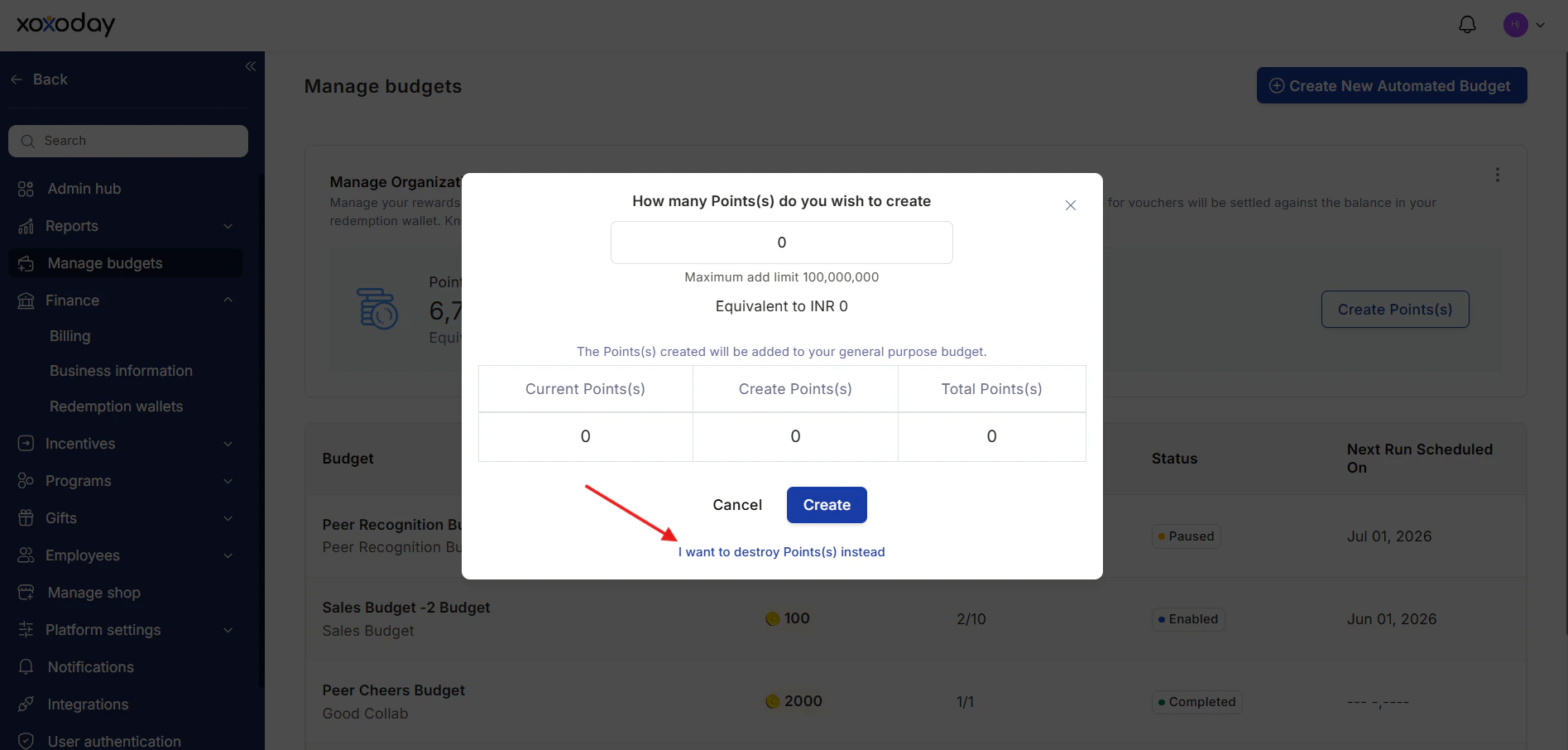
6
View totals by timeframe
Select the desired time frame to view the total reward points — for example, a day, a month, or a year.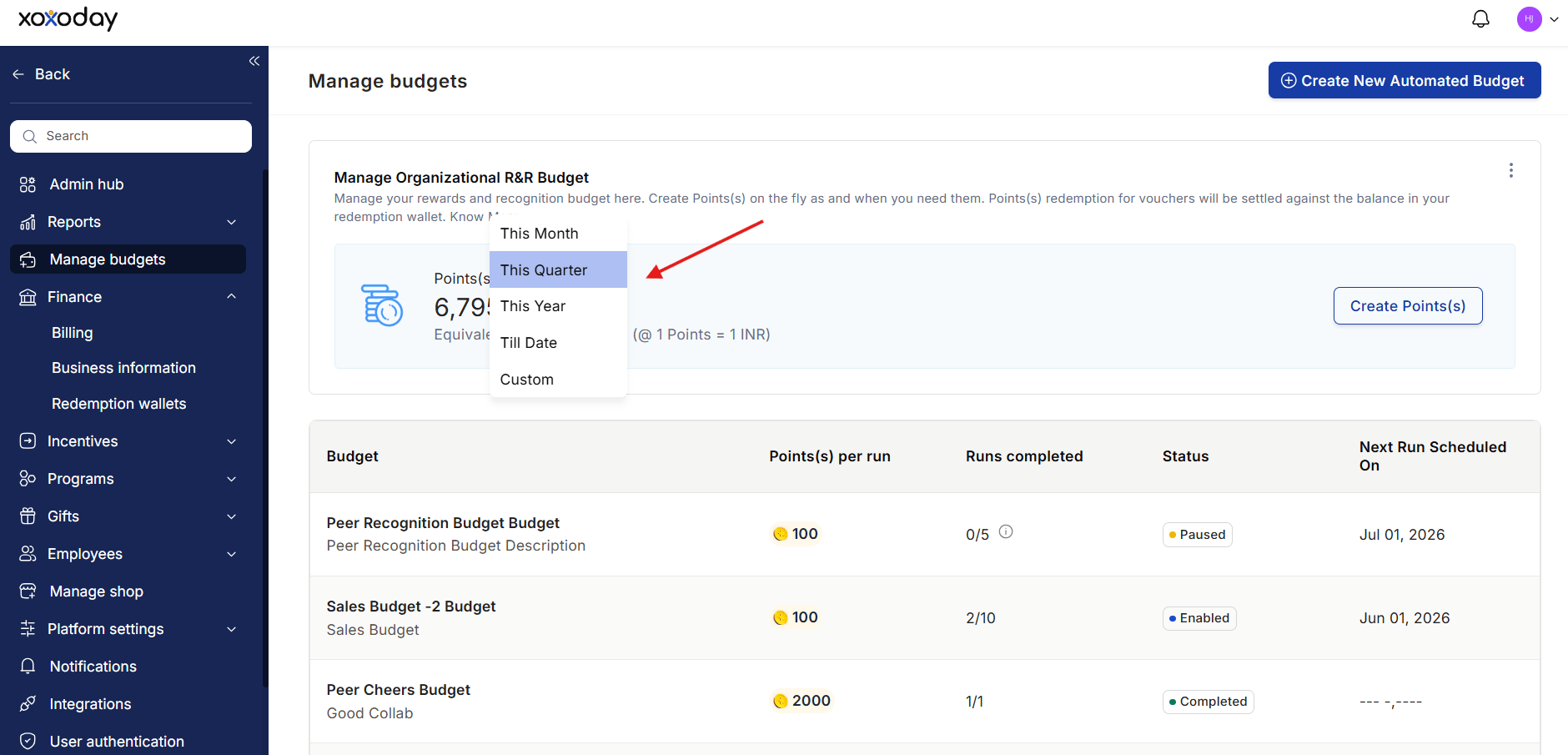
- You only need to pay for reward points at the time of redemption.
- The organisational wallet must have sufficient funds to honour redemptions on the Empuls store.
Edit an existing budget
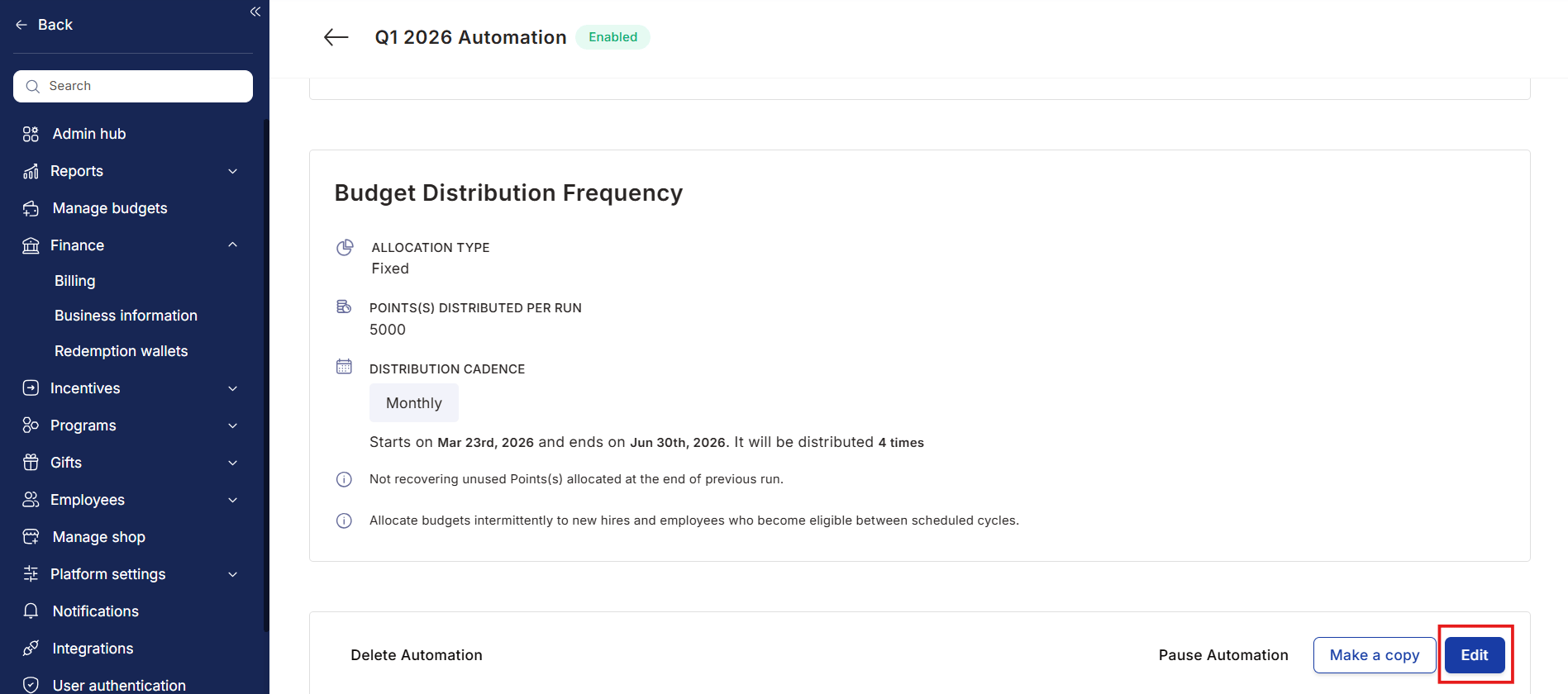
To update a budget’s name, description, allocation, or recipients after it has been created:- Go to Manage Budgets in the Admin Hub.
- Locate the budget in the list and click on it to open Budget Details.
- Click Edit and make the necessary changes.
- Click Save to apply the updates.
Pause and reactivate a budget
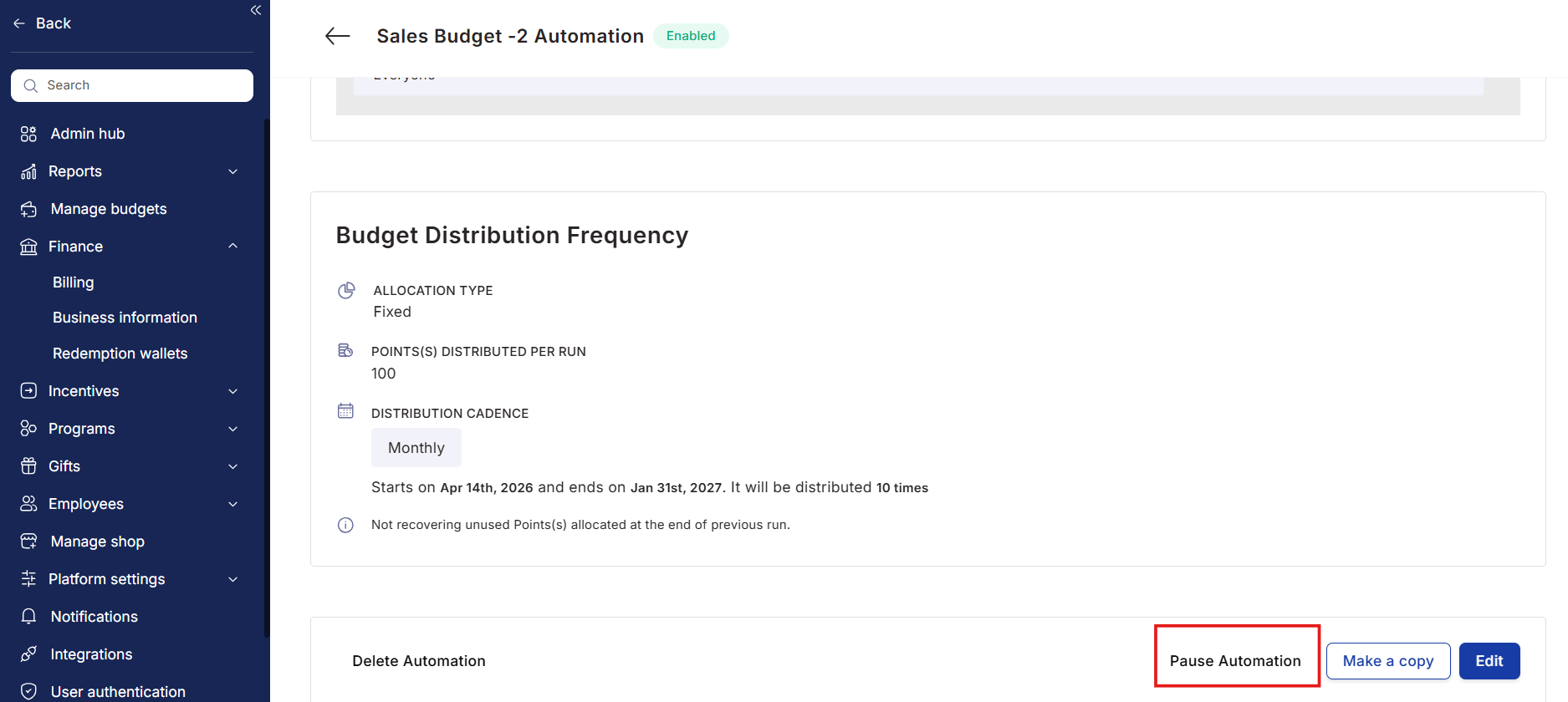
If you need to temporarily suspend a budget — for example, during a company restructuring or hiring freeze — you can pause it without losing its configuration.- Open the budget from the Manage Budgets list.
- Click Pause Budget.
- The budget stops distributing points on its schedule but retains all settings.
- When ready to resume, open the budget again and click Reactivate.
Duplicate a budget
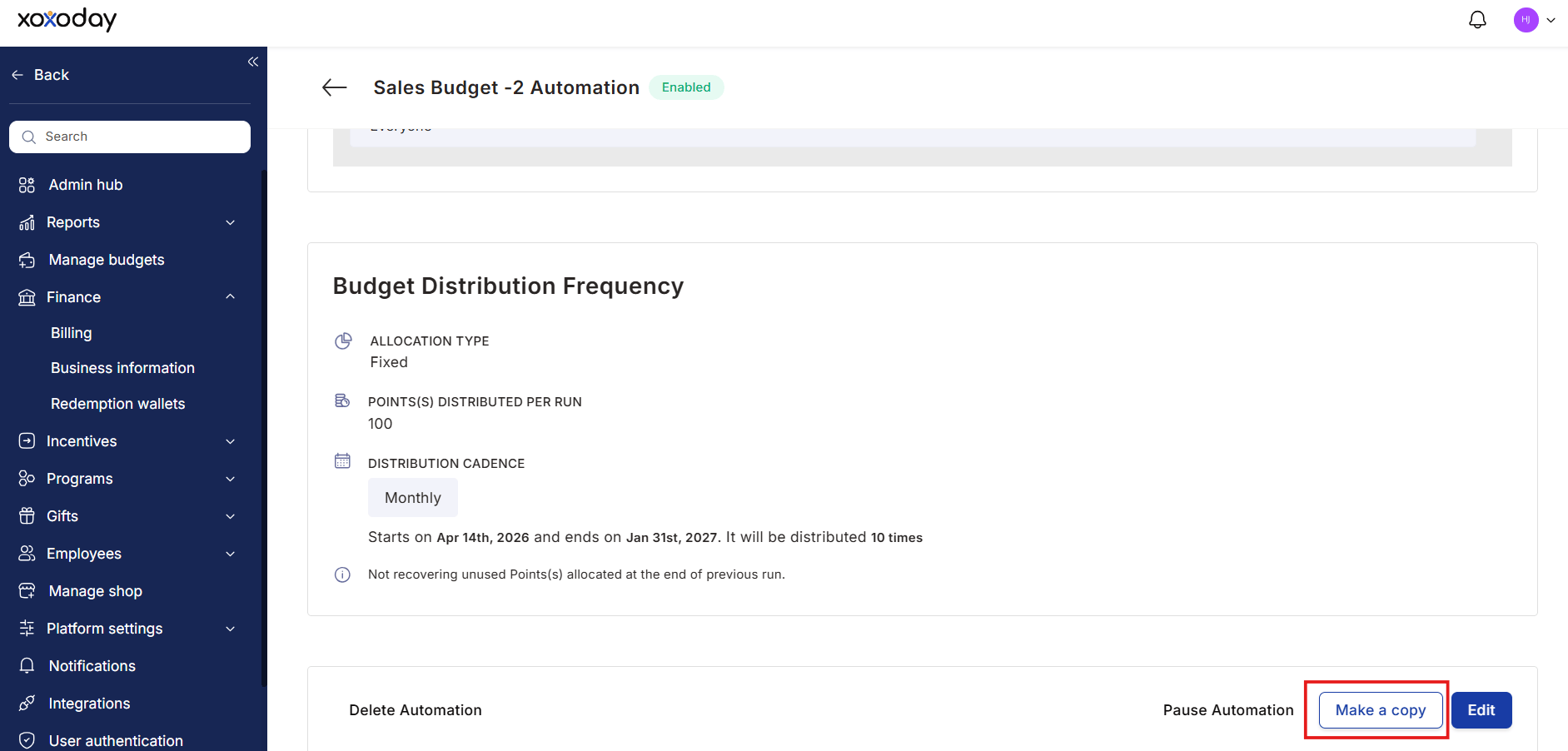
If you want to create a new budget based on an existing configuration:- Go to Manage Budgets and click the budget you want to copy.
- Scroll to the bottom of the Budget Details page.
- Click Make a Copy.
View budget history
To review how a budget has performed over time:- Navigate to Reports & Settings > Manage Budgets.
- Locate the budget in the list and click on it to expand.
- Review the Budget Details section to see historical distribution runs, amounts sent, and recipients.
Monitor budget usage
Budget usage data is available in two places:- Budget Details — Expanding any budget shows current allocation status and remaining balance.
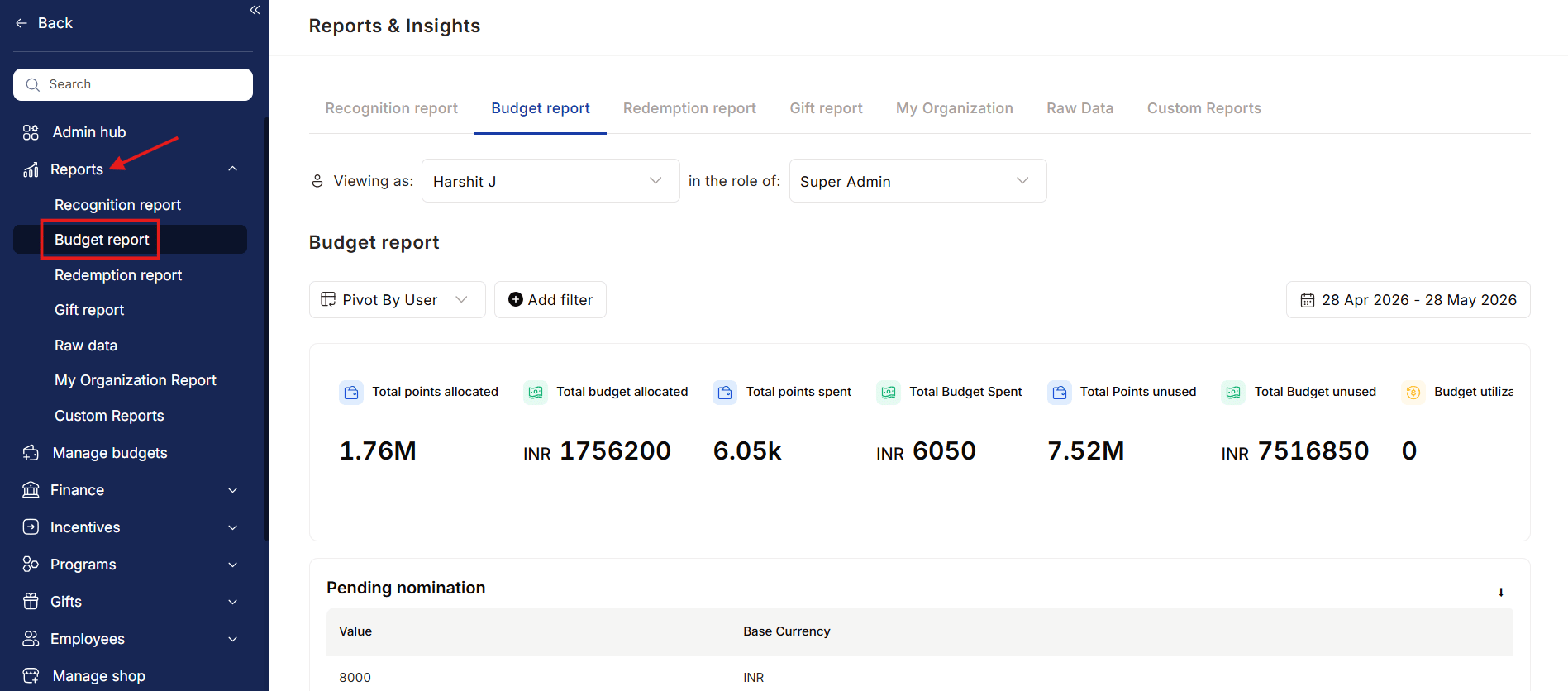
- Budget Reports (in the Reports section) — Organization-wide view of allocated vs. spent budgets across all departments, managers, and programs.
FAQs
What is the difference between fixed and prorated allocation?
What is the difference between fixed and prorated allocation?
Fixed allocation gives every recipient the same number of points regardless of team size. Prorated allocation scales the distribution based on a rule — for example, a manager with 10 direct reports receives more points than a manager with 3, so both can meaningfully recognize their teams.
Can I change the award linked to a budget after creating it?
Can I change the award linked to a budget after creating it?
Yes. Open the budget from Manage Budgets, click Edit, update the linked awards, and save. Changes take effect on the next distribution run.
What happens to unused points at the end of a cycle?
What happens to unused points at the end of a cycle?
If you checked Recover unused points during budget creation, unspent points return to the budget pool at the end of each cycle. If this option is unchecked, points carry over to the next cycle or remain in the recipient’s budget wallet.