
You need an Admin or Survey Admin role to create and manage surveys.
Survey types overview
Empuls offers five categories of surveys:Running an eNPS or pulse survey
1
Navigate to the survey module
Go to Survey > Pulse and eNPS and scroll to the Employee Pulse Surveys card. Here you’ll see the default survey templates and any already-running campaigns.
2
Select a survey type
Choose either an eNPS Survey (single loyalty question) or a Pulse Survey (multi-question engagement assessment). Click Get Started on the template you want to run.
3
Run the survey
Click Run Survey at the top-right. From here you can adjust the survey period using the calendar, then proceed through the configuration steps below (Steps 7–10).
Creating a custom pulse survey
If the standard templates don’t fully meet your needs, you can build a custom pulse survey from scratch or extend an existing template.1
Open Browse Templates
Navigate to Survey > Pulse and eNPS, then click Browse Templates at the top-right.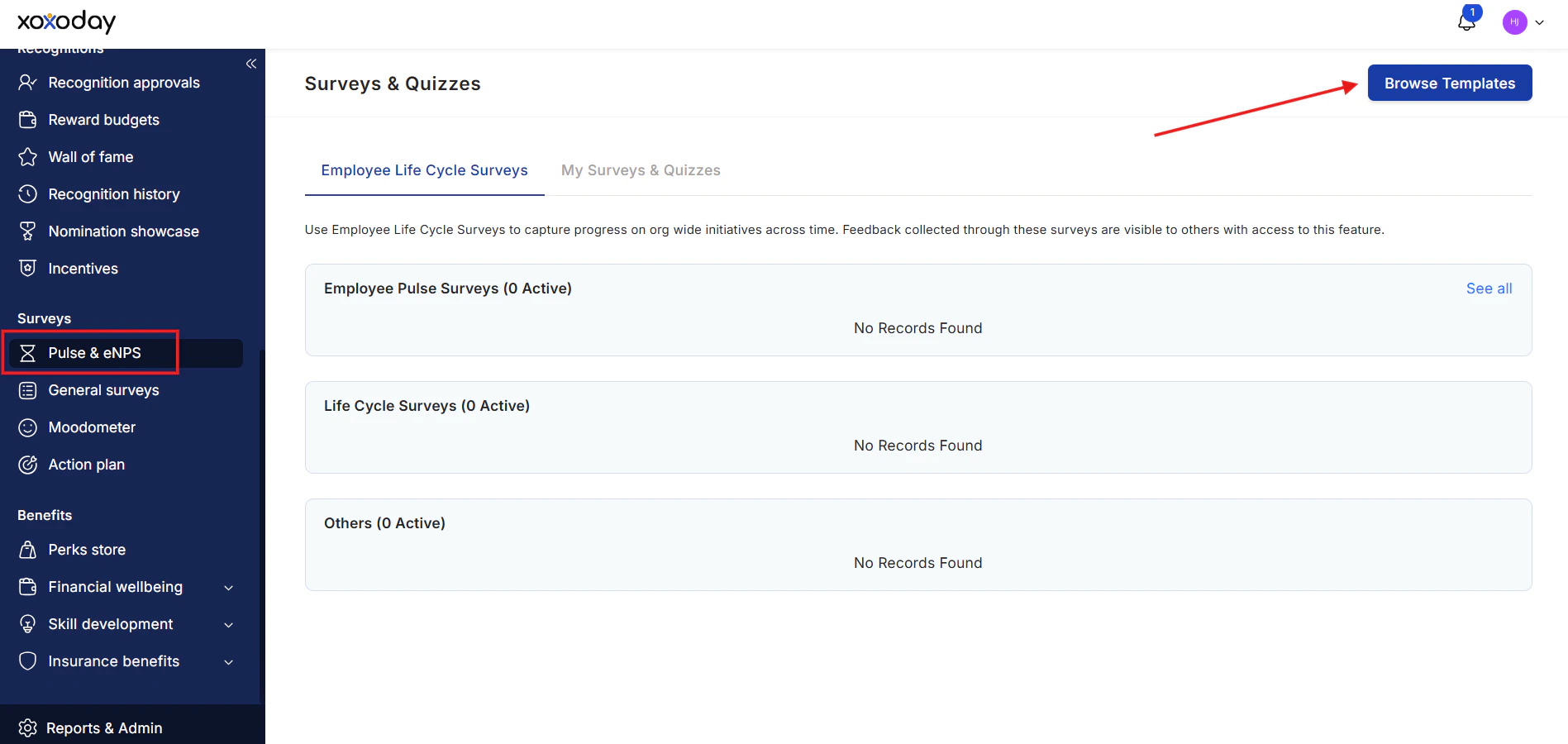
2
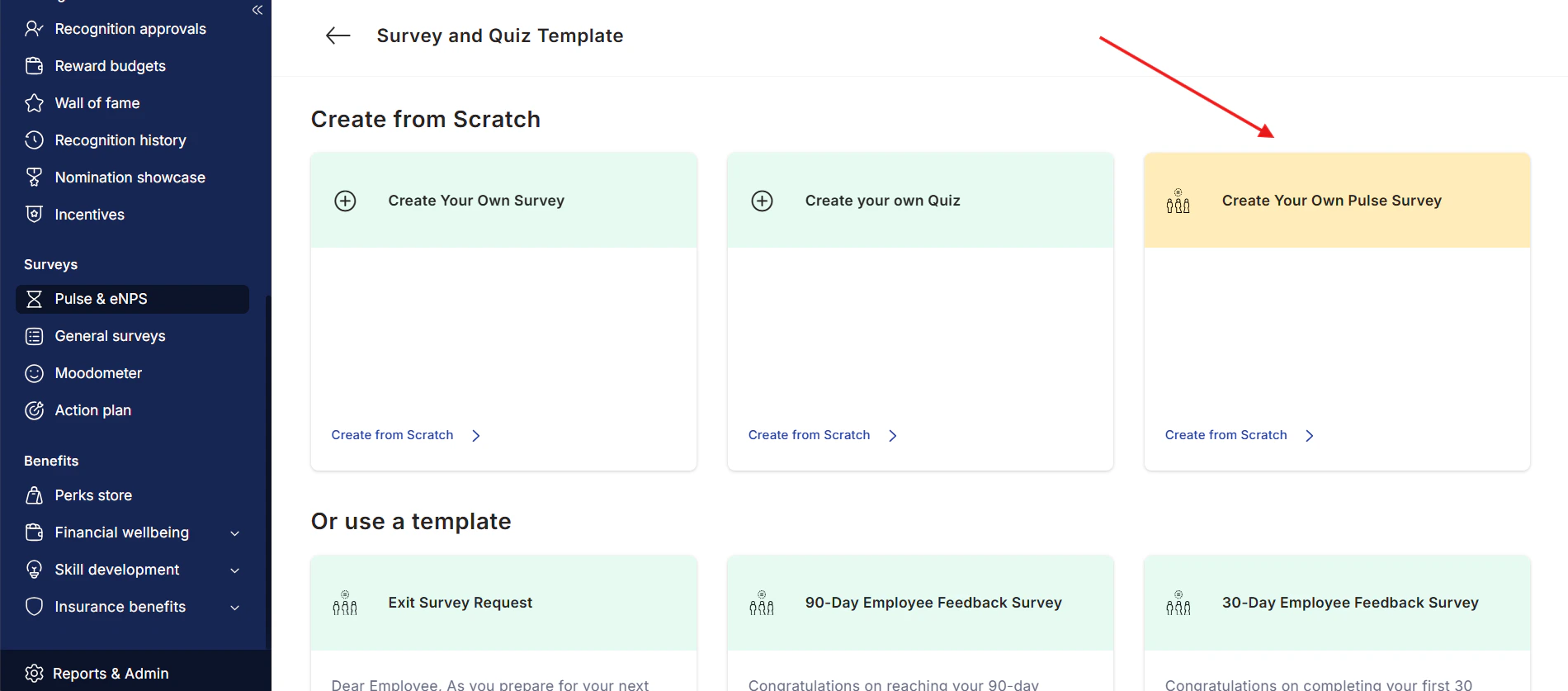
Choose your starting point
- Select an existing template to customize, or
- Click Create from Scratch > Create Your Own Pulse Survey
3
Name your survey
Fill in the survey name and purpose so respondents understand why they’re being asked to participate. Click Continue.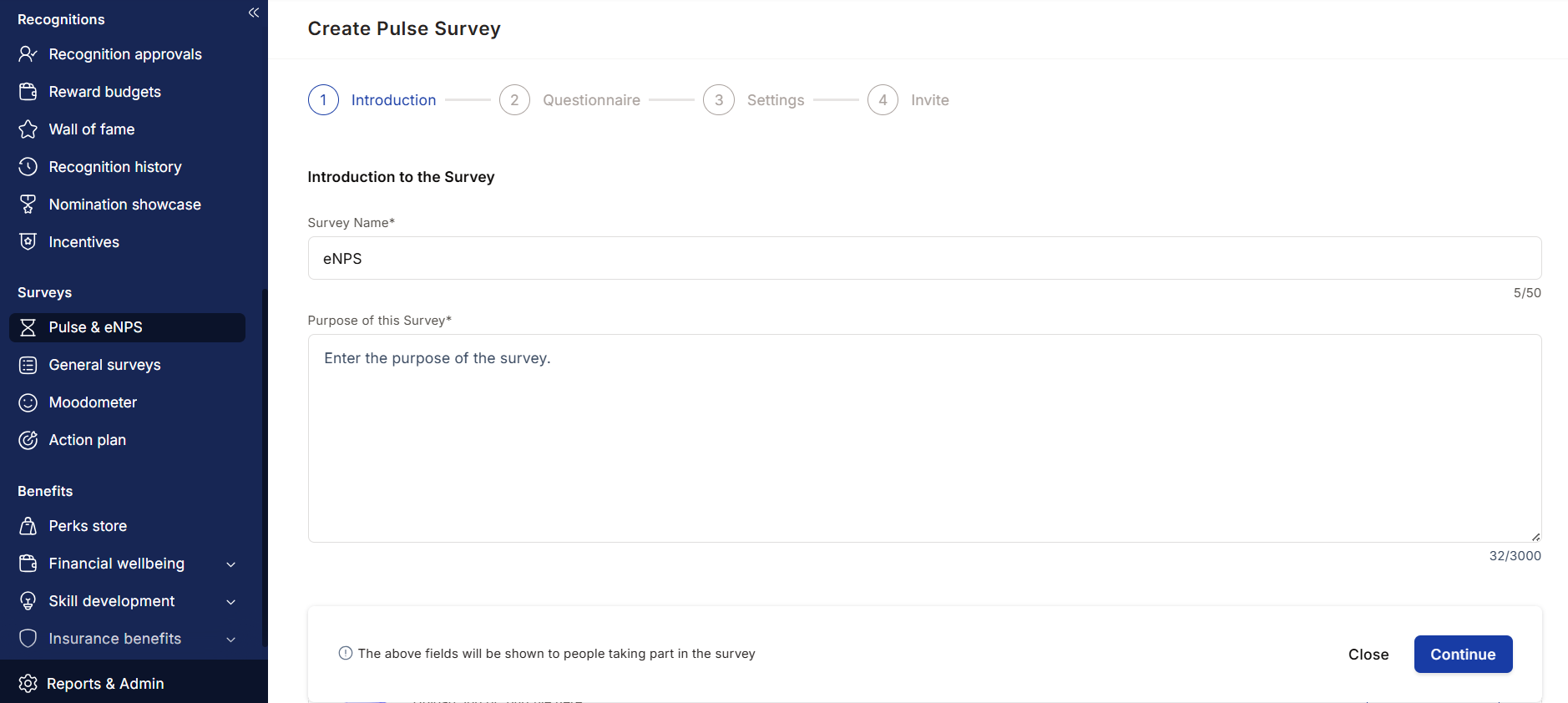
4
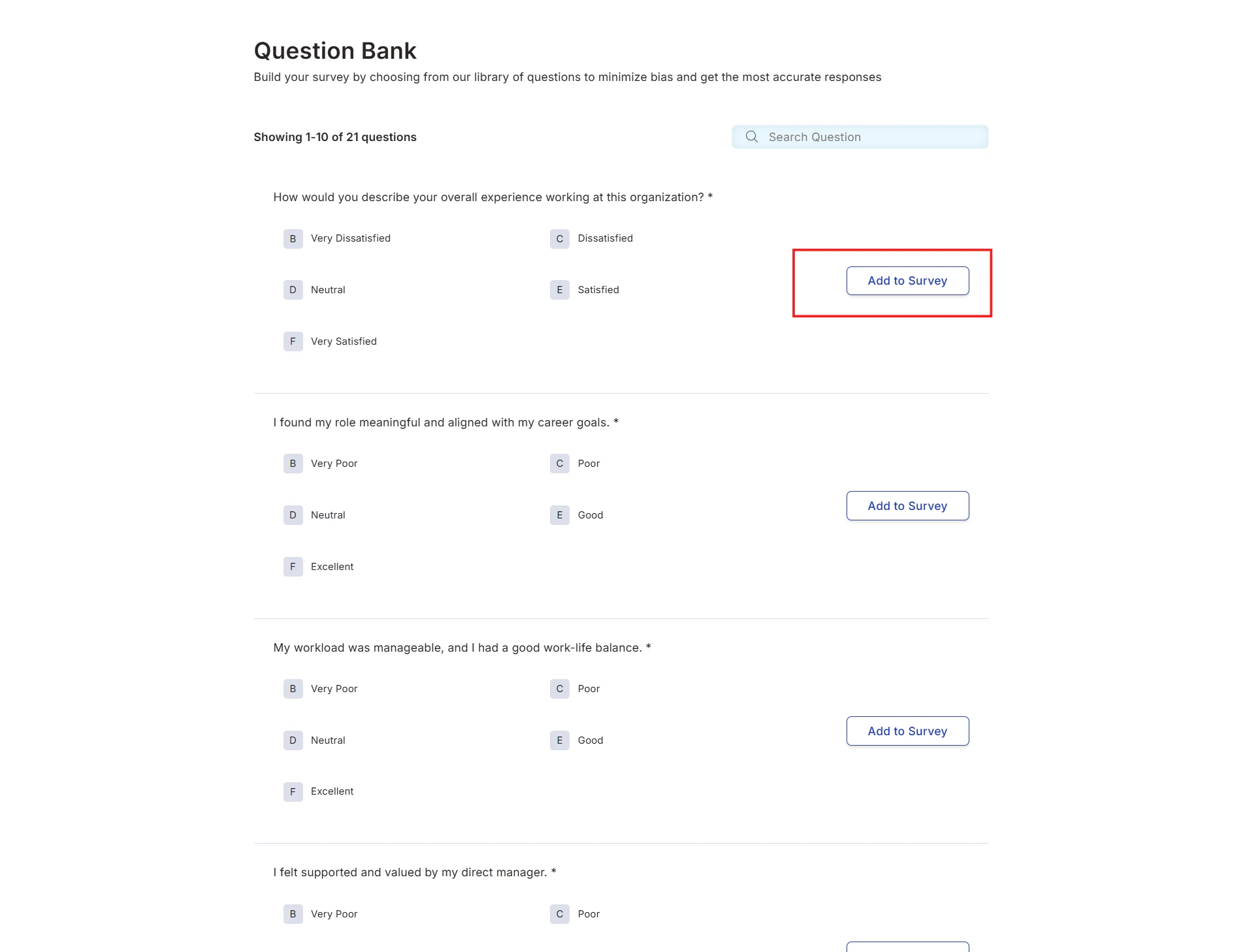
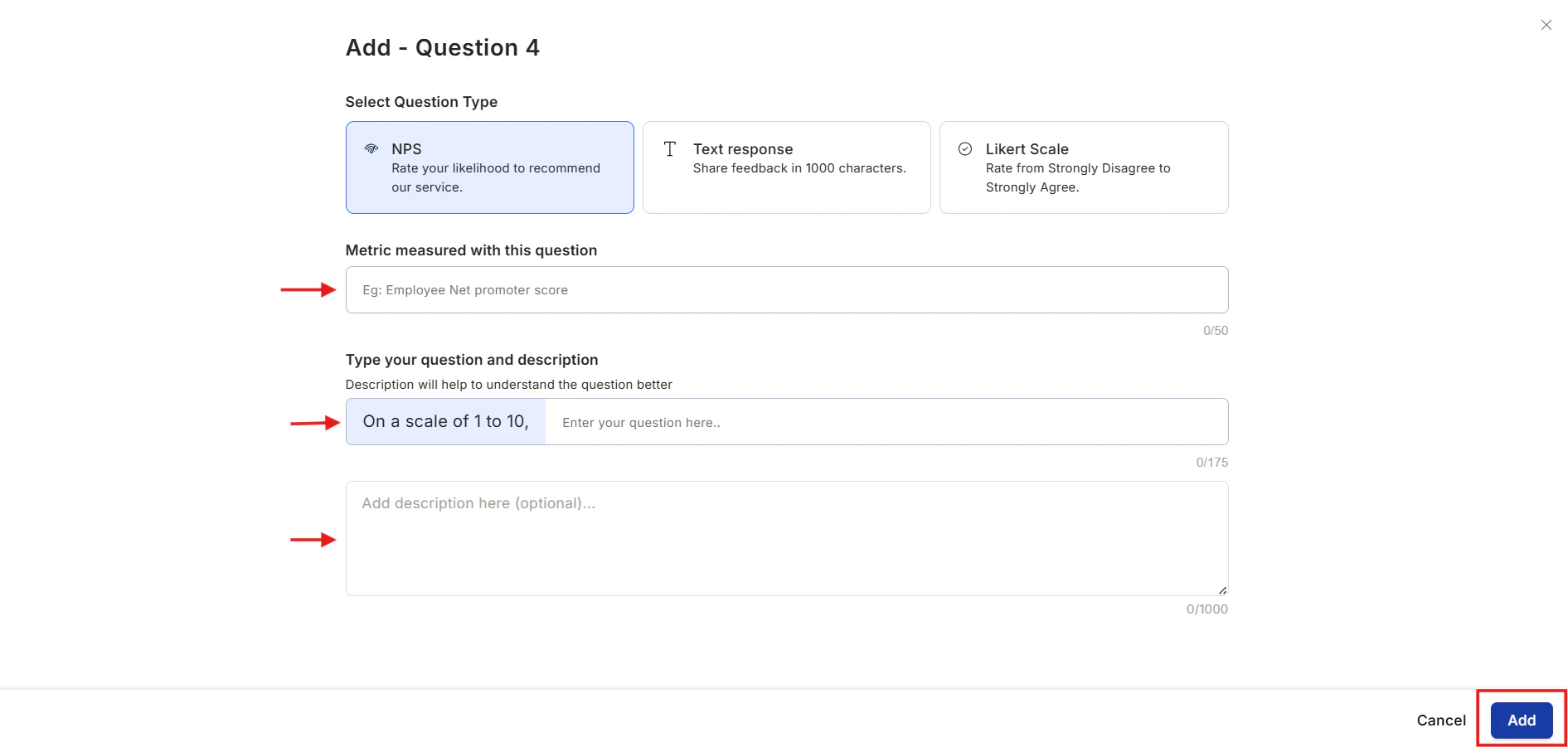
Add questions
You have two options for building your question set: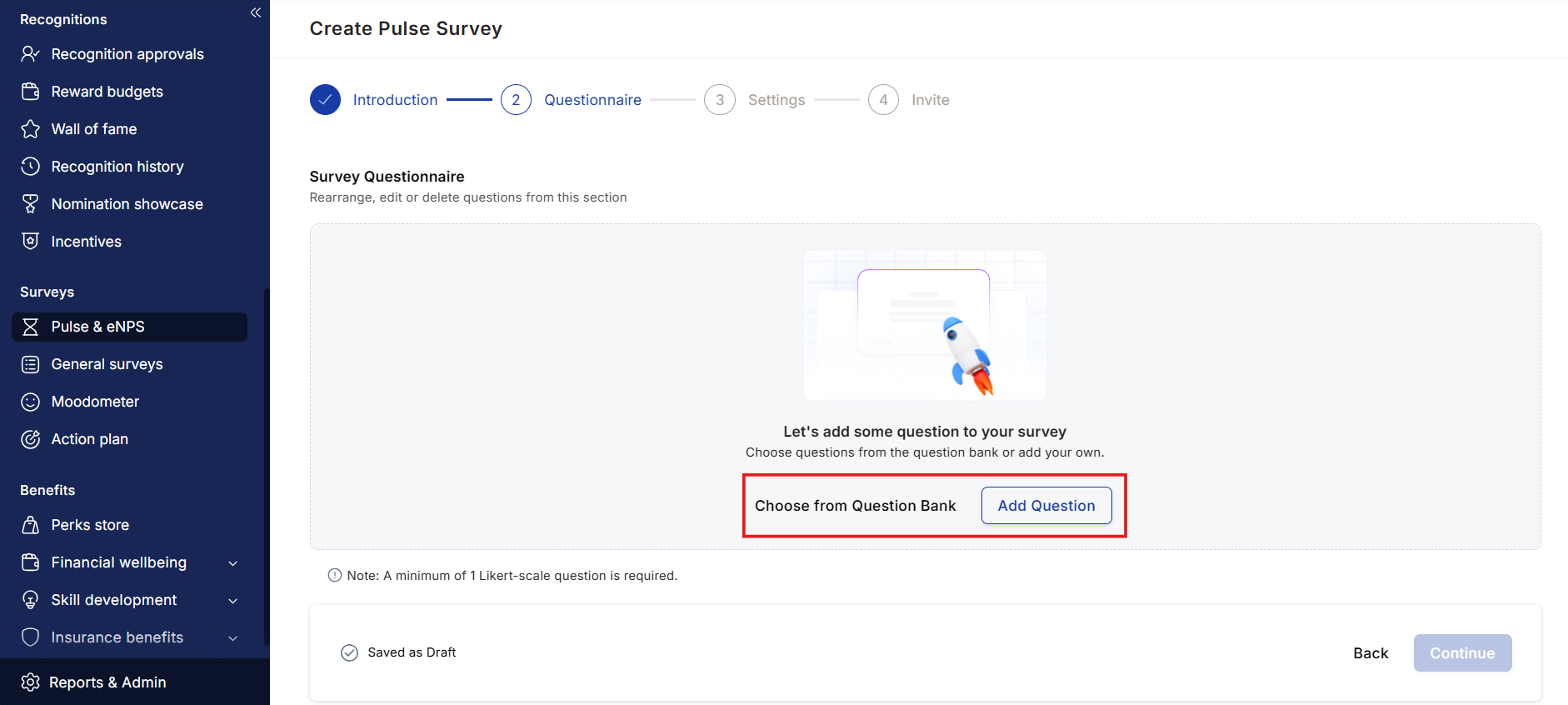
5
Preview the survey
Click Preview Survey at the top of the screen to see how respondents will experience the survey. Review all questions before proceeding.
6
Click Continue
Once satisfied with your questions, click Continue to move to survey settings.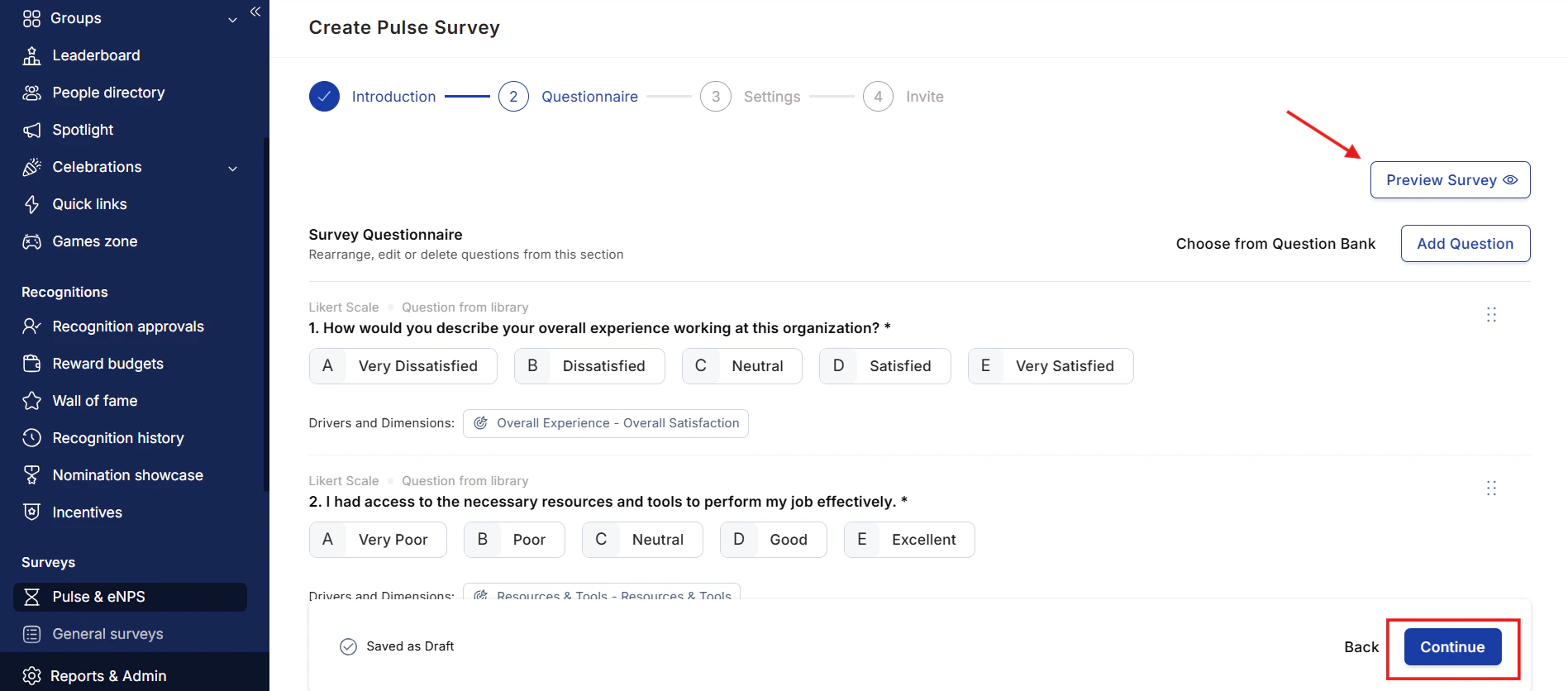
7
Configure survey settings
After building your question set, configure the survey-level settings.Anonymity — choose how to handle respondent identity:Report and graph display — choose how survey results are visualized:
- Keep this survey anonymous — respondent identities are not collected or displayed in results.
- Collect user information — respondent details are linked to their answers.
Anonymous surveys typically produce more honest feedback. Consider using anonymity for pulse and eNPS surveys to increase response accuracy.
- Percentage of positive responses — shows the proportion of favorable answers per question
- Average score given by respondents — shows the mean rating across questions
- Custom Weighted Likert Scoring — scores each Likert response with a signed, asymmetric weight based on its nature of response, from +3 for Strongly Agree down to -2 for Strongly Disagree. Click Learn more next to the option to see the full scoring methodology.
8
Select respondents
You have three options for defining who receives the survey:
- Invite everyone — select Invite Everyone to send the survey to all active users across the organization. This is the simplest option for company-wide surveys.
- Custom selection — use filters or search to target a specific audience:
- Click the pen icon inside the respondent box.
- Click Filters and match a field (such as Department, Location, Business Unit, or Grade) to a value to define your audience.
- Optionally, add a condition based on date of joining by checking the box and entering the number of days.
- Specific email addresses — paste or type the email addresses of the survey participants directly. Click Save and Continue when done.
If you use metadata filters with a date-of-joining condition, your scheduling options are limited to time and time zone only (no specific send date).
9
Set scheduling and frequency
One-time survey — send the survey once, either immediately or at a scheduled date and time.Setting reminders — under Set reminders for non-responders, click the Choose days for survey reminders dropdown and select one or more days after the initial invite was sent (from Day 1 to Day 30). Reminders are sent automatically to employees who haven’t completed the survey on the days you select.You can select multiple reminder days — for example, Day 2 and Day 5 will send two reminders.
- Send now — invites go out as soon as you click Save.
- Send later — specify the date, time, and time zone. Click Save.
Set the time zone for all scheduled sends. Click Save to activate the recurring schedule.
For bi-weekly surveys, the first survey run closes automatically before the second one begins. Configure how many days the invite remains open to control the survey window.
10
Send the survey
Once all configuration is complete, click Send Invites. Respondents receive an email invitation with a link to complete the survey.
Question types
NPS
NPS
Employees rate the likelihood of recommending the organization on a scale of 1 to 10. Responses are used to calculate your eNPS score.When adding an NPS question, fill in:
- Metric measured — what you’re evaluating
- Question — the recommendation prompt
- Description — optional context for respondents
Likert scale
Likert scale
Employees rate a statement on a customizable scale — typically Strongly Disagree to Strongly Agree, but you can define your own labels.
- Minimum 2 options, maximum 10 options
- Labels are fully editable — click inside a label to rename it (up to 50 characters per label)
- Enable a “Not Applicable to Me” option if some questions may not apply to all respondents
- Optionally collect follow-up text feedback when a respondent gives a negative or neutral response
- Faces — pick one of the standard scale faces (Strongly Disagree through Strongly Agree, plus Not Applicable)
- Add emoji — pick any emoji from the emoji picker
- Upload image — upload a custom image (
.png,.jpeg, or.jpg, up to 2 MB); an upload replaces any face or emoji on that option
Text response
Text response
Employees write a free-text response of up to 1,000 words. Use this for open-ended feedback where you want qualitative detail.
- Question text: up to 175 characters
- Description: up to 3,000 characters
- Mark as mandatory or optional
Short text
Short text
A shorter free-text input — ideal for quick comments or one-line answers.
- Add the question and description
- Check the box to make the question mandatory
Multiple choice
Multiple choice
Employees select one answer from a list of defined options. Available in the custom survey builder when creating surveys from scratch.
Date
Date
Employees pick a date from a date picker. Use this to collect dates such as a preferred start date or an event date.
- Default value: choose No default or Today’s date to prefill the picker
- Restrict date range: turn this on and set an Earliest date and a Latest date to limit which dates respondents can pick. The earliest date can’t be later than the latest date.
Ranking
Ranking
Employees put a list of options in order of preference. Use this when you want to know which priorities matter most, not just which ones employees like.
- Add between 2 and 10 options, and reorder them with the up and down arrows
- Force rank all options: when on, respondents must rank every option. Turn it off and set how many options respondents rank (from 1 up to one less than the total number of options) to collect a top-N ranking instead.
File upload
File upload
Employees attach one or more files to their answer. Use this to collect documents, screenshots, or photos as part of a survey.
- Maximum files: choose how many files a respondent can upload, from 1 to 5 (default 5)
- Supported formats: Word (
.doc,.docx), Excel (.xls,.xlsx,.csv), PowerPoint (.ppt,.pptx), PDF, and images (.png,.jpg,.jpeg,.gif,.webp,.heic) - Each file can be up to 10 MB. The formats and size limit are fixed and can’t be changed per question.
Section
Section
Listed as Section (context only) in the question type list. A section adds a title screen with an optional description between questions. Use sections to group related questions and give respondents context before they answer them.A section doesn’t collect an answer and doesn’t count toward the number of questions in the survey.
Managing surveys
After launching a survey, you can manage it from the survey dashboard.View response trends for multiple-choice questions
Use trends to see how answers to a multiple-choice question shift over the life of a survey. For example, you can check whether more employees pick a given option after a policy change.1
Open the survey results
Open the survey and go to its question responses.
2
Open the trend chart
Next to the response count of a multiple-choice question, click View trend.
3
Choose a grouping
Under Group by, select Weekly, Bi-weekly, or Monthly. Each option appears as its own line. The chart shows the percentage of respondents who picked that option in each period.
Edit a custom pulse survey between runs
You can edit a custom pulse survey after a run ends and relaunch it with an updated questionnaire. Only the survey owner sees the edit option.A custom pulse survey cannot be edited while it is running. The Edit survey option is hidden for active surveys. Stop the survey or wait for the run to close first.
1
Open the survey for editing
Go to Survey > Pulse and eNPS, open the three-dot menu (⋮) on the stopped survey, and select Edit survey.
2
Update the questionnaire
In the Questionnaire step you can:
- Edit the question text of existing questions
- Edit option labels, option artwork, and follow-up feedback settings
- Add new questions using eNPS, Likert, or Short text types, or pick from the question bank
- Enable or disable individual questions for the next run
Questions that have already run cannot be deleted. Disable them instead to exclude them from the next run.
3
Review the audience and schedule
The Invite step preloads the audience you selected for the previous run. Adjust the audience filters, schedule, and reminders as needed, then relaunch the survey.
FAQs
Can I run both an eNPS and a pulse survey at the same time?
Can I run both an eNPS and a pulse survey at the same time?
Yes. The eNPS and pulse surveys are separate templates and can be run independently or together.
How many questions can a pulse survey have?
How many questions can a pulse survey have?
The standard pulse template has 15–16 questions. Custom pulse surveys can include additional questions from the question bank or your own custom questions.
Can I change survey questions after sending?
Can I change survey questions after sending?
For custom pulse surveys, yes. Stop the survey, then use the three-dot menu (⋮) > Edit survey option to update questions between runs. Changes apply to the next run only. See Edit a custom pulse survey between runs.For other survey types, the question set is locked once the survey has been sent. Duplicate the survey and edit the copy if you need to adjust questions.
What happens if fewer than 5 employees respond?
What happens if fewer than 5 employees respond?
Results with fewer than 5 responses are displayed as “NA” in the analytics dashboard to protect respondent confidentiality.
Related
eNPS and pulse surveys
Understand how eNPS scores are calculated and how pulse surveys measure engagement drivers.
Lifecycle surveys
Configure surveys for onboarding, exit, training, and other employee milestones.
Survey analytics
Interpret results, view heatmaps, track trends, and create action plans.