
Mood-o-Meter is a one-question, emoji-based check-in that runs on a recurring schedule — daily by default — so you always have a fresh read on how your workforce is feeling. Employees tap one of five emojis (from 😍 to 😞) and optionally add a comment. The results aggregate into a mood score, a per-question breakdown, and a sentiment heatmap you can slice by team, department, or location.
Use Mood-o-Meter alongside (not instead of) eNPS and Pulse surveys — Mood-o-Meter captures today’s vibe, eNPS captures loyalty, and Pulse digs into specific themes.
Before you start
- You must be a Super Admin or have the Manage Surveys permission.
- Mood-o-Meter is a separate survey type; you don’t need to create a regular survey first.
- Decide the cadence before launch. Daily catches reactions to events; weekly or monthly reduces survey fatigue.
How Mood-o-Meter differs from Pulse and eNPS
See Create surveys and eNPS and Pulse surveys for the other types.
Set up Mood-o-Meter
1
Open Mood-o-Meter
From the Admin Hub, navigate to Surveys → Mood-o-Meter. If you haven’t run it before, you see a get-started landing page with a “How it works” explainer.
2
Click Create
The create wizard opens with the question step first.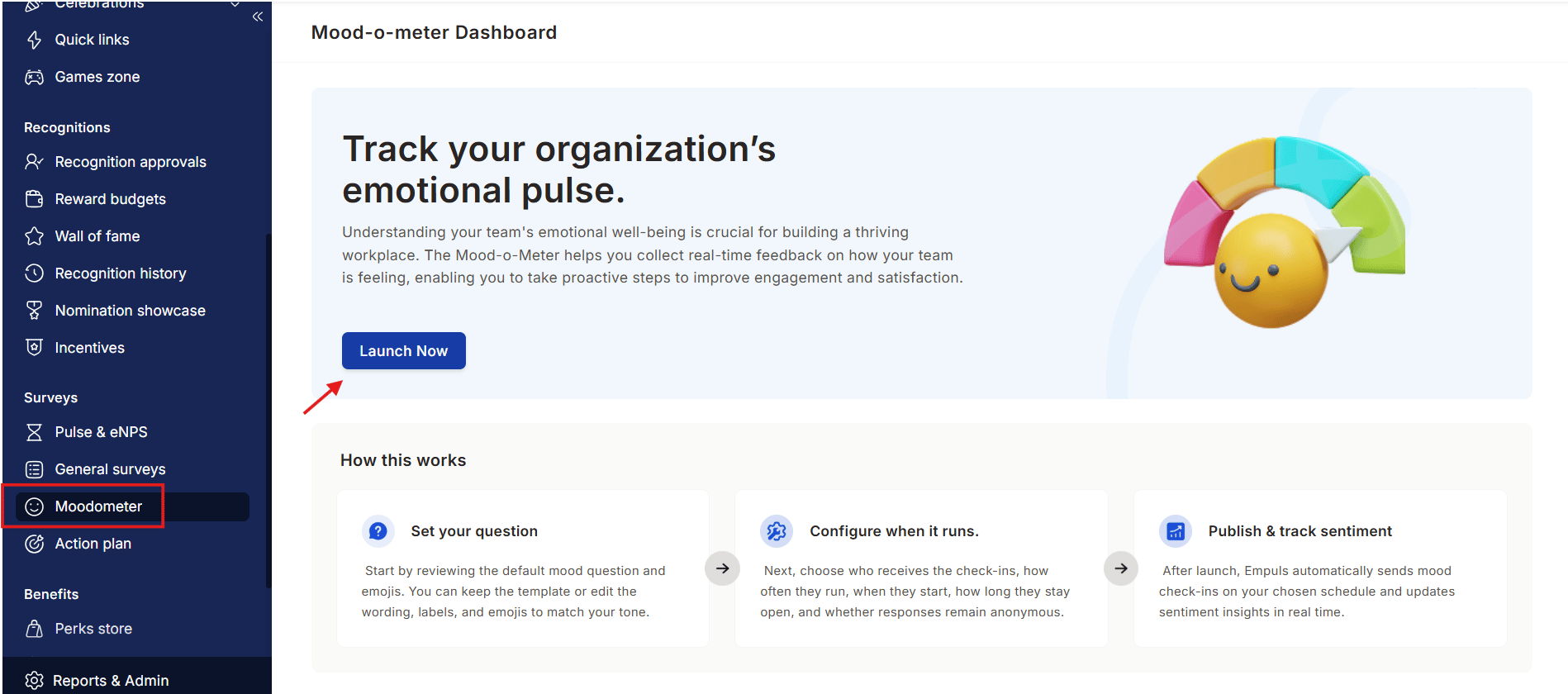
3
Write the question
Enter your check-in question — for example, “How was your workday today?” or “How are you feeling about this week?” Keep it short — employees tap and move on.
4
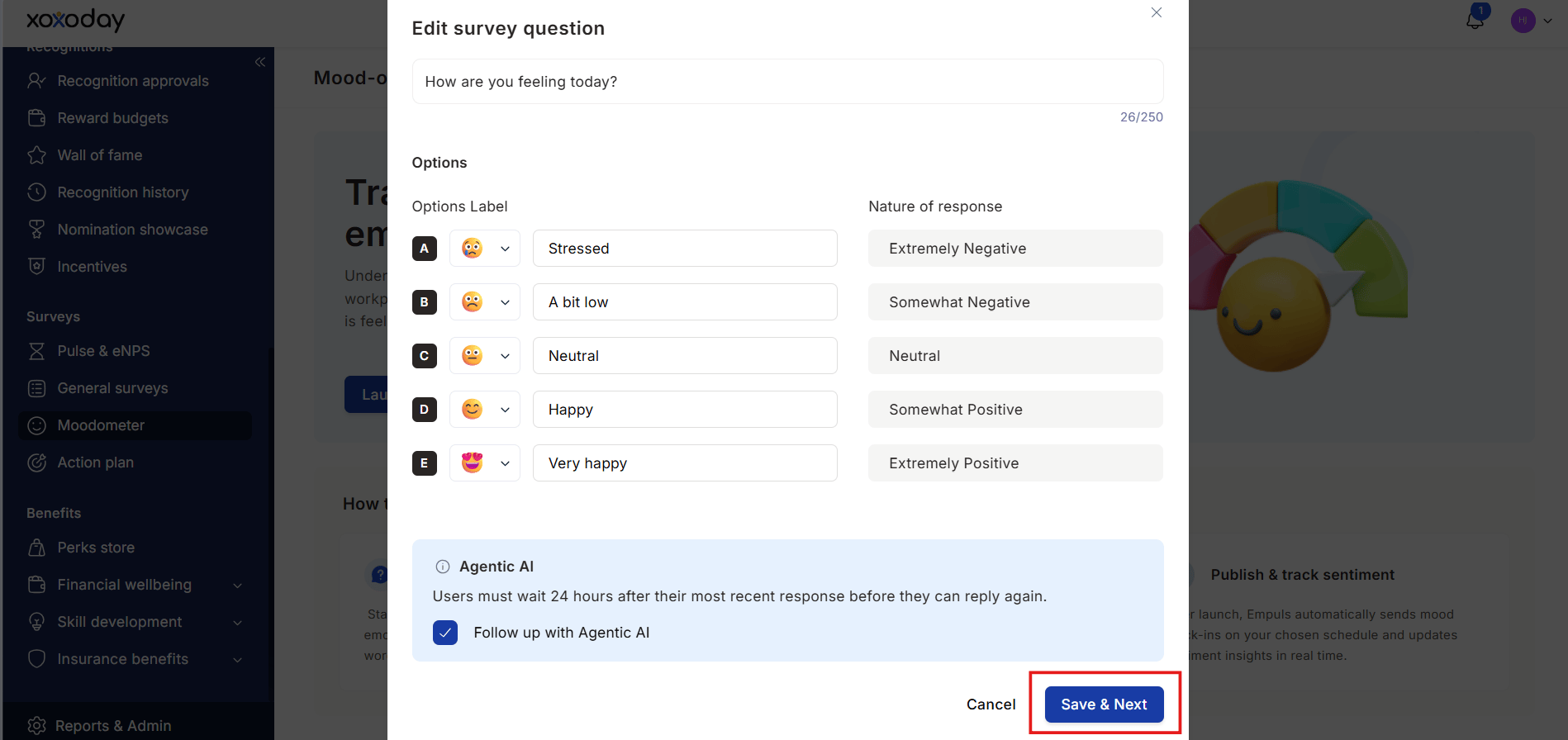
Customize the emoji scale
The default 5-point scale uses 😍 (5) → 😊 (4) → 😐 (3) → 😕 (2) → 😞 (1) with labels like “Strongly agree”, “Agree”, “Neutral”, etc. You can:
- Pick a different emoji for each row from the emoji picker.
- Rename each label (e.g., “Energized”, “Good”, “Meh”, “Drained”, “Bad”).
- Reorder the rows.
5
Choose settings
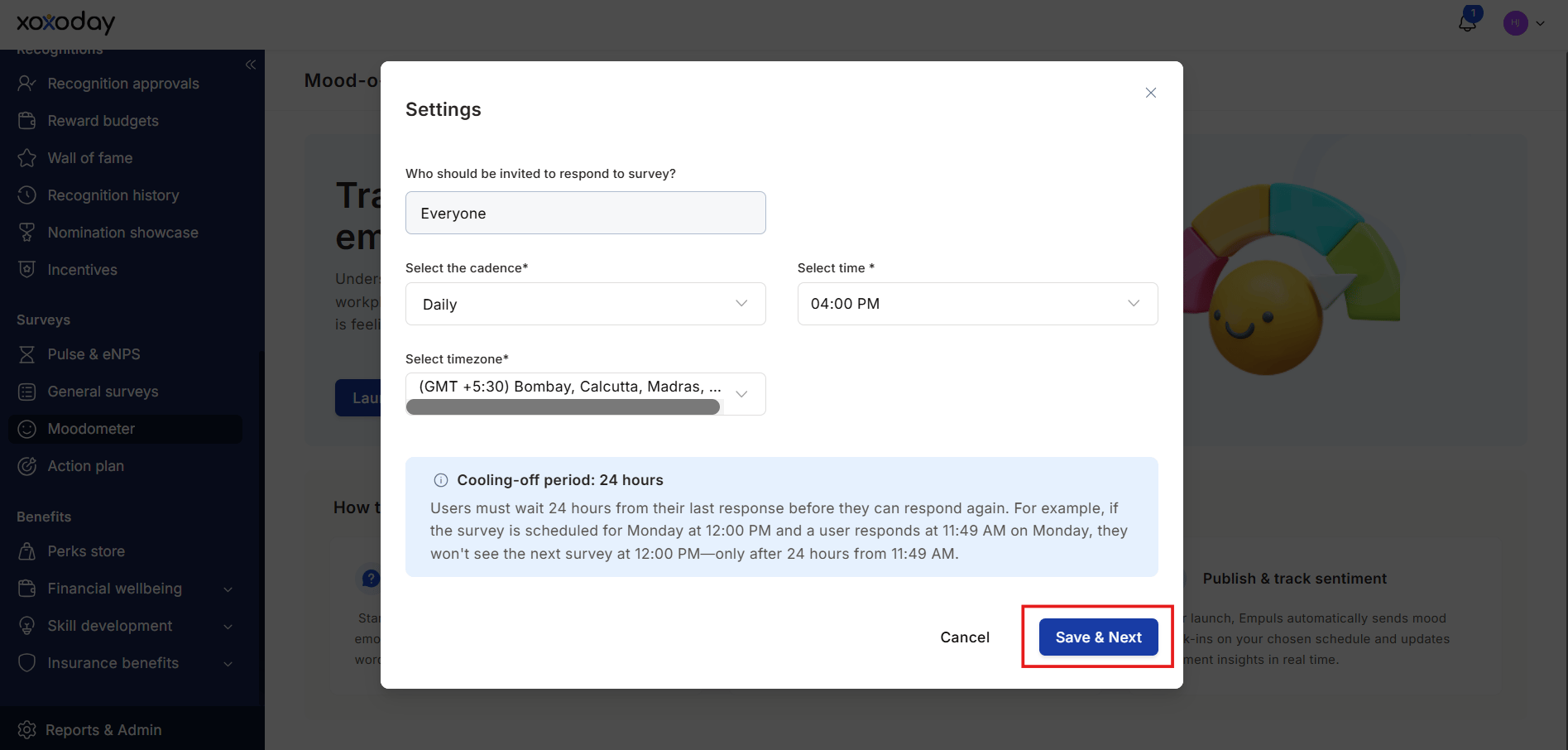
On the Settings step, configure:
- Audience — Default is Everyone. Filter to specific departments, locations, or business units if needed.
- Frequency — Daily (default), weekly, or monthly.
- Schedule — For weekly or monthly, pick the day(s) of week or dates of month the prompt fires.
6
Set anonymity
On the Anonymity step, choose whether responses are anonymous. Anonymous surveys aggregate scores but never show individual responses; non-anonymous lets you see who answered what (useful for follow-ups but reduces candor).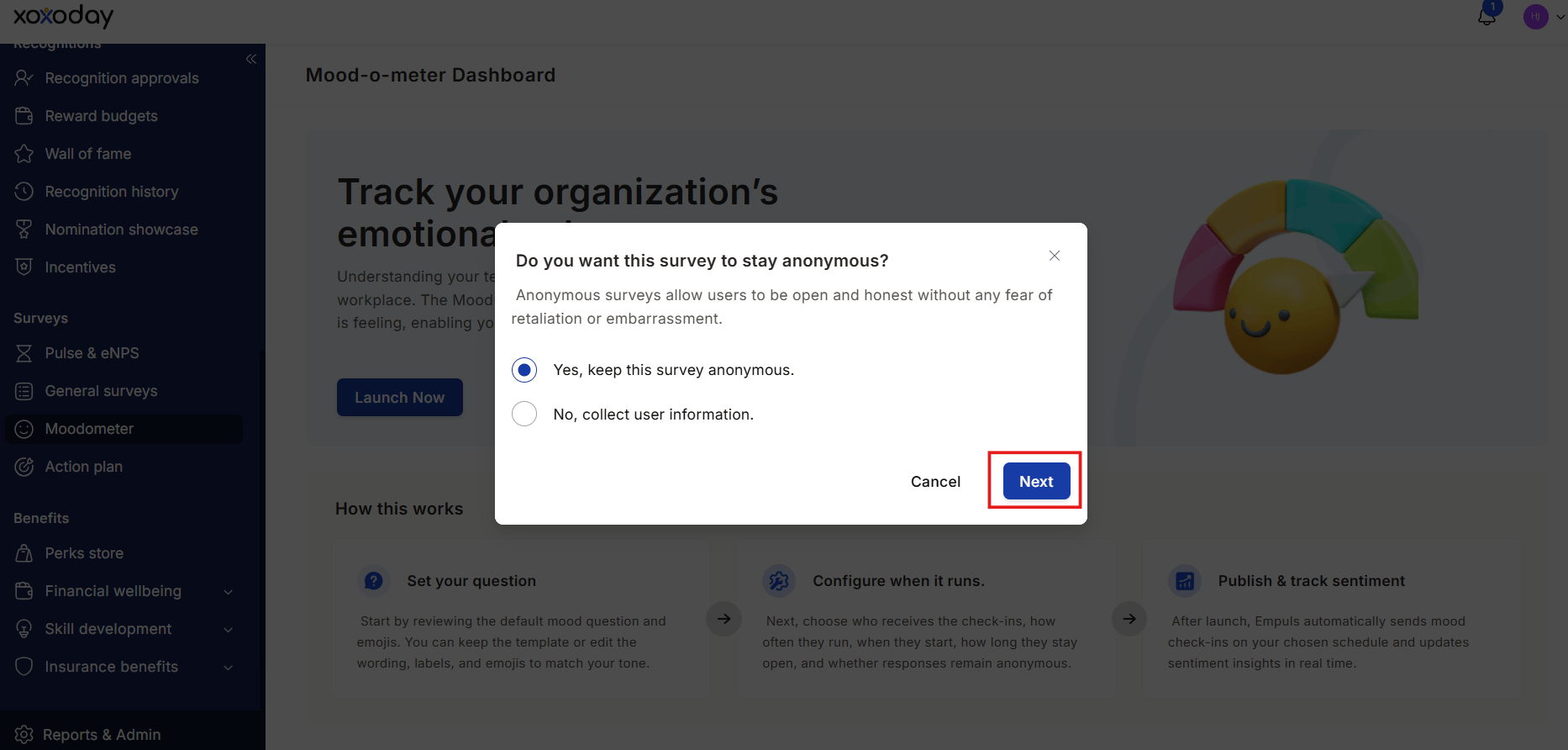
7
Set notifications
On the Notification Settings step, pick how the prompt reaches employees — in-app, email, Slack, Microsoft Teams. Configure reminder cadence for non-responders.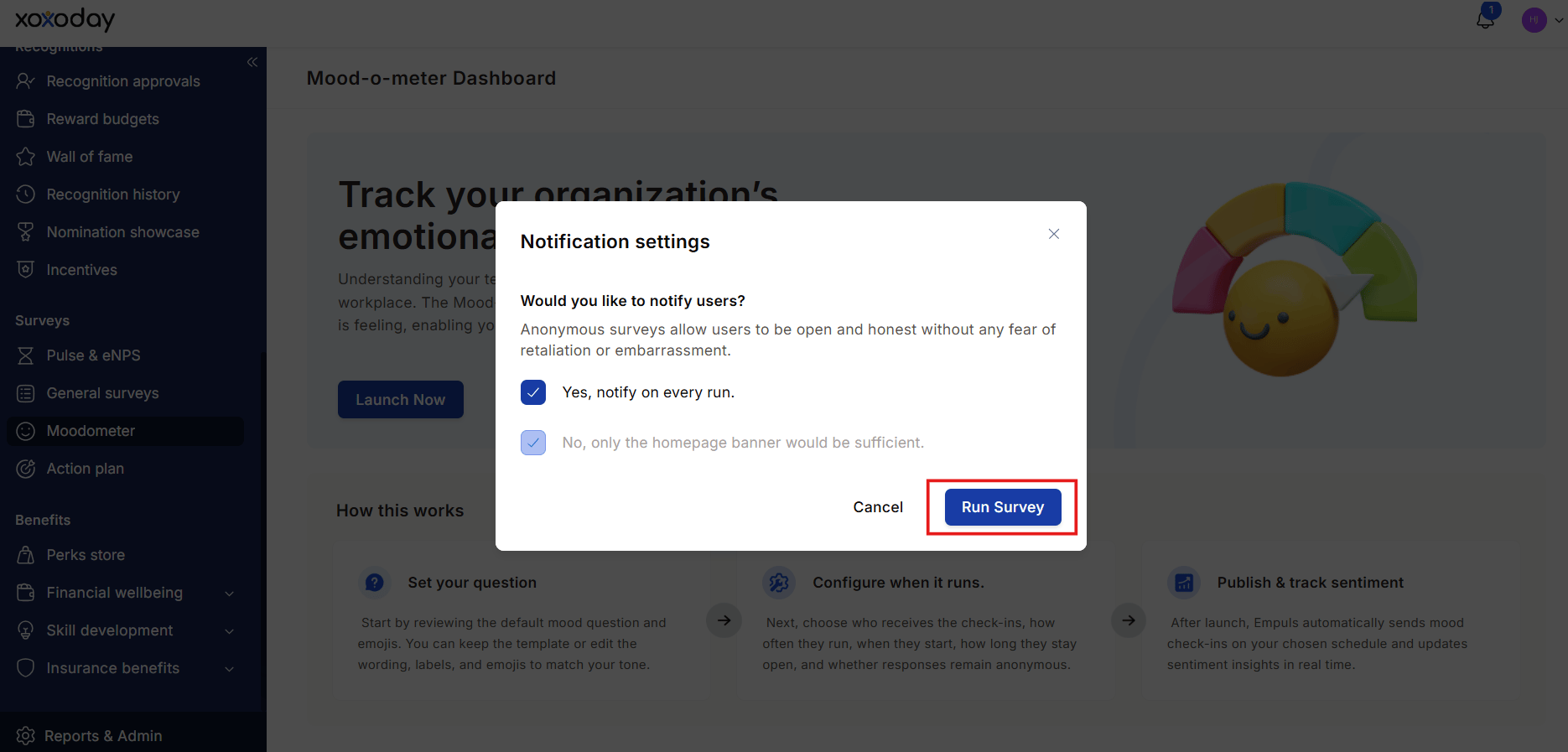
8
Save and launch
Save the configuration. The first prompt fires on the next scheduled trigger.
What employees see
When the prompt fires, employees see a small card with the question and the five emoji buttons. They tap one and (optionally) add a comment, then submit. The whole interaction takes seconds. If they miss a prompt and answer later from the survey list, the response is recorded against the date the prompt was issued, not when they answered.Read the results
The Mood-o-Meter detail page has four result views. Use the date filter at the top of the page to narrow every view to a specific window (last 7 days, last 30 days, or a custom range). Use the Filter button to segment results by employee attributes such as department, designation, site, grade, business unit, cost center, tenure, HOD, or manager before the views render.1
Mood score
A headline number aggregated across all responses for the selected date range. Higher is better. Use the date filter to track day-over-day shifts.
2
Question score
The breakdown of responses across each emoji (% choosing 😍, % choosing 😊, etc.). Useful for spotting bimodal distributions — when scores look fine on average but the team is split.
3
Feedback sentiment analysis
When the check-in has a follow-up feedback question enabled, Empuls groups open-text replies into themes and shows a sentiment score for each theme, along with the mix of positive, neutral, and negative mentions. Click a theme to open the Feedbacks panel and read individual responses tagged to it.This view only appears when the question is set up with feedback enabled.
4
Sentiment heatmap
A grid that slices mood over time. Rows are the group you pick from the filter buttons above the table (department, designation, site, grade, business unit, cost center, tenure, HOD, or manager). Columns are time buckets that adapt to the date range you selected — daily, weekly, monthly, quarterly, or yearly. Cells are color-coded green (positive) to red (negative) and show the mood score percentage for that group in that period.Cells display NA when a group has fewer responses than the anonymity threshold (5 by default) in that period, so individual responses can’t be inferred.Click the download icon on the heatmap card to export the visible view as a CSV. The export respects the current date range, filters, and group-by selection.
View individual feedbacks
From Feedback sentiment analysis, select a theme to open the Feedbacks panel. The panel lists each response with its date, sentiment, and any pre-seed or AI follow-up conversation. Use it to read verbatim comments before deciding on an action plan.Archives
After a survey cycle ends (for example, after a week of daily Mood-o-Meter), the cycle moves to Archives. Open an archived survey to revisit its results without affecting the live survey. Archives keep historical mood data even if you change the live question or cadence.Tips
Limits and gotchas
- Mood-o-Meter is single-question by design. If you need multi-question themed surveys, use Pulse.
- Anonymous Mood-o-Meter responses cannot be exported with employee identifiers. The heatmap CSV still shows aggregate scores per group, and heatmap cells with fewer than 5 responses show NA.
- Comments are stored with the response — they’re anonymous when the survey is anonymous, identified when it isn’t.
- Daily cadence can fatigue employees fast. Watch the response rate; if it drops below 50%, switch to weekly.
Related
Create surveys
Other survey types (Custom, Lifecycle, Engagement).
eNPS and Pulse surveys
Loyalty and engagement-driver surveys.
Survey analytics
Cross-survey trends and AI summaries.
Action plan
Turn survey insights into trackable actions.