
Create an automated budget
1
Go to Manage Budgets
In the Admin Hub, navigate to Manage Budgets and click Create New Automated Budget.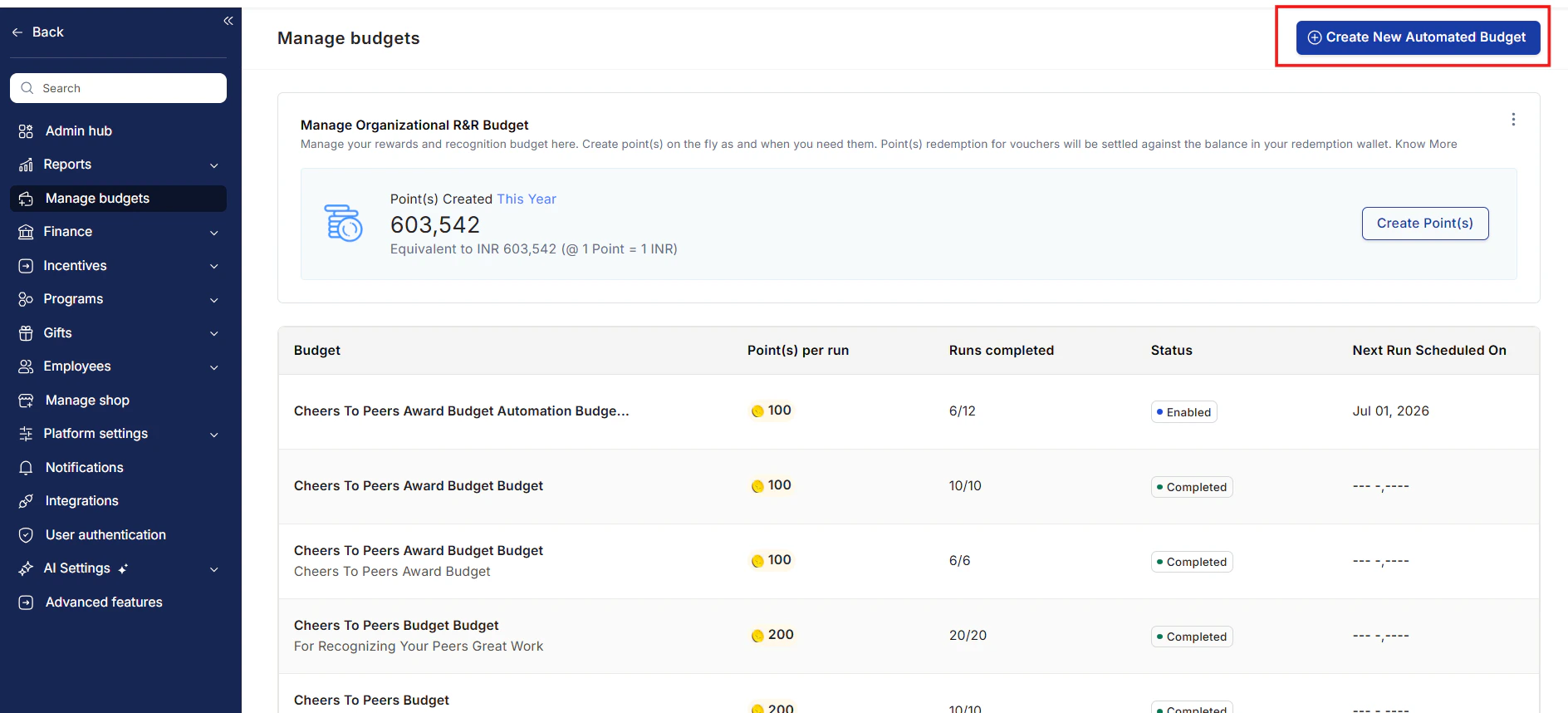
2
Click Let's Begin
The budget creation wizard opens. Click Let’s Begin to start.
3
Name the budget and link awards
Enter a budget name and description, then link the award types that will draw from this budget. For example, a “Peer Recognition Budget” linked to your peer awards ensures managers only use these funds for that specific program.Each award in the picker shows its Active or Disabled status and the first 50 characters of its internal description below the award name. If several awards share the same name, use the internal description to identify the right one. Hover over a truncated description to read it in full. Awards without an internal description show only the status.
4
Choose the allocation type
Select how points are distributed to recipients:
- Fixed — Every recipient gets the same number of points per distribution run. Use this for equal-distribution programs where team size doesn’t matter.
- Prorated — Points are distributed based on a rule you define. Select a proration rule from the dropdown:
- Number of employees in a department
- Number of employees in a business unit
- Number of employees in a cost center
- Number of employees mapped to an HR representative
- Number of direct reports
- Number of direct and indirect reports
5
Select recipients
Click the pen icon to choose who receives the budget. You can:
- Select individuals manually
- Use advanced filters (by designation, location, department, function, etc.)
- Paste a list of recipients directly
6
Set the distribution cadence
Configure when and how often the budget distributes:
- Start date — Select the first distribution date using the calendar.
- Repeat cycle — Choose one of nine fixed cadences: weekly, monthly, quarterly, calendar half-year, US fiscal half-year, India financial half-year, calendar year, US fiscal year, or India financial year.
- Number of runs — Specify how many times the distribution should occur before the budget expires. The maximum is 100 runs.
7
Review and confirm
Review all settings in the summary. Click Confirm and Create to activate the automated budget.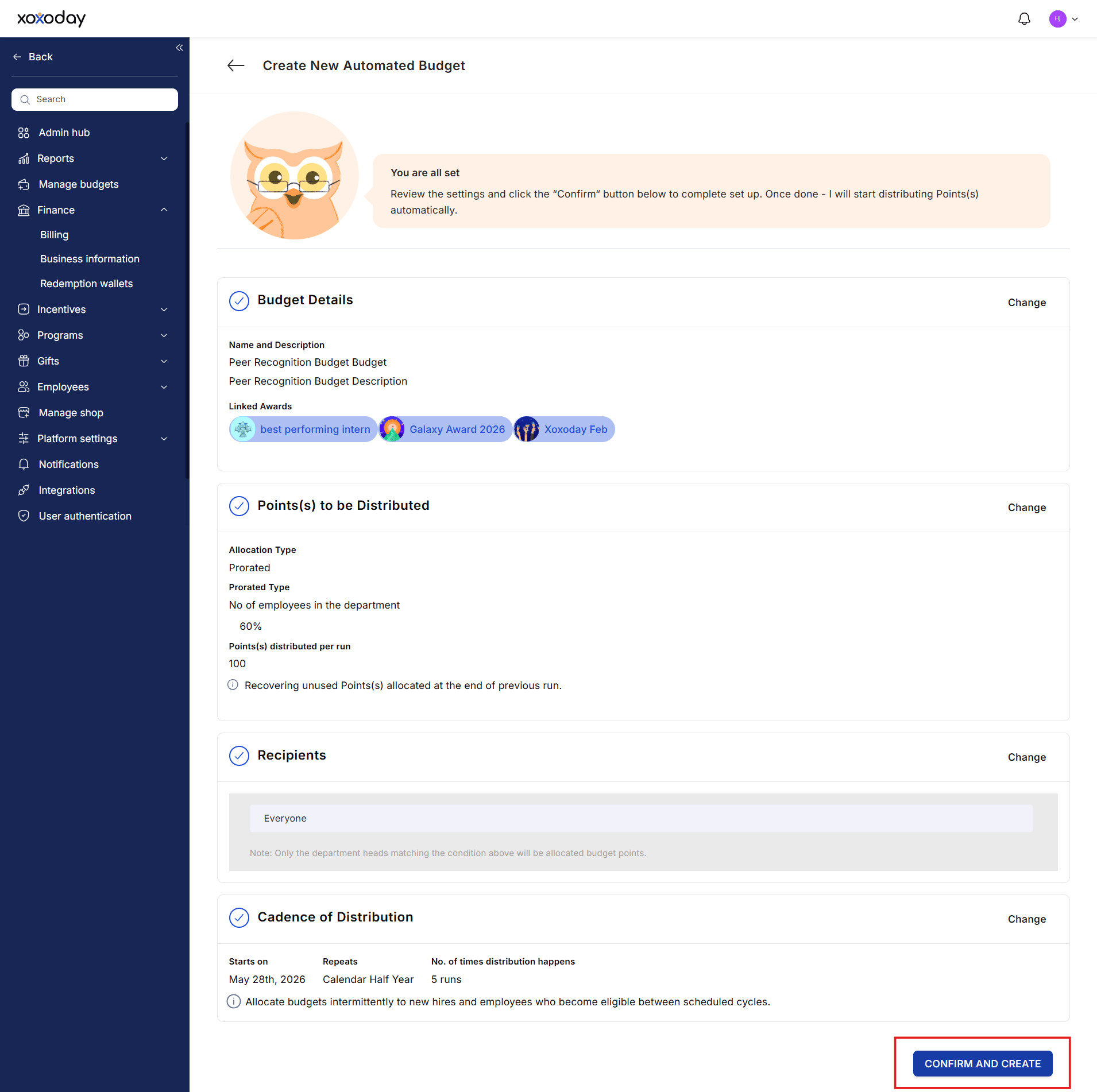
FAQs
How often can automated budgets be distributed?
How often can automated budgets be distributed?
Budgets can be distributed on any recurring schedule. Common choices are monthly (for ongoing recognition programs), quarterly (for performance-tied programs), and annually (for long-service awards or end-of-year programs). You set the frequency when creating the budget.
Who can receive automated budgets?
Who can receive automated budgets?
You can assign budgets to individual users, managers, teams, or filtered groups based on attributes like designation, location, or department. Use advanced filters during budget creation to target the right recipients without manually listing them.
What is the difference between fixed and prorated allocation?
What is the difference between fixed and prorated allocation?
Fixed allocation gives every recipient the same number of points regardless of team size. Prorated allocation scales the distribution based on a rule — for example, a manager with 10 direct reports receives more points than a manager with 3, so both can meaningfully recognize their teams.
What happens to unused points at the end of a cycle?
What happens to unused points at the end of a cycle?
If you checked Recover unused points during budget creation, unspent points return to the budget pool at the end of each cycle. If this option is unchecked, points carry over to the next cycle or remain in the recipient’s budget wallet.
To edit, pause, duplicate, or audit an automated budget after creation, see Manage budgets.