
Email and OTP
Use your work email address to receive a one-time passcode each time you log in. No password to remember.1
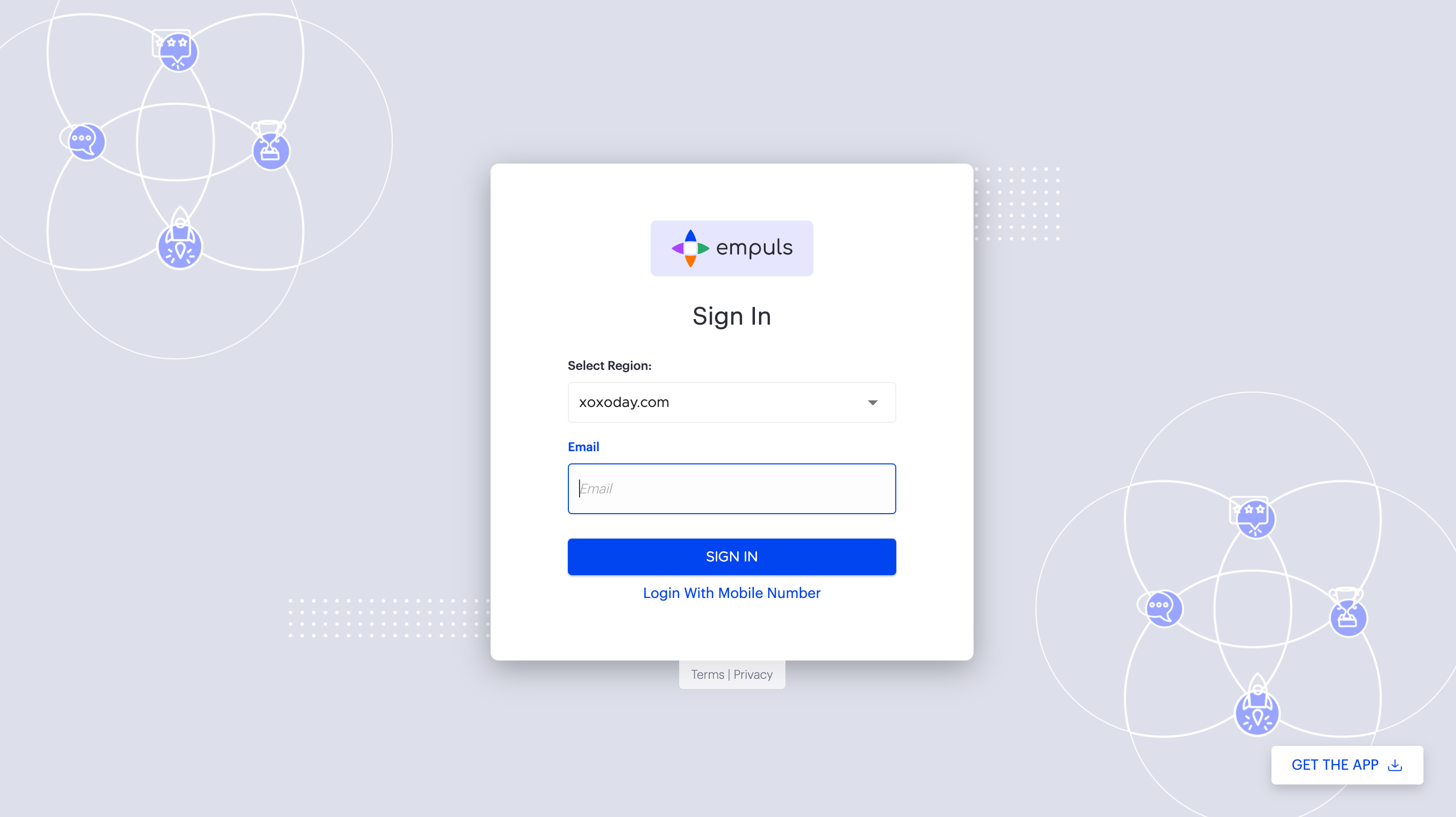
Go to your organization's Empuls login URL
2
Enter your work email address
Type the email address associated with your Empuls account and select the OTP option.
3
Check your email for the one-time code
Empuls sends a six-digit code to your inbox. The code expires after a few minutes.
4
Enter the code to log in
Paste or type the code on the login screen. You are logged in immediately.
Email and password
Sign in with your Empuls email address and the password you set when you first activated your account.1
Go to your organization's Empuls login URL
Navigate to your organization’s unique Empuls URL.Or visit here.
2
Enter your email and password
Select the Password option, type your work email address, and enter your password.
3
Click Sign in
You are redirected to your Empuls home feed.
Google SSO
Log in with your Google Workspace account if your organization has enabled Google OAuth.1
Go to the login page
Visit your organization’s Empuls URL and click Log in with Google.Or visit here.
2
Select your Google account
If you are already signed into Google, select the work account associated with your Empuls profile. If not, enter your Google credentials.
3
Grant permissions if prompted
On first login, Google may ask you to grant Empuls permission to access your profile information. Click Allow.
4
You are logged in
You are redirected to Empuls automatically. No separate Empuls password is required.
Microsoft SSO
Log in with your Microsoft 365 account if your organization has enabled Microsoft OAuth.1
Go to the login page
Visit your organization’s Empuls URL and click Log in with Microsoft.
2
Sign in with your Microsoft account
Enter your Microsoft email and password. If you are already signed into Microsoft 365, you may skip this step entirely.
3
You are logged in
You are automatically authenticated and redirected to Empuls. No separate password is needed.
Slack SSO
Log in with your Slack workspace credentials if your organization has enabled Slack OAuth.1
Go to the login page
Visit your organization’s Empuls URL and click Log in with Slack.
2
Authenticate with Slack
If you are already signed into Slack, you are redirected back immediately. Otherwise, enter your Slack credentials.
3
You are logged in
Empuls verifies your Slack identity and logs you in without a separate password.
Mobile number
Log in with your mobile phone number using a one-time SMS code. This method is designed for deskless workers who may not have a corporate email address.1
Go to the login page
Visit your organization’s Empuls URL and select the Mobile number option.
2
Enter your mobile number
Include the country code and enter the phone number registered to your Empuls account.
3
Enter the OTP sent via SMS
Empuls sends a code to your phone. Enter it on the login screen to complete sign-in.
Mobile number login must be enabled by your administrator. Contact your HR or IT team if this option is not visible.
Custom SSO (SAML 2.0)
If your organization uses a corporate identity provider such as Azure AD, Okta, or another SAML 2.0-compatible system, log in through your company’s single sign-on portal.1
Go to your organization's Empuls URL
Visit the Empuls URL provided by your administrator.
2
Click the SSO login option
You will see an option such as Log in with [Company Name] or a button redirecting you to your corporate SSO.
3
Enter your company credentials
You are redirected to your organization’s identity provider. Enter the same credentials you use for other corporate applications.
4
Complete any MFA challenges
If your organization requires multi-factor authentication, complete that step in your identity provider.
5
You are logged in
Your identity provider authenticates you and redirects you back to Empuls automatically.
SAML 2.0 SSO is configured by your administrator under User Authentication in the Admin Hub. If SSO is not working, contact your IT department to verify configuration.
Related
Login methods
Email and OTP, email and password, Google SSO, Microsoft SSO, Slack SSO, mobile number, and custom SAML 2.0 SSO.
Mobile app
Download the Empuls app on iOS or Android, log in, and use core features on the go.