
Bulk nomination approval walkthrough
How the nomination process works
The exact steps depend on the award type configured by your admin, but the general flow is:- A nominator selects a recipient, picks an award, writes a citation, and submits.
- A first-level approver reviews the nomination and approves, declines, or returns it for improvement.
- For awards with a second approver, the nomination moves up to the final approver, who selects the budget and confirms.
- For jury awards, the nomination goes to a jury panel for rating, and a moderator selects the winners.
- On approval, points are credited to the recipient and a post appears on the group feed (if the award is configured as public).
Not all organisations use nomination-based awards. Check with your admin to confirm which awards are available to you before you start.
Submit a nomination
1
Open the recognition flow
Click Recognize in the feed box at the top of your home page, or click Recognize in the left sidebar.
2
Add the nominee
Type your colleague’s name or email address. You can nominate an individual or, if the award allows it, a team of up to 100 members. Click Next.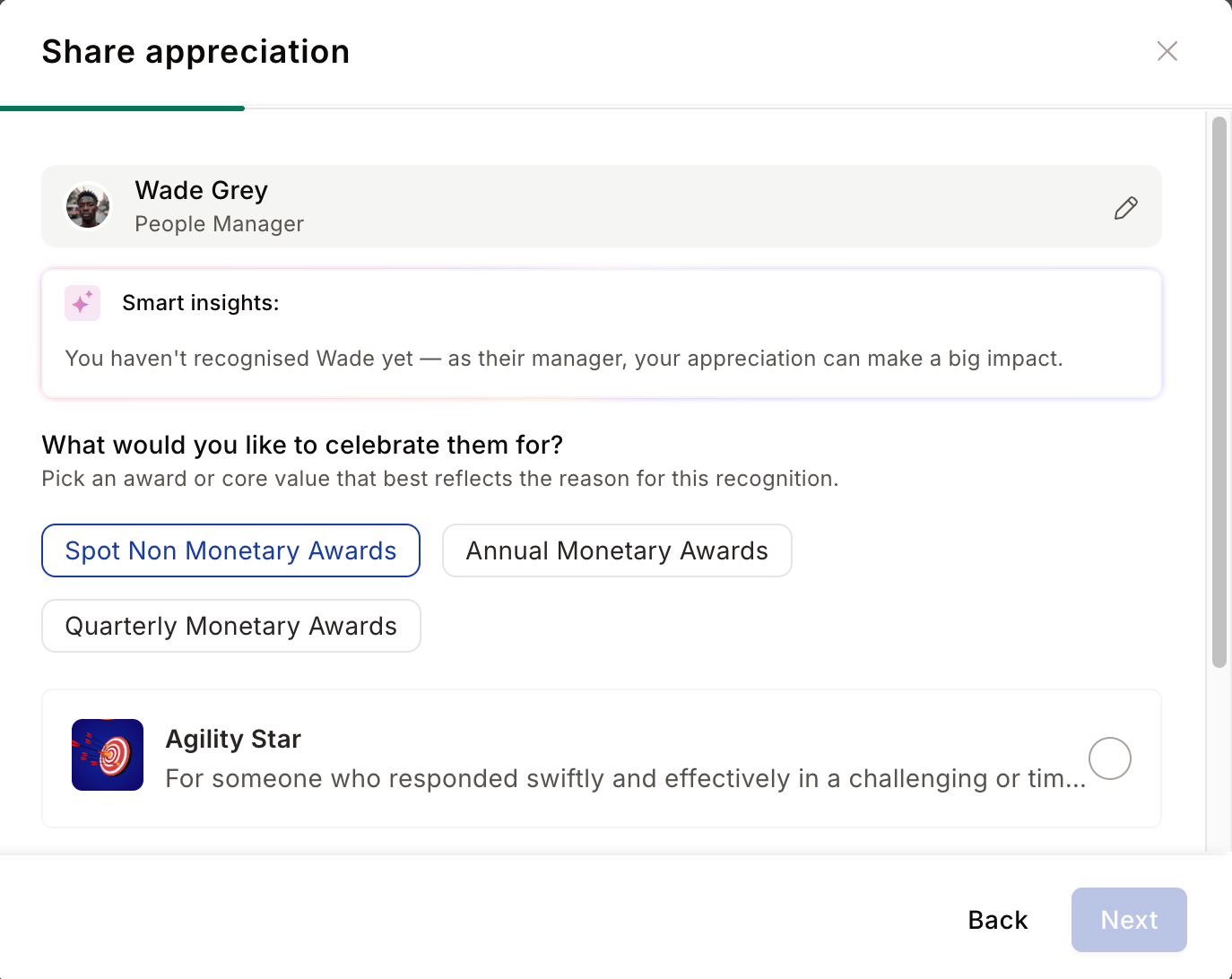
3
Choose an award and approver
A list of approval-based awards appears. Click any award to read its purpose and eligibility criteria. Select the award, then pick an approver from the list of authorised reviewers defined by your admin. Click Next.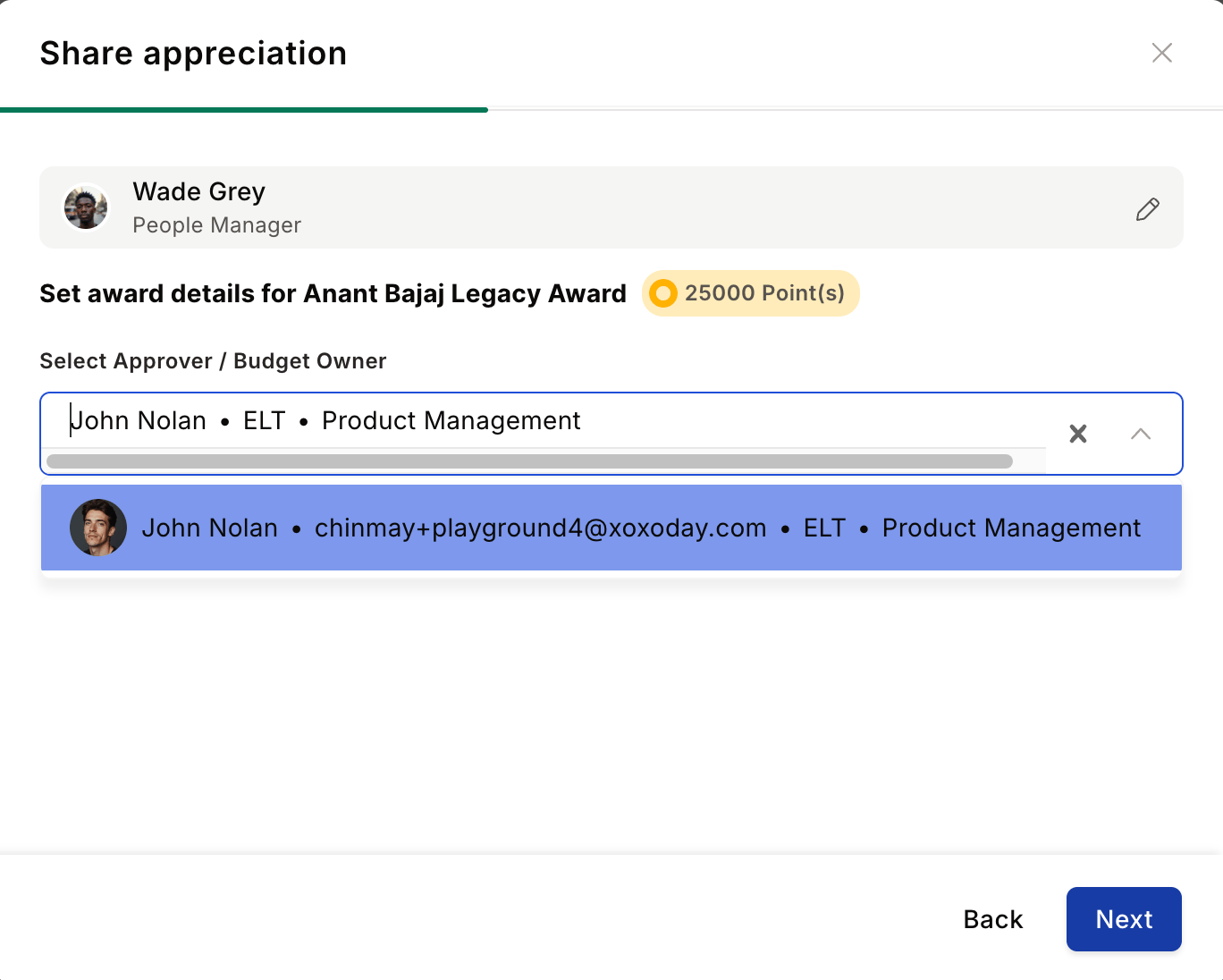
4
Write a citation
The citation is a mandatory message explaining why the nominee deserves the award. Be specific: describe the achievement, the business impact, and the core value demonstrated.Example: “Priya’s leadership of the new onboarding programme reduced time-to-productivity by 30%. Her ability to align five departments behind a single process demonstrates exceptional ownership and customer focus.”Click Improve with AI to see an AI-generated version of your citation. You can regenerate it, copy it, or replace your text with the suggested version.A Public or Private tag appears next to the citation heading. It reflects the admin’s Information Disclosed setting for the award. When the tag reads Private, the citation stays visible only to the nominator, nominee, and approver, and any nomination questions on the same screen also display as Private regardless of their individual visibility. Hover the tag for a tooltip that confirms who can read the citation.
5
Attach supporting files
Click the pin icon to upload evidence supporting your nomination. You can attach up to 5 files in JPG, JPEG, PNG, XLS, CSV, DOC, PDF, or PPT format. Useful attachments include project reports, customer feedback emails, performance metrics, or press coverage.
6
Answer mandatory questions
If the award requires specific questions, you must answer them before submitting. Some text-based questions also allow you to attach files as evidence.
7
Review certificate citation (if applicable)
If the award includes a certificate, your citation prefills the certificate message. Citations of 250 characters or fewer appear exactly as you wrote them. Longer citations are shortened to fit the 250-character limit: AI rewrites them if your company has AI enabled, otherwise Empuls truncates them at 250 characters.Click Review Certificate to preview the certificate and edit the citation that will be printed. You can edit it manually or click Improve with AI for a suggested version.
8
Submit for review
Review the nomination summary on the right side of the screen. Use the formatting toolbar to add bold, italics, bullet lists, or alignment to your citation. When you’re satisfied, click Submit for Review.
Track your nominations
To check the status of nominations you’ve submitted, navigate to Recognitions > Recognition History. Click any nomination to see its current status: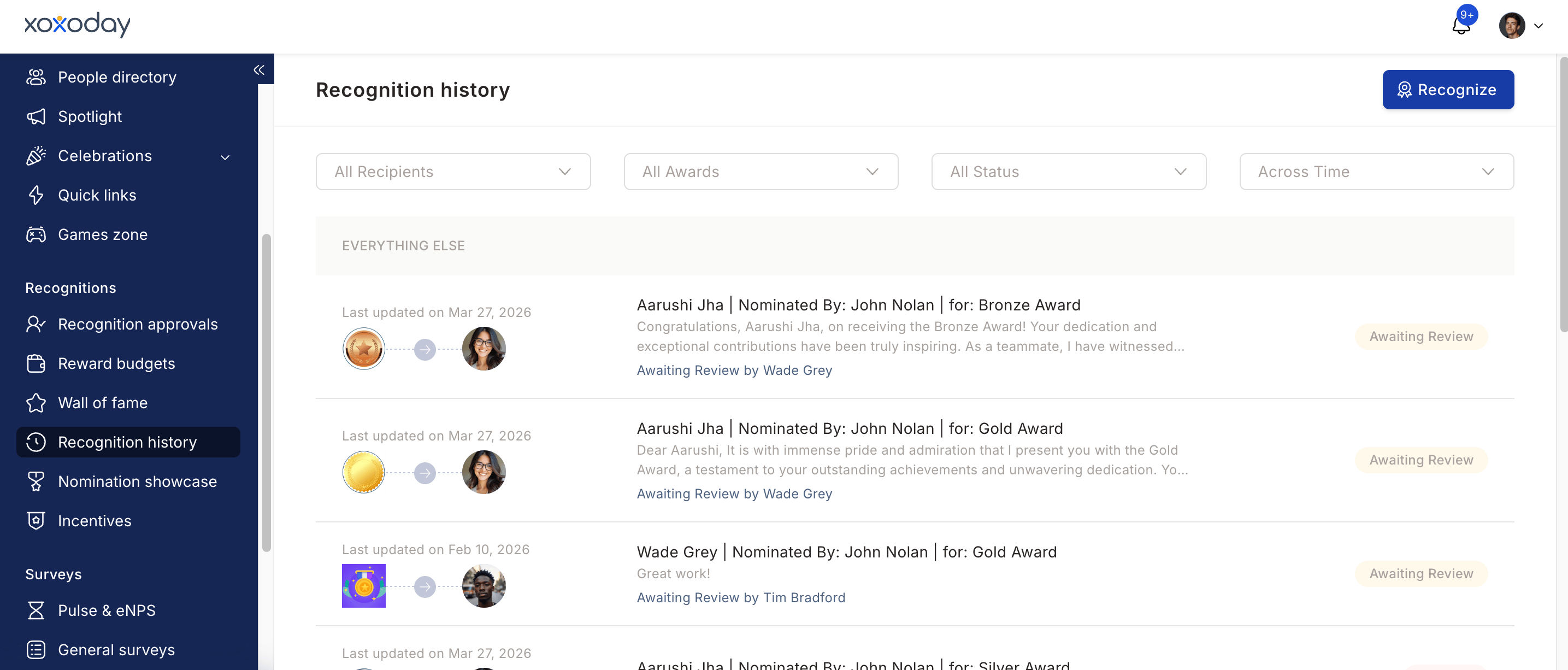
- Approved — the award has been issued.
- Awaiting review — waiting for an approver to take action.
- Declined — the approver rejected the nomination (a reason is provided).
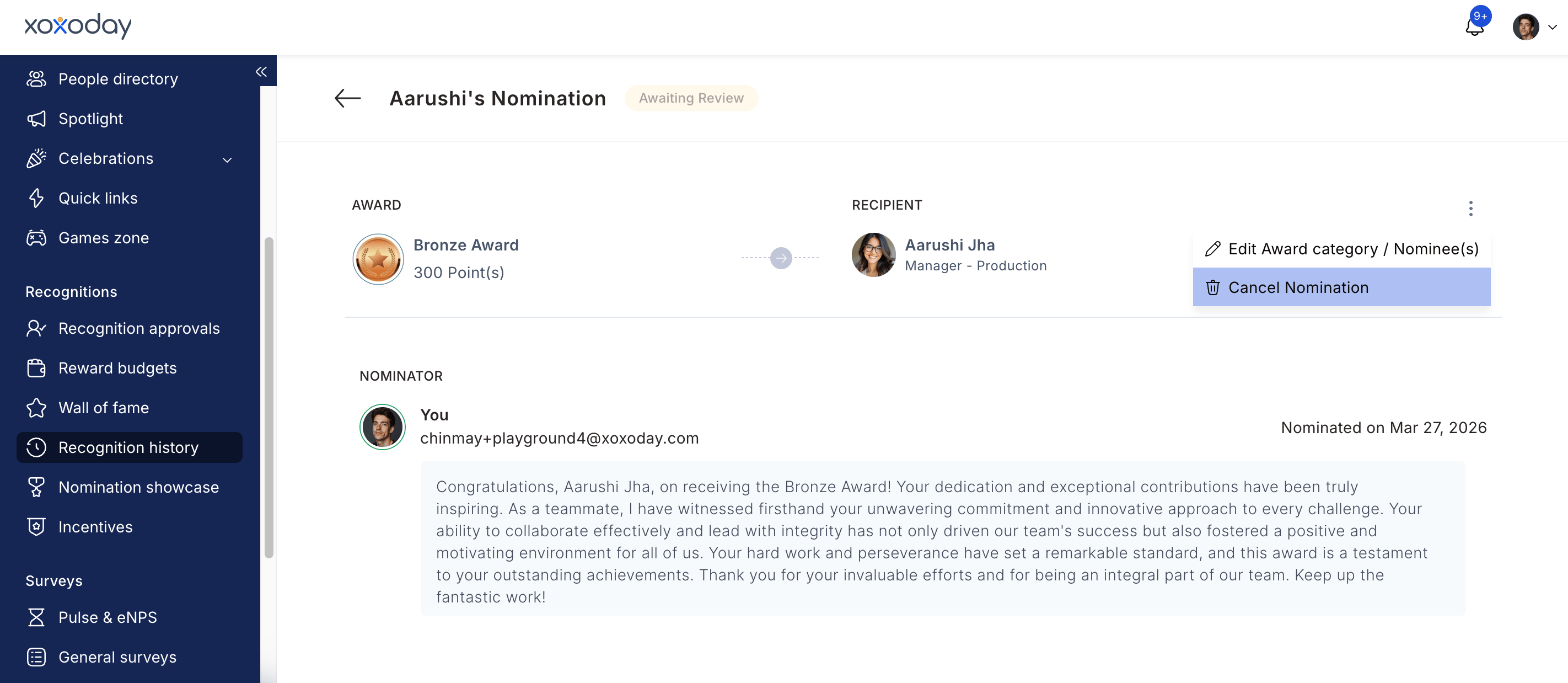
- Cancelled — you cancelled the nomination before it was approved, or the final approver (or a Super Admin) cancelled the award after approval but before its reward cycle published it. In that case the cancellation reason they provided is shown on the nomination.
Does the nominee know they've been nominated?
Does the nominee know they've been nominated?
By default, nominees are not notified in real time. Admins can configure a one-time notification to inform nominees of their nomination, but the timing is controlled by the admin.
Can I nominate myself?
Can I nominate myself?
Only if the award has self-nomination enabled. The admin configures this during award setup.
Can I nominate a whole team?
Can I nominate a whole team?
Yes, if the award supports team recipients. Select multiple team members during the nomination flow. Admins configure whether the point value is split equally or whether each person receives the full amount.
What happens if my nomination is declined?
What happens if my nomination is declined?
You receive a notification with the reason provided by the approver. You can resubmit if the award is still active and you improve the citation.
Can I bulk-approve nominations as an admin?
Can I bulk-approve nominations as an admin?
Yes. In the Recognition Approvals screen, select multiple nominations using the checkboxes and use Bulk Actions to approve or decline them all at once.
How do I raise a revocation request after an award is issued?
How do I raise a revocation request after an award is issued?
Navigate to Recognitions > Recognition History, find the approved nomination, click the three-dot menu, and select Revoke Award. Provide a reason and submit. A Super Admin reviews and completes the revocation.
Related
Set up awards and core values
Configure award types, eligibility, point values, and core value cards.
Reward campaigns
Run structured, time-bound recognition cycles with governance rules.