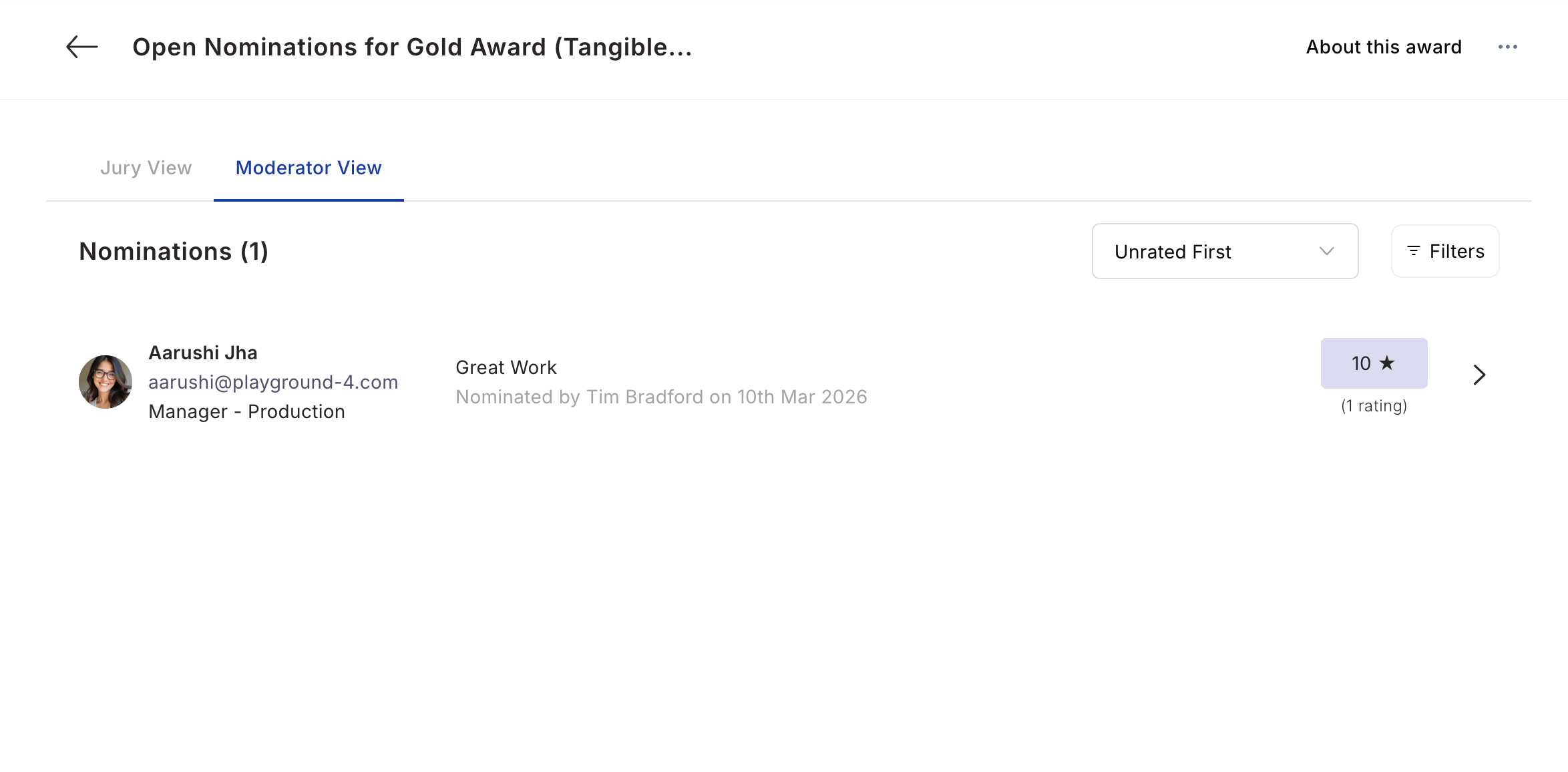
You can’t rate jury nominations in a mobile browser. If you open the jury view on your phone’s browser, Empuls shows an Available on desktop message. Use a desktop browser instead.
1
Access jury nominations
Navigate to Recognitions > Recognition Approvals and click View all nominations. Select the jury award you’ve been assigned to moderate or rate.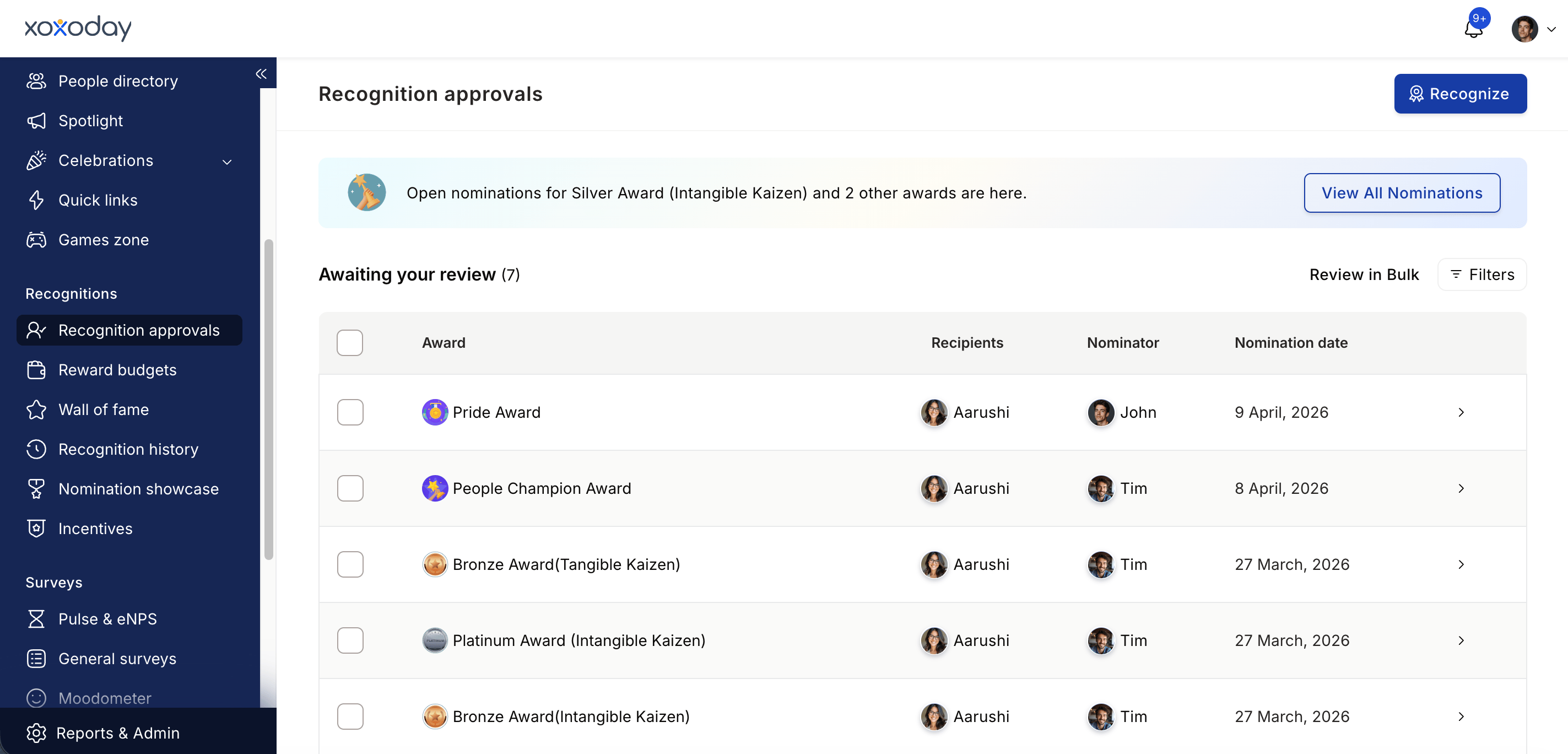
2
Filter and organise your view
Use the filters to narrow down nominations by nominee attributes (department, location, grade, business unit) or nominator attributes. Use the sort dropdown to show unrated nominations first, or sort by latest submissions or highest rated.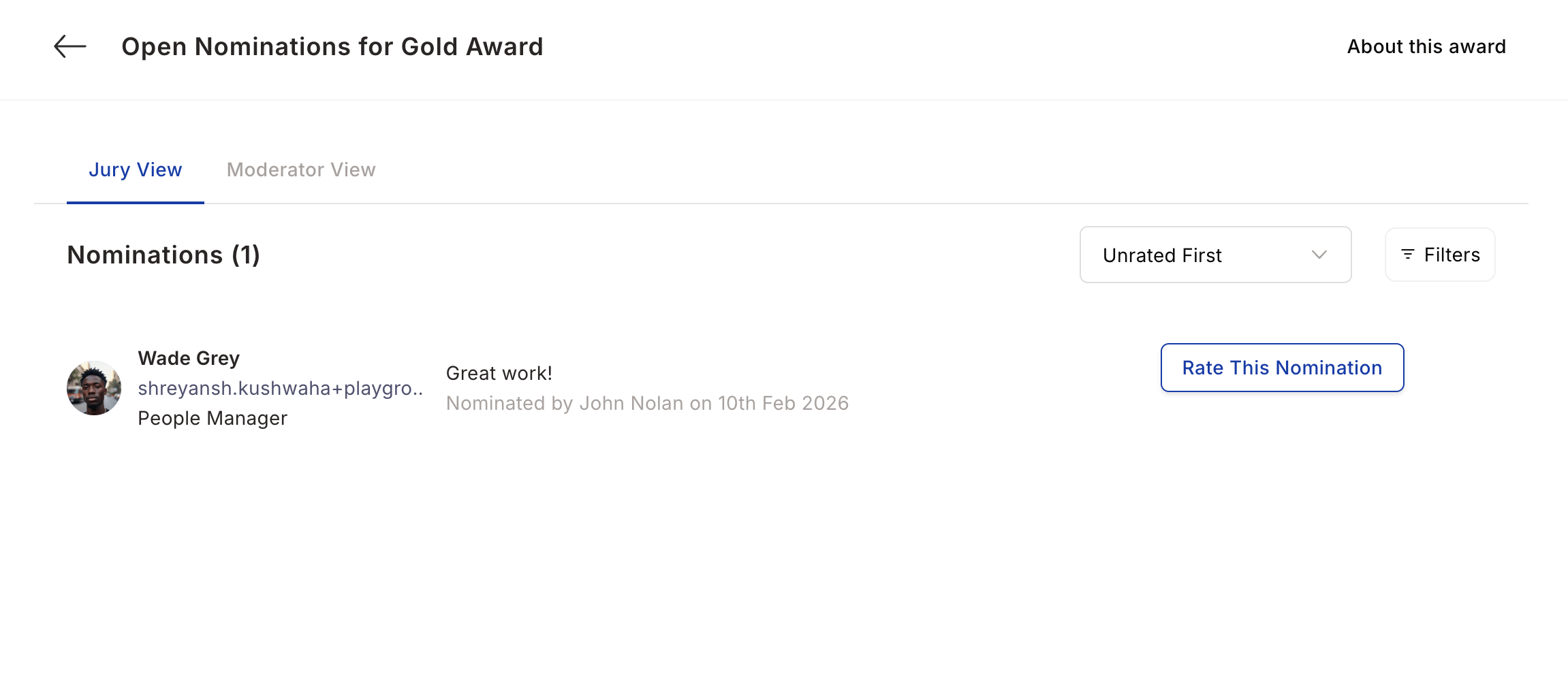
3
Review nomination details
Click a nomination to see the full history: who nominated the employee, the first-level approval comments, the citation, and answers to any mandatory questions. The nominee’s and approvers’ designation and department appear alongside their name when the admin has enabled those fields under Access controls > User Data Visibility; otherwise they stay hidden.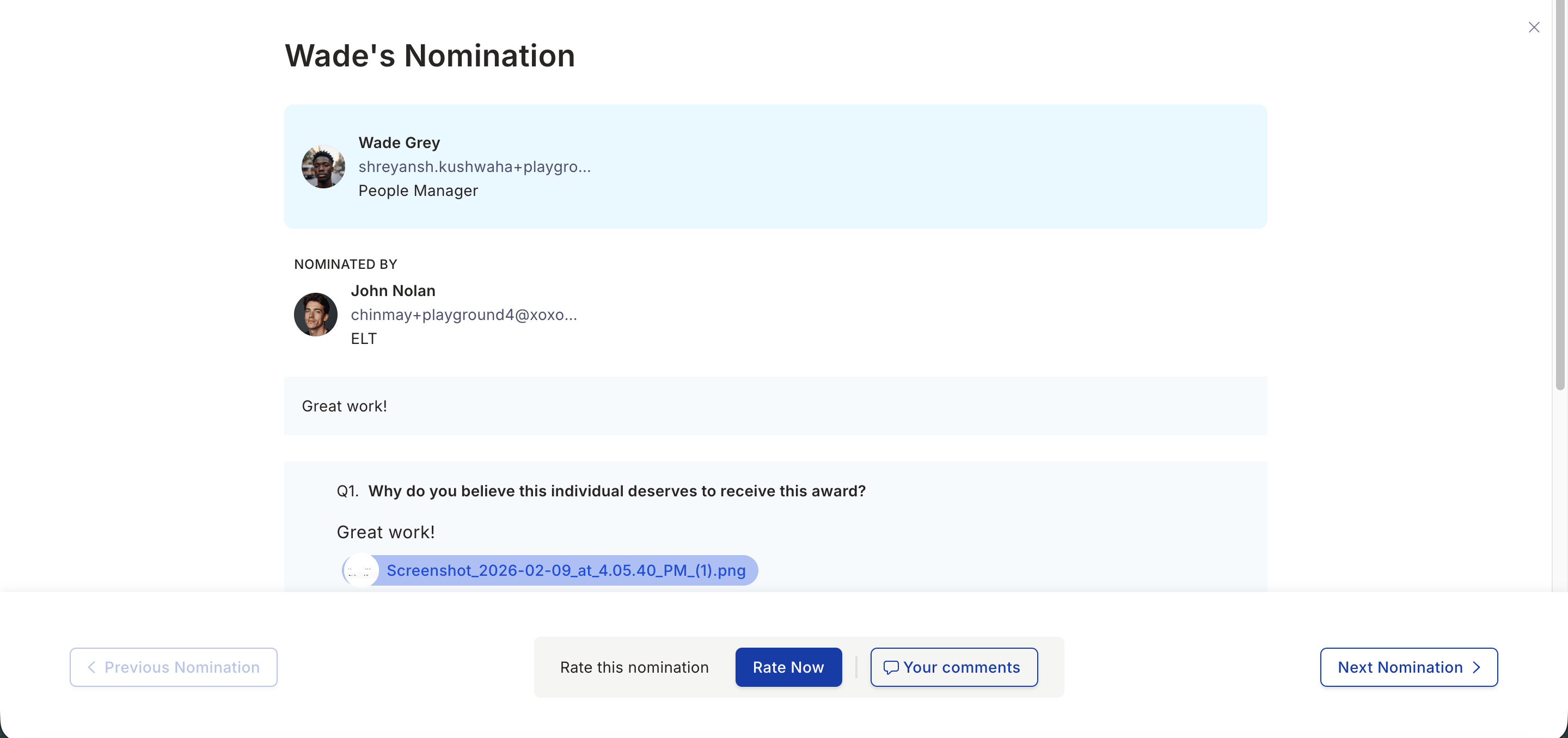
4
Assign a jury rating
For a 10-point scale award, select a score from 1 to 10 and click Save. For a 5-point scale award, select a score from 1 to 5 and click Save. For a binary-scale award, click Approve or Decline. Your rating is recorded immediately and contributes to the nominee’s aggregate jury score.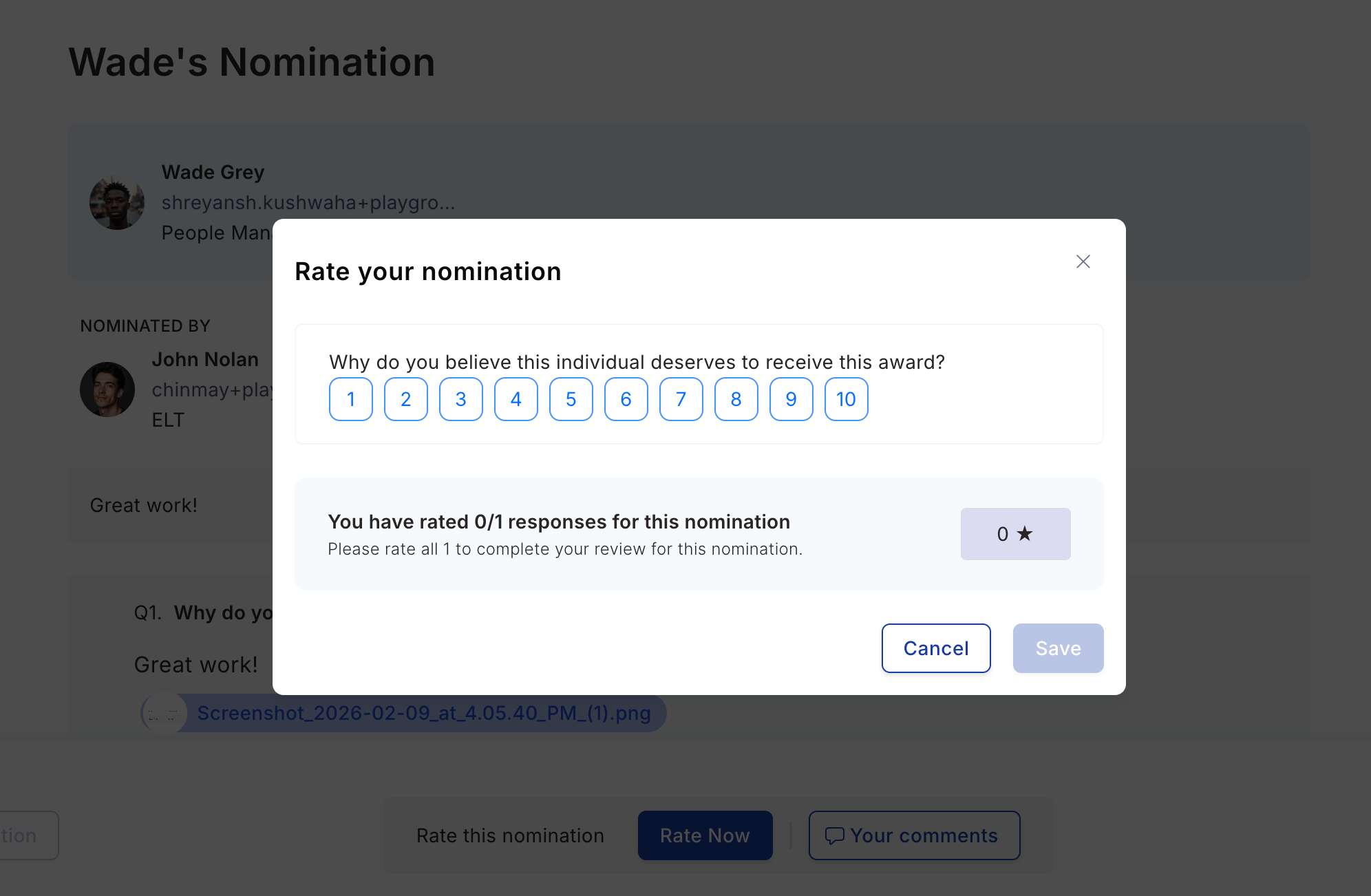
Edit the citation and answers as a moderator
While a nomination is still pending on you, you can polish its content from the nomination detail view before approving it. This is useful when the citation feeds the winner announcement or certificate and needs cleanup.- Edit the citation. Hover over the citation text, click the edit icon, make your changes, and click the checkmark to save. You can also attach supporting files (up to 10 MB each). Citation editing is available only if the award allows it.
- Edit answers to nominator questions. Hover over an answer, click the edit icon, and update the text or the selected options. Answers must still meet the question’s rules: mandatory questions need an answer, short-text answers must stay within the character limits, and selecting Other requires a value.
Adjust panel members from Recognition Approvals
If you moderate a jury level and need to add or remove a member without going into the full award editor, use Manage panel. On the Recognition Approvals screen, open the jury award, click the more icon on the award row, and select Manage panel.- Only the levels you moderate appear in the dialog. Award owners who do not moderate any level use Edit award instead.
- Removing a member who has already rated open nominations discards those ratings and recalculates the jury average. The confirmation names the member and the counts before you proceed. Ratings on nominations already approved are left unchanged.
- Removing a member who has not rated yet withdraws their pending rating requests on the panel’s open nominations.
- Saving a roster change prompts you to confirm, since the change takes effect on nominations already open under the panel.