
Review and approve nominations (approvers)
If you are designated as an approver for an award, you receive a notification whenever a new nomination is submitted for your review.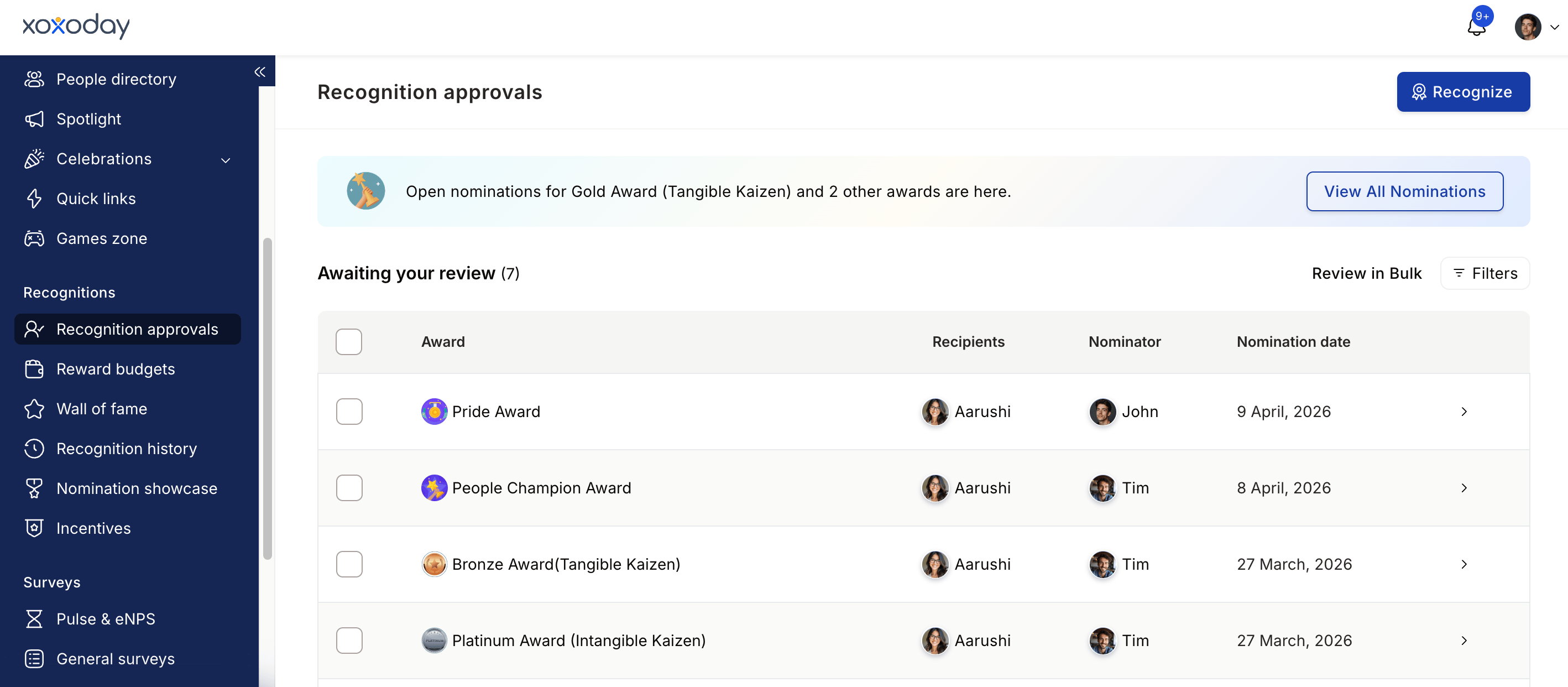
1
Go to Recognition Approvals
Navigate to Recognitions > Recognition Approvals in the left menu. This shows all nominations assigned to you, with options to filter by recipient name, award name, nomination status, and date requested.
2
Check delegation status
If you’re reviewing on behalf of a senior leader who has delegated approvals to you, toggle between Pending on me and Pending on delegated account at the top of the page.
3
Open the nomination
Click Take Action on any nomination to open the full detail view. You’ll see the award details, the core value cited, the nominator’s message, any answers to mandatory questions, and attached files.Use the Smart Insights panel to see data-driven context about the nominee’s recent activity and recognition history. This helps you evaluate impact that may not be fully captured in the written citation.
4
Take action
You have four options:
Providing a reason is mandatory for both approvals and rejections. This creates an audit trail and maintains transparency.
Some awards publish the final approver’s comment on the recognition post and in notifications. If this applies to the nomination you’re approving, the Approve dialog shows the notice “Your comment will be shown on the recognition post and in notifications.” Write your comment with that audience in mind.
5
Edit the citation (optional)
Before approving, you can edit the citation if the nominator’s text needs improvement. Hover over the citation text, click the edit icon, make your changes, and click the checkmark to save. You can also attach additional files as evidence.The nominator can edit the citation only before the first-level approver has acted.
6
Select a budget (final approver only)
If you are the final approver, you must select the budget from which reward points will be deducted before confirming the approval.
Approval chances and nomination targets
When your organisation sets nomination targets, the approvals list adds an Approval chances column that marks each pending nomination:
The verdict is derived from budget, the target set for the nominee’s segment, whether an earlier approver recommended it, and the approval level. It is guidance, not a restriction — you can approve an Unlikely nomination or decline a Likely one.
A nomination shows - instead of a verdict when no assessment is available for it yet, for example on an award with no targets configured.
Where targets are set
Targets are capacity limits on how many nominations can clear final approval per cycle, set per segment. A segment is one of location, department, business unit, or cost centre. When a target applies, the nomination shows a message of the form:This award allows only 20 final approvals per cycle of the Bangalore location. 14 nomination(s) have already cleared final approval, leaving 6 slots available.
Recommend a nomination to later approvers
If you are an early approver in a multi-level chain, you can mark a nomination as Recommended. Later approvers see the flag and the Approval chances verdict takes it into account. The number of recommendations you can make is capped per award per cycle. The Recommend action shows how many you have left, for example Recommend (3 left).Give each recipient a different amount
On awards configured with denominations or a points range, you can set the amount per nomination at the point of approval rather than giving everyone the award’s default. This matters most for team nominations: several people can be recognised on one nomination while each receives an amount that reflects their contribution.1
Open the nomination
From Recognition Approvals, open a nomination on a denomination or range award.
2
Set the amount for each recipient
Choose the value for each person from the denominations configured on the award, or enter a figure inside the permitted range.
3
Approve
Approve as normal. Each recipient is credited the amount you set for them.
Cancel an approved award before it is published
Some awards run on a reward cycle that publishes winners at a scheduled date rather than immediately after the final approval. While an award is approved but not yet published, you can still cancel it. Who can cancel: the final approver, their delegate, or a Super Admin. When you can cancel: only in the window between the final approval and the publish date of the reward cycle. Once the award is published, use the revoke awards flow instead.1
Open the nomination
Open the approved nomination from Recognitions > Recognition Approvals. If the award is still awaiting publication, Empuls shows a banner on the nomination details stating that the award is approved and pending publish, along with the scheduled publish date and time when the reward cycle defines one.
2
Cancel the award
Click Cancel this award in the banner.
3
Provide a cancellation reason
Enter a cancellation reason. The reason is mandatory and is recorded on the nomination, so the nominator can see why the award was cancelled.
Cancellation only succeeds while the award is still unpublished. If the reward cycle publishes the award, or someone else declines or cancels it while you have the page open, Empuls shows a message naming that outcome instead of offering a retry.
Edit recipients or change the award on a pending nomination
Approvers can correct a nomination directly instead of declining it and asking the nominator to resubmit. While a nomination is still pending, you can change the award it was raised under or edit its list of recipients from the nomination detail view. Both actions appear as edit (pencil) icons on the nomination detail page: one next to the award name and one next to the recipient list. The icons appear only when all of the following are true:- Your access role includes the Edit nominee or award permission. A Super Admin grants this permission from the access role permission matrix. It is separate from the standard approval permissions, so admins can restrict these actions to specific moderators.
- The nomination is still pending. Approved and declined nominations cannot be edited.
- The nomination is currently pending on you, or on an account that has delegated approvals to you.
Change the award
1
Open the change award dialog
Click the edit icon next to the award name on the nomination detail page.
2
Select the new award
Choose the award you want to move the nomination to from the list of eligible awards.
3
Set the points (if applicable)
If the new award uses a points range or fixed denominations, choose the points value to grant. Awards with a fixed value need no input.
4
Confirm
Submit the change. Empuls replaces the nomination with an updated record and opens its detail page, where the approval flow continues as usual.
Edit recipients
1
Open the edit recipient dialog
Click the edit icon next to the recipient list on the nomination detail page.
2
Add or remove recipients
Search for employees by name and click Add, or click Remove next to an existing recipient. Recipients already on the nomination are marked CURRENT. A nomination can have up to 100 recipients, and deactivated employees cannot be added.
3
Submit
Click Submit. Empuls validates the new recipient set against the award’s eligibility rules and shows the reason inline if the change is rejected. On success, the nomination is replaced with an updated record and its detail page opens.
Only the recipients are revalidated when you submit. The award, citation, and pending approvers stay as they are, so confirm that any added recipients are appropriate before submitting.
- The award assigns a separate points value to each recipient. An added recipient would have no points entry.
- The nomination belongs to a reward cycle that is no longer open for nominations.
Automatic approval timeout
You can configure an award so that nominations expire automatically if no action is taken within a defined period. This keeps the programme moving and avoids nominations sitting in an indefinite pending state. To set this up, go to the award’s Advanced Settings during creation or editing and configure Nomination Validity. Nominations that exceed the validity window are automatically declined.Auto-approve can also be enabled for a specific approver level. When auto-approve is on, nominations reaching that level are approved instantly, provided the approver has sufficient budget. If budget is insufficient, all Super Admins receive an email alert.