
1
Open the Admin Dashboard
Go to Admin Dashboard by clicking on Report & Admin as shown below.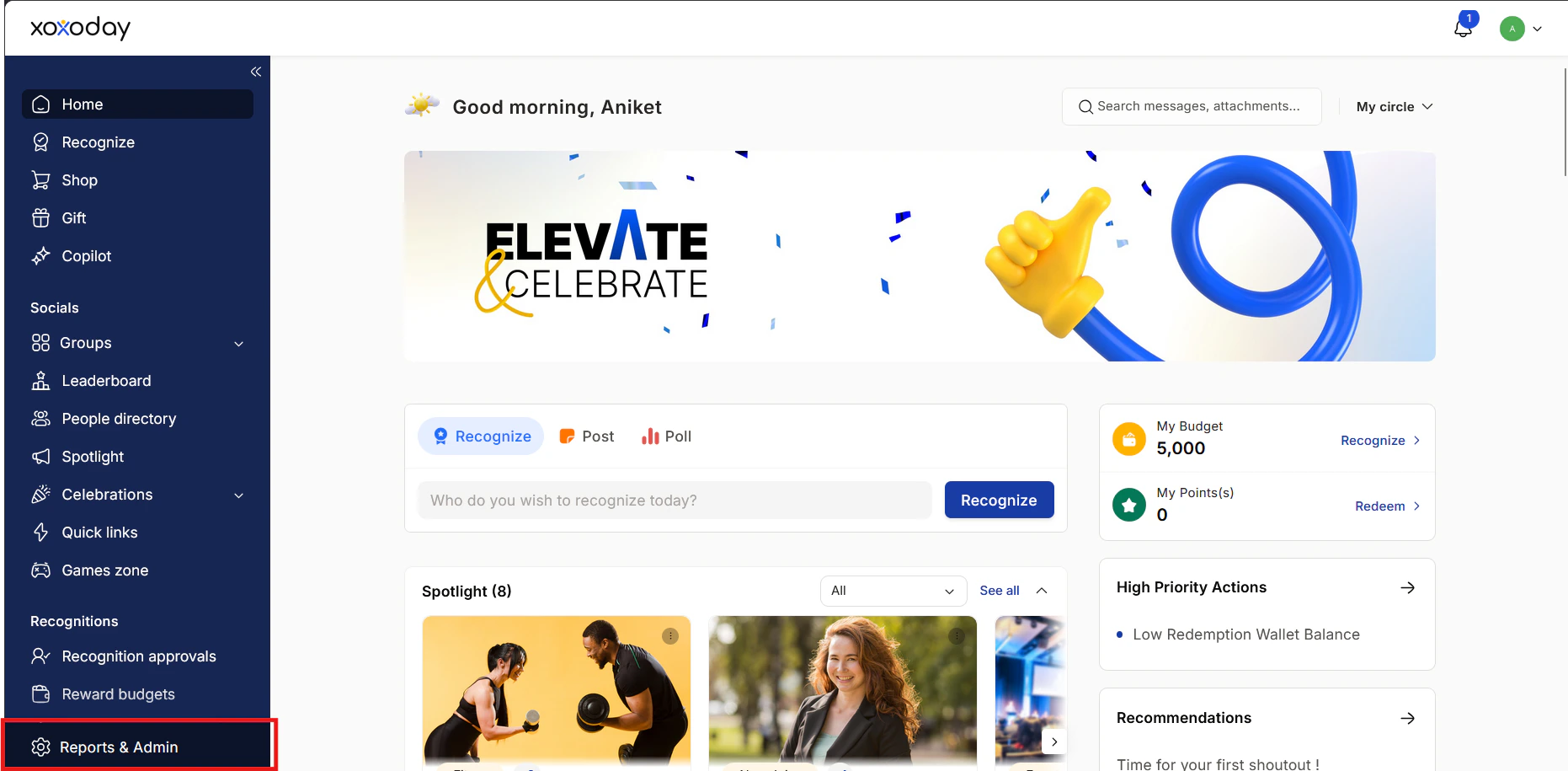
2
Navigate to Gifts > Revoke Gifts
Navigate to Gifts > Revoke Gifts.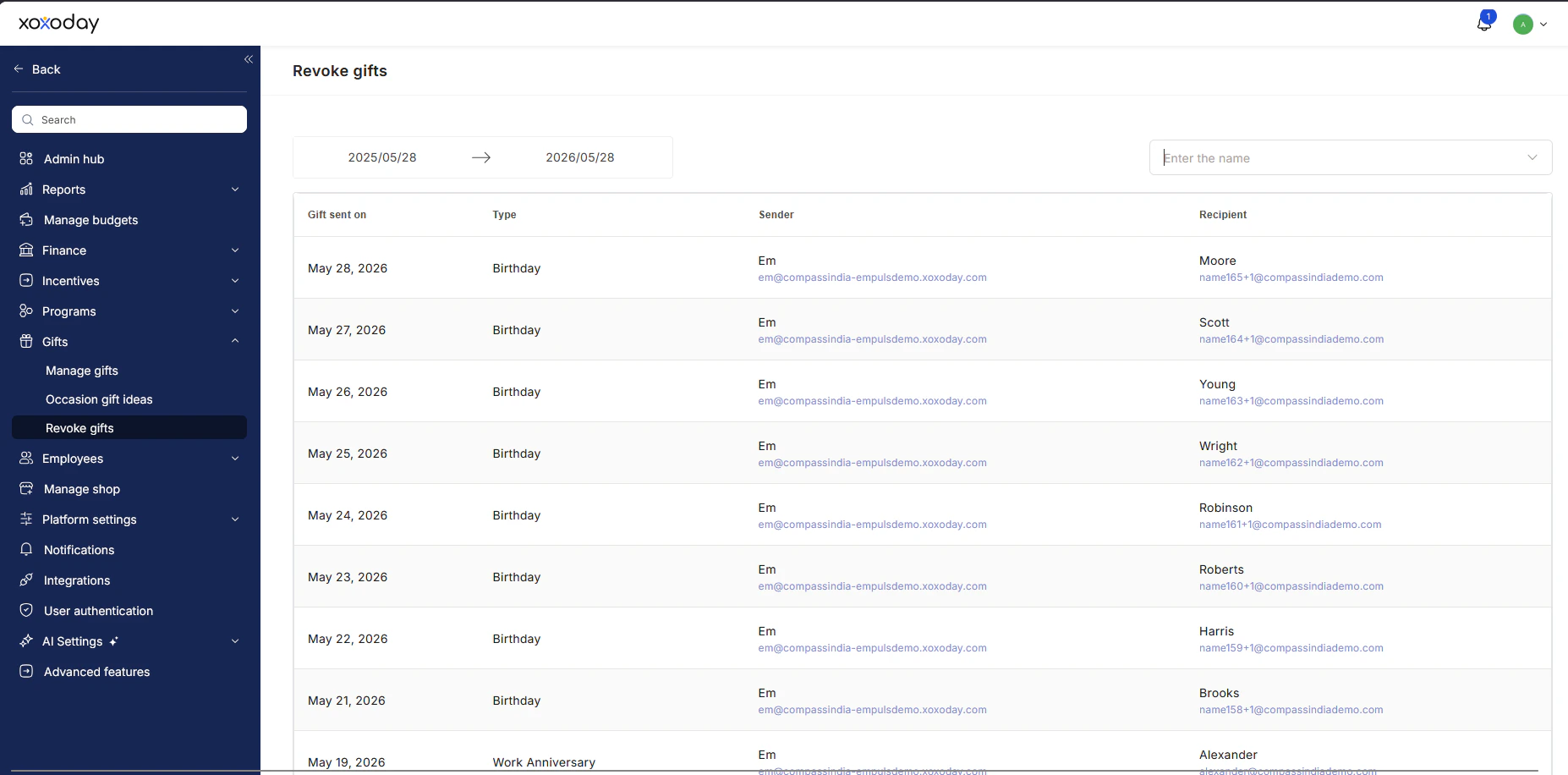
3
Select the date range
Select the date range during which the gift has to be revoked.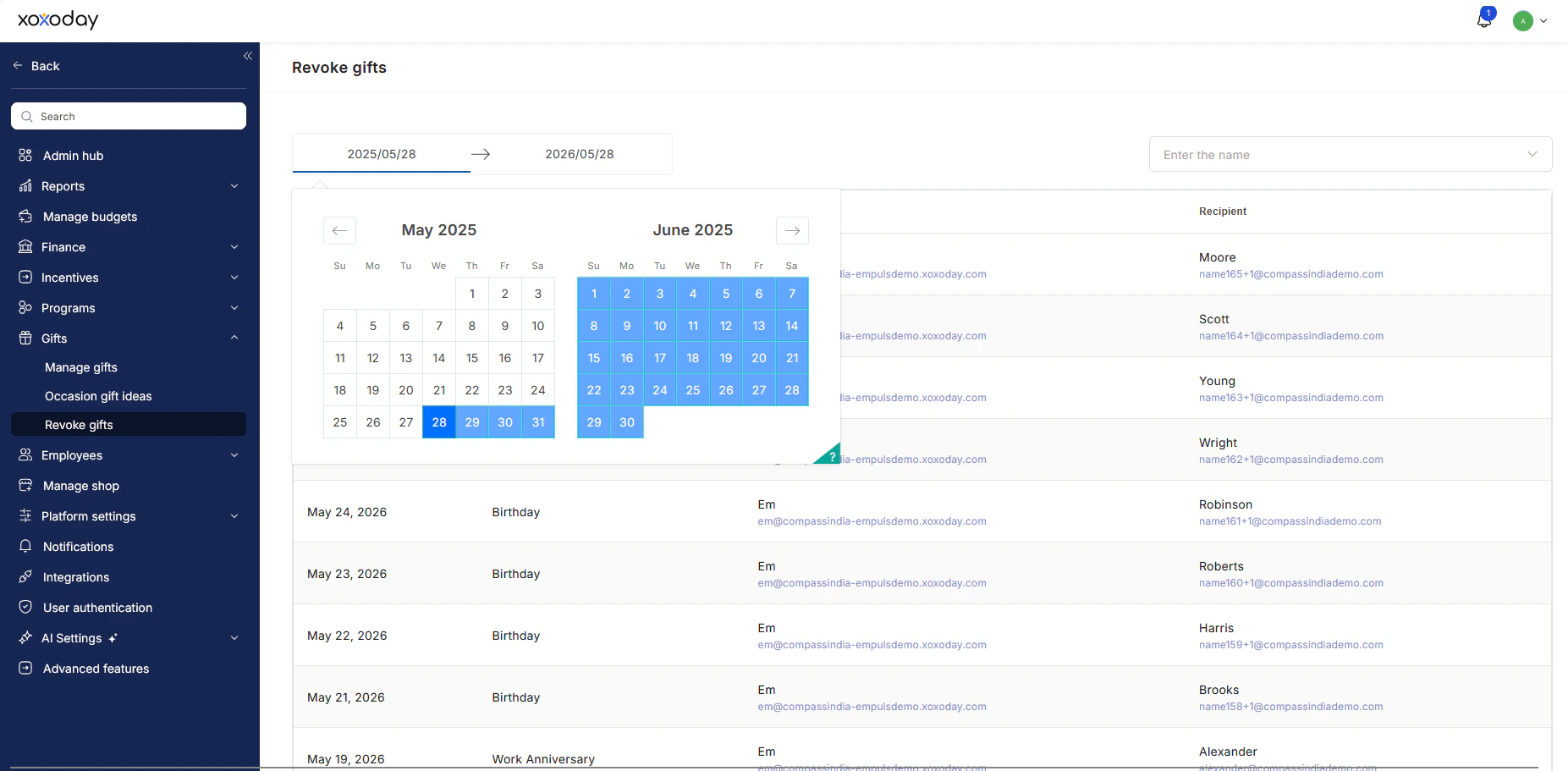
4
Choose the gift and revoke
Click on the gift and then click Revoke to initiate the process.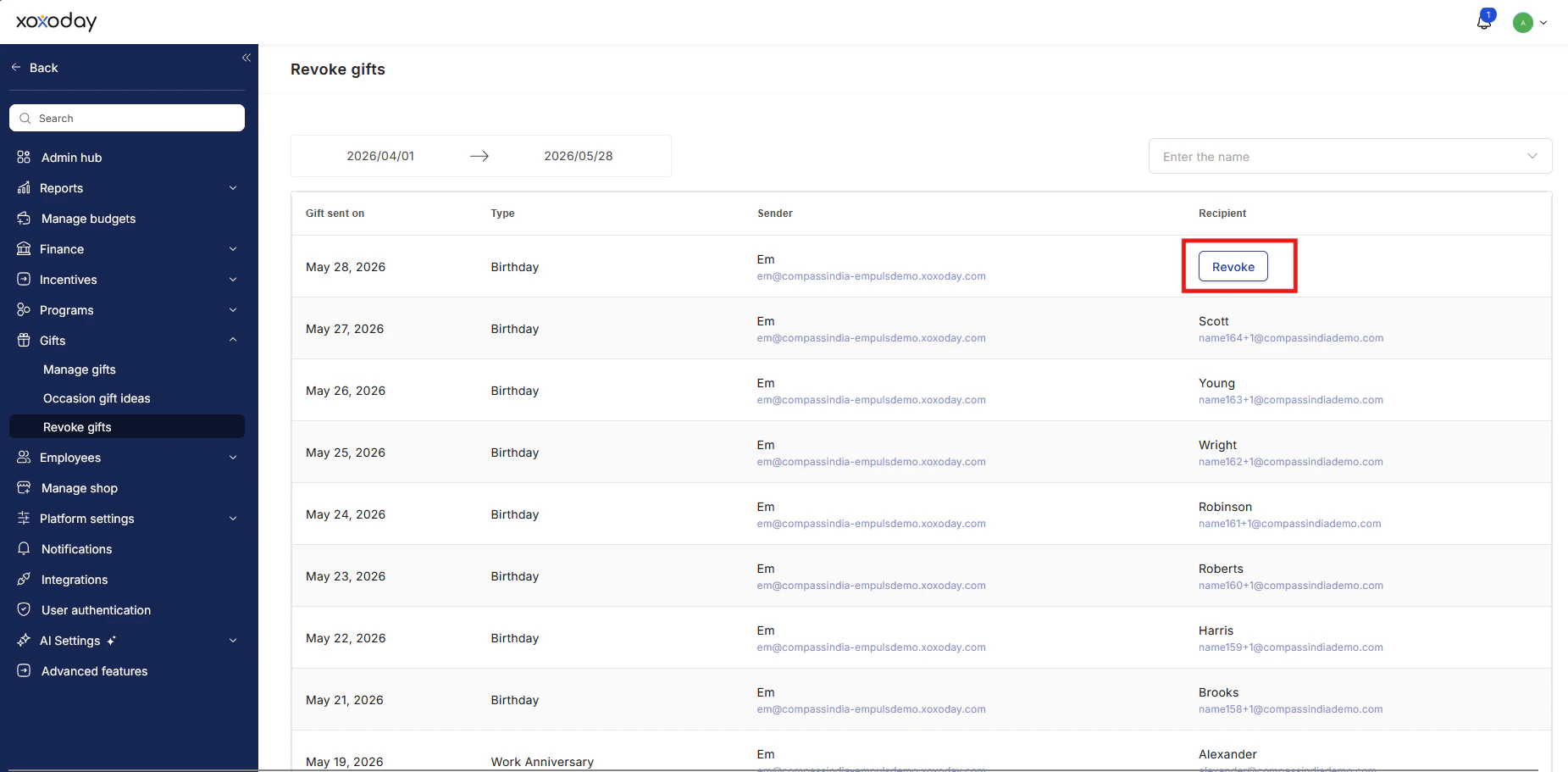
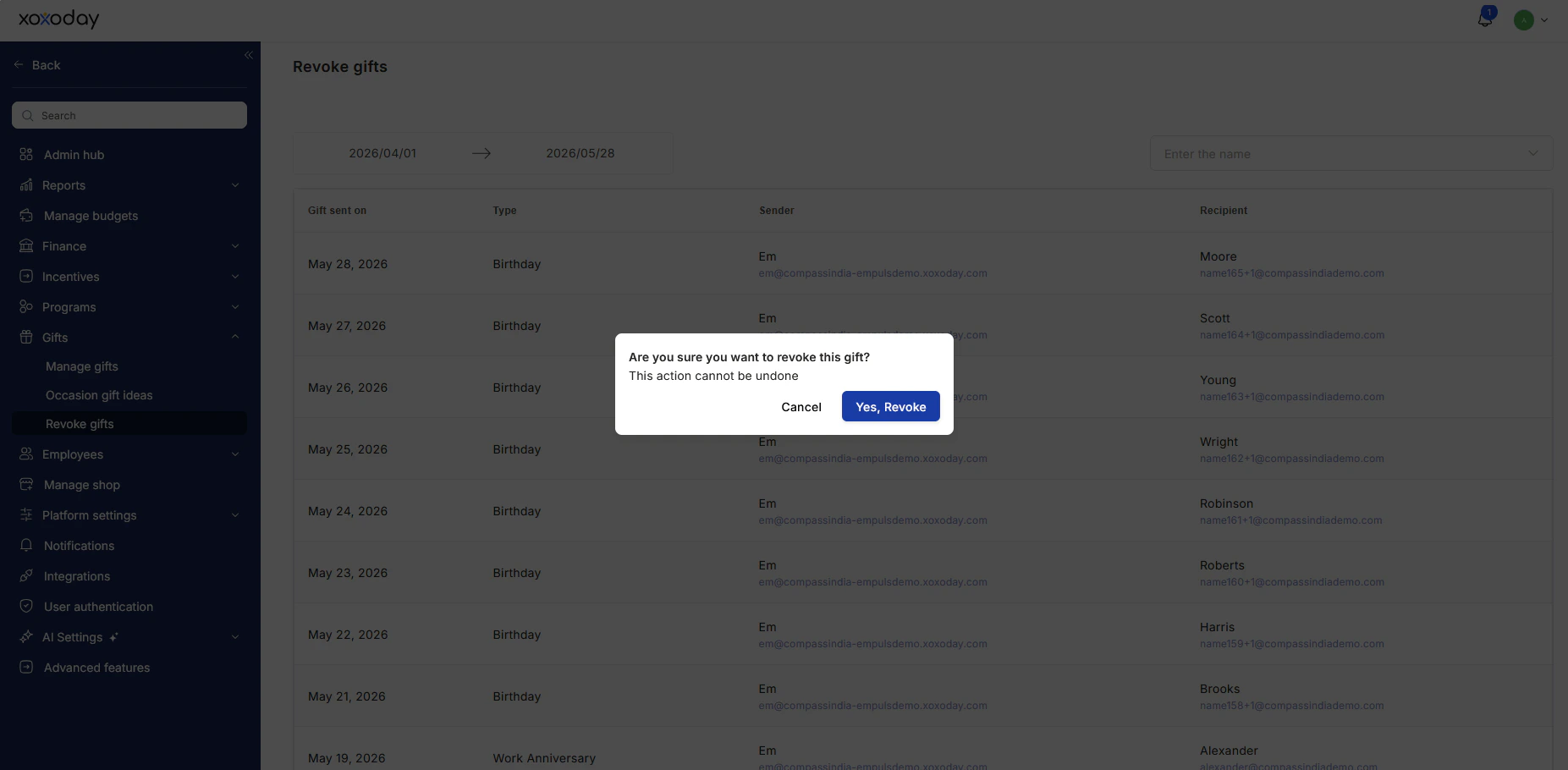
- Points are returned to the nominator’s account.
- The award status is updated in the reports.
- A notification is sent to the award recipient to inform them of the change.
- The nominator is notified about the revocation.
- If the nominator is disabled, Empuls can revoke the points to a different user’s account.
FAQs
When should an award or gift be revoked?
When should an award or gift be revoked?
Awards and gifts can be revoked in cases of disputes, policy violations, accidental nominations, or any human error.
What happens when an award or gift is revoked?
What happens when an award or gift is revoked?
- Points are returned to the nominator’s account.
- Reports are updated with the revoked status.
- Both the recipient and the nominator receive notifications about the revocation.
Can I revoke gifts from a specific period?
Can I revoke gifts from a specific period?
Yes. Use the date range filter in Gifts > Revoke Gifts to view and select awards or gifts within a specific period.
What if the nominator's account is disabled?
What if the nominator's account is disabled?
In such cases, Empuls lets you revoke the points to a different user’s account, which can be set manually.
https://{tenant_url}/home/gift-rollback