
Empuls allows organisations to issue certificates to commemorate recognitions and milestones. Admins can attach certificates to awards during award setup. Certificates are configurable and automatically populate with the awardee’s details.
You can use a predefined certificate template or create one from scratch.
Certificate types
Approval-based and jury-based awards support two independent certificates. You can attach either one, or both.
Use a nomination certificate to recognise everyone who is nominated, not only the final winners. Each certificate uses its own template. Attaching a nomination certificate does not change the award certificate.
Spot awards and work anniversary gifts support the award certificate only.
To attach a nomination certificate, select the Nomination certificate checkbox in the reward configuration step of the award, then follow the steps below to choose and configure its template. Select the Award certificate checkbox to configure the award certificate the same way.
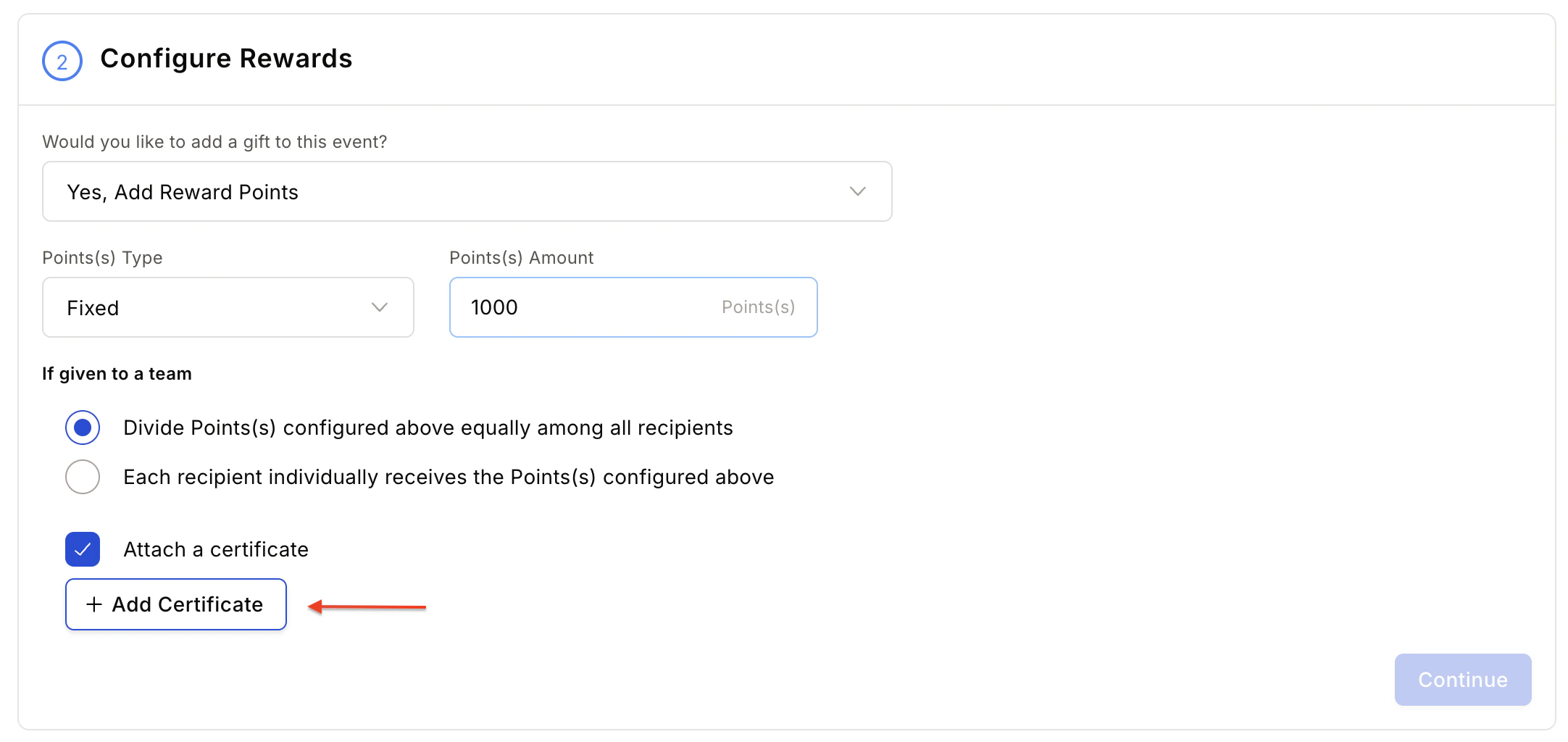
Step 1: Design your template image
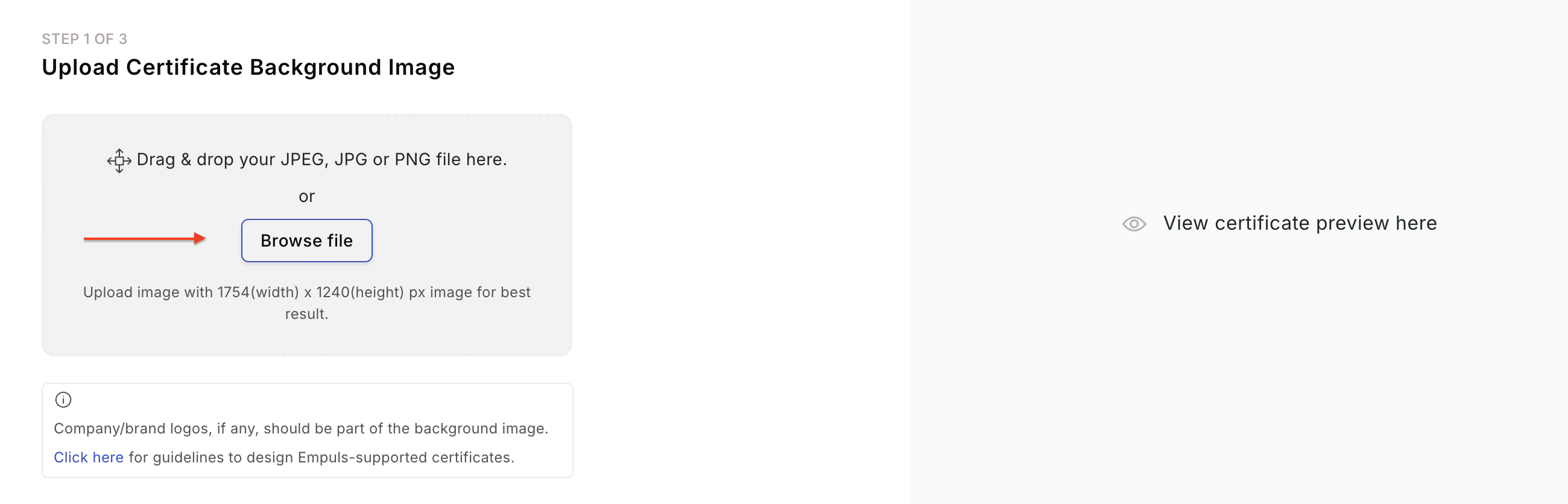
Prepare a certificate template image following these guidelines:- Image dimensions: A4 landscape — 1754 × 1240 px for best results.
- Ensure the image has sufficient blank space for dynamic text fields (award name, recipient name, citation, signatory, date).
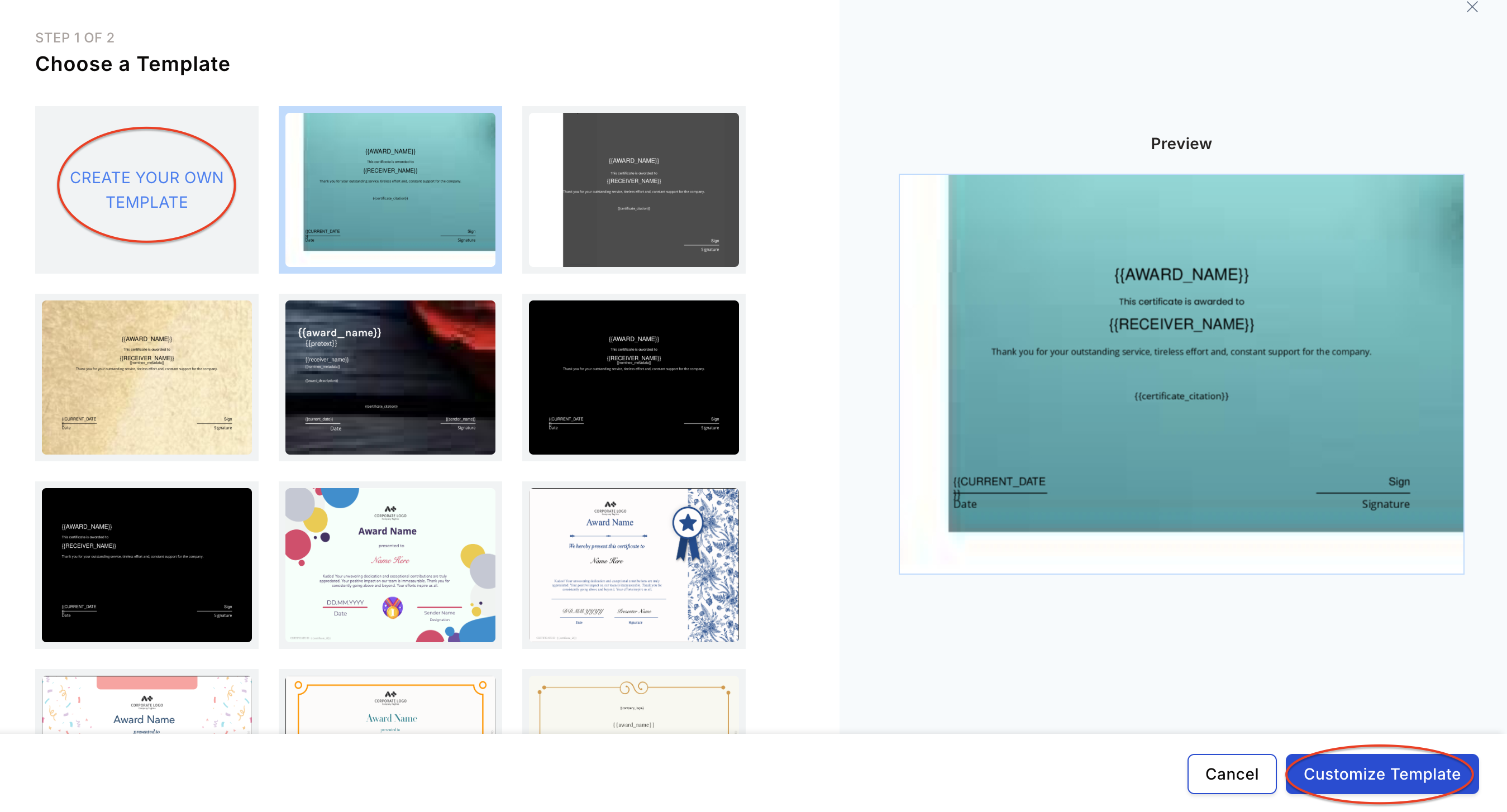
Step 2: Upload your certificate image
The Add Certificates option is available in two places: Awards and Work Anniversary Gifts.- Click Add Certificates to open the upload dialog.
- Upload your designed certificate image.
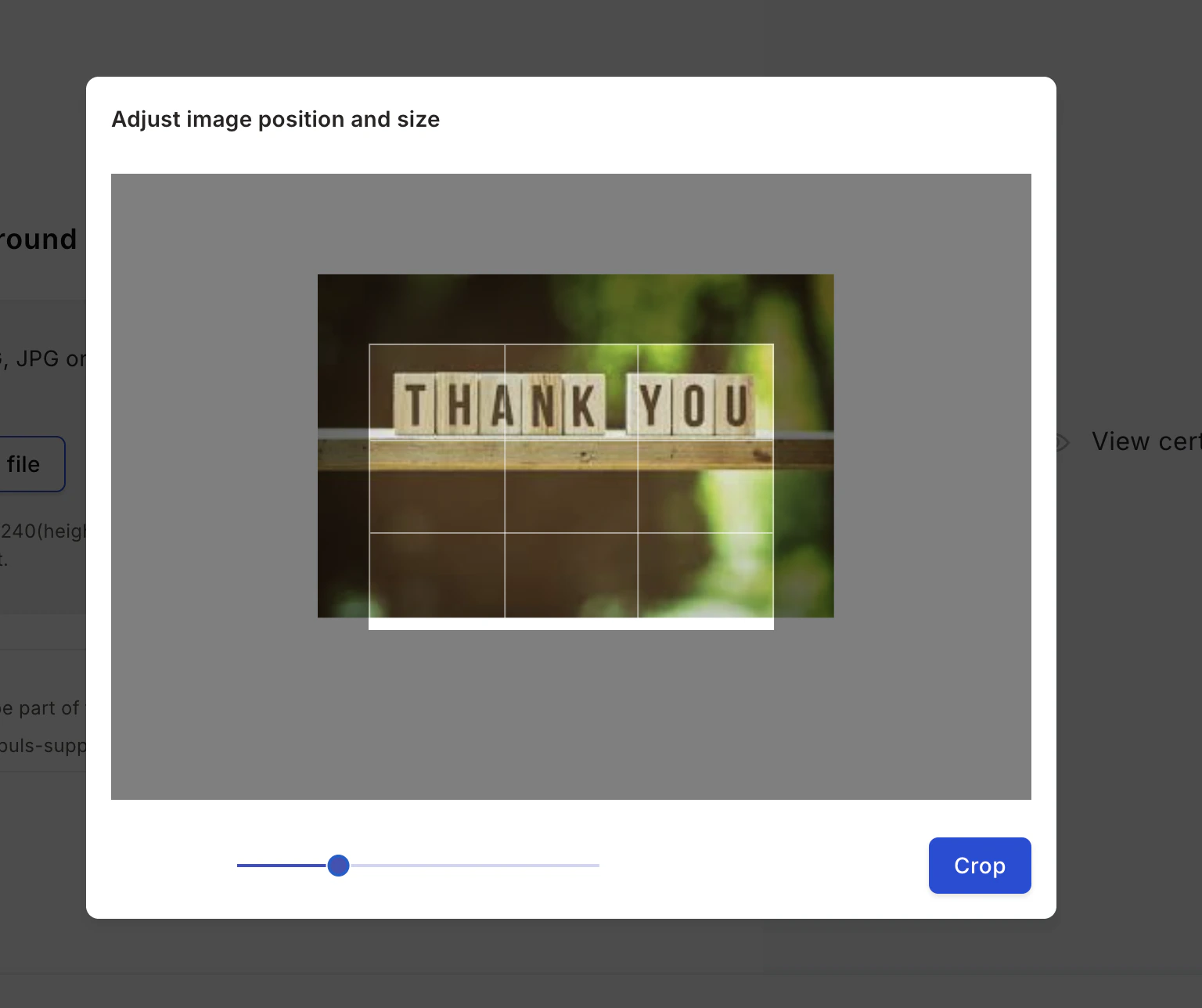
- Use the Crop Image option to adjust position and size. Image size and resolution are validated to ensure the generated certificate is of printable quality.
Step 3: Customise the layout
Select the layout and the text colour to use on your uploaded image.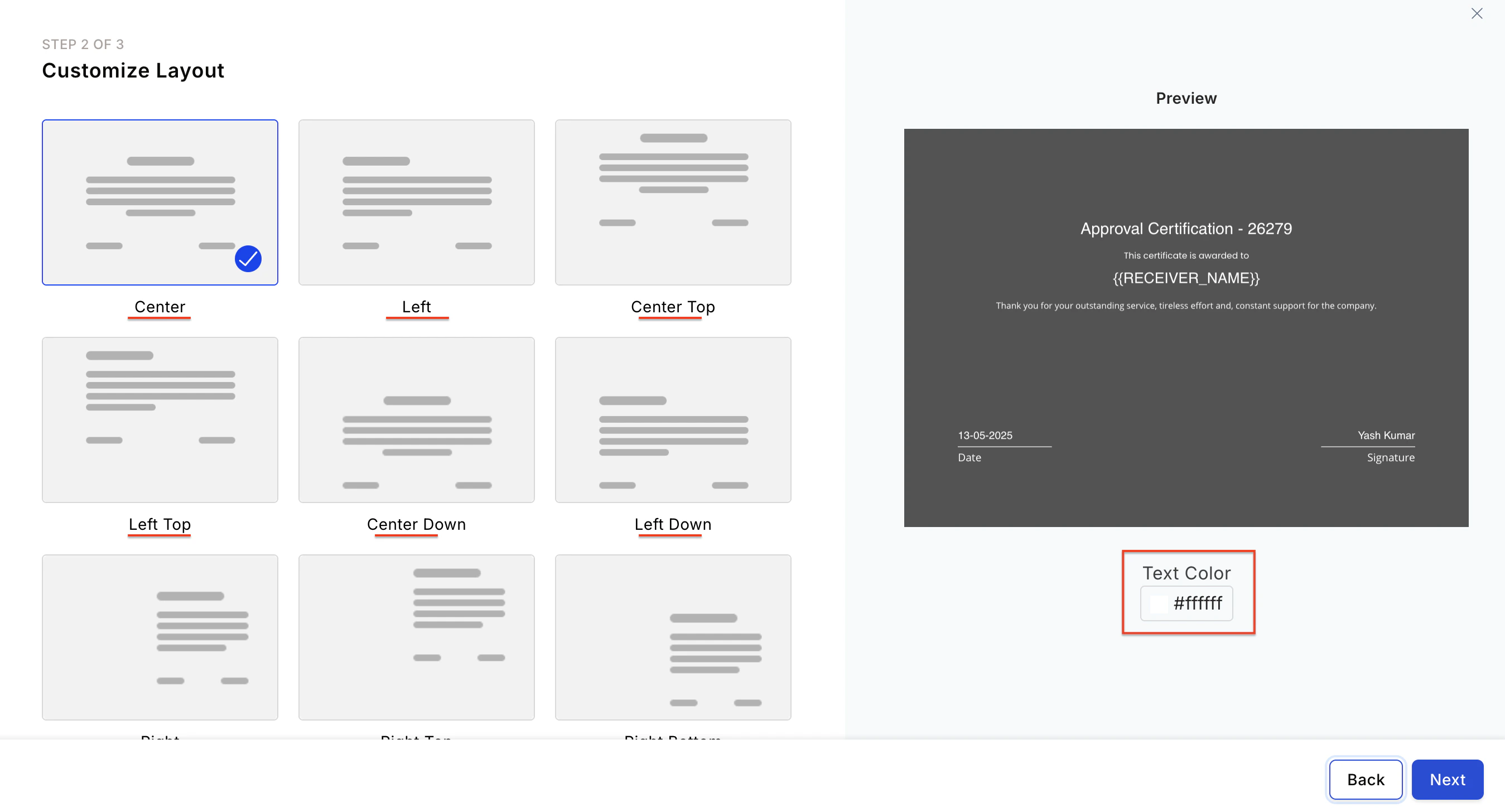
Step 4: Provide certificate details
Configure the content fields to appear on the certificate:- Award name — Add the award name to the certificate.
- Pretext — Add introductory text above the recipient’s name.
- Body text — Add the main body of the certificate.
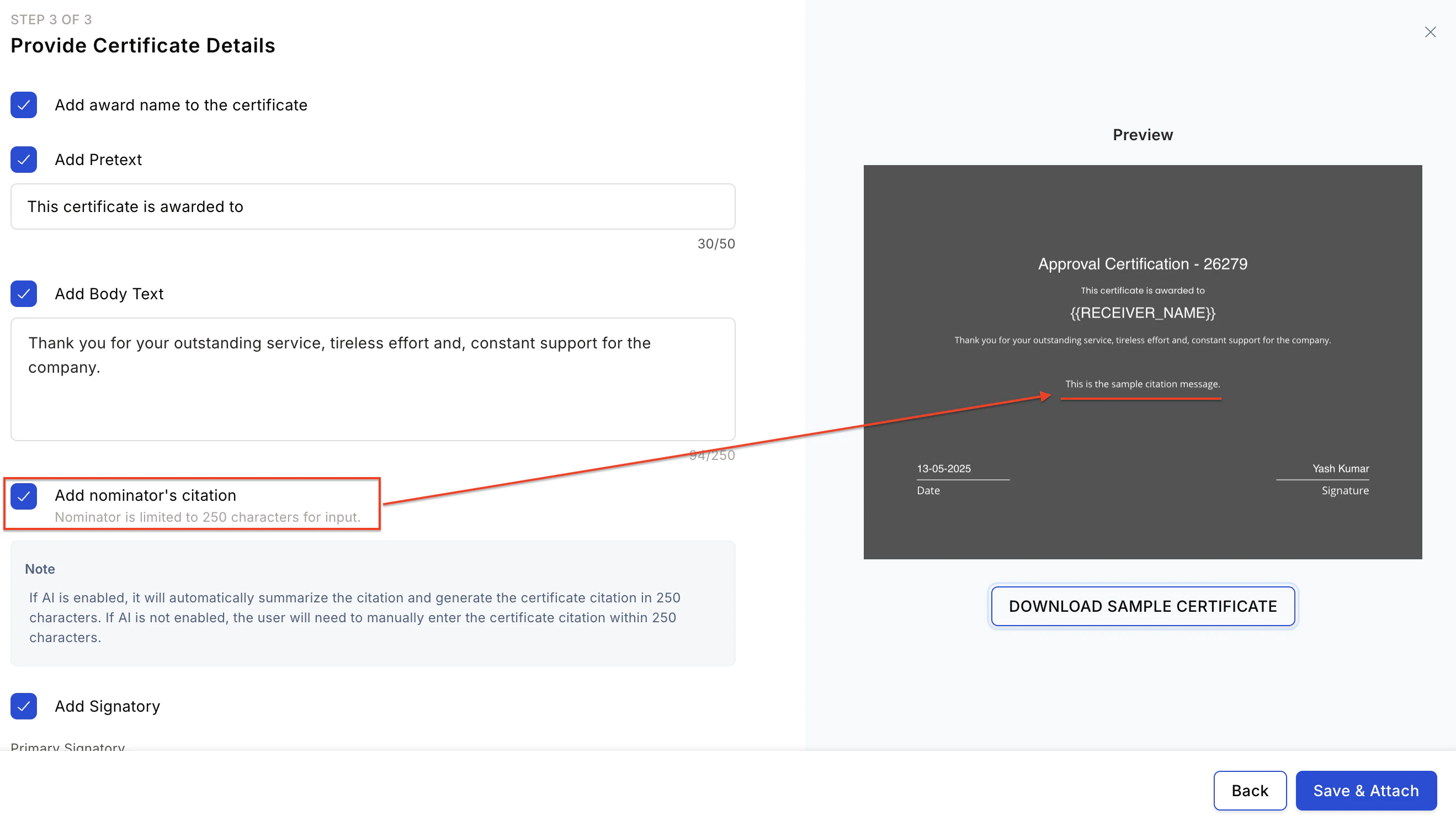
- Nominator’s message — Include the nominator’s citation.
- Signatory — Select who signs the certificate from the dropdown. You can pick from the nominee’s reporting hierarchy (HRBP, L+1, L+2, department head, cost centre head, business unit head), the final approver, the nominator, or the nominator’s reporting hierarchy (Nominator HRBP, Nominator L+1, Nominator L+2, Nominator department head, Nominator cost centre head, Nominator business unit head). Any user-relationship fields (URFs) your company has configured appear twice: once for the nominee’s relationship and once for the nominator’s.
- Default signatory — Used if the primary signatory does not exist in the system.
- Include signatory metadata — Show one of the signatory’s attributes next to their name on the signature line, for example “Nominee HRBP, Technology”. Choose Department, Designation, Business Unit, Cost Centre, Grade, Location, or any configured UDF. If the signatory is the default signatory, enter the text yourself, up to 50 characters. This option is available only when you add a signatory.
The final approver can’t sign a nomination certificate. Empuls issues the nomination certificate before anyone approves the nomination, so it uses your default signatory instead.
- Nomination Date — The certificate includes the date the nomination was submitted.
- Approved Date — The certificate includes the date the nomination was approved.
Download certificates
Nominees and awardees download their certificates from the awards section of their profile.- If an award has only one certificate, selecting the certificate downloads it as a PDF.
- If an award has both certificates, Empuls prompts them to choose Award certificate or Nomination certificate before downloading.
FAQs
Can the citation from awards be published on certificates?
Can the citation from awards be published on certificates?
Yes. The nominator citation can be added to the certificate only when the admin has enabled the Nominator citation option during certificate setup.
- Only 250 characters of content can be printed on the certificate.
- The nominator can update the certificate citation when submitting the nomination.
Can we add the nominator's name as a signature?
Can we add the nominator's name as a signature?
Yes. Select the Nominator name option in the Primary Signatory field during certificate setup. You can also select someone from the nominator’s reporting hierarchy, such as the nominator’s HRBP, immediate supervisor (L+1), skip-level manager (L+2), department head, cost centre head, or business unit head.
Can we show the nominee's details on the certificate, such as Department, Business Unit, Cost Centre, and Location?
Can we show the nominee's details on the certificate, such as Department, Business Unit, Cost Centre, and Location?
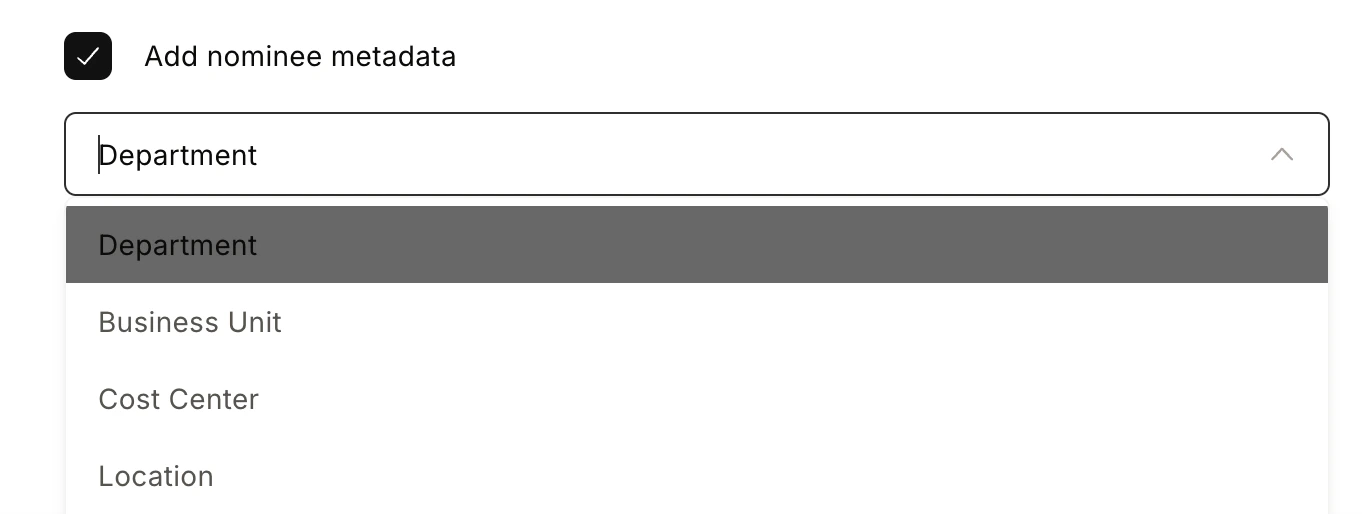
Yes. Enable the Add Nominee Metadata option during Step 4 of certificate setup and select the relevant field from the dropdown. In addition to Department, Business Unit, Cost Centre, and Location, the dropdown also lists any user-defined fields (UDFs) your company has configured.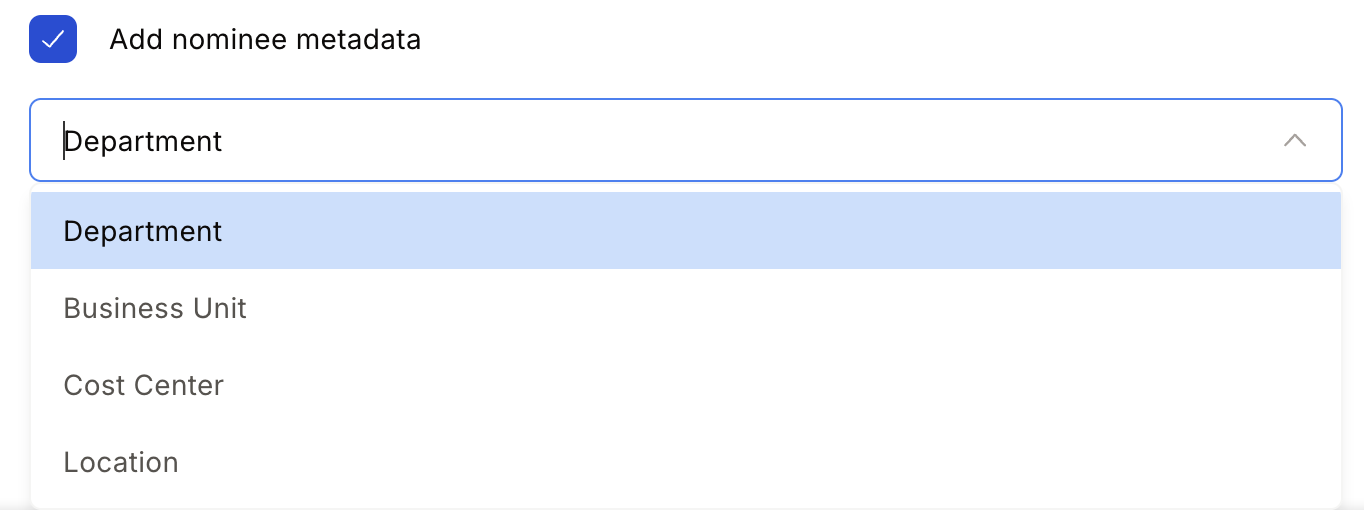
How do I get a fully customised certificate design?
How do I get a fully customised certificate design?
To get a custom certificate design for rewards, raise a request through Contact Support.