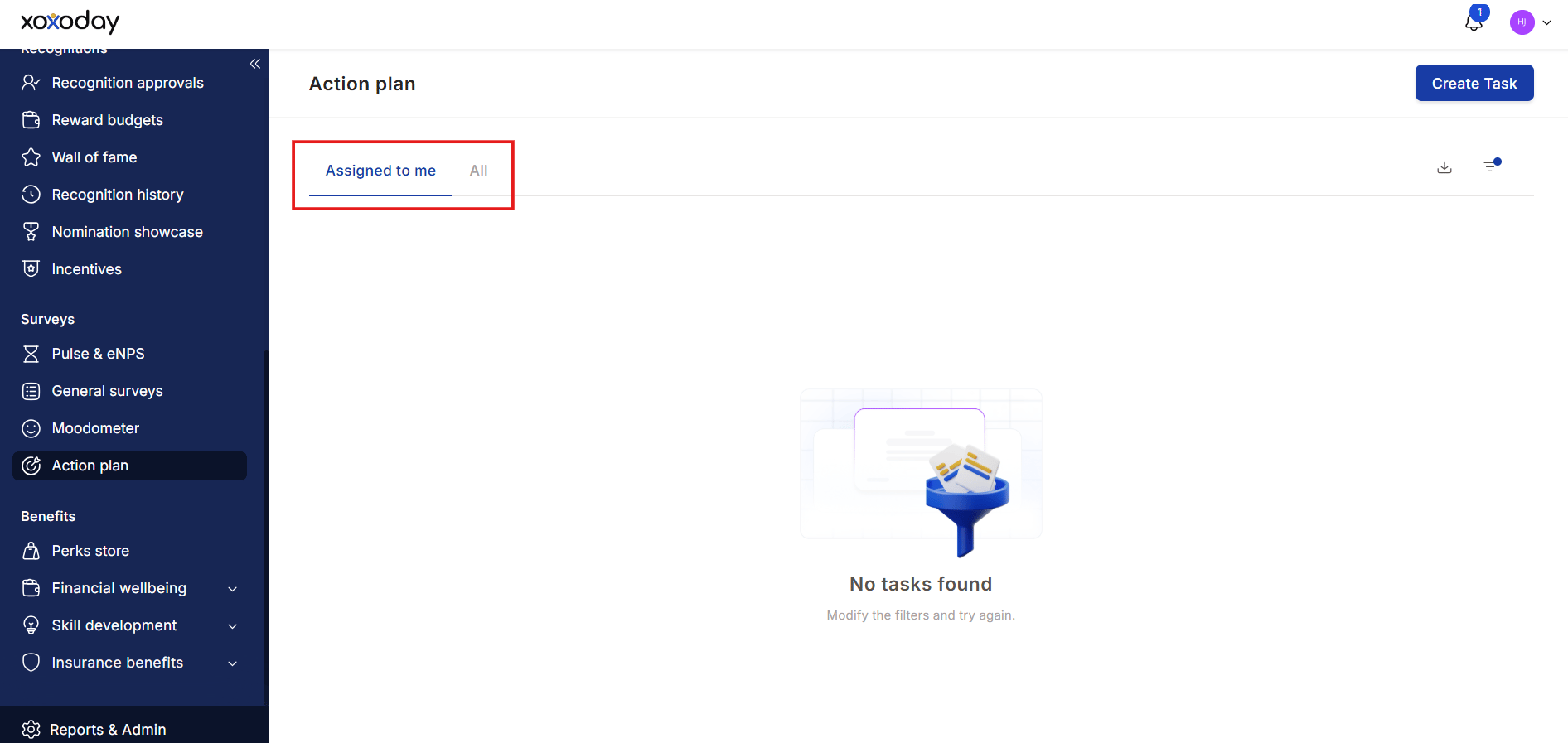
Action planning
Survey insights only create value when they lead to concrete improvements. The Action Planning feature lets you turn findings into tracked tasks.Creating an action plan task
1
Navigate to Action Plan
Go to Surveys > Action Plan from the left-hand navigation.
2
Create a new task
Click Create Task at the top-right corner.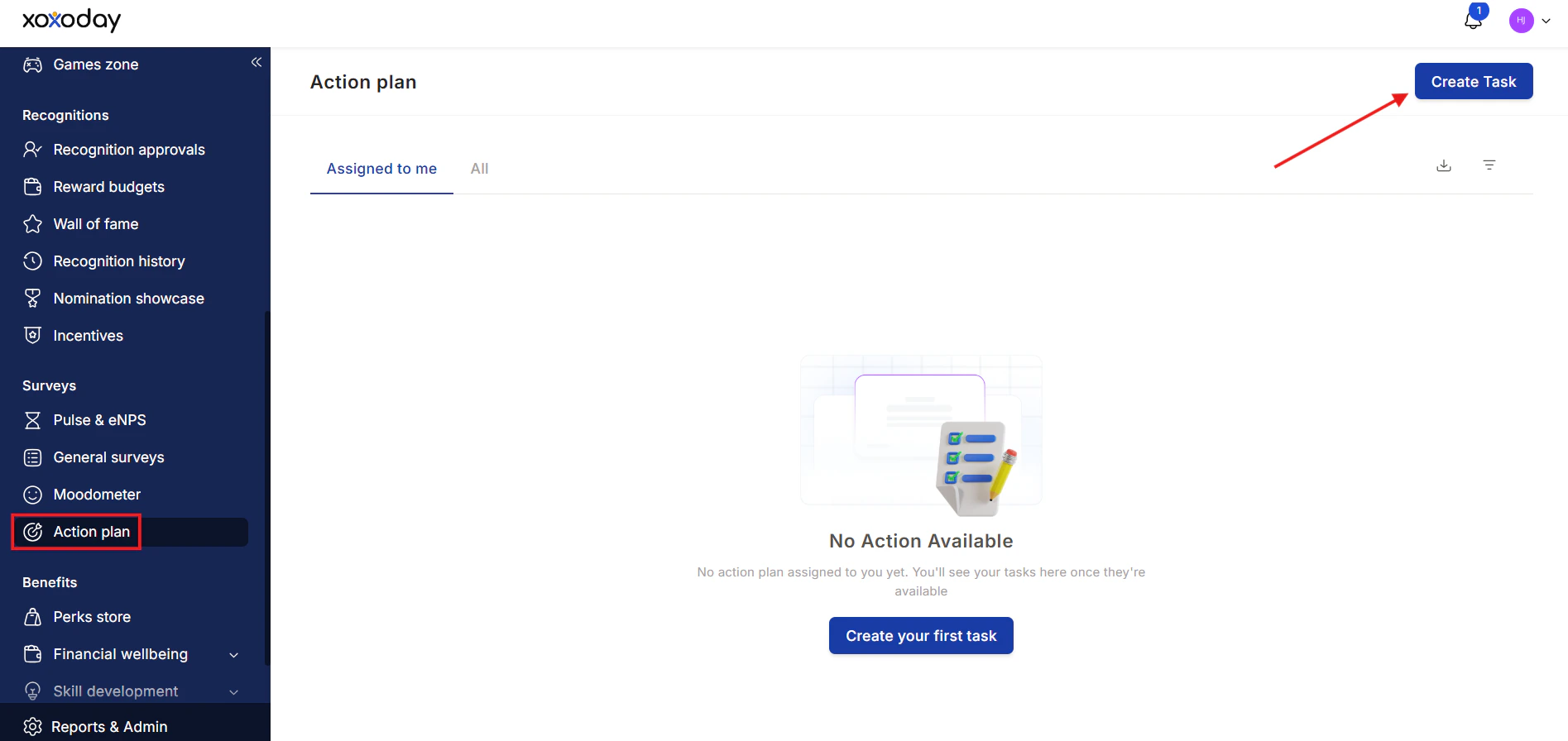
3
Fill in task details
Enter:
- Task heading — a clear, concise title
- Description — context and specifics for the task
- Tags — for easier search and categorization
- Assign to — select the responsible person from the dropdown
- ETA — the expected completion date
4
Save
Click Create. The task appears in the Action Plan list.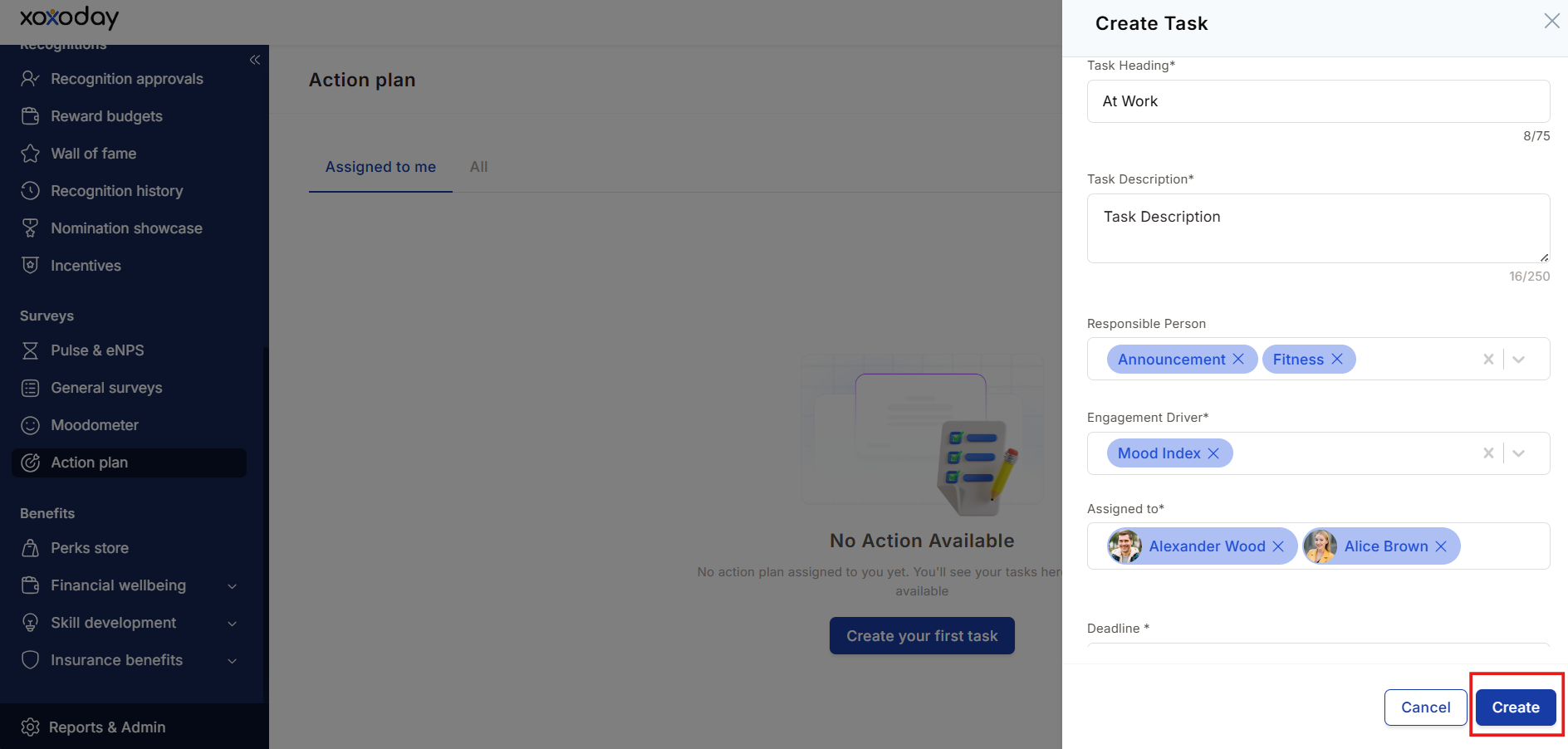
Managing existing tasks
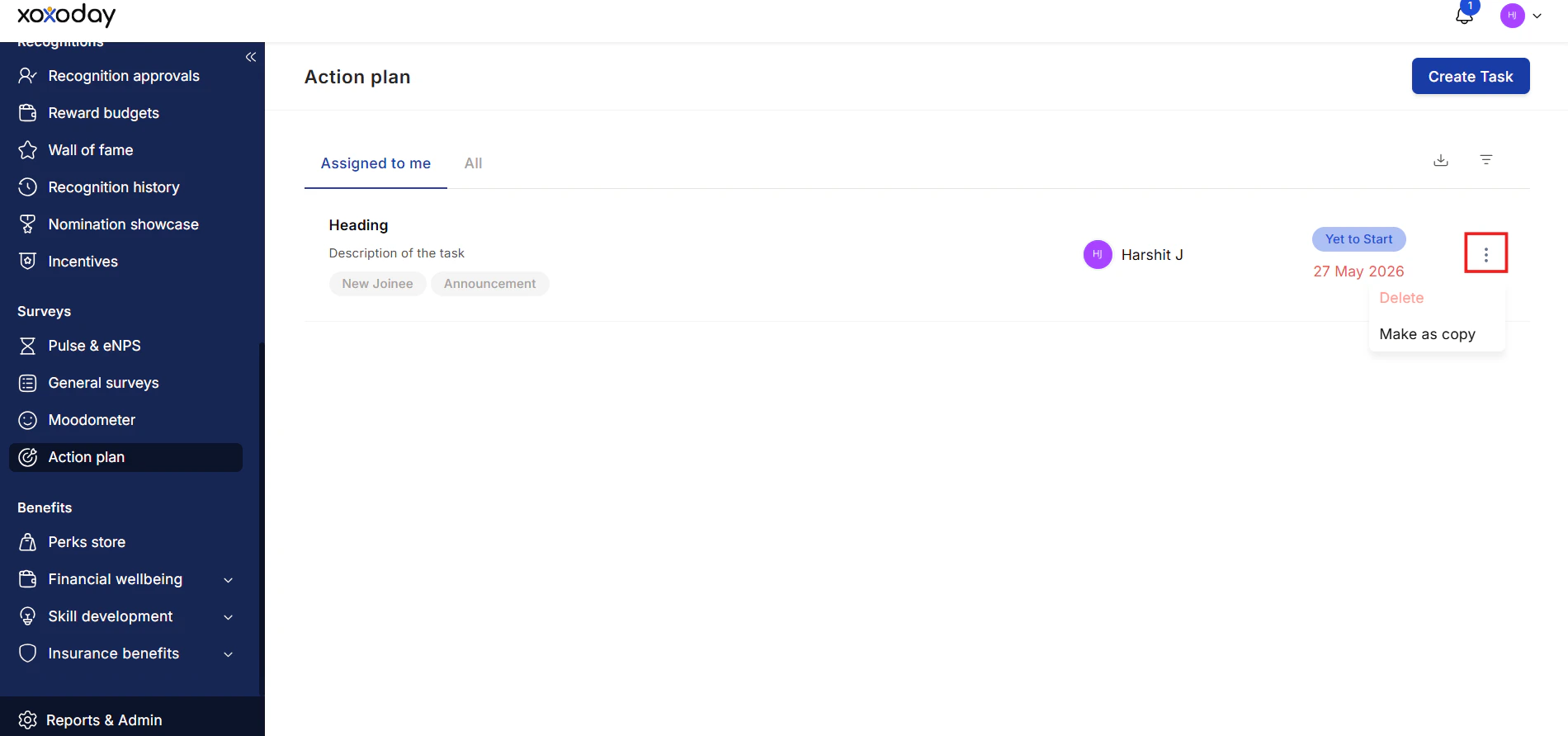
Click the three-dot icon (⋮) next to any task to:- Delete the task permanently
- Make a copy to duplicate it with the same details
Searching action plans
Use the search box above the task list to find tasks. Search matches the task heading, the description, the person who created the task, and the assigned person. Type at least 2 characters to start a search. Clear the search box to show the full task list again.Filtering action plans
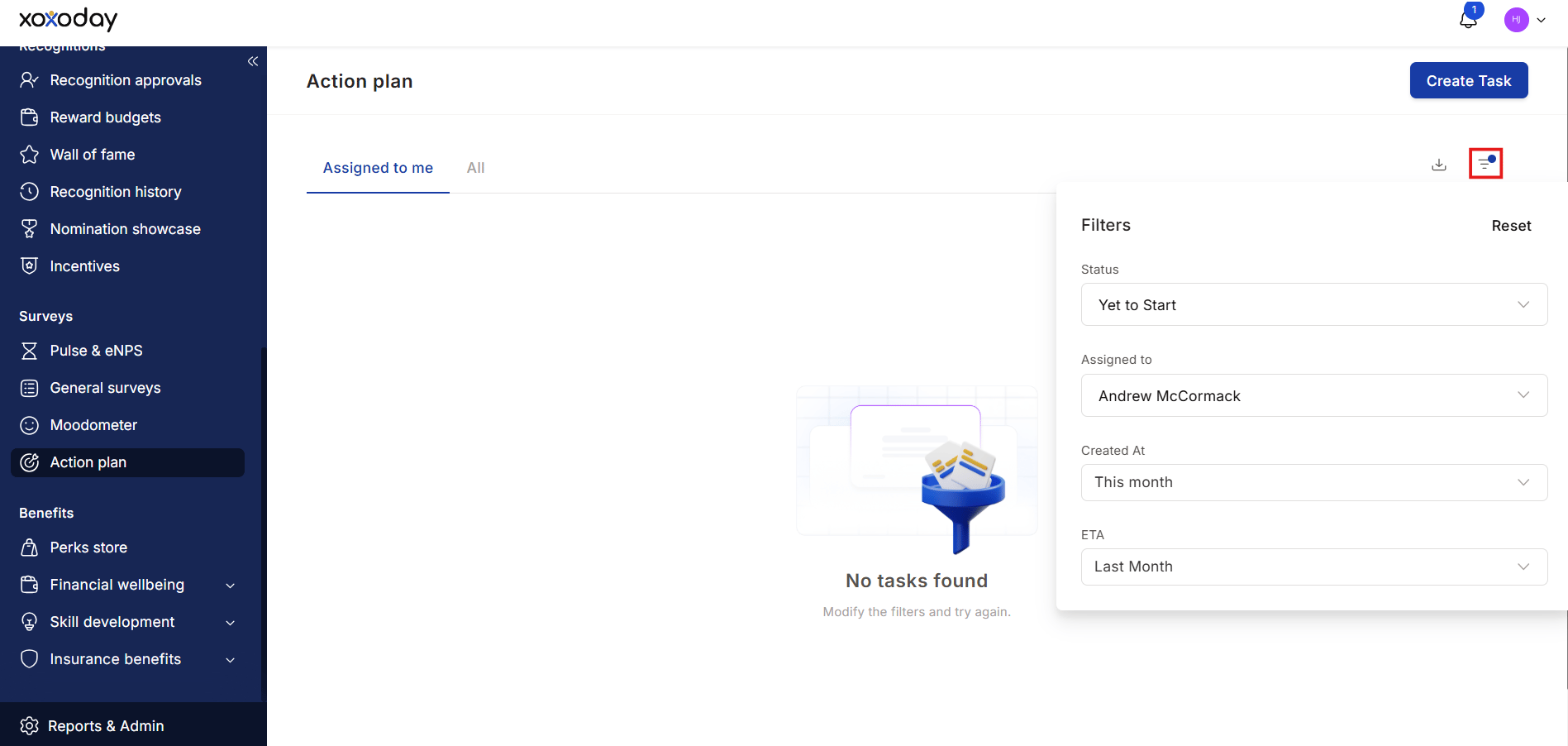
Use the filter icon to filter tasks by:- Created at — All, This Month, Last Month, This Quarter, Last Quarter, or a custom date range
- Status — Yet to start, In Progress, Completed, or Dropped
- Assigned to — filter by assignee
- ETA — filter by expected completion date
Tracking progress
The Action Plan section shows two views:- Assigned to me — tasks assigned specifically to you
- All — all tasks created across the organization