
How to set up a product-based gift
Step 1: Open gift creation
Navigate to Gifts > Manage Gifts and click Create Gift. Select your delivery mode — Send Manually, Schedule It, or Automate.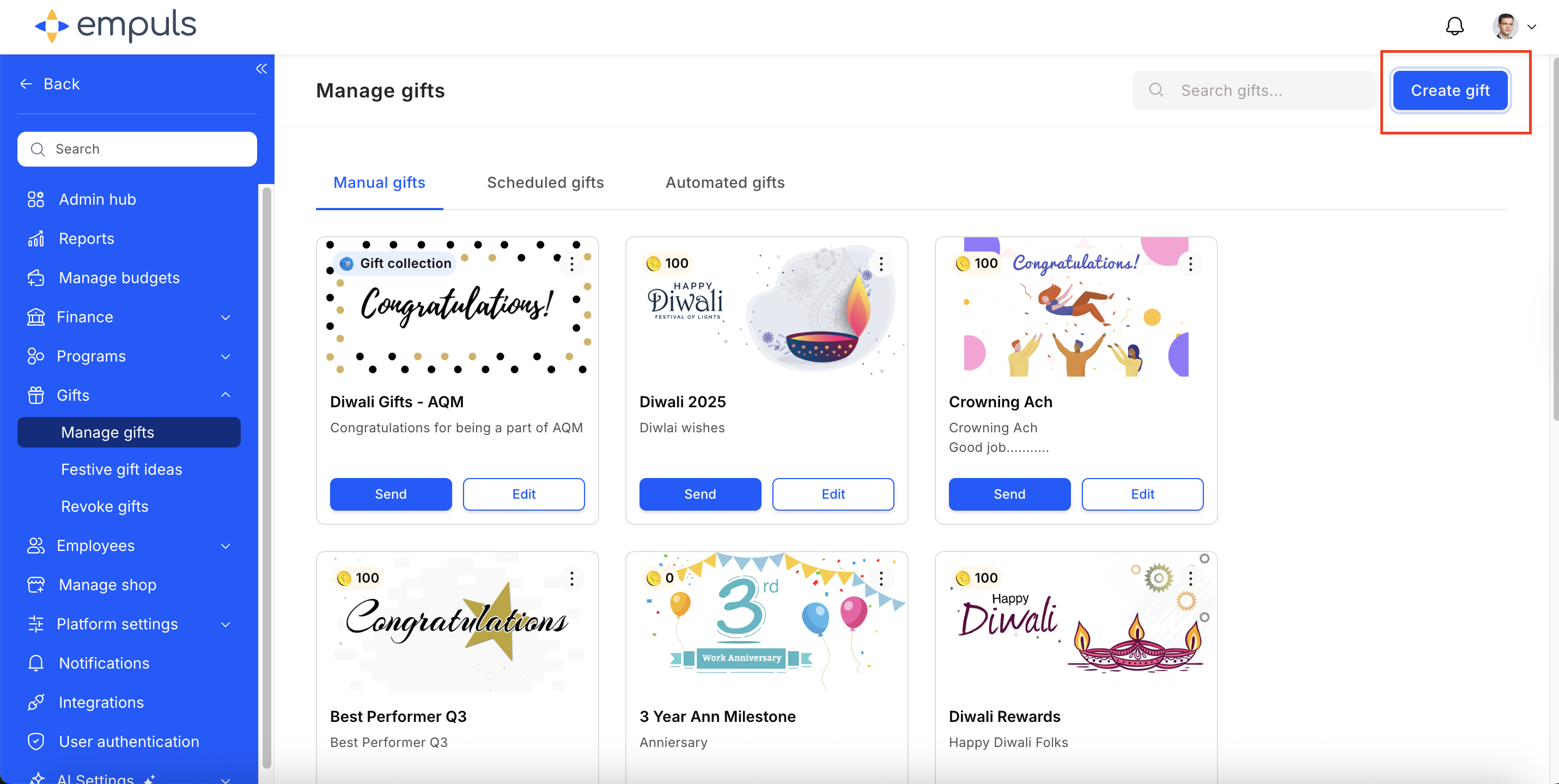
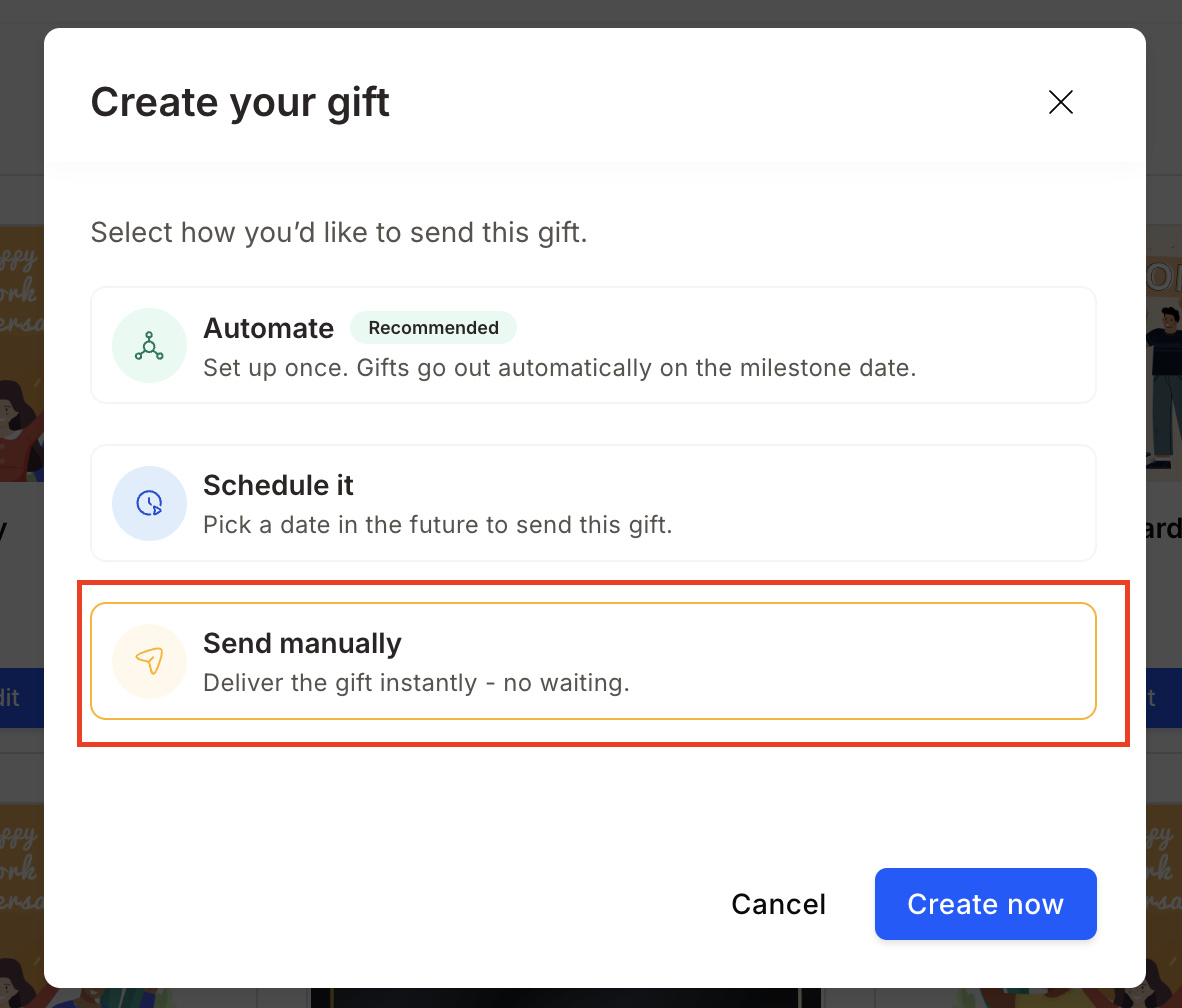
Step 2: Select or create an event
Choose from existing event templates (Birthday, Work Anniversary, New Joiner, Festival, etc.) or click Create New Event. Fill in the Event Name, Title, and Message.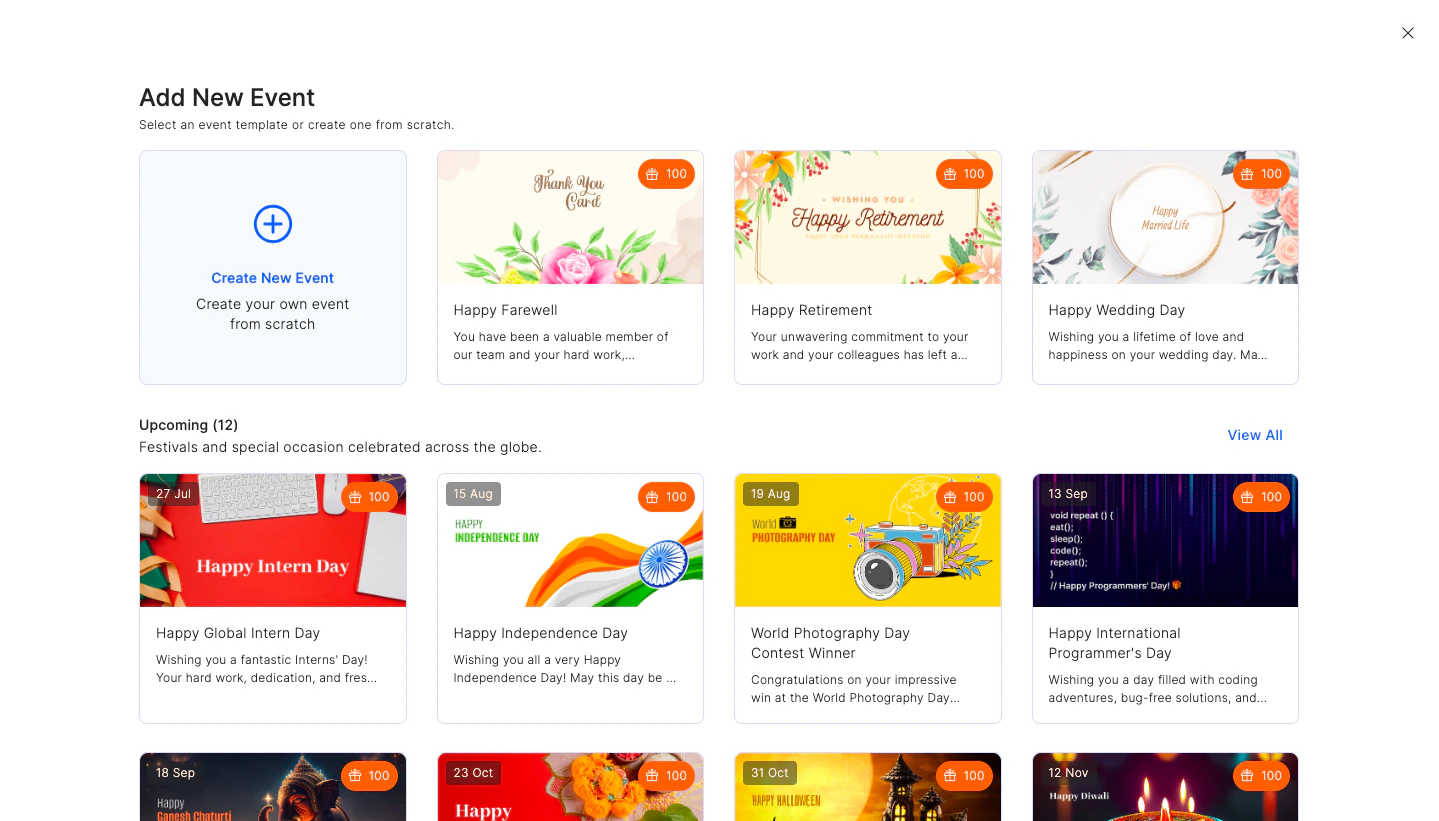
Step 3: Select the merchandise option
At the reward configuration step, select Yes, Add Merchandise Collection and click Select Collection.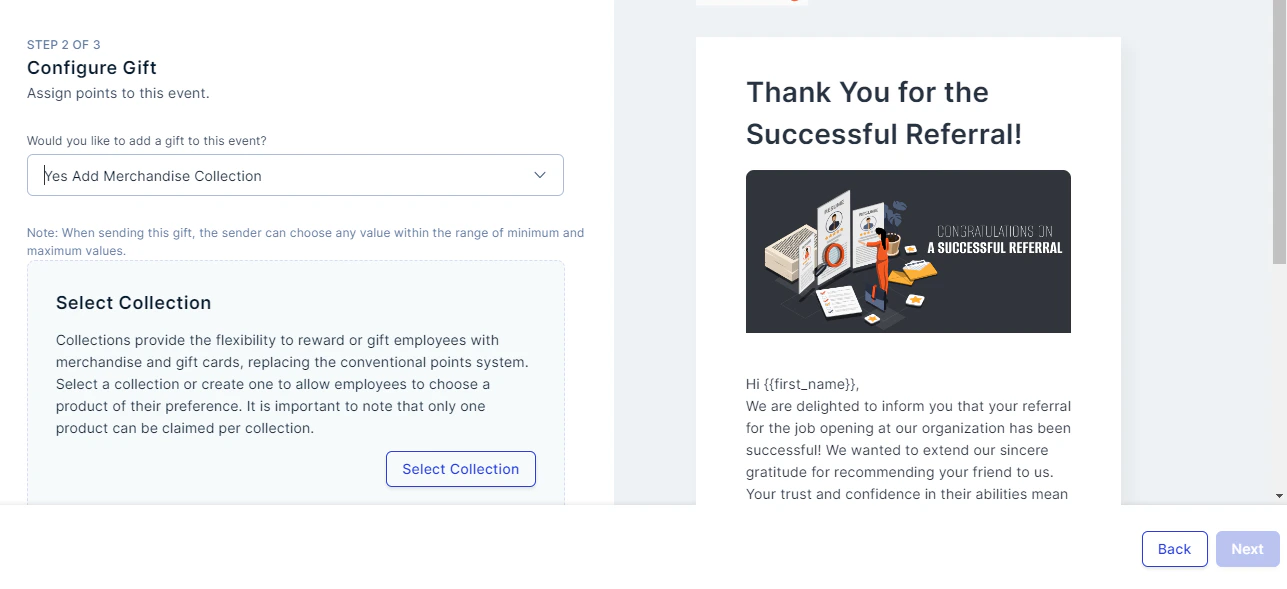
Step 4: Choose or create a collection
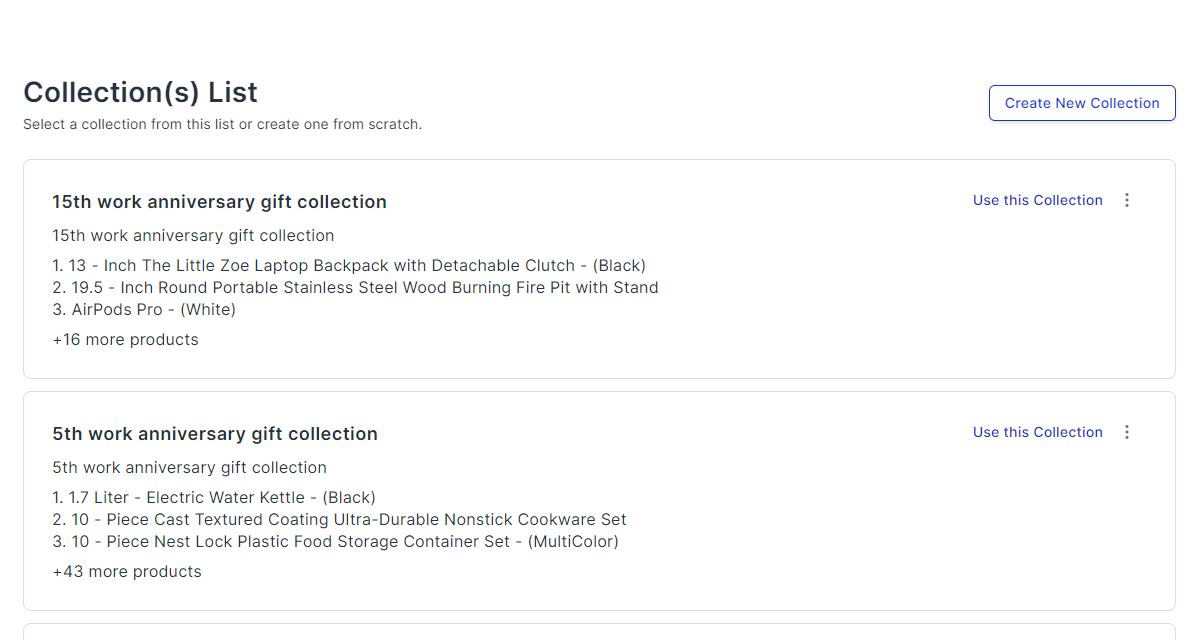
On the Collections list, hover over an existing collection and click Use this Collection, or click Create New Collection.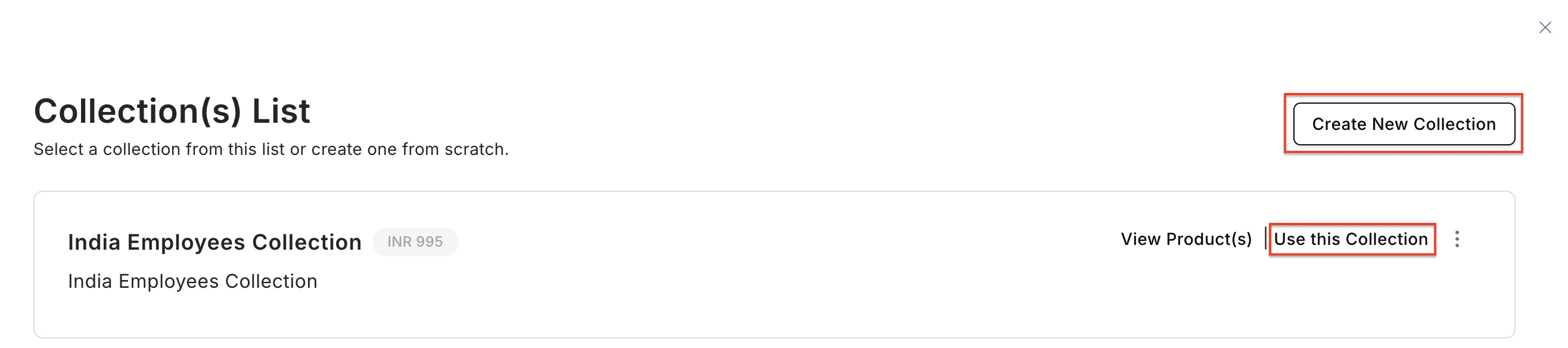
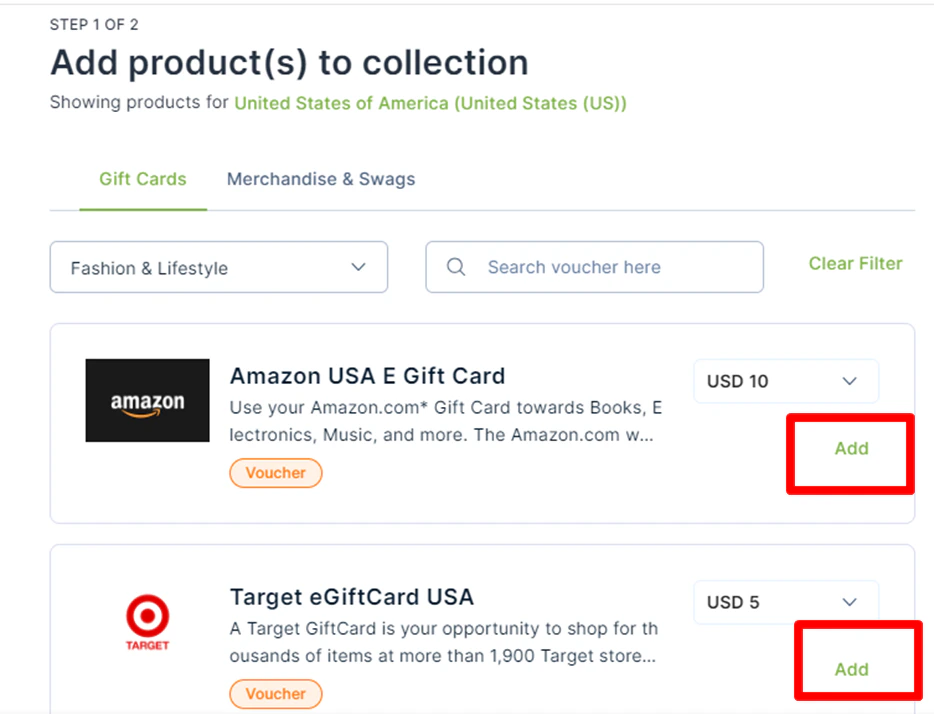
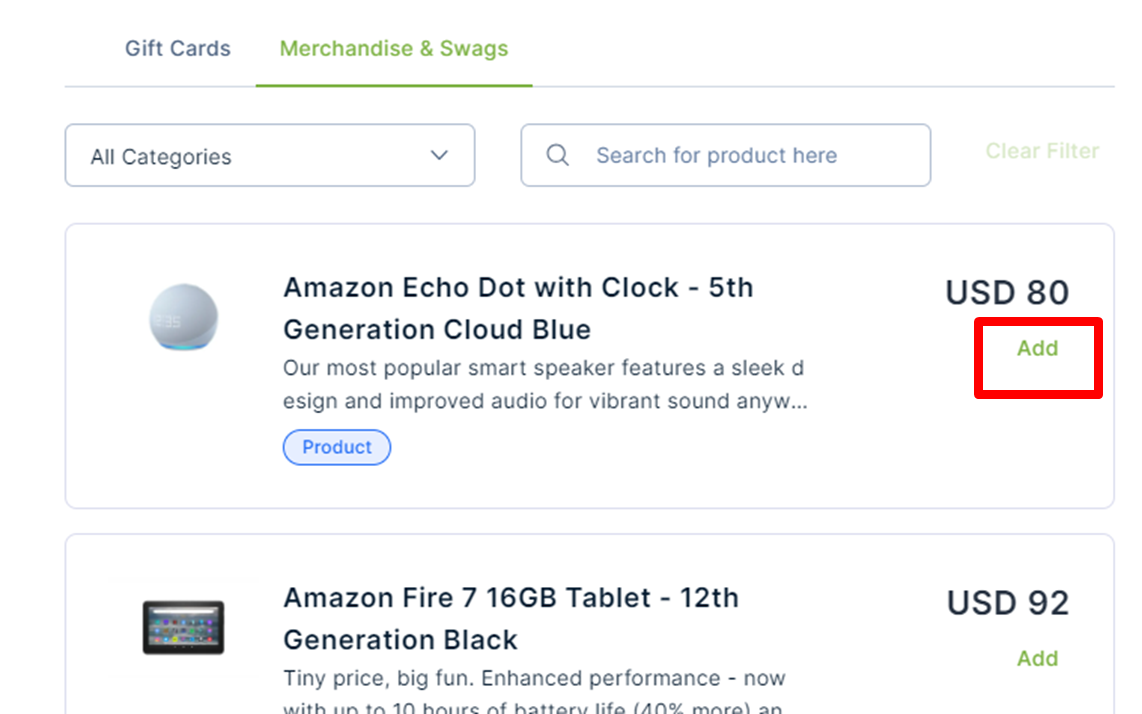
Step 5: Review selected products
Products you’ve added appear on the right panel. Once done, click Next.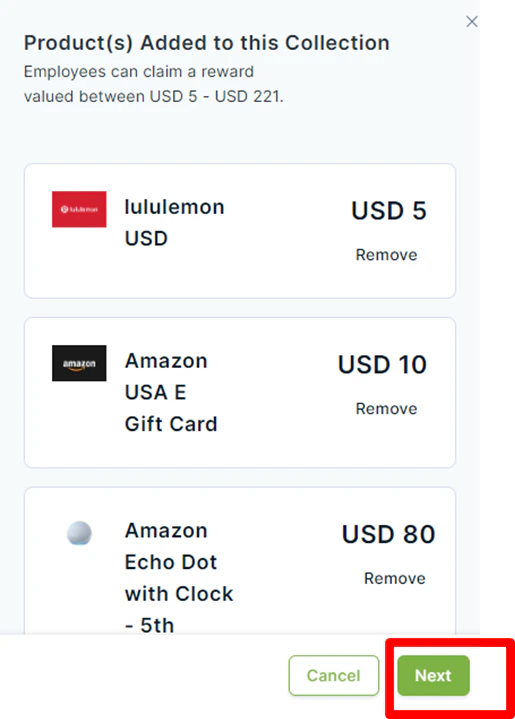
Step 6: Name and save the collection
Fill in the Name, Purpose, and Maximum spend for the collection. Optionally check Hide Product Price to conceal individual prices from recipients. Click Save — the collection is stored for reuse in future events and awards.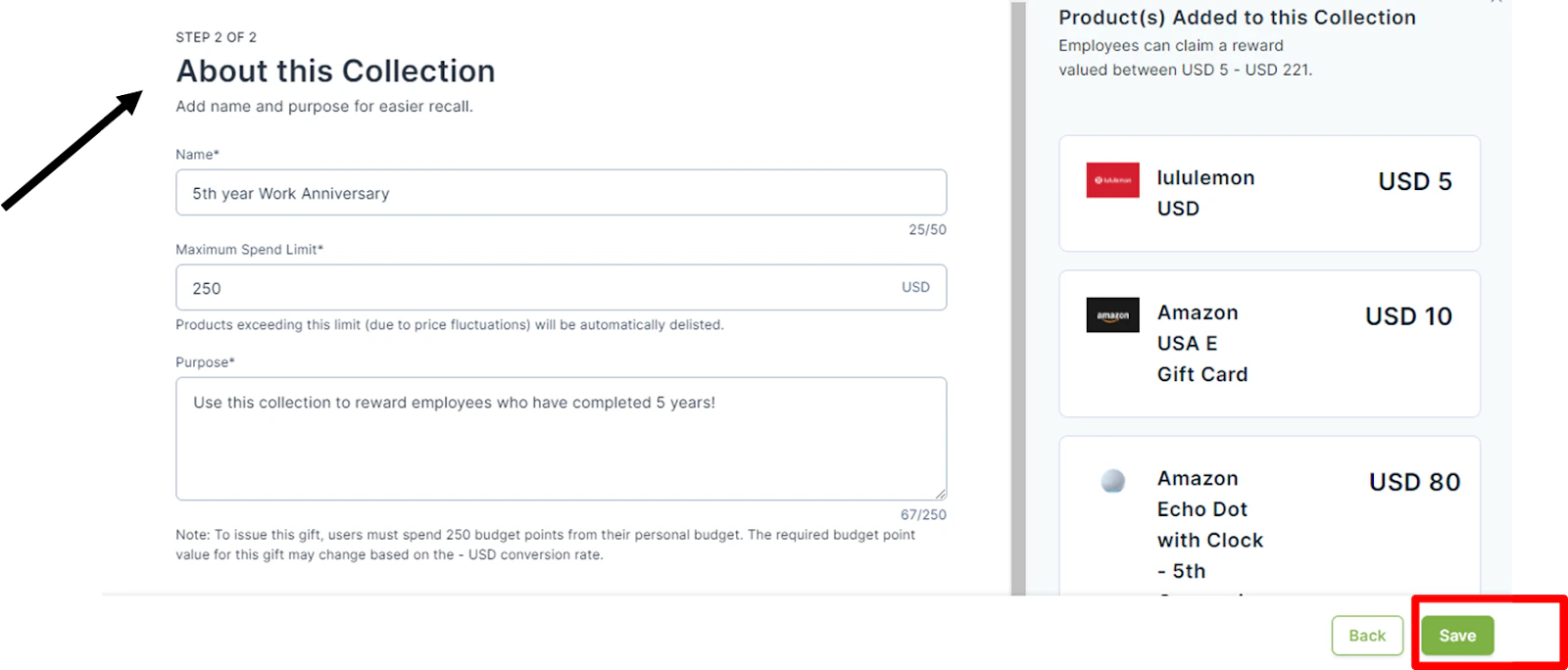

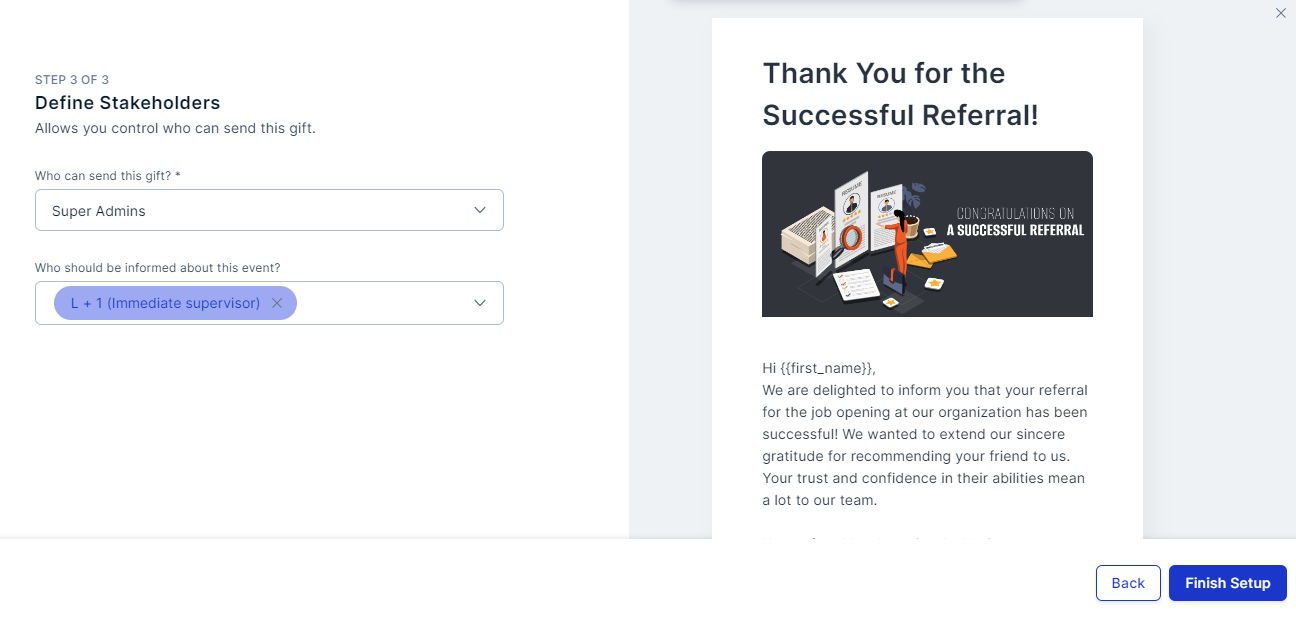
Step 7: Define stakeholders and finish
Specify who can send this gift and who should be notified. If you add stakeholders, choose how Empuls notifies them:- Send stakeholders a separate email (default): Stakeholders receive their own notification, apart from the recipient’s gift email.
- CC stakeholders on the gift email: Empuls adds stakeholders in CC on the recipient’s gift email instead of sending them a separate one.
Attaching a collection to an award
You can also link a collection to a performance award instead of a gift. When creating or editing an award, select Add Products from the Store at the reward step, then choose or create a collection. The collection replaces or supplements points as the reward.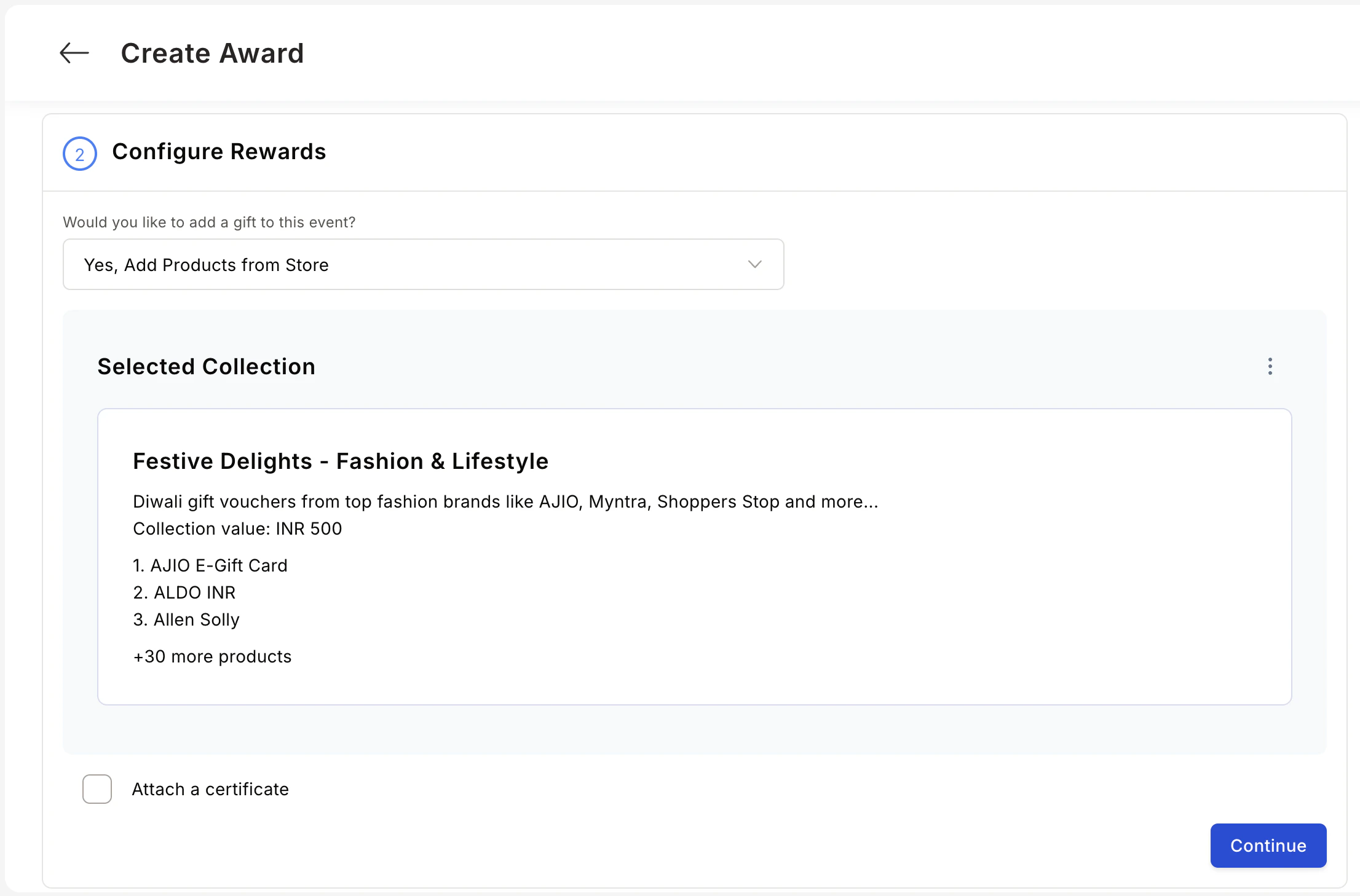
Common use cases
Company swag for new joiners
Create a dedicated Welcome Kit collection (branded merchandise, notebooks, hoodies) so new hires receive a tangible, branded experience on day one — especially valuable for remote employees.Long service awards (LSA)
For major milestones (5 yr, 10 yr), create a premium collection (high-end electronics, travel accessories, lifestyle goods) that matches the significance of the achievement and feels more personal than a points deposit.FAQs
Can I mix merchandise and gift cards in a single collection?
Can I mix merchandise and gift cards in a single collection?
Yes. Create mixed collections with both to offer variety and let employees choose what suits them.
Can I create collections for different countries?
Can I create collections for different countries?
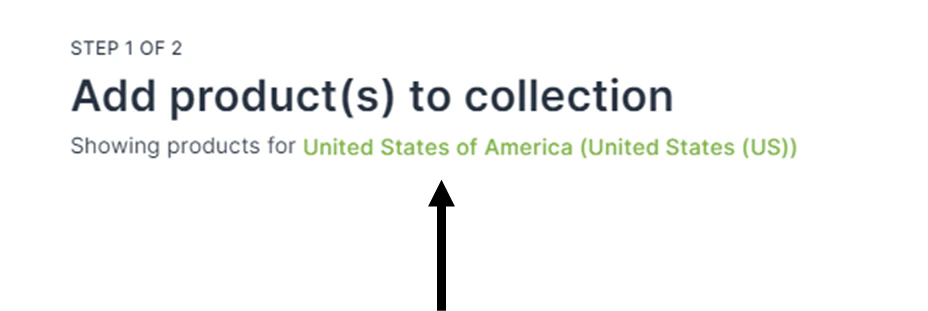
Yes. Select the country when building a collection — products are filtered by geography, ensuring availability and relevance.
How do I reuse a collection for another gift or award?
How do I reuse a collection for another gift or award?
Once saved, collections appear in the collections list and can be selected for any future manual, scheduled, or automated gift, and for any award.
Can I hide product prices from recipients?
Can I hide product prices from recipients?
Yes. Check Hide Product Price when saving the collection. Recipients see the items but not their individual prices.
Can I attach a collection to an automated gift?
Can I attach a collection to an automated gift?
Yes. When configuring an automated gift (birthday, anniversary, etc.), choose Products from the store at the reward step and select your collection. The collection is linked to every automated send.