Why This Integration?
Enabling users to interact with Empuls from the comfort of their daily workflow, this integration automates the user account management processes in Empuls based on the employee data available in greytHR. This hassle-free data sync empowers you to appreciate and recognize your team members directly and instantly through your already existing greytHR framework - without needing you to shift from one browser window to the other.With this integration, you can:
- Add new employees to Empuls automatically as soon as their greytHR profile is created.
- Edit existing employee data in Empuls simply by updating their greytHR profile.
- Remove exited employees from Empuls based on their exit date in greytHR profile.
How To Set This Integration Up
1
Go to Admin Dashboard by clicking on Reports
Go to Admin Dashboard by clicking on “Reports and Settings” and navigate to “Integrations.”
2
Click on ADD greytHR at the top right
Click on *ADD *greytHR at the top right corner of the greytHR integration page.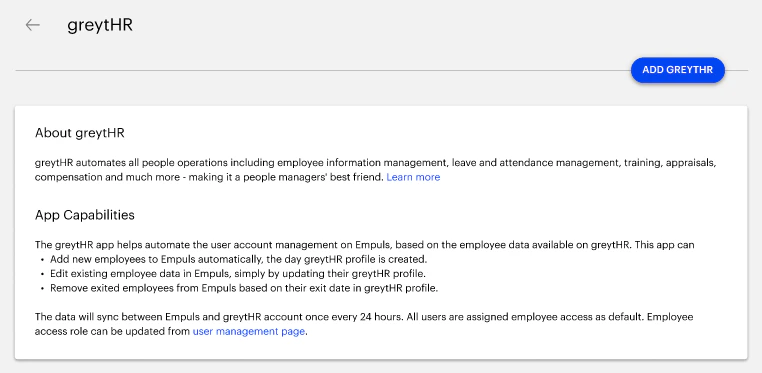
3
Share your greytHR account API Credentials
Share your greytHR account API Credentials in the pop-up box. Click on ***Test Connection & Proceed ***once done.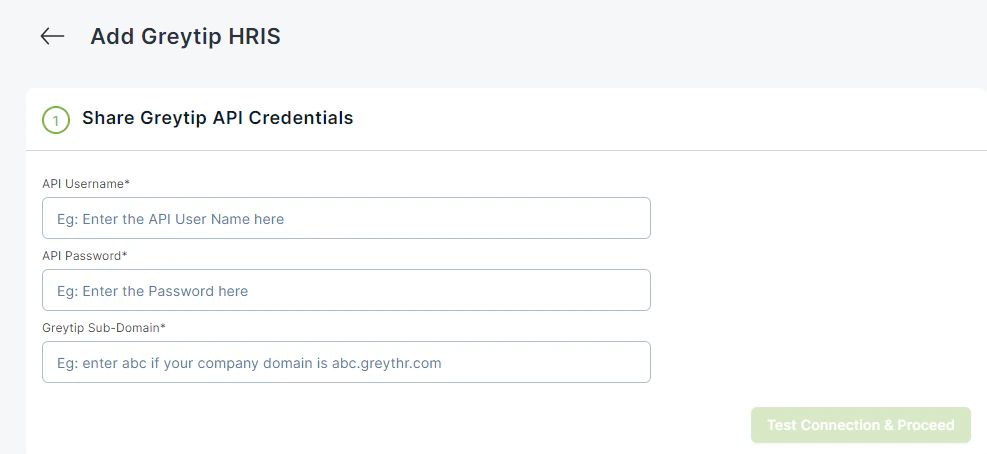
4
Select the Data fields that you want
Select the Data fields that you want to integrate with Empuls. Click on NEXT.The more data fields you add, the more levels of customization would be possible in the R&R program set up. (Example: Customer Centricity Award may be enabled only for the Customer Support team, based out of the Romania location.)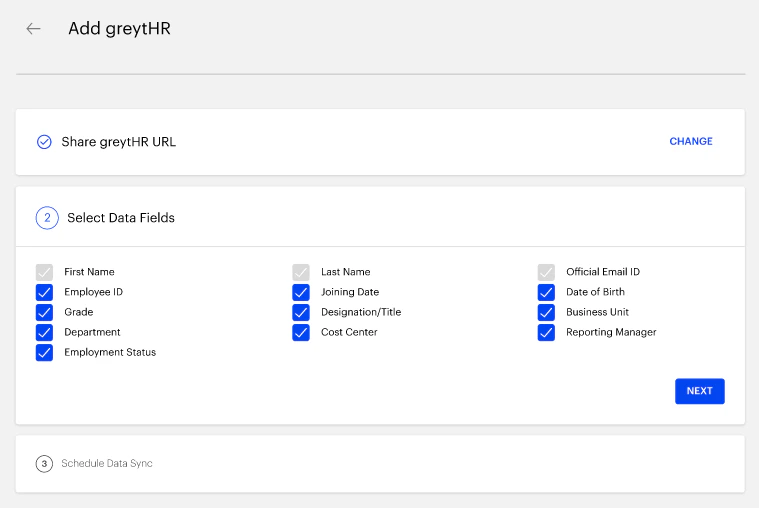
- First name
- Last name
- Official email
- Employee code/ID
- Grade
- Department
- Designation
- Date of birth
- Date of Joining
- Mobile number
- Business Unit
- Cost center
- Location
- Contact/Mobile number and many more
5
Define Filtering Criteria
6
Schedule Data Sync
Finally, schedule the first data sync between your greytHR account and Empuls. The scheduled time of the first data sync is when the users are invited to the platform. Click on SAVE AND FINISH once done.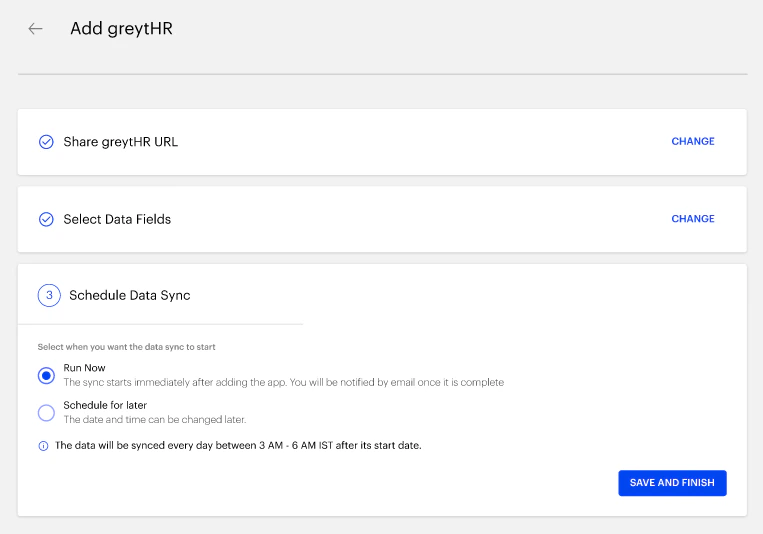
7
Download data to validate
Admins can download employee data in CSV format before uploading to Empuls to validate that the data fields are mapped and no record is repeated.
8
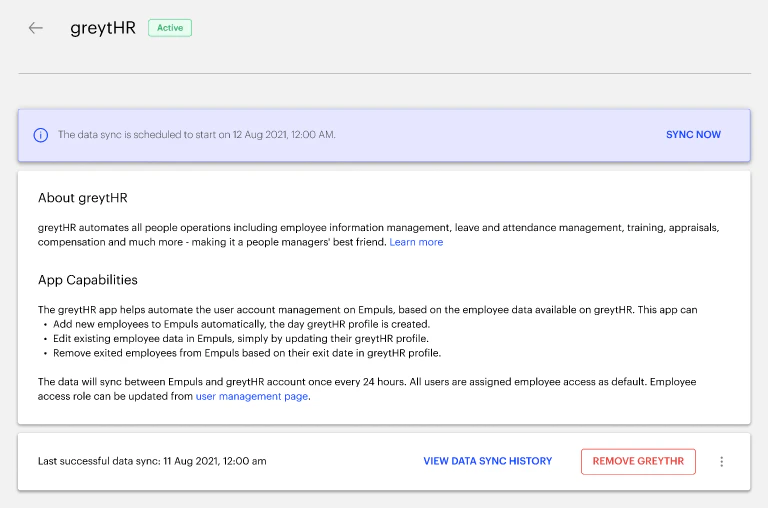
Check the integration settings after setting it up
Check the integration settings after setting it up. The status is shown next to the page title. You may view the data sync history or remove the integration from this page.