Empuls and Zoho People help you automate user data management and seamlessly drive people initiatives across your organisation.

Before you begin

Ensure you have admin access to both Zoho People and Empuls accounts. You’ll need your Zoho People API key. With this integration, you can:
  • To connect Empuls with Zoho People, follow a hassle-free process. To initiate the process, you must be an admin on both systems.
  • Automatically sync data to Empuls when you add new hires, delete exited employees, and update employee data in Zoho People.
  • Import employee birthday and work anniversary data from Zoho People to celebrate these special days with automated greetings and gifts.
Once this integration is enabled, the data sync once every 24 hours between Empuls and your Zoho People account will happen.

Set up integration

1

Go to the page

2

Log in with your Zoho People account

Log in with your Zoho People account
3

Click Add Client ID in the top right

Click “Add Client ID” in the top right corner. If you don’t have any clients configured, skip to the next step.
4

Among the different options, select Server-Based Applications

Among the different options, select “Server-Based Applications.
5

Use the following details to create a connection

Use the following details to create a connection for a new server-based application
6

Click Create and Continue on this page

Click “Create” and “Continue” on this page for the next step.
7

Copy Client ID and Client Secret details
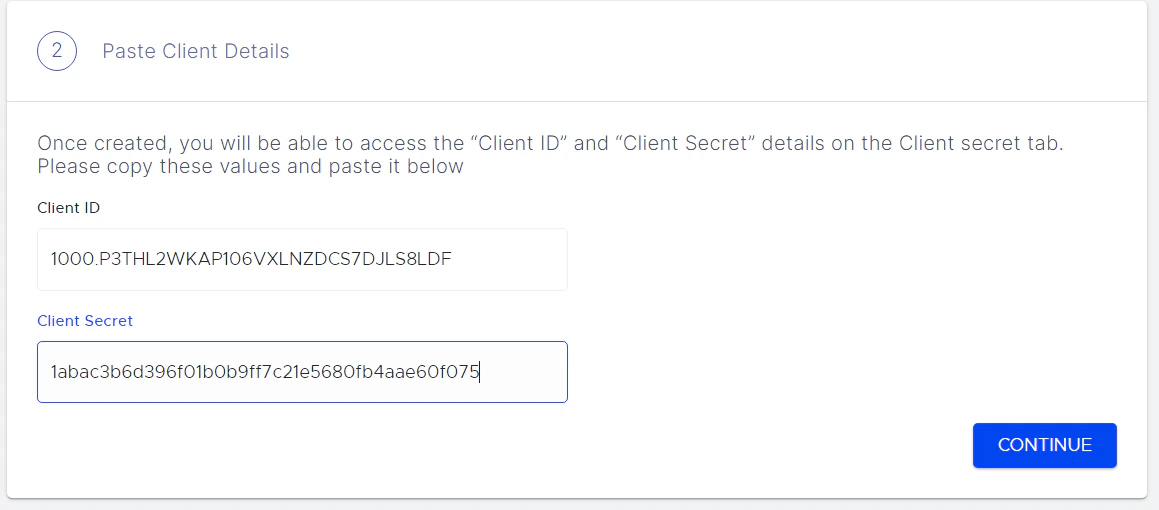
Copy “Client ID” and “Client Secret” details on the Client Secret tab. Click on Continue.
Zoho People 1
8

Select your ZOHO Data Center where your Zoho
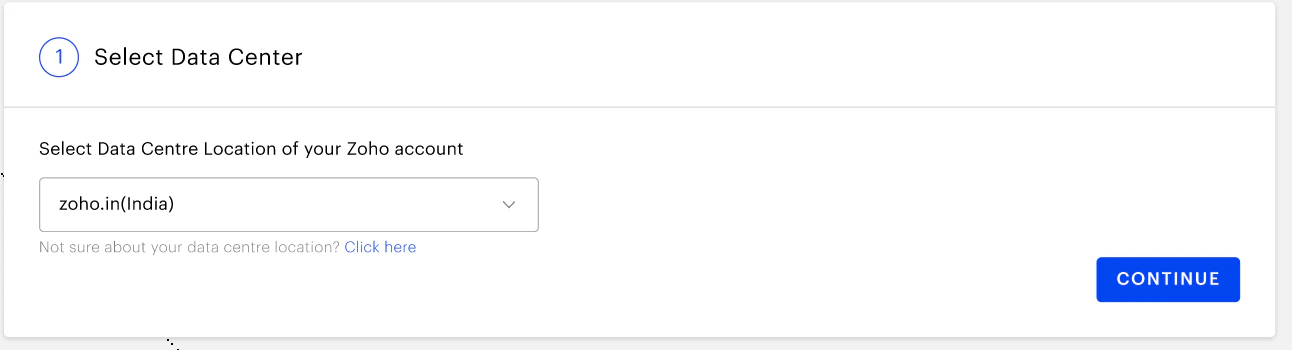
Select your ZOHO Data Center where your Zoho People Account is hosted. Click on CONTINUE.
Zoho People 2
9

Copy-paste the Client ID andSecret ID

Copy-paste the Client ID andSecret ID in the respective boxes. Click on ESTABLISH CONNECTION.
Zoho People 3
10

Give authorization from your Zoho Account
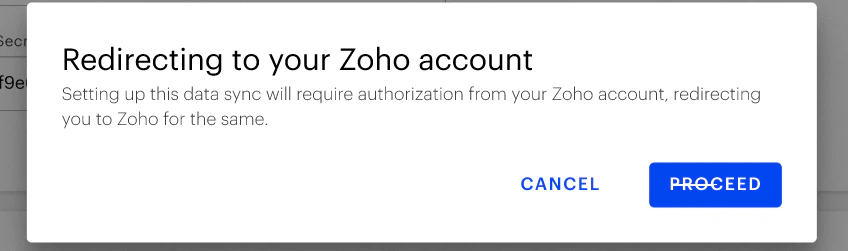
Give authorization from your Zoho Account. Click on PROCEED.
Zoho People 4
11

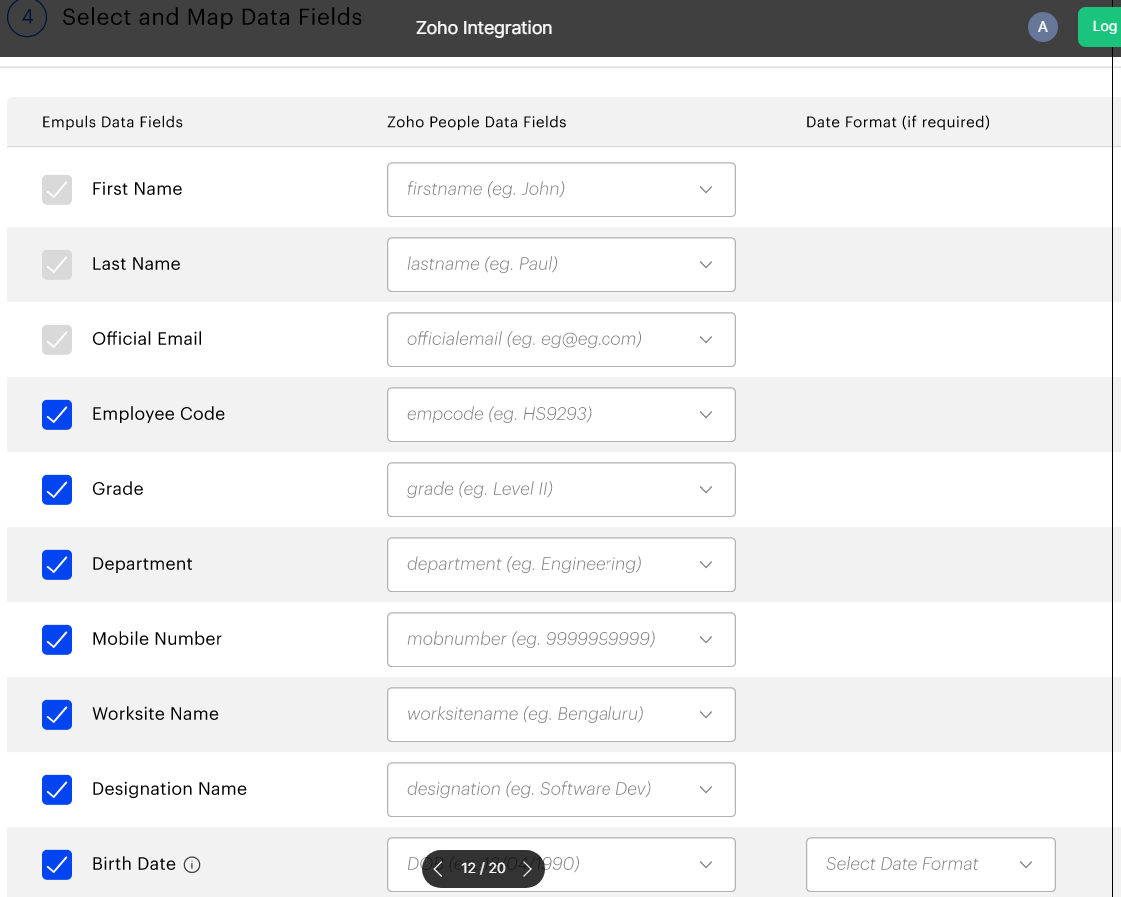
Select and map data fields

Select and map data fields. Click on NEXT.
Zoho People 5
Data can be mapped for
  1. First name
  2. Last name
  3. Official email
  4. Employee code/ID
  5. Grade
  6. Department
  7. Designation
  8. Date of birth
  9. Date of Joining
  10. Mobile number
  11. Business Unit
  12. Cost center
  13. Location
  14. Contact/Mobile number
12

Define filtering criteria to avoid account creation
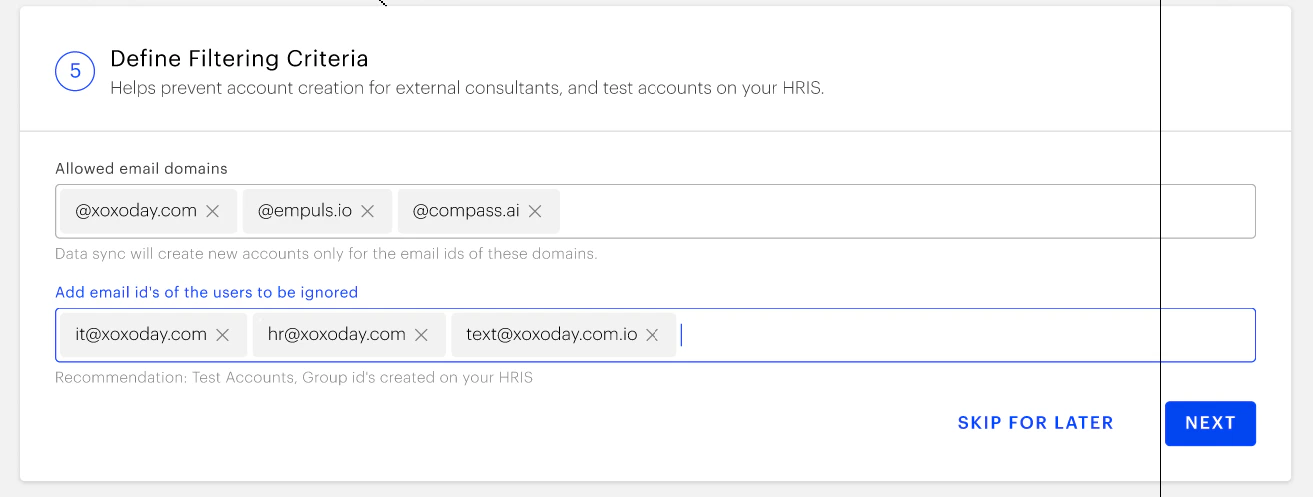
Define filtering criteria to avoid account creation for external consultants. Click on NEXT.
Zoho People 6
13

Download data to validate

Admins can download employee data in CSV format before uploading to Empuls to validate that the data fields are mapped and no record is repeated.
14

In this step, you can choose between two

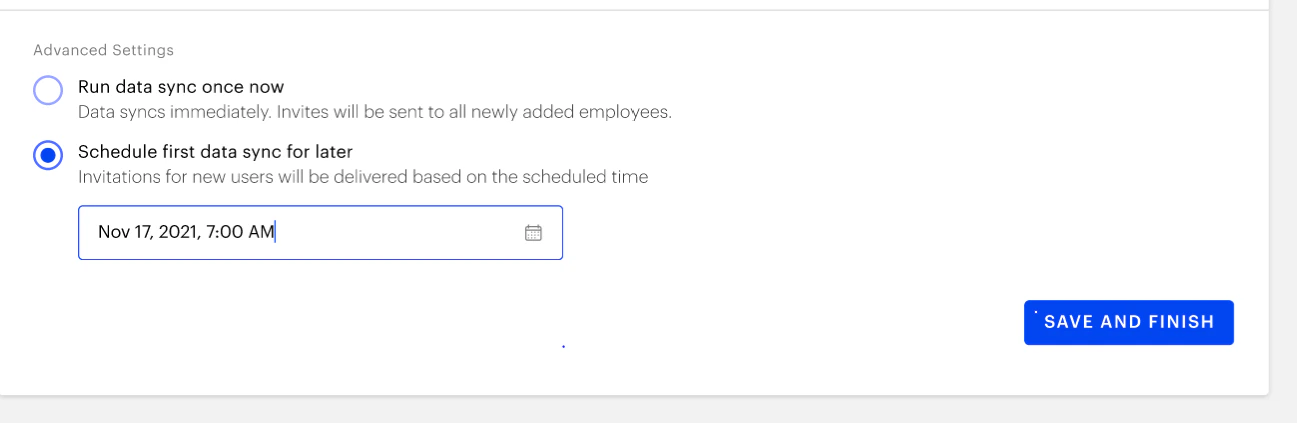
In this step, you can choose between two data sync options:
  • Run Date Sync Once Now: Select this option to launch your Empuls account immediately. This will create accounts for all employees and send invites.
  • Schedule First Data Sync for Later: Select this option to schedule employee account creation to a later date and time. This will help you plan and execute employee account creation on Empuls to coincide with your internal launch announcements.
Zoho People 7
Select the date and time of your choice. Click on Save and Finish.You will now see a message confirming that the Zoho People were added successfully.

Edit the configuration

1

Log in to your Empuls account

Log in to your Empuls account.
2

Go to Admin Dashboard by clicking on Reports

Go to Admin Dashboard by clicking on “Reports and Admin”.
3

Navigate to Integrations

Navigate to “Integrations.
4

Navigate to the Active Integrations section and click

Navigate to the Active Integrations section and click on the Zoho People app.
5

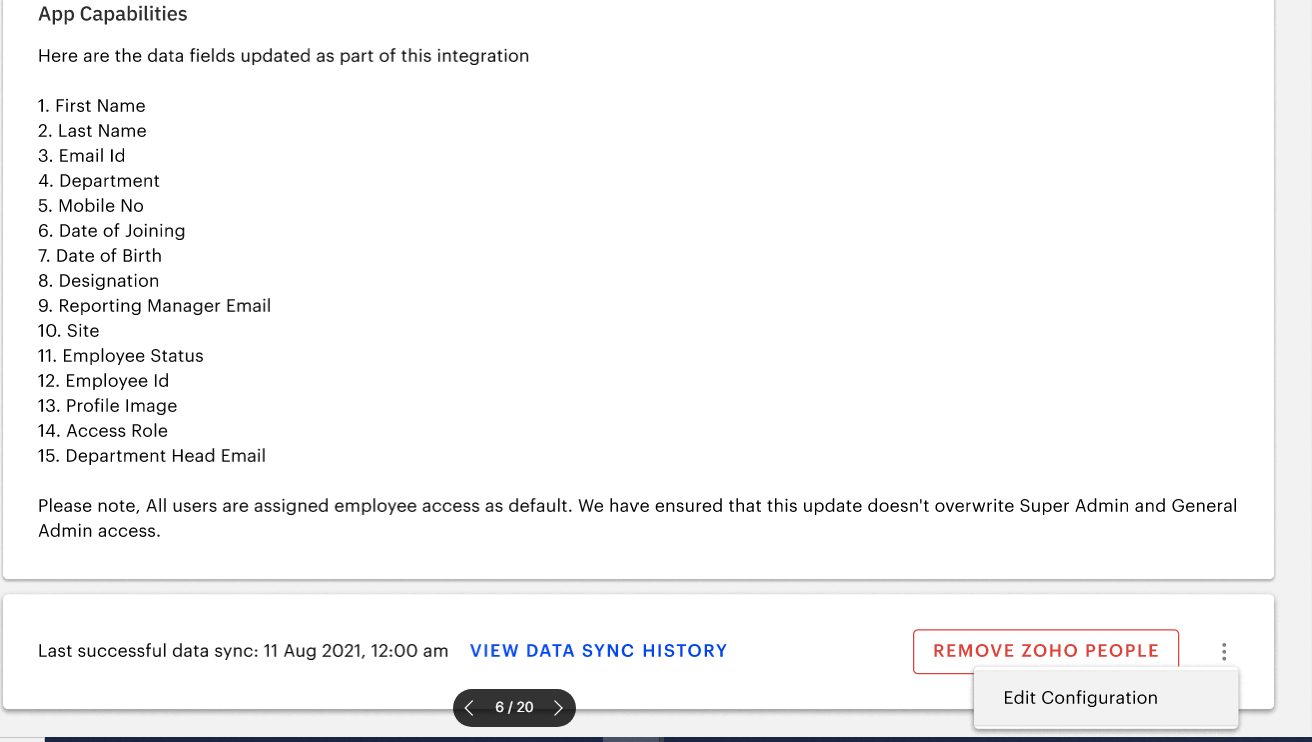
Click on the three dots beside

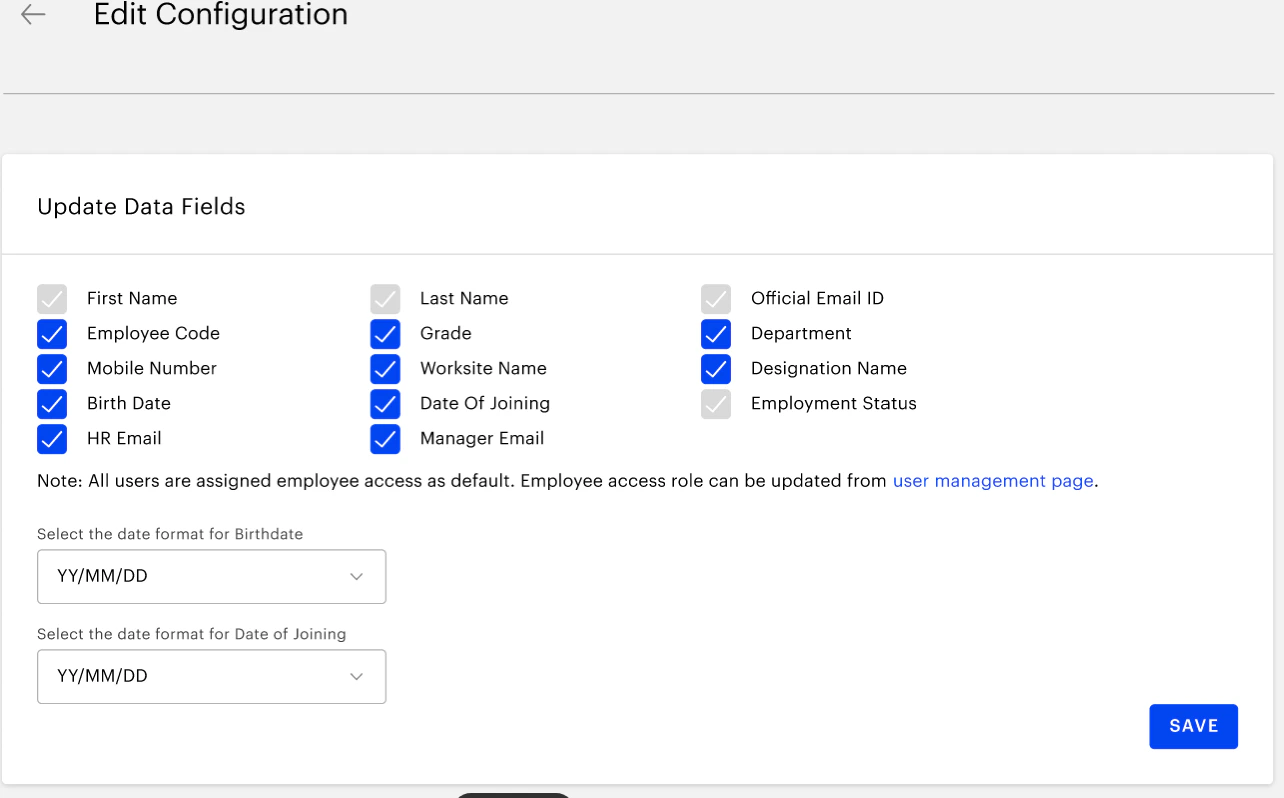
Click on the three dots beside the REMOVE Zoho People text box.Then click on Edit Configuration.
Zoho People 8
6

Click on SAVE

Zoho People 9
You will get the message that the configuration has been updated successfully.

How to turn off this integration?

1

Log in to your Empuls account

Log in to your Empuls account.
2

Go to Admin Dashboard by clicking on Reports

Go to Admin Dashboard by clicking on “Reports and Admin”.
3

Navigate to Integrations

Navigate to “Integrations.
4

Navigate to the Active Integrations section and click

Navigate to the Active Integrations section and click on the Zoho People app.
5

You can turn off the integration

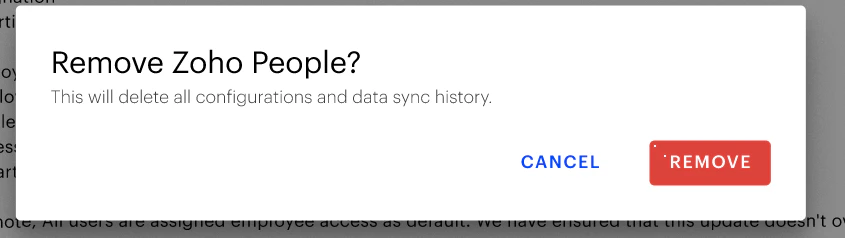
You can turn off the integration by simply clicking on REMOVE Zoho People.
6

It will ask whether you want

It will ask whether you want to remove Zoho People? Click on REMOVE.
Zoho People 10
Questions? Contact us at cs@xoxoday.com. We are more than happy to help you!

Next Steps

Test the integration with a small batch of employees first. Monitor birthday/anniversary imports to ensure dates are correctly formatted.
Feedback, questions or need support? Email cs@xoxoday.com.
​ ​