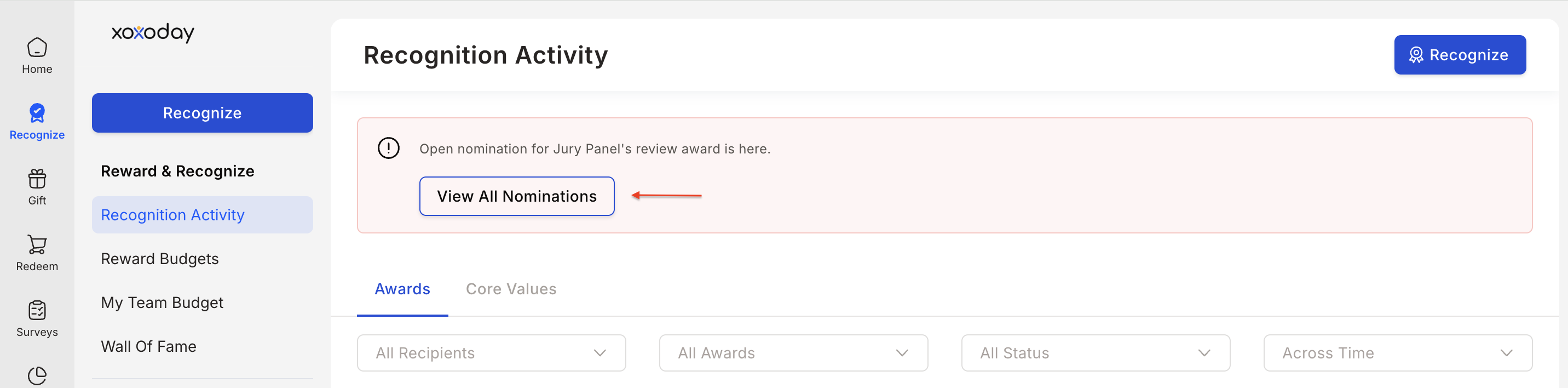
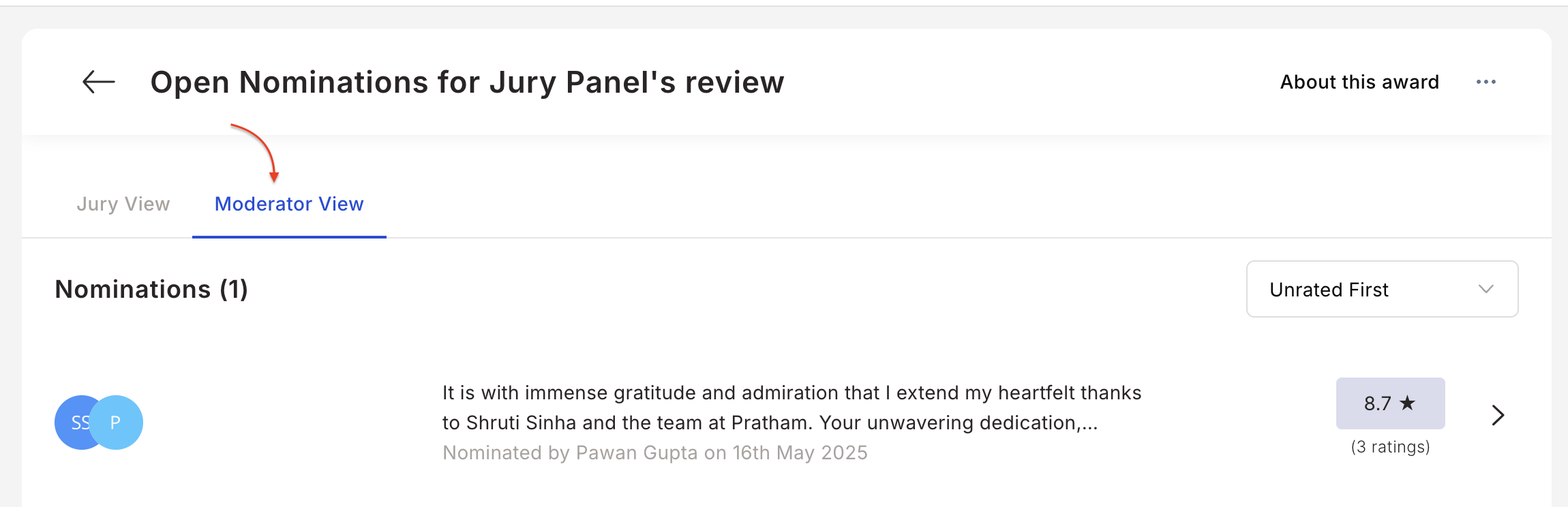
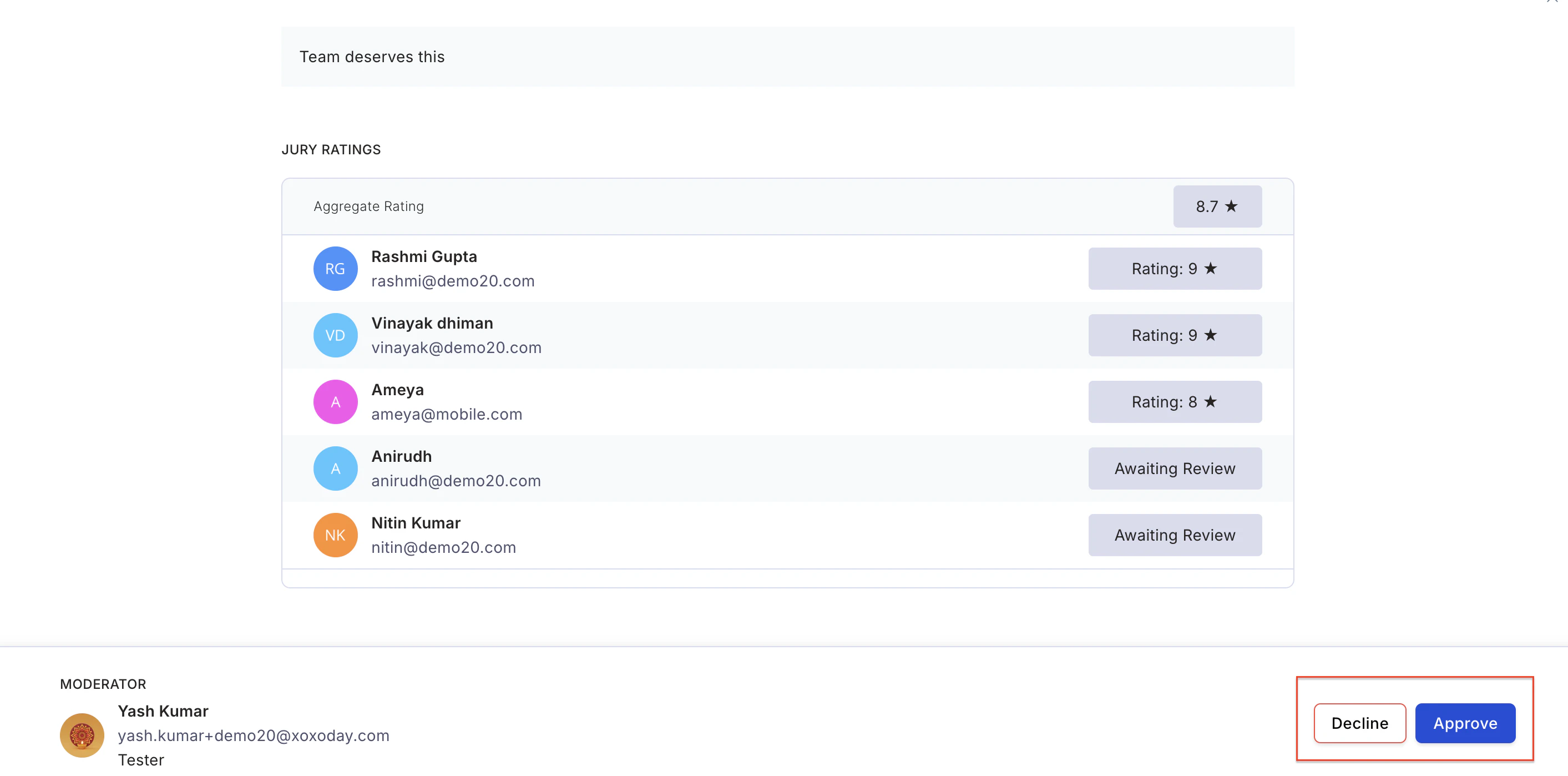
Jury-based awards add credibility and inclusivity by incorporating peer review, scoring, and voting. Use jury panels for prestigious awards, competitions, or transparent selection processes.
Jury-based awards are available in the enterprise version of Empuls. Contact your account manager or CSM to enable this feature.
How it works
The jury award process has four stages: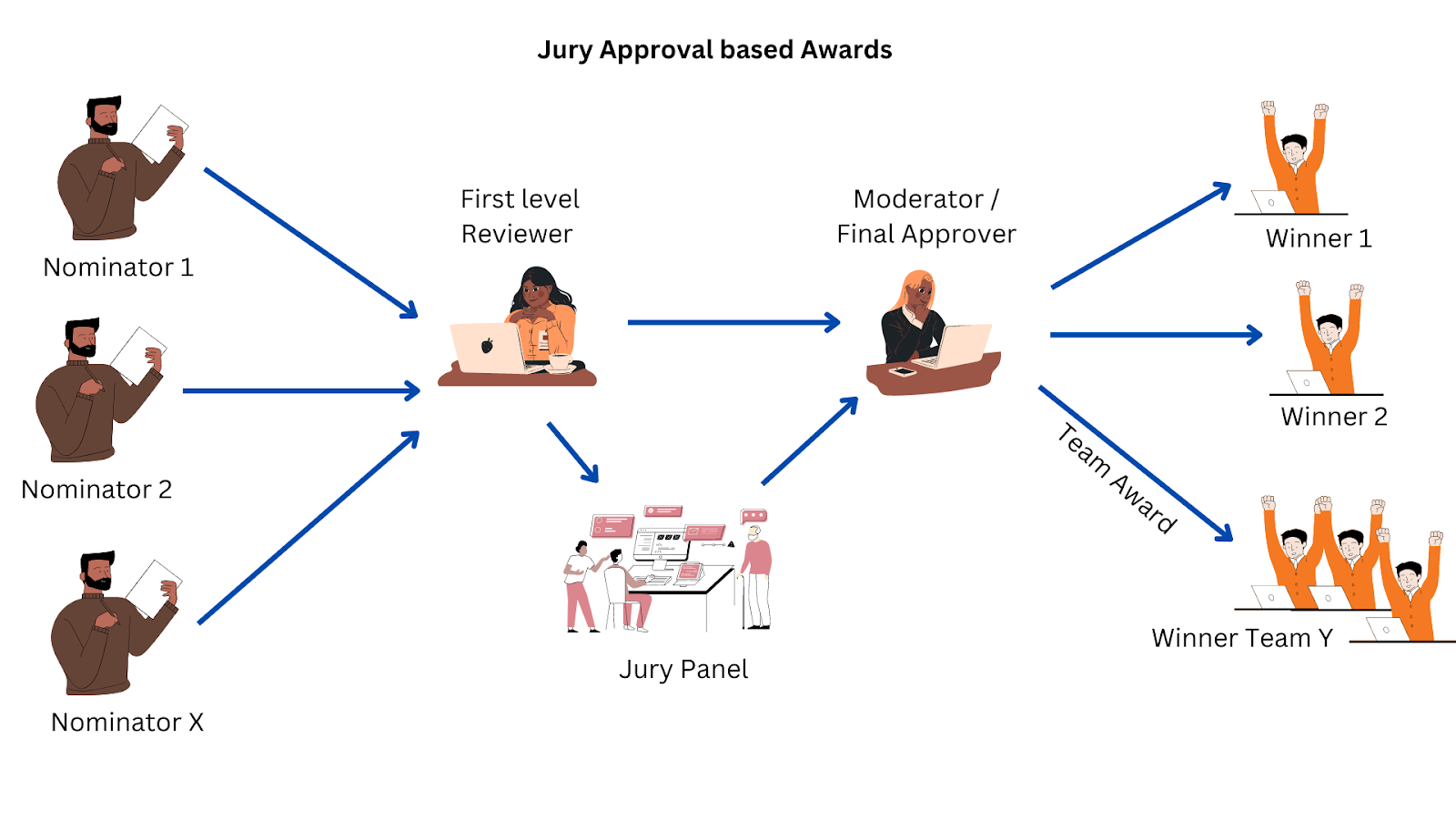
1. Nominator
The nominator nominates colleagues, direct reports, or themselves (based on admin-defined rules) by stating why the nominee deserves the award. The nominator may be required to provide a free-form justification or answer specific admin-defined questions.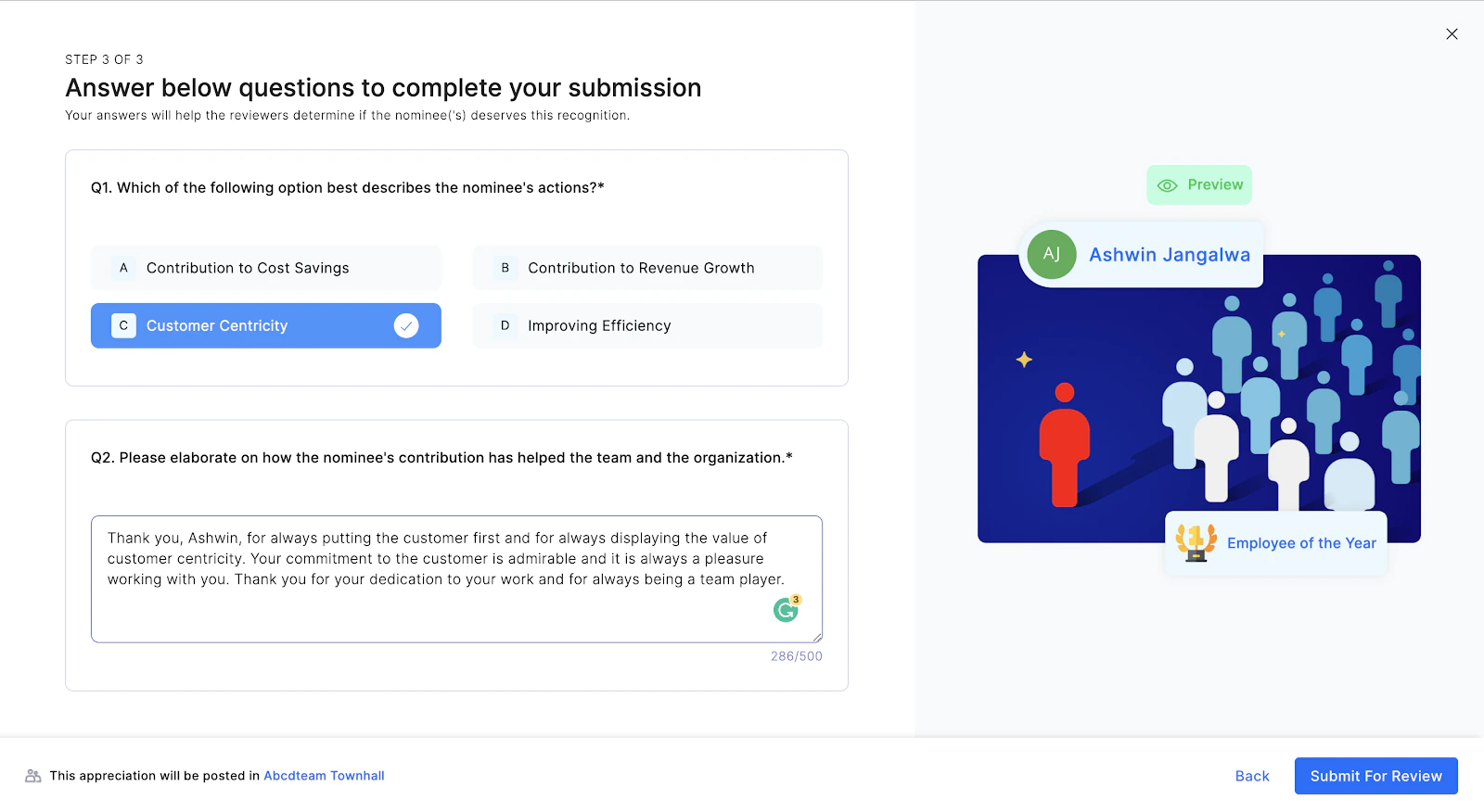
2. First-level reviewer
The first-level reviewer filters nominations to eliminate duplicates and subpar submissions. They either approve the nomination and forward it to the jury, or decline it.3. Jury panel
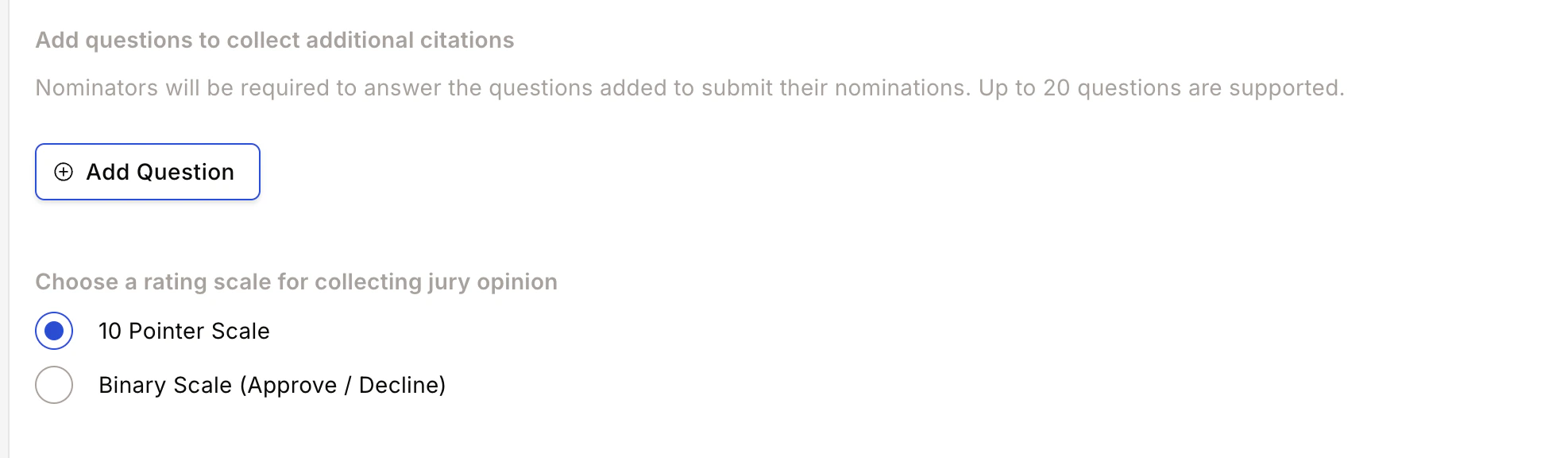
A group of users responsible for shortlisting the most deserving nominations. Each jury member rates nominations on a 10-point scale, a 5-point scale, or binary (approve/decline), reading the justification provided by the nominator. Once all jury members rate the nominations, their opinions are sent to the moderator.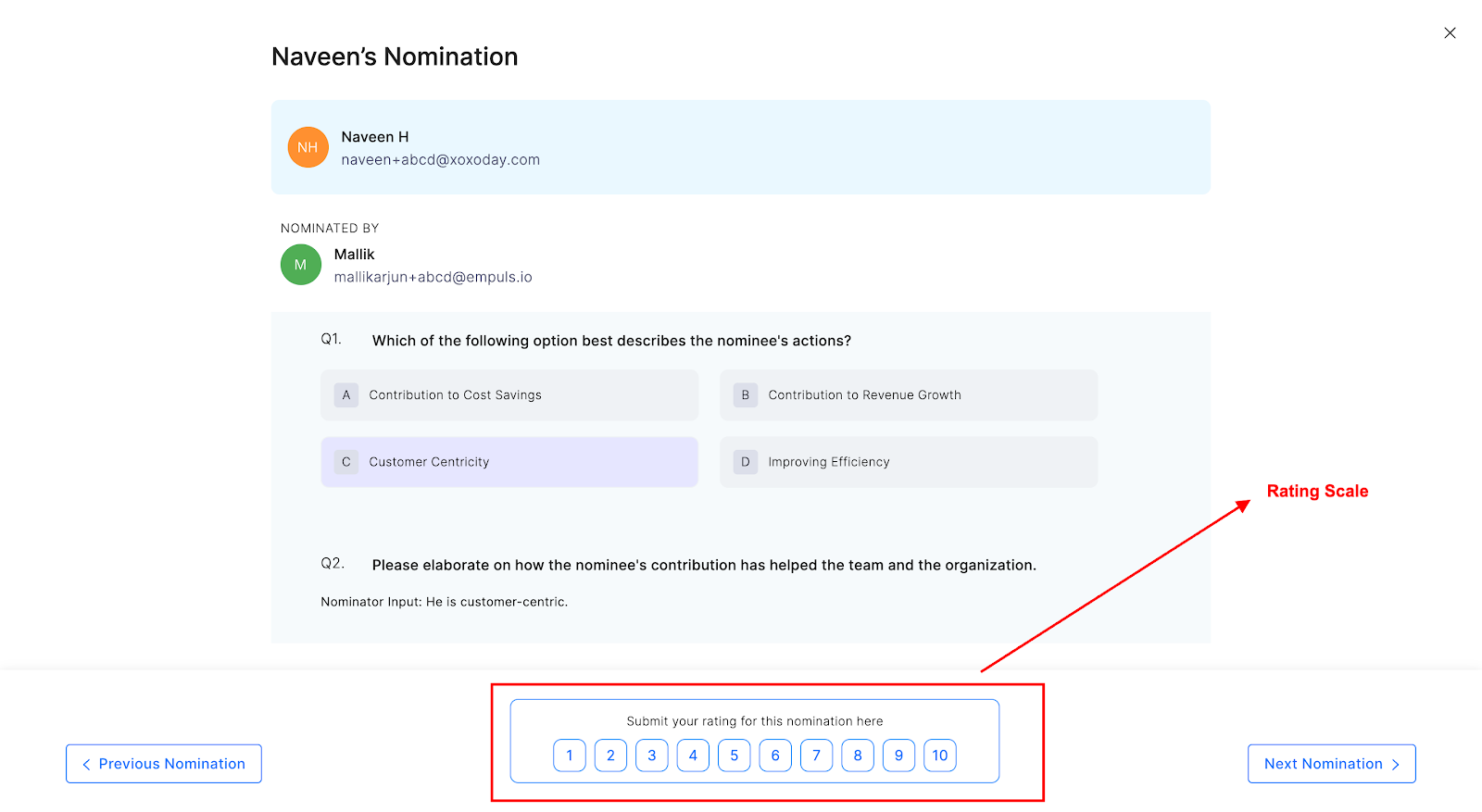
4. Moderator
The moderator approves nominations based on jury ratings. They can view nomination ratings as soon as jury members begin scoring. The moderator shortlists the top nominations and approves them individually to announce winners. The moderator then declines all other nominations. While a nomination is pending, the moderator can also edit its citation and the nominator’s answers to award questions from the nomination detail view. This lets them clean up the content before it appears in the winner announcement. See Rating nominations as a jury for the steps. Budget points are deducted from the approver at the configured budget owner level and credited to the winner’s account as rewards. By default, that approver is the moderator (final approver), but you can also set the Nominator or an Nth-level approver as the budget owner. Only the budget-owning approver sees the wallet-selection step in their Approve modal. For a walkthrough, see Budget Ownership in Approval Chains.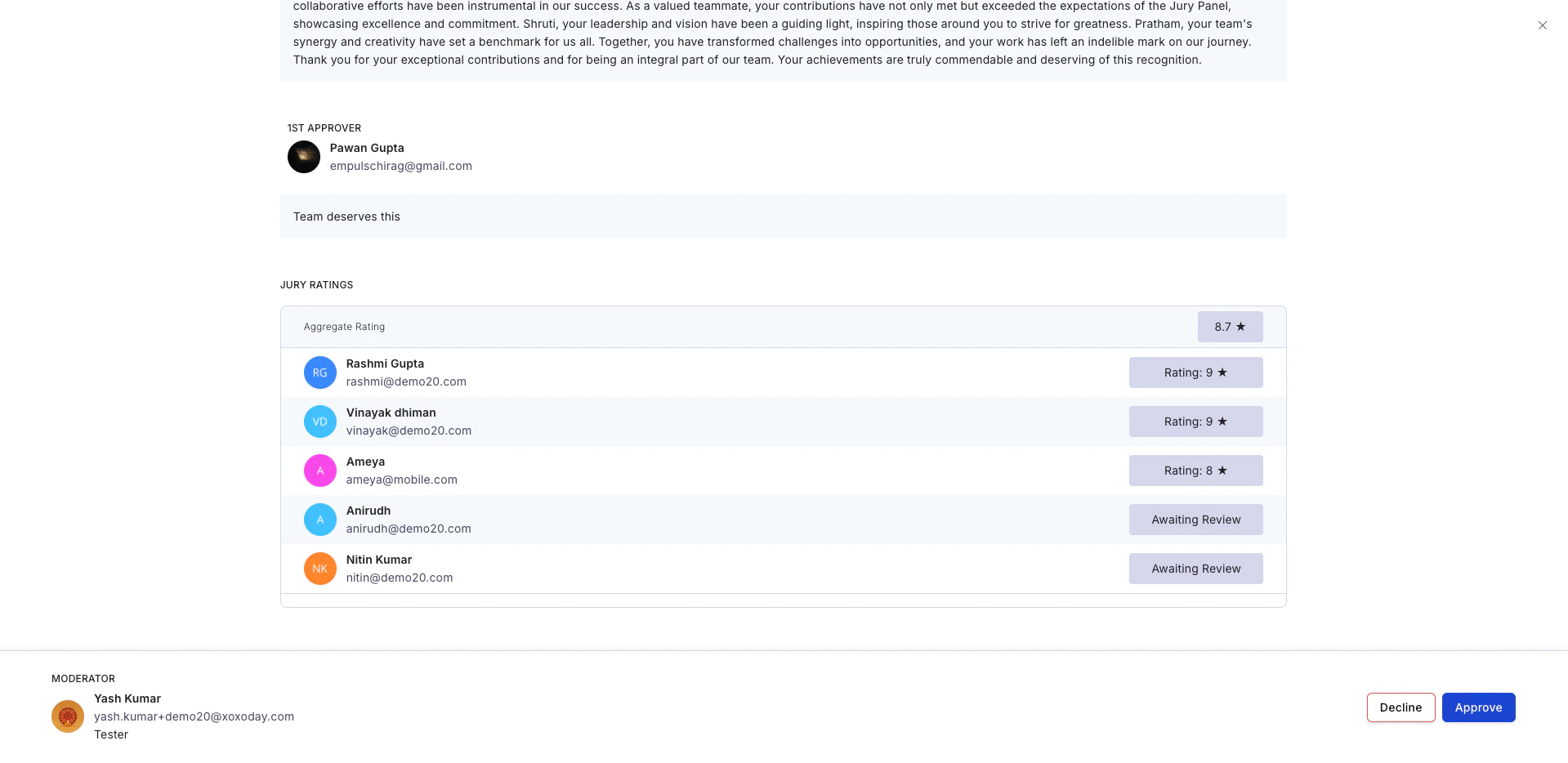
When to use jury-based awards
Jury awards are recommended when:- The award is given to the top 1% of the organisation in a year.
- Selection is assigned to senior employees such as CXOs or BU Heads.
- The award is issued half-yearly or annually.
Sample templates
a) Employee of the Year
Objective: Recognise the employee who has brought the organisation closest to its mission and vision by displaying organisational values. Evaluation criteria: The employee must be personally and independently responsible for the success of a project or initiative that resulted in organisational growth. Questions to answer:- What organisational value has the employee displayed?
- When and how did the employee demonstrate the organisational value that led to a successful outcome?
- What is the impact of the employee’s contribution towards organisational goals?
b) Sales Champion of the Year
Objective: Motivate the high sales achiever who contributed most towards the organisational revenue goal. Evaluation criteria: The employee must have achieved their own targets and contributed to their team’s overall targets. Questions to answer:- What is the employee’s revenue target vs achievement?
- What is the employee’s share of the overall revenue target for the team?
- Why does the employee deserve to be the Sales Champion of the Year?
Steps to set up a jury-based award
1
Navigate to the Admin Dashboard
Go to Reports and Admin > Programs > Awards & Core Values > Create Award.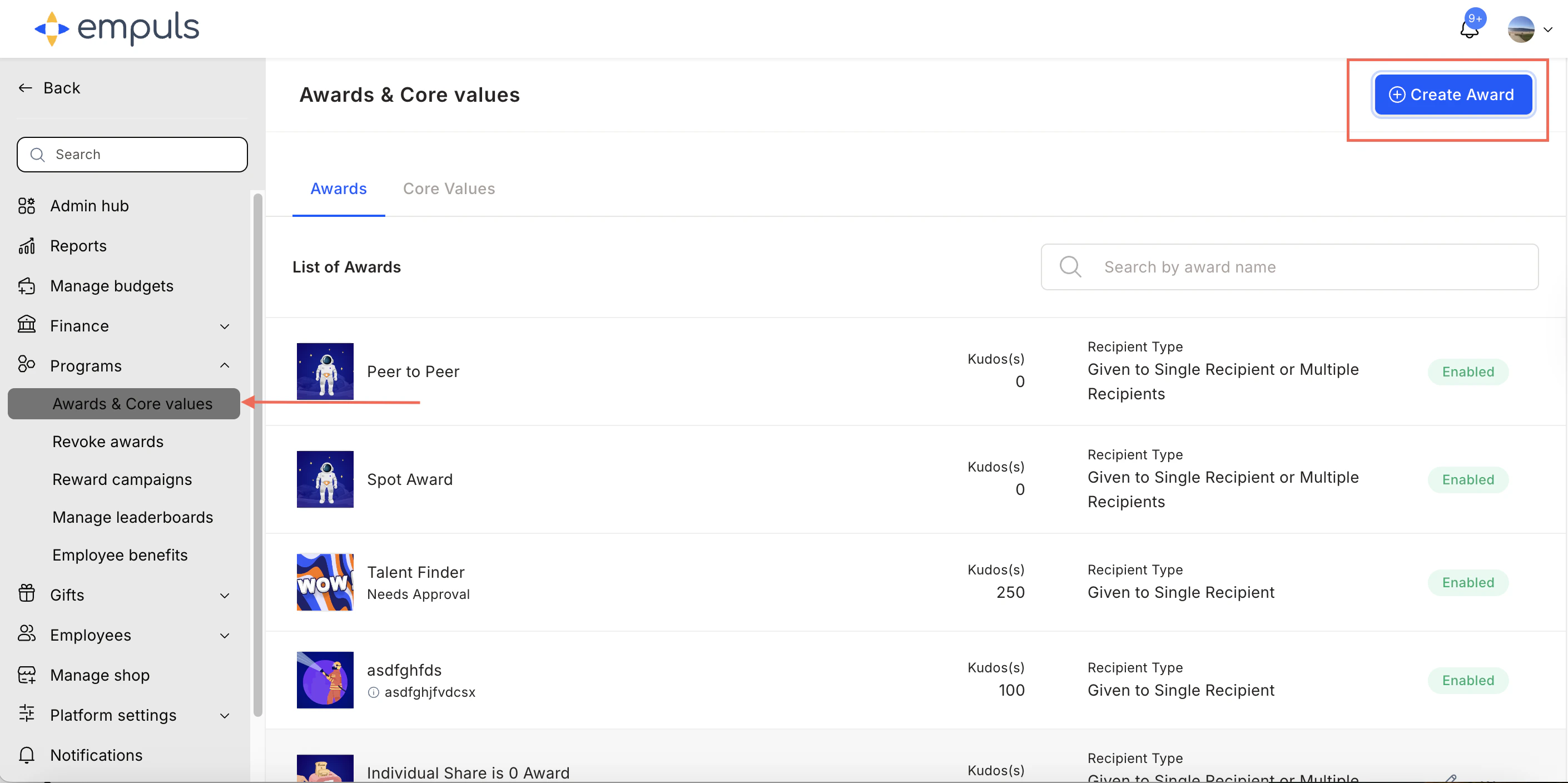
2
Select the award type
Select Award that requires a Jury Panel’s review and click Proceed.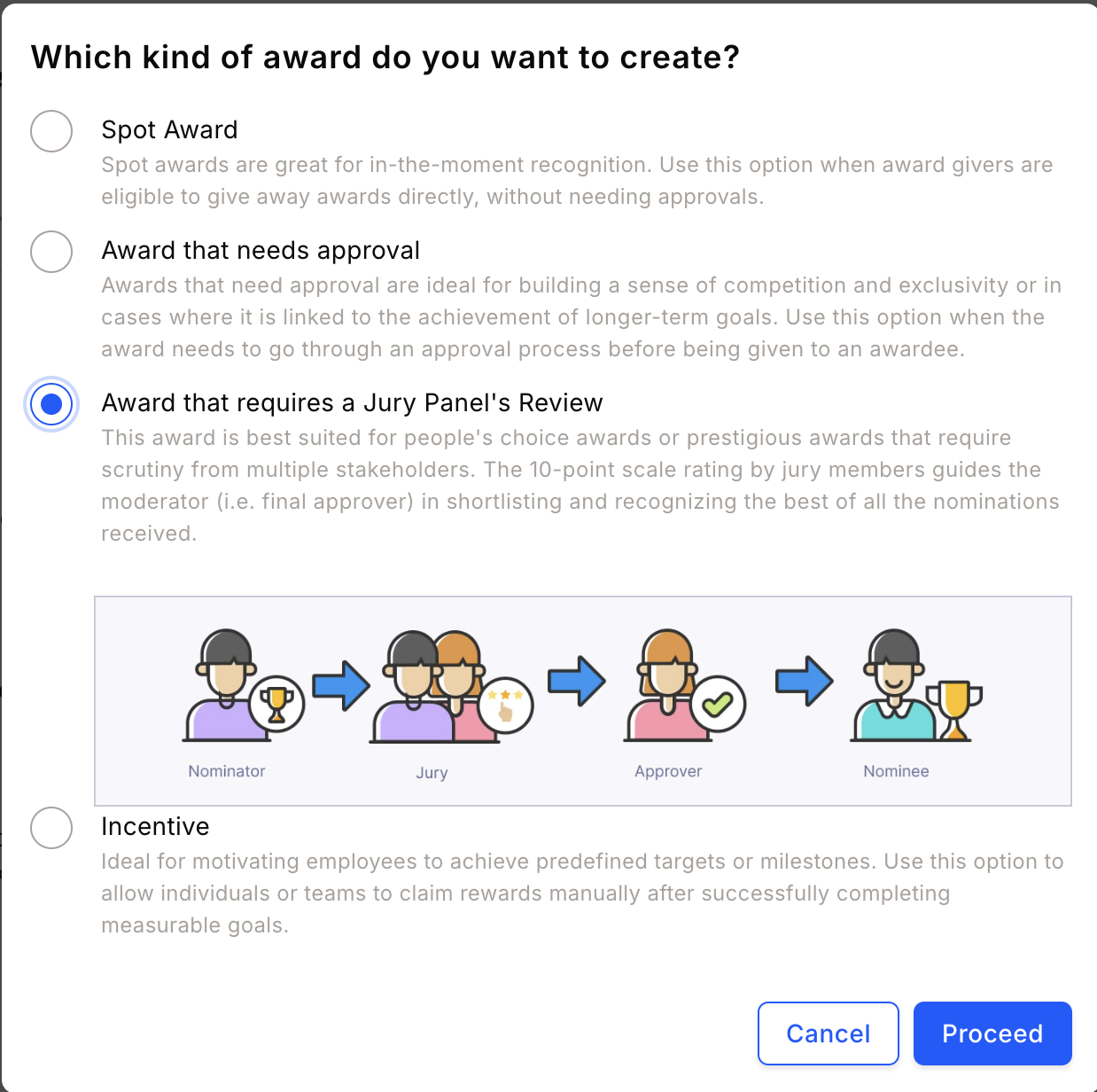
3
Fill in award details
Enter the award name, description, image, and recipient type. Click Continue.An award recipient can be an individual, a team, or kept flexible.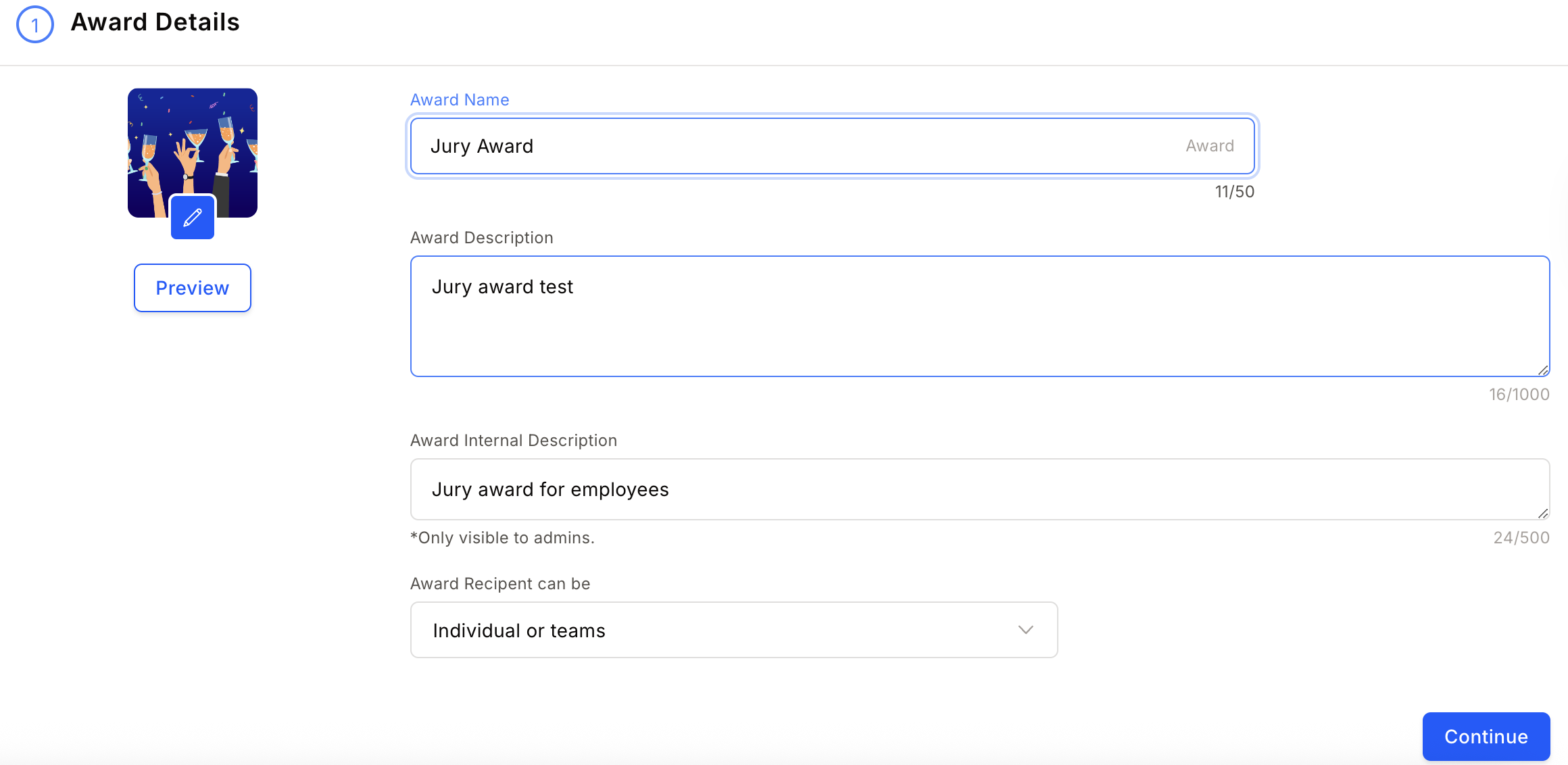
4
Configure the reward
Choose to reward points or gift cards and merchandise.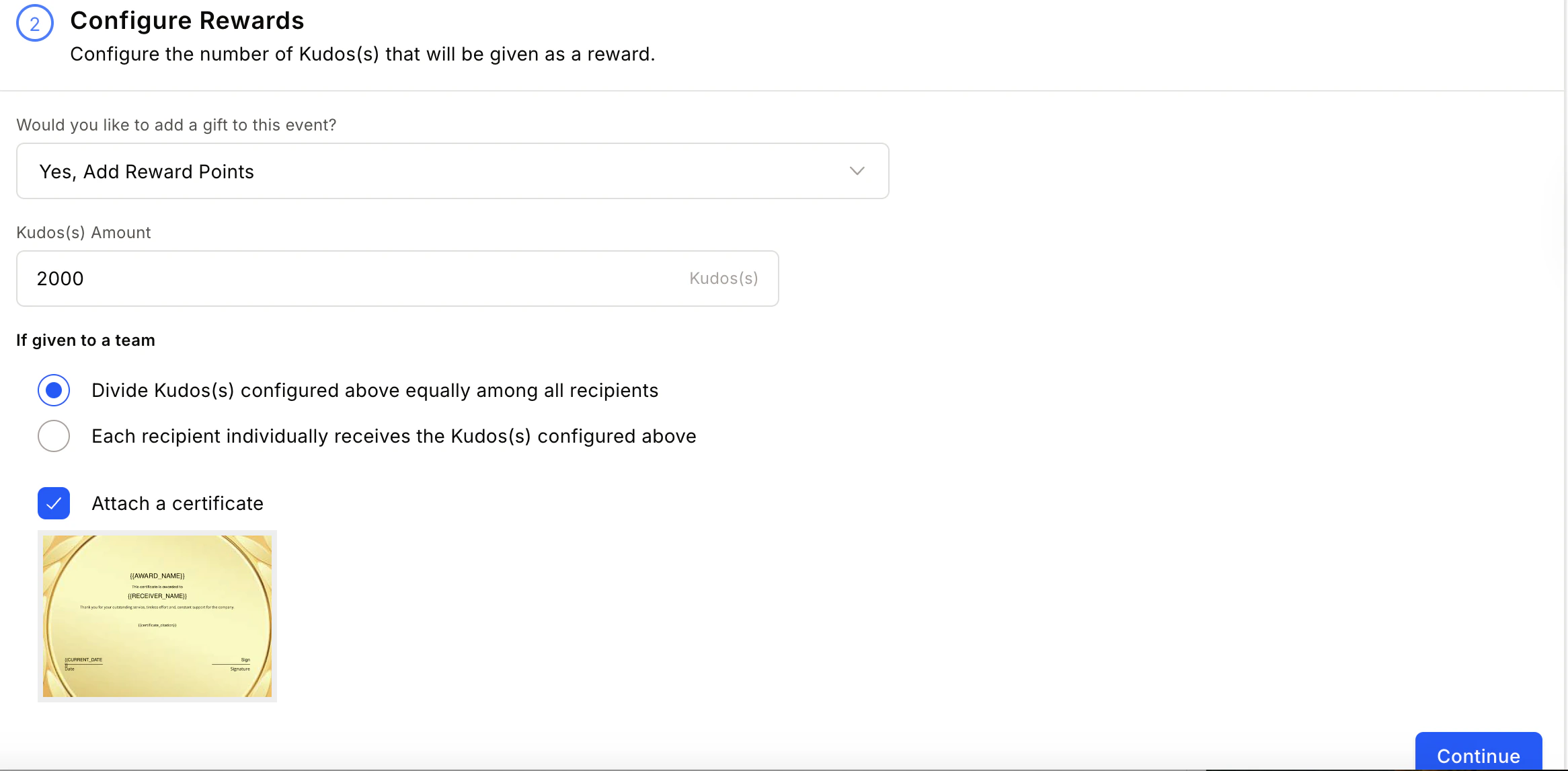
- Attach certificate — Attach a nomination certificate, an award certificate, or both. See Add certificates to awards for detailed steps.
- Add products from store — Reward with merchandise and gift cards. See Set up product-based rewards for detailed steps.
5
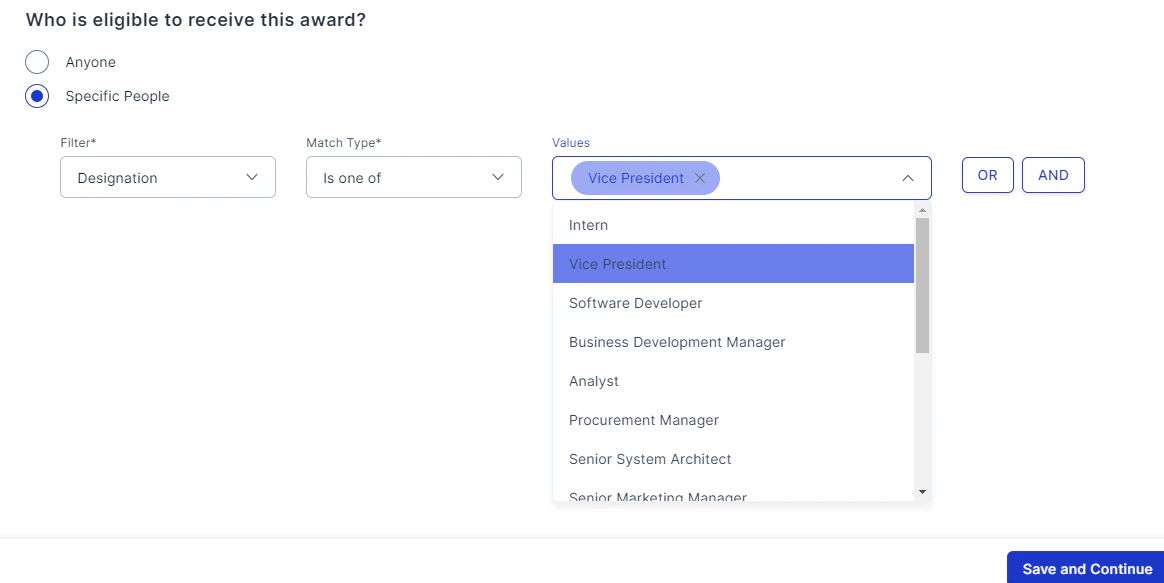
Define nominee, nominator, and approver eligibility
Set constraints on who can nominate, who can be nominated, and who can approve.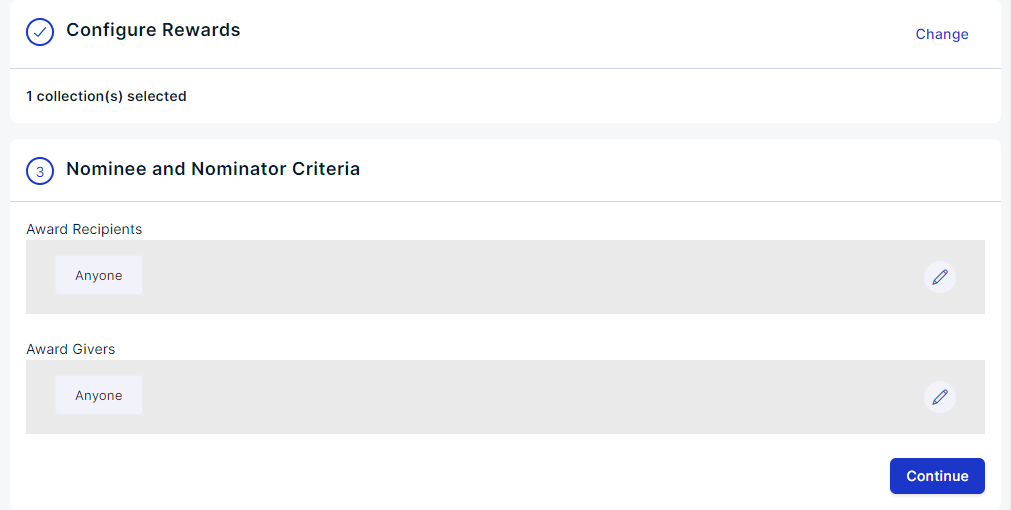
6
Set jury and approver selection
Click the pencil icon and select First Level Approver, Jury, and Moderator. Use advanced filters to refine your selection.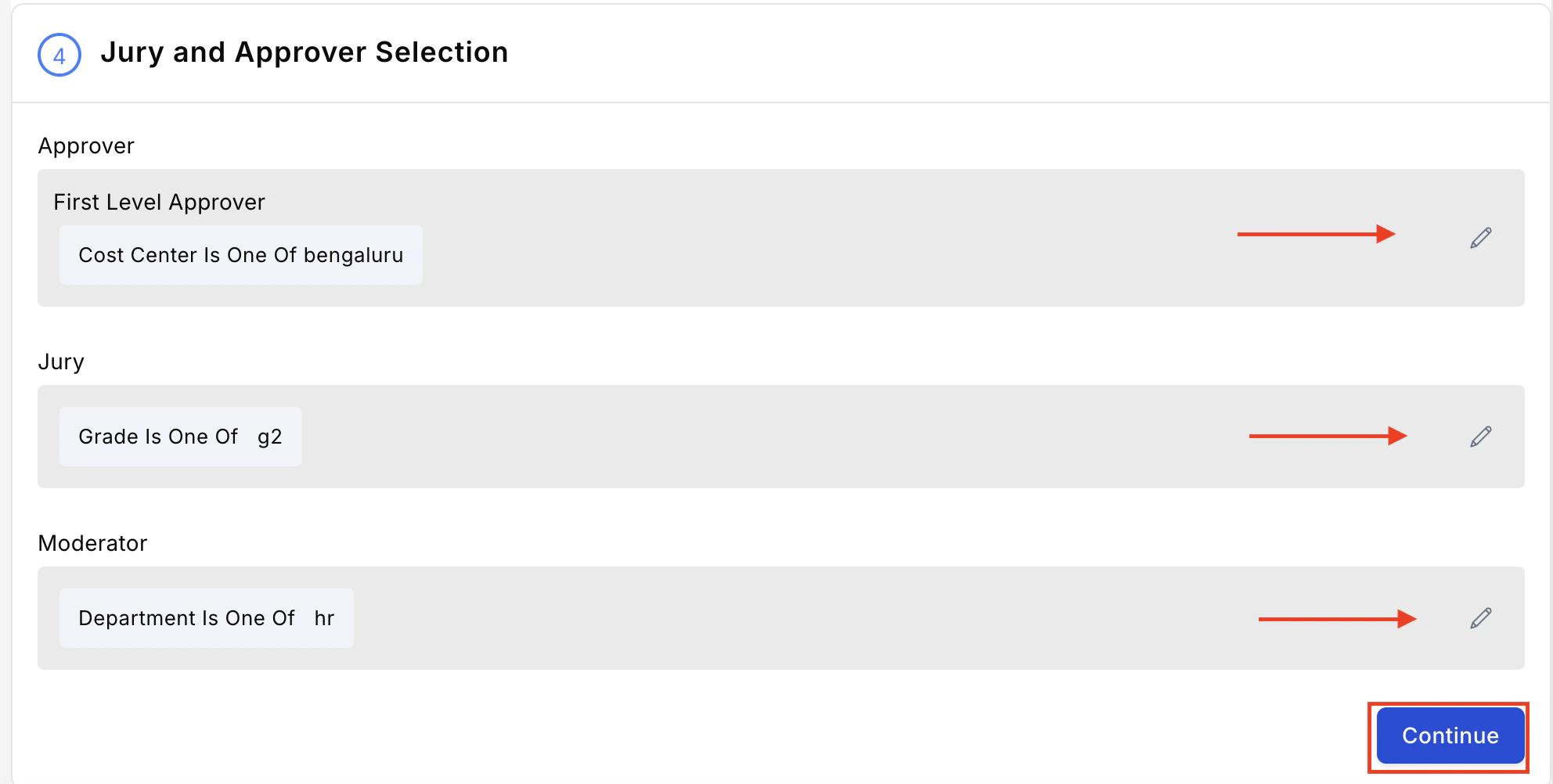
- Nominator — the person who submits the nomination selects the wallet and points are deducted from their account when the award is approved.
- Nth Level Approver — the first-level approver, jury, or any intermediate approver becomes the budget owner. They pick the wallet when they act on the nomination.
- Final Approver (default) — the moderator picks the wallet at the final approval step. This matches the pre-existing behaviour.
Selecting Nominator as the budget owner forces Display award points to nominators on and locks it — a nominator cannot fund an award whose value is hidden from them. Turn this back off by choosing a different budget owner level.
7
Configure advanced settings
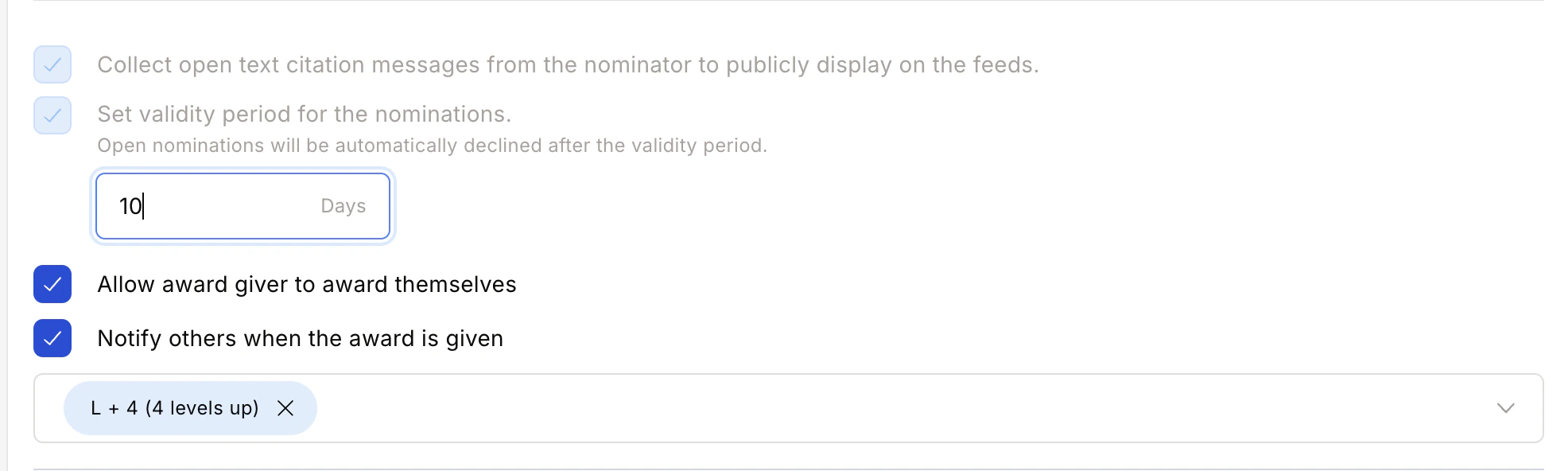
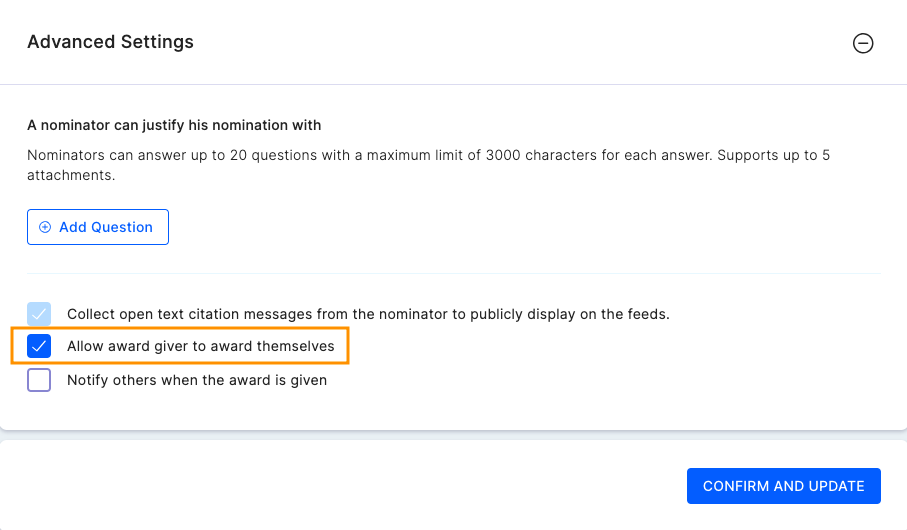
A. Set Questions for Nominator — Create up to 20 questions (multiple choice, short text, or dynamic multiple choice) for nominators to answer.For multiple-choice questions, select Add other to append an Other option that lets nominators type their own answer. Set a character limit for the Other response between 1 and 1000 characters (default 250). A multiple-choice question can have up to 15 options in total, including Other.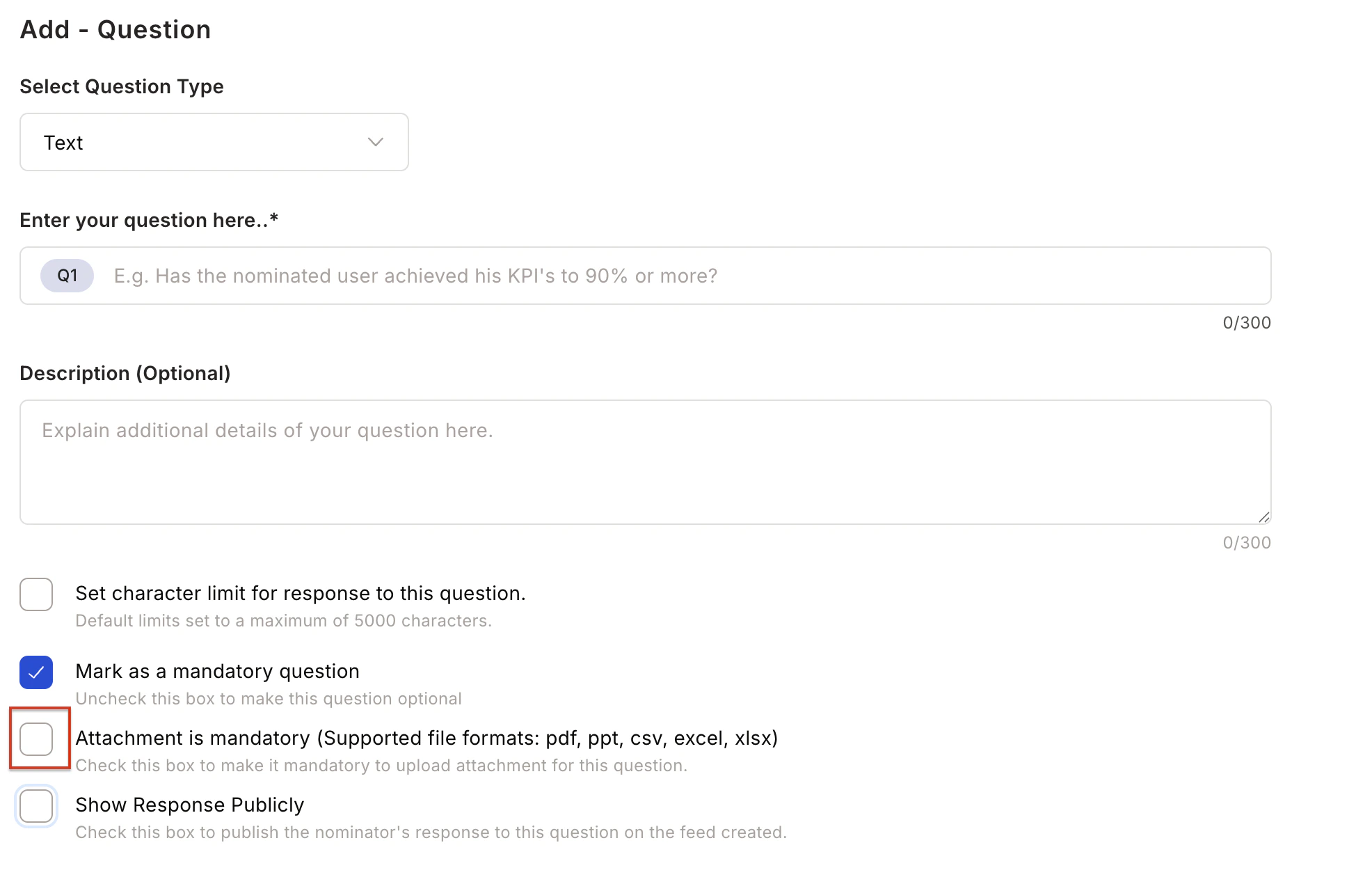
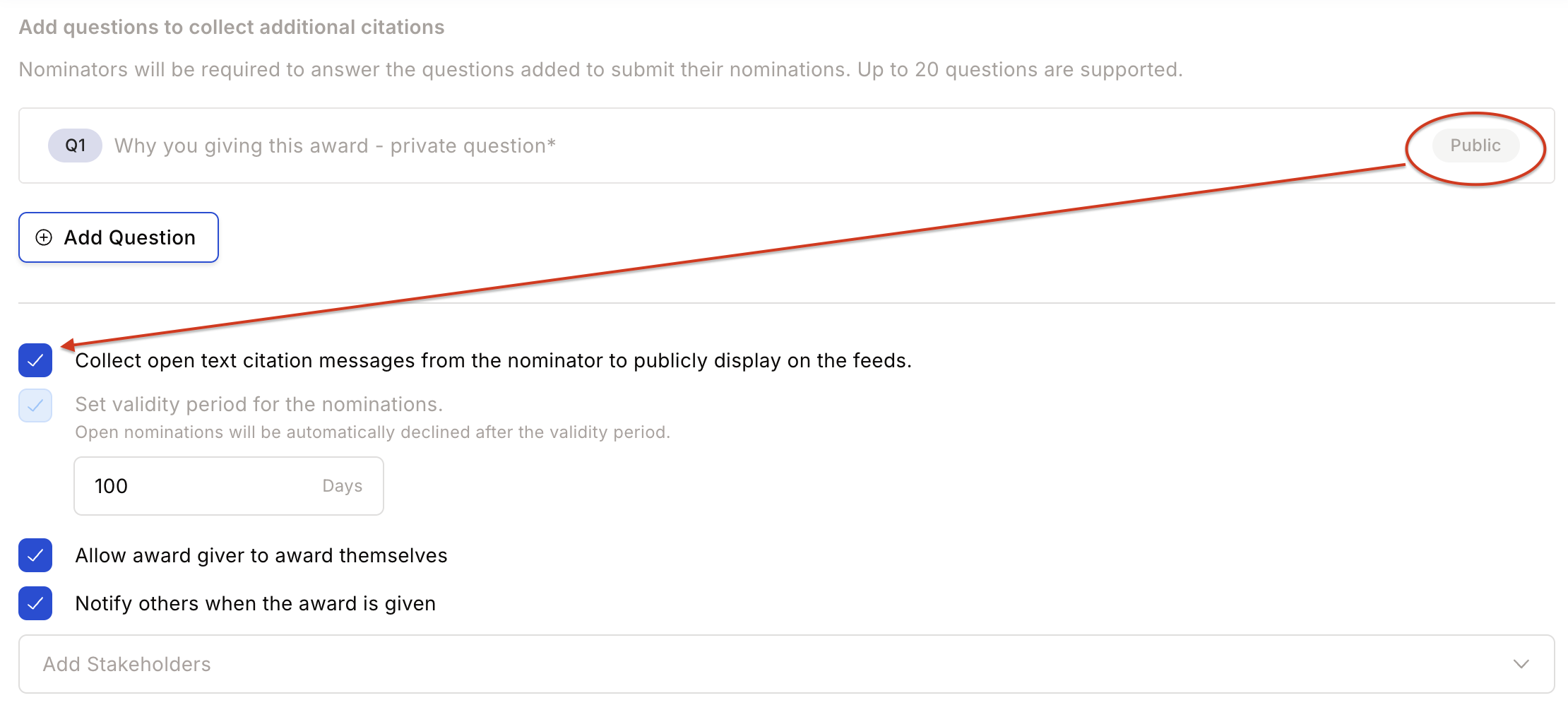
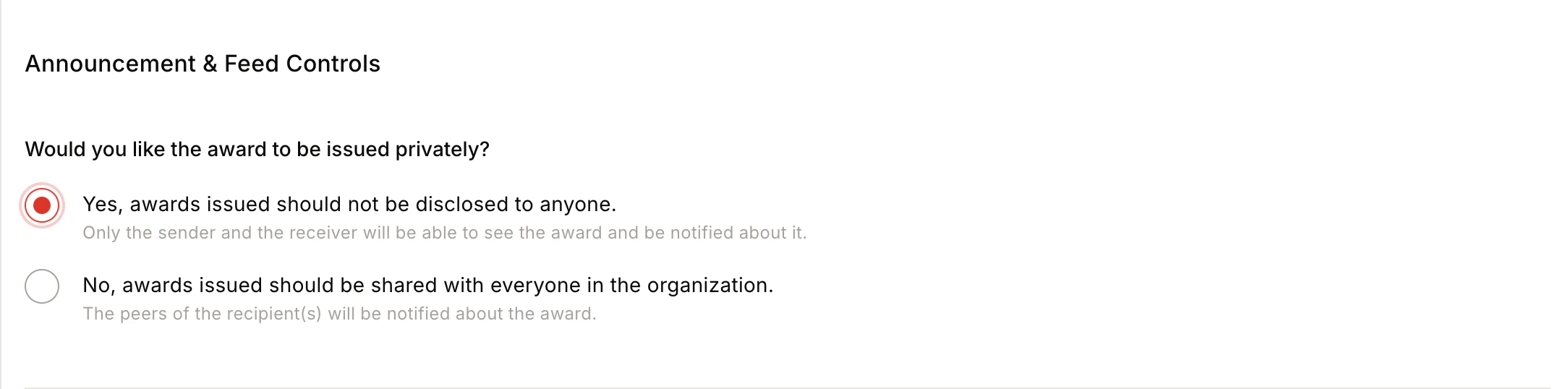
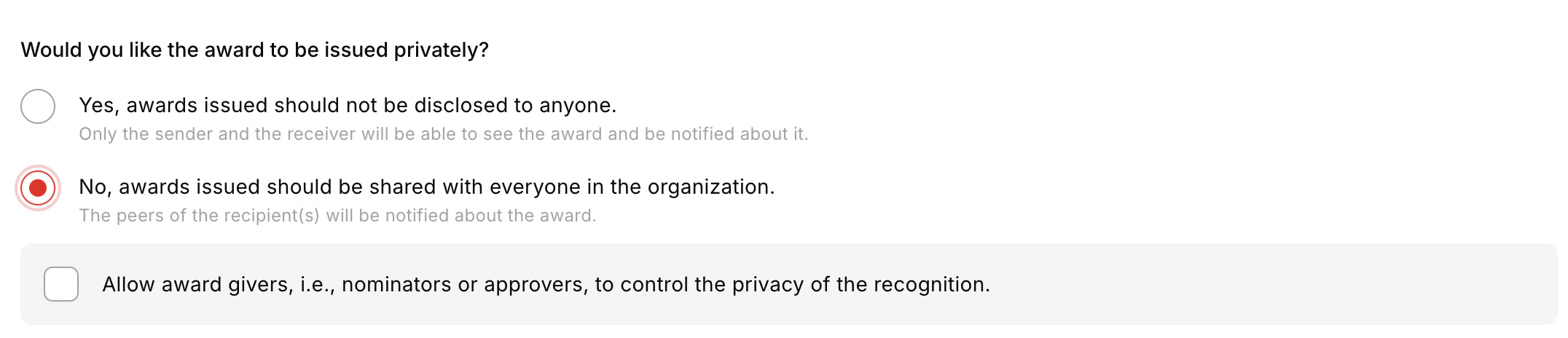

- Award Visibility — Public (visible to all) or Private (visible only to sender and recipient).
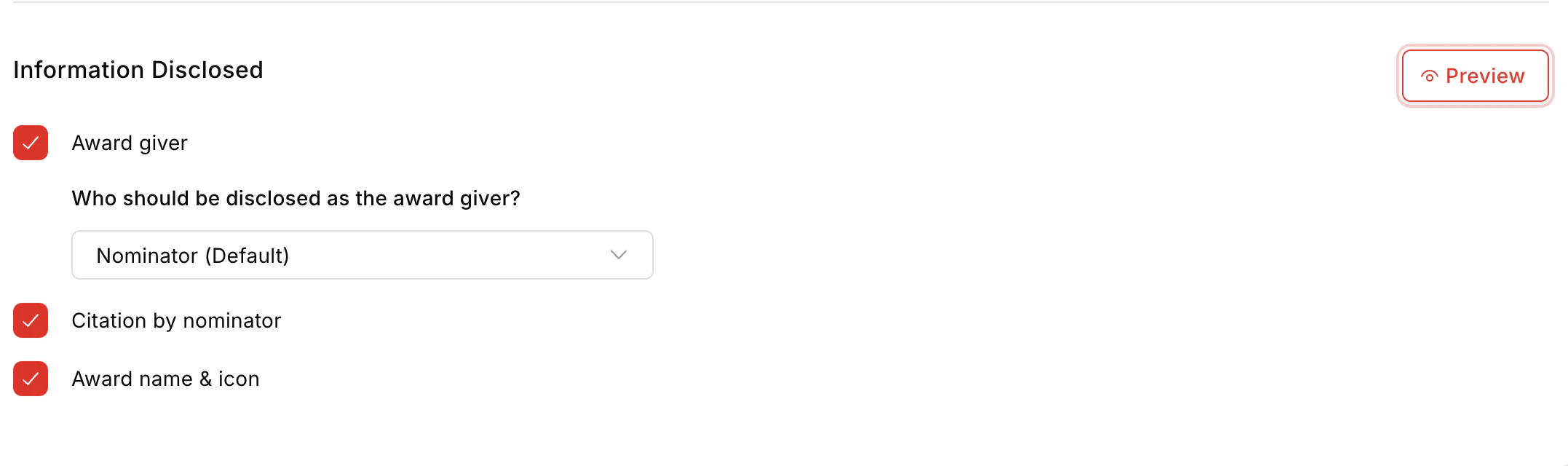
- Information Disclosed — Show/hide Award Giver, Citation by Nominator, and Award Name and Icon on the feed.
- Privacy Control — Centrally / Public / Private / By Nominator/Approver.
- Team Size — Minimum 1 (2 for team-only awards), maximum 100 members.
Edit the jury or approver selection later
When you save changes to an award’s First Level Approver, Jury, or Moderator while nominations for that award are already open and awaiting review, Empuls asks how the update should apply:- Apply to new nominations only — open nominations keep their original jury and approver assignments. The updated selection is used from the next nomination onwards.
- Apply to open and new nominations — the updated selection replaces the assignments on every open nomination too. Members newly added receive their rating invites, and members removed lose access to nominations they had not yet acted on. Ratings on nominations already approved are left unchanged.
Manage panel from Recognition Approvals
Moderators can adjust their panel roster without opening the full award editor. Go to Recognitions > Recognition Approvals, open the jury award, click the more icon on the award row, and select Manage panel.- The dialog lists only the jury levels you moderate. Award owners who moderate no level use Edit award to manage panels for all levels.
- Removing a member who has already rated open nominations discards those ratings and recalculates the jury average. The confirmation names the member, the total nominations they rated, and how many of those are still open. Ratings on nominations already approved stay frozen.
- Removing a member who has not rated yet withdraws their pending rating requests on the panel’s open nominations.
- Saving a roster change prompts you to confirm, since the update reaches nominations already open under the panel.
FAQs
Who should I include in a jury panel?
Who should I include in a jury panel?
Include senior leaders, managers, or employees who can objectively evaluate nominations. A group of 3–4 members ensures balanced decision-making.
Can a nominator nominate themselves?
Can a nominator nominate themselves?
Yes. Self-nomination can be enabled during the award setup under Advanced Settings.
Can the award be kept private?
Can the award be kept private?
Yes. Awards can be configured as public (visible to all) or private (visible only to sender and recipient).
Can I restrict nominations to specific departments or roles?
Can I restrict nominations to specific departments or roles?
Yes. Define eligibility criteria for nominators, nominees, and approvers using filters during award setup.
What rating scales are supported?
What rating scales are supported?
The jury can rate nominations using a 10-point scale, a 5-point scale, or a binary (Approve/Decline) scale.
How can I give ratings as a jury member?
How can I give ratings as a jury member?
Go to Recognition Approvals > View all nominations > Select the award > Jury View tab > Select the nomination > Rate accordingly.
How can I approve or decline nominations as a moderator?
How can I approve or decline nominations as a moderator?
Go to Recognition Approvals > View all nominations > Select the award > Moderator View tab > Select the nomination > Approve or Decline.If the moderator is the configured budget owner, the Approve modal includes the wallet-selection block and the points are deducted on approval. If the budget owner is set to the Nominator or an earlier approval level, that step is skipped for the moderator — the deduction has already happened (or will happen) at the configured level. The moderator also sees a note when the next approver they pick is the budget owner.