
Approval-based awards are best suited for high-value recognition linked to long-term goals. Nominations go through a defined review workflow before the award is issued to the recipient.
Steps to create an approval-based award
1
Navigate to the Admin Dashboard
Go to the Admin Dashboard by clicking Reports and Admin, then navigate to Programs > Awards & Core Values > Create Award.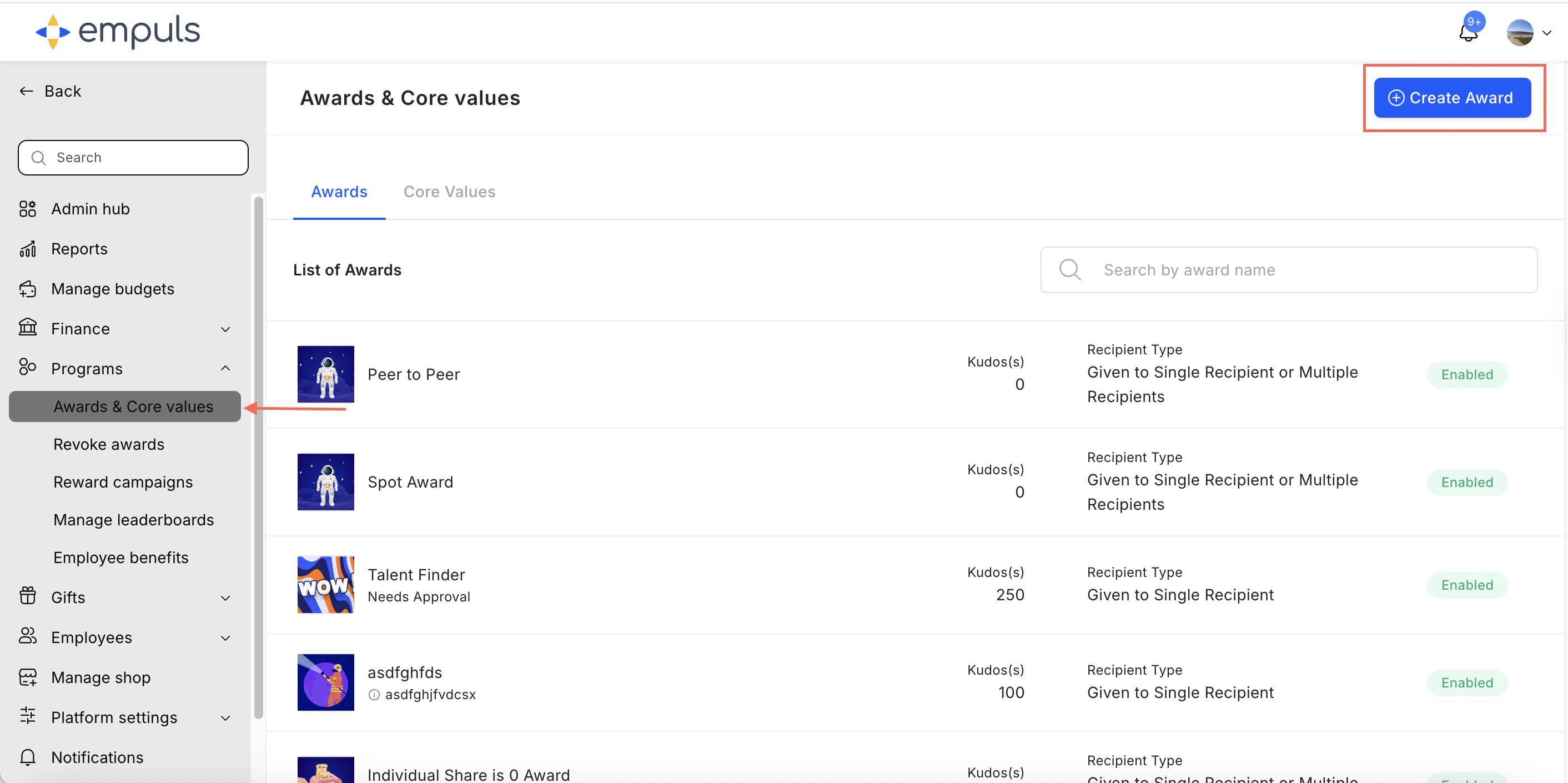
2
Select the award type
Select Award that needs approval and click Proceed.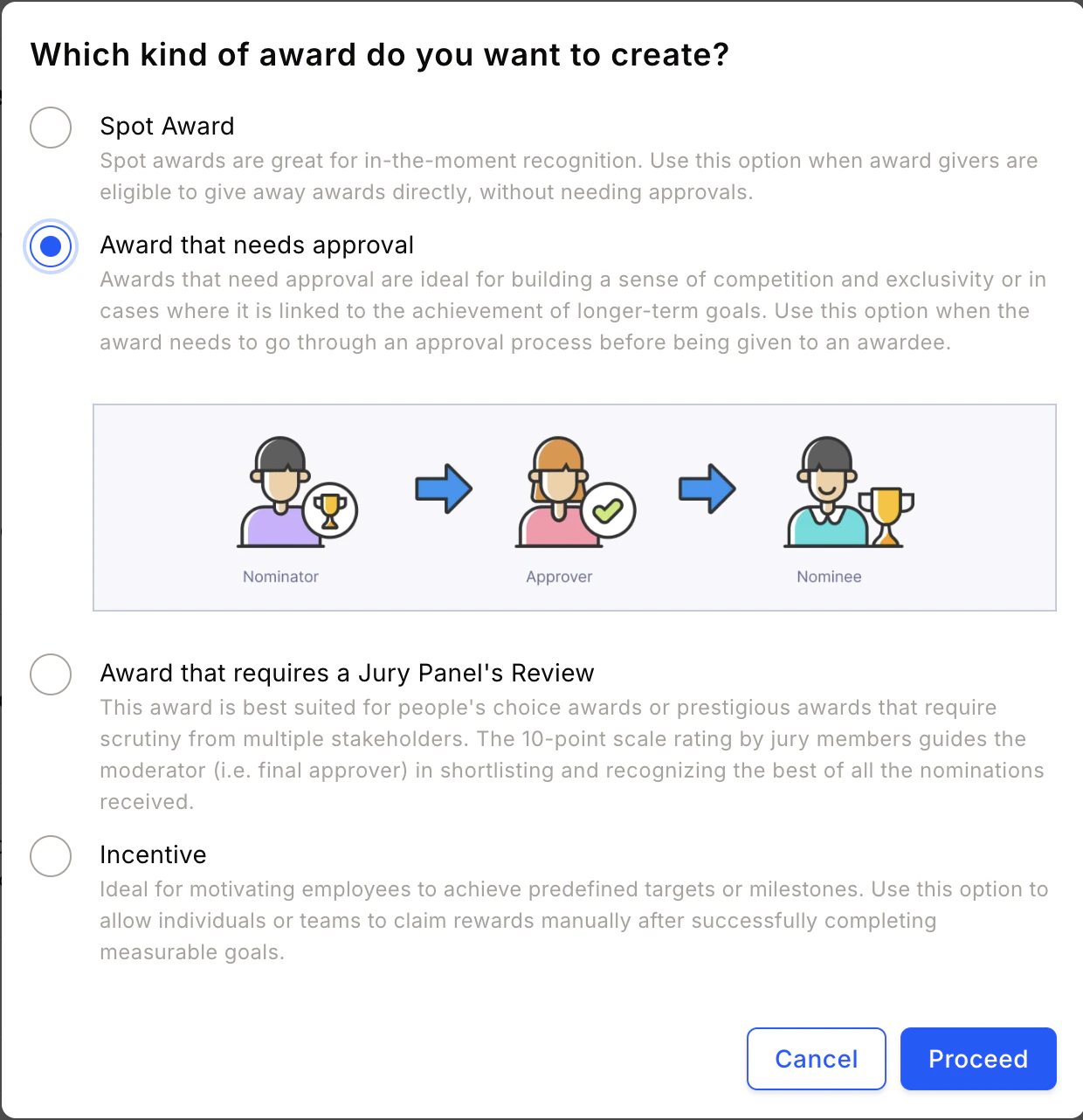
Best suited for high-value awards linked to long-term goals. Select this option when the award requires approval before being presented to the awardee.
3
Add award details
Fill in the award name, description, image, and recipient type, then click Continue.An award recipient can be an individual, a team, or kept flexible — letting the award presenter decide.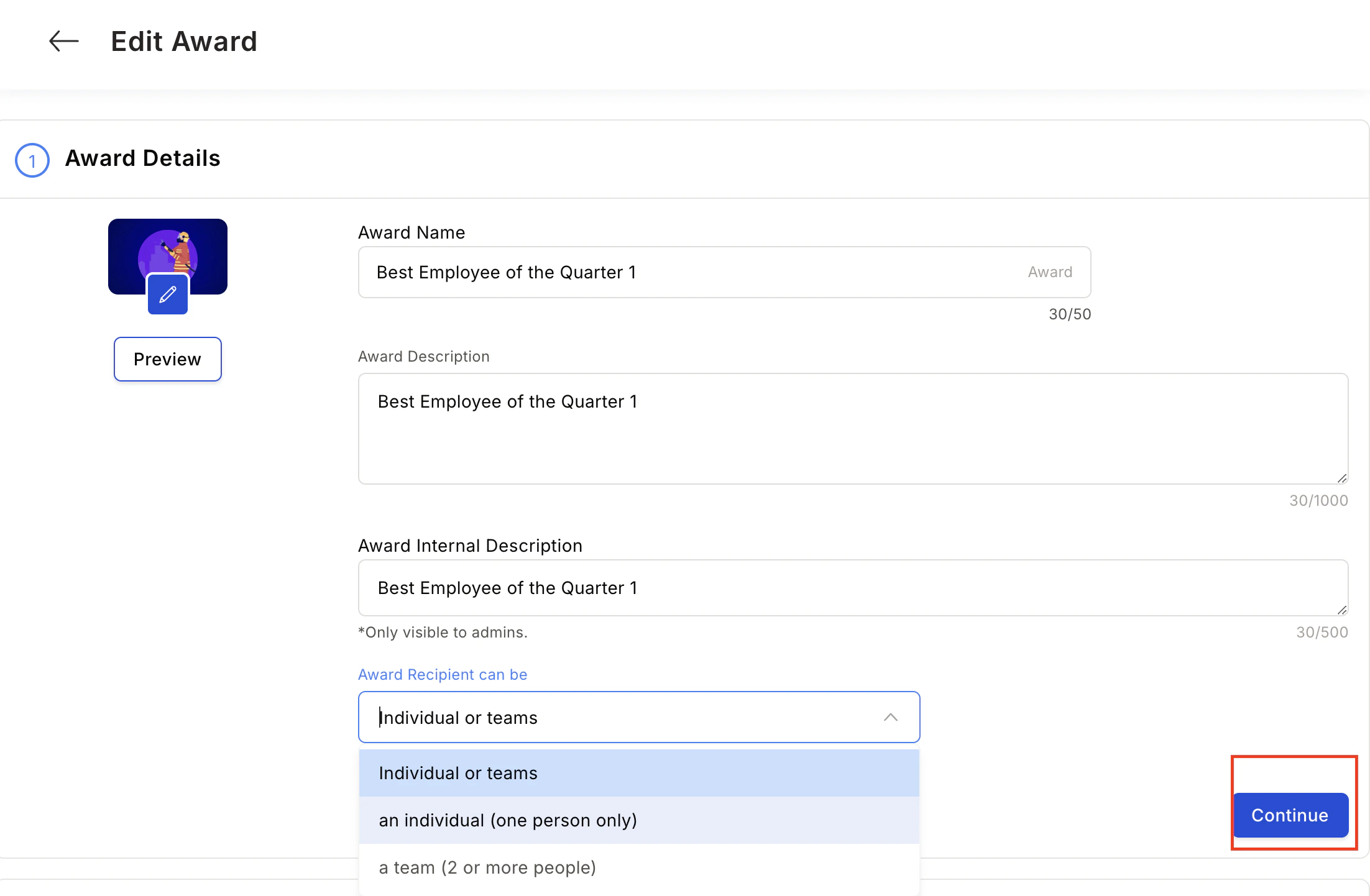
4
Configure the reward
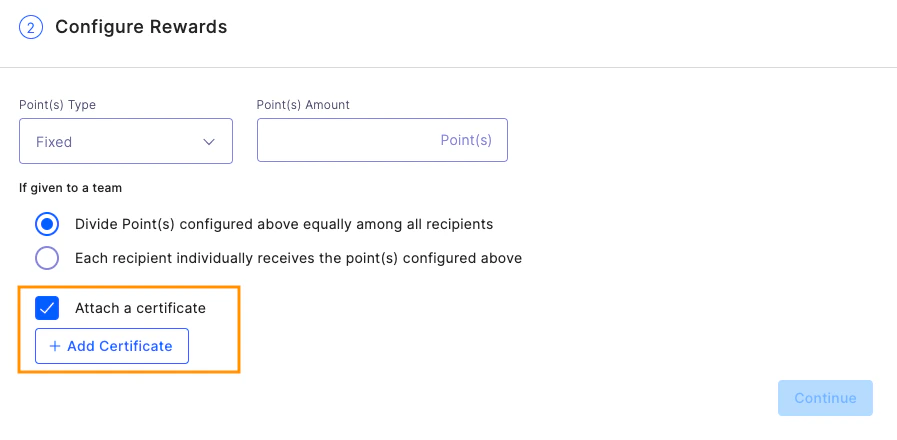
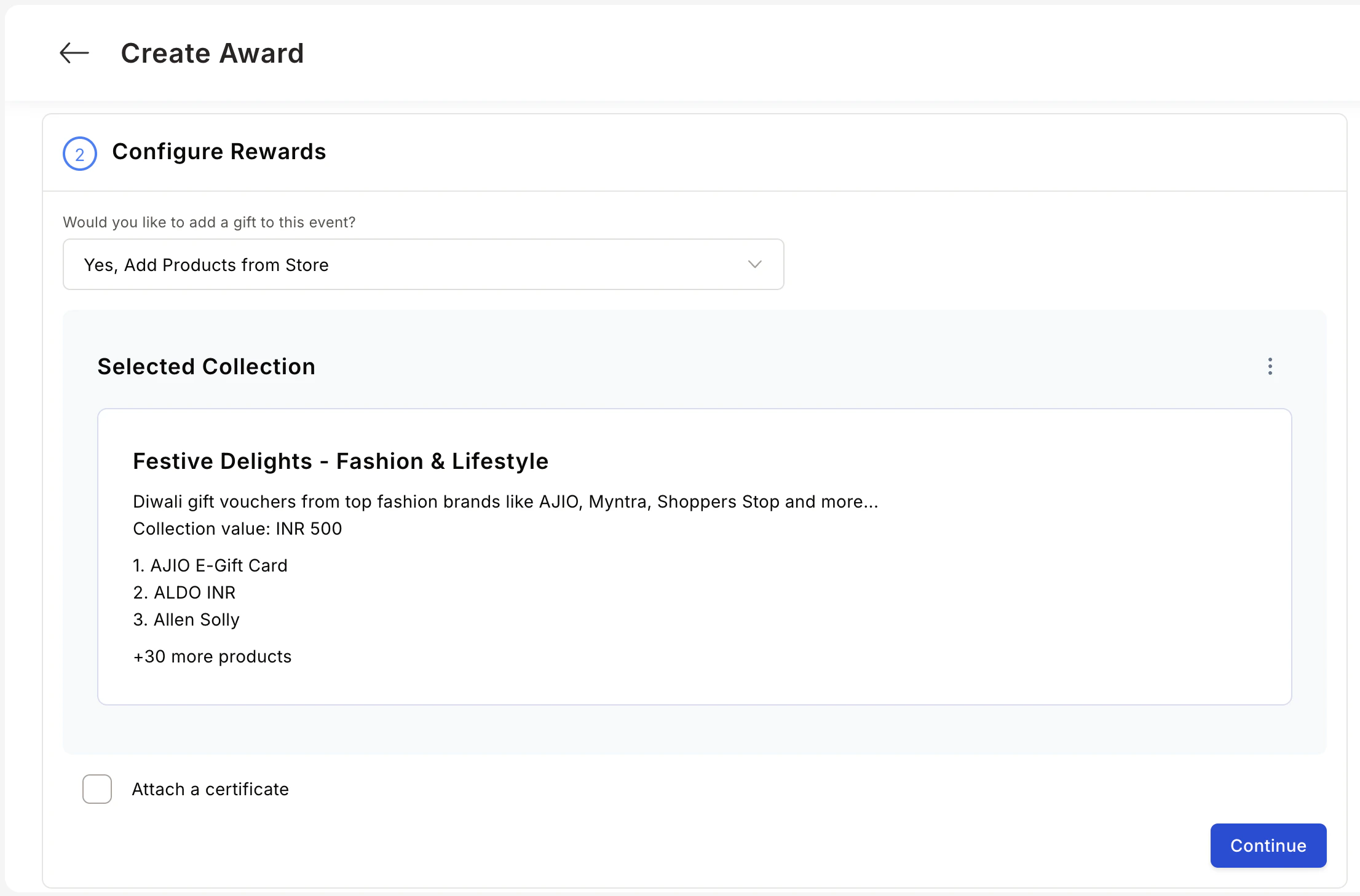
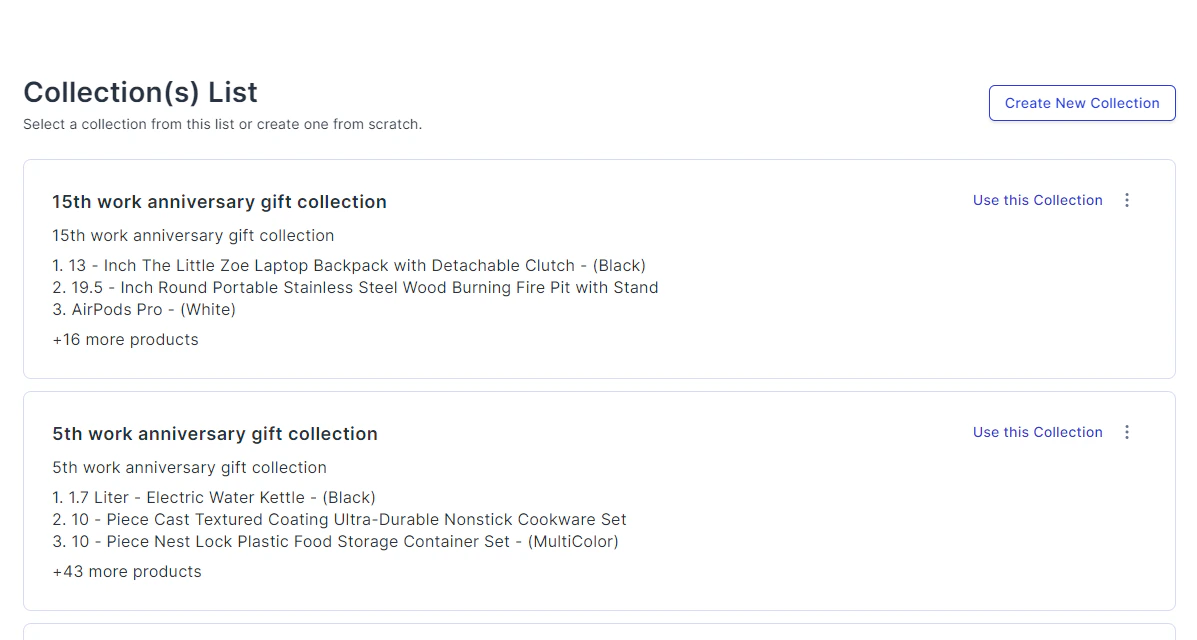
Choose whether to reward points or gift cards and merchandise.For spot awards, points can be: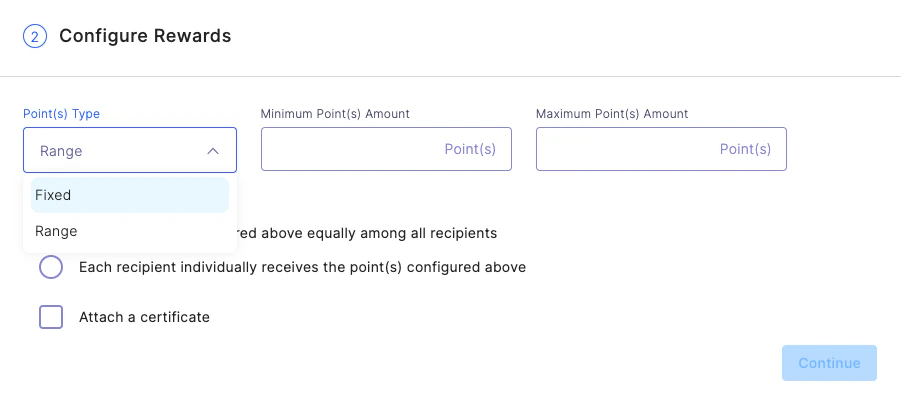
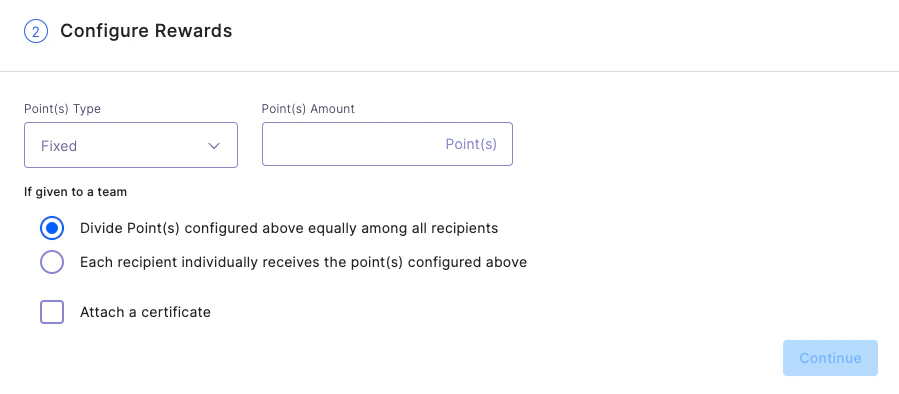
- Fixed — The same points every time; the presenter cannot modify.
- Range — The Super Admin sets a min/max range; the presenter allocates within it.
5
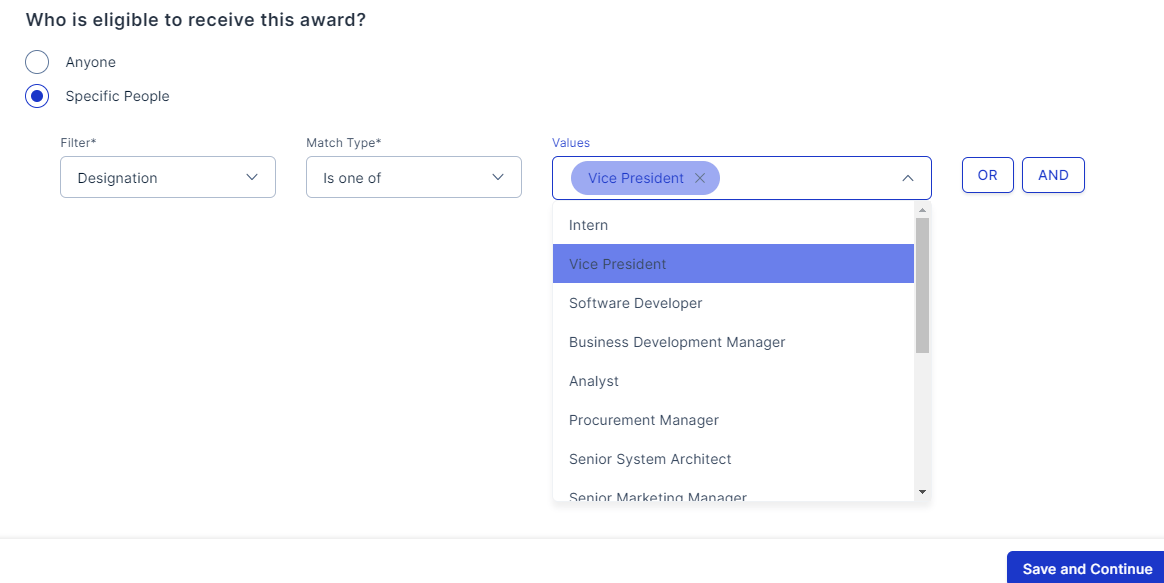
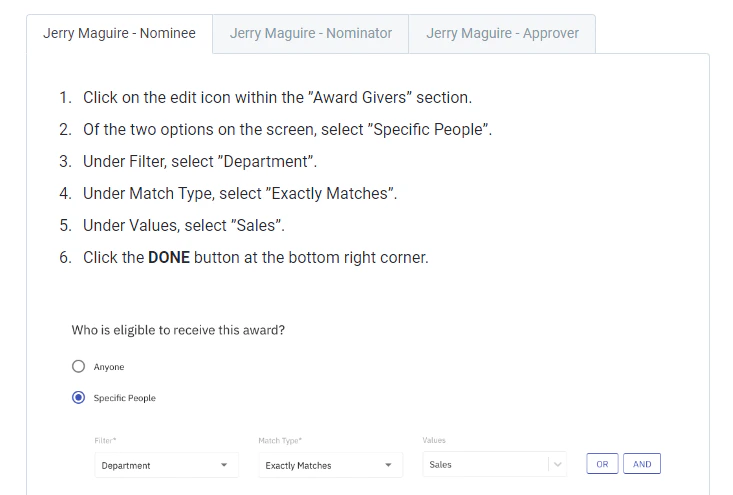
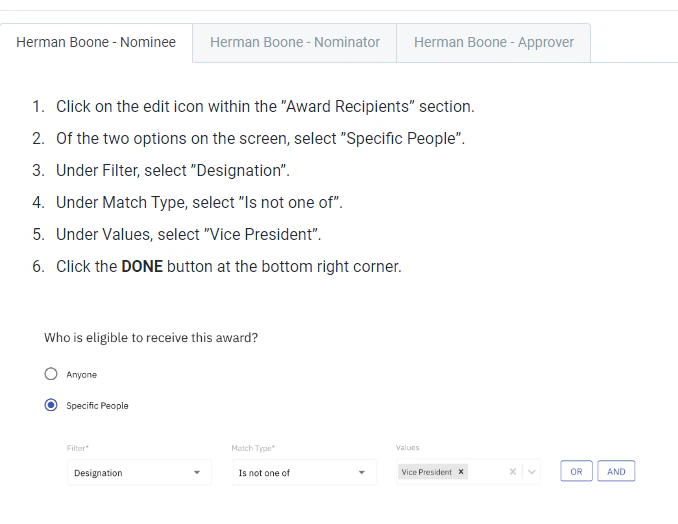
Define nominee, nominator, and approver eligibility
Restrict nominations to specific groups by setting constraints on who can nominate, who can be nominated, and who can approve.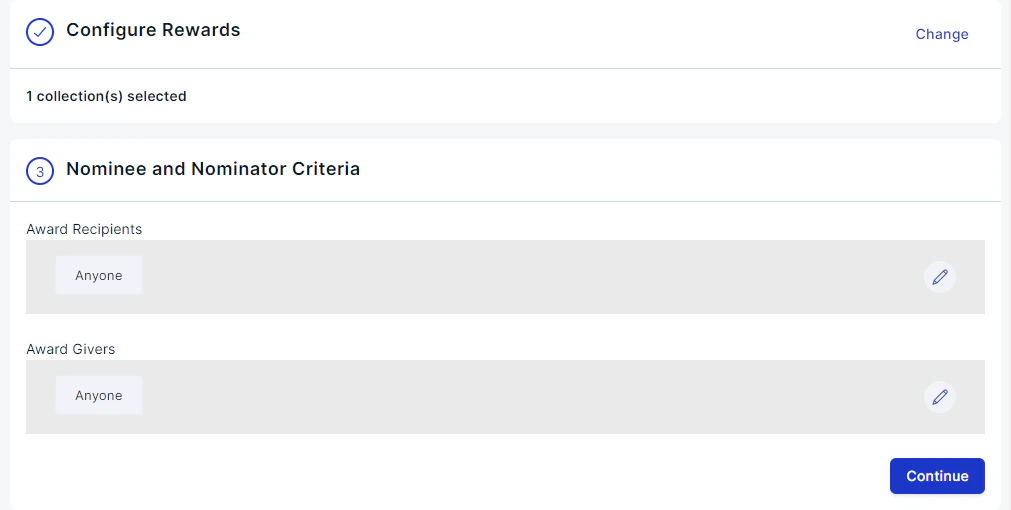
6
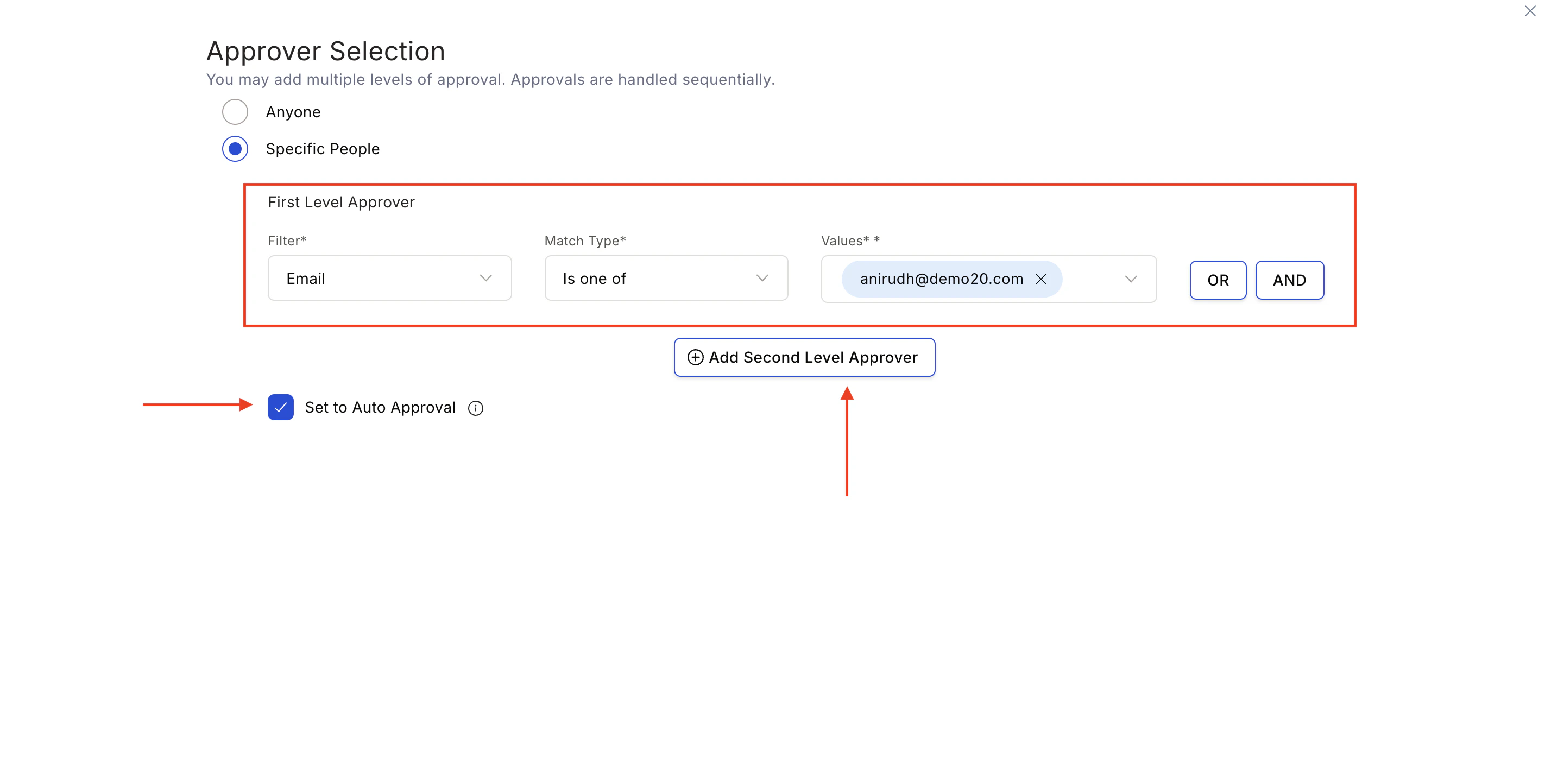
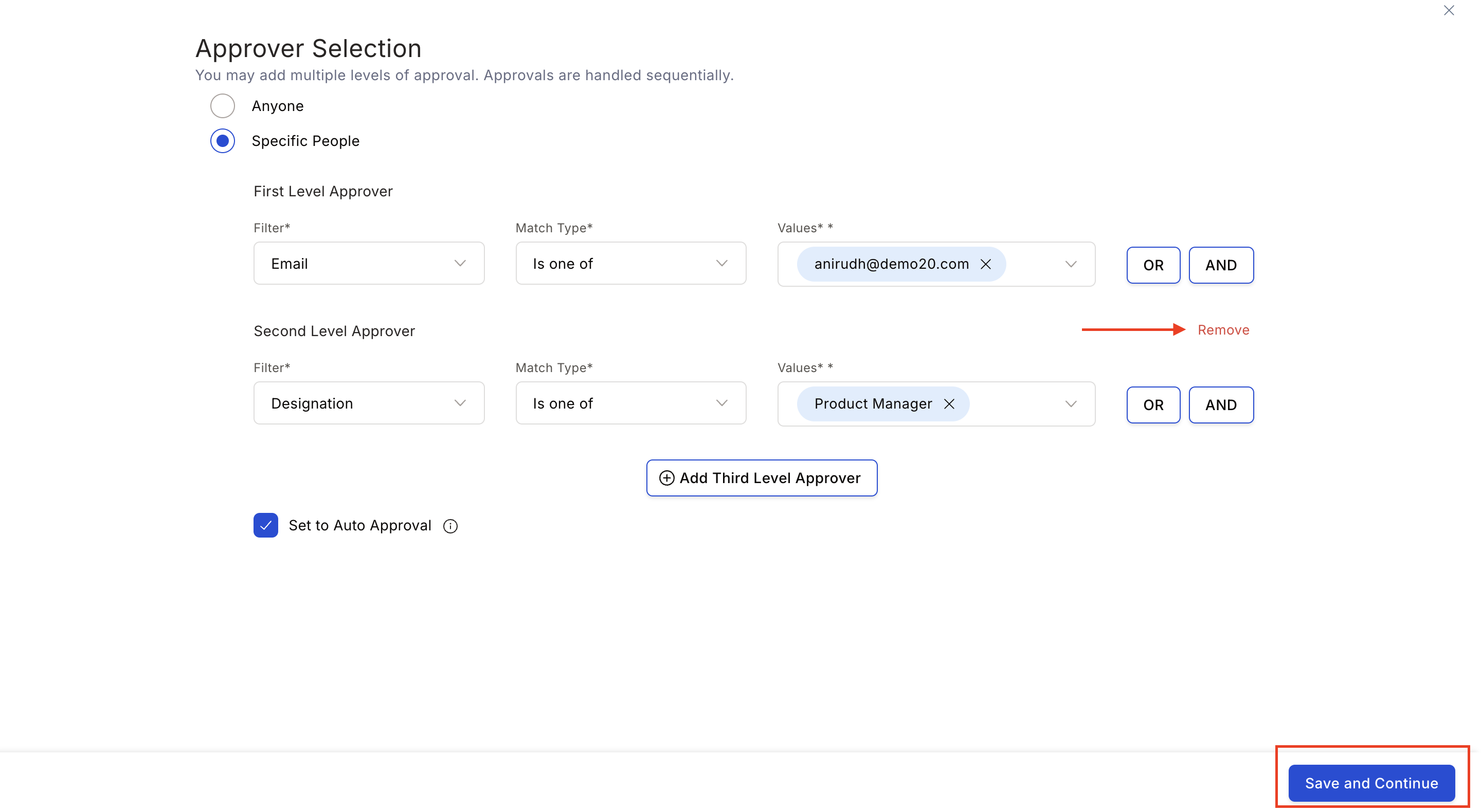
Configure approver selection
Click the pencil icon next to the Approver Selection card. Choose between:
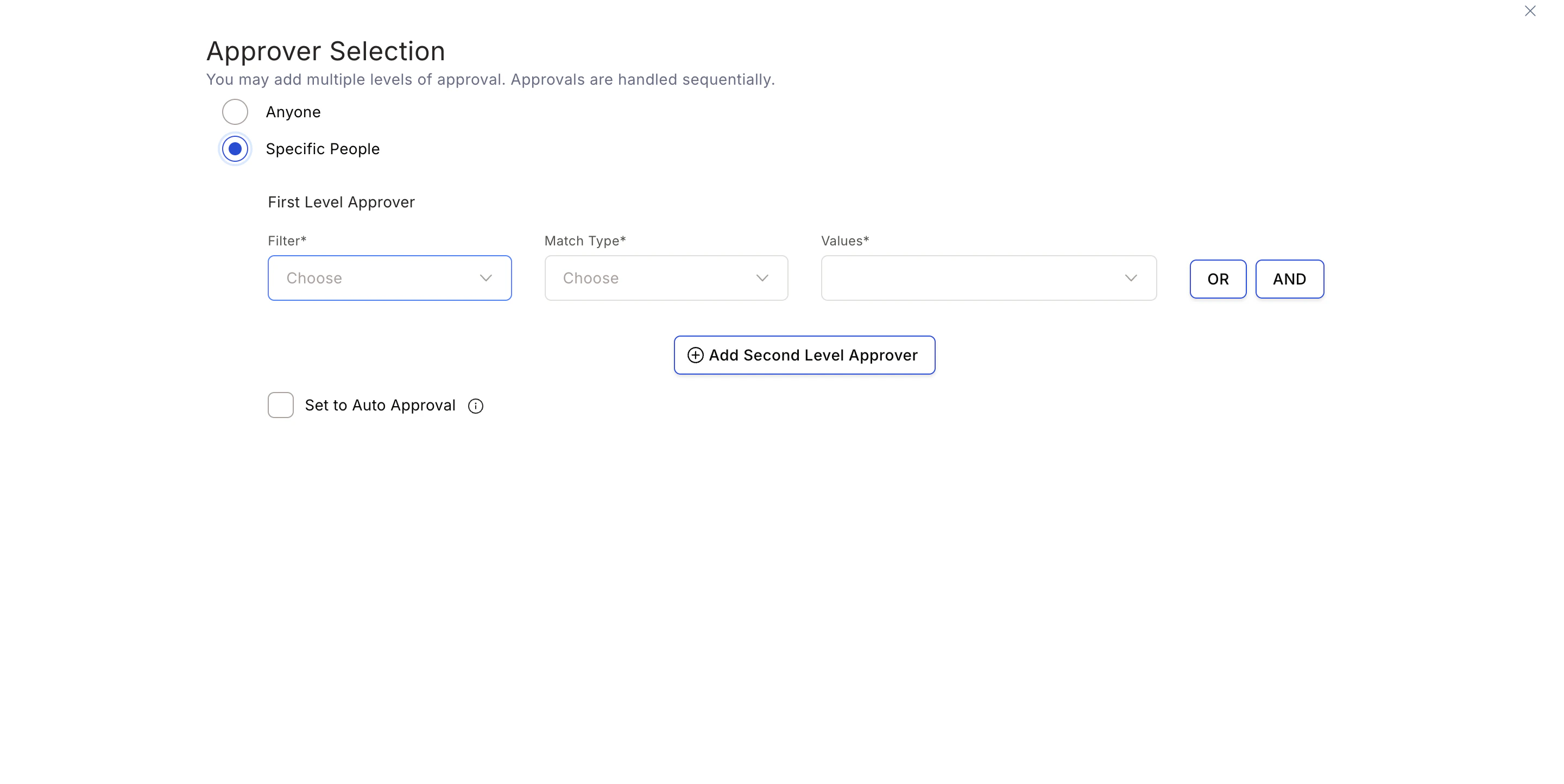
- Anyone — Any user can approve the award.
- Specific User — Define one or more specific approvers. Use filters to select the approver type and add multiple approval levels.
If an approver marked for Auto-Approval does not have sufficient budget, all Super Admins receive an email notification that the nomination is in a pending state.
7
Configure advanced settings
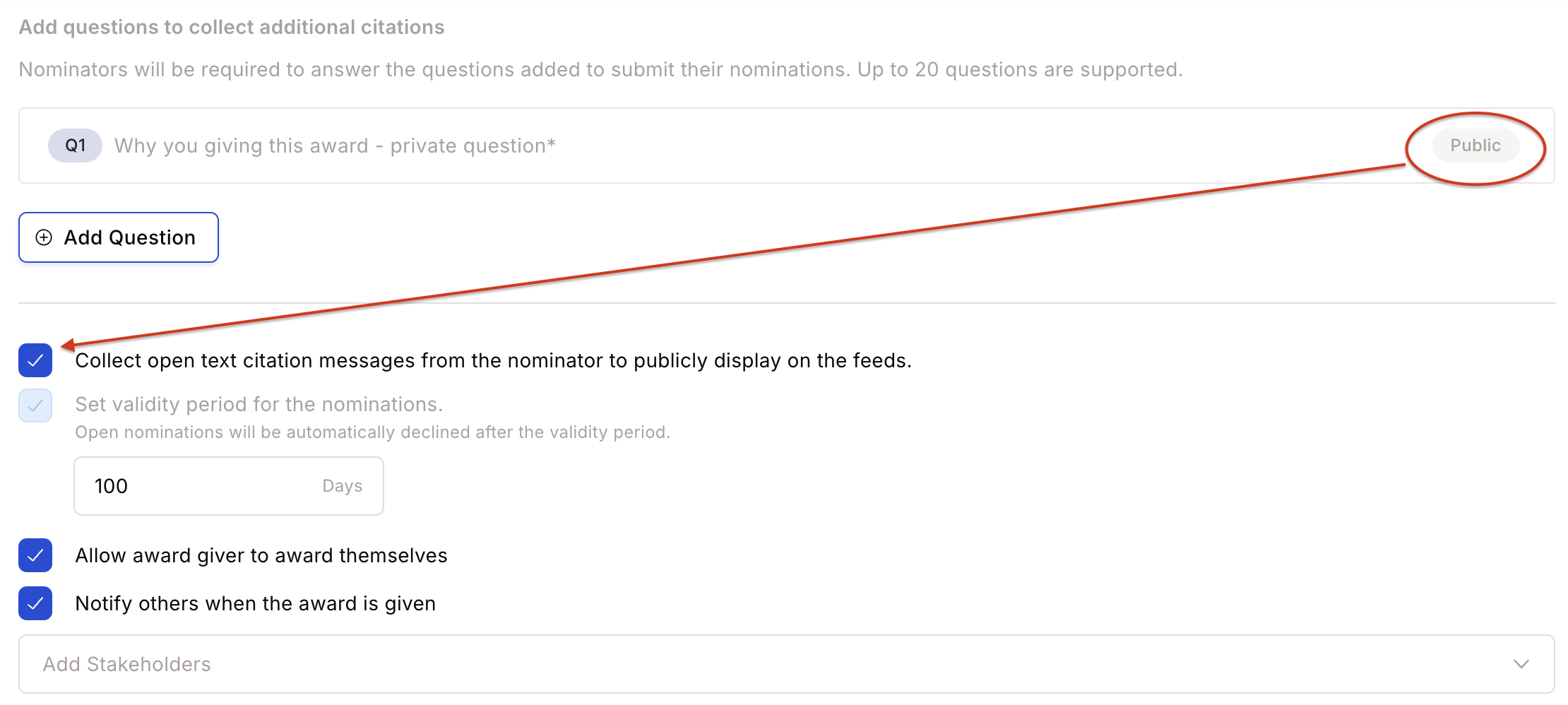
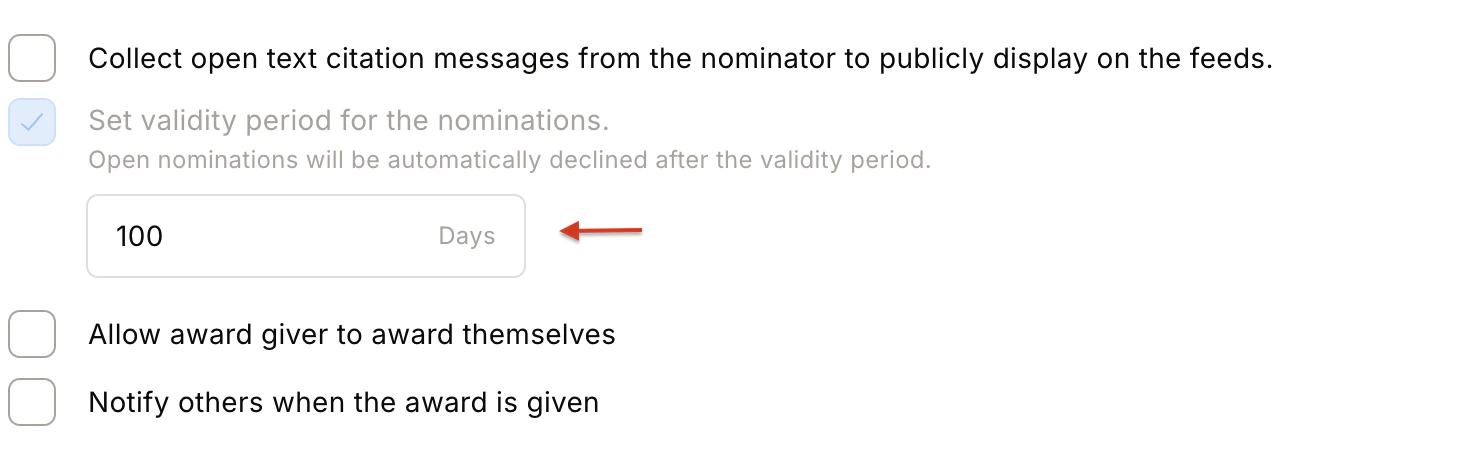
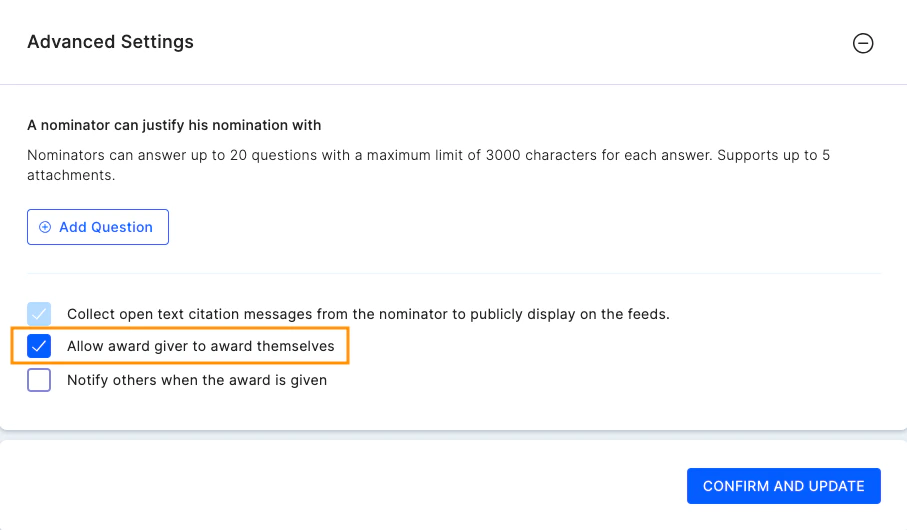
A. Set Questions for Nominator — Create up to 20 questions (multiple choice, short text, or dynamic multiple choice) that nominators must answer. If a text-based question is mandatory, you can also mark an attachment as mandatory.For multiple-choice questions, select Add other to append an Other option that lets nominators type their own answer. Set a character limit for the Other response between 1 and 1000 characters (default 250). A multiple-choice question can have up to 15 options in total, including Other.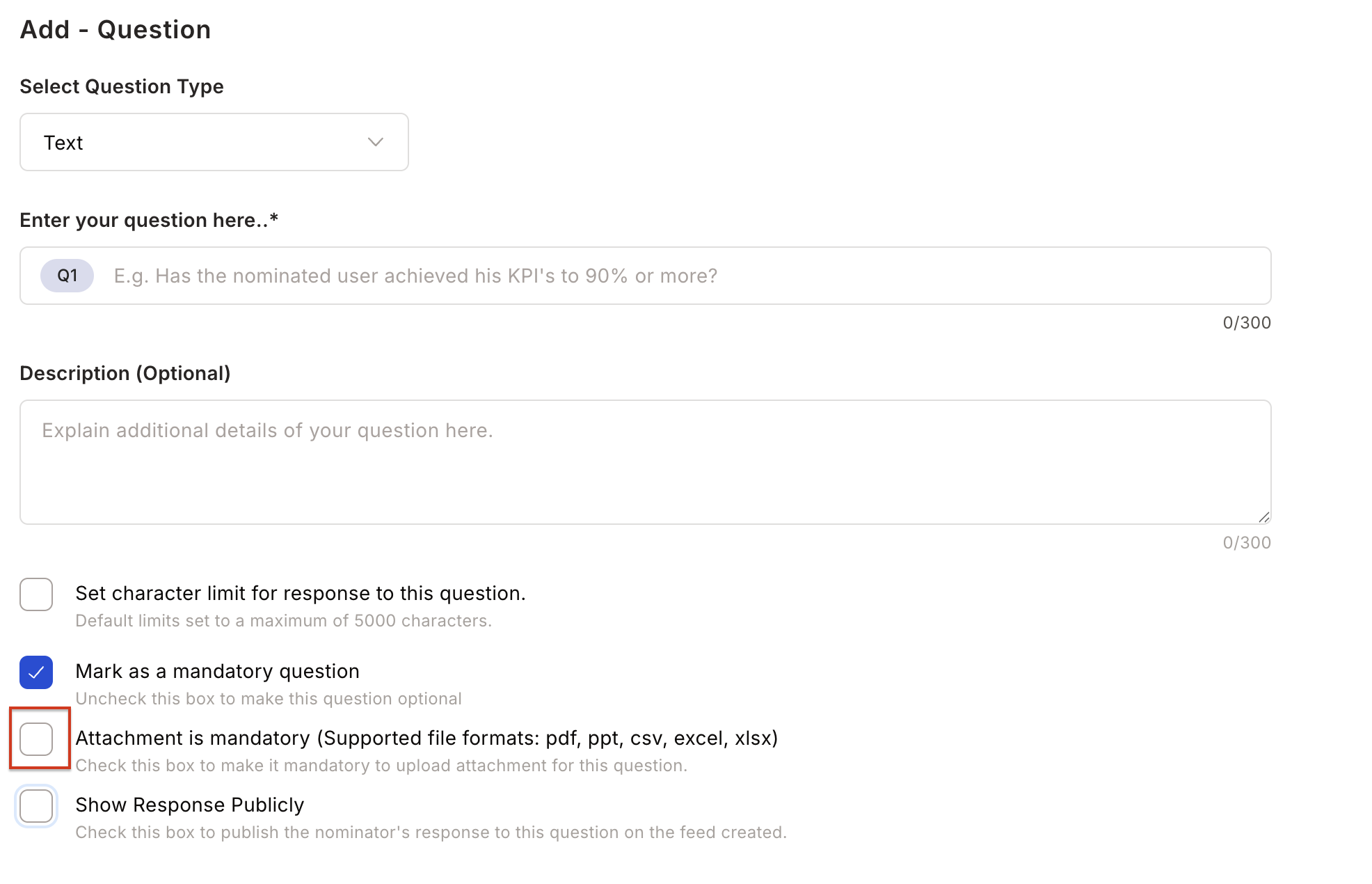
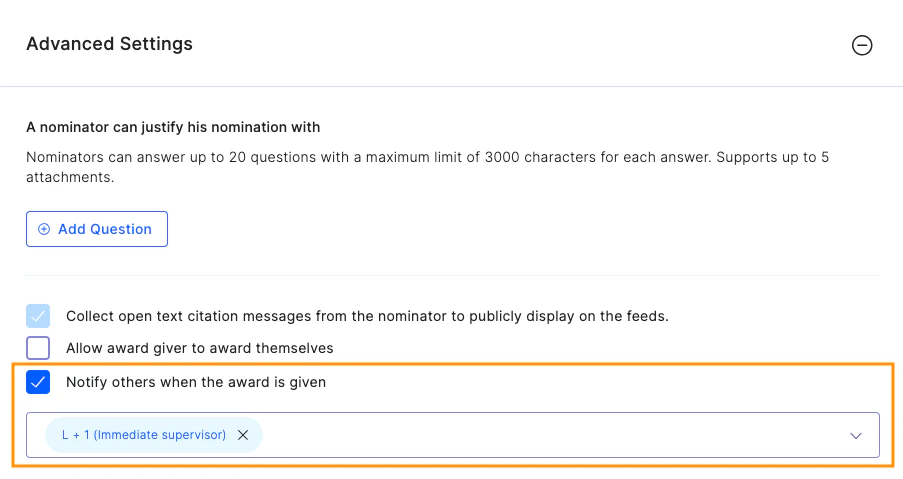

- Send stakeholders a separate email (default) — Stakeholders get their own notification, apart from the recipient’s email.
- CC stakeholders on the award email — Empuls adds stakeholders in CC on the recipient’s award email. If the award has a nomination certificate, Empuls also CCs them on the nominee’s nomination email.
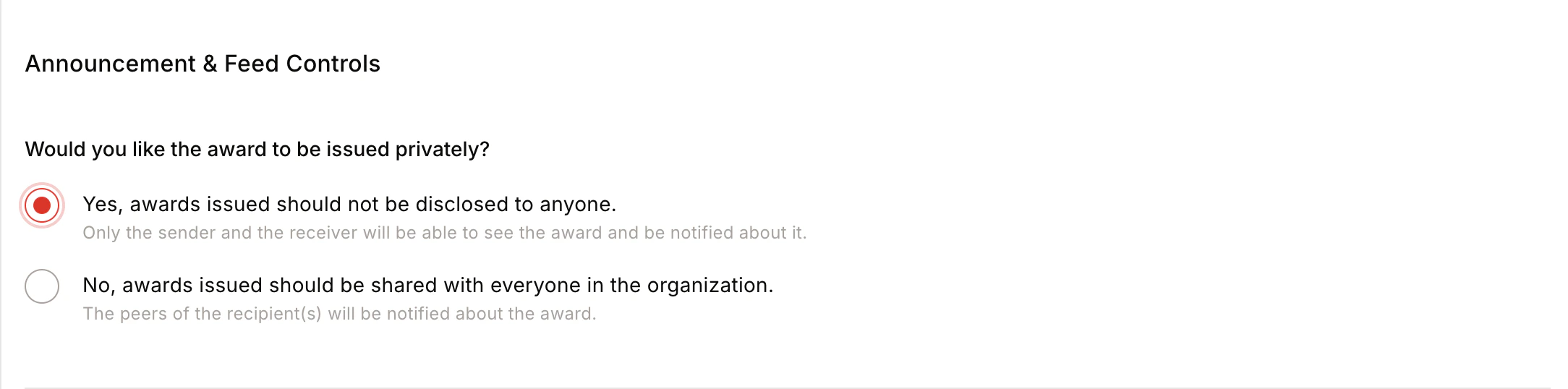
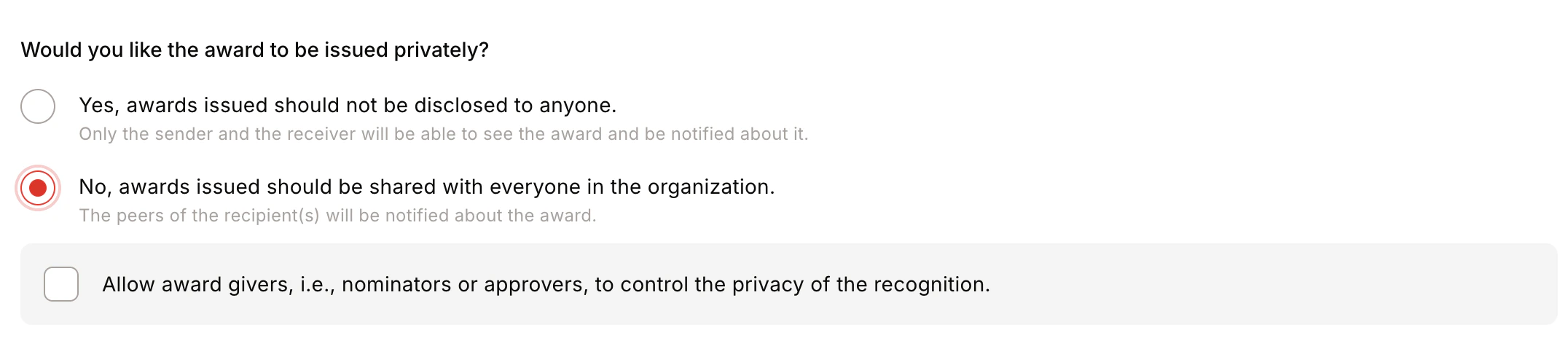
- Award Visibility — Post publicly on the feed, or keep private (only sender and receiver can see it). You can also allow nominators/approvers to control visibility at the time of giving.
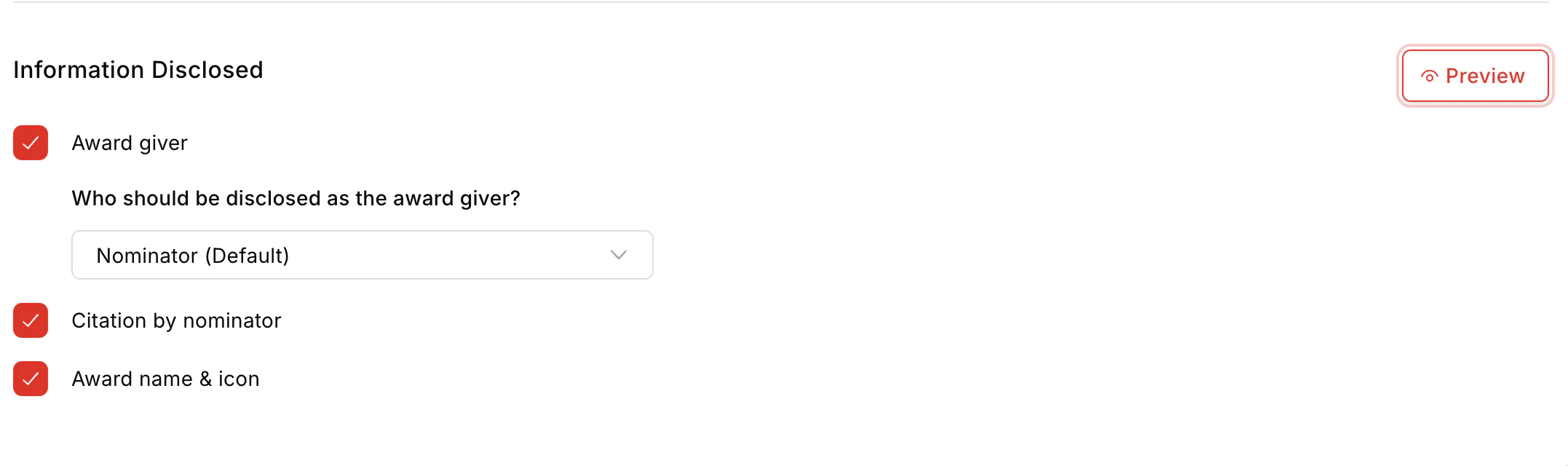
- Information Disclosed — Choose whether to show the Award Giver, Citation by Nominator, and Award Name and Icon on the feed.
- Show final approver comment in the feed — Publishes the final approver’s comment on the recognition post and in the award email. On the feed, the comment is collapsed behind a Show final approver comment link that viewers can expand. See Show the final approver’s comment.
-
Privacy Control:
- Centrally — Award is posted publicly and visible to all group members.
- Public — Visible to all members of the group where recognition is posted.
- Private — Only the nominator and nominee can see the award feed.
- By Nominator/Approver — Privacy is set by the nominator or approver at time of giving.
- Team Size — Minimum 1 (2 for team-only awards), maximum 100 members.
The awardee’s teammates are notified by email to crowdsource wishes for the award recipient.
Show the final approver’s comment
Use this option when employees nominate themselves and you want the final approver’s feedback to be visible alongside the award. For example, a manager’s note on a self-nominated achievement can appear on the recognition post. The Show final approver comment in the feed checkbox appears under Information Disclosed only when the award meets all of these conditions:- The award type is Award that needs approval.
- The award has at least one approver level.
- Self Nomination is enabled.
- Who is eligible to give this award? includes a Relation to Nominee condition that matches Self. A condition that excludes Self does not count.
- Empuls publishes the comment only on self-nominations, where the nominator and the nominee are the same person. If a colleague nominates someone for the same award, the approver’s comment stays private.
- The final approver sees a notice in the Approve dialog: “Your comment will be shown on the recognition post and in notifications.”
- The award email includes the comment under a Final Approver comment heading, in each recipient’s preferred language.
- The comment does not appear on posts where Citation by Nominator is hidden from the feed.
- If the final approver level is auto-approved or skipped, Empuls publishes the comment from the last approver who acted on the nomination.
- Empuls saves the setting on each nomination when it’s submitted. Turning the option on or off affects only nominations submitted after the change.
Show final approver comment in the feed and Hide Approver Identity cannot be used together. If Hide Approver Identity is on with any approver level selected, the comment checkbox is disabled. Turn off Hide Approver Identity to enable it.