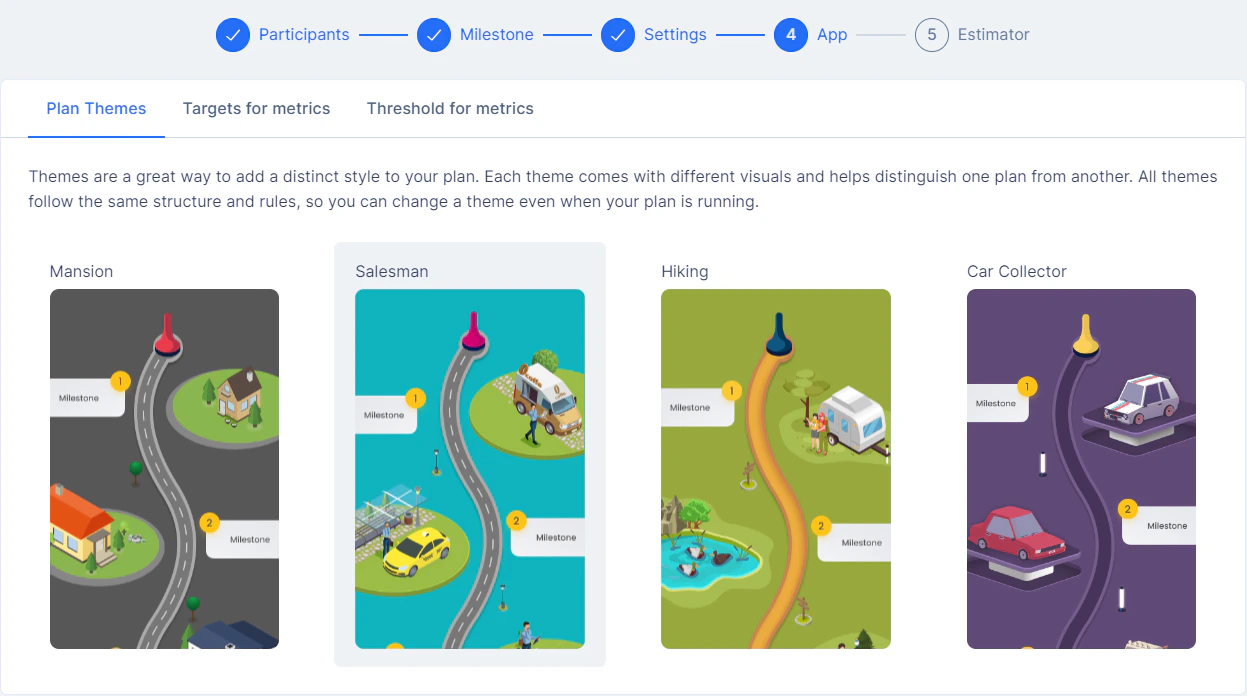
Plan Themes
There are 4 Plan themes in which you can display the Plans to the end-users on the mobile app.- Mansion Theme
- Salesman Theme
- Hiking Theme
- Car Collector Theme
Target for metrics
Sales incentive module gives you granular control over which metrics are surfaced to users and how they are displayed — across task performance, rewards, and their program dashboard. Set targets for your metrics Choose which metrics are displayed to users in the context of their assigned tasks. Only the metrics most relevant to the user’s role and goals should be selected to avoid information overload.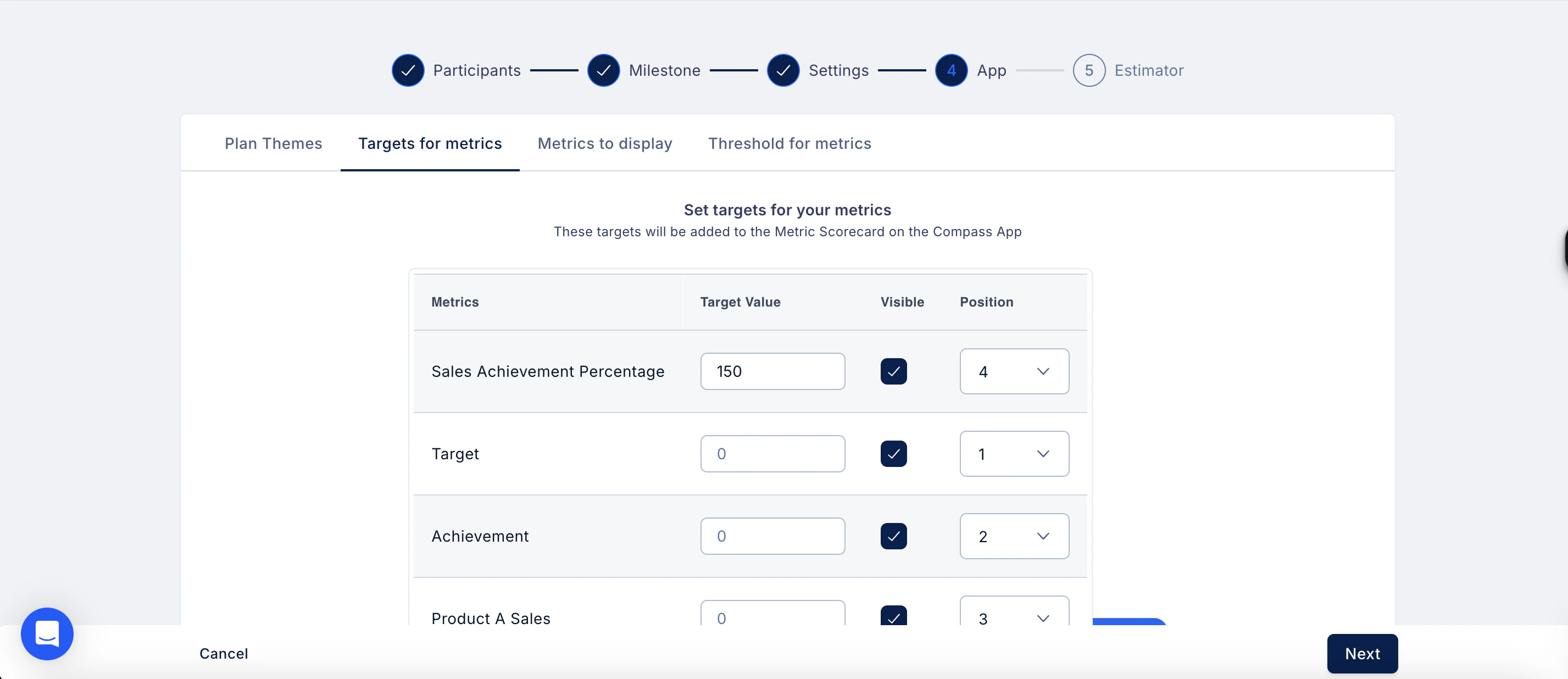
Metrics to display
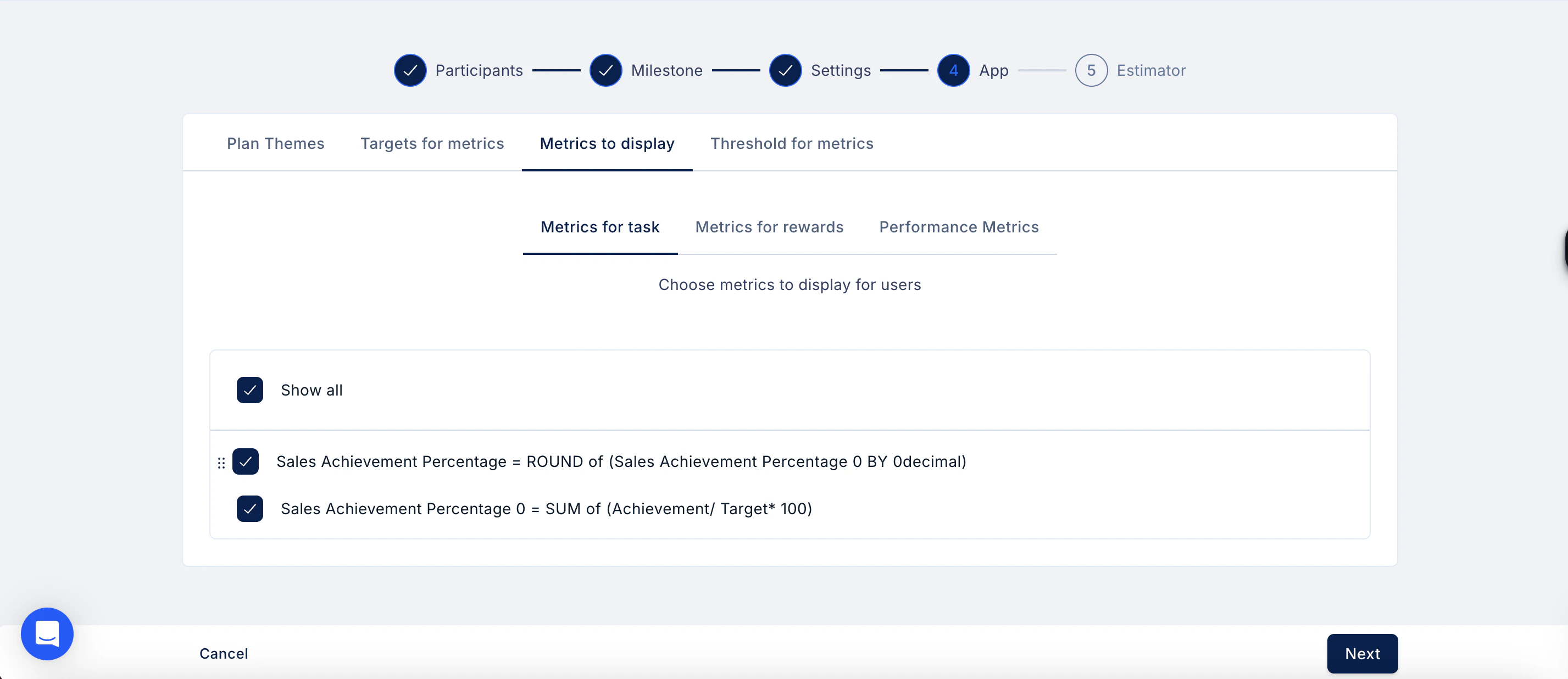
- Metrics for tasks
- Under Metrics for Tasks, select the metrics you want to surface to users.
- Save your selection.
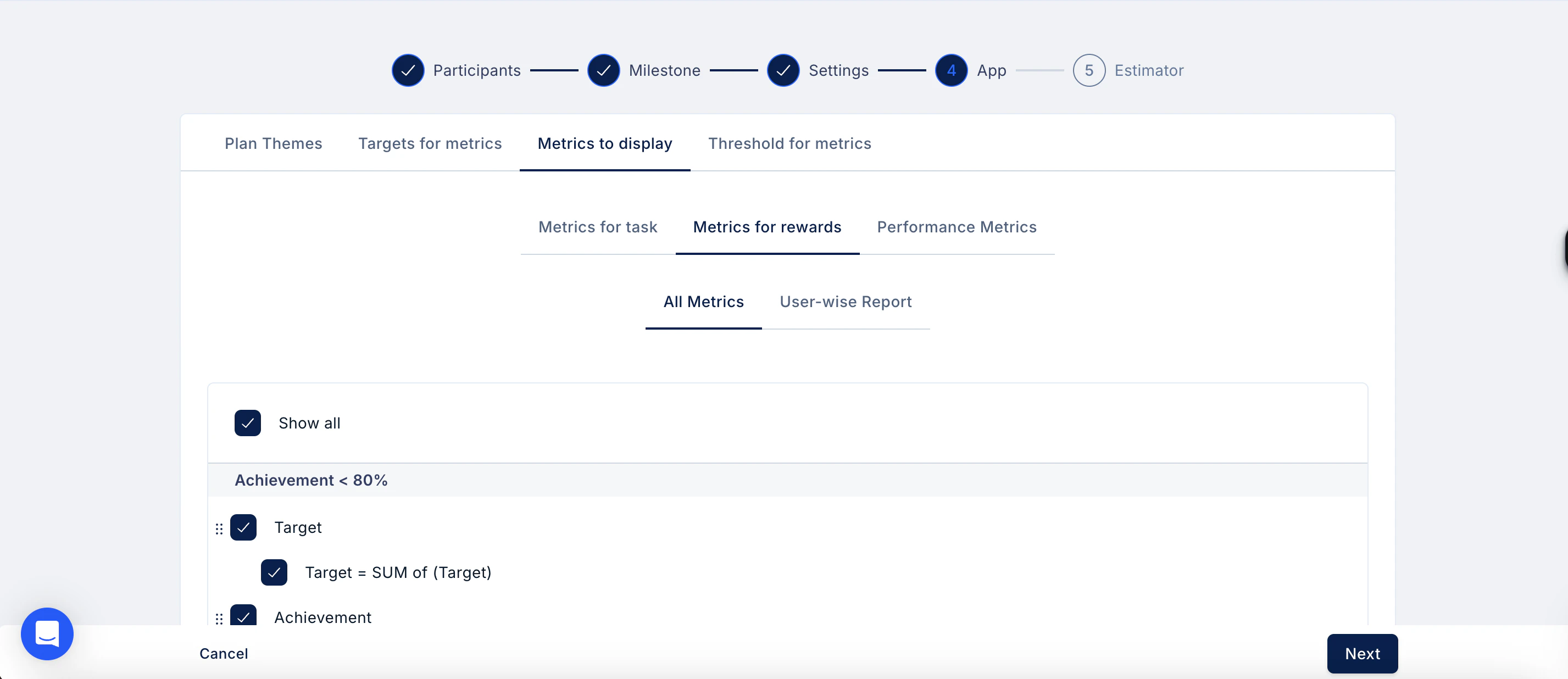
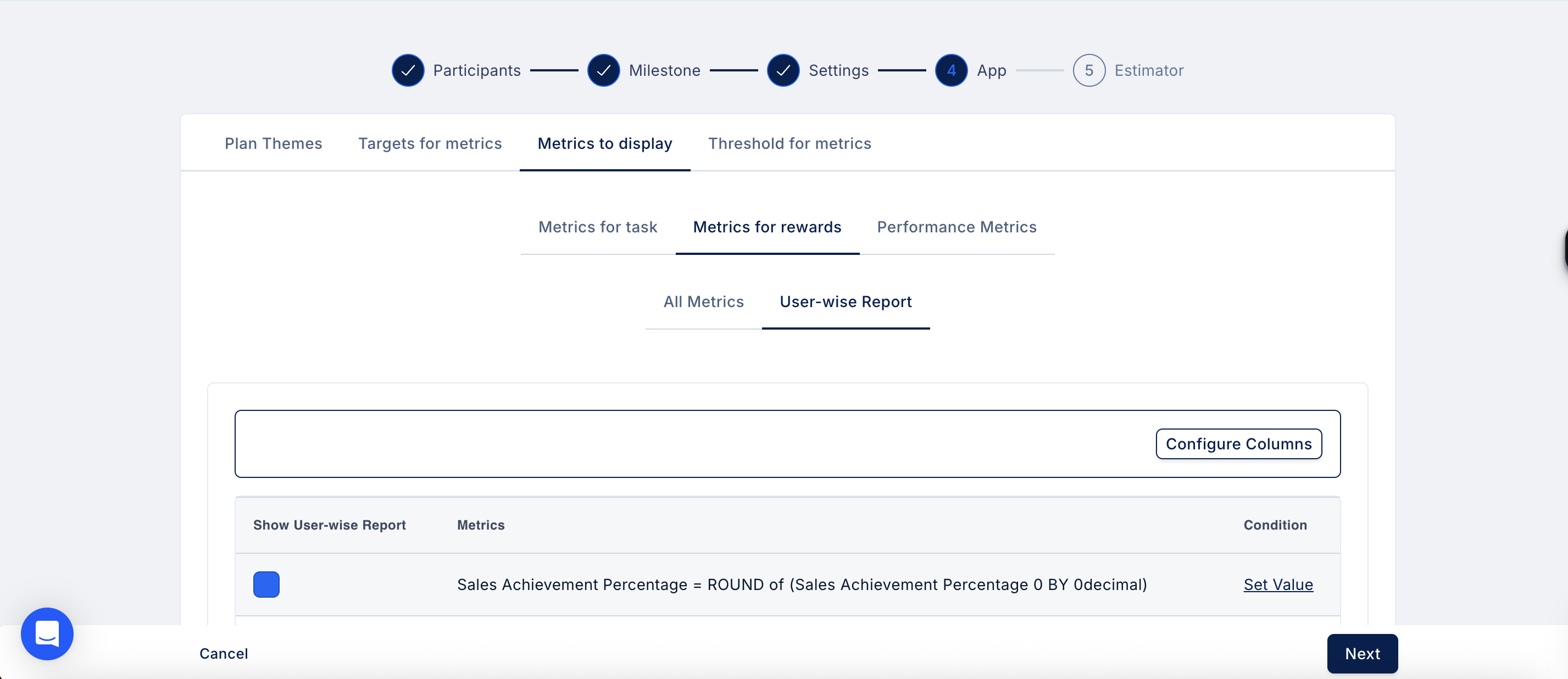
- Metrics for rewards Control what users see in the context of their rewards and overall earnings. You can choose to display all metrics or configure a user-level report view.
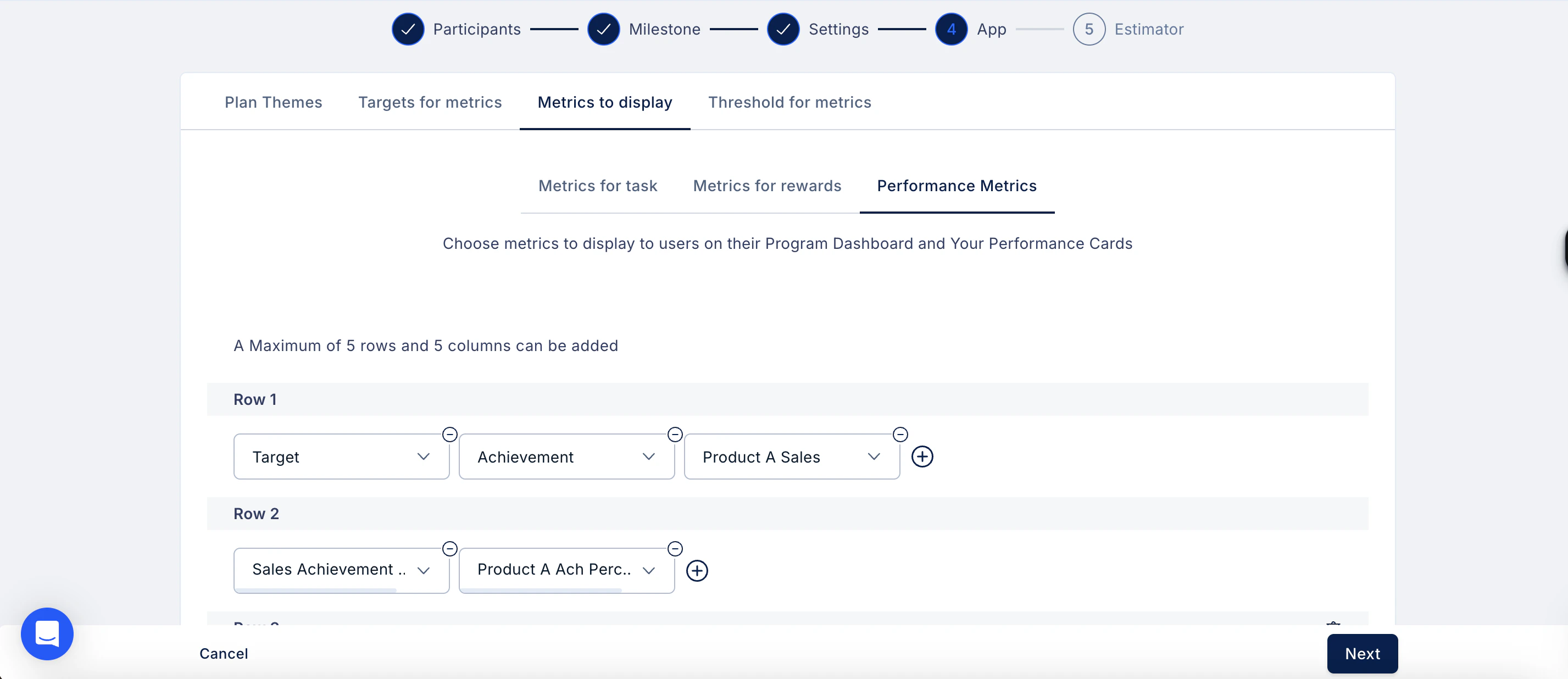
- Performance metrics
- A maximum of 5 rows and 5 columns can be configured.
- Use Add New Row to add additional metric rows to the display.
- Use Manage Columns to control which columns appear and in what order.
Threshold for metrics
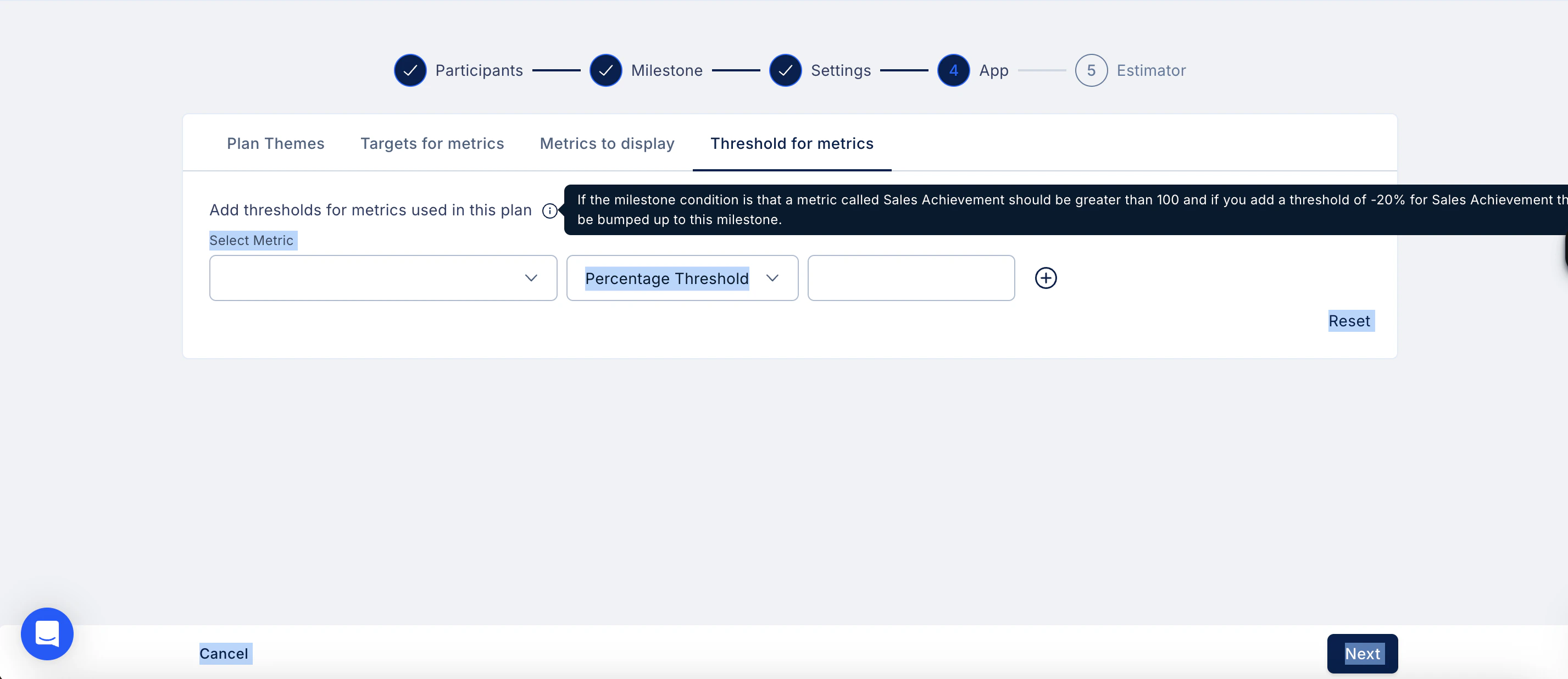
Metric thresholds let you define a performance buffer for milestones in your Plan. When a user falls slightly short of a milestone condition, a threshold ensures they are still credited and moved to that milestone. For example, if a milestone requires Sales Achievement to be greater than 100, adding a threshold of -20% means a user who achieves 80 will still be bumped up to that milestone. To add a threshold:- Go to the Threshold for Metrics tab in the App step of your Plan setup.
- Select the metric from the dropdown.
- Choose the threshold type (e.g. Percentage Threshold).
- Enter the threshold value.
- Click the + icon to add another threshold rule for the same or a different metric.
- Click Reset to clear all threshold rules if needed.
- Click Next when done.