
- Determine impact and trends
- Used in audit trails
- Daily updates and forecasting events and figures
- Troubleshooting incentives
- Track performance, to name a few.
Types of Reports
- Performance Report
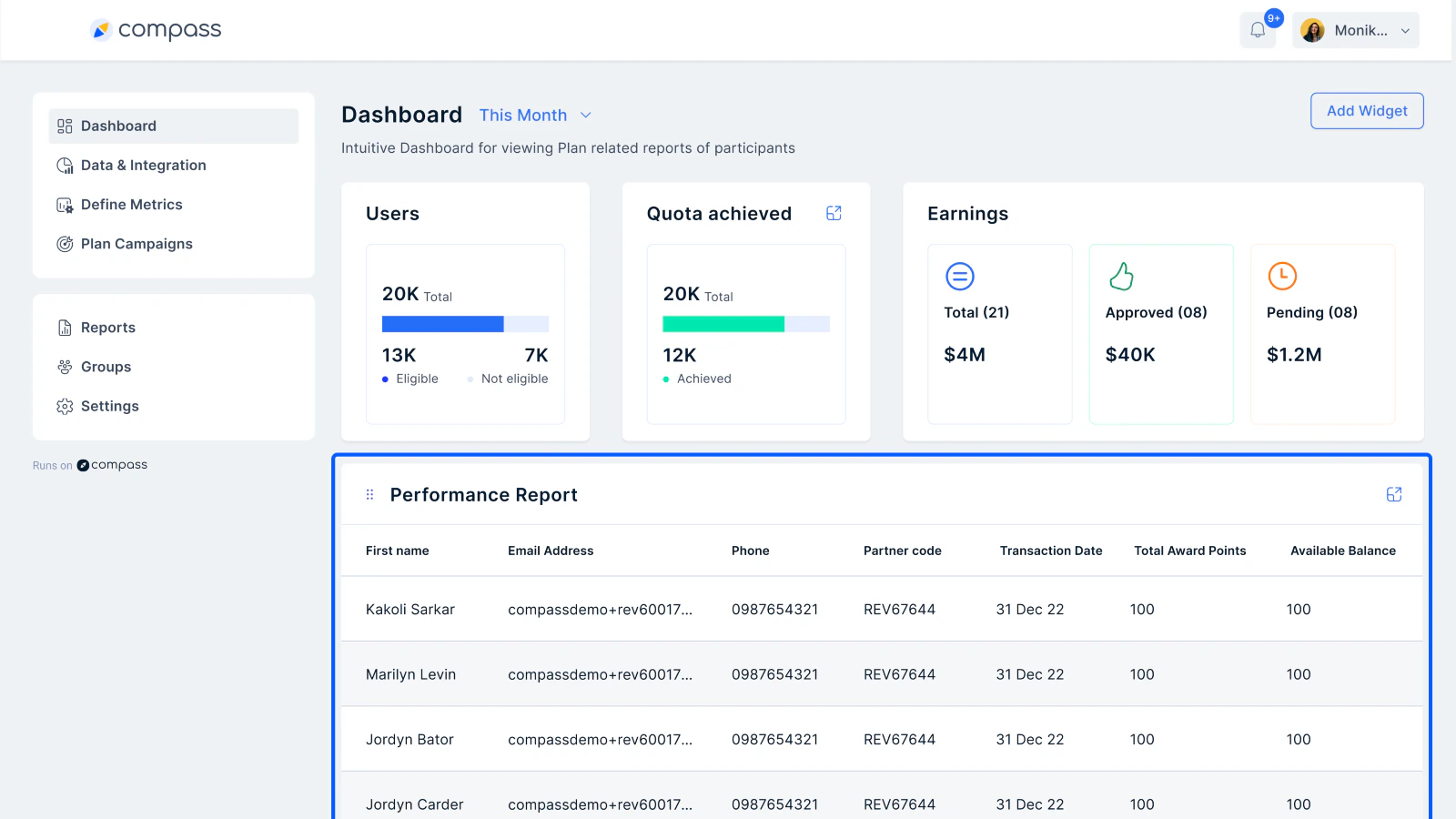
- This is a system-generated report for every Plan that has been configured on the platform.
-
The admin can access these via two places for individual Plans:
- Under Dashboard, by cycling through the Plan names from the dropdown.
- Under Plan, click on the three dots against the specific Plan name and click on View Dashboard.
- Upon expanding this report (using the four arrows at the top right of the tab), we get a full view of the report and further options of filters, downloading the report in a CSV format (top right, from left to right), and pagination options (bottom right), as shown in the screenshot below.
- Performance reports are typically very useful in tracking the performance of all employees for each KPI (that forms the incentive structure) under one report.
Managing Columns in Performance Reports
Admins can easily organize performance reports by pinning and reordering columns. Here’s how:1
Open the Report
Go to the Plans dashboard and expand any performance report.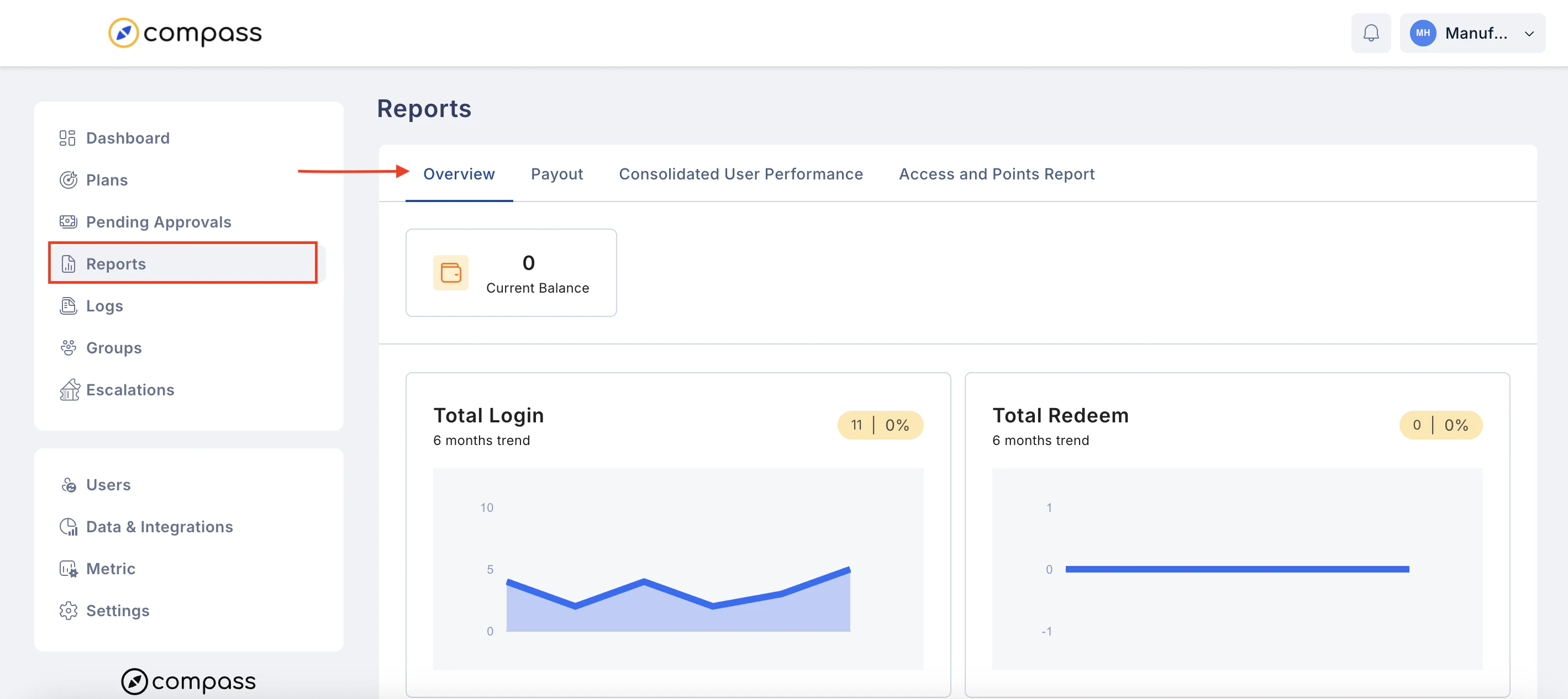
2
Manage Columns
Click Manage Column to: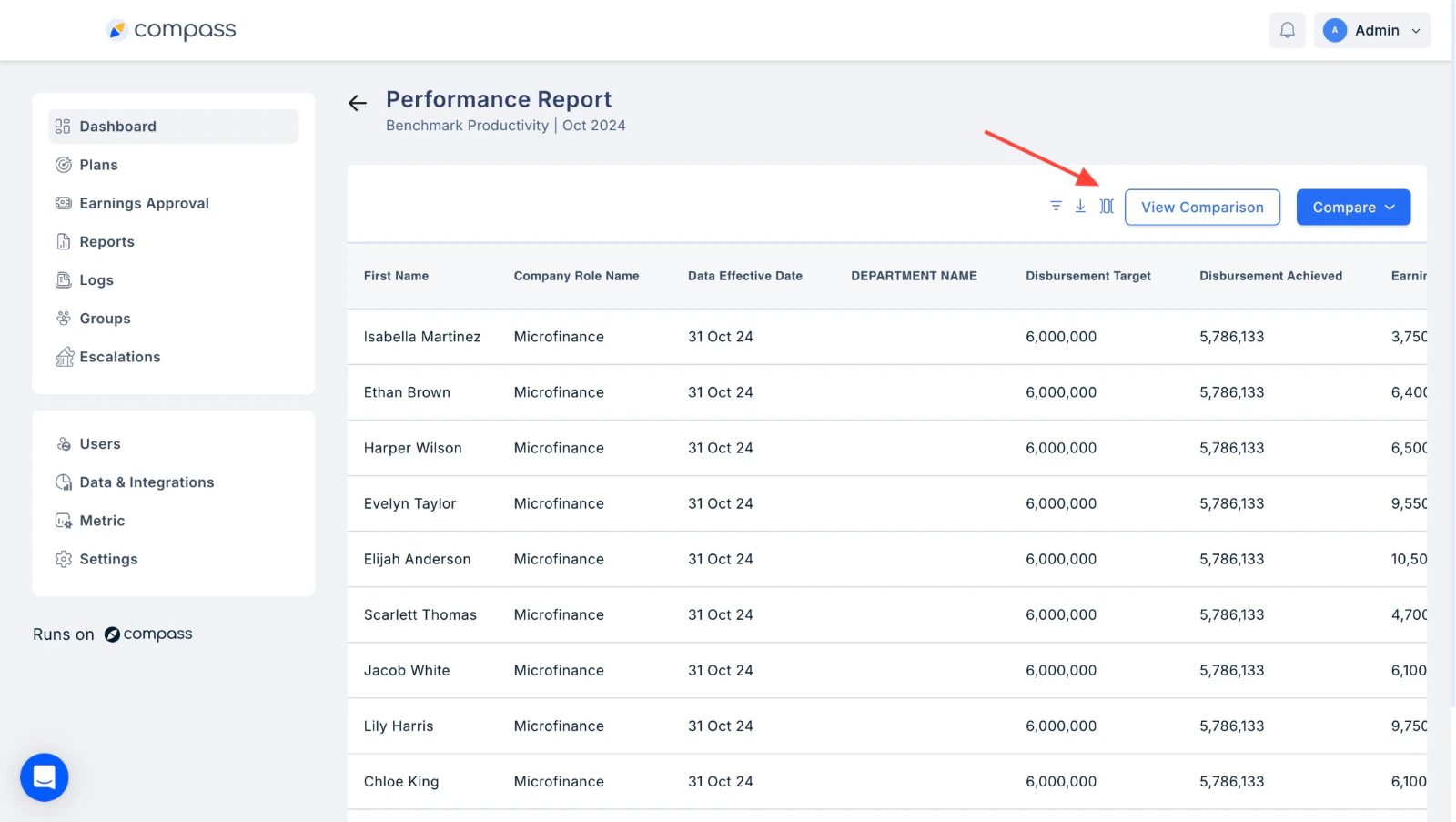
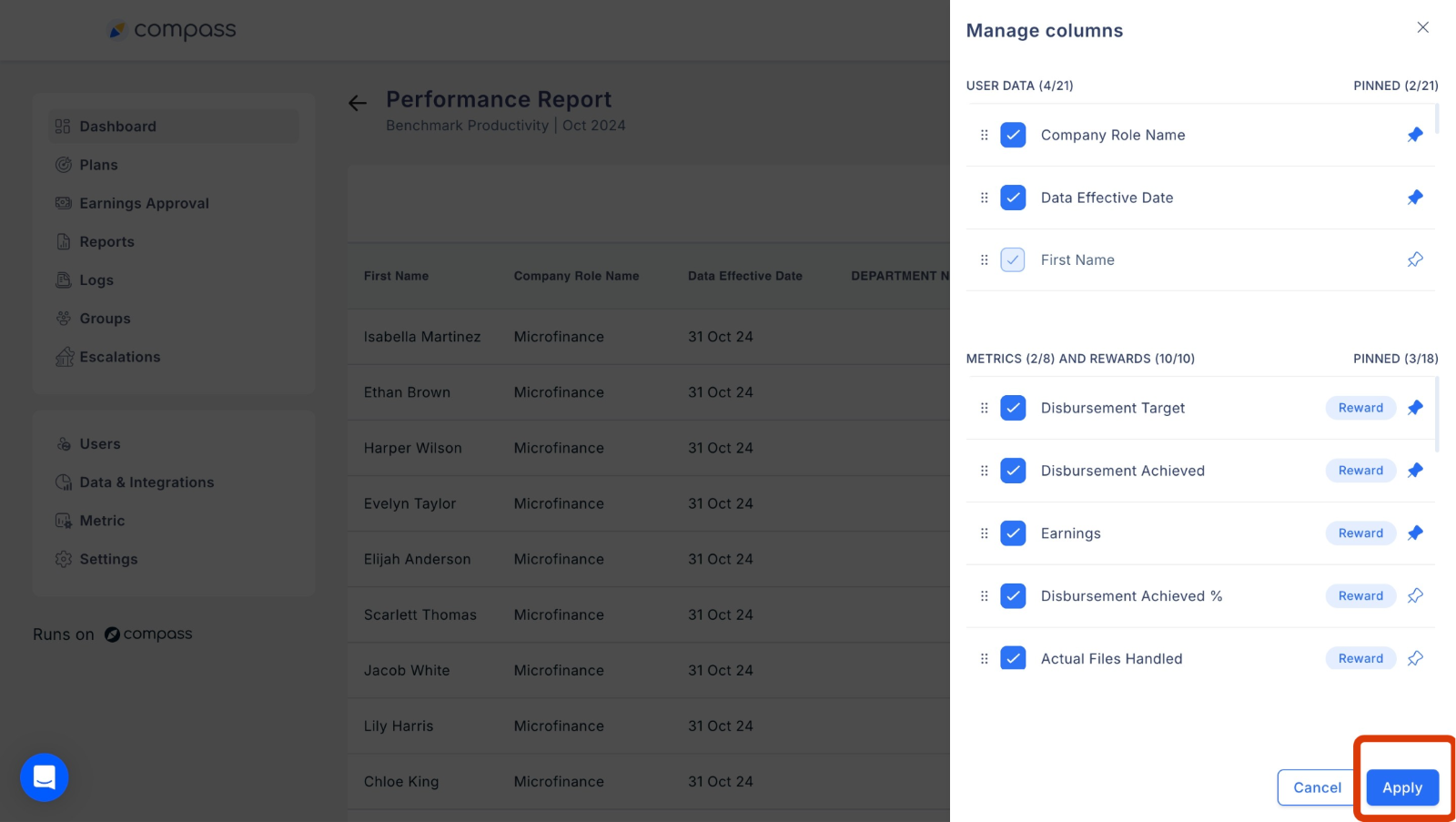
- Pin Columns: Keep key columns always visible.
- Reorder Columns: Drag and drop columns to prioritize data.
Understanding Reports
-
Overview
- Total Login
- Total Redeem
- Total Recharge
- Total Award
2. Payout Report
The Payout Report in the Reports tab enables admins to track complete payouts on a user-wise basis within specified dates. This report provides a clear overview of all transactions, ensuring transparency and accurate record-keeping of payouts. Please note: The parameters in the report are admin customizable. It tracks the following parameters:- First Name
- Partner Code
- Earnings
- Reporting to
- DOJ
- Department Name
- Designation
- Zone
- Grade
- State
- Branch Name
- Work Contracts
- Region Name
- Office Location
- Function
- Vertical
- Date of Joining
- Tenure this Month
- Data effective date
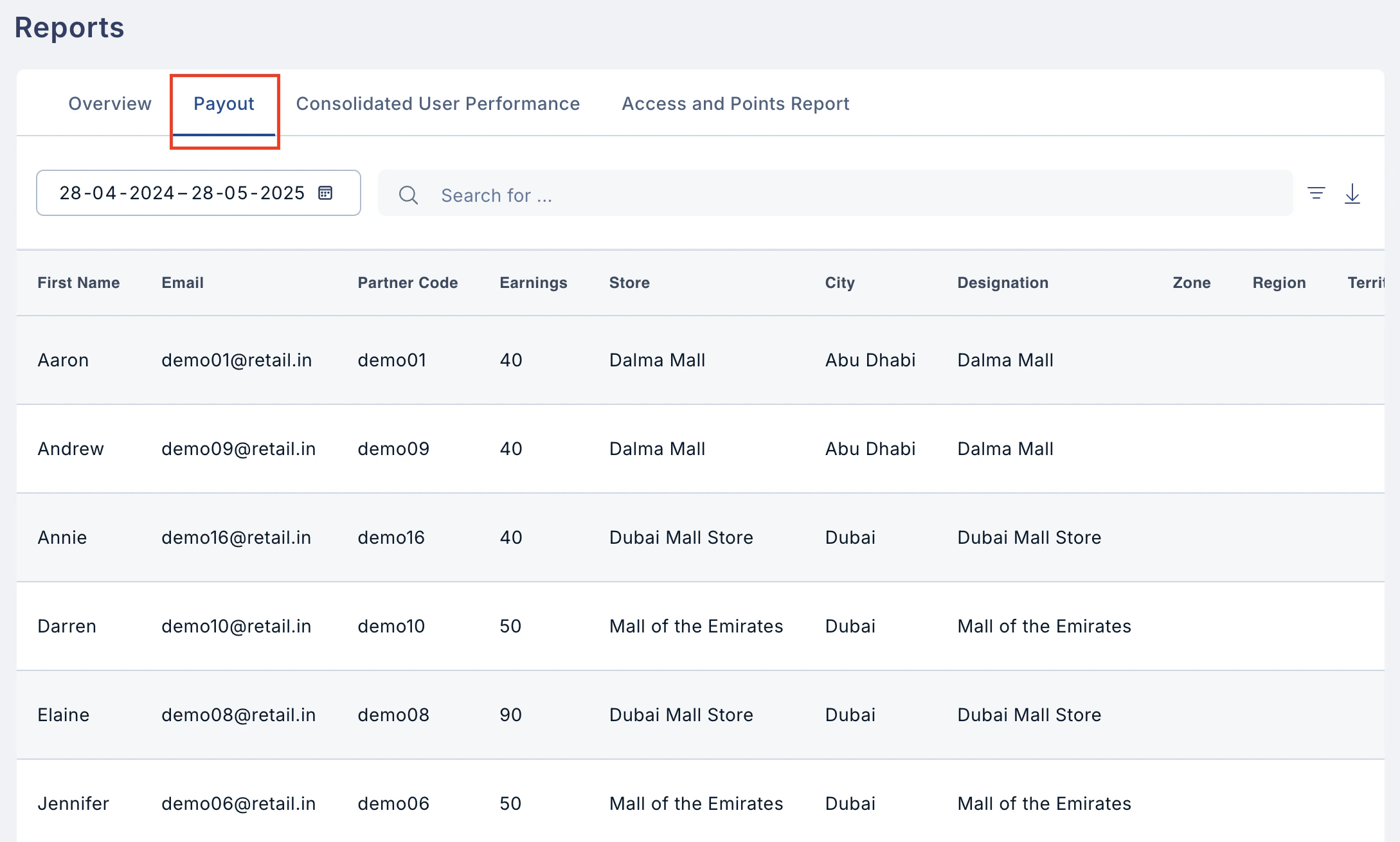
- Select Date Range Click the calendar icon to open the date picker and adjust the date range for the report.
- Download Report Click the download icon to export the report in your preferred format.
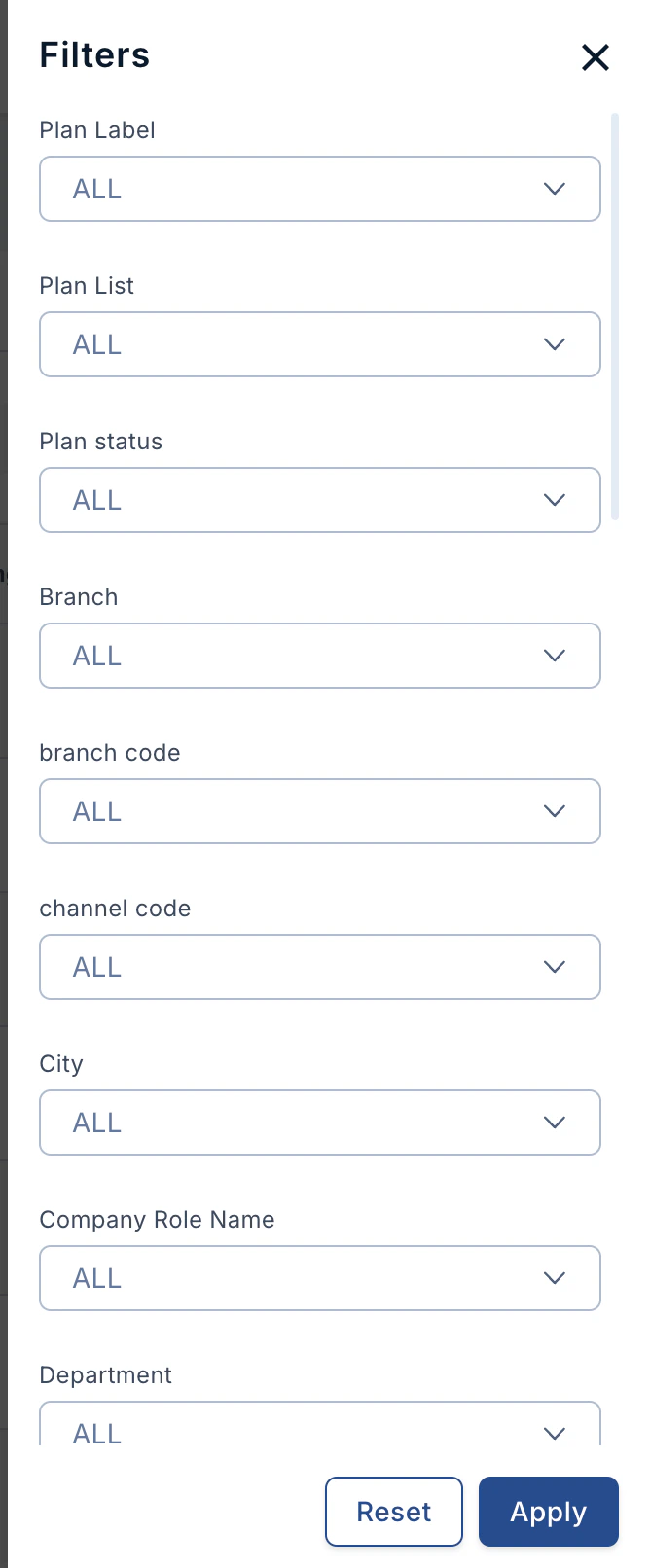
- Filter the Report Use the filter icon to apply filters based on the available parameters
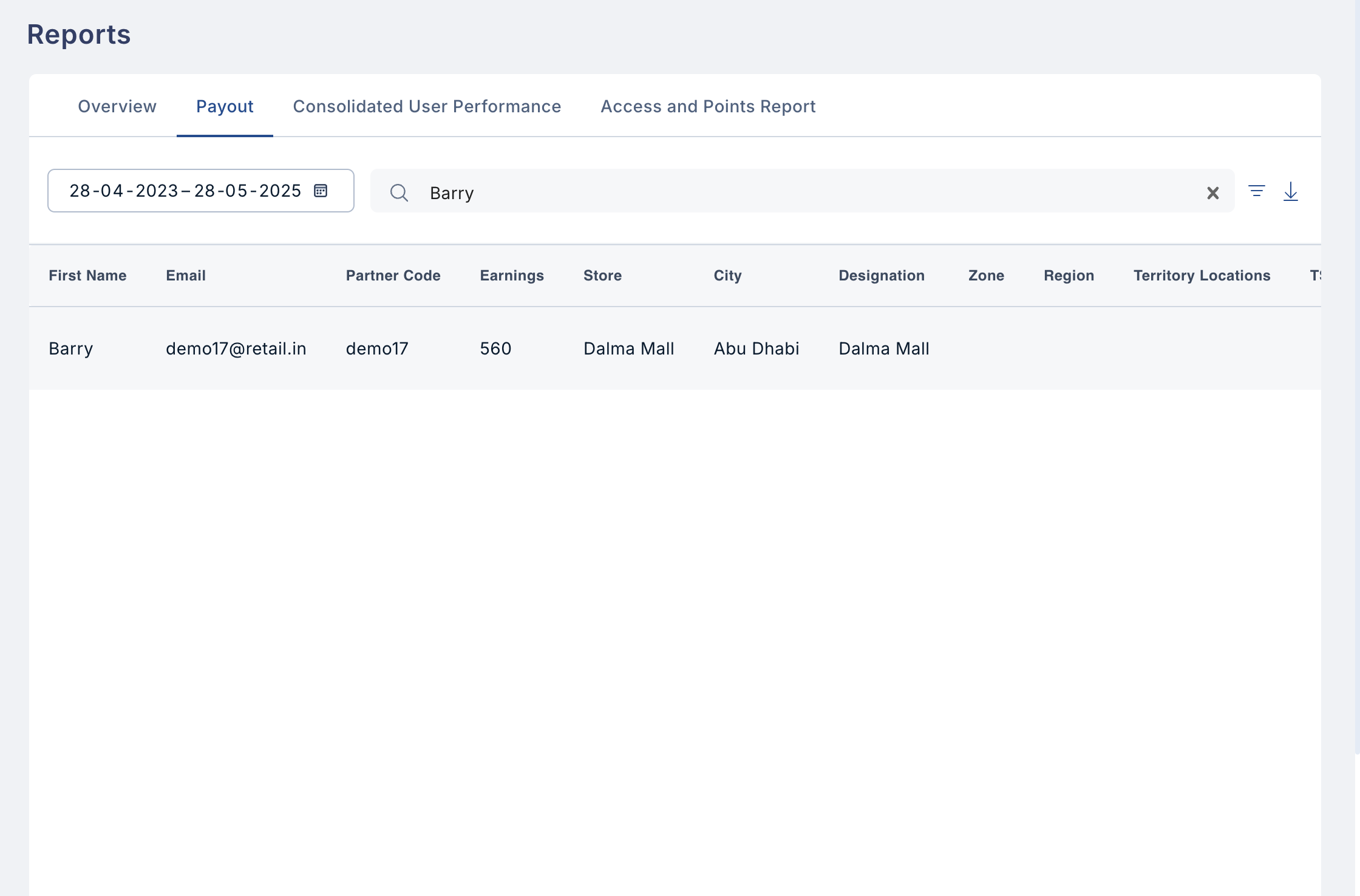
- Search for a User Enter a user’s name or ID in the search box to view their specific payout report.
Accessing the ASC 606 Report
Overview
The ASC 606 report provides a standardized framework for recognizing revenue in compliance with the Accounting Standards Codification (ASC) 606 issued by the FASB and IASB. This ensures revenue is recorded only when control of goods or services is transferred to the customer, improving transparency, consistency, and adherence to accounting guidelines.Steps to Access the Report
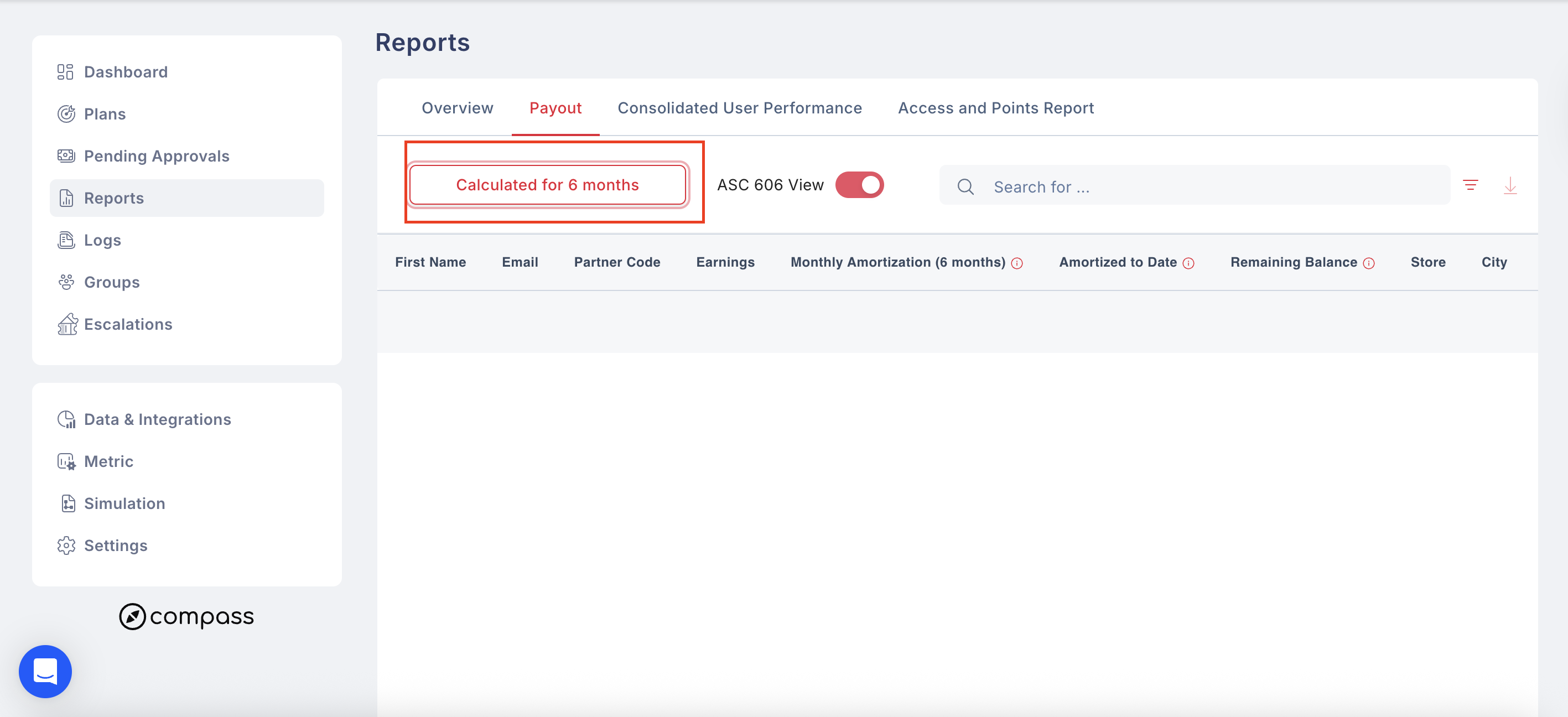
- Navigate to the top menu and click on: Reports → Payout and toggle on for ASC 6060 View
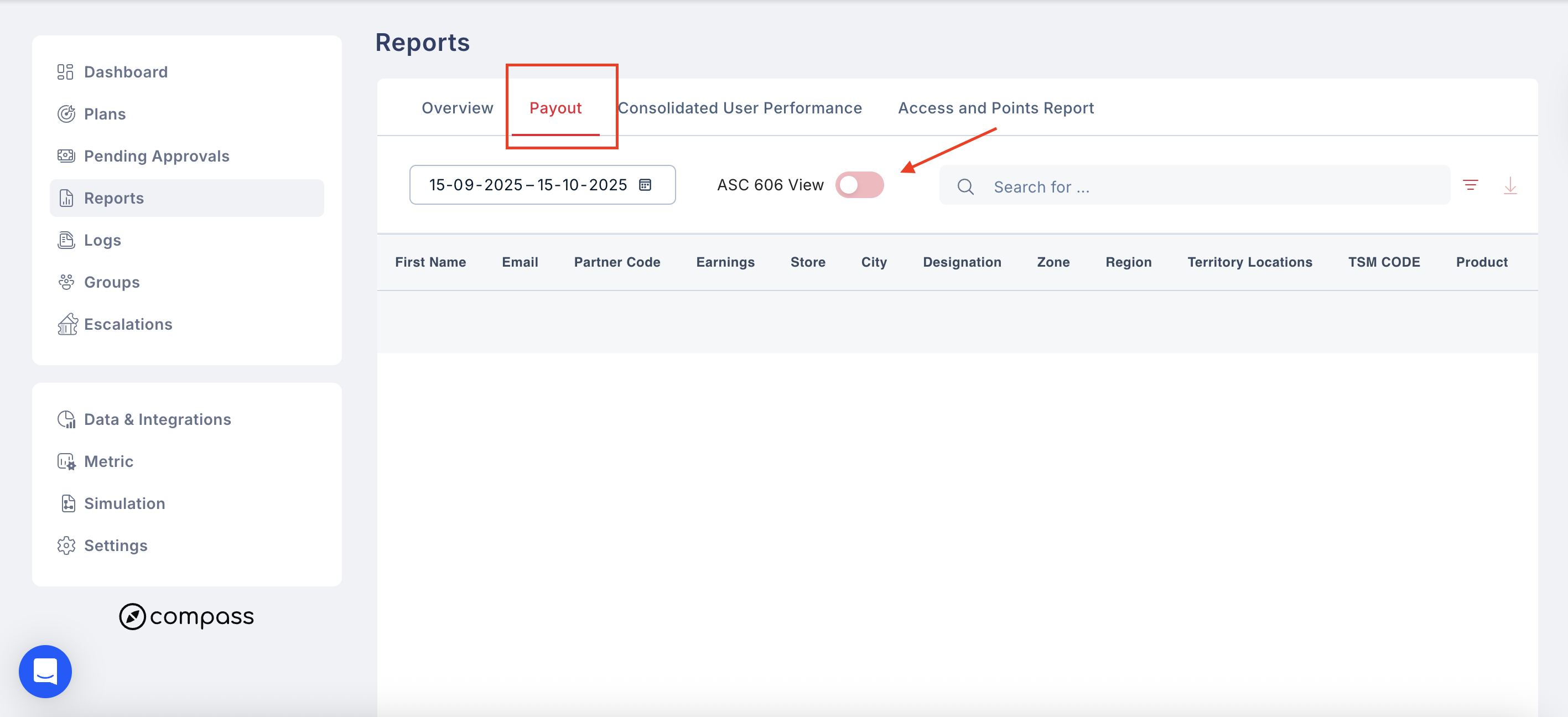
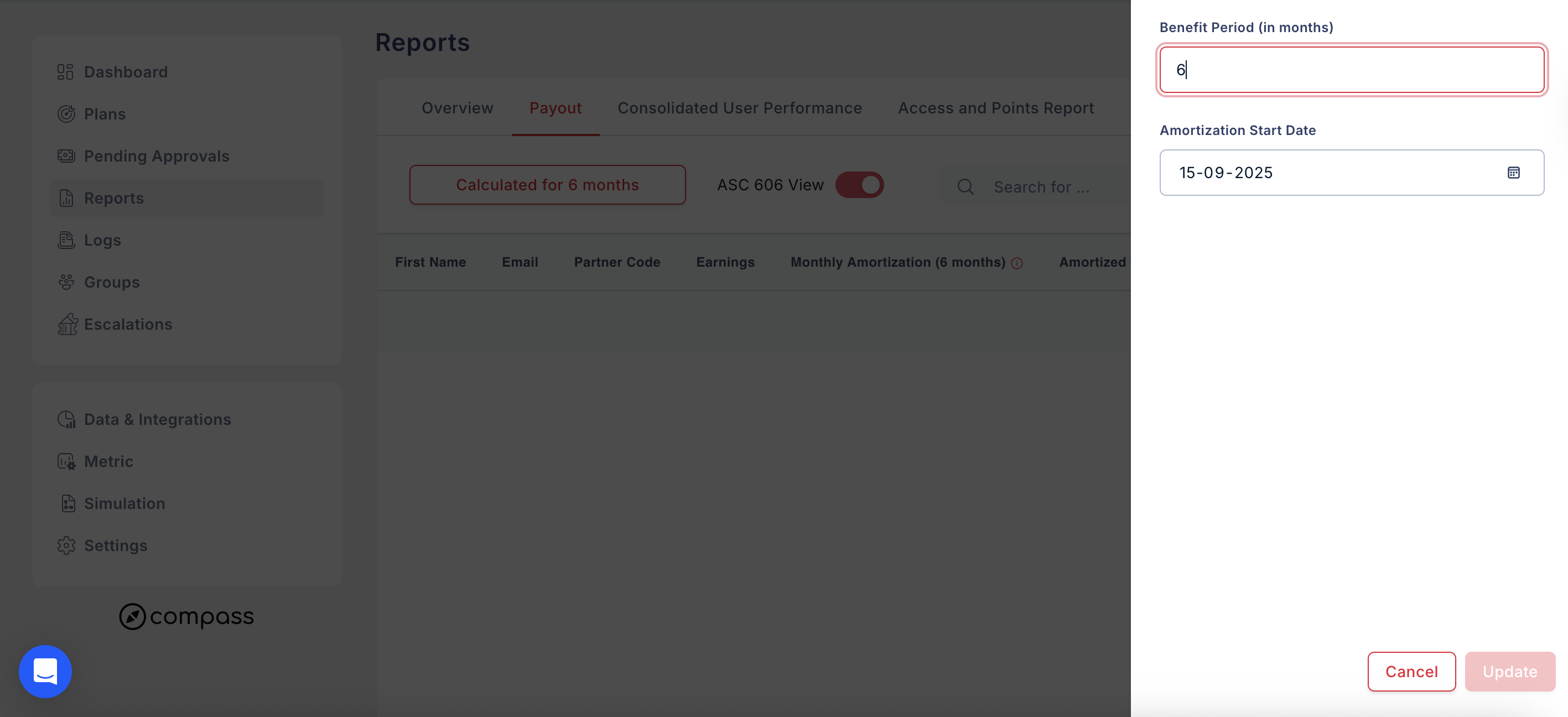
- The ASC 606 report page will open, displaying the revenue recognition data. You can adjust the Amortization period and starting date. Once done, click on “Update”.
Downloading the Report
- On the ASC 606 report page, locate the Download button.
- Click to save the report in your preferred format (e.g., CSV, Excel, PDF).
- Use this report for auditing, accounting, and financial reconciliation purposes.
3. Consolidated User Performance Report
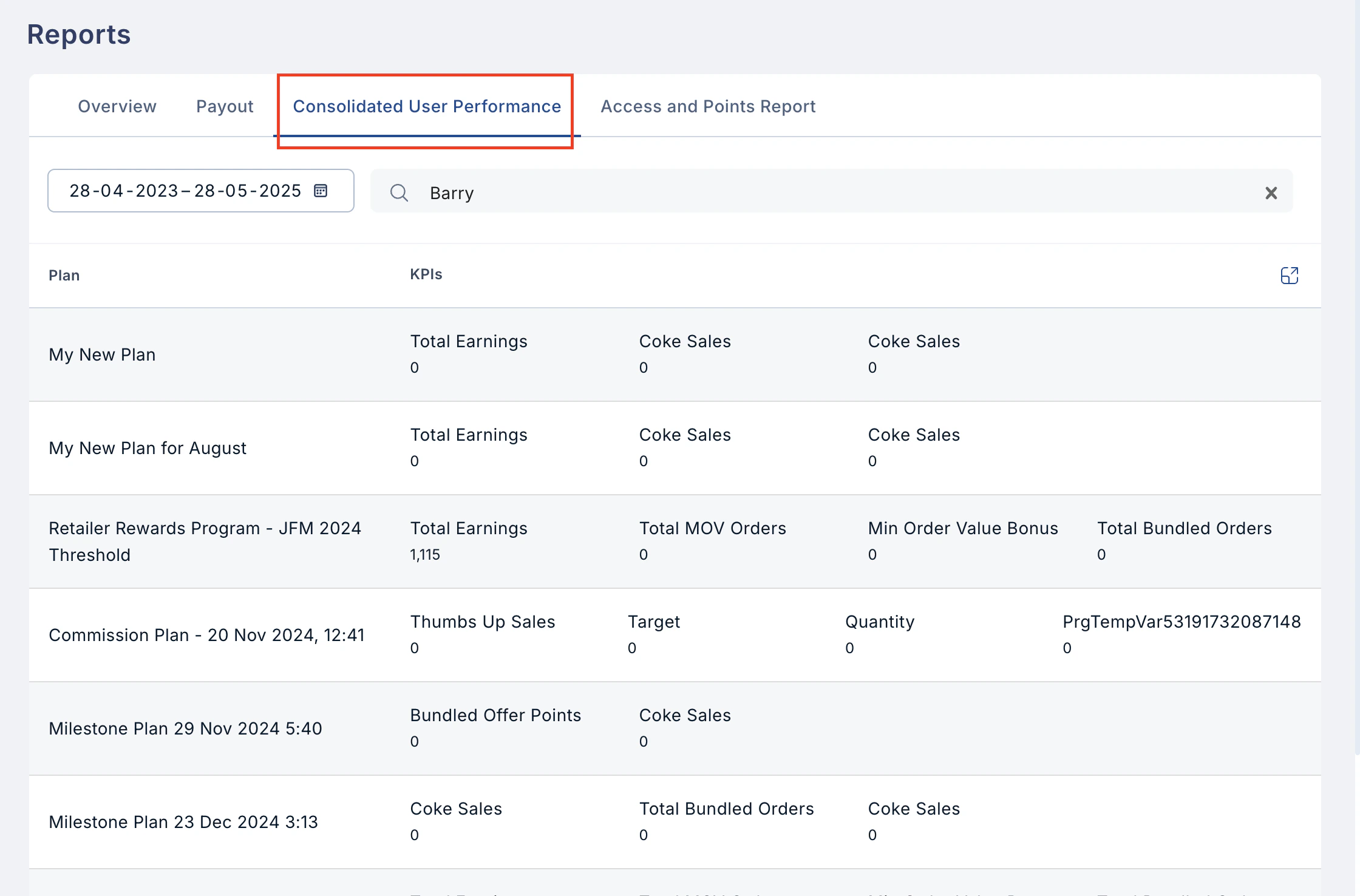
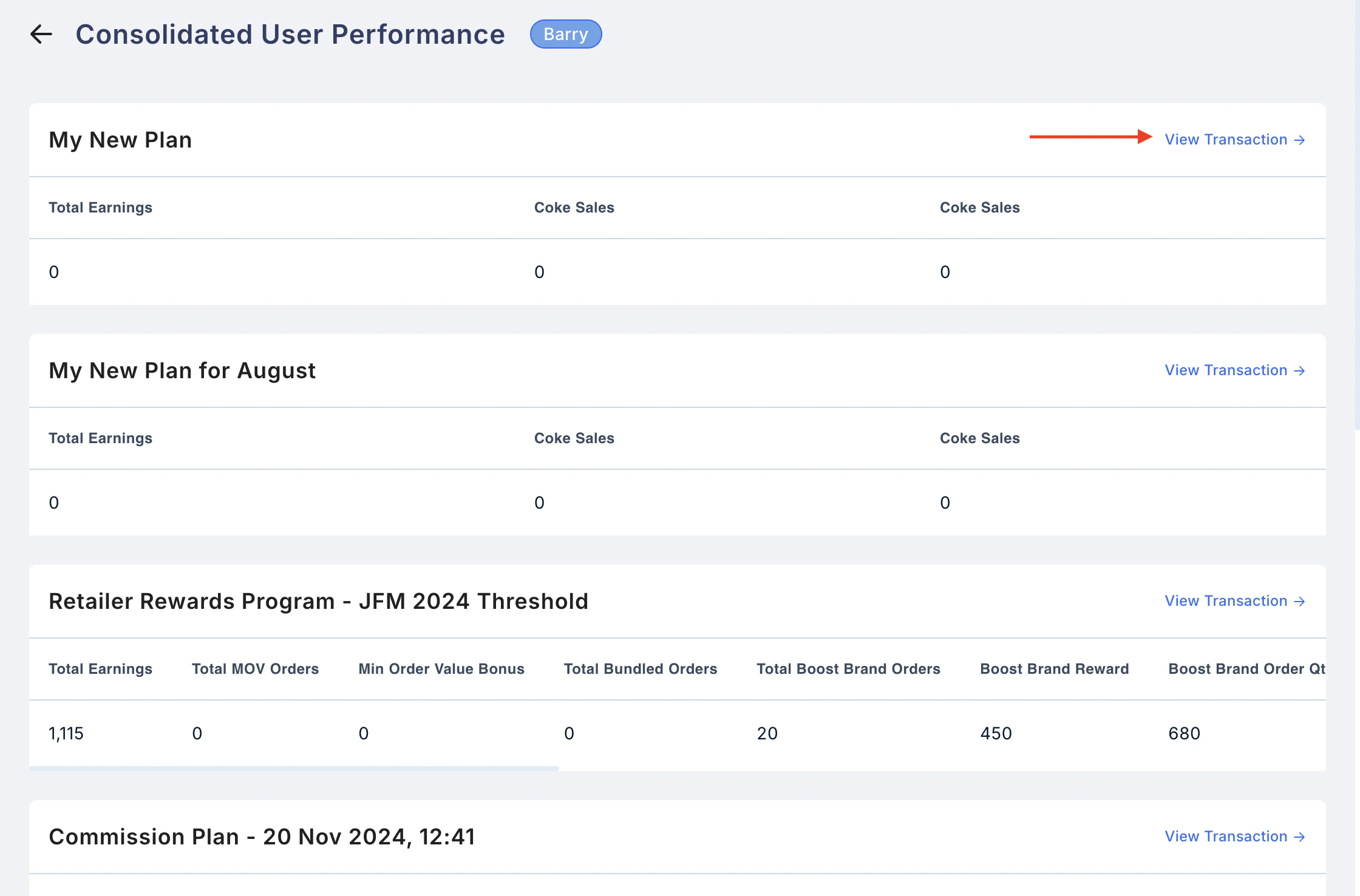
The Consolidated User Performance Report allows admins to track a user’s overall performance across all the plans they are part of. This report provides a comprehensive view of user plans and KPI’s, helping admins assess performance effectively. Here the admins need to type in the email id or select a username from the drop-down menu. Please note: The parameters in the report are admin customizable.- Navigate to: Go to Reports > Consolidated User Performance.
- Select the User: Enter the user’s name in the search box or select the user from the dropdown menu.
- Expand Plan Details: Click the expand icon to view all plans and associated transactions for the selected user.
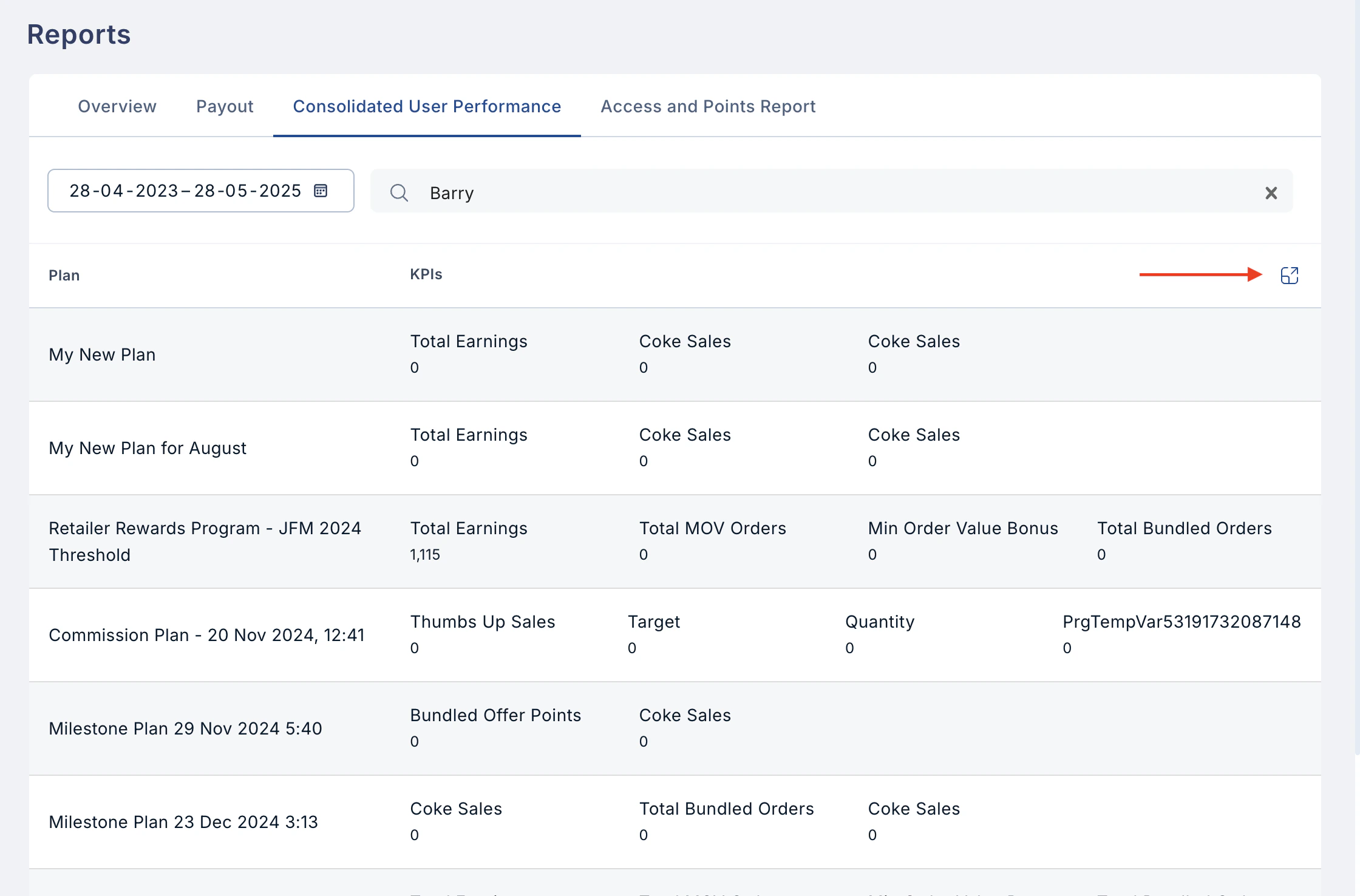
- View Transactions: Click on “View Transaction” to see a detailed list of all transactions under a specific plan for that user.
4. Access and Points Report
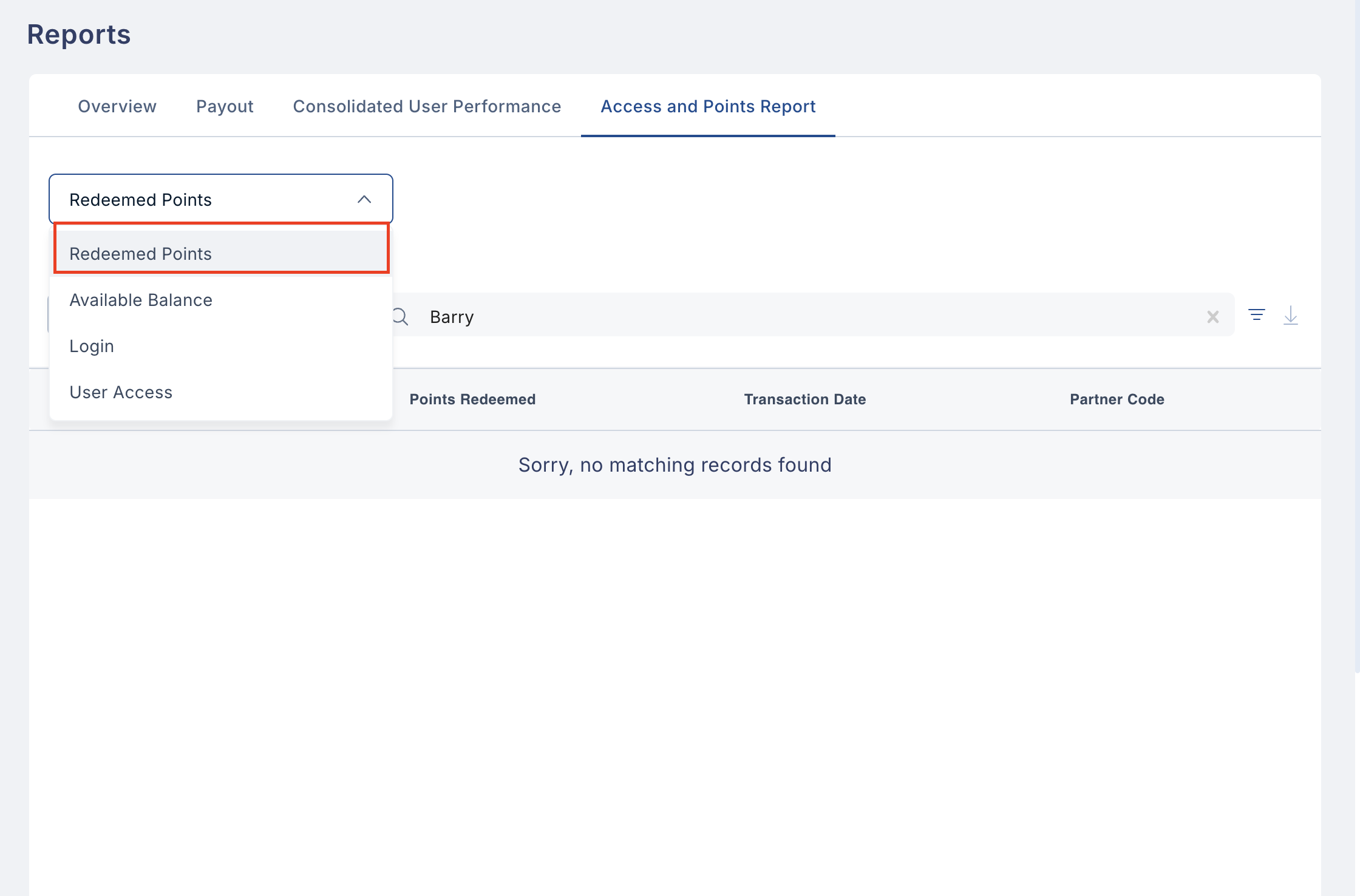
A consolidated report showing redeemed points, available balance, login activity, and user access. Go to Reports > Access and Points Report and use the dropdown to select the desired report.4.1 Redeemed Points
This report contains the redemption history of all end users in one place. It can be accessed by clicking on Reports and selecting Redeemed Points from the dropdown menu. This report captures the following parameters:- Name of the user
- Email ID of the user
- Points Redeemed
- Transaction Date
- Partner Code
4.2 Available Balance
This report captures all users’ current wallet (incentive) balances. It can be accessed by clicking on Reports and selecting Available Balance from the drop-down menu. The six parameters being captured in this report are:- Employee Name
- Email ID of the employee
- Partner Code of the employee
- Total Award Points - points earned from all campaigns till date
- Total Redeemed Points - points redeemed till date
- Available Balance - points left/available for redemption further
- This report can also be downloaded in CSV format using the download button at the top right of the page.
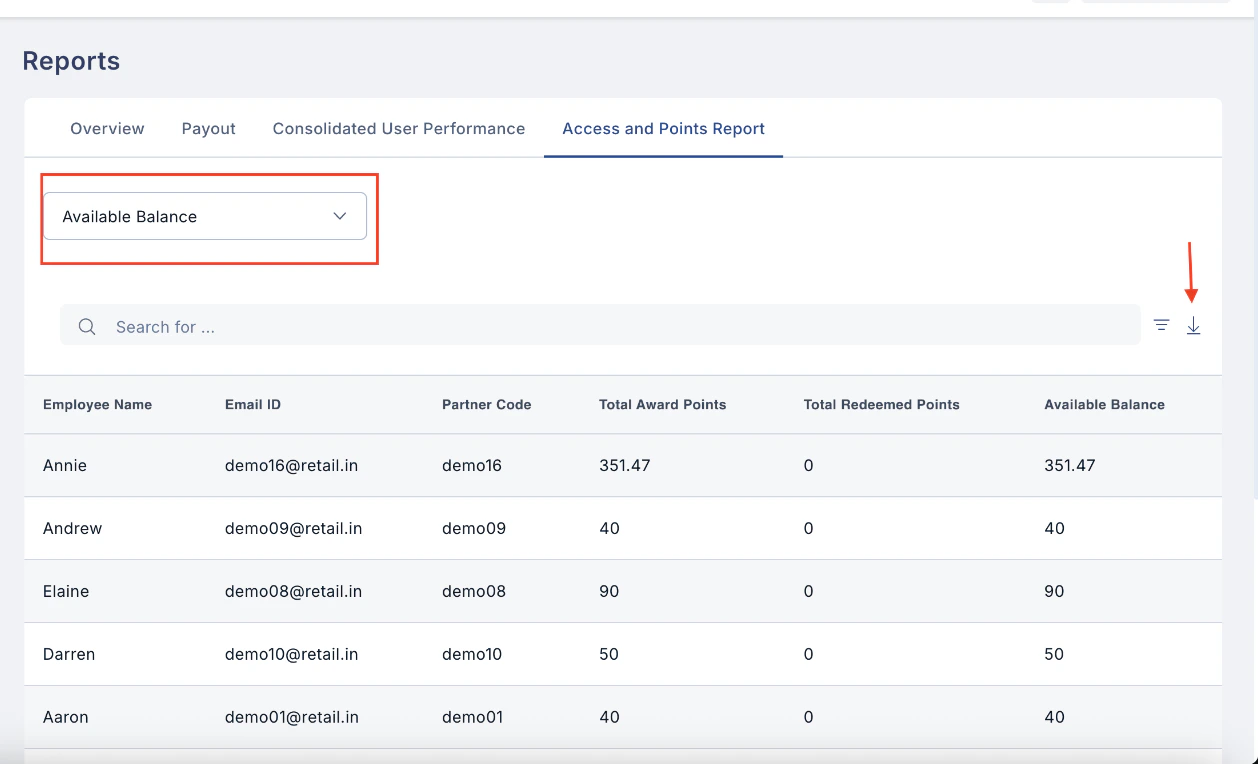
- Other options include search functionality (Magnifying glass icon below Download) and filter beside search, which allows you to search for a particular record using a known value in the parameters captured or get a filtered view of the login records.
- The pagination options at the bottom right allow you to set the number of records displayed and the page index.
4.3 Login Report
This report captures login and logout information for all end users. It can be accessed by clicking on Reports and selecting Login Report from the tabs. The four parameters being captured in this report are:- Employee Name
- Login Time (YYYY-MM-DD HH:MM AM/PM format)
- Logout Time (YYYY-MM-DD HH:MM AM/PM format)
- Partner Code
- This report can also be downloaded in CSV format using the Download button at the top right of the page. You can also search for records in a particular date range by selecting them from the top left of the page.
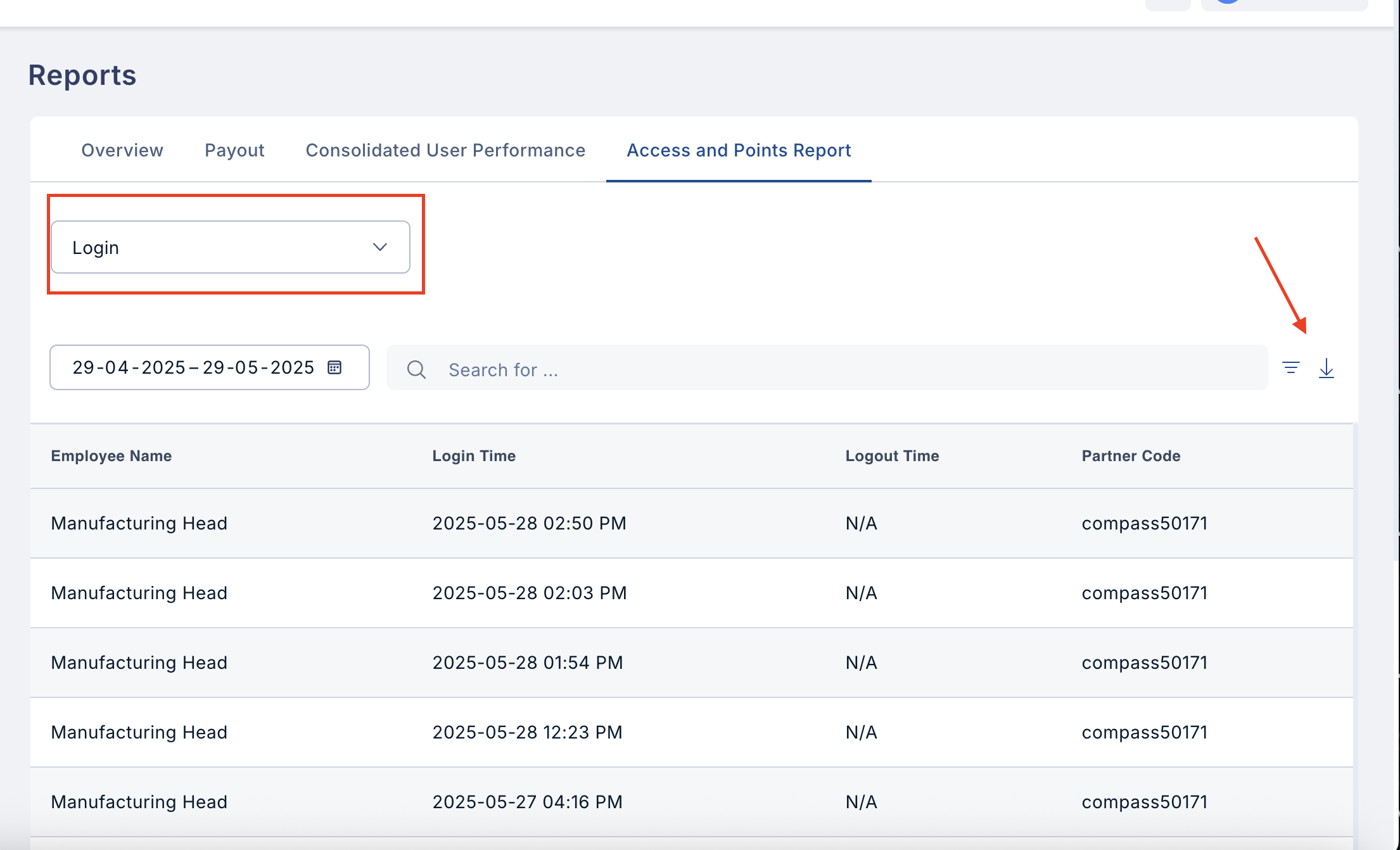
- Other options include search functionality (Magnifying glass icon below Download) and filter beside search, which allows you to search for a particular record using a known value in the parameters captured or get a filtered view of the login records.
4.4 User Access Report
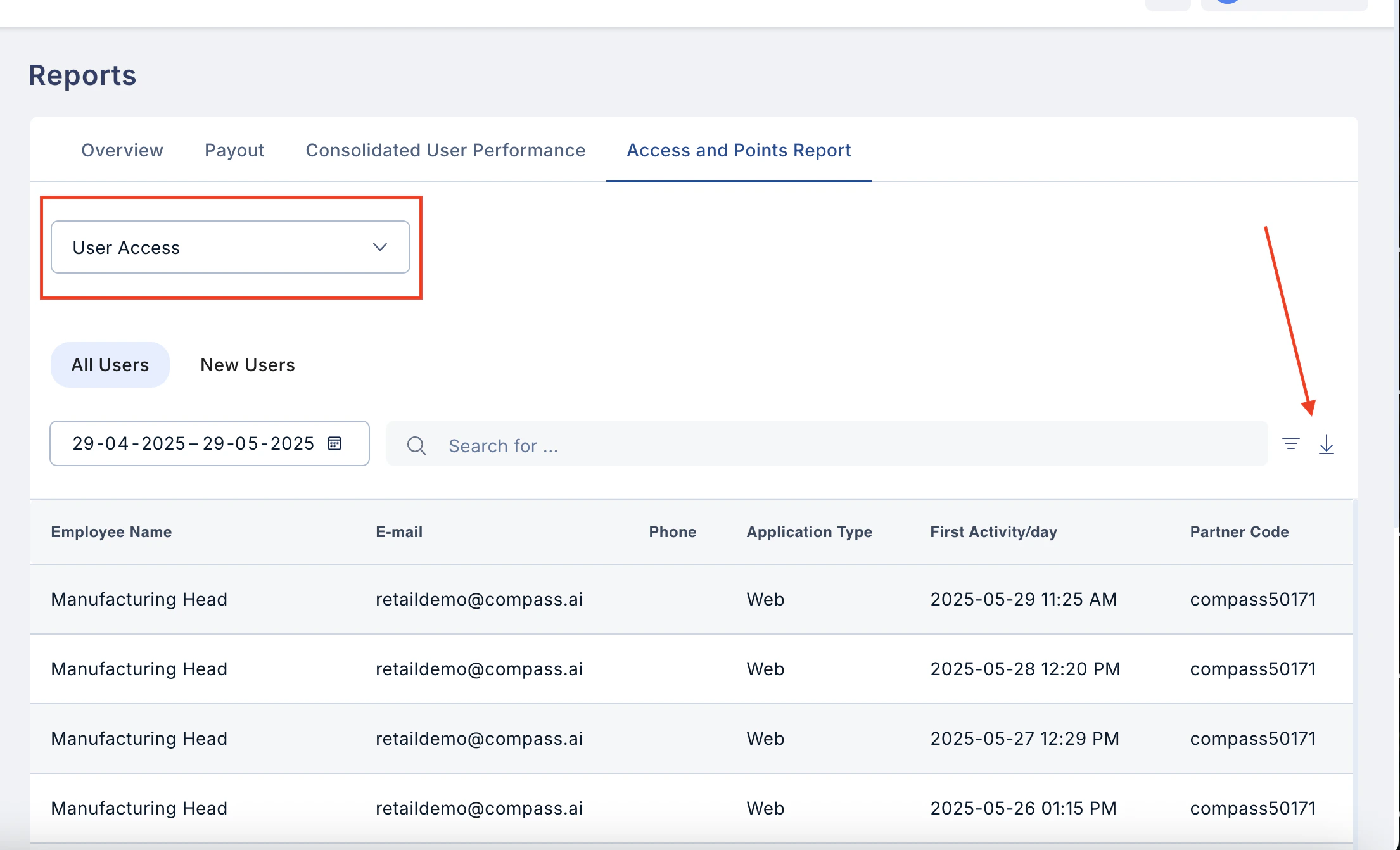
The User Access Report captures employee/user activity by tracking the timing, day, and application type accessed. It provides insights into user engagement, security, and system usage patterns, helping organizations monitor access and ensure compliance.- Download the report by clicking on the download button on the right.
- You can search for a particular user by typing their email in the search box or selecting them using a drop-down menu.
- Use the filter icon to filter the data using the parameters.
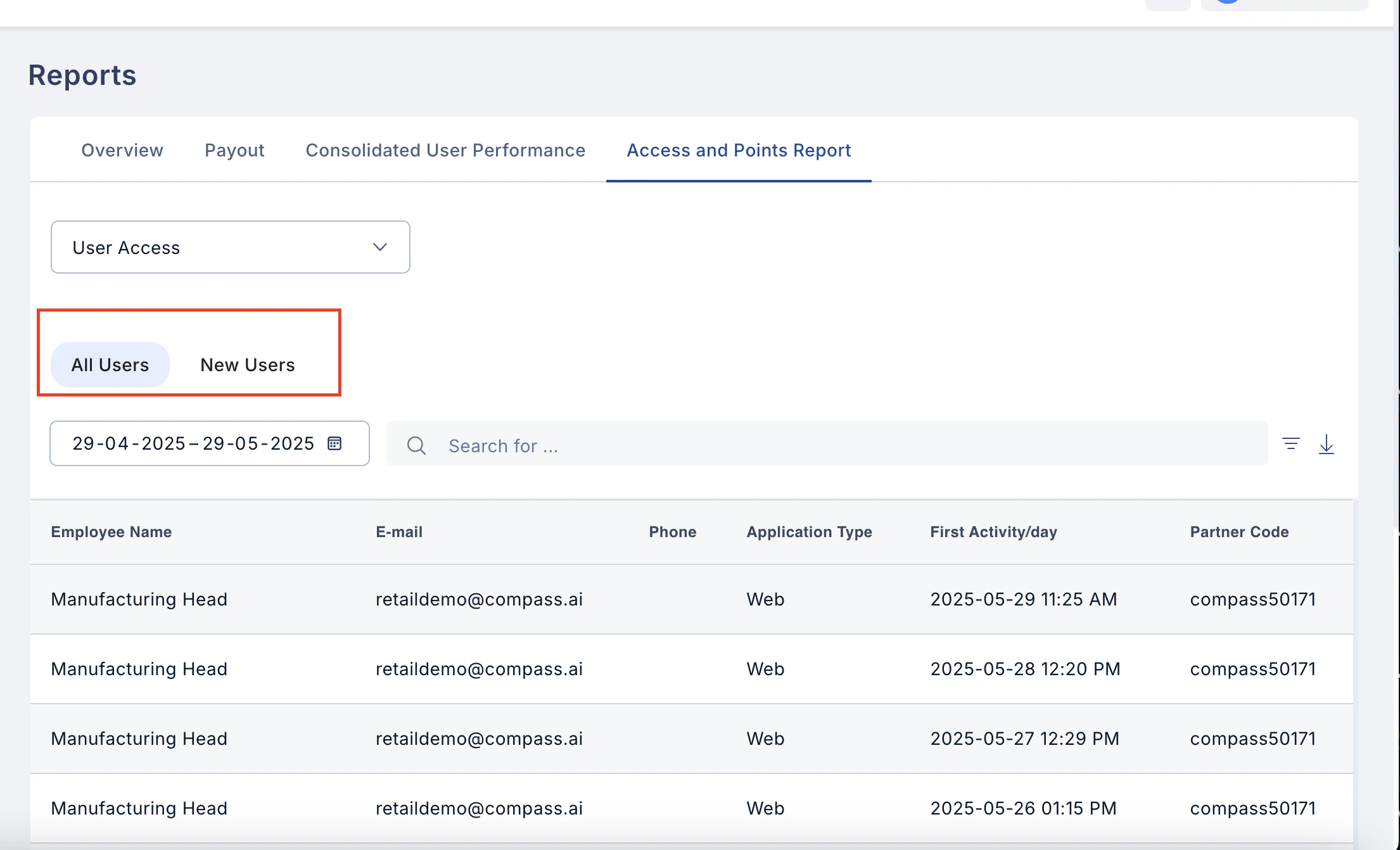
- You can see data for all users or new users by clicking on the required tab.
Conversation
This report captures all the communication activities in various custom groups and the town hall section. It can be accessed by clicking on Reports and selecting Conversation from the dropdown menu. The six parameters being captured here from a reporting perspective are:- Group Name
- Nature of message (post, broadcast, comment, etc)
- Created By
- Created On
- Tagged Members
- Partner Code
KPI Cards in Performance Dashboards
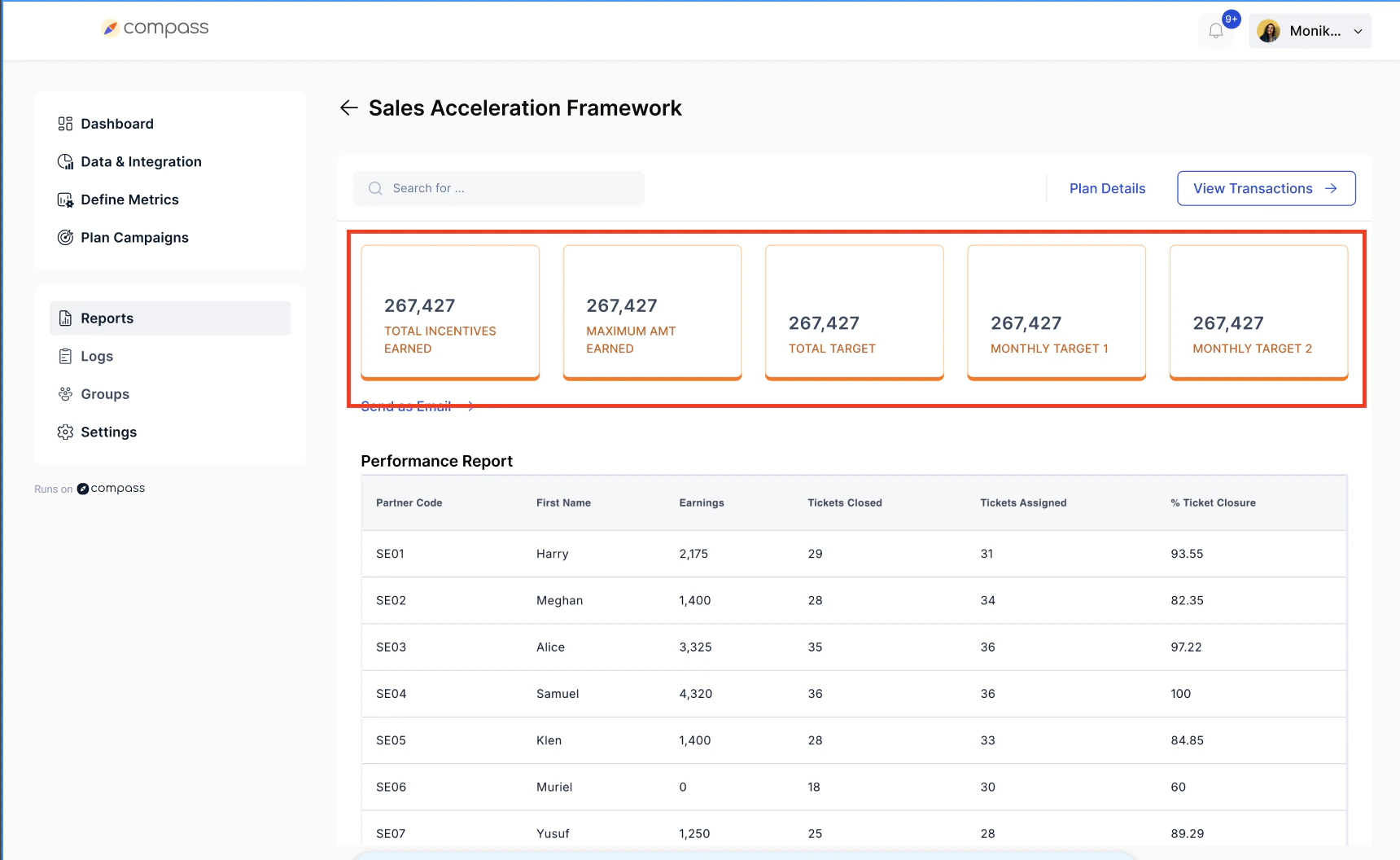
KPI Cards give you a quick and clear view of key performance metrics directly on the performance dashboard. They help admins and managers track progress, identify trends, and take faster decisions without having to go deep into reports. KPI stands for Key Performance Indicator — these are the numbers or metrics that matter most for your plan’s success.What You Can See on KPI Cards
- Live performance metrics like total sales, points earned, payout value, active users, etc.
- Real-time updates based on plan activity.
- Comparisons between current performance and set targets.
- Quick insights into how the team or individual is performing.
How to Access KPI Cards
- Log in to the platform.
- Go to Reports
- KPI Cards are displayed at the top of the dashboard for quick reference.
Need help? Reach out to your support team or Contact Support.