
Adding a data source
- Click Add Datasource in the top right corner.
- The Add Datasources page will open showing two sections:
- Connected — data sources already linked to your account (e.g. CSV Upload, Webhook, Derived). Click the + icon on any connected source to add another instance of it.
- Add a New Datasource — available integrations including Close.io, Google Sheet, Hubspot, LeadSquared, Salesforce, Zoho Books, and Zoho CRM.
- Click on the data source you want to connect and follow the prompts specific to that integration.
- Required data is in the first tab of the Google Sheet — all other tabs will be ignored
- Row 1 contains field headers
- The sheet has no blank rows or columns
Viewing an existing data source
Click the three-dot menu next to any data source in the list and select View details to open a detailed view of that source. Inside a data source (for example, a CSV source), you will see a list of all Objects — the individual datasets uploaded under that source — along with the number of records and the last updated timestamp. Use the search bar to find a specific object.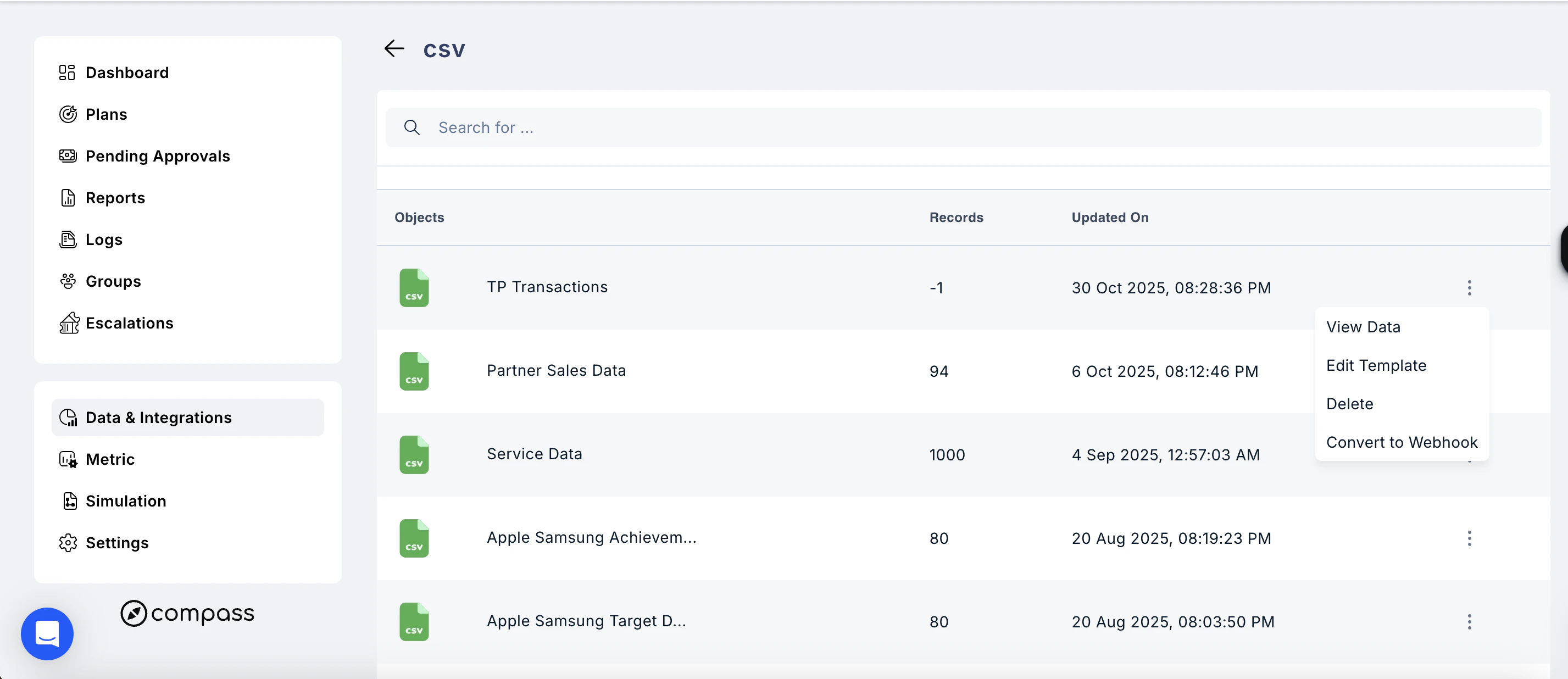
Managing objects within a data source
Click the three-dot menu next to any object to access the following actions:Note: Deleting a data source object is permanent and cannot be undone. Ensure the data is no longer in use before removing it.
Need help? Reach out to your support team or get in touch through Contact Support