
Before you begin
Ensure you have:- An access role with quiz permissions. See Quiz permissions.
- Clear quiz objectives aligned with business goals
- Quiz content prepared (questions, answers, explanations)
- Target audience identified (teams, departments, org-wide)
- Understanding of your organization’s learning goals
Quiz permissions
Empuls controls quiz access with two menu permissions in your access role. Quiz permissions are separate from survey permissions. A role that can create custom or pulse surveys can’t create quizzes unless the role also has permission to create quizzes.
If your role can’t create quizzes:
- Quiz creation, editing, and template pages show a “not found” page.
- Selecting Edit on a quiz in My Surveys & Quizzes shows a message that you don’t have write permission and should contact your administrator.
Why quizzes?
Quizzes are an interactive and effective way to educate employees on essential topics, improve skills, and foster a positive work environment. They build a strong organisation’s culture by enhancing employee engagement and making employees feel valued and motivated. The most effective type of quiz depends on your organisation’s objectives. Examples include questions about company history, values, and mission; quizzes testing knowledge of products and services; and quizzes soliciting employee ideas for workplace enhancements.Engaging quiz ideas
- Company trivia
- Team trivia
- Company terminology
- Business updates
- Training assessments
- Function knowledge
- Corporate buzzwords
- Industry knowledge
- General knowledge
- Current affairs
- Pop culture
- Sports trivia
Building your own quiz
1
Open Browse Templates
Navigate to Surveys > Pulse and eNPS and click on Browse Templates.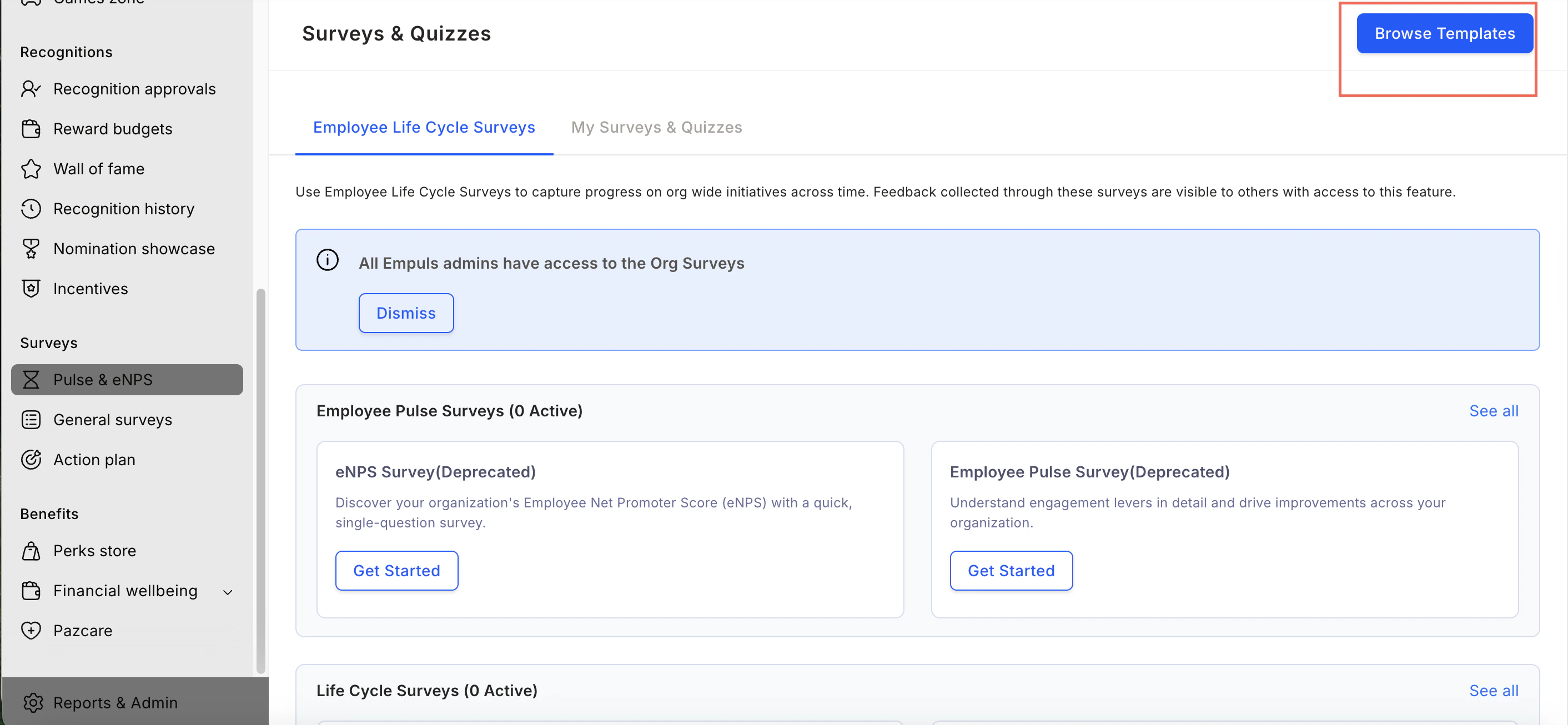
2
Create from scratch or browse templates
You can create a quiz from scratch or browse templates.
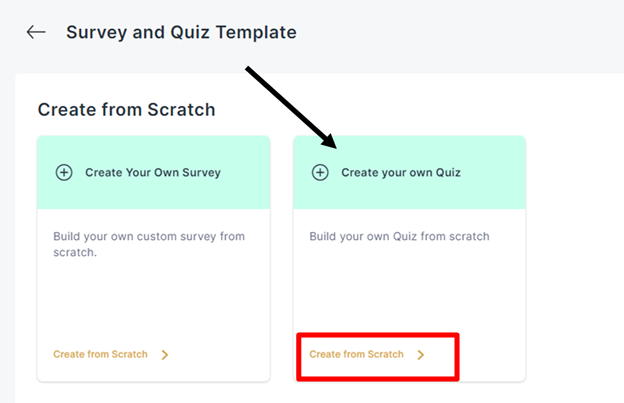
- Create your own quiz: Go to the General Surveys tab, click on Browse Templates, and then under Create from Scratch click on Create your own Quiz.
3
Add a title and description
On the Introduction to the Quiz page, add the Title and Description to help respondents understand the purpose of your quiz. Providing these details is particularly useful when running a quiz on a specific topic such as Information Security Awareness.Click on Continue.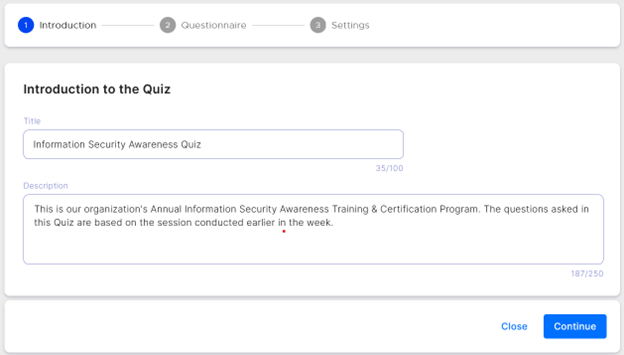
4
Add questions
Add questions to the quiz. Include a brief question description, provide the answer options, and indicate the correct answer. Click on Add at the bottom right of the page.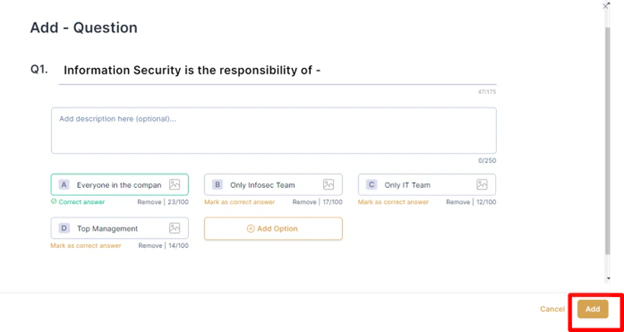
5
Configure quiz settings
After adding the questions, proceed to Quiz Settings. You can choose to display correct answers to the respondents and set a Time Duration for the quiz.Click on Select Respondents to move to the final step.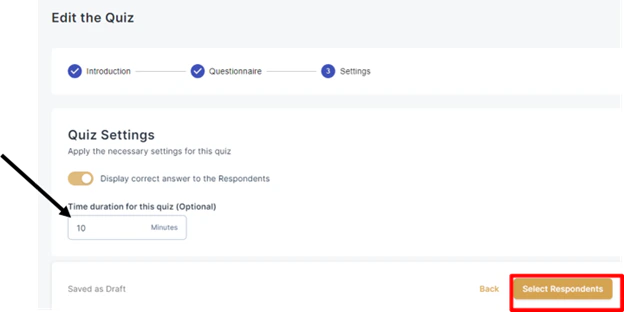
6
Invite respondents
To invite respondents to the quiz, add their name or email address in the invites box.Based on the uploaded user data, you can send the quiz to the entire organisation or to specific departments, business units, grades, or locations. Once you have added the recipients, click on Send Invites and wait for the responses.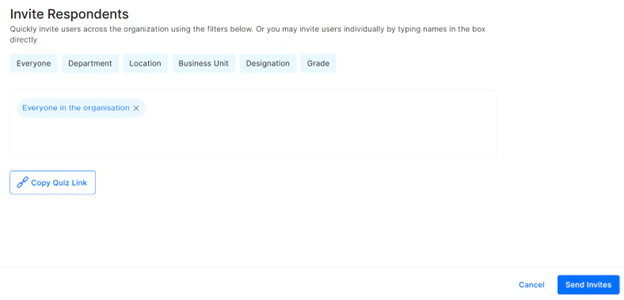
If you want to avoid inviting respondents via email, share a link to the quiz with them. Generate the link by clicking Copy Quiz Link.
Delete or duplicate a quiz
Navigate to Surveys > General Surveys and scroll to the Quizzes card at the bottom. Go to the particular quiz you want to delete or duplicate. You can delete or duplicate a quiz by clicking on the three dots at the top right and then clicking on Delete or Make a Copy. Deleting a quiz will erase all responses collected. We suggest setting the quiz as inactive to hide it from participants by switching the Collecting Responses toggle off. Duplicating a quiz creates a copy with the same configuration and questions.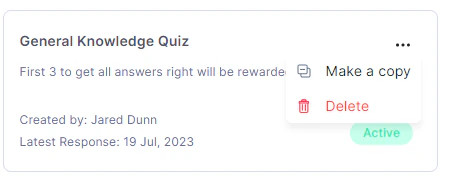
Other options in quizzes
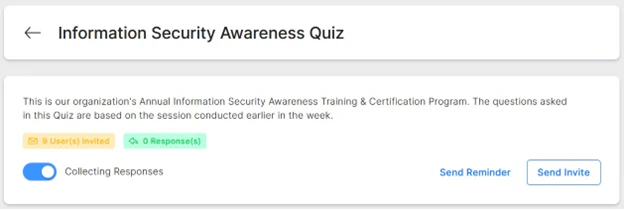
Click on a particular quiz under My Surveys & Quizzes to explore other options.- Send Reminders: Send an email reminder to those who are yet to respond. You can include a custom message to the respondents.
- Send Invites: Click Send Invite to send invites to users initially excluded from the list of survey respondents.
- Collecting Responses: Switching off the toggle will make the quiz Inactive. Respondents will no longer be able to take the quiz.
https://{tenant_url}/home/surveys/my
FAQs
How do I create a quiz in Empuls?
How do I create a quiz in Empuls?
Navigate to Surveys > Pulse and eNPS > Browse Templates. Under the General Surveys tab, go to Create from Scratch and select Create your own Quiz. Add a title, description, questions, and answer options, then configure settings and send invites.
What types of questions can I add to a quiz?
What types of questions can I add to a quiz?
You can add multiple-choice questions with defined correct answers. Each question can include a brief description to give respondents context.
Can I show respondents the correct answers after they complete the quiz?
Can I show respondents the correct answers after they complete the quiz?
Yes. In Quiz Settings, you can choose to display the correct answers to respondents once they have submitted their responses.
Can I set a time limit for a quiz?
Can I set a time limit for a quiz?
Yes. In Quiz Settings, you can set a Time Duration for the quiz to control how long respondents have to complete it.
How do I invite respondents to a quiz?
How do I invite respondents to a quiz?
Add respondents by name or email address in the invites box, or filter by department, business unit, grade, or location. Click Send Invites to distribute. You can also share a direct link by clicking Copy Quiz Link.
How do I delete or duplicate a quiz?
How do I delete or duplicate a quiz?
Navigate to Surveys > General Surveys > Quizzes. Click the three dots at the top right of the quiz and select Delete or Make a Copy. Deleting a quiz erases all collected responses — if you want to stop collecting responses without losing data, switch off the Collecting Responses toggle instead.
Feedback or questions? Write to us through Contact Support.