
Email and OTP (one-time passcode)
Use your work email address to receive a one-time passcode each time you log in. No password to remember.- Go to your organisation’s Empuls URL or visit login.empuls.io/signin.
- Enter your work email address and select the OTP option.
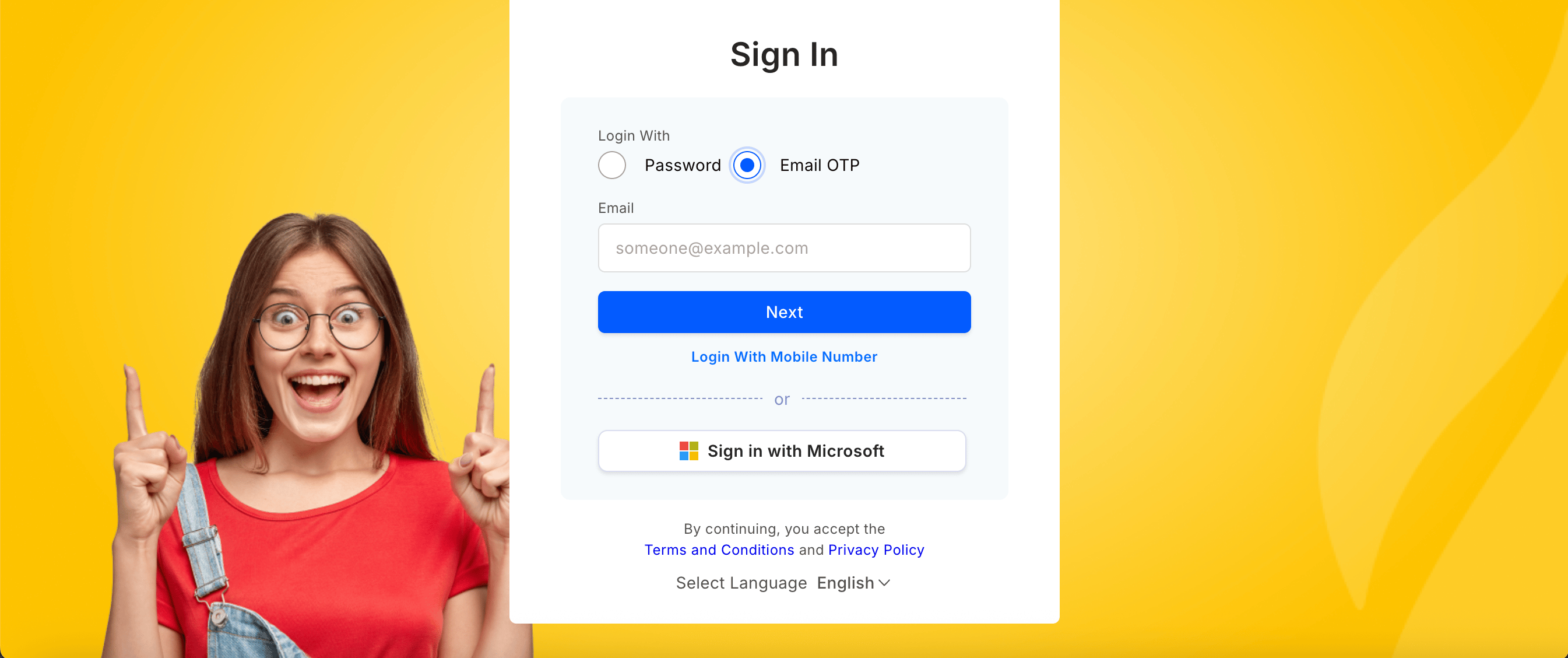
- Empuls sends a six-digit code to your inbox. The code expires after a few minutes.
- Enter the code on the login screen. You are logged in immediately.
Email and password
Sign in with your Empuls email address and the password you set when you first activated your account.- Go to your organisation’s Empuls URL or visit login.empuls.io/signin.
- Enter your work email address and select the Password option.
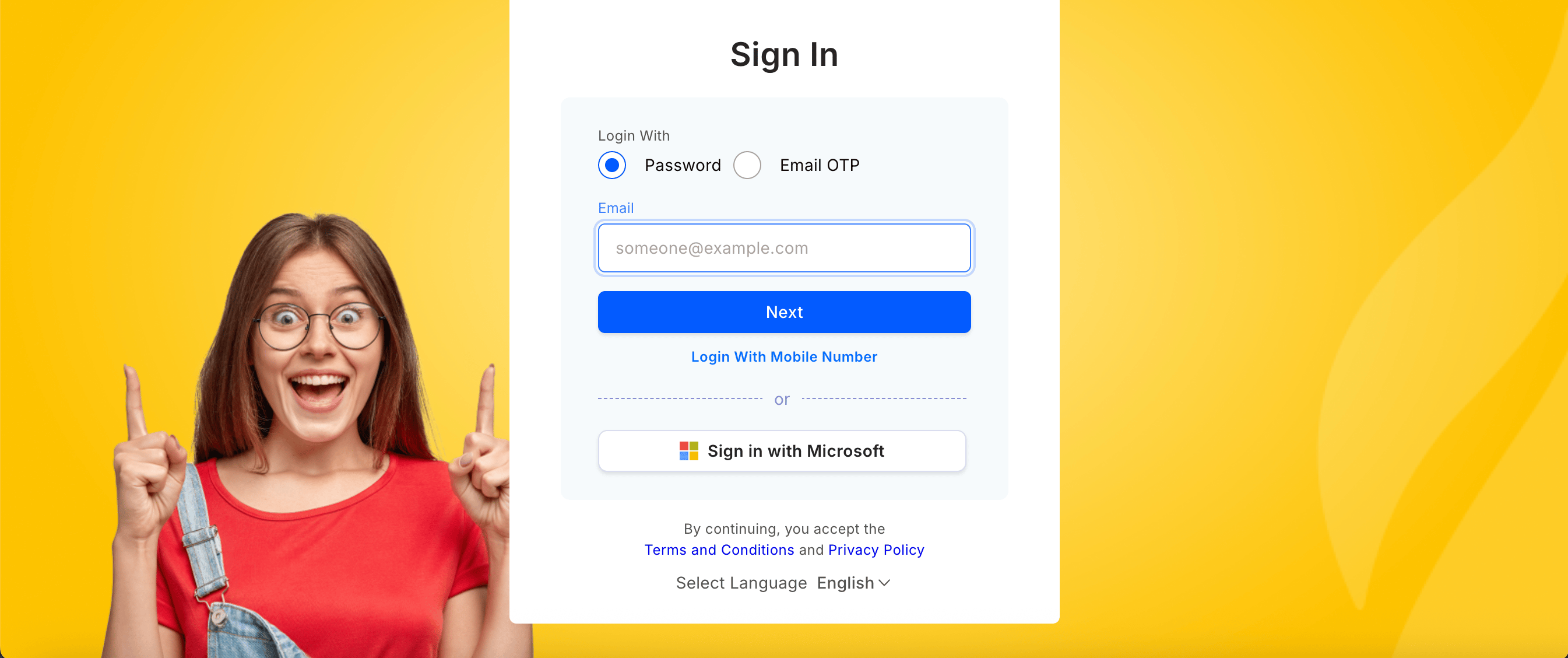
- Enter your password and click Sign in.
Google SSO
Log in with your Google Workspace account if your organisation has enabled Google OAuth.- Go to your organisation’s Empuls URL and click Log in with Google.
- Select the work account associated with your Empuls profile. If you are not already signed into Google, enter your Google credentials.
- On first login, Google may ask you to grant Empuls permission to access your profile. Click Allow.
- You are redirected to Empuls automatically. No separate Empuls password is required.
Microsoft SSO
Log in with your Microsoft 365 account if your organisation has enabled Microsoft OAuth.- Go to your organisation’s Empuls URL and click Log in with Microsoft.
- Enter your Microsoft email and password. If you are already signed into Microsoft 365, you may skip this step.
- You are automatically authenticated and redirected to Empuls.
Slack SSO
Log in with your Slack workspace credentials if your organisation has enabled Slack OAuth.- Go to your organisation’s Empuls URL and click Log in with Slack.
- If you are already signed into Slack, you are redirected back immediately. Otherwise, enter your Slack credentials.
- Empuls verifies your Slack identity and logs you in without a separate password.
Mobile number (OTP via SMS)
Log in using your registered mobile phone number and a one-time SMS code. Designed for deskless workers who may not have a corporate email address.- Go to your organisation’s Empuls URL and select the Mobile number option.
- Enter your country code and the phone number registered to your Empuls account.
- Empuls sends a code to your phone. Enter it on the login screen to complete sign-in.
Mobile number login must be enabled by your administrator. Contact your HR or IT team if this option is not visible.
Custom SSO (SAML 2.0)
If your organisation uses a corporate identity provider such as Azure AD, Okta, or another SAML 2.0-compatible system, log in through your company’s single sign-on portal.- Go to the Empuls URL provided by your administrator.
- Click the SSO option — for example, Log in with [Company Name] — to be redirected to your corporate identity provider.
- Enter the same credentials you use for other corporate applications.
- Complete any multi-factor authentication step required by your identity provider.
- You are automatically redirected back to Empuls.
If SSO is not working, contact your IT department to verify that SSO is properly configured and that your account is provisioned in the identity provider.
Magic link
If your organisation has enabled magic links, you can sign in with a single click — no password or code to type.- Go to the Empuls sign-in page and enter your work email address.
- Click Send magic link. Empuls emails you a sign-in link valid for 15 minutes and usable only once.
- Open the email and click the link. Empuls signs you in automatically.
Magic links expire after 15 minutes. If the link has expired, go back to the sign-in page and request a new one. If the email doesn’t arrive, check your spam folder or click Resend on the sign-in page (30-second cooldown between resends).
Reset your password
- Go to the Empuls login page and click Forgot Password?
- Enter the email address associated with your Empuls account.
- Check your inbox for a password reset link (arrives within a few minutes).
- Click the link and create a new password.
- Return to the login page and sign in with your new password.
Security best practices
- Never share your password with anyone, including administrators.
- Do not reuse your Empuls password for other services.
- Always log out when using a shared or public computer.
- Use Remember this computer only on devices you personally control and trust.
- Report any suspicious login attempts to your administrator immediately.
Troubleshooting
Invalid credentials error
Invalid credentials error
- Double-check your email address for typos and verify caps lock is off.
- Make sure you are using your work email, not a personal email.
- Try resetting your password using the Forgot Password? link.
- If the error persists, contact your administrator — your account may not be fully provisioned yet.
Login page won't load
Login page won't load
- Clear your browser cache and cookies, then try again.
- Try a different browser or an incognito/private window.
- Disable browser extensions that might interfere (ad blockers, privacy tools).
- Check your internet connection.
SSO redirect isn't working
SSO redirect isn't working
- Contact your IT department to verify that SSO is properly configured and your account is provisioned.
- Clear cookies for the Empuls domain and try again.
- Make sure you are using your company username or email, not a personal address.
My account doesn't exist
My account doesn't exist
Wait 24–48 hours after your start date and try again. If the problem persists, contact your HR team to confirm your account has been added to Empuls.
Session keeps timing out
Session keeps timing out
Check Remember this computer during login to stay logged in longer. Always log out when using shared or public computers.
FAQs
Why can't I log in even though my password is correct?
Why can't I log in even though my password is correct?
Check that you are using the correct email address. If you recently changed your email, try the old one. If problems persist, use the password reset feature. If that doesn’t work, contact your administrator.
Does my organisation use SSO?
Does my organisation use SSO?
Check with your IT team or HR department. If SSO is configured, you will see an option for it on the login page. You won’t need a separate Empuls password if SSO is enabled.
Will I be logged out if I close my browser?
Will I be logged out if I close my browser?
Not necessarily. If you checked Remember this computer during login, you will stay logged in. If you didn’t check that option, closing your browser may log you out depending on your settings.
For any queries, please reach out through Contact Support.