

The Empuls social intranet is the central hub for company communication — a place where employees post updates, celebrate milestones, share wins, and engage with colleagues across teams and locations. Open the feed in your tenant atDocumentation Index
Fetch the complete documentation index at: https://empuls.mintlify.app/llms.txt
Use this file to discover all available pages before exploring further.
https://<your-empuls-url>/home/dashboard. This guide covers every core feature, from your employee directory and profile to announcement spotlights, polls, and feed personalization.
You need a Super Admin or Social Intranet Admin role to configure platform-wide settings. All active employees can post, react, and personalize their feed.
People directory
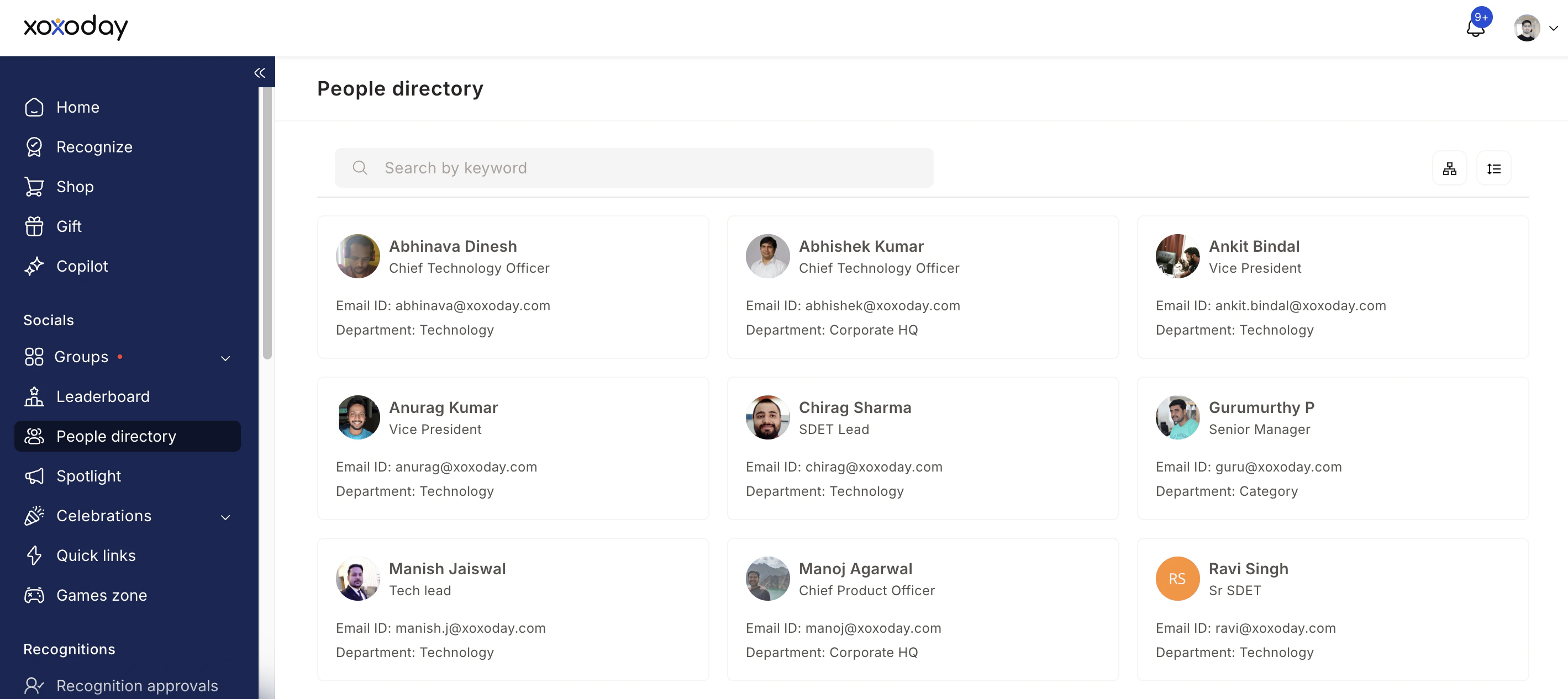
- Look up a colleague’s contact and team details
- Search for peers across departments
- View the org chart and reporting hierarchy
Creating posts
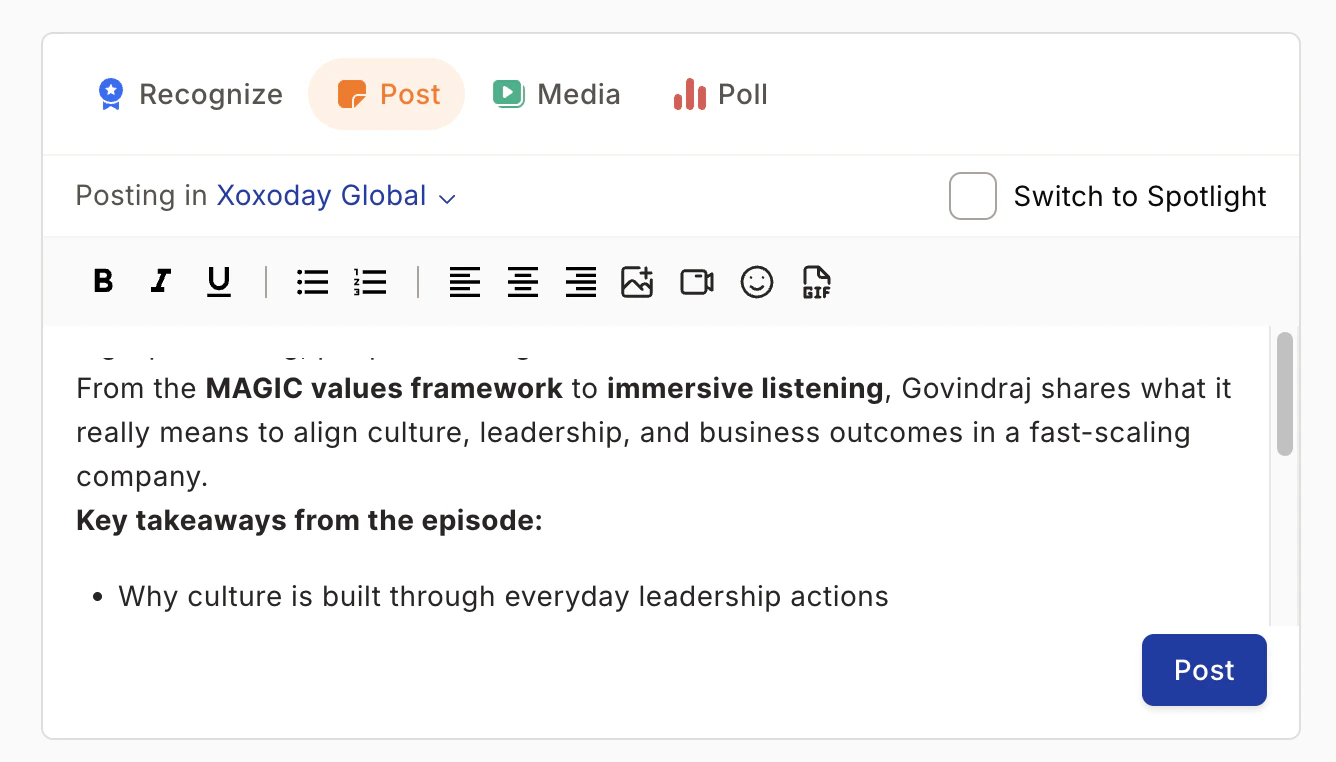
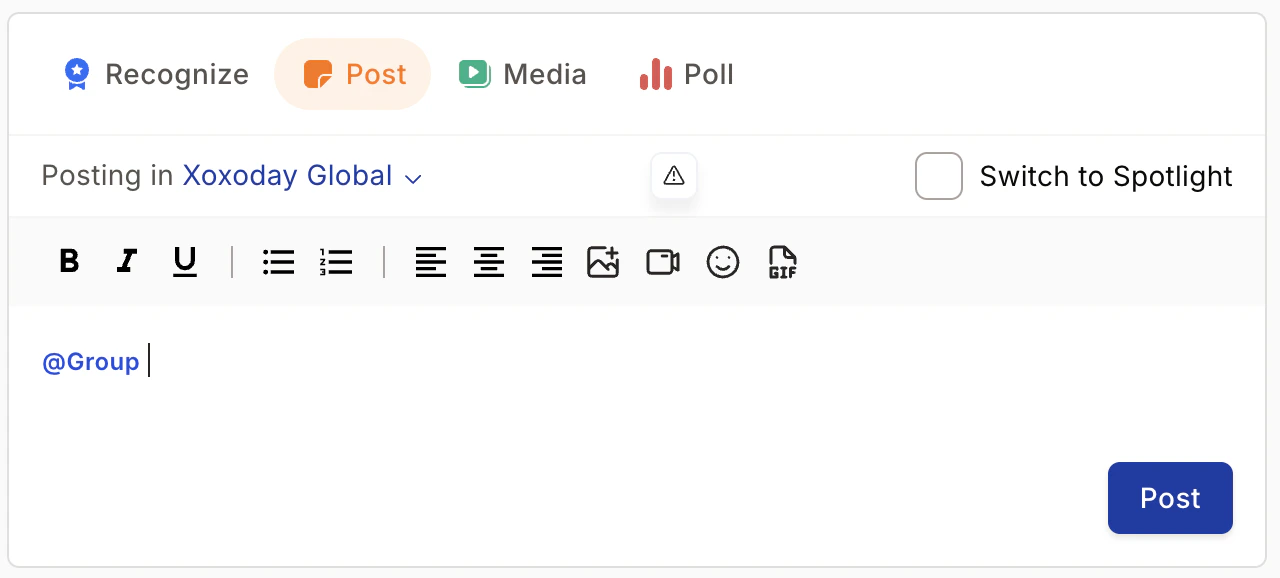
Posts are the primary way to share information on the social feed. Navigate to Home, select the group where you want to post, click Post, type your message, and share.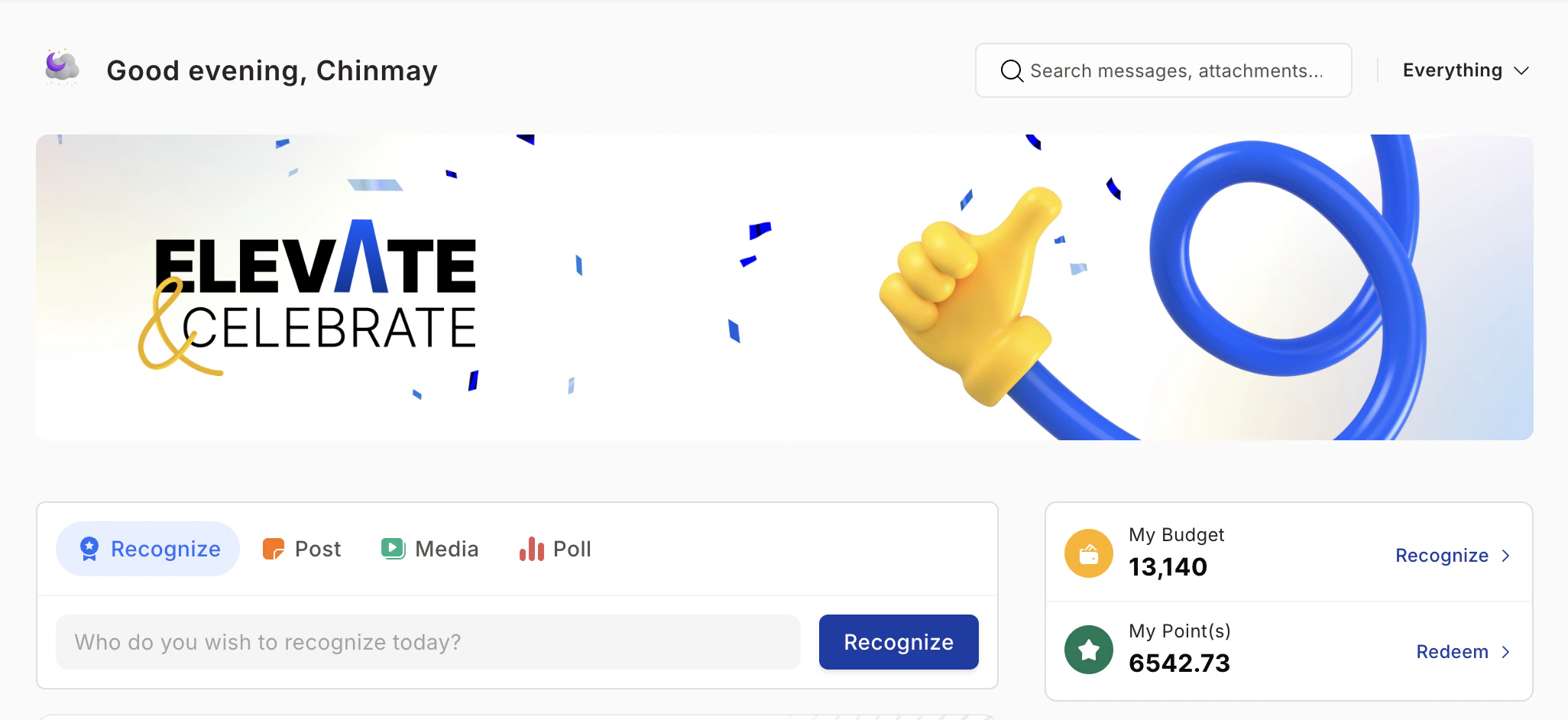
- Images — product screenshots, event photos, team wins
- Videos — product demos, testimonials, key achievements (up to 500 MB per file)
- Polls — collect crowdsourced opinions (see below)
- GIFs and emojis — add personality to your posts
Editing and deleting posts
Click the three-dot icon (⋮) at the top-right of any post, then select Edit or Delete.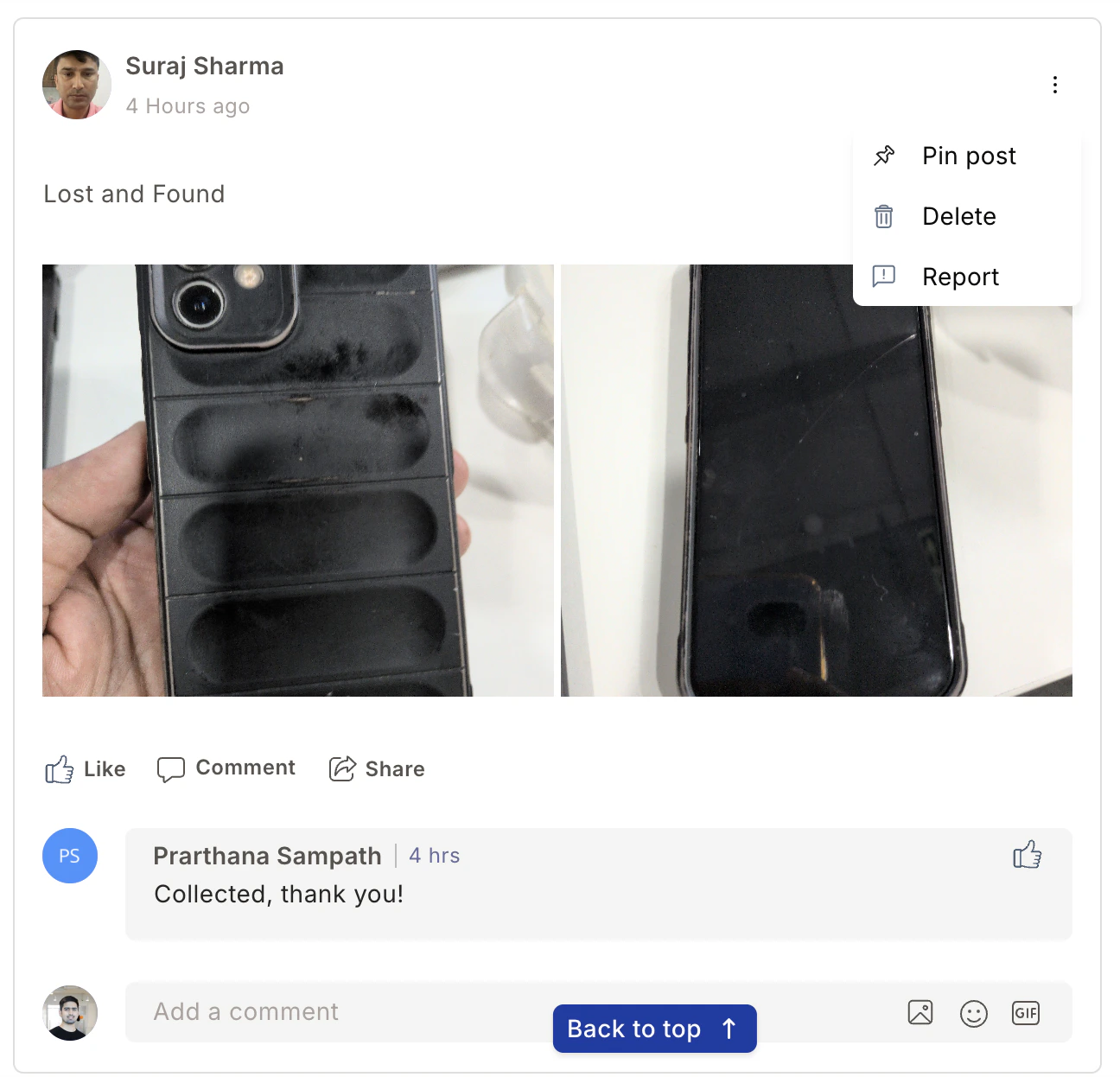
Pinning a post
Admins can pin any post to keep it at the top of the newsfeed for maximum visibility. Use the three-dot menu on the post and select Pin.Announcement spotlight
The Announcement Spotlight lets admins surface critical messages so they don’t get buried in the feed. Spotlights appear prominently and stay visible until they expire.Switch to spotlight
Navigate to Home > Post and click Switch to Spotlight. Add a title and description for your announcement.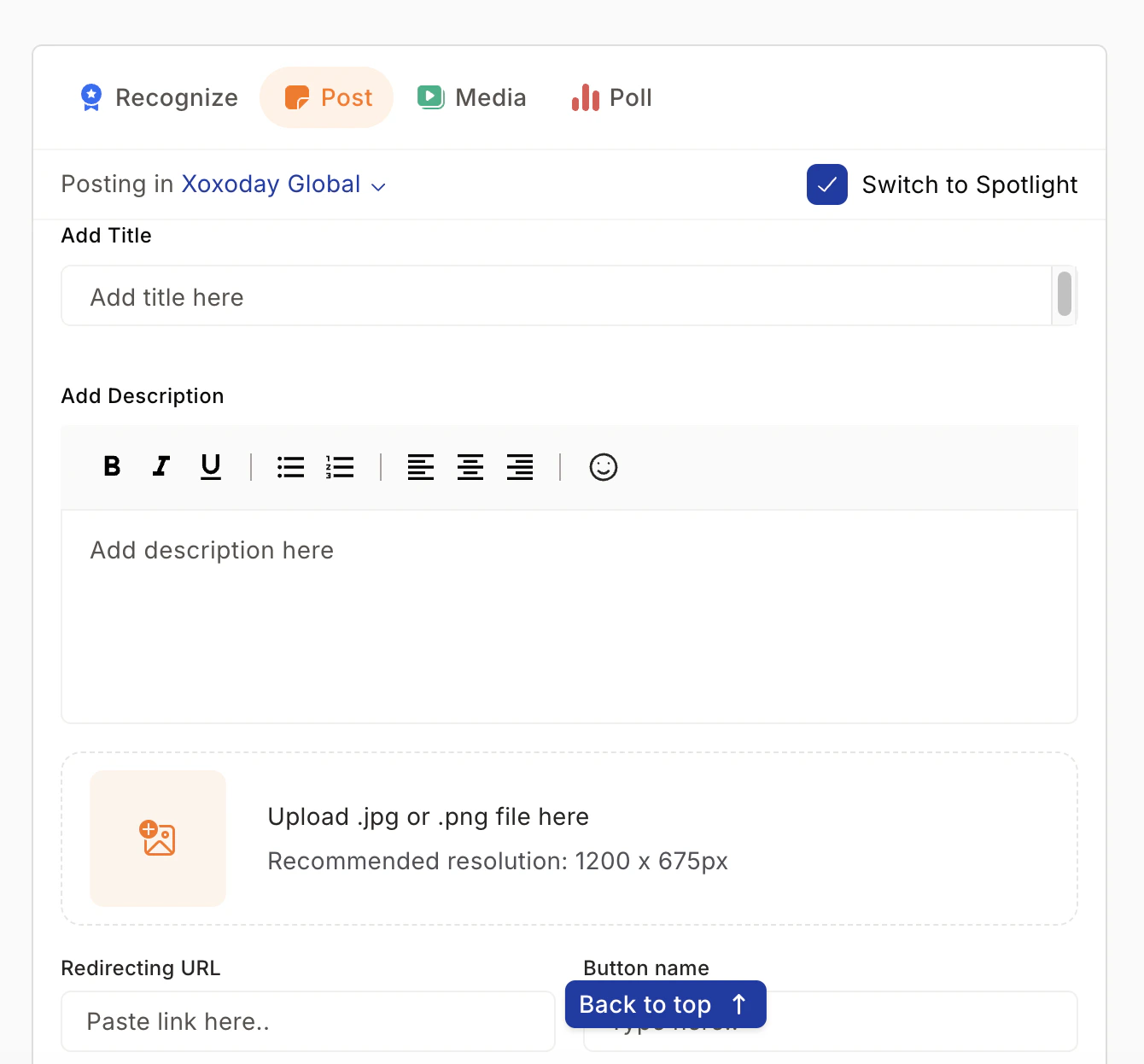
Set duration and expiry
Click the calendar icon to set an expiry date and time. Once the expiry passes, the spotlight is removed from the top of the feed automatically.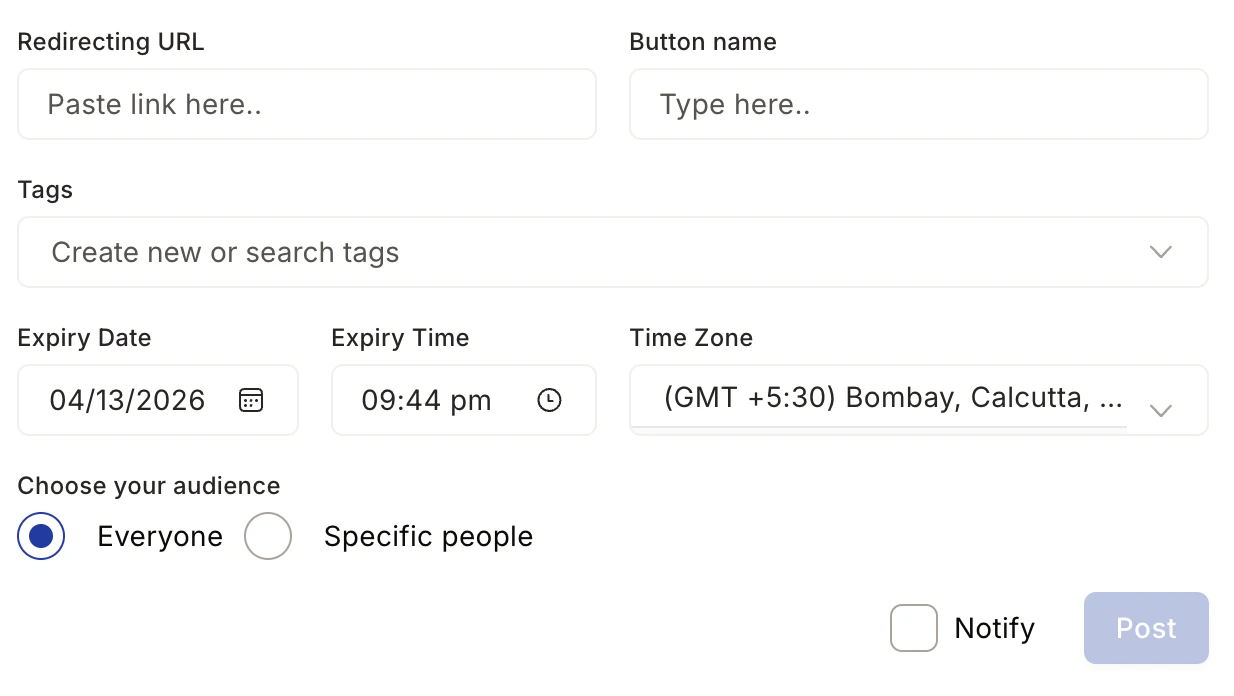
Add links and redirect URLs
Optionally add relevant links so employees can take action directly from the announcement — for example, linking to a policy document or registration form.
Set visibility
Choose who sees the spotlight:
- Everyone — all active employees across the organization
- Specific audience — use dropdown filters such as Department, Location, Cost Center, or Designation to target a subset of employees
Polls
Polls are a fast way to gather employee opinions and drive awareness of new initiatives.Downloading poll results
Admins can export results to CSV:- Find the poll in the feed.
- Click the three-dot icon (⋮) at the top-right of the poll.
- Select Download CSV.
Post reactions
Employees can react to any post or recognition using:- Likes
- Comments
- Emojis (from the reaction picker below each post)
- GIFs (inline GIF responses)
- Attachments (documents or files added in comments)
Social sharing
Employees can share achievements, company accolades, and job listings to their LinkedIn profile directly from a post. Click the share icon below a post and choose Share to LinkedIn.Content feed personalization
Admin controls
Super Admins can customize feed card backgrounds for birthdays, anniversaries, and new employee welcome posts. Navigate to Feed Settings to configure these visual settings and control what content is visible organization-wide.Employee-level personalization
You can tailor your personal feed to show the content most relevant to you.Open the feed filter
Locate the My Circle dropdown at the top-right of the feed. By default, your feed shows posts from your selected connections.
Choose your feed view
Select the view that suits you:
| View | What you see |
|---|---|
| My Circle | Posts from your chosen connections |
| Everything | All posts across the organization |
| Business Unit | Posts from your business unit |
| My Department | Posts from your department |
| My Location | Posts from your office location |
Content moderation
Super Admins and Group Admins control the type of content group members can post. This includes disabling the ability to initiate discussions or add comments in specific groups. See Groups for moderation settings.FAQ
Who can create posts?
Who can create posts?
Admins and Super Admins can post company news, updates, and celebrations to any group. Regular employees can post in groups unless a Group Admin has restricted that permission.
What is an Announcement Spotlight?
What is an Announcement Spotlight?
A Spotlight is a featured post that stays prominent at the top of the feed until its expiry date. Admins create spotlights by clicking Switch to Spotlight while composing a post.
Can I edit or delete a post after publishing?
Can I edit or delete a post after publishing?
Yes. Click the three-dot menu (⋮) on the post to edit or delete it. Admins and Super Admins can do this for any post.
Can I hide my personal details from colleagues?
Can I hide my personal details from colleagues?
Yes. In your profile settings, you can turn off visibility for your birthday, date of joining, and contact details.
Can I share content outside Empuls?
Can I share content outside Empuls?
Related pages
Groups
Create and manage groups for team collaboration and community building.
Townhall
Use the company-wide Townhall group for broadcasts and announcements.
Wall of Fame
Celebrate and display top-recognized employees across the organization.
Surveys
Run pulse and eNPS surveys to measure employee engagement.