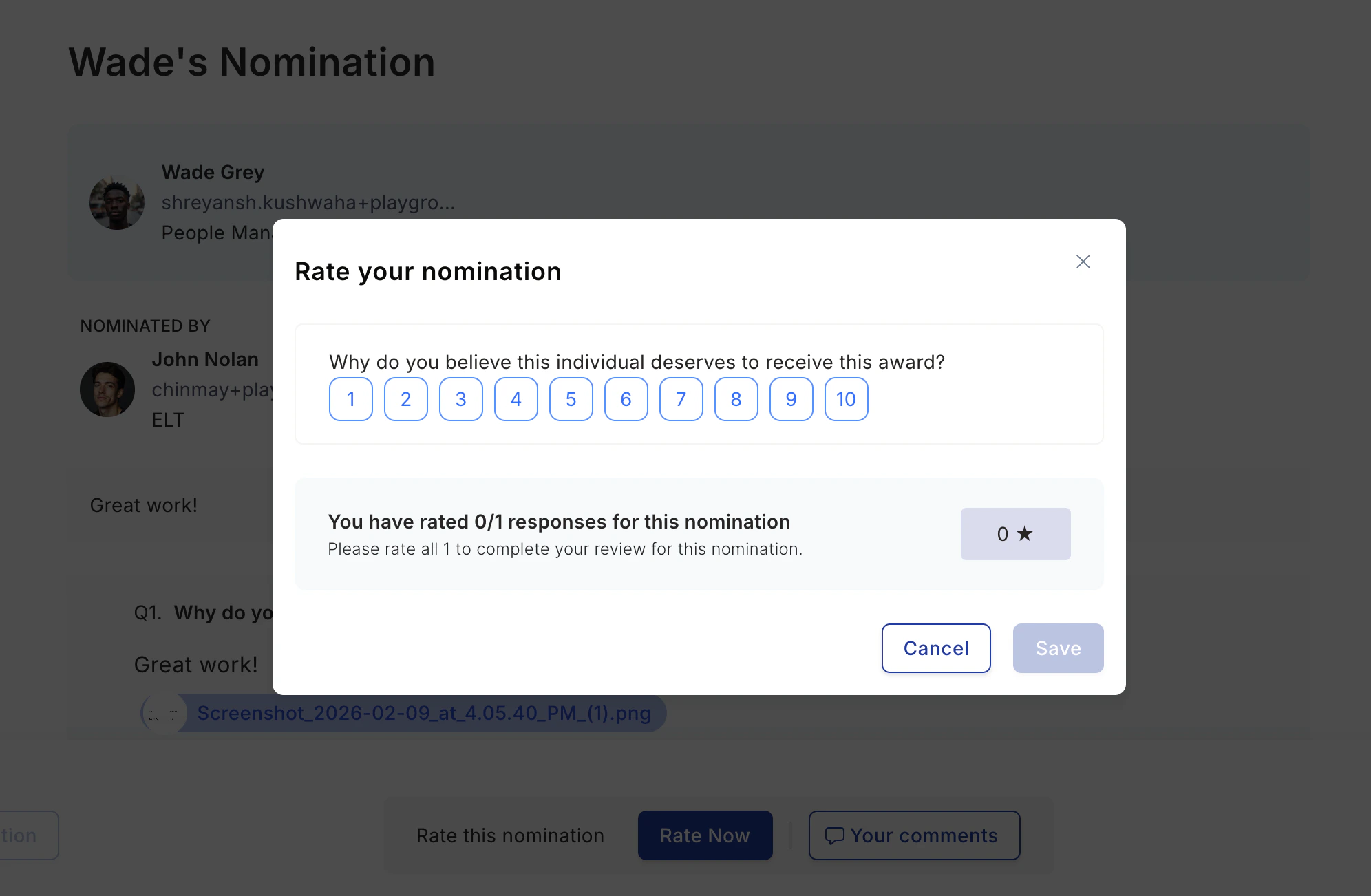
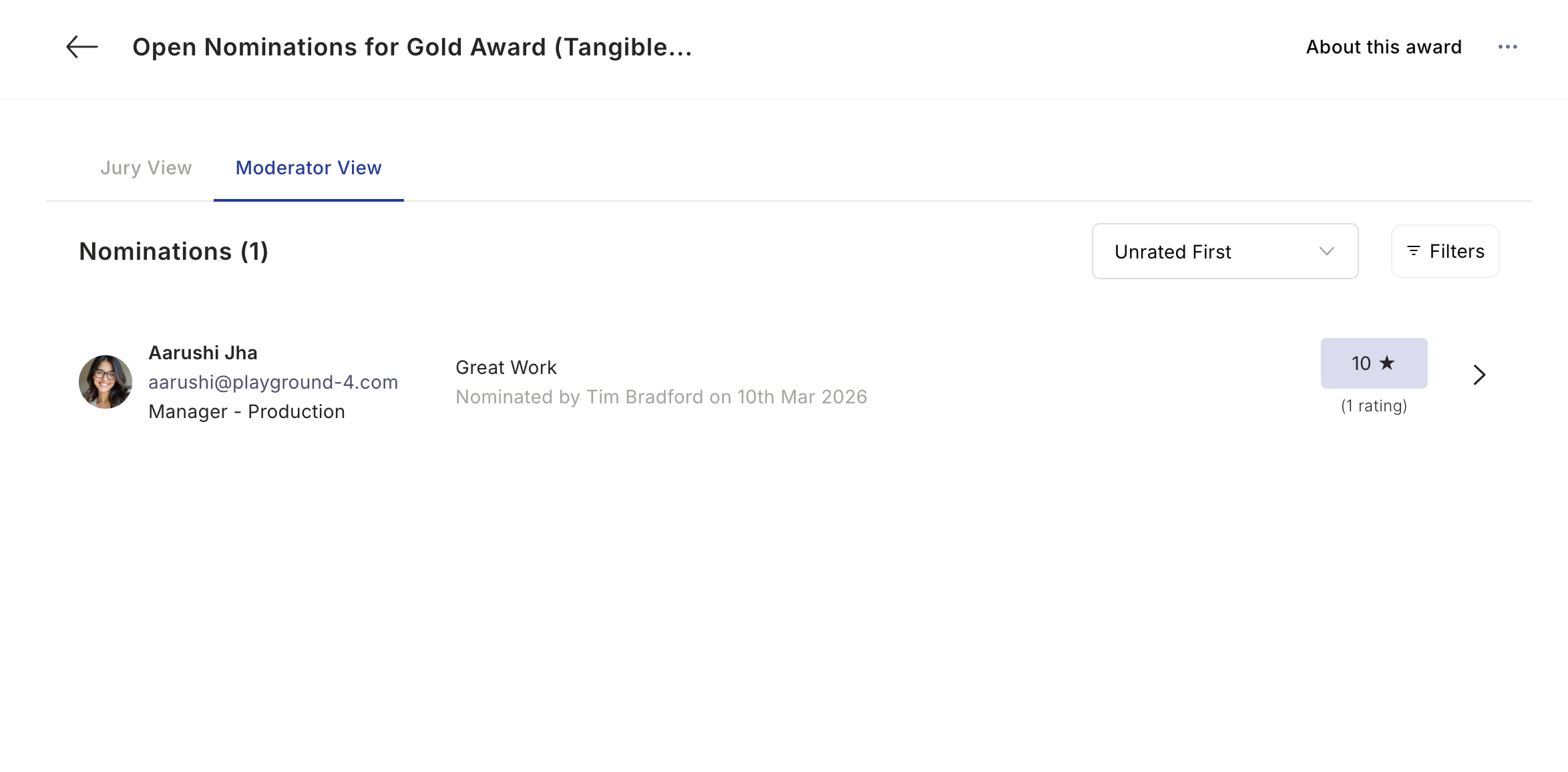
Jury-based awards involve a panel of evaluators who rate nominations independently before a moderator selects winners. Open the jury hub in your tenant atDocumentation Index
Fetch the complete documentation index at: https://empuls.mintlify.app/llms.txt
Use this file to discover all available pages before exploring further.
https://<your-empuls-url>/home/jury-awards.
Access jury nominations
Navigate to Recognitions > Recognition Approvals and click View all nominations. Select the jury award you’ve been assigned to moderate or rate.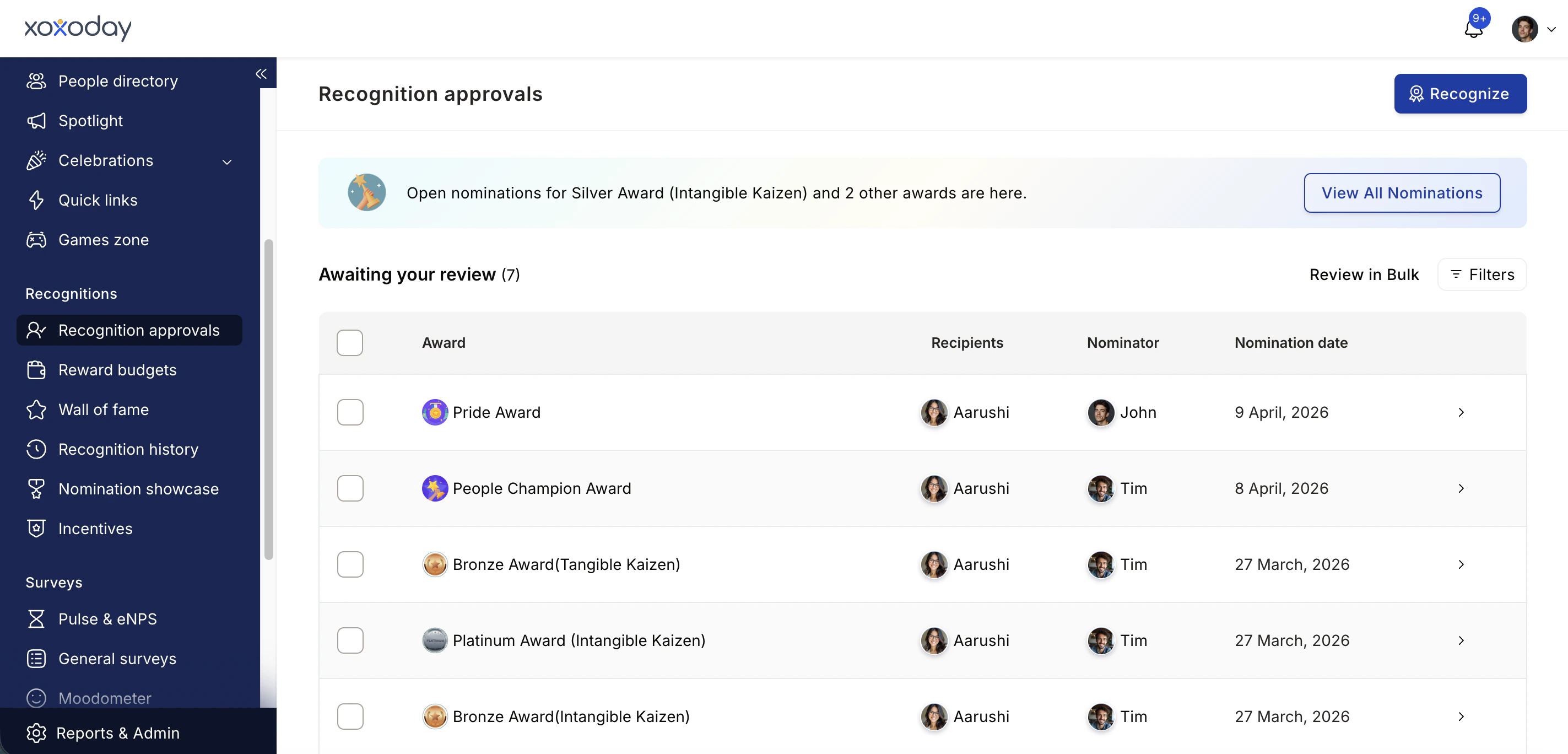
Filter and organise your view
Use the filters to narrow down nominations by nominee attributes (department, location, grade, business unit) or nominator attributes. Use the sort dropdown to show unrated nominations first, or sort by latest submissions or highest rated.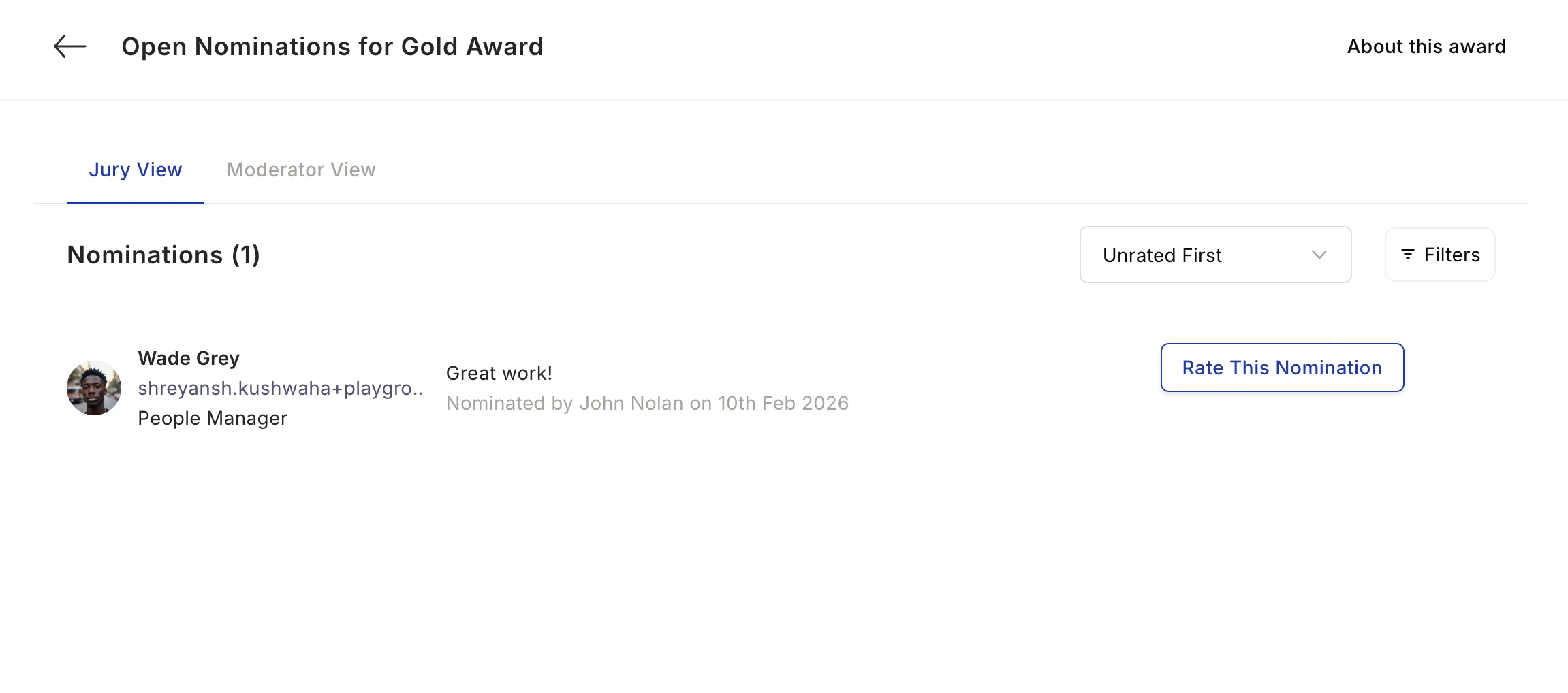
Review nomination details
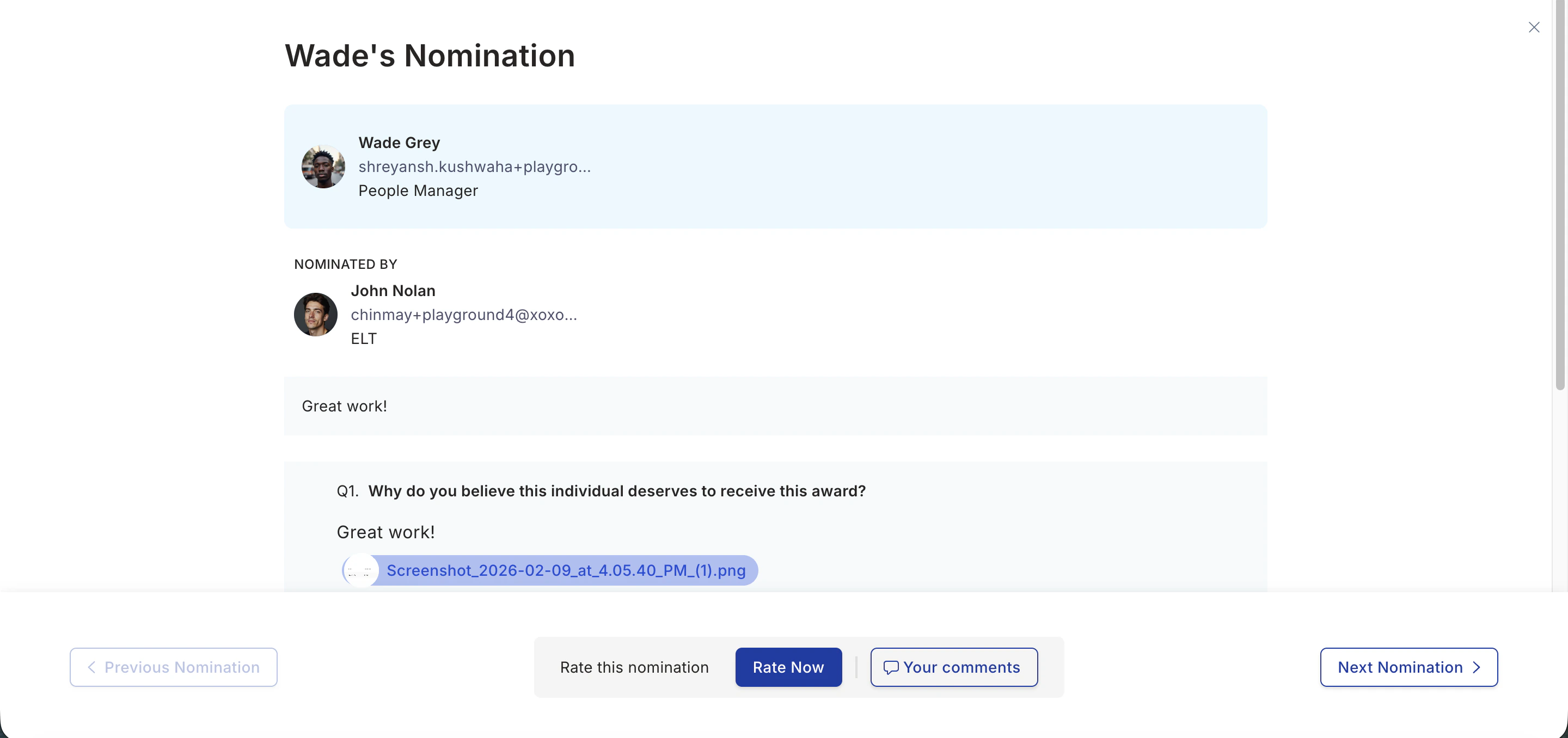
Click a nomination to see the full history: who nominated the employee, the first-level approval comments, the citation, and answers to any mandatory questions.