

Learn to customize your account settings and manage notifications according to your needs. Access Account Preferences from Profile > Account Preferences, or open it directly in your tenant atDocumentation Index
Fetch the complete documentation index at: https://empuls.mintlify.app/llms.txt
Use this file to discover all available pages before exploring further.
https://<your-empuls-url>/home/profile-settings.
Managing Account Preferences
Navigate to Account Preferences
Click on your profile image and select Account Preferences from the dropdown menu.
Update Your Password
Click Change next to Password to update your Empuls account password.
The password can be changed only if you have a password-based login.
Modify Security and Language Settings
On the Account Preferences page, you can update your Security and Language settings.To switch languages, go to Language Settings, click Change, and select your preferred language from the available options.
Notification Categories
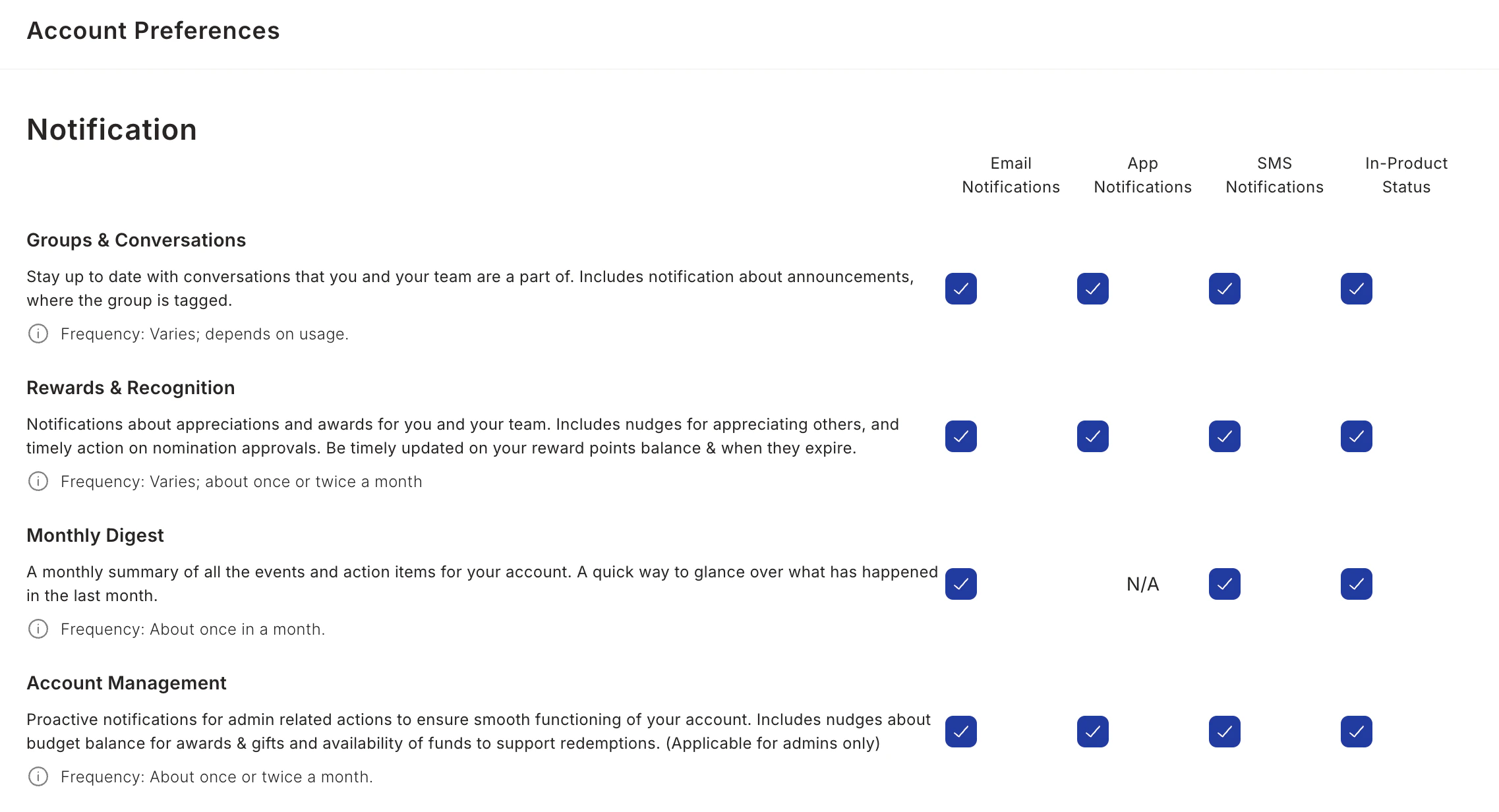
- Groups and Conversations
- Reward and Recognition
- Monthly Digest
- Account Management
- Product Updates
- Rewards Catalogues
- Reminders
- Surveys and Quizzes
- Engagement Nudges
- Catalogue Nudges
Language Settings
Empuls supports 50 pre-enabled languages with the ability to add more on request, making it accessible for global teams to engage in their preferred language.How to Change Your Language
Open language settings
Scroll to the bottom-right corner of your dashboard and click the Language dropdown menu.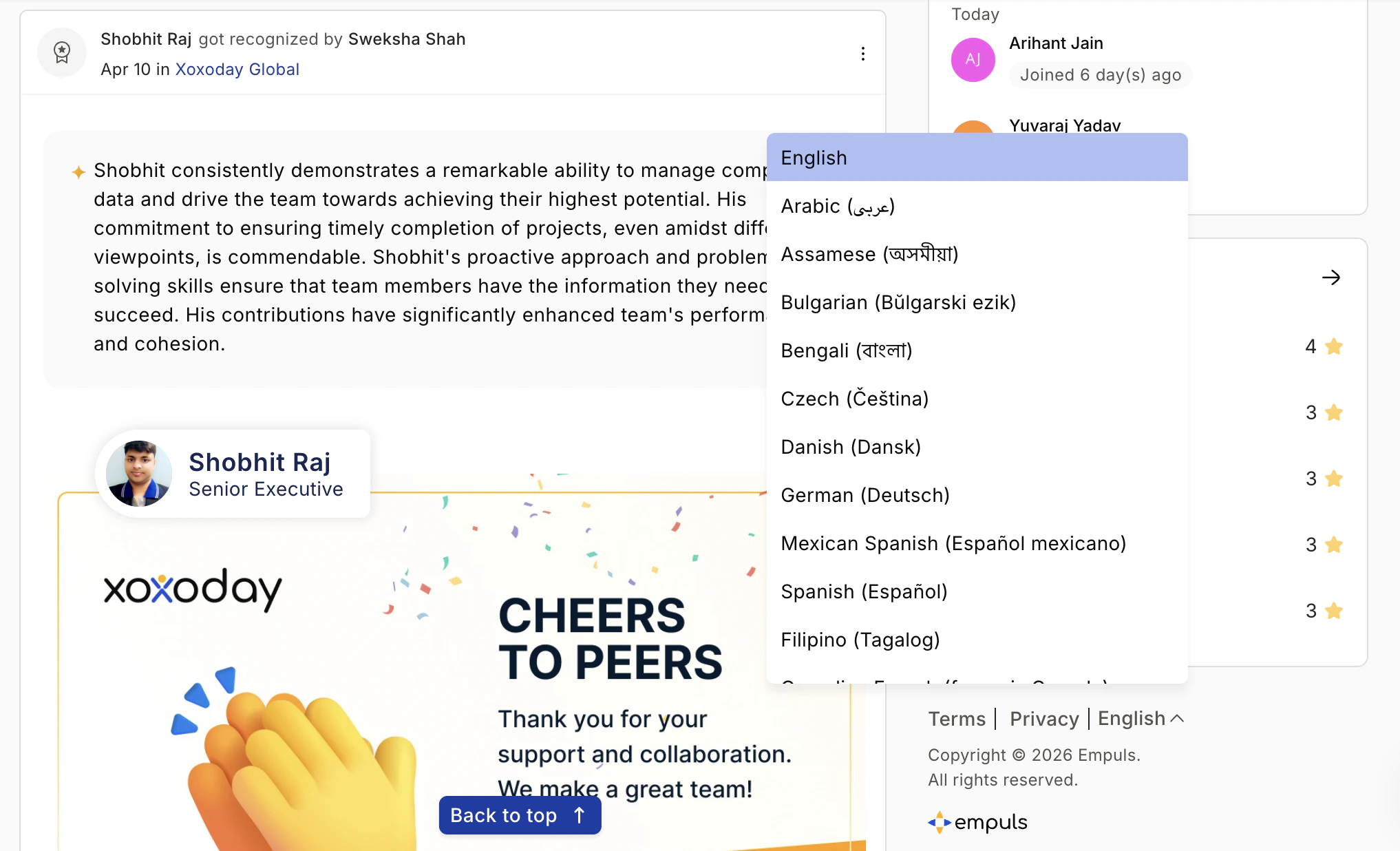
Supported Languages
Empuls currently supports 50 pre-enabled languages:View all supported languages
View all supported languages
European Languages
- English
- German (Deutsch)
- French (français)
- Canadian French (français Canada)
- Spanish (Español)
- Mexican Spanish (Español mexicano)
- Portuguese (português)
- Brazilian Portuguese (português do Brasil)
- Italian (Italiano)
- Dutch (Nederlands)
- Polish (Polskie)
- Swedish (Svenska)
- Bulgarian (Bŭlgarski ezik)
- Czech (Čeština)
- Danish (Dansk)
- Lithuanian (Lietuvių)
- Russian (Русский)
- Ukrainian (Українська)
- Simplified Chinese (简体中文)
- Traditional Chinese (繁體中文)
- Hindi (हिन्दी)
- Indonesian (bahasa Indonesia)
- Japanese (日本)
- Korean (한국인)
- Malay (Bahasa Melayu)
- Thai (ภาษาไทย)
- Vietnamese (tiếng Việt)
- Filipino (Tagalog)
- Khmer (ខ្មែរ)
- Burmese (မြန်မာ)
- Bengali (বাংলা)
- Gujarati (ગુજરાતી)
- Kannada (ಕನ್ನಡ)
- Malayalam (മലയാളം)
- Marathi (मराठी)
- Punjabi (ਪੰਜਾਬੀ)
- Tamil (தமிழ்)
- Telugu (తెలుగు)
- Arabic (عربى)
- Hebrew (עברית)
- Turkish (Türkçe)
Need a Different Language?
If your preferred language isn’t available:- Contact your HR Admin to request it be added
- Reach out to Empuls Support at cs@xoxoday.com
Language additions are typically processed within a few business days, depending on organizational requirements.
FAQ
Will changing my language affect other users?
Will changing my language affect other users?
No. Language settings are personal to your account and won’t impact other team members.
Are notifications and emails translated too?
Are notifications and emails translated too?
Yes. Once you change your language, all in-app notifications and system emails will appear in your selected language.
How does currency work with language settings?
How does currency work with language settings?
Currency preferences align automatically based on your location or organizational settings, independent of your language choice.