

Open your approval queue in your tenant atDocumentation Index
Fetch the complete documentation index at: https://empuls.mintlify.app/llms.txt
Use this file to discover all available pages before exploring further.
https://<your-empuls-url>/home/jury-awards.
Review and approve nominations (approvers)
If you are designated as an approver for an award, you receive a notification whenever a new nomination is submitted for your review.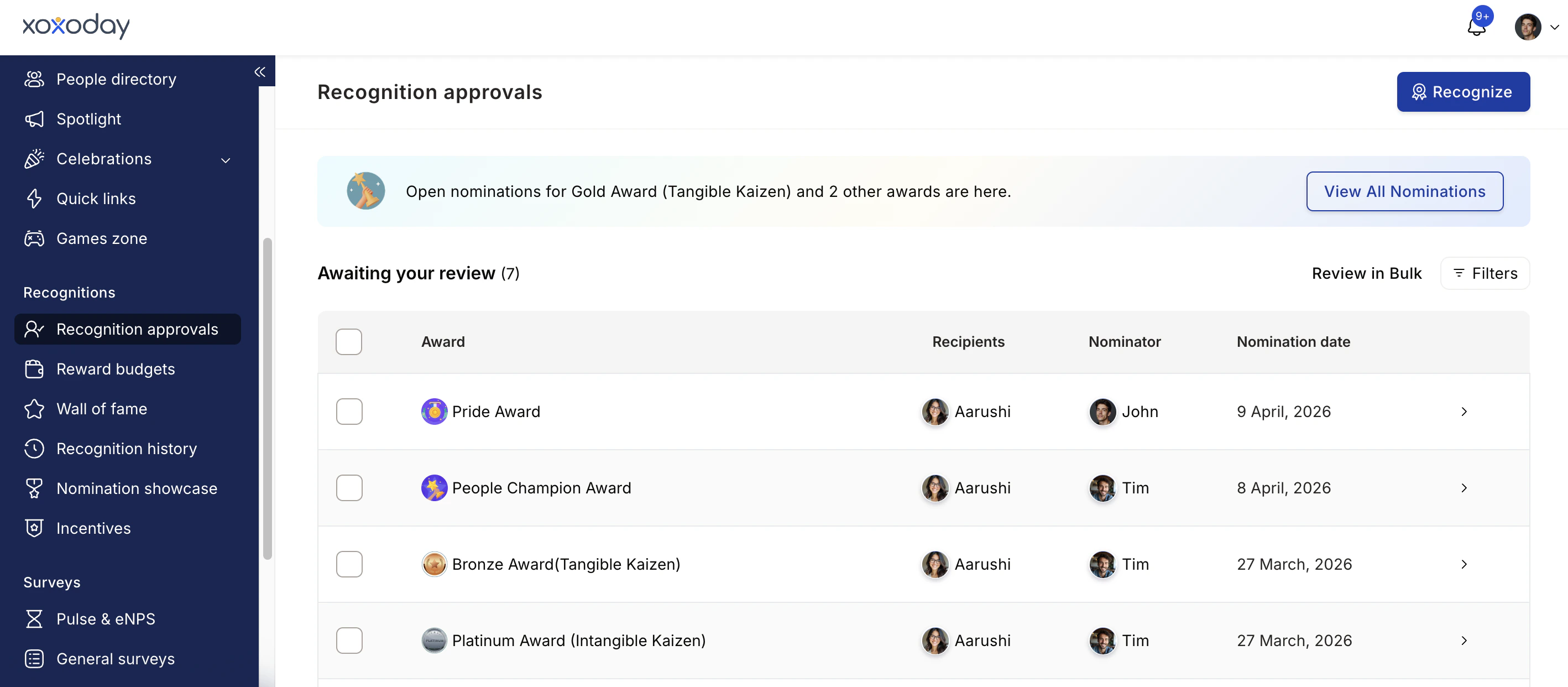
Go to Recognition Approvals
Navigate to Recognitions > Recognition Approvals in the left menu. This shows all nominations assigned to you, with options to filter by recipient name, award name, nomination status, and date requested.
Check delegation status
If you’re reviewing on behalf of a senior leader who has delegated approvals to you, toggle between Pending on me and Pending on delegated account at the top of the page.
Open the nomination
Click Take Action on any nomination to open the full detail view. You’ll see the award details, the core value cited, the nominator’s message, any answers to mandatory questions, and attached files.Use the Smart Insights panel to see data-driven context about the nominee’s recent activity and recognition history. This helps you evaluate impact that may not be fully captured in the written citation.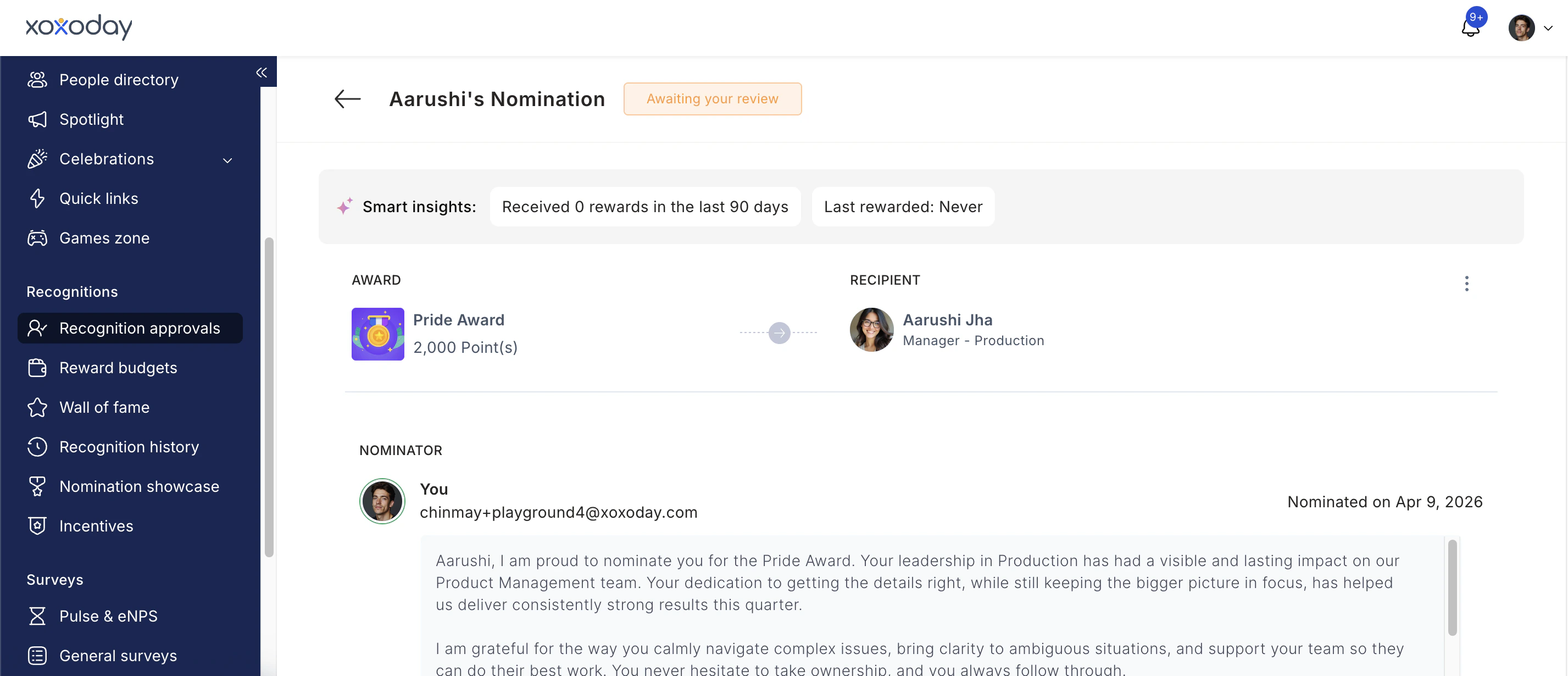
Take action
You have four options:
Providing a reason is mandatory for both approvals and rejections. This creates an audit trail and maintains transparency.
| Action | What it does |
|---|---|
| Approve | Moves the nomination to the next stage (or issues the award if you’re the final approver). |
| Decline | Rejects the nomination. You must provide a reason. |
| Message Nominator | Returns the nomination to the nominator with a note requesting an improved citation. |
| Bulk Actions | Approve or decline multiple nominations at once. |
Edit the citation (optional)
Before approving, you can edit the citation if the nominator’s text needs improvement. Hover over the citation text, click the edit icon, make your changes, and click the checkmark to save. You can also attach additional files as evidence.The nominator can edit the citation only before the first-level approver has acted.
Automatic approval timeout
You can configure an award so that nominations expire automatically if no action is taken within a defined period. This keeps the programme moving and avoids nominations sitting in an indefinite pending state. To set this up, go to the award’s Advanced Settings during creation or editing and configure Nomination Validity. Nominations that exceed the validity window are automatically declined.Auto-approve can also be enabled for a specific approver level. When auto-approve is on, nominations reaching that level are approved instantly, provided the approver has sufficient budget. If budget is insufficient, all Super Admins receive an email alert.