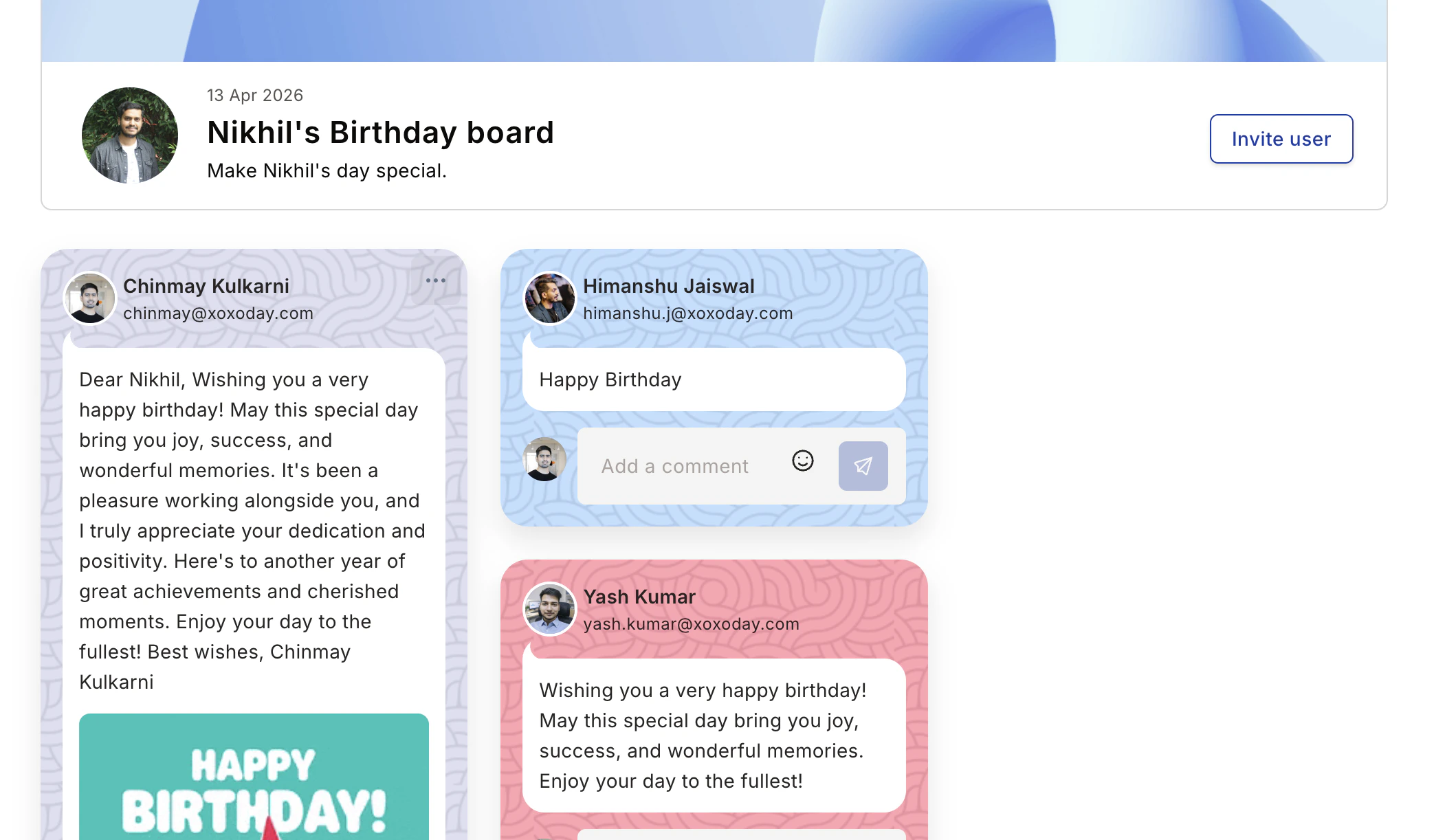
Celebrate birthdays, work anniversaries, and new joinees with wishboards—a digital celebration board that recognizes special occasions across your organization. The Wishboard is a digital celebration board recognizing birthdays, anniversaries, new joiners, and service awards. Access it via Home > Celebration tab, or open it directly in your tenant atDocumentation Index
Fetch the complete documentation index at: https://empuls.mintlify.app/llms.txt
Use this file to discover all available pages before exploring further.
https://<your-empuls-url>/home/all-events-items.
Wishboard types
Birthday
Double the joy of celebrating a birthday with personalized greetings.
New Joinee
Collate best wishes for new employees and welcome them to the team.
Work Anniversary
Collate wishes for employees on their work anniversary and service milestones.
Leaving a wish or message
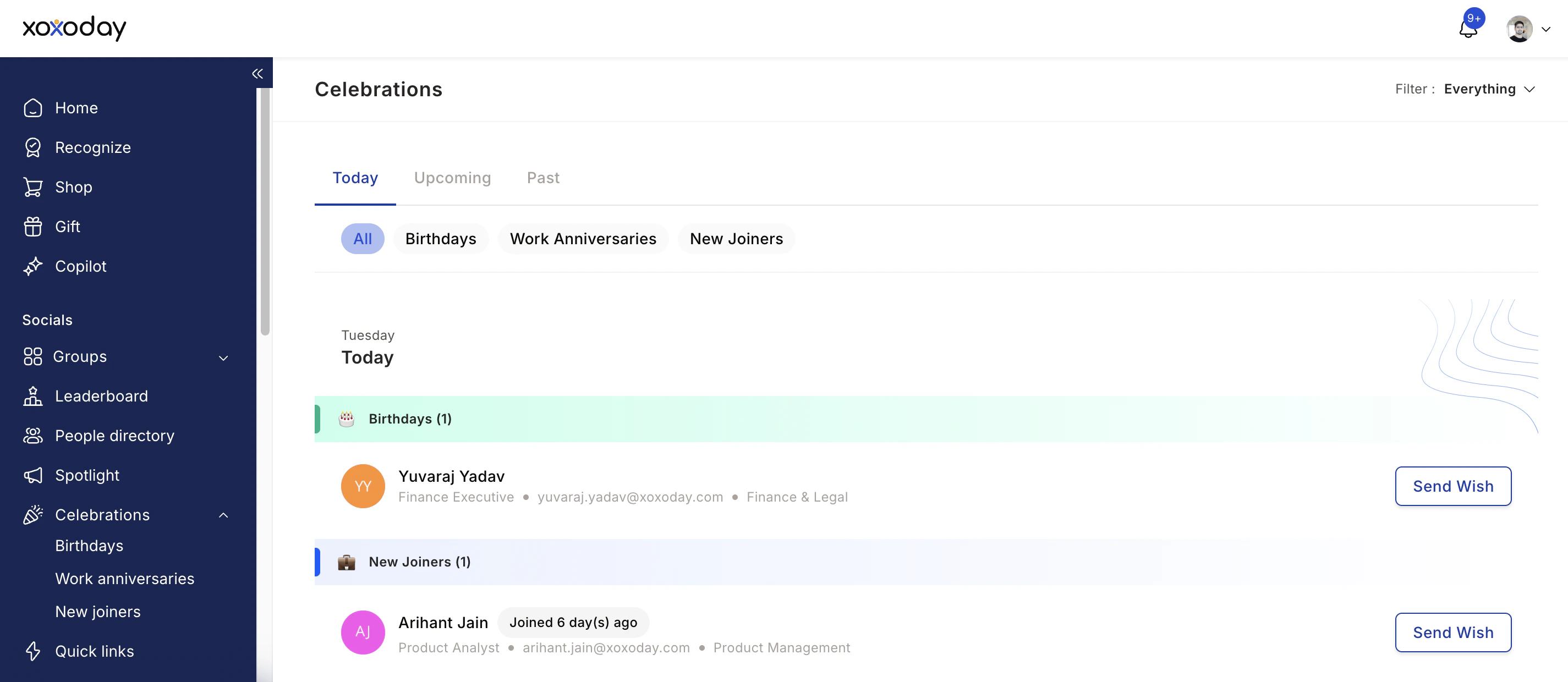
Navigate to celebrations
Go to Home and view all events under the celebrations card on the right. You can also access Home > Celebration tab to view all present, past, and upcoming celebrations.In this section, you can:
- Select between Past, Today’s, or Upcoming celebrations
- Filter by Birthdays, Work Anniversaries, or New Joiners
- Switch from My Circle to Everything to view all celebrations (My Circle shows celebrations only for relevant users based on feed settings configured by your Super Admin)
Click 'Wish' and compose your message
Click Wish next to the person you’d like to send a greeting to. Write a personal, warm message by:
- Referencing something specific about the person or your shared experience
- Showing genuine appreciation for who they are or what they contribute
- Keeping it warm and authentic
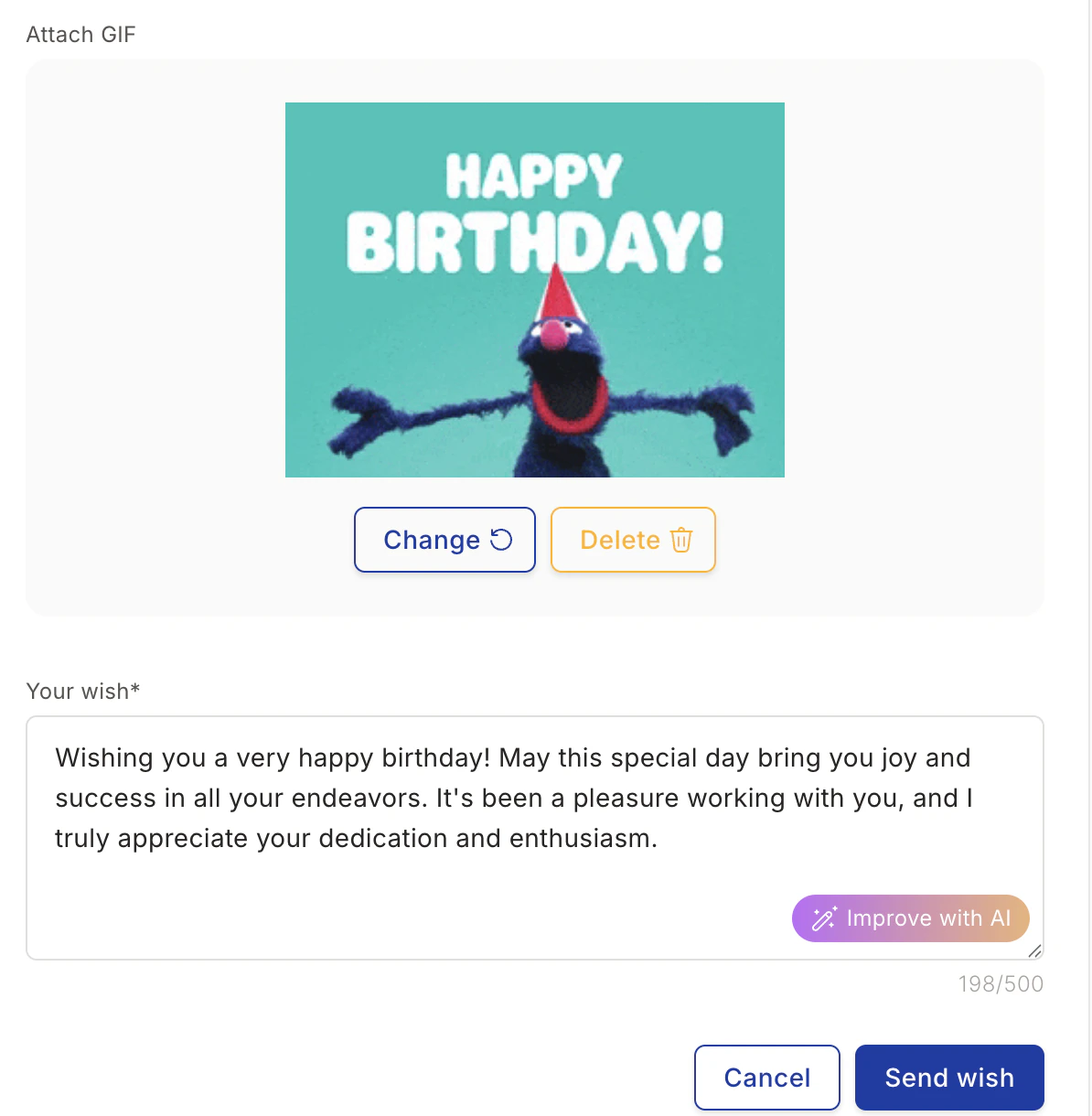
Add a GIF (optional)
Click Search GIF to browse the GIF library. Select a GIF and click Attach. You can Change or Delete the GIF based on your requirements.
Use AI to improve your message (optional)
Click Improve with AI to generate a more thoughtful and personalized message. You can:
- Refresh the suggestion to generate a new wish message
- Copy the AI-generated message and paste it into the input box
- Replace your manually written text with the AI-generated message