> ## Documentation Index
> Fetch the complete documentation index at: https://help-empuls.xoxoday.com/llms.txt
> Use this file to discover all available pages before exploring further.
# Townhall
> Use Townhall to broadcast to every employee at once — post announcements, run polls, pin updates, configure automated milestone posts, and moderate content.
Townhall is the default company-wide group in Empuls. Every enabled employee is automatically a member, and Super Admins are its default administrators. It serves as your organization's broadcast channel — the place for company announcements, leadership messages, automated celebrations, and content that everyone should see.
Unlike other groups, employees cannot leave Townhall. This ensures that critical company-wide communications always reach the full workforce.
Automated celebration posts — birthdays, work anniversaries, and new employee welcomes — are posted exclusively in Townhall.
## Reaching all employees at once
To notify every employee about a post in Townhall, tag **@group** in your message. This sends a notification to all active users, letting them know they've been mentioned. Use this for high-priority announcements where you need broad awareness quickly.
Reserve @group mentions for genuinely important announcements to avoid notification fatigue. For less urgent updates, post without the @group tag and let employees encounter the content organically in their feed.
## Editing Townhall settings
Super Admins can update the Townhall group's name, image, and description.
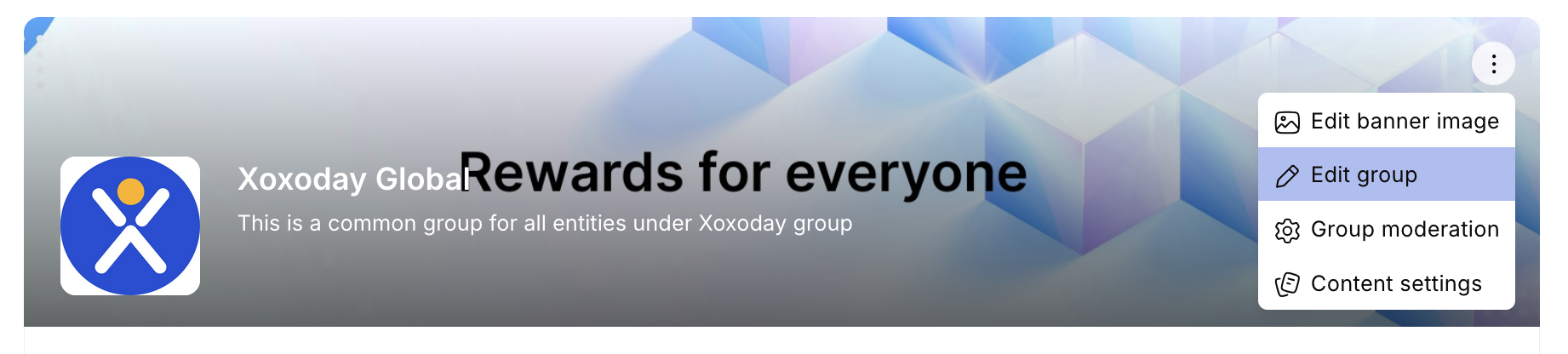 Navigate to **Home > Socials > Groups** and click on **Townhall**, or click **See All** and select Townhall from the list.
From the right-side panel, click **Group Settings** in the **About this group** card.
Click the **pen icon** to edit the **Name**, **Image**, and **Description**. Click **Update** to save your changes.
## Configuring content settings
Super Admins can choose which automated posts appear in Townhall — for example, birthday celebrations, work anniversaries, new employee welcome posts, and leaderboard updates.
On the Townhall group information page, click **Content Settings**.
Toggle on or off the automated events you want Townhall to display:
* **Birthdays**
* **Work anniversaries**
* **New employee welcomes**
* **Leaderboard updates**
Click **Save Changes** to apply your preferences.
## Content moderation
Super Admins control what employees can post in Townhall, including whether employees can start new discussions or add comments. By default, posting permissions follow your organization's content moderation policy.
On the Townhall group information page, click **More**.
Click **Edit** to open the moderation settings.
Check or uncheck the relevant boxes — for example, to restrict employees from initiating discussions or adding comments. Click **Update** to save.
If you restrict posting to admins only, employees will be able to read and react to posts but cannot create new ones. Plan this carefully — a read-only Townhall can reduce engagement.
## Pinning important posts
Admins can pin critical announcements to the top of the Townhall feed so they stay visible regardless of new activity. Click the **three-dot icon (⋮)** on a post and select **Pin post**.
## Running polls and quizzes in Townhall
Polls and quizzes posted in Townhall reach the entire organization. This makes Townhall ideal for:
* Gathering company-wide feedback on a new policy or initiative
* Running a fun quiz to boost engagement or celebrate a company event
* Collecting a quick pulse on employee sentiment before a town hall meeting
To create a poll, click the **poll icon** next to the Post button, add your question and answer choices, set a timeframe (up to 30 days), and post.
## Best practices for company-wide communication
Post when you have genuinely company-wide information — major announcements, leadership messages, policy changes, or celebration posts. Avoid using Townhall for content that only applies to a specific team or location; use a targeted group instead.
This depends on your culture. Allowing employees to post in Townhall increases engagement and two-way communication, but requires active moderation. Many organizations allow employee posts with admin review, or enable posts only for managers and above.
Use the **Announcement Spotlight** feature rather than a regular post for critical updates. Spotlights appear prominently at the top of employees' feeds with a custom duration and audience. See [Announcement Spotlight](/employees/socials/social-intranet#announcement-spotlight).
Yes. Super Admins can update the group name, image, and description under Group Settings. Consider using your company's own terminology if that resonates better with your culture.
## FAQs
No. Townhall is a default group and all enabled users are automatically members. Employees cannot opt out.
Super Admins are the default administrators and have full control over settings, content moderation, and automated posts.
Townhall displays automated celebrations (birthdays, work anniversaries, new joiner welcomes), leaderboard updates, company announcements, and posts from employees and admins according to your moderation settings.
Whether employees can post depends on your organization's content moderation settings. Some organizations restrict Townhall posts to admins only; others allow all employees to post.
## Related
Create and manage groups for teams, departments, and interest communities.
Full guide to posts, polls, spotlights, and feed personalization.
Navigate to **Home > Socials > Groups** and click on **Townhall**, or click **See All** and select Townhall from the list.
From the right-side panel, click **Group Settings** in the **About this group** card.
Click the **pen icon** to edit the **Name**, **Image**, and **Description**. Click **Update** to save your changes.
## Configuring content settings
Super Admins can choose which automated posts appear in Townhall — for example, birthday celebrations, work anniversaries, new employee welcome posts, and leaderboard updates.
On the Townhall group information page, click **Content Settings**.
Toggle on or off the automated events you want Townhall to display:
* **Birthdays**
* **Work anniversaries**
* **New employee welcomes**
* **Leaderboard updates**
Click **Save Changes** to apply your preferences.
## Content moderation
Super Admins control what employees can post in Townhall, including whether employees can start new discussions or add comments. By default, posting permissions follow your organization's content moderation policy.
On the Townhall group information page, click **More**.
Click **Edit** to open the moderation settings.
Check or uncheck the relevant boxes — for example, to restrict employees from initiating discussions or adding comments. Click **Update** to save.
If you restrict posting to admins only, employees will be able to read and react to posts but cannot create new ones. Plan this carefully — a read-only Townhall can reduce engagement.
## Pinning important posts
Admins can pin critical announcements to the top of the Townhall feed so they stay visible regardless of new activity. Click the **three-dot icon (⋮)** on a post and select **Pin post**.
## Running polls and quizzes in Townhall
Polls and quizzes posted in Townhall reach the entire organization. This makes Townhall ideal for:
* Gathering company-wide feedback on a new policy or initiative
* Running a fun quiz to boost engagement or celebrate a company event
* Collecting a quick pulse on employee sentiment before a town hall meeting
To create a poll, click the **poll icon** next to the Post button, add your question and answer choices, set a timeframe (up to 30 days), and post.
## Best practices for company-wide communication
Post when you have genuinely company-wide information — major announcements, leadership messages, policy changes, or celebration posts. Avoid using Townhall for content that only applies to a specific team or location; use a targeted group instead.
This depends on your culture. Allowing employees to post in Townhall increases engagement and two-way communication, but requires active moderation. Many organizations allow employee posts with admin review, or enable posts only for managers and above.
Use the **Announcement Spotlight** feature rather than a regular post for critical updates. Spotlights appear prominently at the top of employees' feeds with a custom duration and audience. See [Announcement Spotlight](/employees/socials/social-intranet#announcement-spotlight).
Yes. Super Admins can update the group name, image, and description under Group Settings. Consider using your company's own terminology if that resonates better with your culture.
## FAQs
No. Townhall is a default group and all enabled users are automatically members. Employees cannot opt out.
Super Admins are the default administrators and have full control over settings, content moderation, and automated posts.
Townhall displays automated celebrations (birthdays, work anniversaries, new joiner welcomes), leaderboard updates, company announcements, and posts from employees and admins according to your moderation settings.
Whether employees can post depends on your organization's content moderation settings. Some organizations restrict Townhall posts to admins only; others allow all employees to post.
## Related
Create and manage groups for teams, departments, and interest communities.
Full guide to posts, polls, spotlights, and feed personalization.