> ## Documentation Index
> Fetch the complete documentation index at: https://help-empuls.xoxoday.com/llms.txt
> Use this file to discover all available pages before exploring further.
# Social intranet
> Set up and use the Empuls social intranet to post updates, create announcements, run polls, personalize your feed, and build a connected workplace culture.
The Empuls social intranet is the central hub for company communication — a place where employees post updates, celebrate milestones, share wins, and engage with colleagues across teams and locations. This guide covers every core feature, from your employee directory and profile to announcement spotlights, polls, and feed personalization.
You need a **Super Admin** or **Social Intranet Admin** role to configure platform-wide settings. All active employees can post, react, and personalize their feed.
## People directory
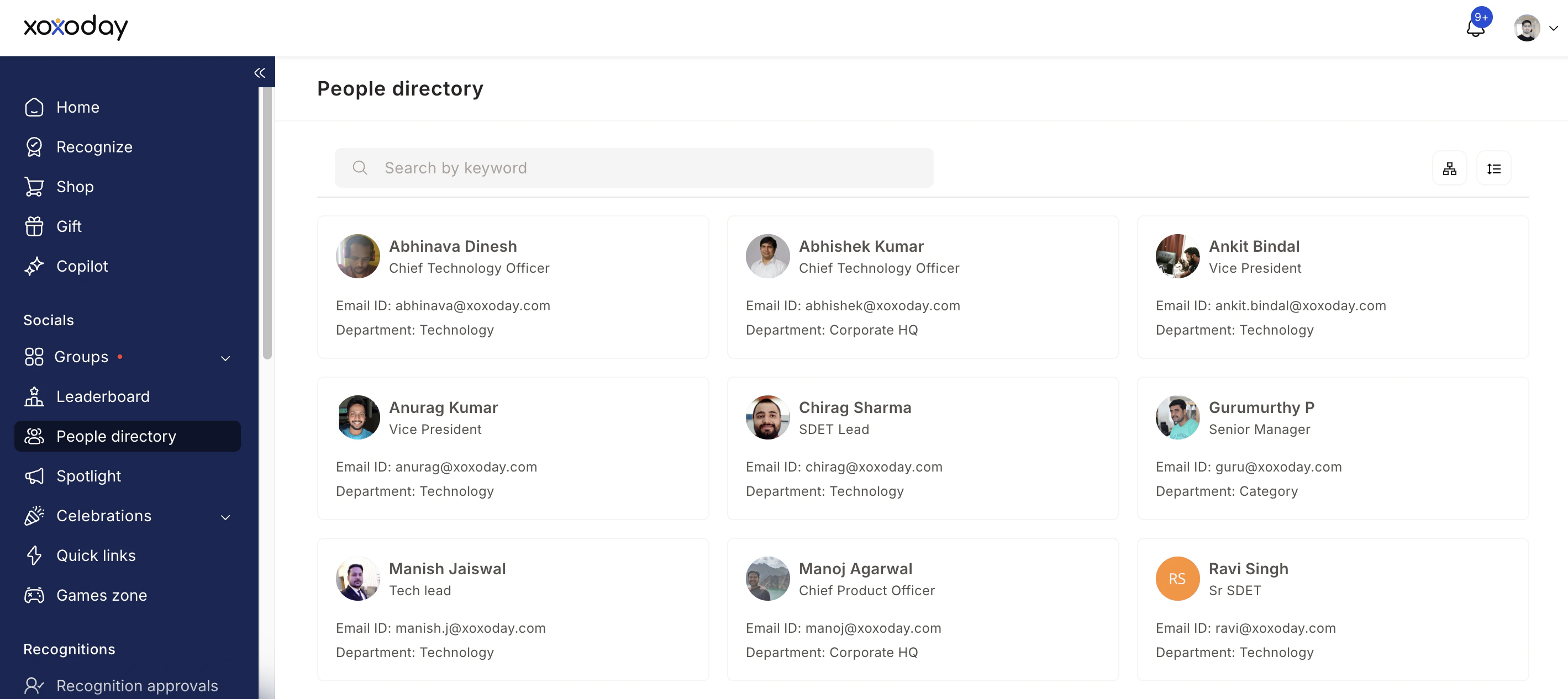 The employee directory gives everyone a searchable view of the organization — names, designations, departments, and reporting structures.
To access the directory, go to your **profile image > People Directory**, or navigate to **Home > People Directory**.
From the directory you can:
* Look up a colleague's contact and team details
* Search for peers across departments
* View the org chart and reporting hierarchy
## Creating posts
Posts are the primary way to share information on the social feed. Navigate to **Home**, select the group where you want to post, click **Post**, type your message, and share.
The employee directory gives everyone a searchable view of the organization — names, designations, departments, and reporting structures.
To access the directory, go to your **profile image > People Directory**, or navigate to **Home > People Directory**.
From the directory you can:
* Look up a colleague's contact and team details
* Search for peers across departments
* View the org chart and reporting hierarchy
## Creating posts
Posts are the primary way to share information on the social feed. Navigate to **Home**, select the group where you want to post, click **Post**, type your message, and share.
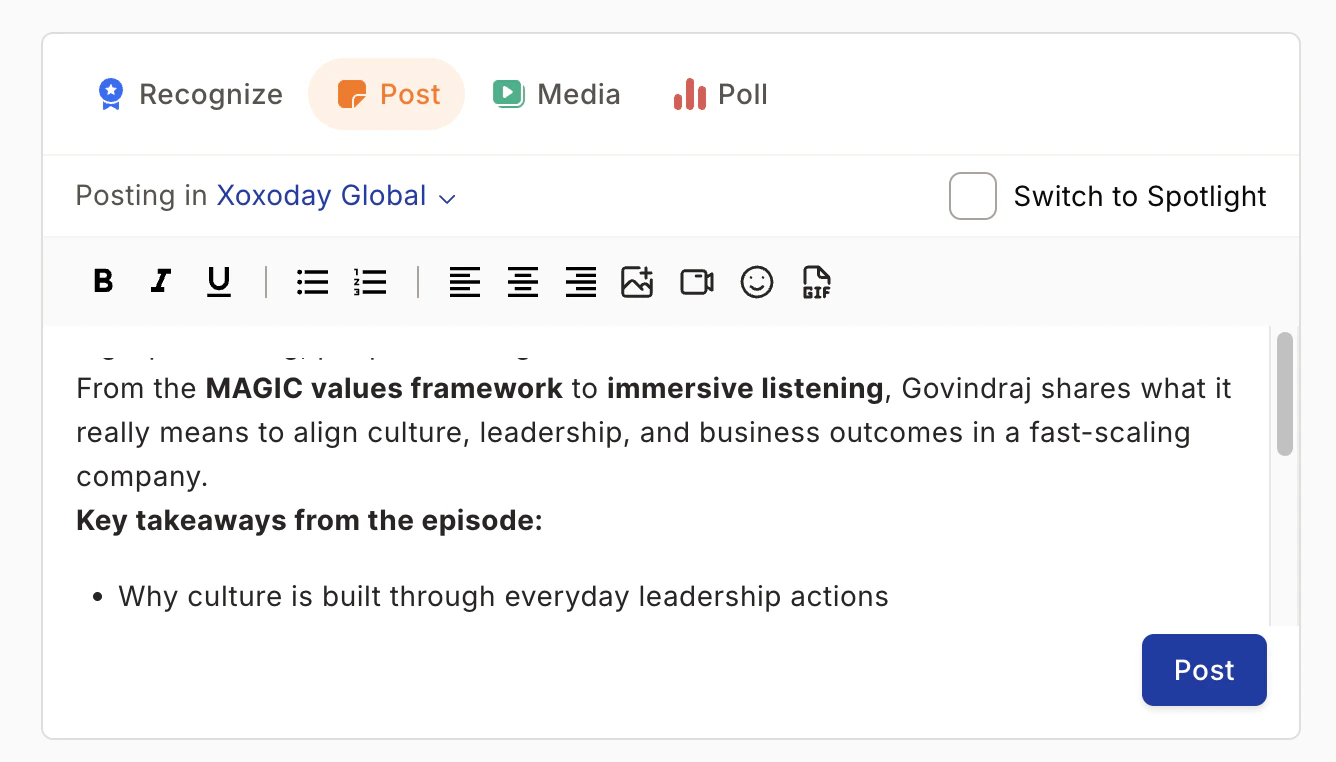
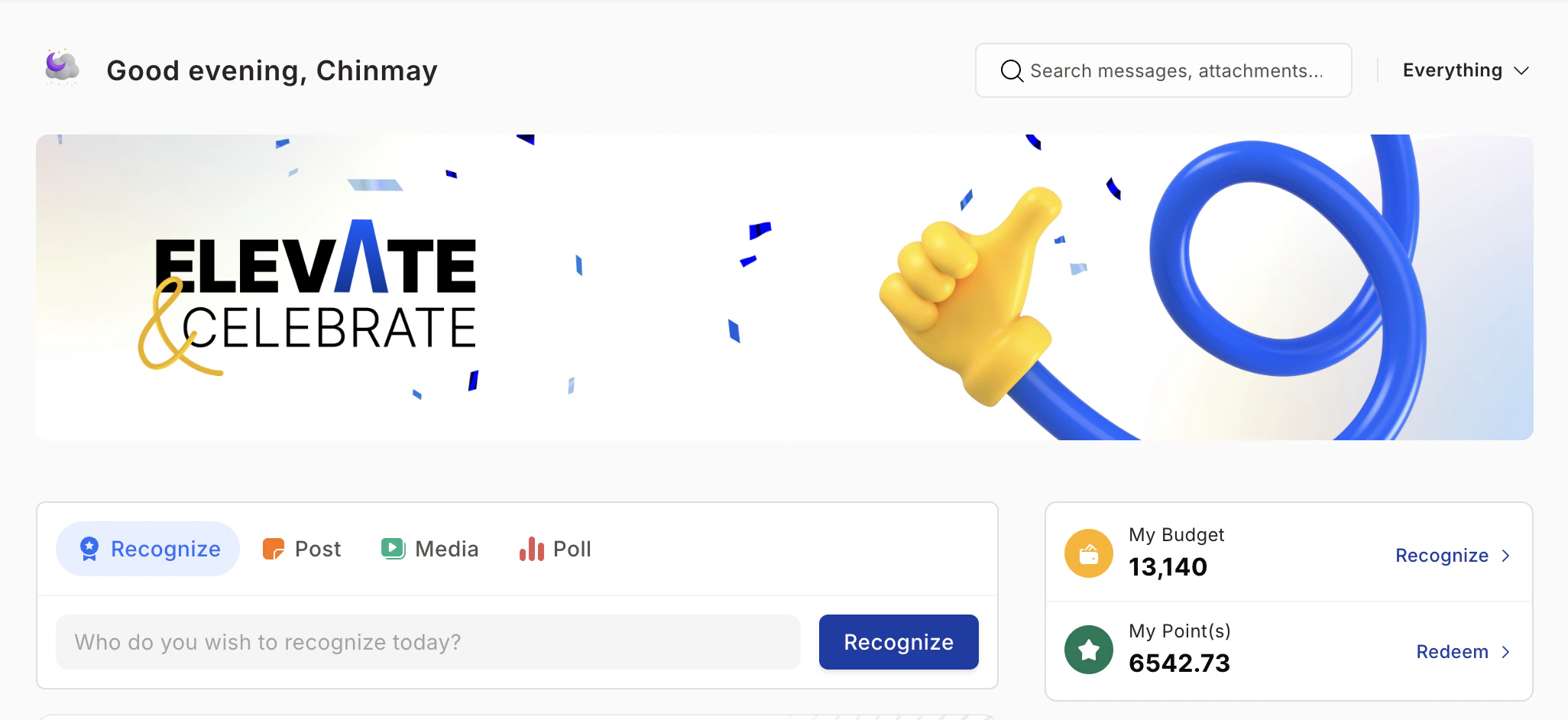 In addition to plain text, you can attach:
* **Images** — product screenshots, event photos, team wins
* **Videos** — product demos, testimonials, key achievements (up to 500 MB per file)
* **Polls** — collect crowdsourced opinions (see below)
* **GIFs and emojis** — add personality to your posts
In addition to plain text, you can attach:
* **Images** — product screenshots, event photos, team wins
* **Videos** — product demos, testimonials, key achievements (up to 500 MB per file)
* **Polls** — collect crowdsourced opinions (see below)
* **GIFs and emojis** — add personality to your posts
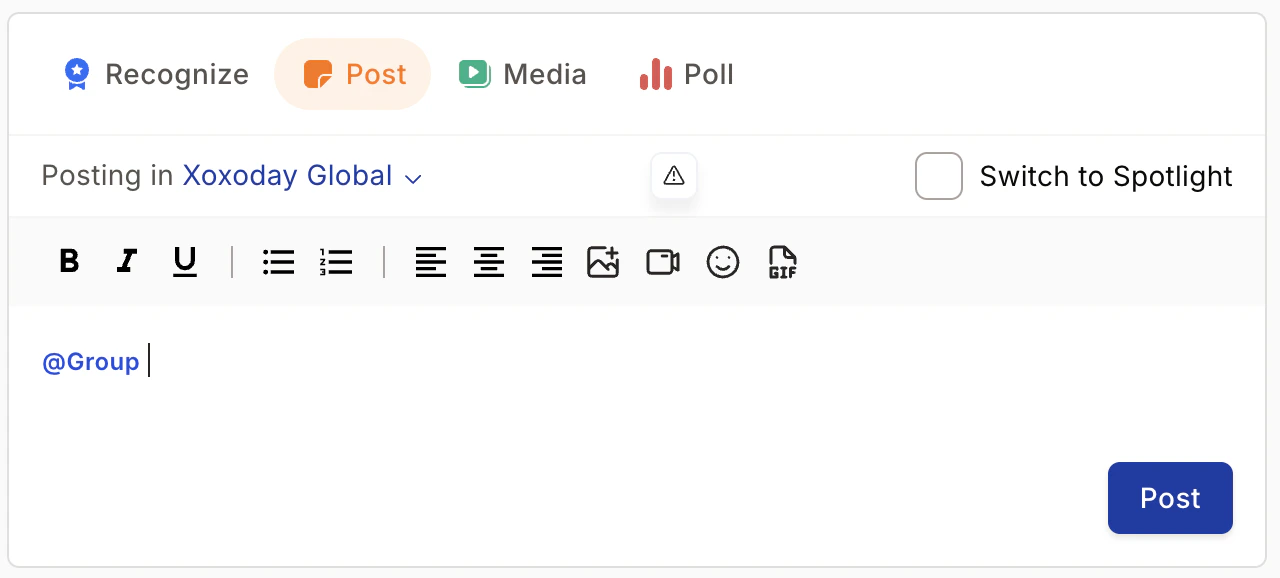
 Admins and Super Admins can broadcast company news, policy updates, and customer wins to any group. To notify all employees at once, post in the **Townhall** group and tag **@group** — this sends a notification to every active user.
 ### Editing and deleting posts
Click the **three-dot icon (⋮)** at the top-right of any post, then select **Edit** or **Delete**.
### Editing and deleting posts
Click the **three-dot icon (⋮)** at the top-right of any post, then select **Edit** or **Delete**.
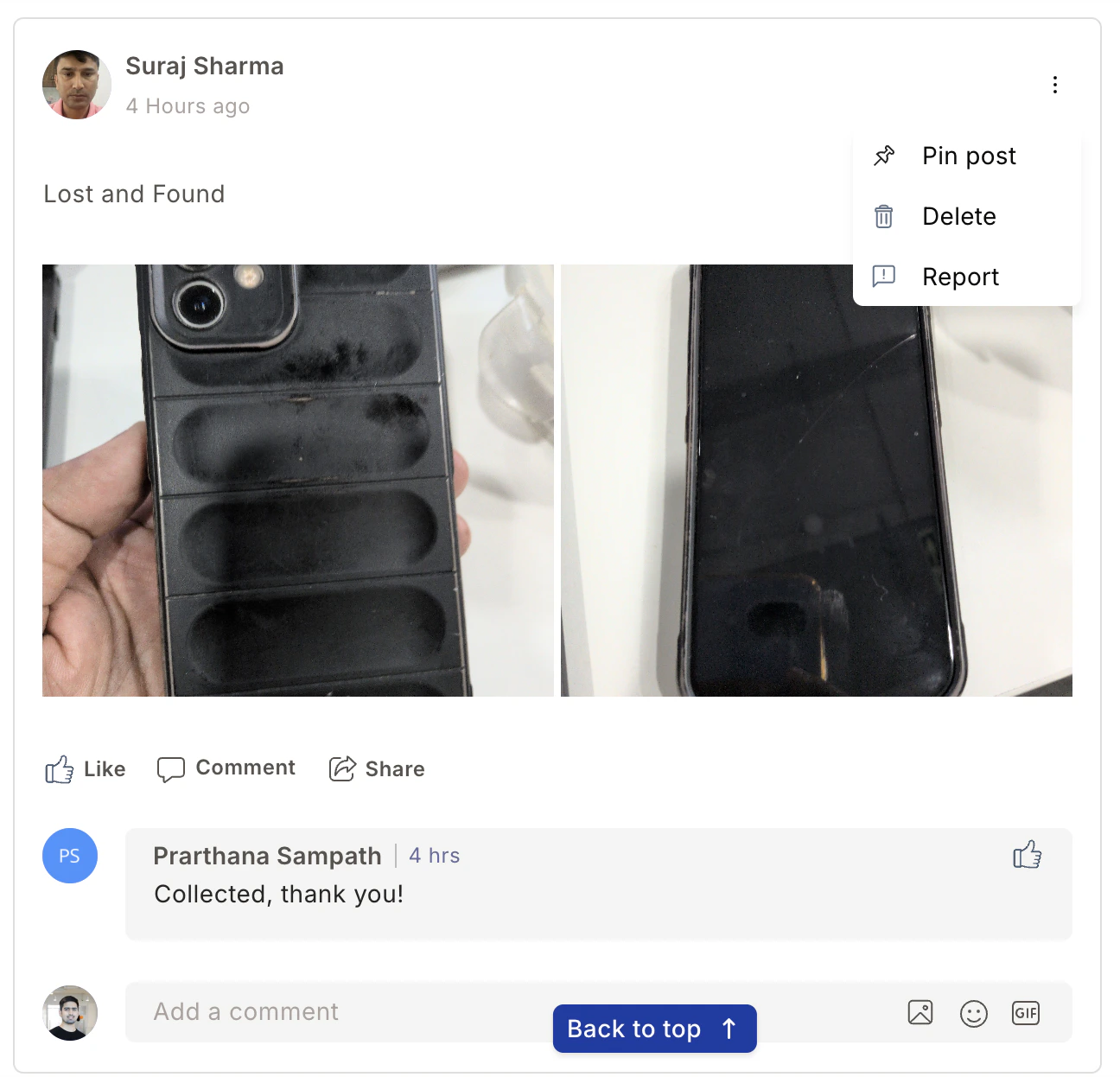 ### Pinning a post
Admins can pin any post to keep it at the top of the newsfeed for maximum visibility. Use the three-dot menu on the post and select **Pin**.
## Announcement spotlight
The Announcement Spotlight lets admins surface critical messages so they don't get buried in the feed. Spotlights appear prominently and stay visible until they expire.
Navigate to **Home > Post** and click **Switch to Spotlight**. Add a title and description for your announcement.
### Pinning a post
Admins can pin any post to keep it at the top of the newsfeed for maximum visibility. Use the three-dot menu on the post and select **Pin**.
## Announcement spotlight
The Announcement Spotlight lets admins surface critical messages so they don't get buried in the feed. Spotlights appear prominently and stay visible until they expire.
Navigate to **Home > Post** and click **Switch to Spotlight**. Add a title and description for your announcement.
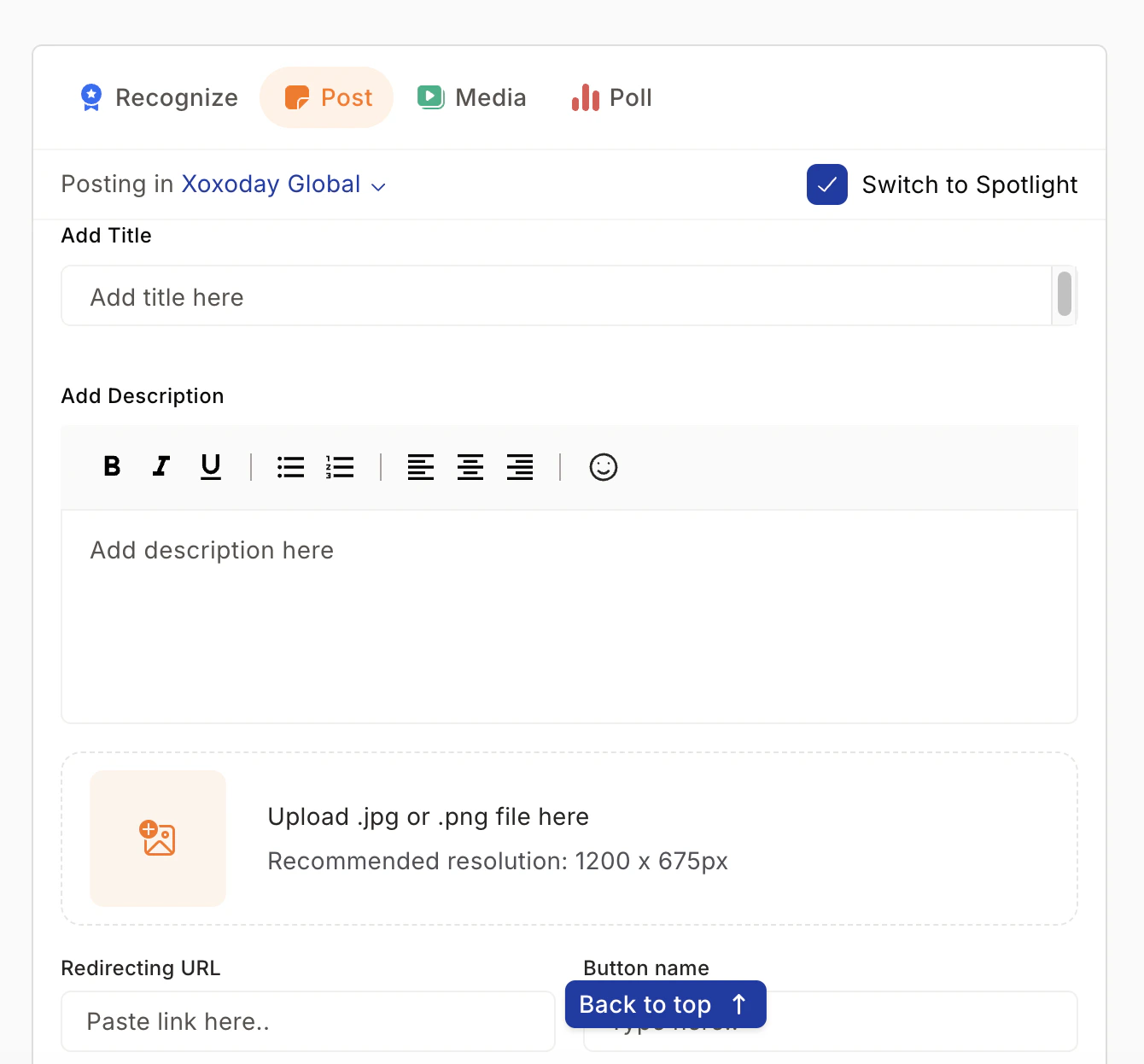 Click the calendar icon to set an **expiry date and time**. Once the expiry passes, the spotlight is removed from the top of the feed automatically.
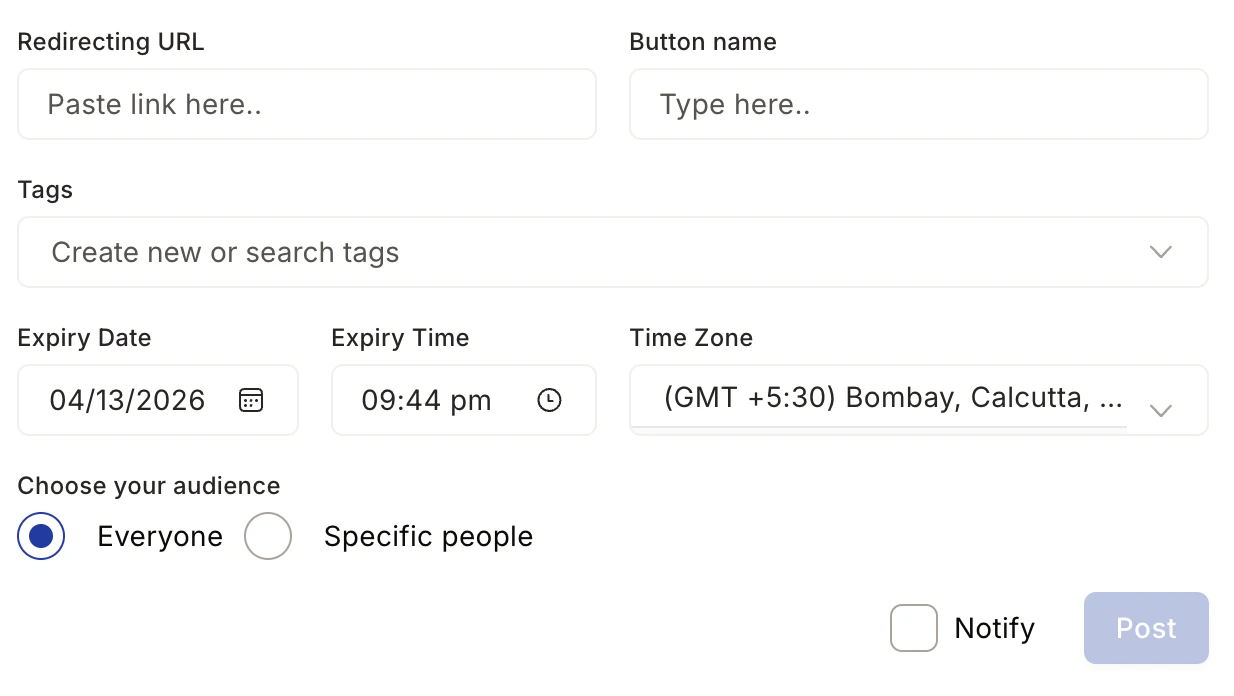 Optionally add relevant links so employees can take action directly from the announcement — for example, linking to a policy document or registration form.
Choose who sees the spotlight:
* **Everyone** — all active employees across the organization
* **Specific audience** — use dropdown filters such as Department, Location, Cost Center, or Designation to target a subset of employees
Only employees who match your selected filters will see the spotlight.
Click **Post**. Your spotlight appears prominently at the top of matching employees' feeds for the duration you set.
Employees can also browse past and active spotlights by navigating to **Socials > Spotlight**, where they can filter announcements by tag and read full details.
## Polls
Polls are a fast way to gather employee opinions and drive awareness of new initiatives.
Optionally add relevant links so employees can take action directly from the announcement — for example, linking to a policy document or registration form.
Choose who sees the spotlight:
* **Everyone** — all active employees across the organization
* **Specific audience** — use dropdown filters such as Department, Location, Cost Center, or Designation to target a subset of employees
Only employees who match your selected filters will see the spotlight.
Click **Post**. Your spotlight appears prominently at the top of matching employees' feeds for the duration you set.
Employees can also browse past and active spotlights by navigating to **Socials > Spotlight**, where they can filter announcements by tag and read full details.
## Polls
Polls are a fast way to gather employee opinions and drive awareness of new initiatives.
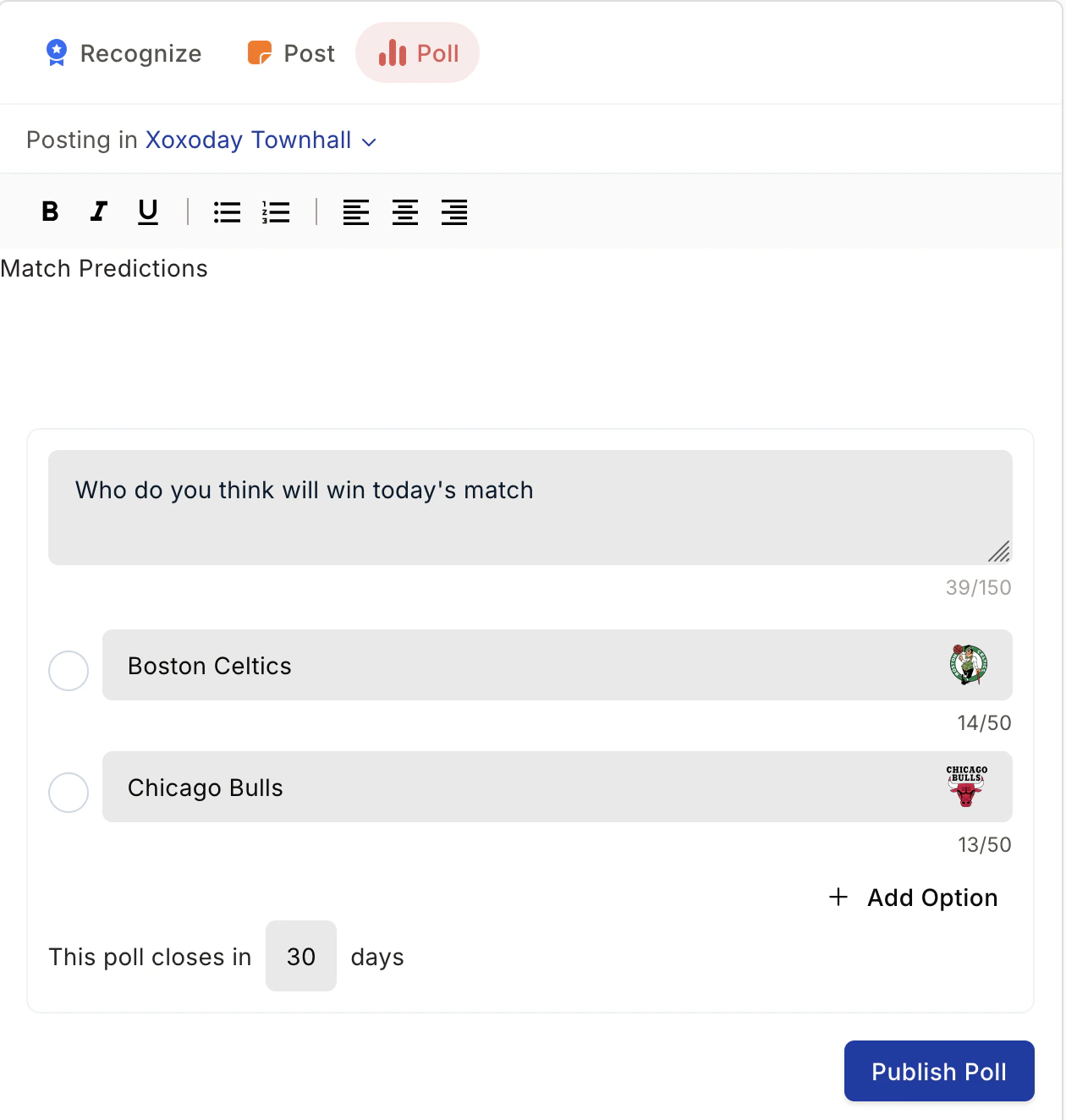 From the central dashboard, click the **poll icon** next to the Post button.
Enter your question and provide the answer choices.
Choose how long the poll runs — up to 30 days.
Click **Post** to publish. Employees see the poll in their feed and can vote immediately.
### Downloading poll results
Admins can export results to CSV:
From the central dashboard, click the **poll icon** next to the Post button.
Enter your question and provide the answer choices.
Choose how long the poll runs — up to 30 days.
Click **Post** to publish. Employees see the poll in their feed and can vote immediately.
### Downloading poll results
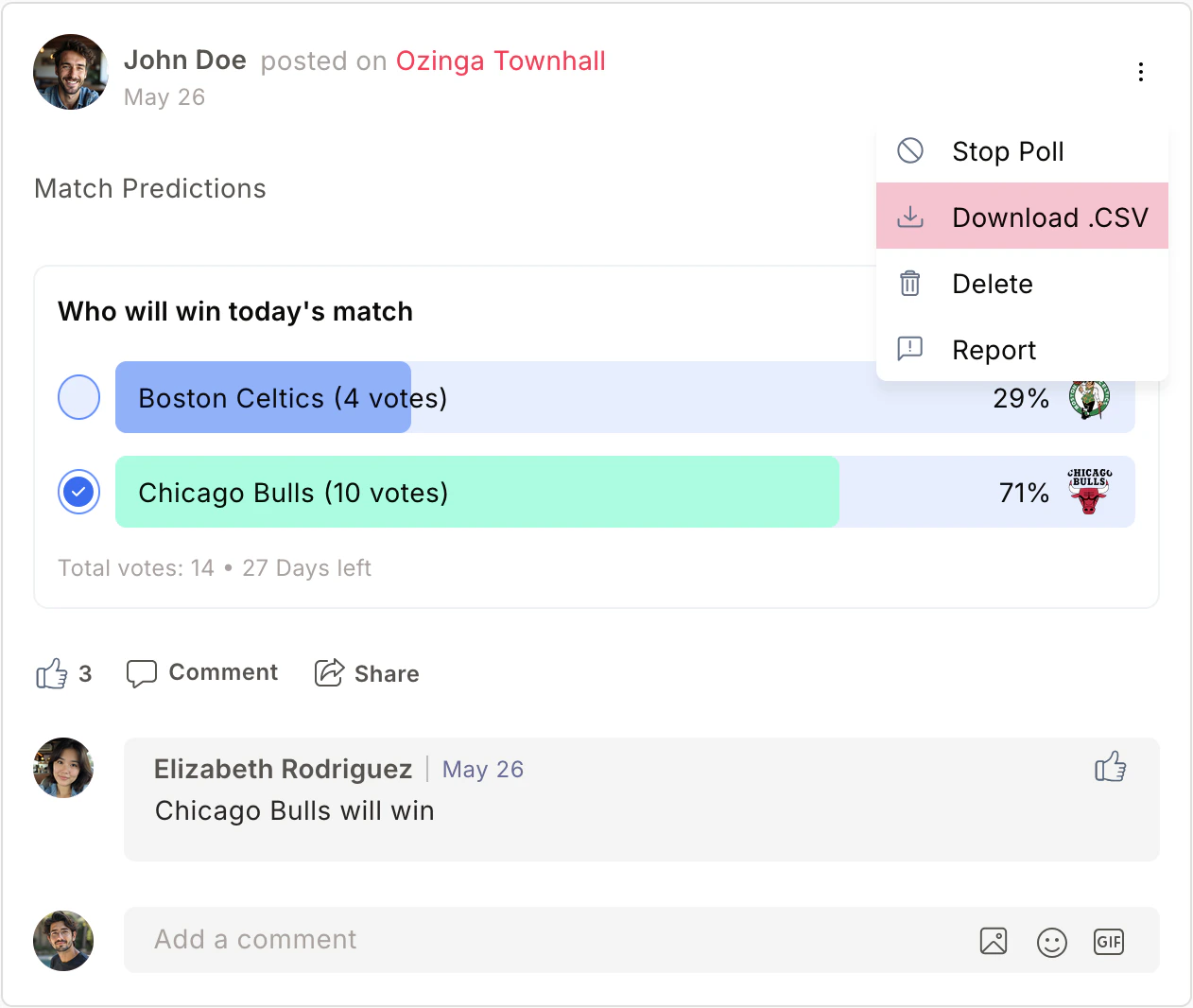
Admins can export results to CSV:
 1. Find the poll in the feed.
2. Click the **three-dot icon (⋮)** at the top-right of the poll.
3. Select **Download CSV**.
## Post reactions
Employees can react to any post or recognition using:
* **Likes**
* **Comments**
* **Emojis** (from the reaction picker below each post)
* **GIFs** (inline GIF responses)
* **Attachments** (documents or files added in comments)
Click the relevant icon below any post to react. To see who reacted and how, click the reaction count.
## Social sharing
Employees can share achievements, company accolades, and job listings to their LinkedIn profile directly from a post. Click the **share icon** below a post and choose **Share to LinkedIn**.
## Content feed personalization
### Admin controls
Super Admins can customize feed card backgrounds for birthdays, anniversaries, and new employee welcome posts. Navigate to **Feed Settings** to configure these visual settings and control what content is visible organization-wide.
### Employee-level personalization
You can tailor your personal feed to show the content most relevant to you.
Log in to Empuls and open the **Home** page.
Locate the **My Circle** dropdown at the top-right of the feed. By default, your feed shows posts from your selected connections.
Select the view that suits you:
1. Find the poll in the feed.
2. Click the **three-dot icon (⋮)** at the top-right of the poll.
3. Select **Download CSV**.
## Post reactions
Employees can react to any post or recognition using:
* **Likes**
* **Comments**
* **Emojis** (from the reaction picker below each post)
* **GIFs** (inline GIF responses)
* **Attachments** (documents or files added in comments)
Click the relevant icon below any post to react. To see who reacted and how, click the reaction count.
## Social sharing
Employees can share achievements, company accolades, and job listings to their LinkedIn profile directly from a post. Click the **share icon** below a post and choose **Share to LinkedIn**.
## Content feed personalization
### Admin controls
Super Admins can customize feed card backgrounds for birthdays, anniversaries, and new employee welcome posts. Navigate to **Feed Settings** to configure these visual settings and control what content is visible organization-wide.
### Employee-level personalization
You can tailor your personal feed to show the content most relevant to you.
Log in to Empuls and open the **Home** page.
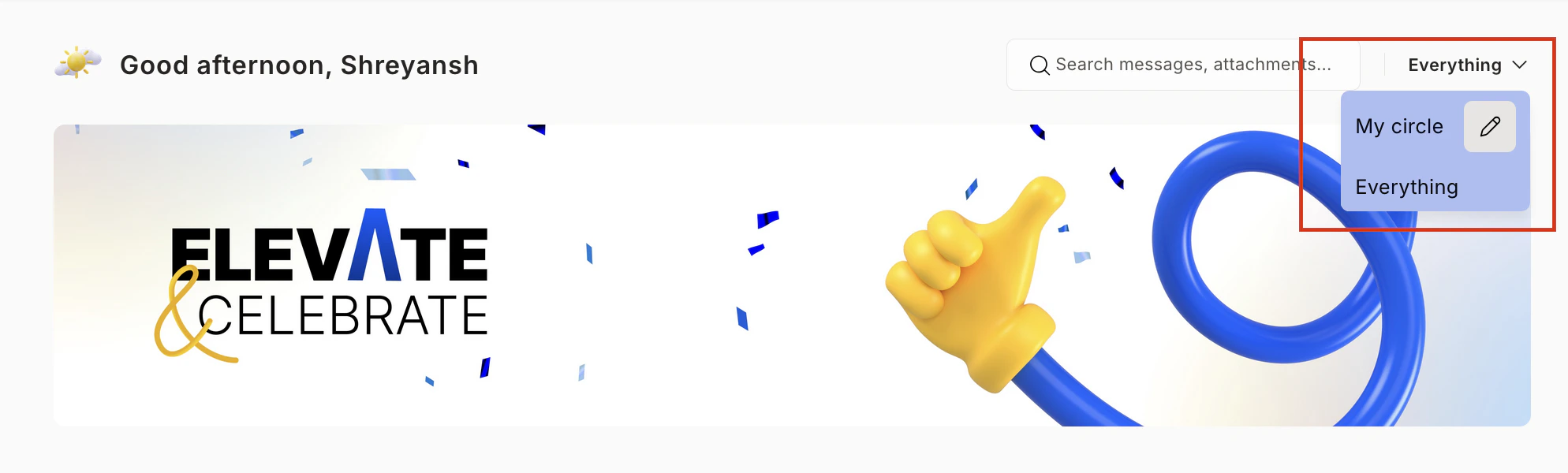
Locate the **My Circle** dropdown at the top-right of the feed. By default, your feed shows posts from your selected connections.
Select the view that suits you:
 | View | What you see |
| ----------------- | ---------------------------------- |
| **My Circle** | Posts from your chosen connections |
| **Everything** | All posts across the organization |
| **Business Unit** | Posts from your business unit |
| **My Department** | Posts from your department |
| **My Location** | Posts from your office location |
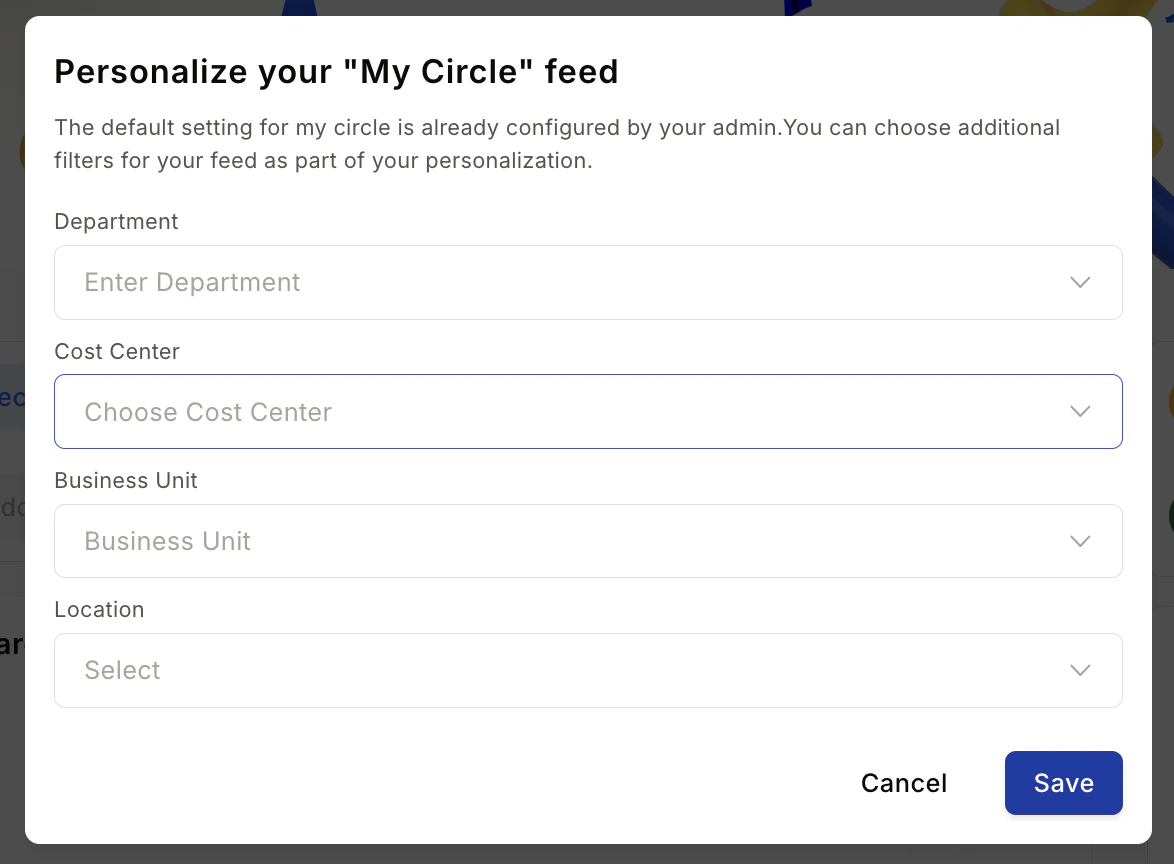
Click the **pen icon** next to **My Circle**, then select specific groups, individuals, or topics. Click **Save** to apply.
| View | What you see |
| ----------------- | ---------------------------------- |
| **My Circle** | Posts from your chosen connections |
| **Everything** | All posts across the organization |
| **Business Unit** | Posts from your business unit |
| **My Department** | Posts from your department |
| **My Location** | Posts from your office location |
Click the **pen icon** next to **My Circle**, then select specific groups, individuals, or topics. Click **Save** to apply.
 ## Content moderation
Super Admins and Group Admins control the type of content group members can post. This includes disabling the ability to initiate discussions or add comments in specific groups. See [Groups](/employees/socials/groups) for moderation settings.
## FAQs
Admins and Super Admins can post company news, updates, and celebrations to any group. Regular employees can post in groups unless a Group Admin has restricted that permission.
A Spotlight is a featured post that stays prominent at the top of the feed until its expiry date. Admins create spotlights by clicking **Switch to Spotlight** while composing a post.
Yes. Click the **three-dot menu (⋮)** on the post to edit or delete it. Admins and Super Admins can do this for any post.
Yes. In your profile settings, you can turn off visibility for your birthday, date of joining, and contact details.
Yes. Use the share icon on a post to share achievements or company news directly to LinkedIn.
## Related
Create and manage groups for team collaboration and community building.
Use the company-wide Townhall group for broadcasts and announcements.
Celebrate and display top-recognized employees across the organization.
Run pulse and eNPS surveys to measure employee engagement.
## Content moderation
Super Admins and Group Admins control the type of content group members can post. This includes disabling the ability to initiate discussions or add comments in specific groups. See [Groups](/employees/socials/groups) for moderation settings.
## FAQs
Admins and Super Admins can post company news, updates, and celebrations to any group. Regular employees can post in groups unless a Group Admin has restricted that permission.
A Spotlight is a featured post that stays prominent at the top of the feed until its expiry date. Admins create spotlights by clicking **Switch to Spotlight** while composing a post.
Yes. Click the **three-dot menu (⋮)** on the post to edit or delete it. Admins and Super Admins can do this for any post.
Yes. In your profile settings, you can turn off visibility for your birthday, date of joining, and contact details.
Yes. Use the share icon on a post to share achievements or company news directly to LinkedIn.
## Related
Create and manage groups for team collaboration and community building.
Use the company-wide Townhall group for broadcasts and announcements.
Celebrate and display top-recognized employees across the organization.
Run pulse and eNPS surveys to measure employee engagement.