> ## Documentation Index
> Fetch the complete documentation index at: https://help-empuls.xoxoday.com/llms.txt
> Use this file to discover all available pages before exploring further.
# Celebrations and yearbook
> Celebrate birthdays, work anniversaries, and new joiners with wish boards, and receive a compiled yearbook keepsake.
Celebrate birthdays, work anniversaries, and new joiners with wish boards — a digital celebration board that lets colleagues post messages, GIFs, and signatures. When the celebration window closes, Empuls compiles everything into a downloadable yearbook.
 ## Wish board types
Double the joy of celebrating a birthday with personalised greetings.
Collate best wishes for new employees and welcome them to the team.
Collate wishes for employees on their work anniversary and service milestones.
## Leaving a wish
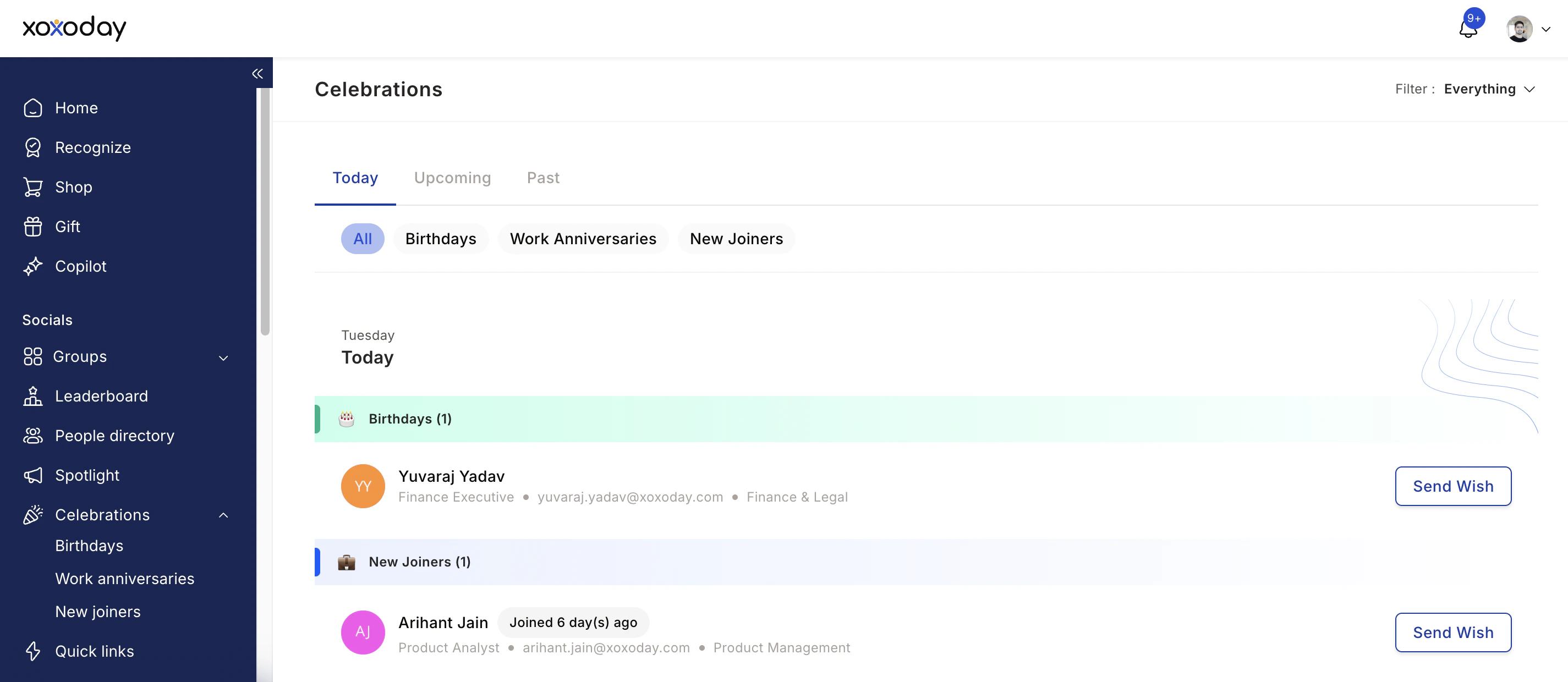
Go to **Home** and view all events under the celebrations card on the right. You can also access **Home > Celebration tab** to view all present, past, and upcoming celebrations.
* Filter by **Past**, **Today's**, or **Upcoming**
* Filter by **Birthdays**, **Work anniversaries**, or **New joiners**
* Switch from **My circle** to **Everything** to view all celebrations
Click **Wish** next to the person you'd like to greet. Write a personal message referencing something specific about them or your shared experience.
## Wish board types
Double the joy of celebrating a birthday with personalised greetings.
Collate best wishes for new employees and welcome them to the team.
Collate wishes for employees on their work anniversary and service milestones.
## Leaving a wish
Go to **Home** and view all events under the celebrations card on the right. You can also access **Home > Celebration tab** to view all present, past, and upcoming celebrations.
* Filter by **Past**, **Today's**, or **Upcoming**
* Filter by **Birthdays**, **Work anniversaries**, or **New joiners**
* Switch from **My circle** to **Everything** to view all celebrations
Click **Wish** next to the person you'd like to greet. Write a personal message referencing something specific about them or your shared experience.
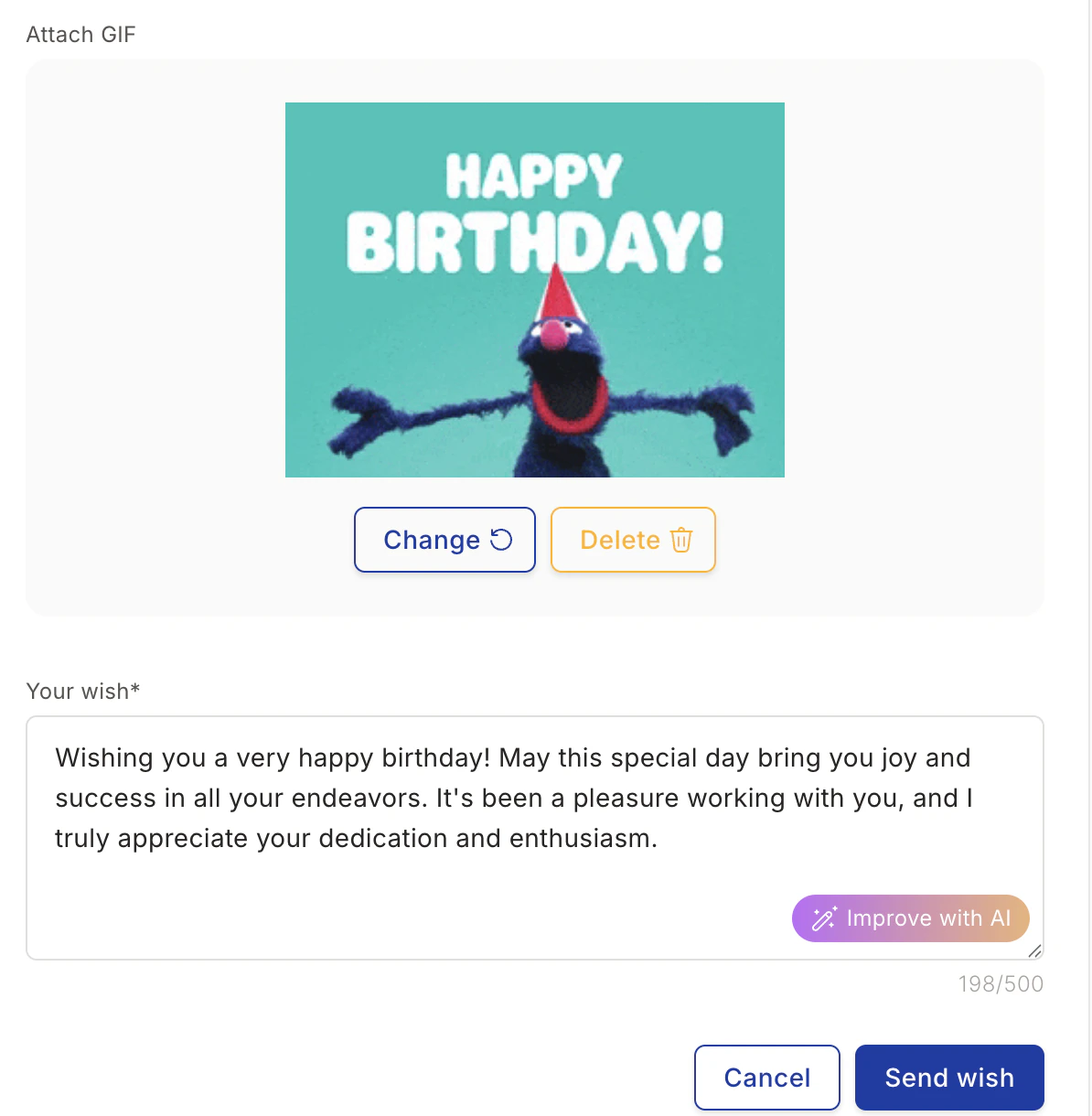 Click **Search GIF** to browse the GIF library. Select a GIF and click **Attach**.
Click **Improve with AI** to generate a more thoughtful message. You can refresh the suggestion, copy it, or replace your text with it.
Click **Send wish** to post on the wish board. After publishing, you can also send a gift voucher to the recipient.
Click **Search GIF** to browse the GIF library. Select a GIF and click **Attach**.
Click **Improve with AI** to generate a more thoughtful message. You can refresh the suggestion, copy it, or replace your text with it.
Click **Send wish** to post on the wish board. After publishing, you can also send a gift voucher to the recipient.
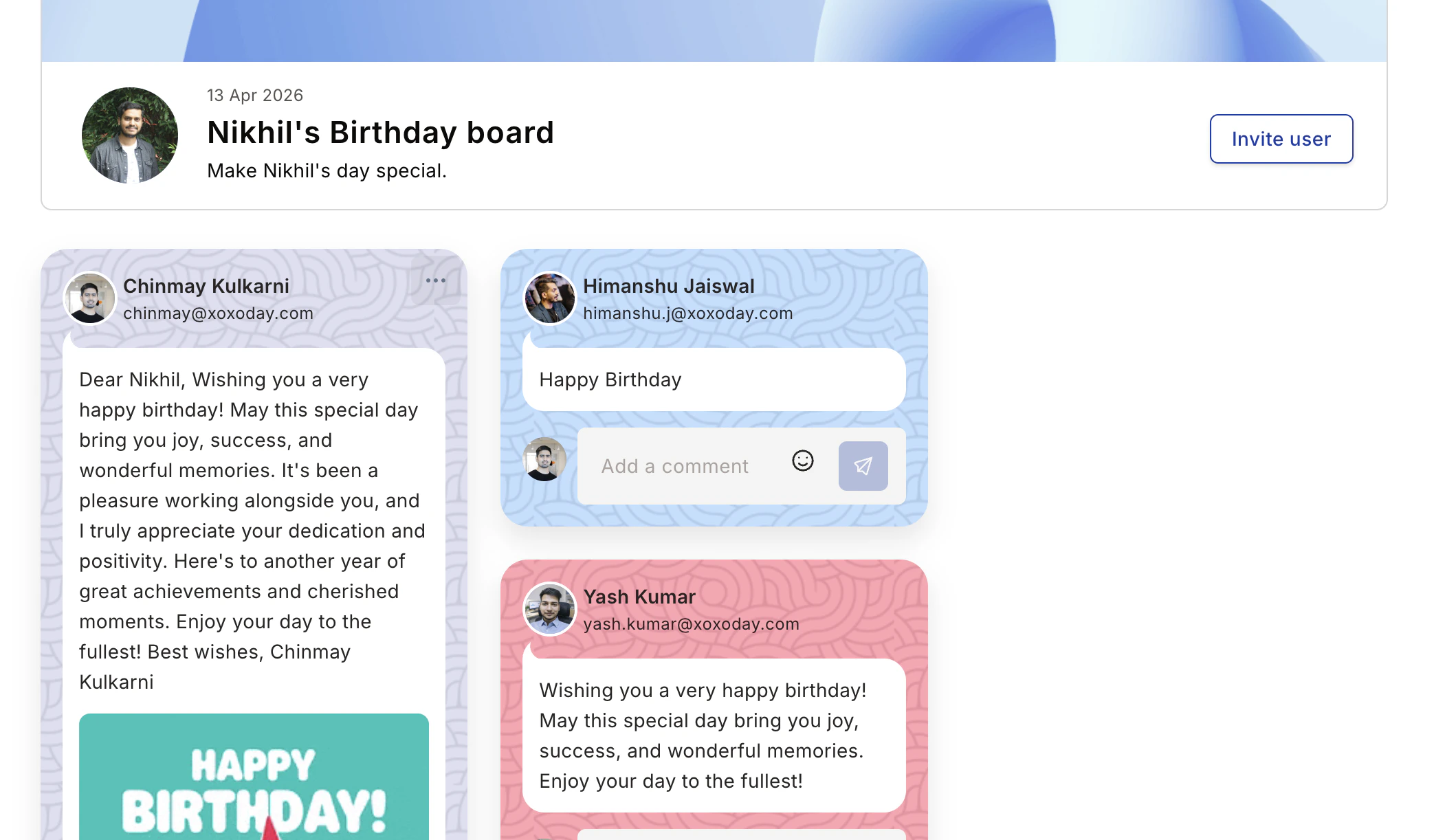 The social feed also displays today's birthdays, new joiners, and work anniversaries for quick access.
## Signature pages
Some wish boards include a signature page where colleagues can sign digitally. Click **Sign** on the wish board to add your signature. All signatures are compiled into the yearbook alongside the wishes.
## Yearbook
When the celebration window ends, Empuls automatically compiles every wish, photo, GIF, and signature into a page-by-page yearbook you can keep and download.
### When you get a yearbook
You receive a yearbook for each celebration that ran a wish board on your behalf:
* Your birthday (annual)
* Each work anniversary
* Each service-award milestone (1 yr, 3 yr, 5 yr, etc.)
* Welcome / new-joiner wish boards
* Farewell wish boards
You'll get an in-app and email notification when the yearbook is ready, typically within 24 hours of the wish board window closing.
### What's inside
| Page | Content |
| -------------------- | ------------------------------------------------------- |
| **Cover** | Title, celebration occasion, your name and photo |
| **Wish pages** | Every wish posted to the board |
| **Signature pages** | Compiled signature collection |
| **Photo gallery** | All photos posted to the board |
| **Recognition wall** | Recognitions you received during the celebration window |
| **Closing page** | Stats — number of wishes, signatures, contributors |
### View and download
1. Click the **View your yearbook** link in the in-app notification or email.
2. Use the page navigation at the bottom to flip through pages.
3. Click **Download PDF** to save a copy.
### Share your yearbook
Yearbooks are private to you by default. You can:
* **Share via internal link** — Send the yearbook URL to a colleague (Empuls login required).
* **Share PDF** — Send the PDF outside Empuls.
* **Make public to your org** — Only available for milestone anniversaries; turns the yearbook into a public page on the Wall of Fame.
All your past yearbooks remain accessible from your profile under the **Yearbooks** tab.
Yearbooks generate once the wish board window closes. Wishes posted after generation won't appear.
The social feed also displays today's birthdays, new joiners, and work anniversaries for quick access.
## Signature pages
Some wish boards include a signature page where colleagues can sign digitally. Click **Sign** on the wish board to add your signature. All signatures are compiled into the yearbook alongside the wishes.
## Yearbook
When the celebration window ends, Empuls automatically compiles every wish, photo, GIF, and signature into a page-by-page yearbook you can keep and download.
### When you get a yearbook
You receive a yearbook for each celebration that ran a wish board on your behalf:
* Your birthday (annual)
* Each work anniversary
* Each service-award milestone (1 yr, 3 yr, 5 yr, etc.)
* Welcome / new-joiner wish boards
* Farewell wish boards
You'll get an in-app and email notification when the yearbook is ready, typically within 24 hours of the wish board window closing.
### What's inside
| Page | Content |
| -------------------- | ------------------------------------------------------- |
| **Cover** | Title, celebration occasion, your name and photo |
| **Wish pages** | Every wish posted to the board |
| **Signature pages** | Compiled signature collection |
| **Photo gallery** | All photos posted to the board |
| **Recognition wall** | Recognitions you received during the celebration window |
| **Closing page** | Stats — number of wishes, signatures, contributors |
### View and download
1. Click the **View your yearbook** link in the in-app notification or email.
2. Use the page navigation at the bottom to flip through pages.
3. Click **Download PDF** to save a copy.
### Share your yearbook
Yearbooks are private to you by default. You can:
* **Share via internal link** — Send the yearbook URL to a colleague (Empuls login required).
* **Share PDF** — Send the PDF outside Empuls.
* **Make public to your org** — Only available for milestone anniversaries; turns the yearbook into a public page on the Wall of Fame.
All your past yearbooks remain accessible from your profile under the **Yearbooks** tab.
Yearbooks generate once the wish board window closes. Wishes posted after generation won't appear.