> ## Documentation Index
> Fetch the complete documentation index at: https://help-empuls.xoxoday.com/llms.txt
> Use this file to discover all available pages before exploring further.
# How to redeem
> Browse the rewards catalog, check your points balance, place an order, top up any shortfall with a card, and track every redemption in your order history.
Every time you're recognised, you earn points that have real monetary value. The Empuls rewards catalog spans over a dozen categories (digital gift cards, physical merchandise, travel, experiences, charitable donations, and more) and is available across 100+ countries. This guide takes you from checking your balance through completing a redemption and tracking your order.
## Interactive walkthrough
## Check your points balance
You can see your available points in two places:
* **Dashboard** — Your balance appears on the right side of the home screen under **My Points**.
* **Shop** — When you open the Shop from the left navigation, your balance is displayed at the top of the page.
## Redeem your points
Click **Shop** in the left navigation menu to open the Reward Store.
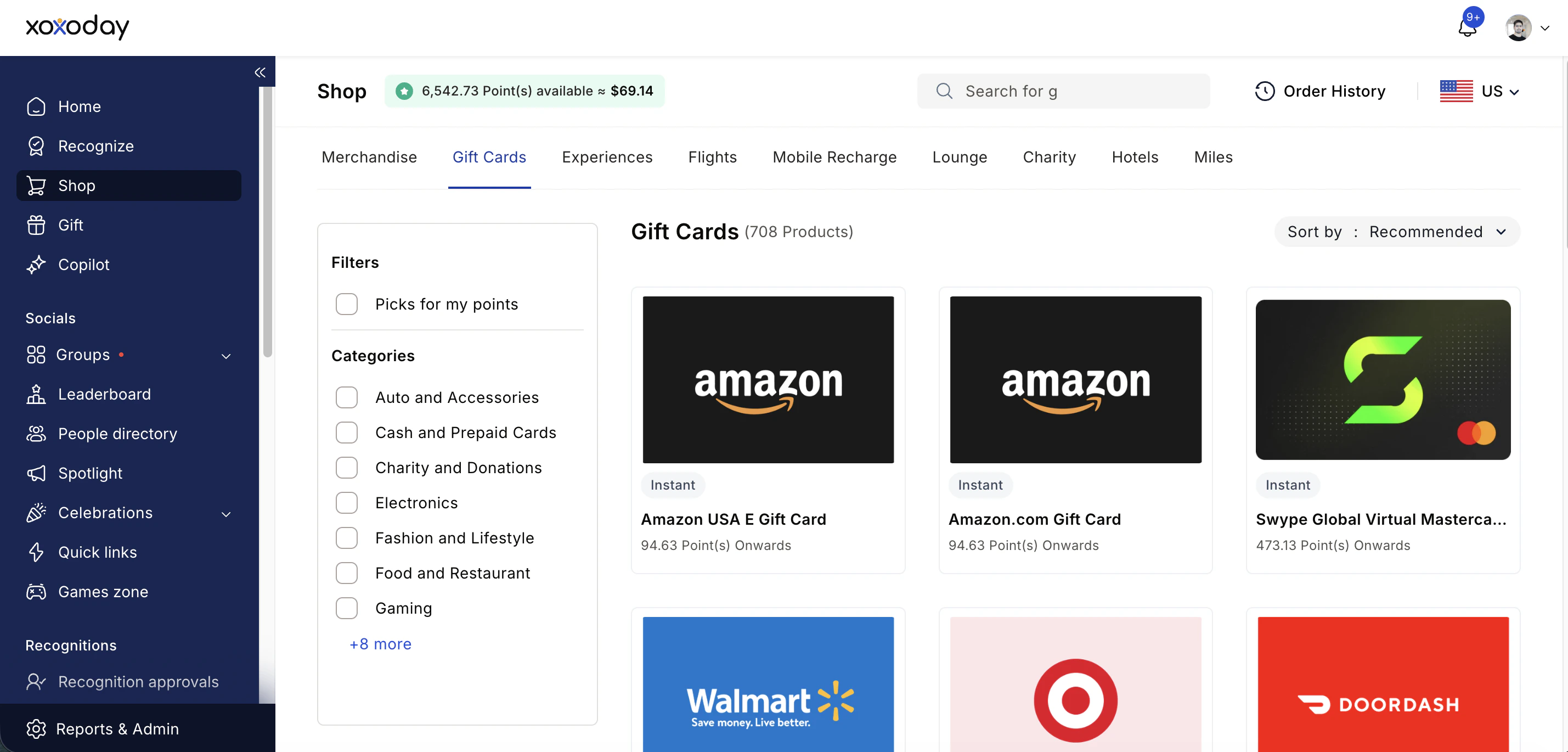 Use the category tabs to explore available rewards. The catalog includes:
* **Gift Cards** — Amazon, Starbucks, Apple, Netflix, Spotify, Uber Eats, Airbnb, and hundreds more
* **Merchandise** — Apparel, accessories, office items, and home goods
* **Company Store** — Items curated by your organisation
* **Health & Wellness**
* **Experiences** — Sports, dining, wellness, adventure, classes, and travel experiences
* **Flights** and **Hotels**
* **Mobile Recharge** — Prepaid and postpaid
* **Lounge access**, **Miles**, and **Charity** donations
Use the category tabs to explore available rewards. The catalog includes:
* **Gift Cards** — Amazon, Starbucks, Apple, Netflix, Spotify, Uber Eats, Airbnb, and hundreds more
* **Merchandise** — Apparel, accessories, office items, and home goods
* **Company Store** — Items curated by your organisation
* **Health & Wellness**
* **Experiences** — Sports, dining, wellness, adventure, classes, and travel experiences
* **Flights** and **Hotels**
* **Mobile Recharge** — Prepaid and postpaid
* **Lounge access**, **Miles**, and **Charity** donations
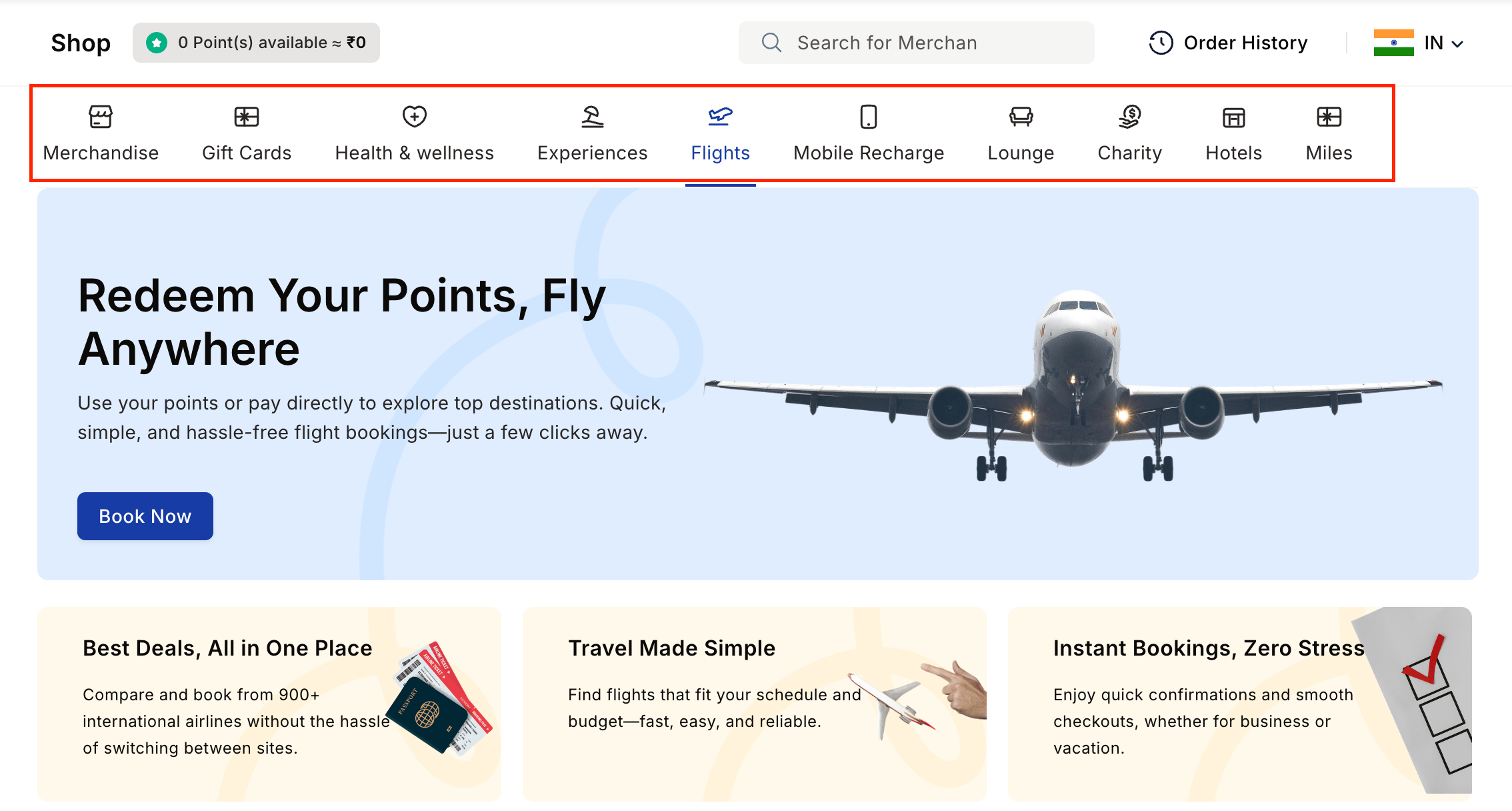 Use the **filter** to narrow results by category or subcategory. Enable **Picks for my points** to automatically show only items within your current balance. Sort by **Recommended**, **Recently added**, **Price (Low to High)**, or **Price (High to Low)**.
To view products from another country, change the country selector in the **top-right corner** of the Shop.
Use the **filter** to narrow results by category or subcategory. Enable **Picks for my points** to automatically show only items within your current balance. Sort by **Recommended**, **Recently added**, **Price (Low to High)**, or **Price (High to Low)**.
To view products from another country, change the country selector in the **top-right corner** of the Shop.
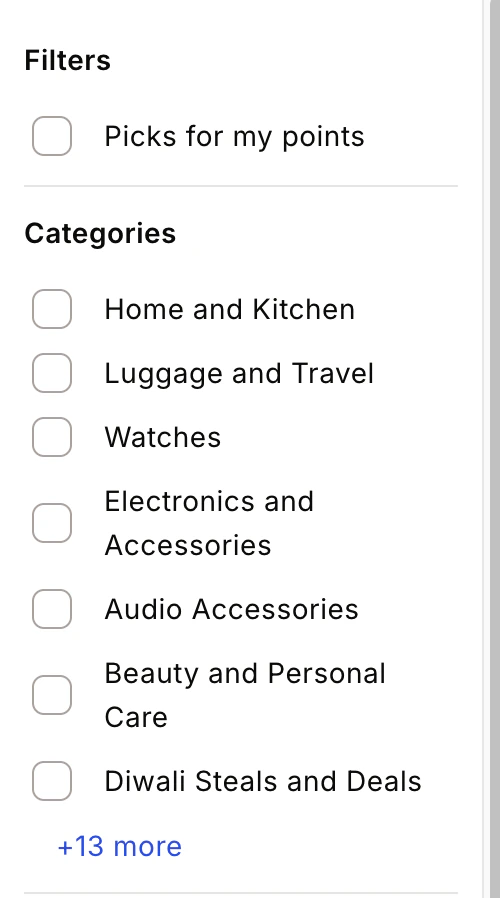 Click on a product or gift card. For merchandise, choose your preferred **colour** and **size** if available. For gift cards, enter the desired **denomination** and choose a \*\*quantity. \*\*
Multiple merchandise products can be added to your cart and redeemed in a single checkout. For all other reward types (gift cards, experiences, flights, etc.), you redeem one item at a time.
Click on a product or gift card. For merchandise, choose your preferred **colour** and **size** if available. For gift cards, enter the desired **denomination** and choose a \*\*quantity. \*\*
Multiple merchandise products can be added to your cart and redeemed in a single checkout. For all other reward types (gift cards, experiences, flights, etc.), you redeem one item at a time.
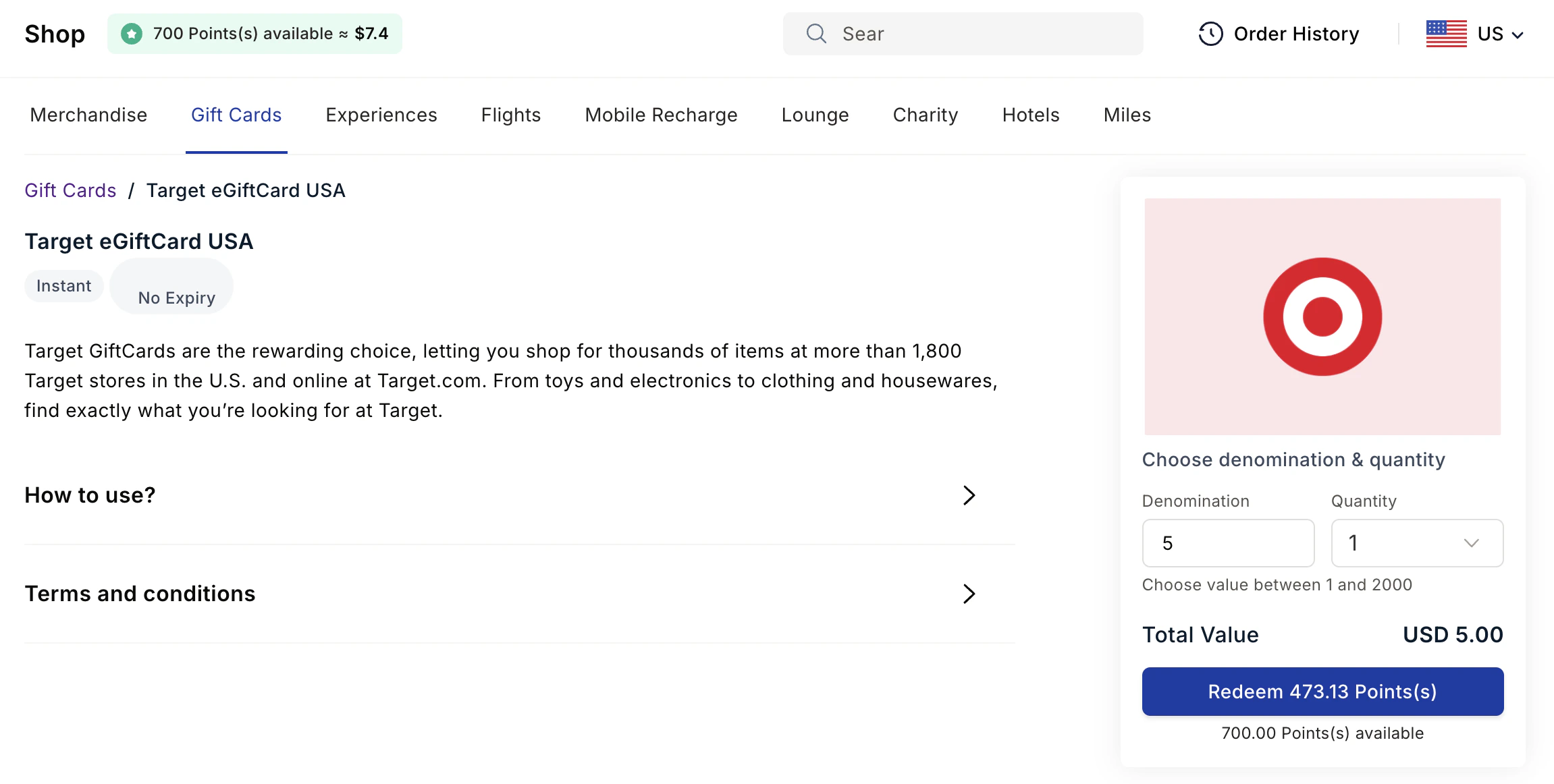 For merchandise products, click **Go to Cart** to review your order summary, then click **Proceed to shipping details**. For gift cards, click **Redeem Points**.
For physical merchandise, enter your **delivery address** and any required information. Digital gift cards do not require a shipping address.
For merchandise products, click **Go to Cart** to review your order summary, then click **Proceed to shipping details**. For gift cards, click **Redeem Points**.
For physical merchandise, enter your **delivery address** and any required information. Digital gift cards do not require a shipping address.
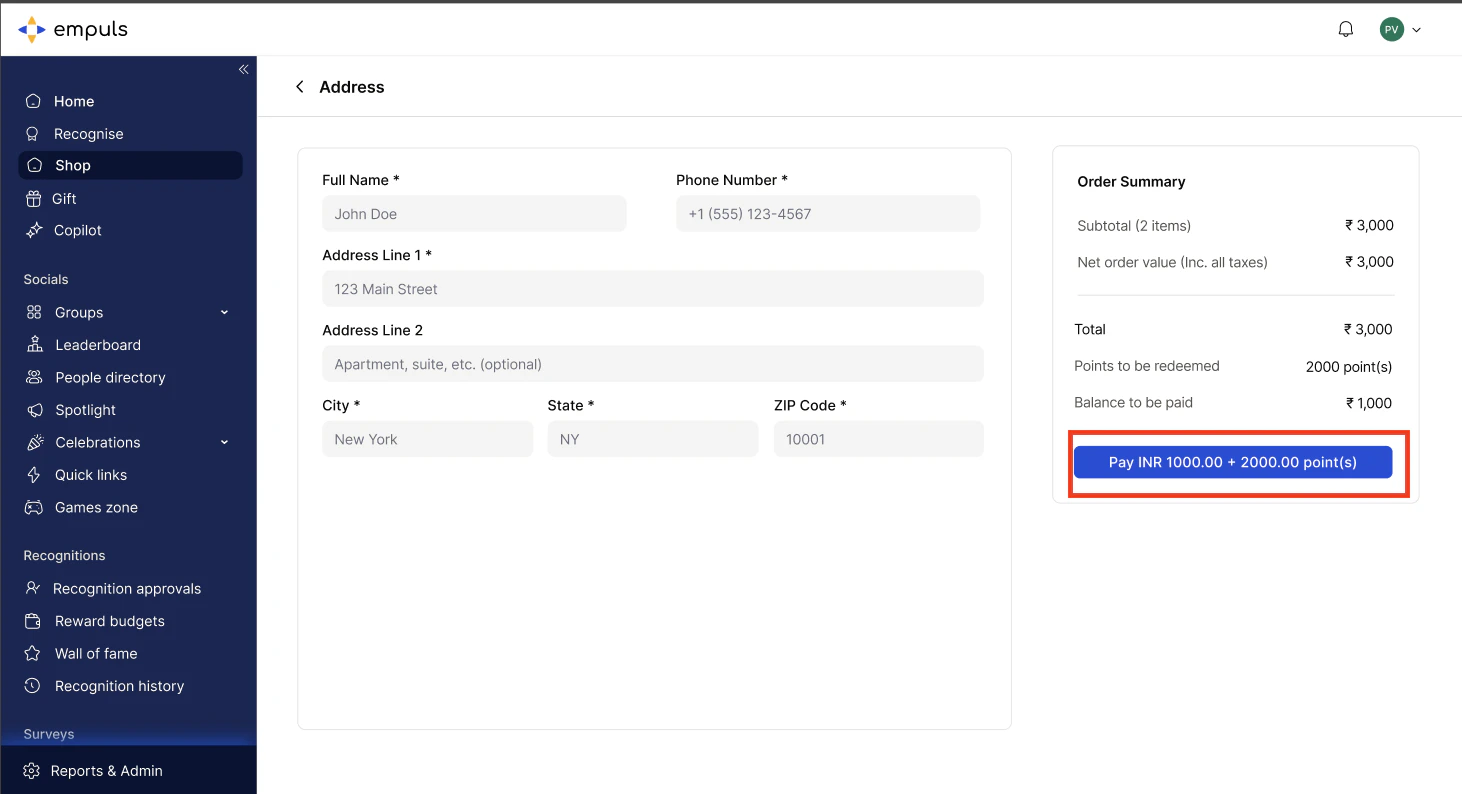 * If your points cover the full order, click **Redeem Points** to confirm.
* If your balance is insufficient, you'll be offered a **partial payment** option — your points cover what they can, and you pay the remaining balance by credit card. The payment process is handled by **Stripe** and is **PCI compliant**.
Once the transaction is processed, you'll receive an order confirmation. For digital gift cards, the voucher code is sent to your registered email address instantly.
* If your points cover the full order, click **Redeem Points** to confirm.
* If your balance is insufficient, you'll be offered a **partial payment** option — your points cover what they can, and you pay the remaining balance by credit card. The payment process is handled by **Stripe** and is **PCI compliant**.
Once the transaction is processed, you'll receive an order confirmation. For digital gift cards, the voucher code is sent to your registered email address instantly.
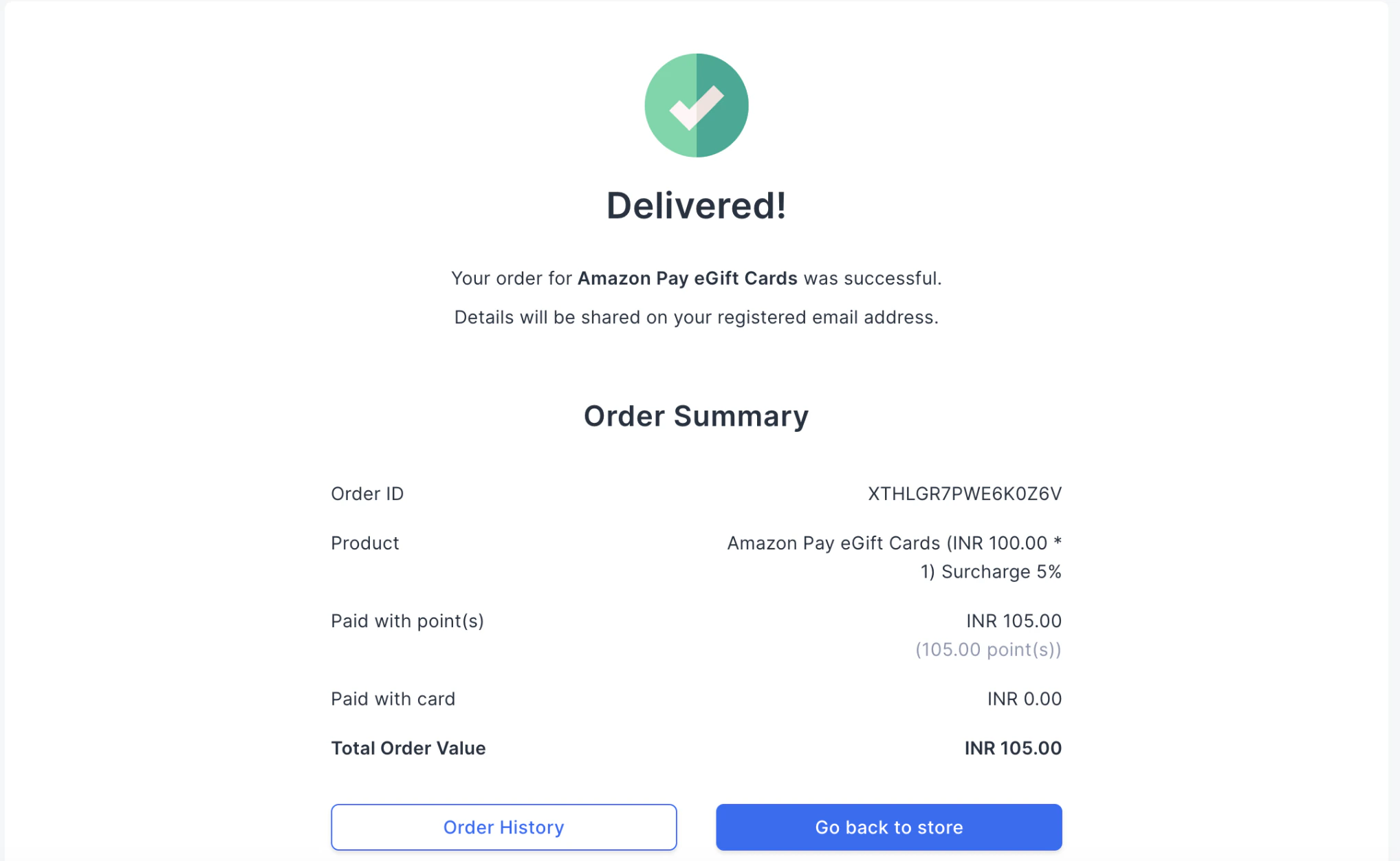 Digital gift cards are delivered instantly to your registered email. Physical merchandise typically takes **3–15 business days** depending on your location and the item.
If you have points from multiple award programs or wallets, they can be combined at checkout to cover a single order.
## View your account statement
Your account statement gives you a full transaction history — every point you've received, every redemption you've made, and your running balance.
Digital gift cards are delivered instantly to your registered email. Physical merchandise typically takes **3–15 business days** depending on your location and the item.
If you have points from multiple award programs or wallets, they can be combined at checkout to cover a single order.
## View your account statement
Your account statement gives you a full transaction history — every point you've received, every redemption you've made, and your running balance.
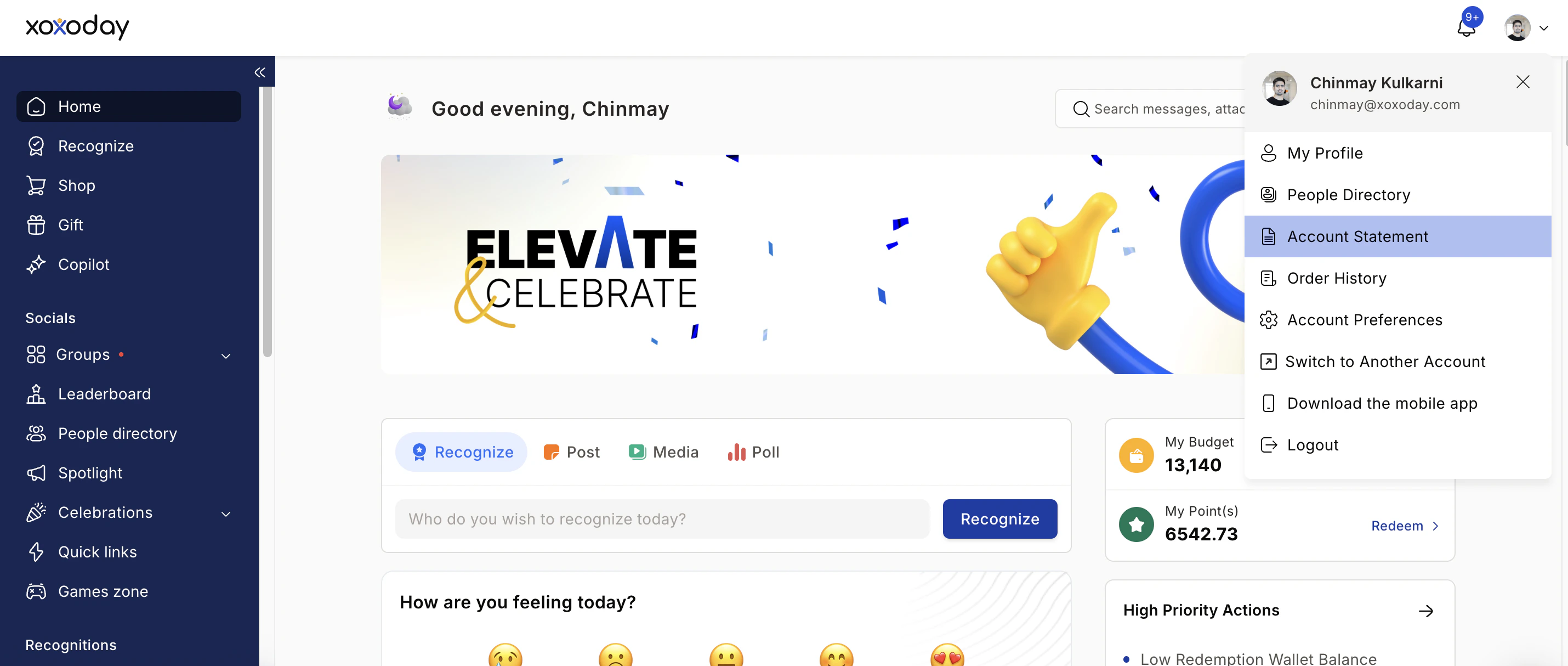 Click your **profile image** and select **Account Statement** from the dropdown.
Each row shows a **Date**, **Description**, **Debit** (points spent), **Credit** (points received), and **Closing Balance** after that transaction.
* A value in the **Credit** column means points were added — from recognition, awards, or admin adjustments.
* A value in the **Debit** column means points were deducted — from giving recognition to others or from a redemption.
Your closing balance updates after every transaction and reflects your real-time available points at that moment.
**Example transactions**
| Date | Description | Debit | Credit | Closing Balance |
| :---------- | :--------------------------------- | :---- | :----- | :-------------- |
| 01 Mar 2026 | Recognition received from Anushree | — | 100 | 350 |
| 03 Mar 2026 | Redeemed gift card | 200 | — | 150 |
## FAQs
Check your spam or junk folder and wait a few minutes — delivery is usually instant but can occasionally take longer. You can resend the code from your **Order History** by hovering over the item and clicking **Resend Gift Card**. If it still hasn't arrived, contact support at [cs@xoxoday.com](mailto:cs@xoxoday.com).
Inventory updates regularly. Check back later or ask your administrator about a waitlist option. You can also browse similar items in the same category.
Contact support at [cs@xoxoday.com](mailto:cs@xoxoday.com) immediately. Most issues are resolved quickly.
This may be a permissions issue configured by your administrator. Check with your admin to confirm your access settings.
Select the partial payment option at checkout. Your available points are applied as a discount, and you pay the remaining balance by credit card through the secure Stripe payment gateway.
Yes. Go to **Shop**, select the **Flights** tab, and click **Explore now**. You'll be redirected to the Plum store where you can search and book flights using your points.
Click your **profile image** and select **Account Statement** from the dropdown.
Each row shows a **Date**, **Description**, **Debit** (points spent), **Credit** (points received), and **Closing Balance** after that transaction.
* A value in the **Credit** column means points were added — from recognition, awards, or admin adjustments.
* A value in the **Debit** column means points were deducted — from giving recognition to others or from a redemption.
Your closing balance updates after every transaction and reflects your real-time available points at that moment.
**Example transactions**
| Date | Description | Debit | Credit | Closing Balance |
| :---------- | :--------------------------------- | :---- | :----- | :-------------- |
| 01 Mar 2026 | Recognition received from Anushree | — | 100 | 350 |
| 03 Mar 2026 | Redeemed gift card | 200 | — | 150 |
## FAQs
Check your spam or junk folder and wait a few minutes — delivery is usually instant but can occasionally take longer. You can resend the code from your **Order History** by hovering over the item and clicking **Resend Gift Card**. If it still hasn't arrived, contact support at [cs@xoxoday.com](mailto:cs@xoxoday.com).
Inventory updates regularly. Check back later or ask your administrator about a waitlist option. You can also browse similar items in the same category.
Contact support at [cs@xoxoday.com](mailto:cs@xoxoday.com) immediately. Most issues are resolved quickly.
This may be a permissions issue configured by your administrator. Check with your admin to confirm your access settings.
Select the partial payment option at checkout. Your available points are applied as a discount, and you pay the remaining balance by credit card through the secure Stripe payment gateway.
Yes. Go to **Shop**, select the **Flights** tab, and click **Explore now**. You'll be redirected to the Plum store where you can search and book flights using your points.