> ## Documentation Index
> Fetch the complete documentation index at: https://help-empuls.xoxoday.com/llms.txt
> Use this file to discover all available pages before exploring further.
# Recognition approvals
## Review and approve nominations (approvers)
If you are designated as an approver for an award, you receive a notification whenever a new nomination is submitted for your review.
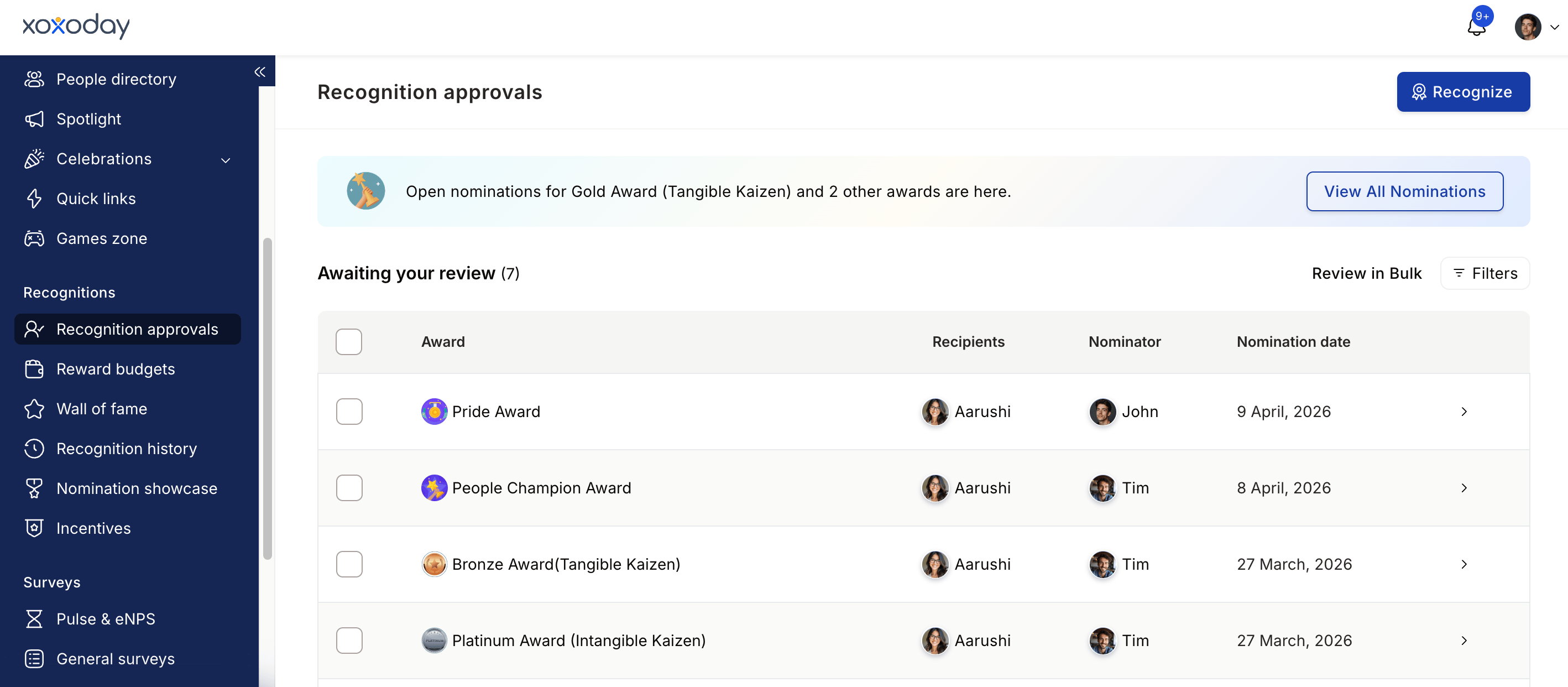 Navigate to **Recognitions > Recognition Approvals** in the left menu. This shows all nominations assigned to you, with options to filter by recipient name, award name, nomination status, and date requested.
If you're reviewing on behalf of a senior leader who has delegated approvals to you, toggle between **Pending on me** and **Pending on delegated account** at the top of the page.
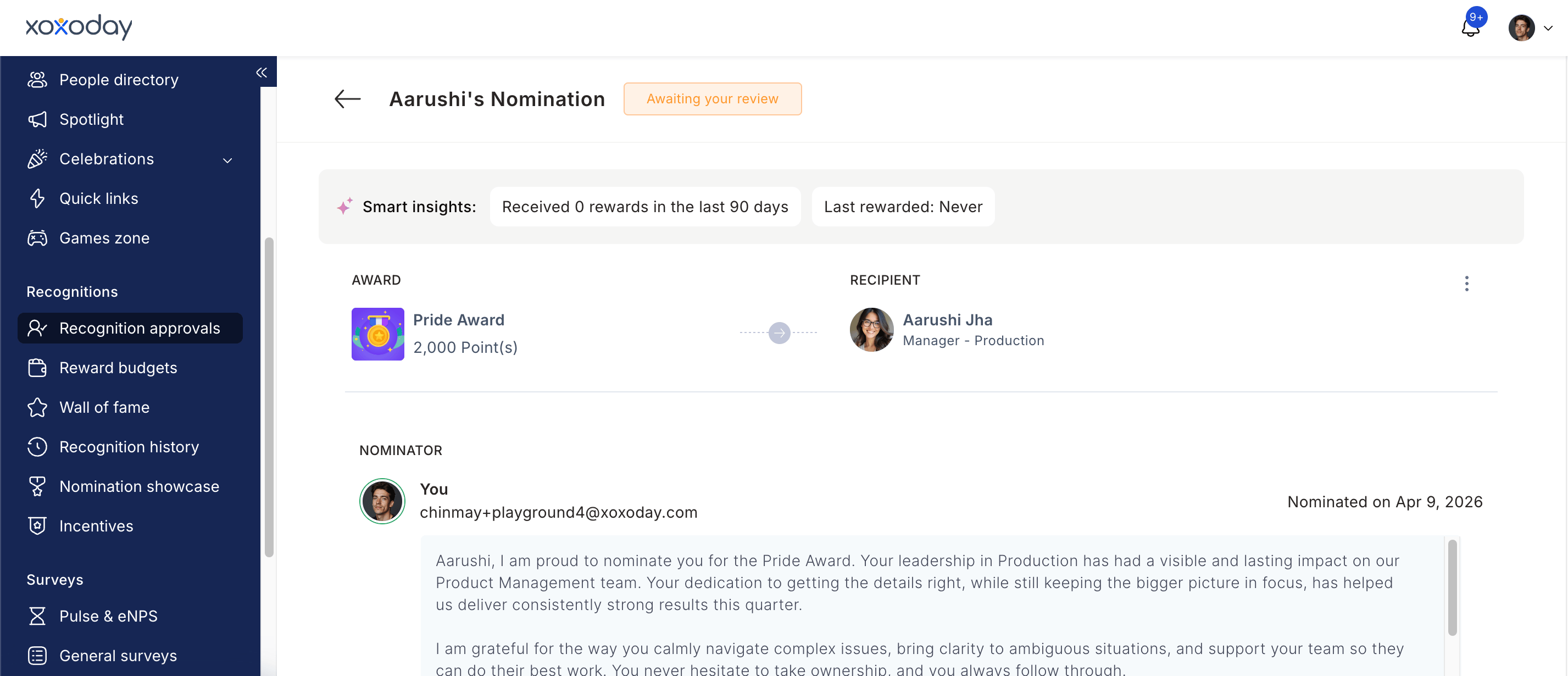
Click **Take Action** on any nomination to open the full detail view. You'll see the award details, the core value cited, the nominator's message, any answers to mandatory questions, and attached files.
Use the **Smart Insights** panel to see data-driven context about the nominee's recent activity and recognition history. This helps you evaluate impact that may not be fully captured in the written citation.
Navigate to **Recognitions > Recognition Approvals** in the left menu. This shows all nominations assigned to you, with options to filter by recipient name, award name, nomination status, and date requested.
If you're reviewing on behalf of a senior leader who has delegated approvals to you, toggle between **Pending on me** and **Pending on delegated account** at the top of the page.
Click **Take Action** on any nomination to open the full detail view. You'll see the award details, the core value cited, the nominator's message, any answers to mandatory questions, and attached files.
Use the **Smart Insights** panel to see data-driven context about the nominee's recent activity and recognition history. This helps you evaluate impact that may not be fully captured in the written citation.
 You have four options:
| Action | What it does |
| :-------------------- | :----------------------------------------------------------------------------------------- |
| **Approve** | Moves the nomination to the next stage (or issues the award if you're the final approver). |
| **Decline** | Rejects the nomination. You must provide a reason. |
| **Message Nominator** | Returns the nomination to the nominator with a note requesting an improved citation. |
| **Bulk Actions** | Approve or decline multiple nominations at once. |
Providing a reason is mandatory for both approvals and rejections. This creates an audit trail and maintains transparency.
Before approving, you can edit the citation if the nominator's text needs improvement. Hover over the citation text, click the **edit icon**, make your changes, and click the checkmark to save. You can also attach additional files as evidence.
The nominator can edit the citation only before the first-level approver has acted.
If you are the final approver, you must select the budget from which reward points will be deducted before confirming the approval.
Once you approve the nomination, the system notifies the nominator, the nominee, and the nominee's relevant stakeholders. Reward points are credited to the nominee's account and (if configured as public) a recognition post appears on the group feed.
## Automatic approval timeout
You can configure an award so that nominations expire automatically if no action is taken within a defined period. This keeps the programme moving and avoids nominations sitting in an indefinite pending state.
To set this up, go to the award's **Advanced Settings** during creation or editing and configure **Nomination Validity**. Nominations that exceed the validity window are automatically declined.
Auto-approve can also be enabled for a specific approver level. When auto-approve is on, nominations reaching that level are approved instantly, provided the approver has sufficient budget. If budget is insufficient, all Super Admins receive an email alert.
You have four options:
| Action | What it does |
| :-------------------- | :----------------------------------------------------------------------------------------- |
| **Approve** | Moves the nomination to the next stage (or issues the award if you're the final approver). |
| **Decline** | Rejects the nomination. You must provide a reason. |
| **Message Nominator** | Returns the nomination to the nominator with a note requesting an improved citation. |
| **Bulk Actions** | Approve or decline multiple nominations at once. |
Providing a reason is mandatory for both approvals and rejections. This creates an audit trail and maintains transparency.
Before approving, you can edit the citation if the nominator's text needs improvement. Hover over the citation text, click the **edit icon**, make your changes, and click the checkmark to save. You can also attach additional files as evidence.
The nominator can edit the citation only before the first-level approver has acted.
If you are the final approver, you must select the budget from which reward points will be deducted before confirming the approval.
Once you approve the nomination, the system notifies the nominator, the nominee, and the nominee's relevant stakeholders. Reward points are credited to the nominee's account and (if configured as public) a recognition post appears on the group feed.
## Automatic approval timeout
You can configure an award so that nominations expire automatically if no action is taken within a defined period. This keeps the programme moving and avoids nominations sitting in an indefinite pending state.
To set this up, go to the award's **Advanced Settings** during creation or editing and configure **Nomination Validity**. Nominations that exceed the validity window are automatically declined.
Auto-approve can also be enabled for a specific approver level. When auto-approve is on, nominations reaching that level are approved instantly, provided the approver has sufficient budget. If budget is insufficient, all Super Admins receive an email alert.