> ## Documentation Index
> Fetch the complete documentation index at: https://help-empuls.xoxoday.com/llms.txt
> Use this file to discover all available pages before exploring further.
# Submitting nominations
> Nominate colleagues with citations and evidence, manage the approval workflow as a reviewer, handle jury voting, and bulk-review multiple nominations at once.
Nomination-based awards require at least one person to formally propose a colleague for recognition. The nomination then moves through a review process (a single approver, a multi-level hierarchy, or a jury panel) before reward points are issued and an announcement appears on the feed. This page covers the full cycle from the nominator's perspective and from the approver's perspective.
## Bulk nomination approval walkthrough
## How the nomination process works
The exact steps depend on the award type configured by your admin, but the general flow is:
1. A **nominator** selects a recipient, picks an award, writes a citation, and submits.
2. A **first-level approver** reviews the nomination and approves, declines, or returns it for improvement.
3. For awards with a second approver, the nomination moves up to the **final approver**, who selects the budget and confirms.
4. For jury awards, the nomination goes to a **jury panel** for rating, and a **moderator** selects the winners.
5. On approval, points are credited to the recipient and a post appears on the group feed (if the award is configured as public).
Not all organisations use nomination-based awards. Check with your admin to confirm which awards are available to you before you start.
## Submit a nomination
Click **Recognize** in the feed box at the top of your home page, or click **Recognize** in the left sidebar.
Type your colleague's name or email address. You can nominate an individual or, if the award allows it, a team of up to 50 members. Click **Next**.
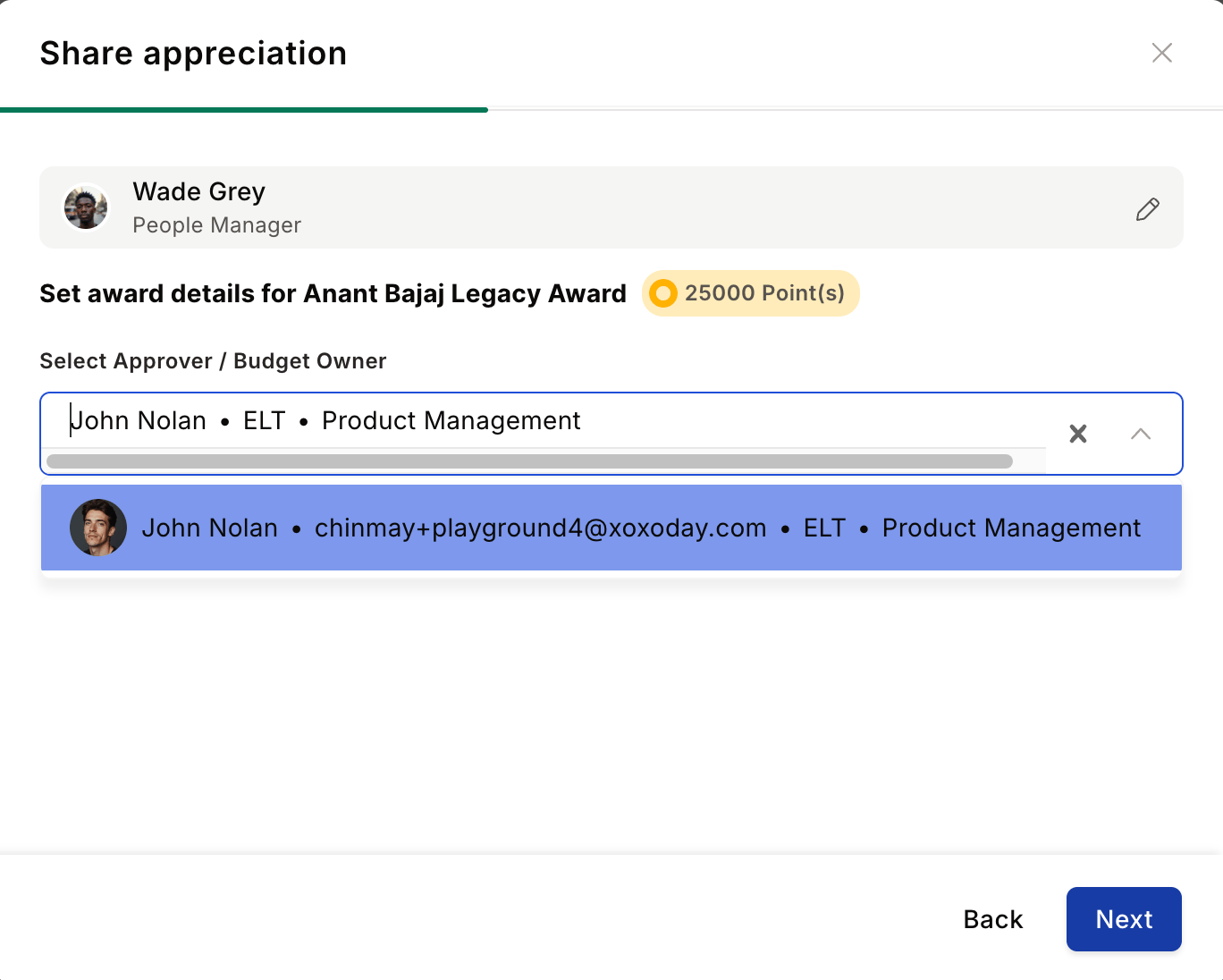
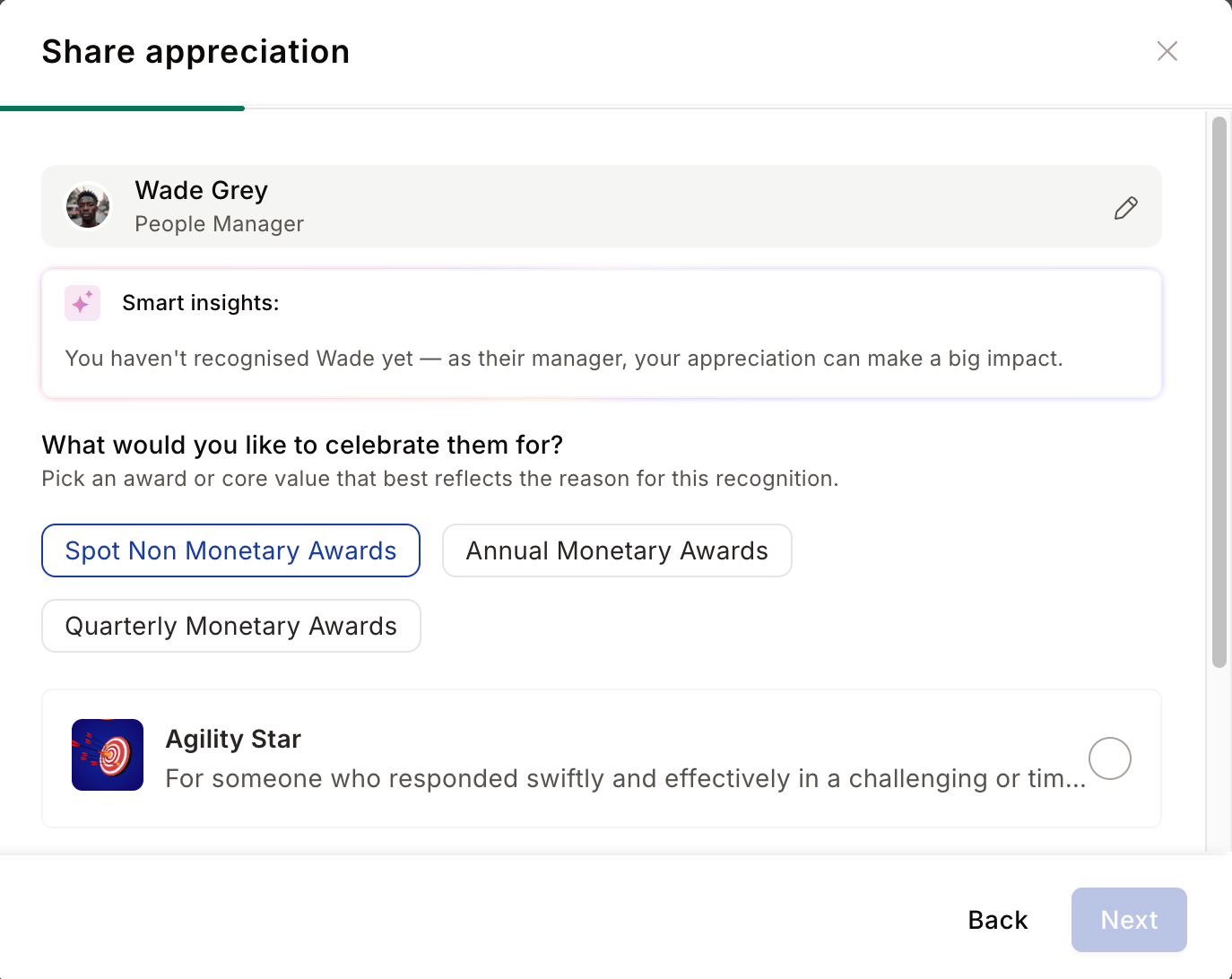 A list of approval-based awards appears. Click any award to read its purpose and eligibility criteria. Select the award, then pick an **approver** from the list of authorised reviewers defined by your admin. Click **Next**.
 The citation is a mandatory message explaining why the nominee deserves the award. Be specific: describe the achievement, the business impact, and the core value demonstrated.
**Example:** "Priya's leadership of the new onboarding programme reduced time-to-productivity by 30%. Her ability to align five departments behind a single process demonstrates exceptional ownership and customer focus."
Click **Improve with AI** to see an AI-generated version of your citation. You can regenerate it, copy it, or replace your text with the suggested version.
Click the **pin icon** to upload evidence supporting your nomination. You can attach up to 5 files in JPG, JPEG, PNG, XLS, CSV, DOC, PDF, or PPT format. Useful attachments include project reports, customer feedback emails, performance metrics, or press coverage.
If the award requires specific questions, you must answer them before submitting. Some text-based questions also allow you to attach files as evidence.
If the award includes a certificate, your citation text will appear on it. Click **Review Certificate** to preview the certificate and edit the citation that will be printed. You can write it manually or generate it with AI.
Review the nomination summary on the right side of the screen. Use the formatting toolbar to add bold, italics, bullet lists, or alignment to your citation. When you're satisfied, click **Submit for Review**.
You'll receive a notification once the approver has acted on your nomination.
## Track your nominations
To check the status of nominations you've submitted, navigate to **Recognitions > Recognition History**. Click any nomination to see its current status:
The citation is a mandatory message explaining why the nominee deserves the award. Be specific: describe the achievement, the business impact, and the core value demonstrated.
**Example:** "Priya's leadership of the new onboarding programme reduced time-to-productivity by 30%. Her ability to align five departments behind a single process demonstrates exceptional ownership and customer focus."
Click **Improve with AI** to see an AI-generated version of your citation. You can regenerate it, copy it, or replace your text with the suggested version.
Click the **pin icon** to upload evidence supporting your nomination. You can attach up to 5 files in JPG, JPEG, PNG, XLS, CSV, DOC, PDF, or PPT format. Useful attachments include project reports, customer feedback emails, performance metrics, or press coverage.
If the award requires specific questions, you must answer them before submitting. Some text-based questions also allow you to attach files as evidence.
If the award includes a certificate, your citation text will appear on it. Click **Review Certificate** to preview the certificate and edit the citation that will be printed. You can write it manually or generate it with AI.
Review the nomination summary on the right side of the screen. Use the formatting toolbar to add bold, italics, bullet lists, or alignment to your citation. When you're satisfied, click **Submit for Review**.
You'll receive a notification once the approver has acted on your nomination.
## Track your nominations
To check the status of nominations you've submitted, navigate to **Recognitions > Recognition History**. Click any nomination to see its current status:
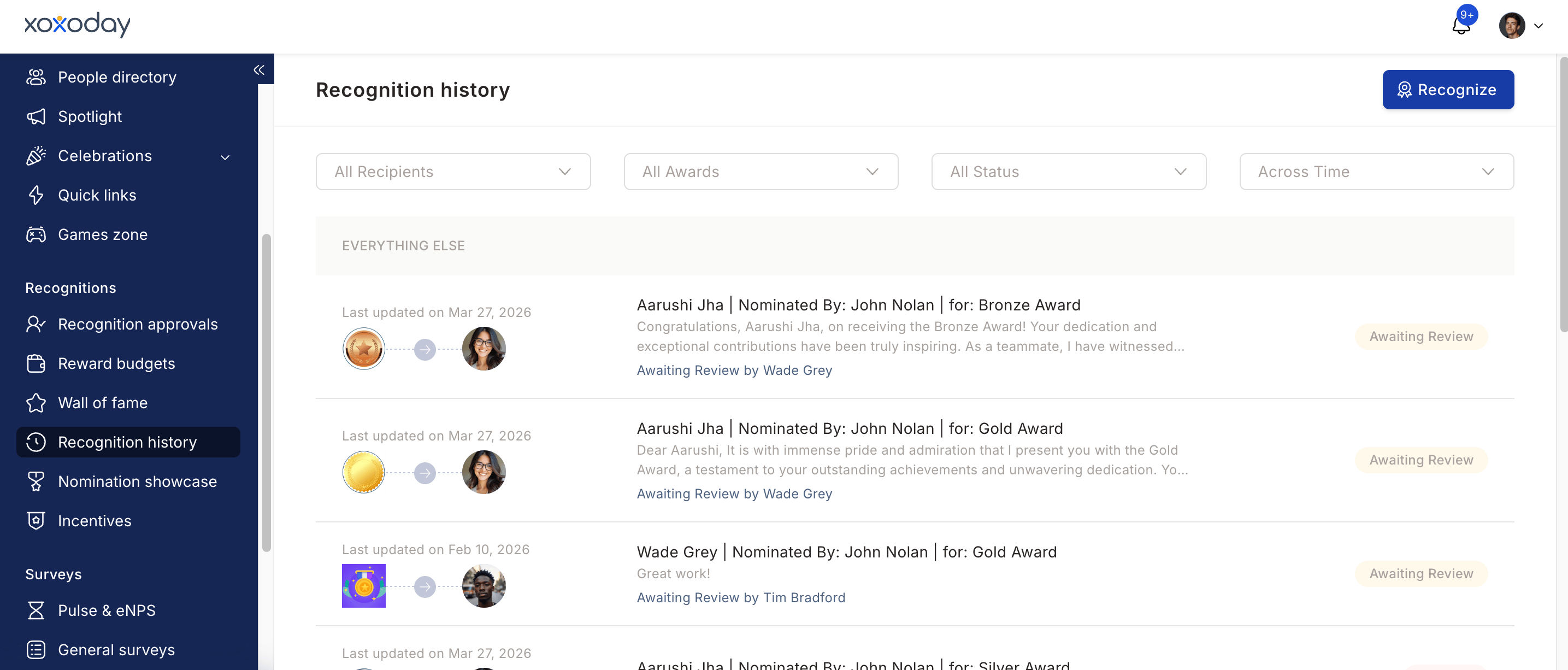 * **Approved** — the award has been issued.
* **Awaiting review** — waiting for an approver to take action.
* **Declined** — the approver rejected the nomination (a reason is provided).
* **Cancelled** — you cancelled the nomination before it was approved.
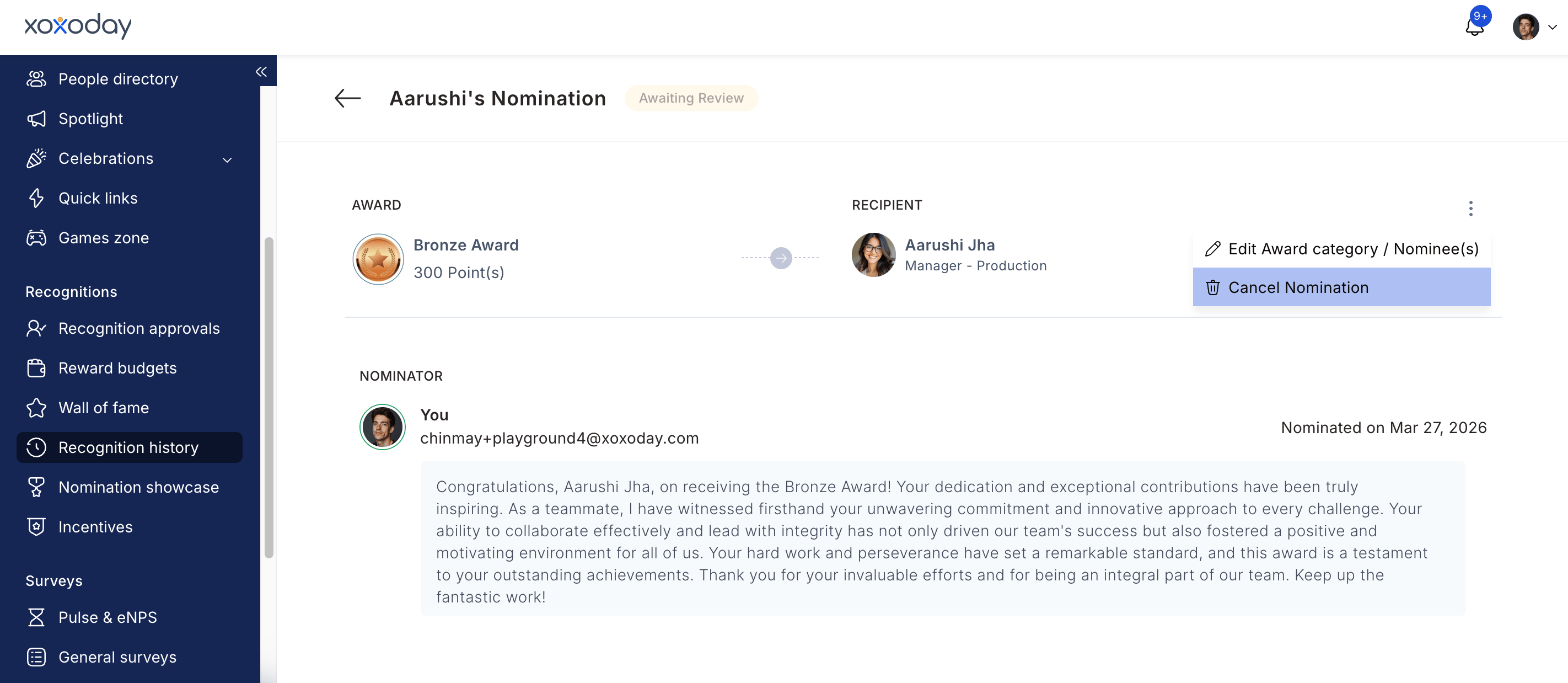
To cancel a pending nomination, click the three-dot menu on the nomination card and select **Cancel Nomination**.
* **Approved** — the award has been issued.
* **Awaiting review** — waiting for an approver to take action.
* **Declined** — the approver rejected the nomination (a reason is provided).
* **Cancelled** — you cancelled the nomination before it was approved.
To cancel a pending nomination, click the three-dot menu on the nomination card and select **Cancel Nomination**.
 By default, nominees are not notified in real time. Admins can configure a one-time notification to inform nominees of their nomination, but the timing is controlled by the admin.
Only if the award has self-nomination enabled. The admin configures this during award setup.
Yes, if the award supports team recipients. Select multiple team members during the nomination flow. Admins configure whether the point value is split equally or whether each person receives the full amount.
You receive a notification with the reason provided by the approver. You can resubmit if the award is still active and you improve the citation.
Yes. In the Recognition Approvals screen, select multiple nominations using the checkboxes and use **Bulk Actions** to approve or decline them all at once.
Navigate to **Recognitions > Recognition History**, find the approved nomination, click the three-dot menu, and select **Revoke Award**. Provide a reason and submit. A Super Admin reviews and completes the revocation.
## Related
Configure award types, eligibility, point values, and core value cards.
Run structured, time-bound recognition cycles with governance rules.
By default, nominees are not notified in real time. Admins can configure a one-time notification to inform nominees of their nomination, but the timing is controlled by the admin.
Only if the award has self-nomination enabled. The admin configures this during award setup.
Yes, if the award supports team recipients. Select multiple team members during the nomination flow. Admins configure whether the point value is split equally or whether each person receives the full amount.
You receive a notification with the reason provided by the approver. You can resubmit if the award is still active and you improve the citation.
Yes. In the Recognition Approvals screen, select multiple nominations using the checkboxes and use **Bulk Actions** to approve or decline them all at once.
Navigate to **Recognitions > Recognition History**, find the approved nomination, click the three-dot menu, and select **Revoke Award**. Provide a reason and submit. A Super Admin reviews and completes the revocation.
## Related
Configure award types, eligibility, point values, and core value cards.
Run structured, time-bound recognition cycles with governance rules.