> ## Documentation Index
> Fetch the complete documentation index at: https://help-empuls.xoxoday.com/llms.txt
> Use this file to discover all available pages before exploring further.
# Giving recognition
> Send peer recognition, nominate colleagues for awards, and share achievements on LinkedIn.
## Send a peer recognition
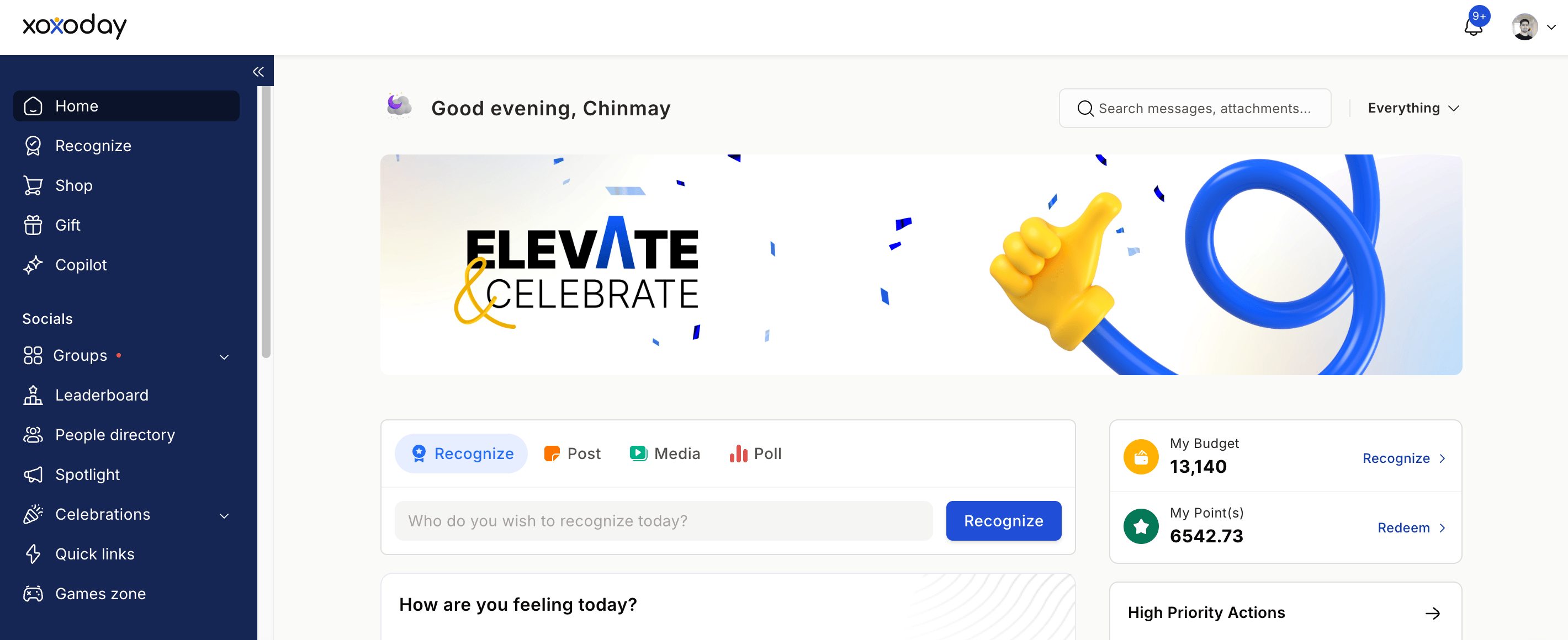
Go to the **group** where you want to share the recognition — this could be your team group, an all-company group, or any other group you're part of. Click **Recognize** in the feed input box.
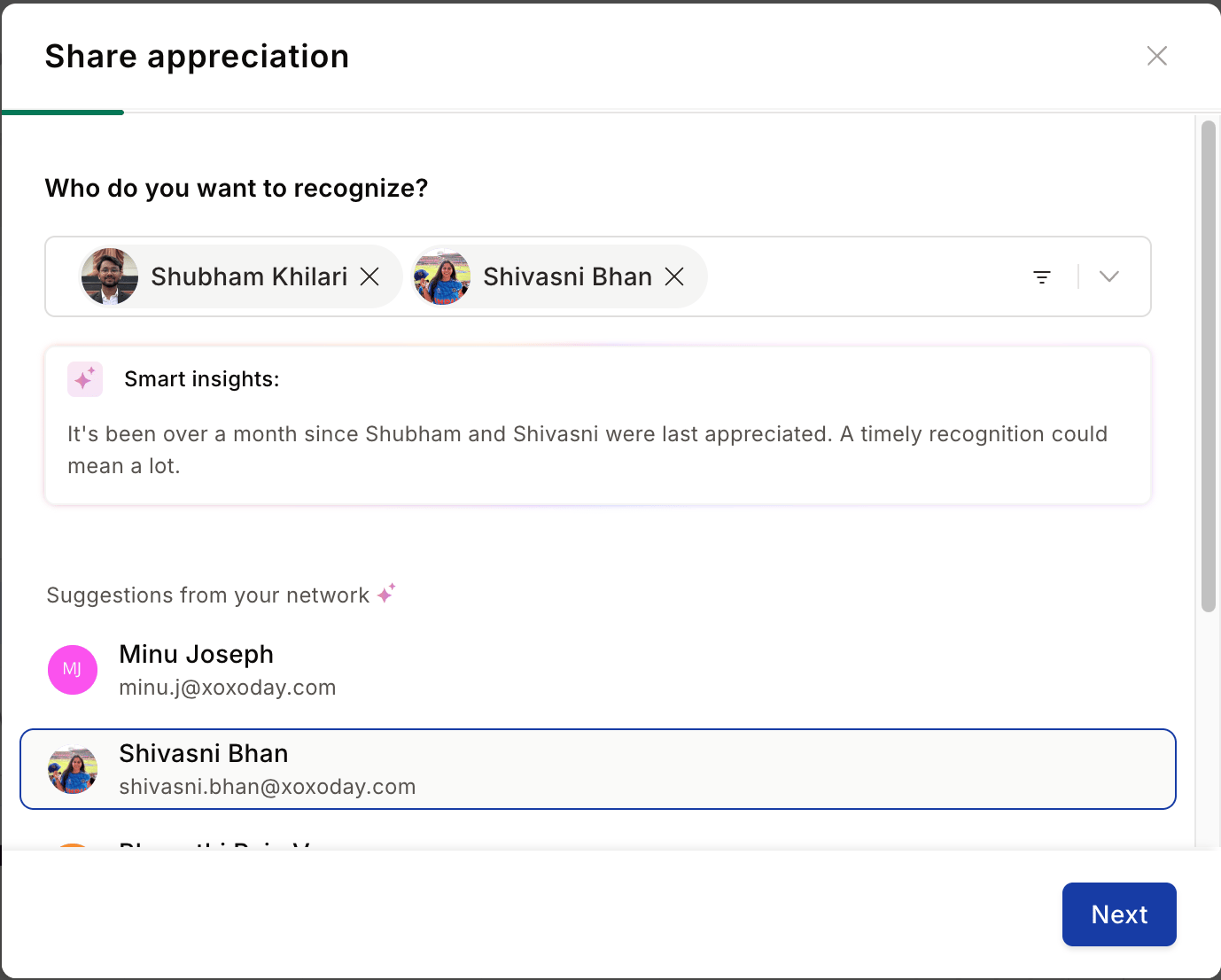
 Search for your colleague by **name or email**, or paste their email address directly into the search field. You can view the number of nominations they've received in the last quarter or six months directly from this screen. Click **Next**.
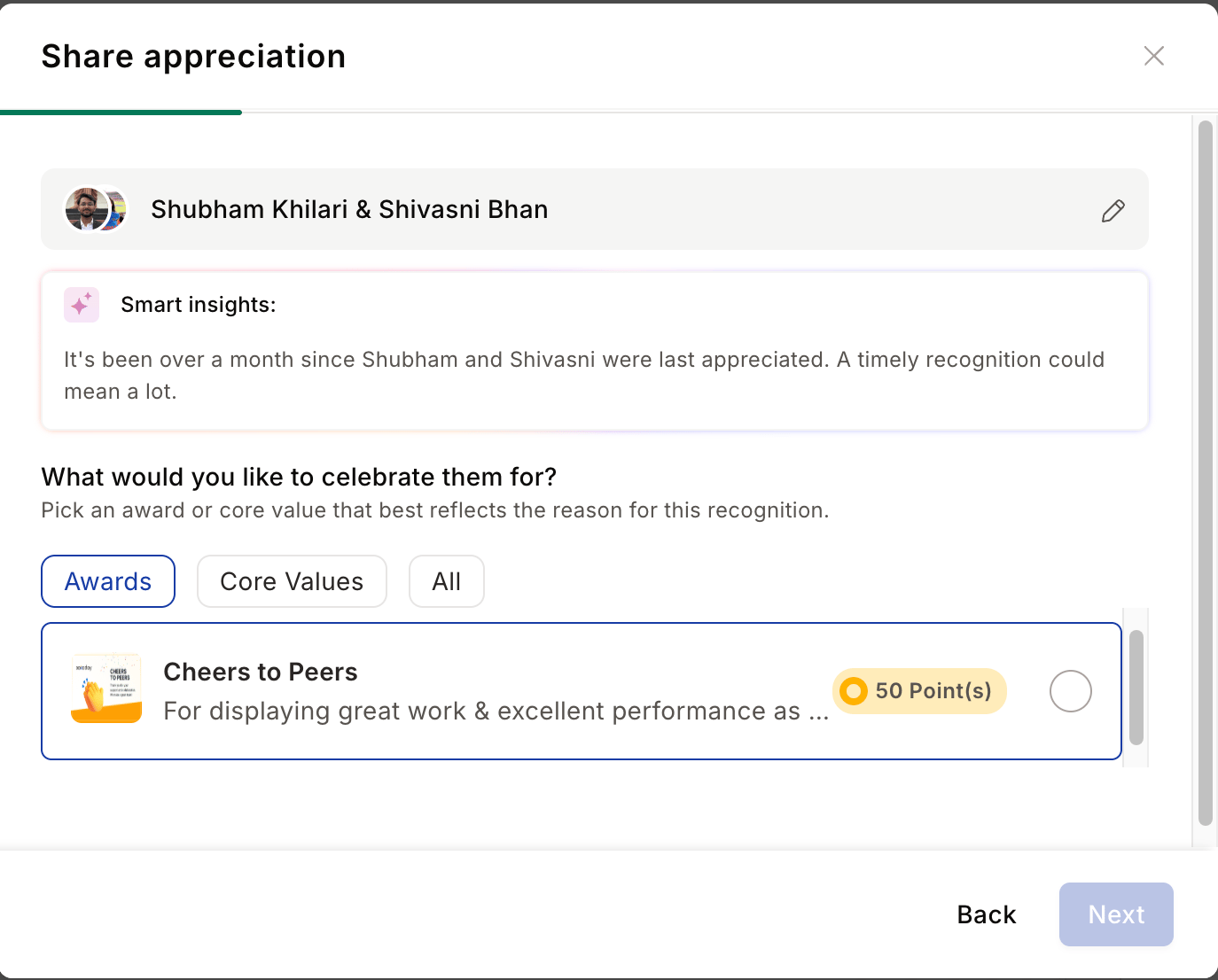
 Select a **Spot Award**, **Approval Award**, or **Core Value** to recognise the achievement. Click on any award to read its purpose before choosing. Click **Next** to continue.
 Write a personalised message in the text box. For maximum impact, include:
* **What they did** — the specific action or contribution
* **Why it mattered** — the importance of their effort
* **The business impact** — how it made a difference
**Example:** *"Sarah's attention to detail in the project report caught critical errors before client delivery. Her thoroughness saved us from potential embarrassment and showed real care for the team."*
Write a personalised message in the text box. For maximum impact, include:
* **What they did** — the specific action or contribution
* **Why it mattered** — the importance of their effort
* **The business impact** — how it made a difference
**Example:** *"Sarah's attention to detail in the project report caught critical errors before client delivery. Her thoroughness saved us from potential embarrassment and showed real care for the team."*
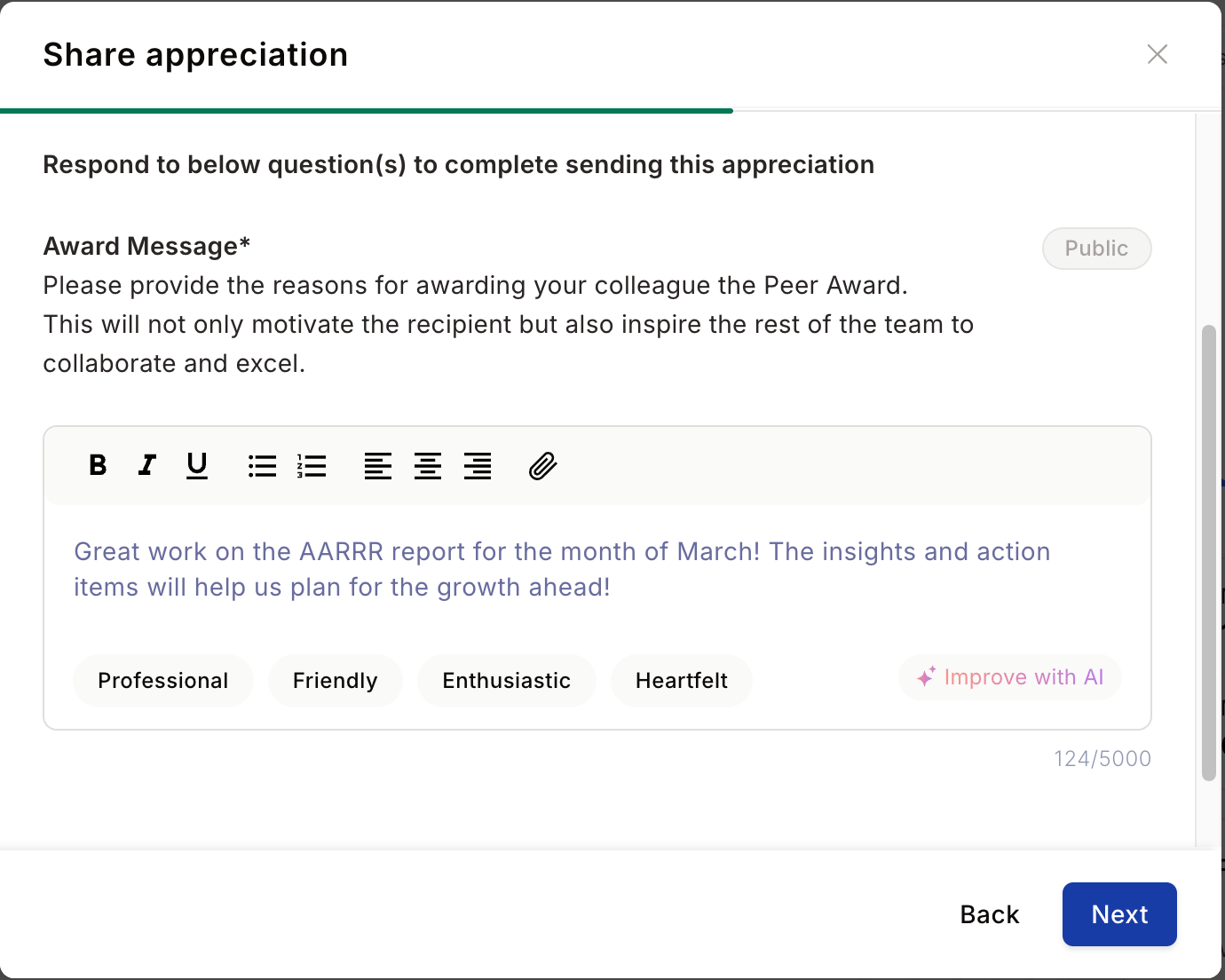 Click **Improve with AI** to enhance or rephrase your message. You can **Refresh** for a new suggestion, **Copy** it to paste manually, or **Replace** your existing message with the AI-generated version. Close the popup if you prefer to keep your original.
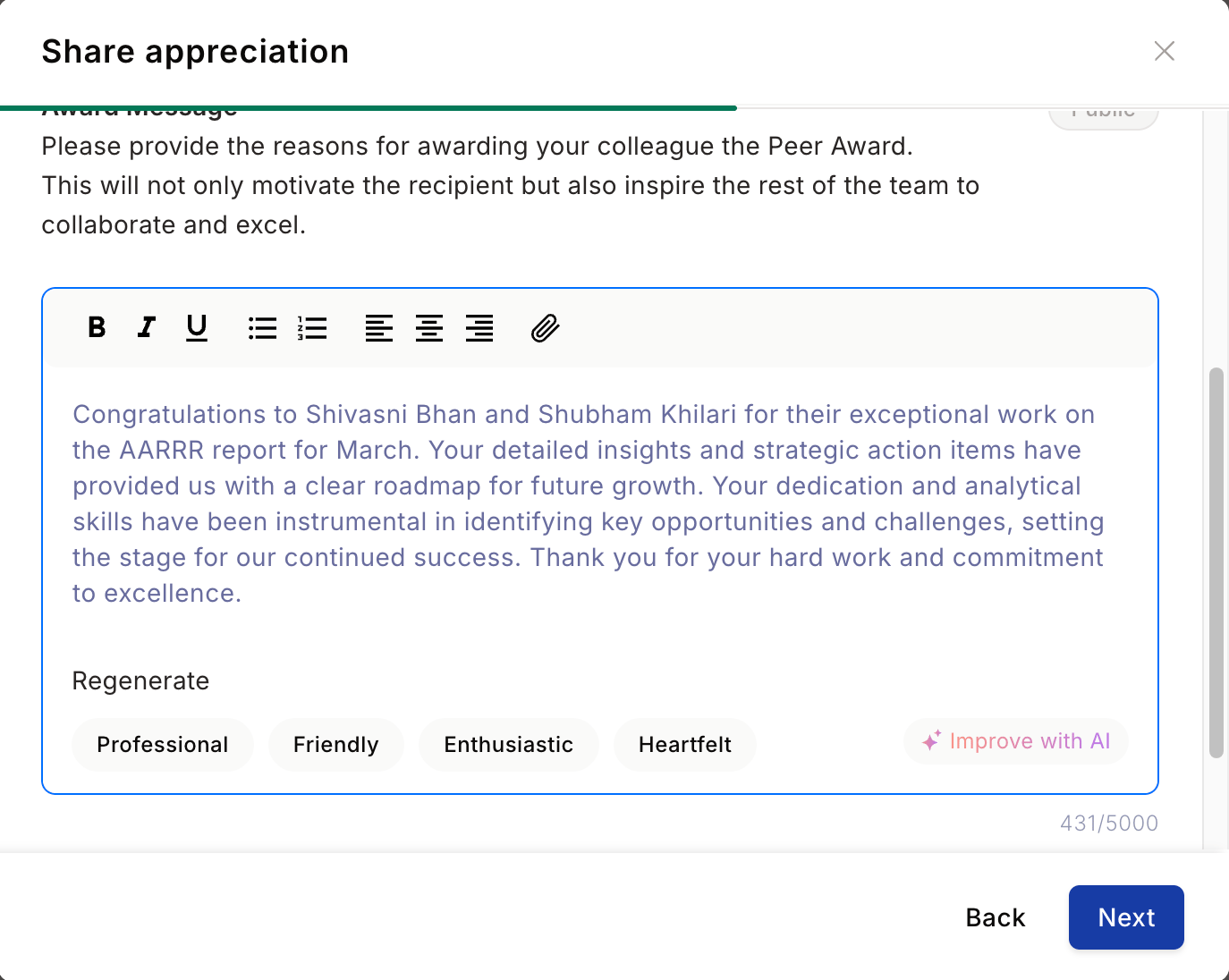 A live preview of the recognition post appears on the right side of the screen. Click **Read More** to see the full post. When you're satisfied, click **Share Recognition** to post it publicly in the group feed. Your colleague is notified instantly.
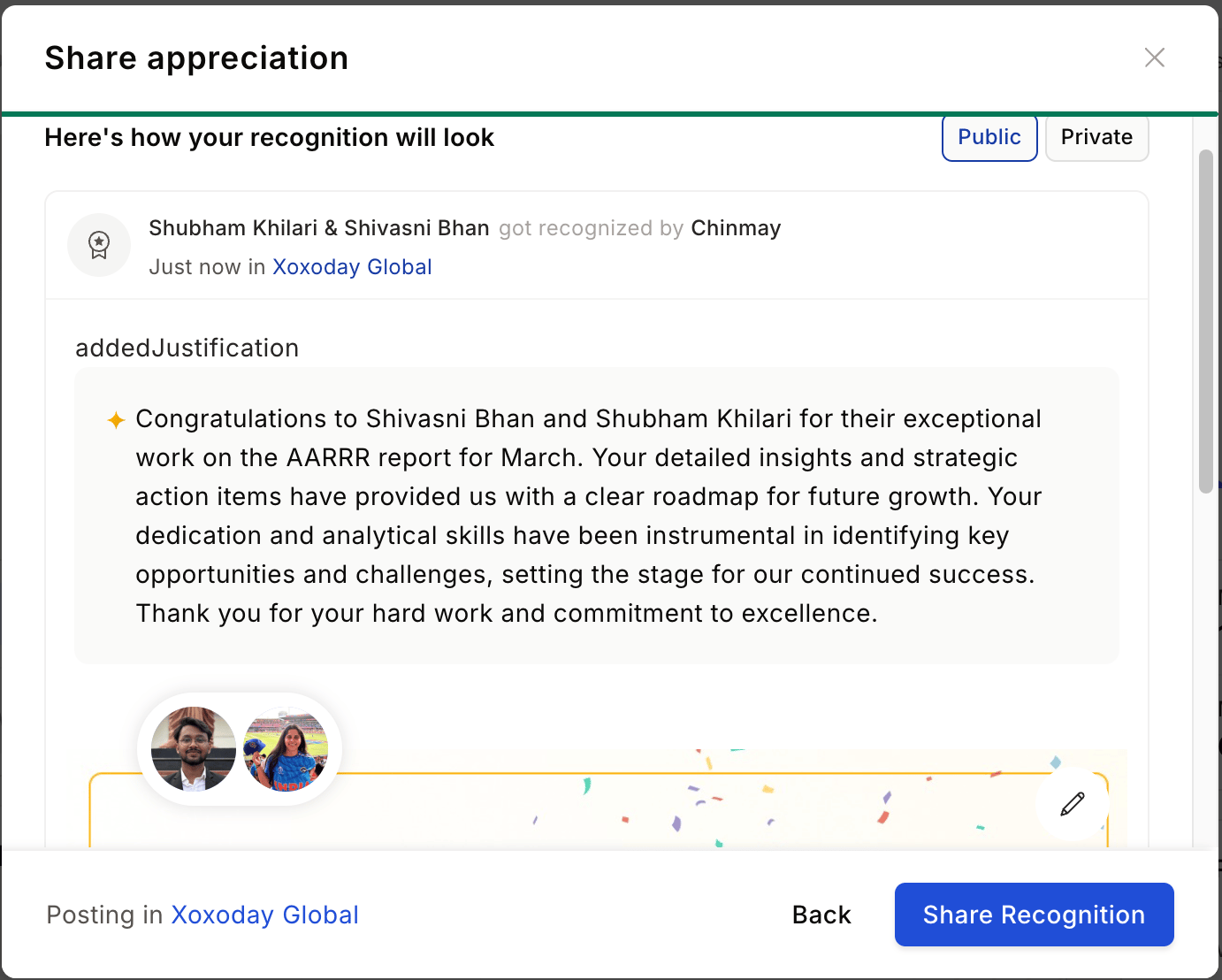 Be timely (recognise in the moment while the context is fresh) and be specific (describe exactly what the person did and why it mattered). Genuine, detailed messages have more impact than generic praise.
## Smart recognition walkthrough
Empuls's Smart Recognition uses AI to surface a recommendation before you send recognition, helping you spot when someone hasn't been appreciated in a while or has just been recognised recently.
## View and respond to recognitions you've received
Click your **profile picture** in the navigation bar and select **My Profile**.
Scroll down to the **Recognitions** section to see all recognition you've received in chronological order.
Click on any recognition to open the full message. Click the **thumbs up** to like it, choose a **reaction**, or add a **reply message** to thank your colleague personally.
## Share a recognition on LinkedIn
You can amplify recognitions you've received by sharing them directly to your LinkedIn profile.
Locate the recognition in your group feed or on your profile page.
Click **Share** on the recognition post and select **Share on LinkedIn**.
Be timely (recognise in the moment while the context is fresh) and be specific (describe exactly what the person did and why it mattered). Genuine, detailed messages have more impact than generic praise.
## Smart recognition walkthrough
Empuls's Smart Recognition uses AI to surface a recommendation before you send recognition, helping you spot when someone hasn't been appreciated in a while or has just been recognised recently.
## View and respond to recognitions you've received
Click your **profile picture** in the navigation bar and select **My Profile**.
Scroll down to the **Recognitions** section to see all recognition you've received in chronological order.
Click on any recognition to open the full message. Click the **thumbs up** to like it, choose a **reaction**, or add a **reply message** to thank your colleague personally.
## Share a recognition on LinkedIn
You can amplify recognitions you've received by sharing them directly to your LinkedIn profile.
Locate the recognition in your group feed or on your profile page.
Click **Share** on the recognition post and select **Share on LinkedIn**.
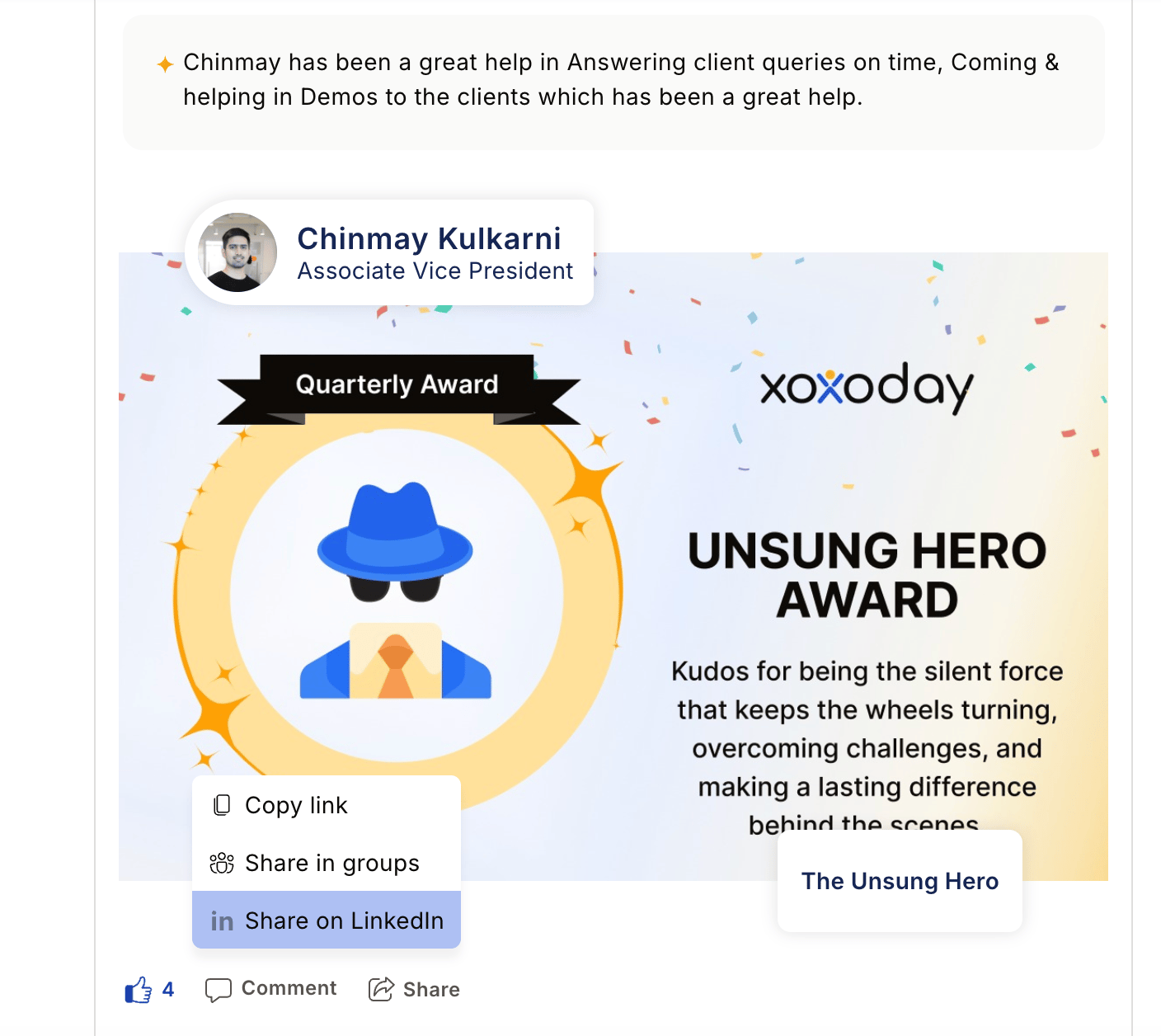 A popup will ask you to authenticate with your **LinkedIn credentials** and grant Empuls permission to post on your behalf. Empuls does not store your LinkedIn credentials or personal information during this process.
Once authenticated, review the pre-filled message and click **Post on LinkedIn** to share your recognition with your professional network.
Consider whether each recognition is appropriate for a public audience before sharing. Recognitions tied to confidential projects, sensitive business situations, or internal matters should be kept internal. Review your organisation's social media policy when in doubt.
After sharing, your post is managed entirely through LinkedIn. You can edit, comment on, or delete the post directly from LinkedIn at any time.
## FAQs
Yes. You can recognise peers, direct reports, and managers. Recognition in all directions is encouraged.
Approval-based awards require a manager or administrator to approve the nomination before the recognition is posted and any points are awarded. You'll see the status in your feed once it's reviewed.
Refresh the page and check the **Sent** section of your profile. If it was an approval-based award, it may be pending review. Contact support at [support@empuls.io](mailto:support@empuls.io) if it's still missing after refreshing.
Wait up to 24 hours for points to appear. Check your account statement to verify. Contact support if points are still missing after 24 hours.
No. LinkedIn sharing is available only for individual recognitions, not bulk achievements.
No. Empuls does not capture or save your LinkedIn credentials or personal information during the authentication process.
A popup will ask you to authenticate with your **LinkedIn credentials** and grant Empuls permission to post on your behalf. Empuls does not store your LinkedIn credentials or personal information during this process.
Once authenticated, review the pre-filled message and click **Post on LinkedIn** to share your recognition with your professional network.
Consider whether each recognition is appropriate for a public audience before sharing. Recognitions tied to confidential projects, sensitive business situations, or internal matters should be kept internal. Review your organisation's social media policy when in doubt.
After sharing, your post is managed entirely through LinkedIn. You can edit, comment on, or delete the post directly from LinkedIn at any time.
## FAQs
Yes. You can recognise peers, direct reports, and managers. Recognition in all directions is encouraged.
Approval-based awards require a manager or administrator to approve the nomination before the recognition is posted and any points are awarded. You'll see the status in your feed once it's reviewed.
Refresh the page and check the **Sent** section of your profile. If it was an approval-based award, it may be pending review. Contact support at [support@empuls.io](mailto:support@empuls.io) if it's still missing after refreshing.
Wait up to 24 hours for points to appear. Check your account statement to verify. Contact support if points are still missing after 24 hours.
No. LinkedIn sharing is available only for individual recognitions, not bulk achievements.
No. Empuls does not capture or save your LinkedIn credentials or personal information during the authentication process.