> ## Documentation Index
> Fetch the complete documentation index at: https://help-empuls.xoxoday.com/llms.txt
> Use this file to discover all available pages before exploring further.
# Login
> Sign in to Empuls on the web or mobile using email, OTP, SSO, or mobile number.
Once your administrator adds you to Empuls, you can access it from a web browser or the mobile app. Your login URL is unique to your organisation — your administrator will share it when they provision your account. You can also go to [login.empuls.io/signin](https://login.empuls.io/signin) and enter your email to be redirected automatically.
## Email and OTP
Use your work email address to receive a one-time passcode each time you log in. No password to remember.
Navigate to your organization's unique Empuls URL (e.g., **yourcompany**.xoxoday.com).
Or visit [here](https://login.empuls.io/signin/).
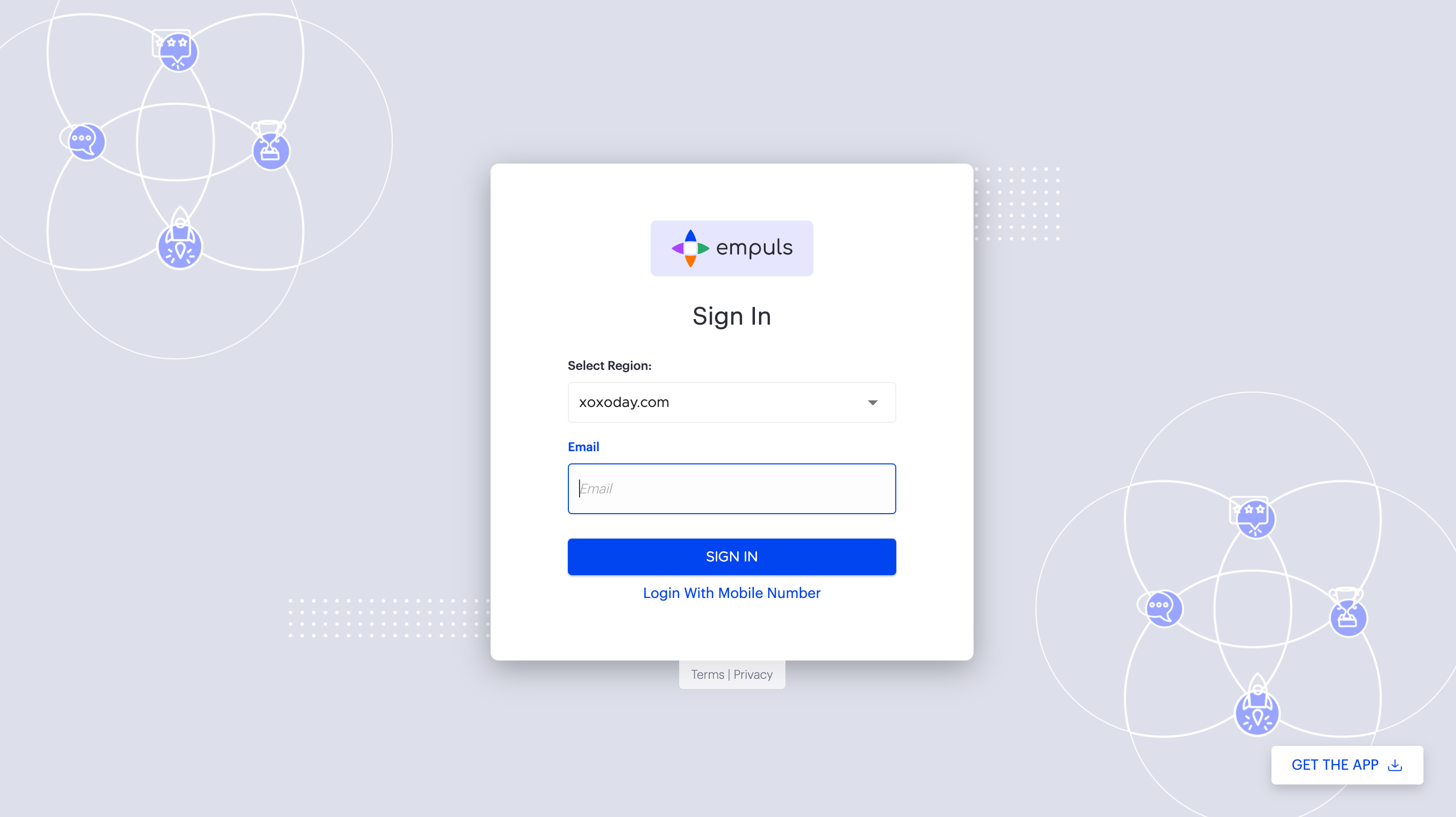 Type the email address associated with your Empuls account and select the **OTP** option.
Empuls sends a six-digit code to your inbox. The code expires after a few minutes.
Paste or type the code on the login screen. You are logged in immediately.
## Email and password
Sign in with your Empuls email address and the password you set when you first activated your account.
Navigate to your organization's unique Empuls URL.
Or visit [here](https://login.empuls.io/signin/).
Select the **Password** option, type your work email address, and enter your password.
You are redirected to your Empuls home feed.
If you forget your password, click **Forgot Password?** on the login page, enter your email, and follow the reset link sent to your inbox.
## Google SSO
Log in with your Google Workspace account if your organization has enabled Google OAuth.
Visit your organization's Empuls URL and click **Log in with Google**.
Or visit [here](https://login.empuls.io/signin/).
If you are already signed into Google, select the work account associated with your Empuls profile. If not, enter your Google credentials.
On first login, Google may ask you to grant Empuls permission to access your profile information. Click **Allow**.
You are redirected to Empuls automatically. No separate Empuls password is required.
## Microsoft SSO
Log in with your Microsoft 365 account if your organization has enabled Microsoft OAuth.
Visit your organization's Empuls URL and click **Log in with Microsoft**.
Enter your Microsoft email and password. If you are already signed into Microsoft 365, you may skip this step entirely.
You are automatically authenticated and redirected to Empuls. No separate password is needed.
## Slack SSO
Log in with your Slack workspace credentials if your organization has enabled Slack OAuth.
Visit your organization's Empuls URL and click **Log in with Slack**.
If you are already signed into Slack, you are redirected back immediately. Otherwise, enter your Slack credentials.
Empuls verifies your Slack identity and logs you in without a separate password.
## Mobile number
Log in with your mobile phone number using a one-time SMS code. This method is designed for deskless workers who may not have a corporate email address.
Visit your organization's Empuls URL and select the **Mobile number** option.
Include the country code and enter the phone number registered to your Empuls account.
Empuls sends a code to your phone. Enter it on the login screen to complete sign-in.
Mobile number login must be enabled by your administrator. Contact your HR or IT team if this option is not visible.
## Custom SSO (SAML 2.0)
If your organization uses a corporate identity provider such as Azure AD, Okta, or another SAML 2.0-compatible system, log in through your company's single sign-on portal.
Visit the Empuls URL provided by your administrator.
You will see an option such as **Log in with \[Company Name]** or a button redirecting you to your corporate SSO.
You are redirected to your organization's identity provider. Enter the same credentials you use for other corporate applications.
If your organization requires multi-factor authentication, complete that step in your identity provider.
Your identity provider authenticates you and redirects you back to Empuls automatically.
SAML 2.0 SSO is configured by your administrator under **User Authentication** in the Admin Hub. If SSO is not working, contact your IT department to verify configuration.
## Related
Email and OTP, email and password, Google SSO, Microsoft SSO, Slack SSO, mobile number, and custom SAML 2.0 SSO.
Download the Empuls app on iOS or Android, log in, and use core features on the go.
Type the email address associated with your Empuls account and select the **OTP** option.
Empuls sends a six-digit code to your inbox. The code expires after a few minutes.
Paste or type the code on the login screen. You are logged in immediately.
## Email and password
Sign in with your Empuls email address and the password you set when you first activated your account.
Navigate to your organization's unique Empuls URL.
Or visit [here](https://login.empuls.io/signin/).
Select the **Password** option, type your work email address, and enter your password.
You are redirected to your Empuls home feed.
If you forget your password, click **Forgot Password?** on the login page, enter your email, and follow the reset link sent to your inbox.
## Google SSO
Log in with your Google Workspace account if your organization has enabled Google OAuth.
Visit your organization's Empuls URL and click **Log in with Google**.
Or visit [here](https://login.empuls.io/signin/).
If you are already signed into Google, select the work account associated with your Empuls profile. If not, enter your Google credentials.
On first login, Google may ask you to grant Empuls permission to access your profile information. Click **Allow**.
You are redirected to Empuls automatically. No separate Empuls password is required.
## Microsoft SSO
Log in with your Microsoft 365 account if your organization has enabled Microsoft OAuth.
Visit your organization's Empuls URL and click **Log in with Microsoft**.
Enter your Microsoft email and password. If you are already signed into Microsoft 365, you may skip this step entirely.
You are automatically authenticated and redirected to Empuls. No separate password is needed.
## Slack SSO
Log in with your Slack workspace credentials if your organization has enabled Slack OAuth.
Visit your organization's Empuls URL and click **Log in with Slack**.
If you are already signed into Slack, you are redirected back immediately. Otherwise, enter your Slack credentials.
Empuls verifies your Slack identity and logs you in without a separate password.
## Mobile number
Log in with your mobile phone number using a one-time SMS code. This method is designed for deskless workers who may not have a corporate email address.
Visit your organization's Empuls URL and select the **Mobile number** option.
Include the country code and enter the phone number registered to your Empuls account.
Empuls sends a code to your phone. Enter it on the login screen to complete sign-in.
Mobile number login must be enabled by your administrator. Contact your HR or IT team if this option is not visible.
## Custom SSO (SAML 2.0)
If your organization uses a corporate identity provider such as Azure AD, Okta, or another SAML 2.0-compatible system, log in through your company's single sign-on portal.
Visit the Empuls URL provided by your administrator.
You will see an option such as **Log in with \[Company Name]** or a button redirecting you to your corporate SSO.
You are redirected to your organization's identity provider. Enter the same credentials you use for other corporate applications.
If your organization requires multi-factor authentication, complete that step in your identity provider.
Your identity provider authenticates you and redirects you back to Empuls automatically.
SAML 2.0 SSO is configured by your administrator under **User Authentication** in the Admin Hub. If SSO is not working, contact your IT department to verify configuration.
## Related
Email and OTP, email and password, Google SSO, Microsoft SSO, Slack SSO, mobile number, and custom SAML 2.0 SSO.
Download the Empuls app on iOS or Android, log in, and use core features on the go.