> ## Documentation Index
> Fetch the complete documentation index at: https://help-empuls.xoxoday.com/llms.txt
> Use this file to discover all available pages before exploring further.
# Profile
> Access and update your profile details
Learn how to update your profile information and manage your professional presence on Empuls.
Your Empuls profile is your professional presence on the platform. A complete, authentic profile helps colleagues discover and connect with you, identify each other's strengths, and strengthen team bonds.
You need to be logged into Empuls. Your profile is automatically created at sign-up but is incomplete until you add information. The more details you provide, the more discoverable you'll be.
## Access Your Profile
Look for it in the upper right corner of the screen.
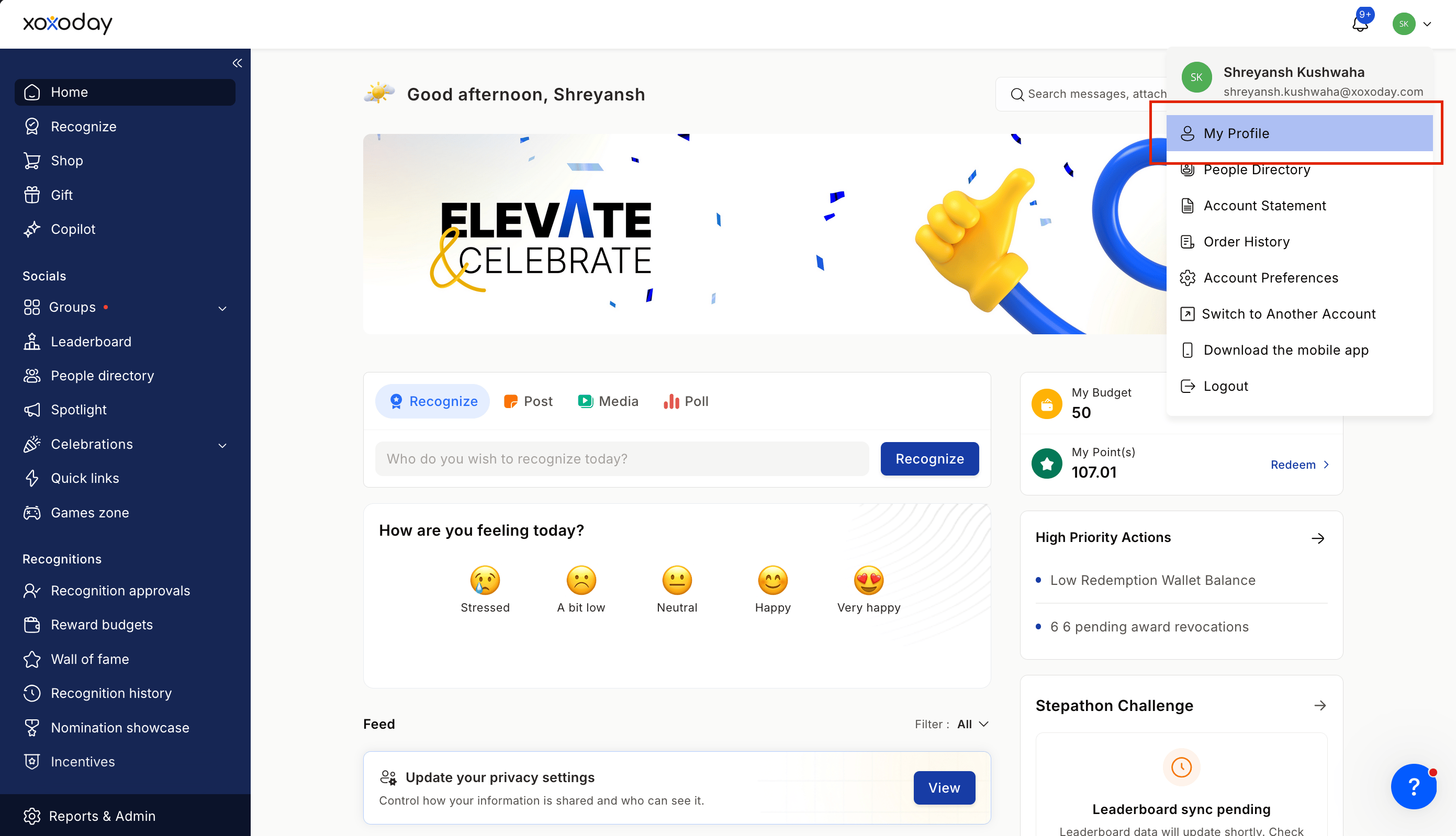
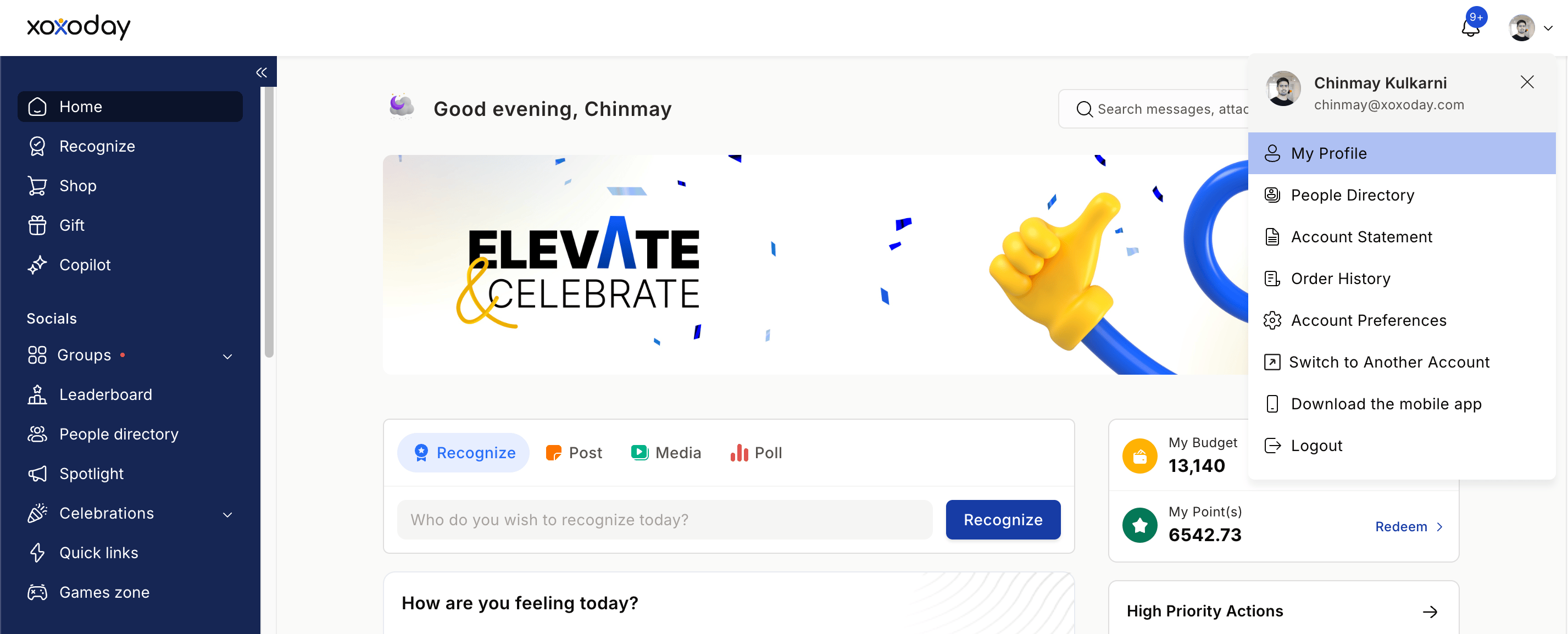 Select this option from the modal that opens to begin making changes.
## Add a Profile Picture
Select this option from the modal that opens to begin making changes.
## Add a Profile Picture
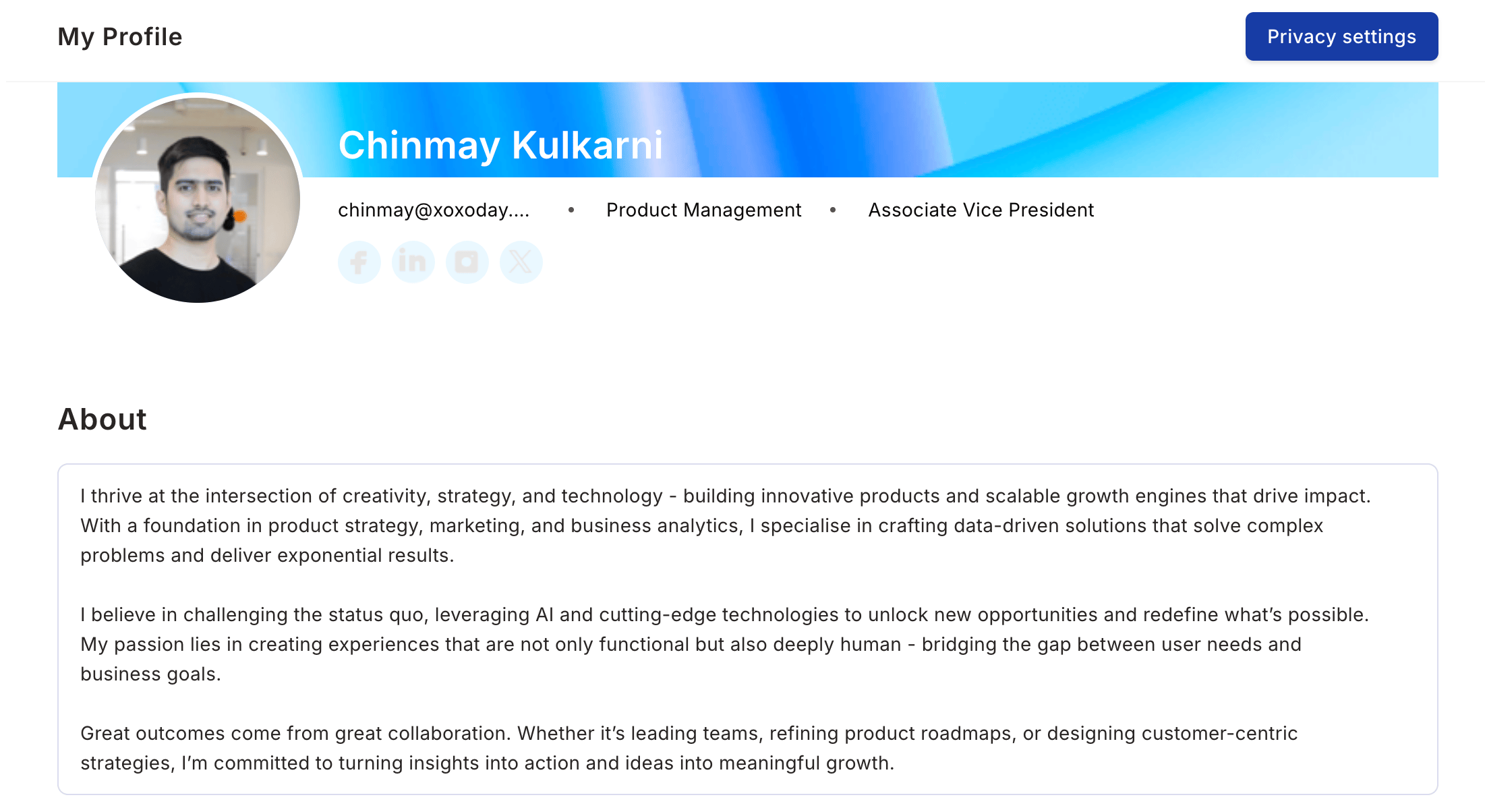
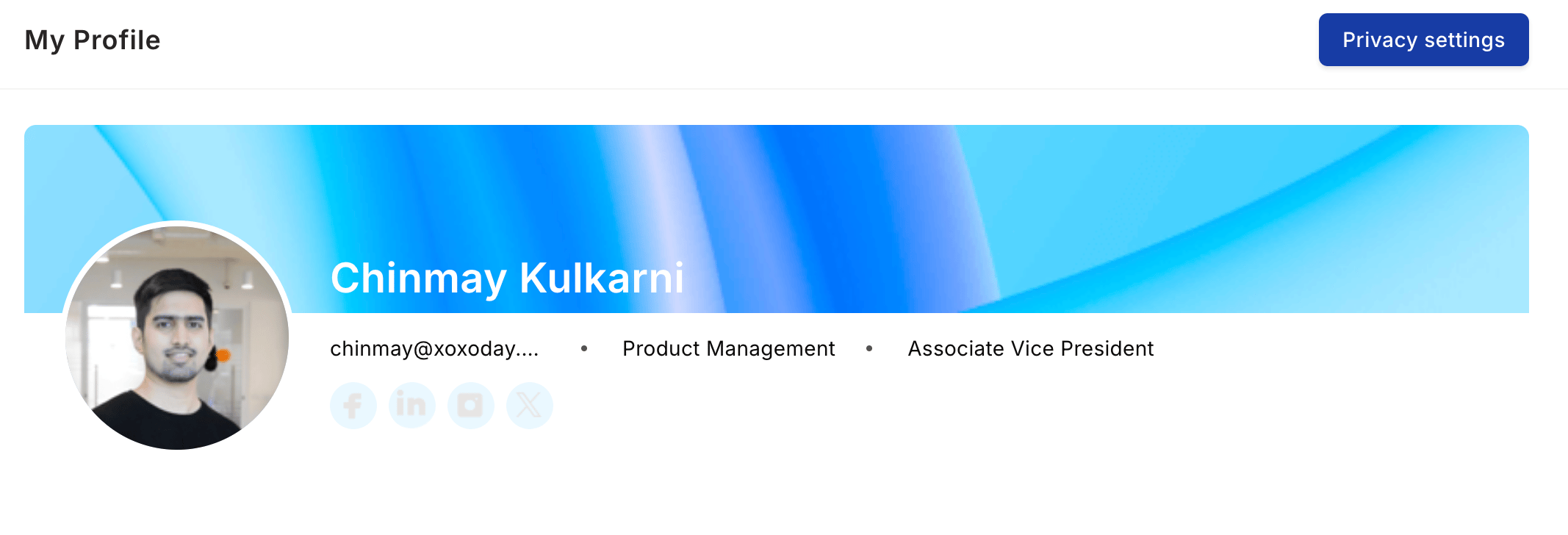
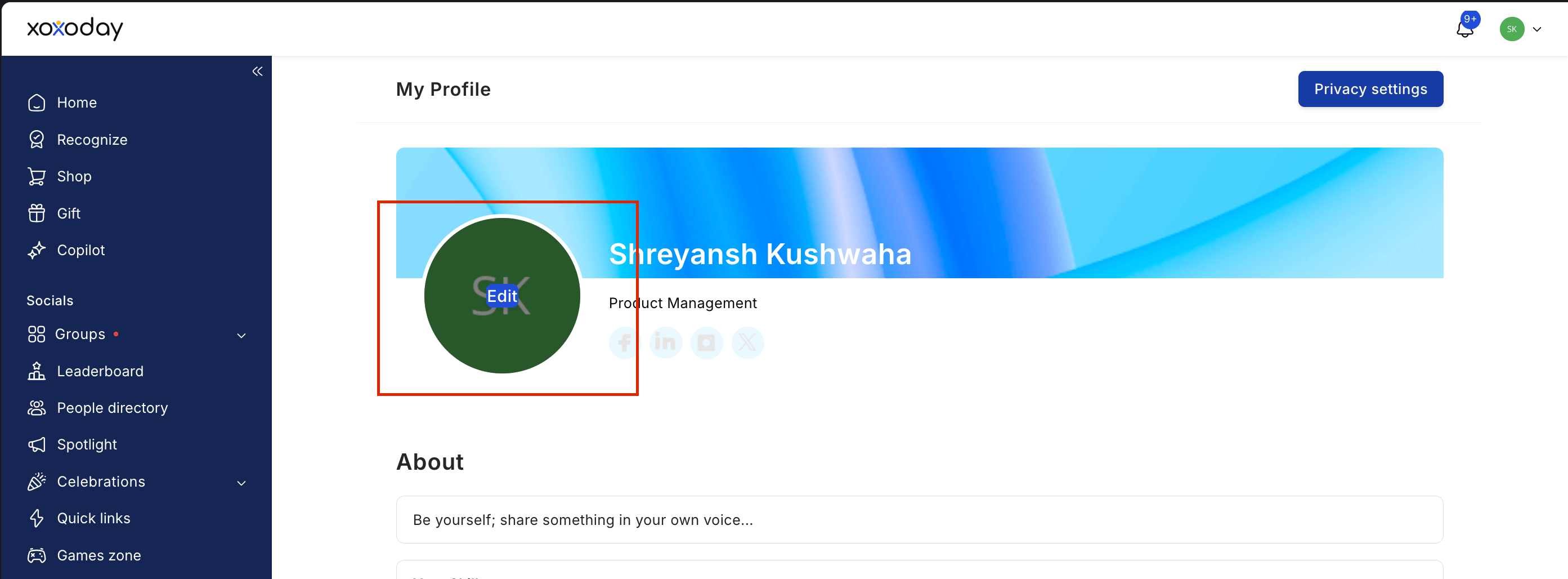 Use a clear photo in JPG or PNG format, under 5MB.
Adjust it to clearly show your face and shoulders.
Your profile picture updates immediately.
You can link to:
* LinkedIn
* GitHub
* Twitter / X
* Personal website or blog
Use a professional headshot with good lighting, a simple background, and a natural expression.
## Add Personal and Professional Details
Aim for 2–3 sentences covering:
* Your professional background
* What you're passionate about
* What colleagues should know about you
Use a clear photo in JPG or PNG format, under 5MB.
Adjust it to clearly show your face and shoulders.
Your profile picture updates immediately.
You can link to:
* LinkedIn
* GitHub
* Twitter / X
* Personal website or blog
Use a professional headshot with good lighting, a simple background, and a natural expression.
## Add Personal and Professional Details
Aim for 2–3 sentences covering:
* Your professional background
* What you're passionate about
* What colleagues should know about you
 Include:
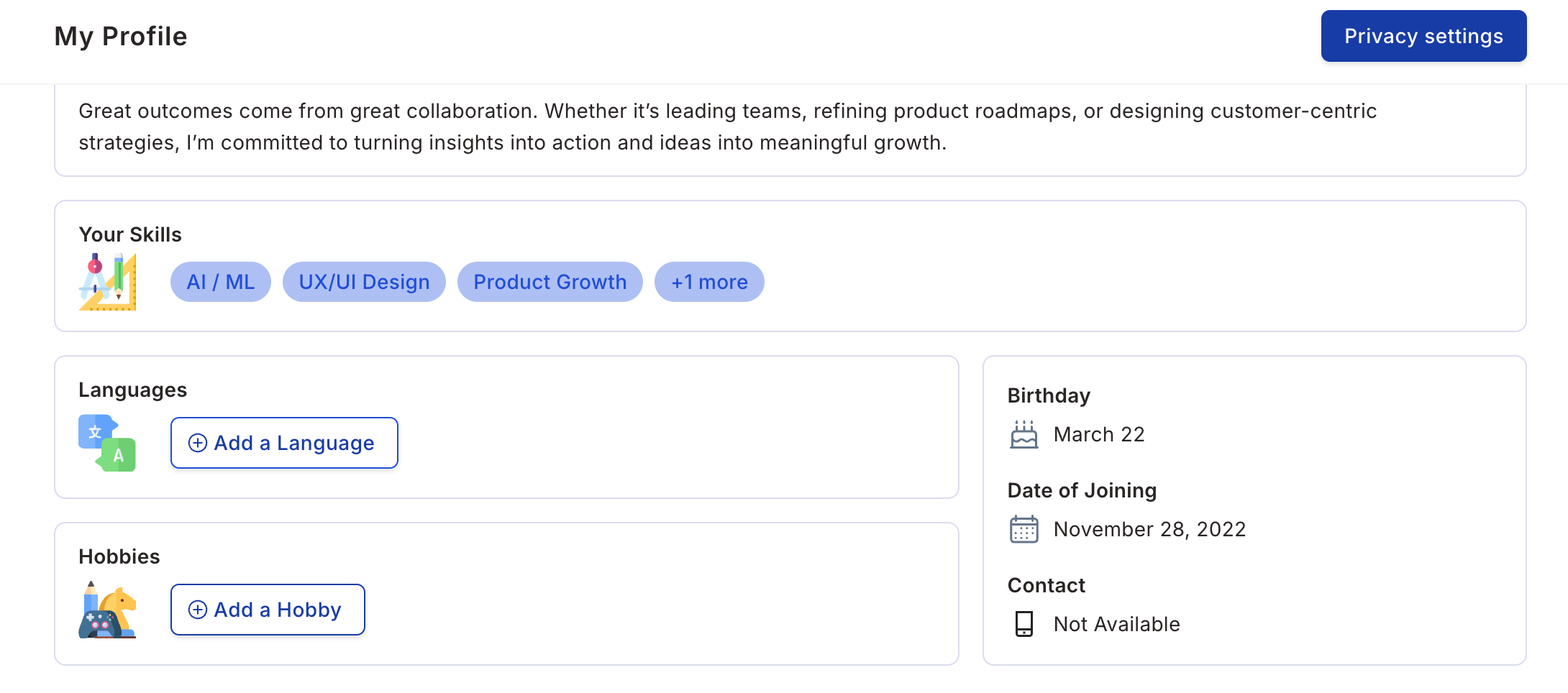
* Programming languages and tools
* Soft skills and domain knowledge
* Languages you speak
* Certifications you hold
Include:
* Programming languages and tools
* Soft skills and domain knowledge
* Languages you speak
* Certifications you hold
 Help colleagues know how to communicate with you.
Share details such as:
* Sports and fitness
* Creative pursuits
* Travel and exploration
* Cooking, gaming, volunteering
## Manage Privacy Settings
Find this in your profile editing section.
Help colleagues know how to communicate with you.
Share details such as:
* Sports and fitness
* Creative pursuits
* Travel and exploration
* Cooking, gaming, volunteering
## Manage Privacy Settings
Find this in your profile editing section.
 Change the visibility of your personal information, such as your birthday or date of joining.
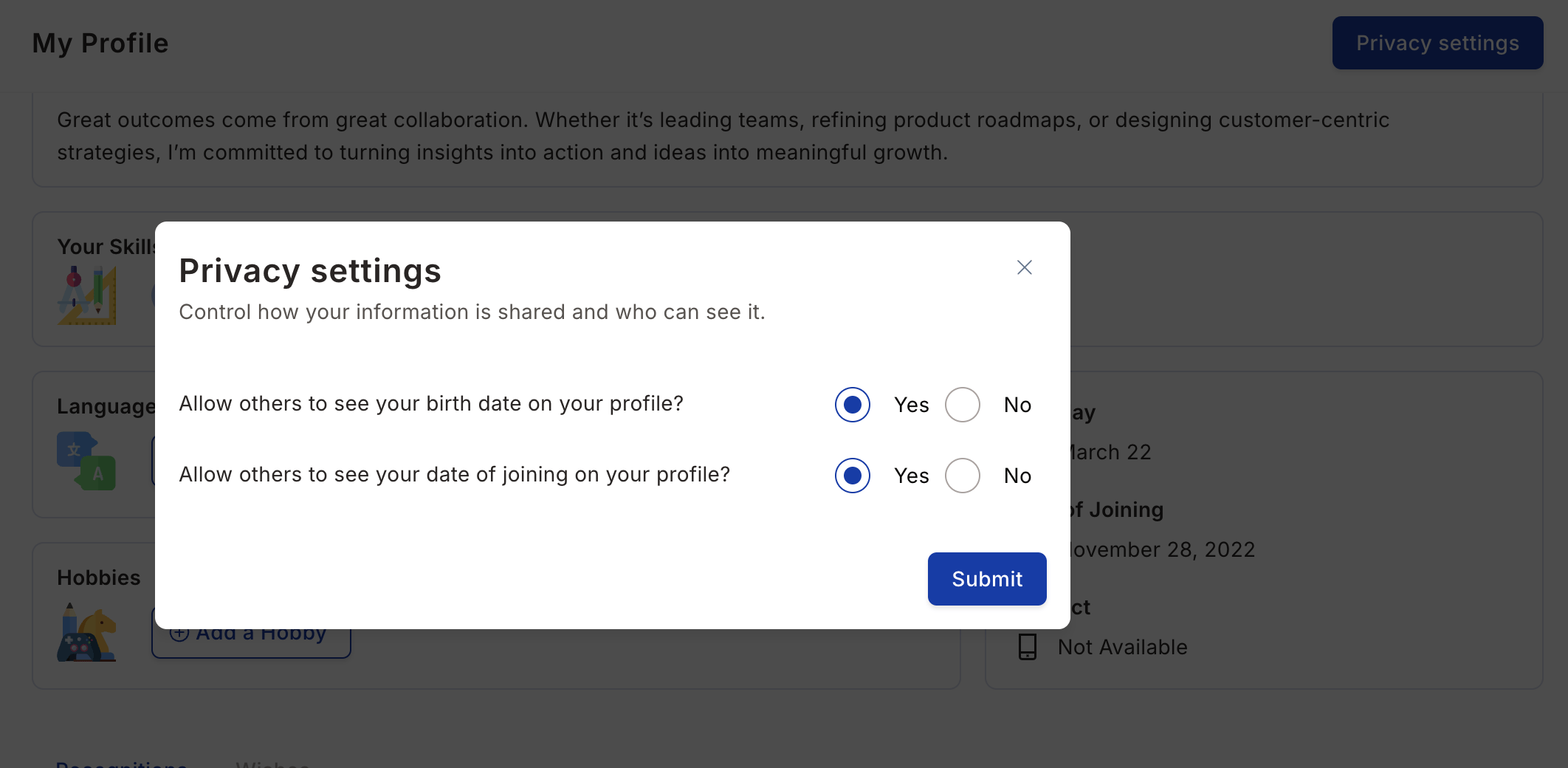 Click Submit to confirm your privacy choices.
## View Your Recognitions
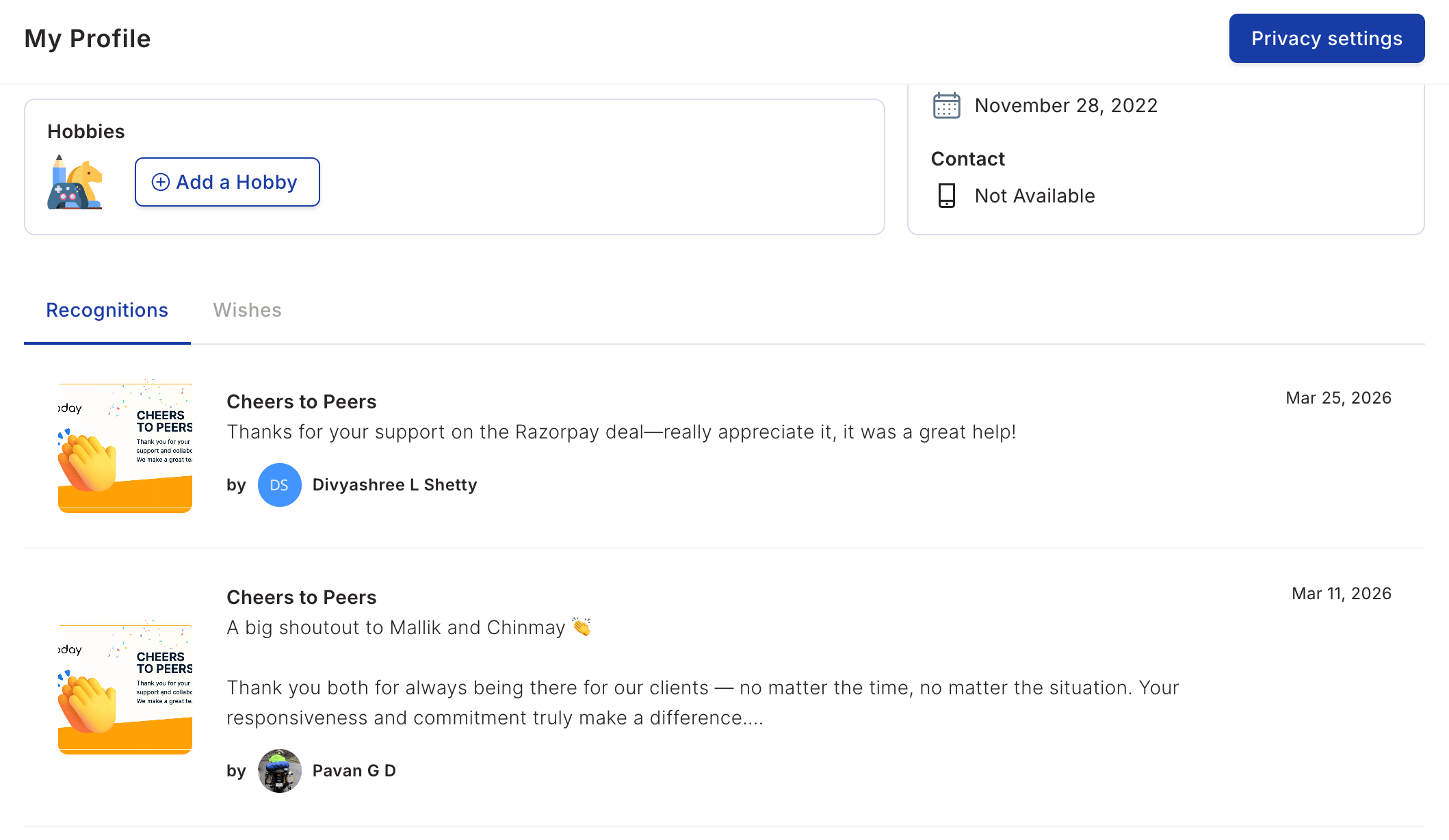
Empuls allows you to view all your past recognitions in one place, including birthday wishes, long service awards, and yearbook entries.
To view your recognitions, scroll down the Profile page to see all the recognitions you've received. You can view wishes for birthdays, work anniversaries, and other milestones.
Click Submit to confirm your privacy choices.
## View Your Recognitions
Empuls allows you to view all your past recognitions in one place, including birthday wishes, long service awards, and yearbook entries.
To view your recognitions, scroll down the Profile page to see all the recognitions you've received. You can view wishes for birthdays, work anniversaries, and other milestones.