> ## Documentation Index
> Fetch the complete documentation index at: https://help-empuls.xoxoday.com/llms.txt
> Use this file to discover all available pages before exploring further.
# Quick links
> Build a personal shortcut hub inside Empuls for your most-used internal and external resources.
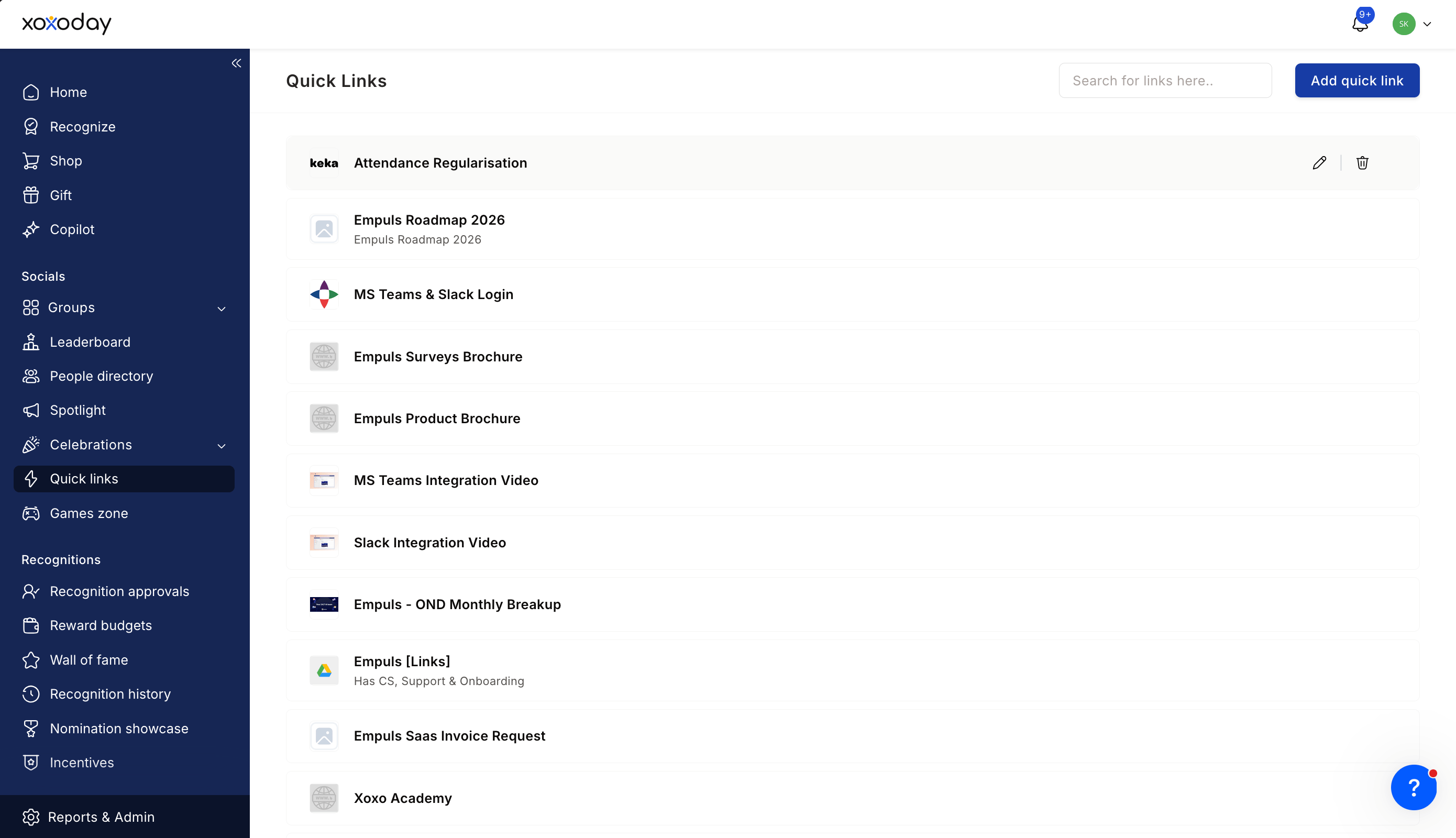
Quick links is a personal shortcut hub built into Empuls — a place to keep links you reach for daily, like your HR portal, expense tool, project tracker, or favorite team docs. Add, rename, reorder, and remove links from a single page. The links you add are private to you.
## Open quick links
From the Empuls left navigation, click **Quick Links**. If you don't see it, your admin may not have enabled this feature for your role — ask your HR team.
 ## Add a link
The link form opens.
## Add a link
The link form opens.
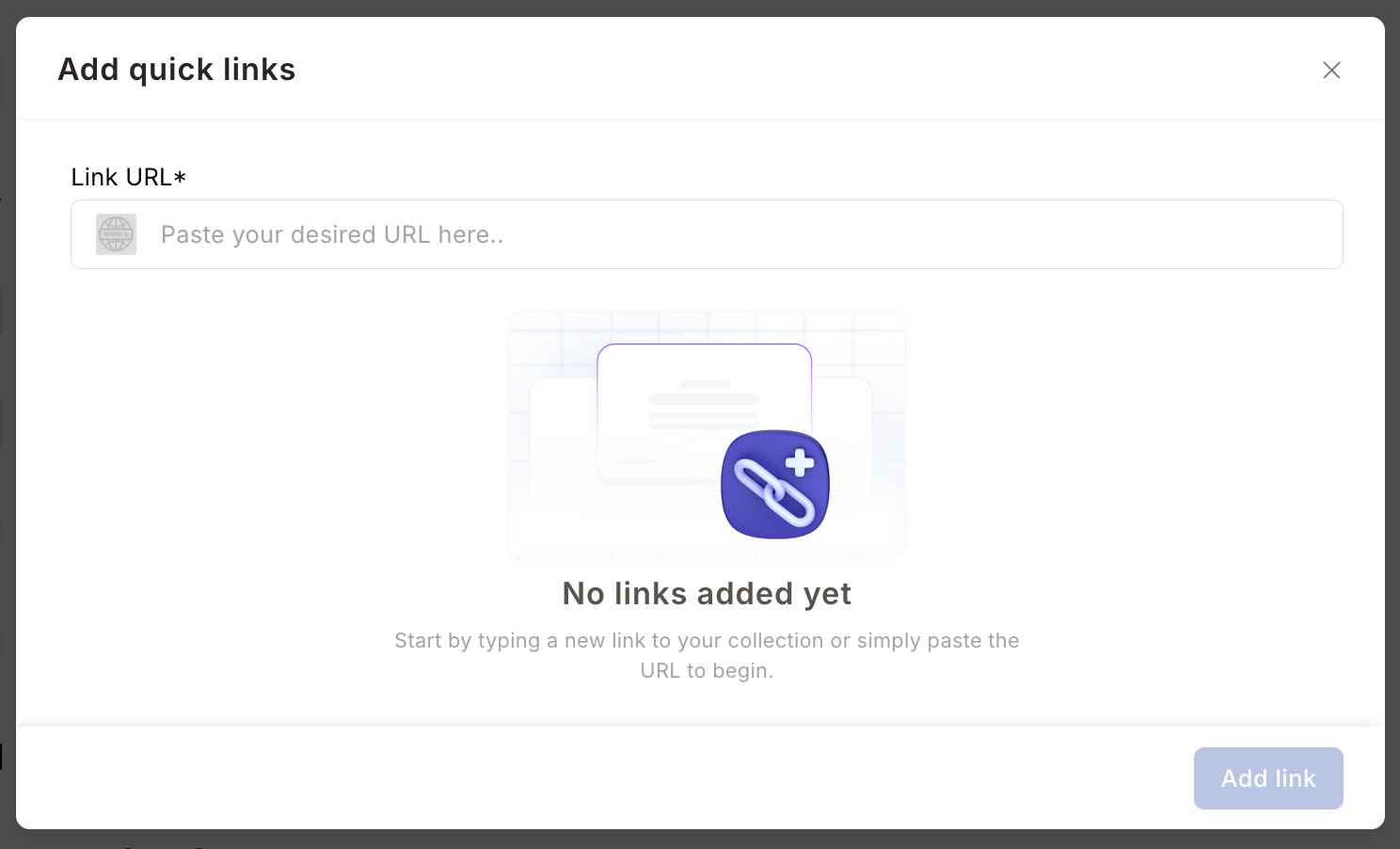 Use the name you'd recognize — e.g., "Workday timesheets", "Expense report".
Both internal company URLs and external links are supported.
Choose from a small library, or upload a custom favicon.
The link appears on your Quick Links page.
## Reorder links
Drag a link tile to a new position. Order is per-user — your colleague's view stays unchanged.
## Edit or delete a link
Hover over any tile to reveal **Edit** and **Delete** icons. Edit updates the title, URL, or icon; delete removes the link permanently (no undo).
## Use across devices
Quick Links are tied to your Empuls account, so they appear on web, mobile, and Microsoft Teams. Adding a link on one device makes it instantly available on all of them.
## Tips
Pin frequent admin destinations (Admin Hub, reports, budgets) as Quick Links if you spend a lot of time in those workflows. The icon-first layout makes them faster to scan than the full left navigation.
## Limits and gotchas
* Quick Links is private. There's no sharing with teammates from this page.
* A reasonable cap (around 20 links) keeps the page scannable; the system doesn't hard-limit but performance favors small lists.
* Links to internal Empuls URLs work normally — they navigate within the app without a reload.
## Related
Other personal settings.
Your profile and identity settings.
Use the name you'd recognize — e.g., "Workday timesheets", "Expense report".
Both internal company URLs and external links are supported.
Choose from a small library, or upload a custom favicon.
The link appears on your Quick Links page.
## Reorder links
Drag a link tile to a new position. Order is per-user — your colleague's view stays unchanged.
## Edit or delete a link
Hover over any tile to reveal **Edit** and **Delete** icons. Edit updates the title, URL, or icon; delete removes the link permanently (no undo).
## Use across devices
Quick Links are tied to your Empuls account, so they appear on web, mobile, and Microsoft Teams. Adding a link on one device makes it instantly available on all of them.
## Tips
Pin frequent admin destinations (Admin Hub, reports, budgets) as Quick Links if you spend a lot of time in those workflows. The icon-first layout makes them faster to scan than the full left navigation.
## Limits and gotchas
* Quick Links is private. There's no sharing with teammates from this page.
* A reasonable cap (around 20 links) keeps the page scannable; the system doesn't hard-limit but performance favors small lists.
* Links to internal Empuls URLs work normally — they navigate within the app without a reload.
## Related
Other personal settings.
Your profile and identity settings.