> ## Documentation Index
> Fetch the complete documentation index at: https://help-empuls.xoxoday.com/llms.txt
> Use this file to discover all available pages before exploring further.
# Gamezone
> Play curated casual games inside Empuls — browse by category, pick up where you left off with Recently played, and unwind without leaving the app.
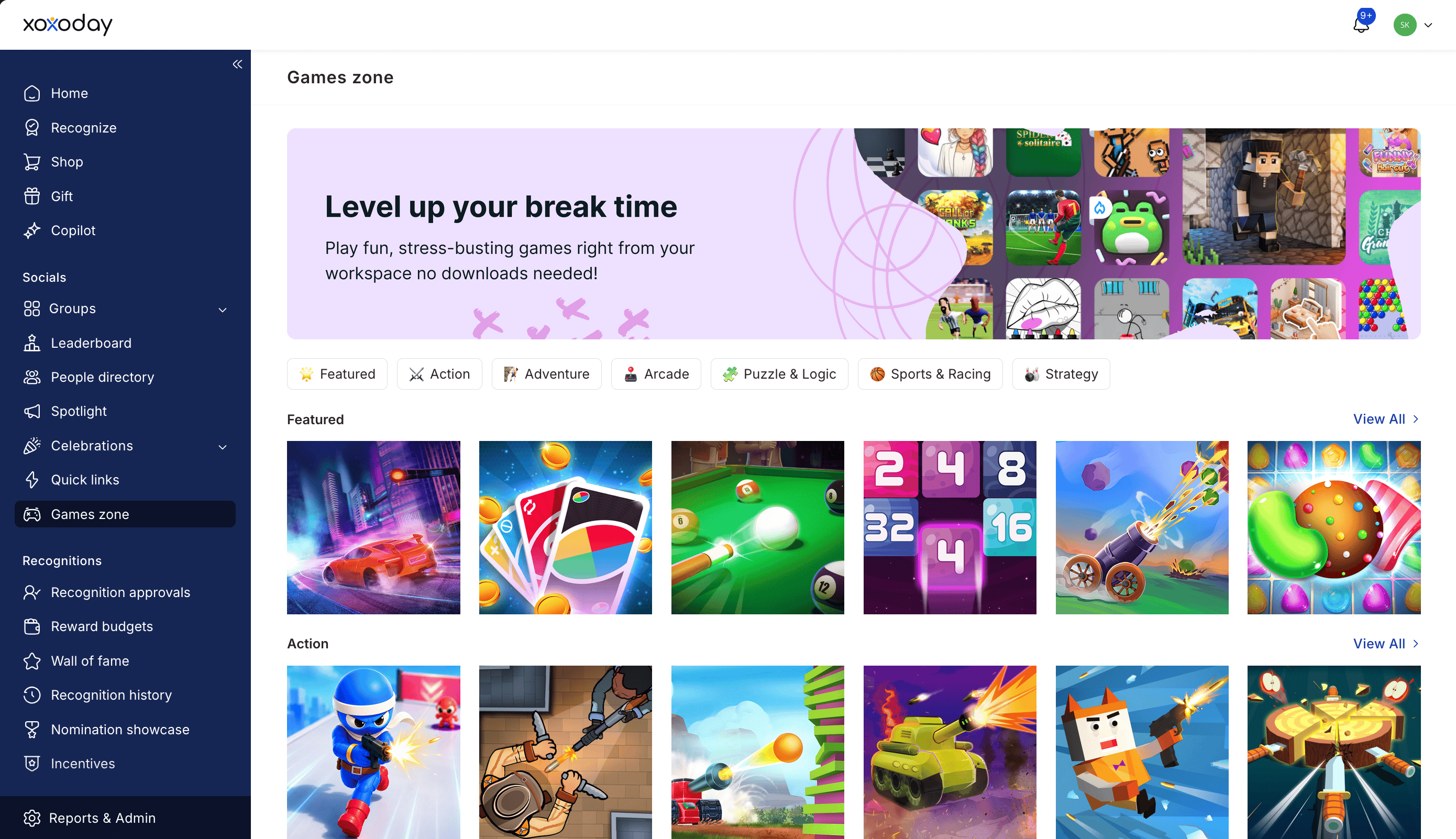 Gamezone is a built-in games library inside Empuls. Browse a curated catalog of casual games — puzzles, arcade, sports, word games — pick one, and play in a sandboxed window without leaving Empuls. Your recently played games stay on the front page so you can jump back in next time.
Gamezone must be enabled by your organization's admin. If you don't see a **Games** entry in your navigation, ask your HR team to check whether the feature is enabled for your role.
## Open Gamezone
The Games landing page opens.
The landing page has three main areas:
* **Banner** — A promotional banner at the top.
* **Recently played** — A horizontal row of games you've recently opened. The row appears only after your first play.
* **Categories** — Rows of games grouped by category. **Featured** appears first; the rest are alphabetical (Arcade, Puzzle, Racing, Sports, Word, and more).
## Play a game
Click a game tile from any row. You can also browse a full category by clicking **See all** at the end of a row.
The game opens in a sandboxed window inside Empuls. The first launch may take a moment as the game loads.
Use your keyboard, mouse, or touchscreen — depending on the game. Game controls live entirely inside the game window.
Close the game window to return to Gamezone. Your last-played game appears in the Recently played row on the landing page.
## Browse a full category
Each category row has a **See all** link at the right. Click it to open the full category grid.
Scroll through every game in the category. Tile previews show the game image and title.
Click any tile to launch the game in the sandboxed window.
## Recently played
Once you've played at least one game, a **Recently played** row appears near the top of the landing page. It tracks your most recent plays across sessions so you don't have to dig through categories to find a favorite again.
The Recently played history is per-user and synced from your Empuls account, so the same row shows up whether you're on web, mobile, or in Microsoft Teams (where Empuls is also available).
## Languages
Game titles and category names adapt to your Empuls language preference where translations are available. Change your language under **Account preferences** in your profile menu.
## Limits and gotchas
* Some games require fast networks. If a game keeps loading without starting, check your network or try a different game.
* Game progress and high scores are tracked **inside each game**, not by Empuls. Clearing browser storage may reset in-game progress on some titles.
* Games are rated for general audiences. If you encounter content concerns, report them to your HR or Empuls admin.
* Gamezone is a free-play feature. You don't earn Empuls reward points by playing — for points-tied programs, see [Fitness challenges](/employees/benefits/fitness-challenges) and recognition awards.
## Related
Earn reward points for activity tracked through your fitness device.
Play Gamezone on the go.
Change your language and notification settings.
Gamezone is a built-in games library inside Empuls. Browse a curated catalog of casual games — puzzles, arcade, sports, word games — pick one, and play in a sandboxed window without leaving Empuls. Your recently played games stay on the front page so you can jump back in next time.
Gamezone must be enabled by your organization's admin. If you don't see a **Games** entry in your navigation, ask your HR team to check whether the feature is enabled for your role.
## Open Gamezone
The Games landing page opens.
The landing page has three main areas:
* **Banner** — A promotional banner at the top.
* **Recently played** — A horizontal row of games you've recently opened. The row appears only after your first play.
* **Categories** — Rows of games grouped by category. **Featured** appears first; the rest are alphabetical (Arcade, Puzzle, Racing, Sports, Word, and more).
## Play a game
Click a game tile from any row. You can also browse a full category by clicking **See all** at the end of a row.
The game opens in a sandboxed window inside Empuls. The first launch may take a moment as the game loads.
Use your keyboard, mouse, or touchscreen — depending on the game. Game controls live entirely inside the game window.
Close the game window to return to Gamezone. Your last-played game appears in the Recently played row on the landing page.
## Browse a full category
Each category row has a **See all** link at the right. Click it to open the full category grid.
Scroll through every game in the category. Tile previews show the game image and title.
Click any tile to launch the game in the sandboxed window.
## Recently played
Once you've played at least one game, a **Recently played** row appears near the top of the landing page. It tracks your most recent plays across sessions so you don't have to dig through categories to find a favorite again.
The Recently played history is per-user and synced from your Empuls account, so the same row shows up whether you're on web, mobile, or in Microsoft Teams (where Empuls is also available).
## Languages
Game titles and category names adapt to your Empuls language preference where translations are available. Change your language under **Account preferences** in your profile menu.
## Limits and gotchas
* Some games require fast networks. If a game keeps loading without starting, check your network or try a different game.
* Game progress and high scores are tracked **inside each game**, not by Empuls. Clearing browser storage may reset in-game progress on some titles.
* Games are rated for general audiences. If you encounter content concerns, report them to your HR or Empuls admin.
* Gamezone is a free-play feature. You don't earn Empuls reward points by playing — for points-tied programs, see [Fitness challenges](/employees/benefits/fitness-challenges) and recognition awards.
## Related
Earn reward points for activity tracked through your fitness device.
Play Gamezone on the go.
Change your language and notification settings.