> ## Documentation Index
> Fetch the complete documentation index at: https://help-empuls.xoxoday.com/llms.txt
> Use this file to discover all available pages before exploring further.
# Fitness challenges
> Join fitness challenges, connect your smartwatch or fitness tracker, track progress on the leaderboard, and earn rewards for hitting milestones.
Empuls fitness challenges are company-organized wellness programs that track physical activity through connected devices. Compete with colleagues on leaderboards and earn reward points for hitting milestones. Challenges range from daily step goals to weekend running events, and your activity syncs automatically from your existing fitness apps with no manual logging required.
Fitness challenges must be enabled by your organization's admin. If you do not see **Fitness Challenges** in your left menu under **Incentives**, contact your HR team to check whether the feature is active for your account.
## Video walkthrough
## Available challenge types
Your organization can run any of the following pre-built challenge templates:
| Challenge | What's tracked | Duration | Resets |
| ----------------------- | --------------------------------- | ----------------- | ------- |
| Stepathon | Daily steps | 1st–21st of month | Monthly |
| Workout Warrior | Workout minutes (max 120 min/day) | 1st–21st of month | Monthly |
| 5K Weekend Run | Distance (km) | Saturday–Sunday | Weekly |
| 10K Weekend Run | Distance (km) | Saturday–Sunday | Weekly |
| Half Marathon (21.1 km) | Distance (km) | Saturday–Sunday | Weekly |
| Full Marathon (42.2 km) | Distance (km) | Saturday–Sunday | Weekly |
## Browse and join a challenge
In the left navigation menu on web or incentive menu on the mobile app, go to **Incentives > Fitness Challenges**. You see all challenges your organization has enabled.
Each challenge appears as a card with the challenge image, name, description, start date, daily goal, and your enrollment status (**Enrolled** or **Not Enrolled**).
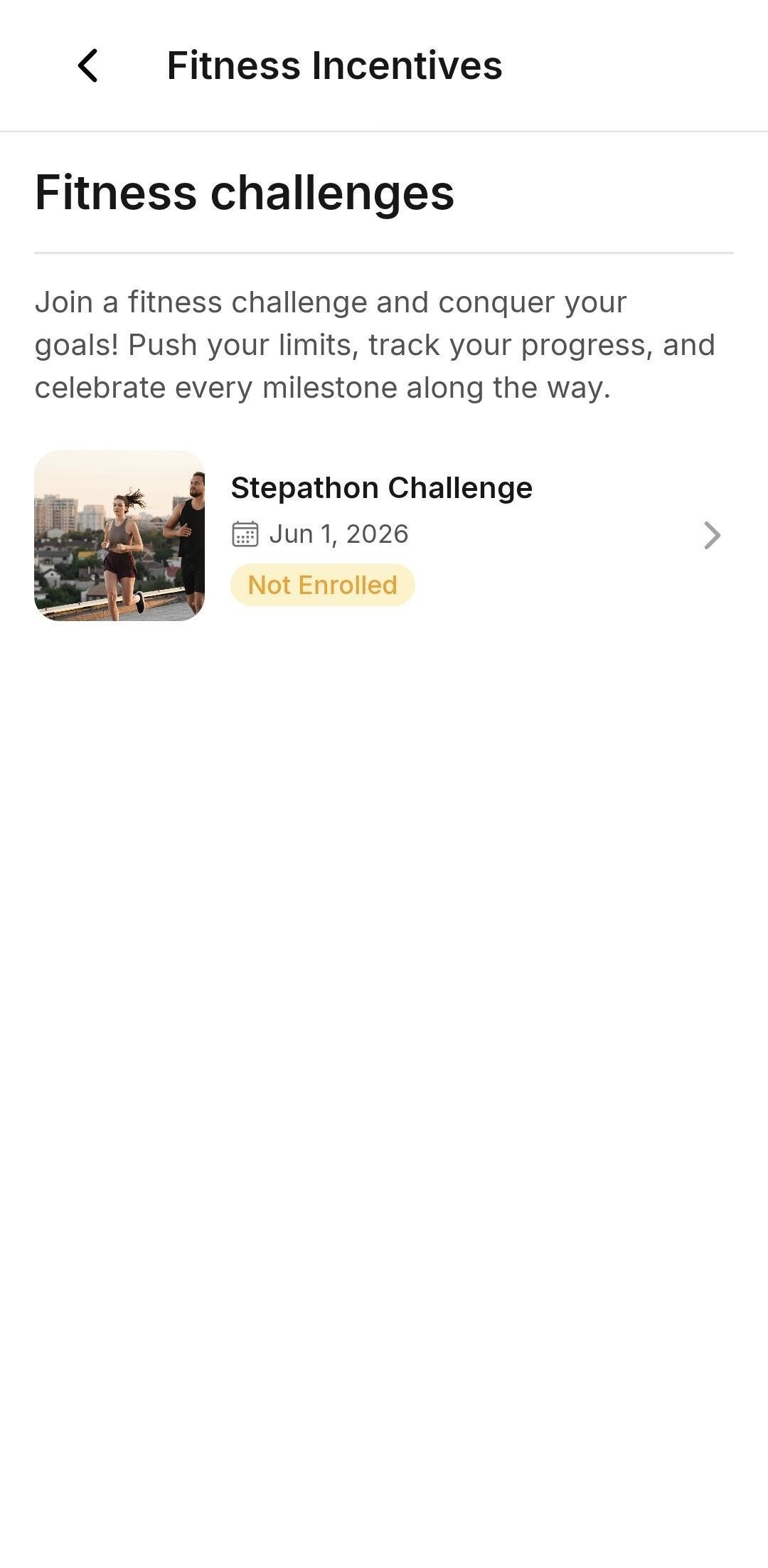 Click a challenge card to open the details modal. You can review the full description, start date, daily goal, and the number of participants who have already joined.
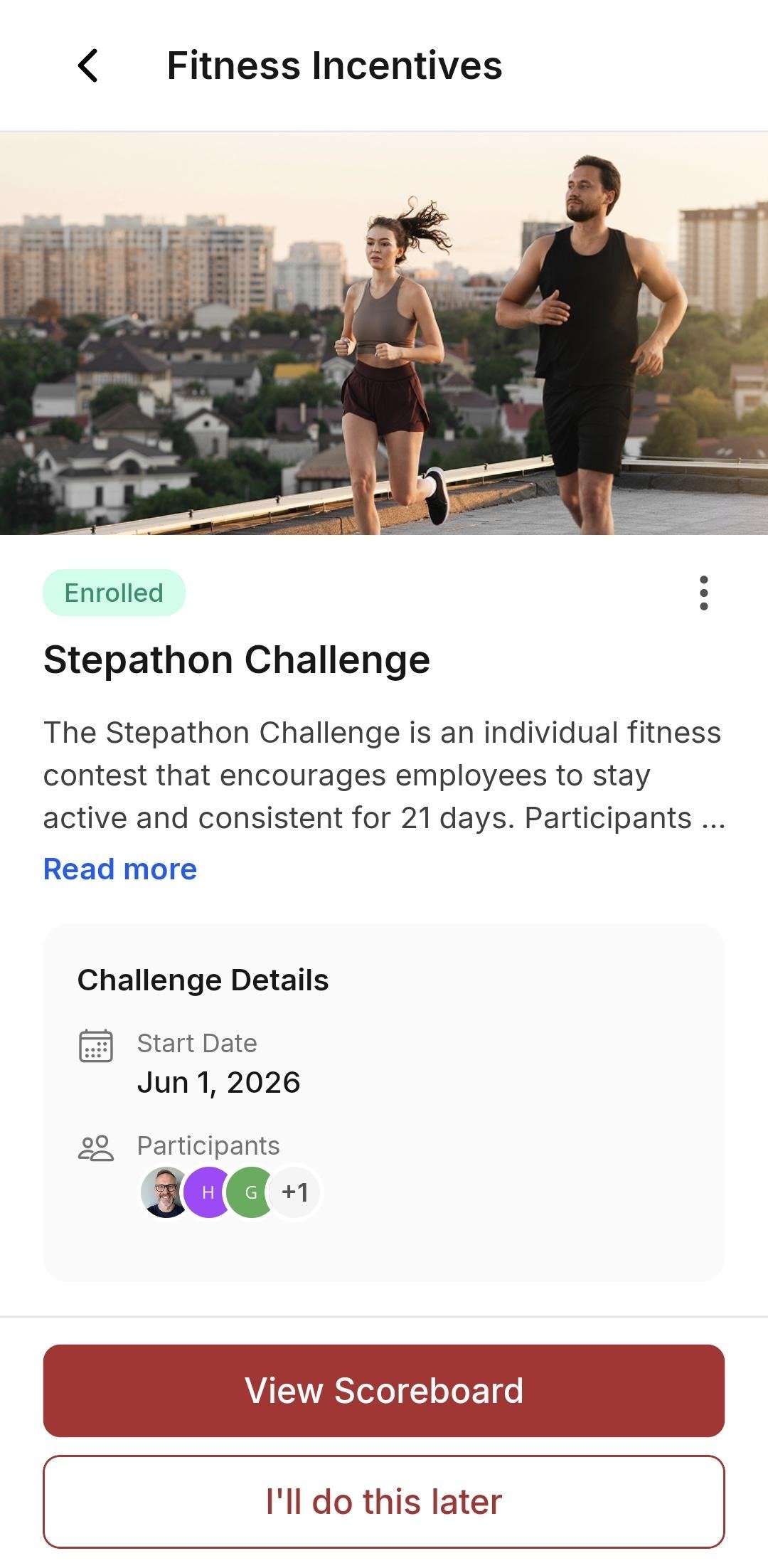
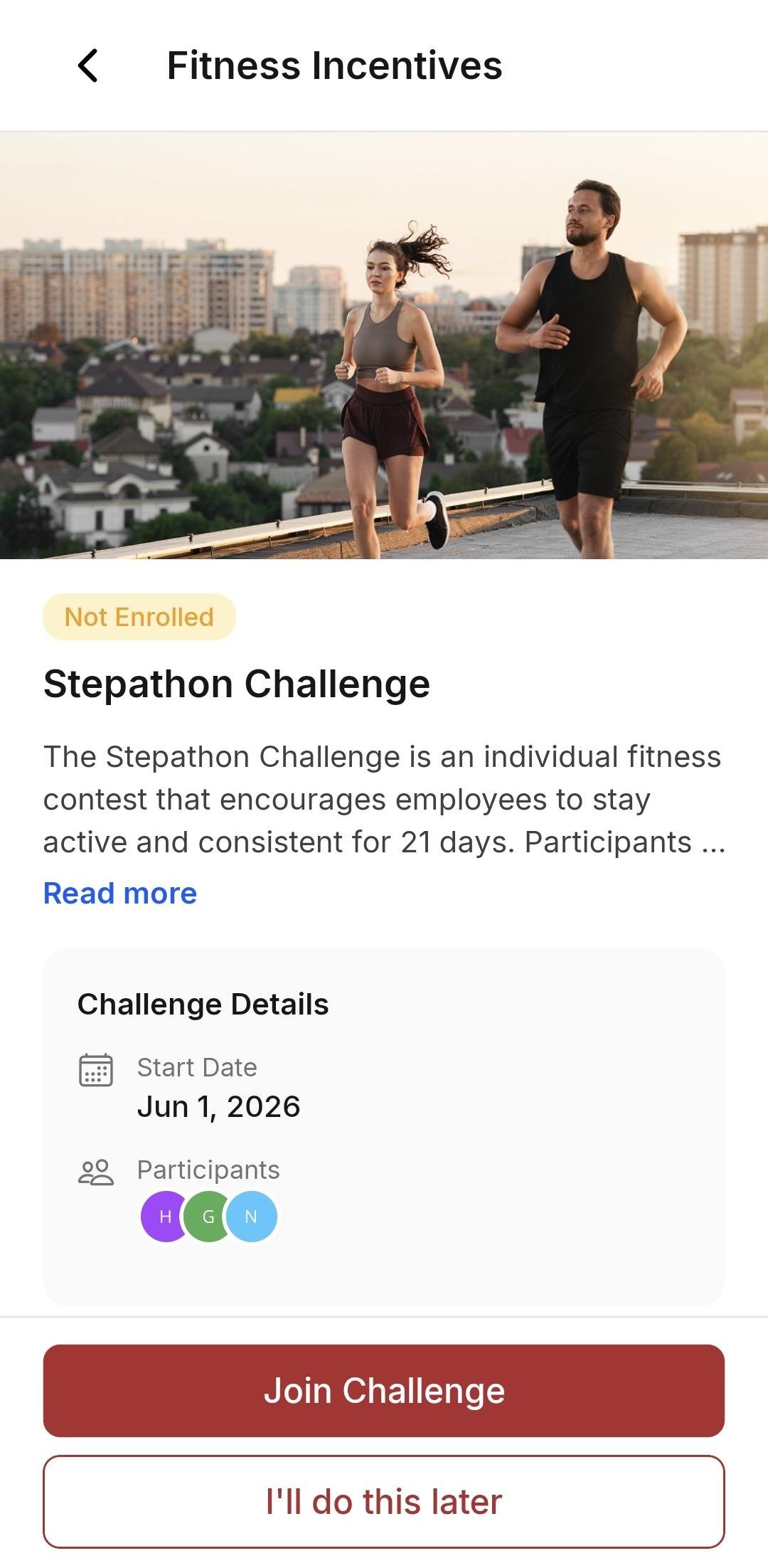 Click **Join Challenge** to enroll. You are added to the leaderboard and can start earning credit as soon as your fitness device syncs activity.
 {/* SCREENSHOT: join challenge modal showing challenge details, participant count, and Join Challenge button */}
## Connect your fitness device
After joining a challenge, Empuls prompts you to connect a fitness tracker so your activity syncs automatically.
A QR code modal appears after you join. Scan it with your phone camera to download the Empuls mobile app if you haven't already.
{/* SCREENSHOT: join challenge modal showing challenge details, participant count, and Join Challenge button */}
## Connect your fitness device
After joining a challenge, Empuls prompts you to connect a fitness tracker so your activity syncs automatically.
A QR code modal appears after you join. Scan it with your phone camera to download the Empuls mobile app if you haven't already.
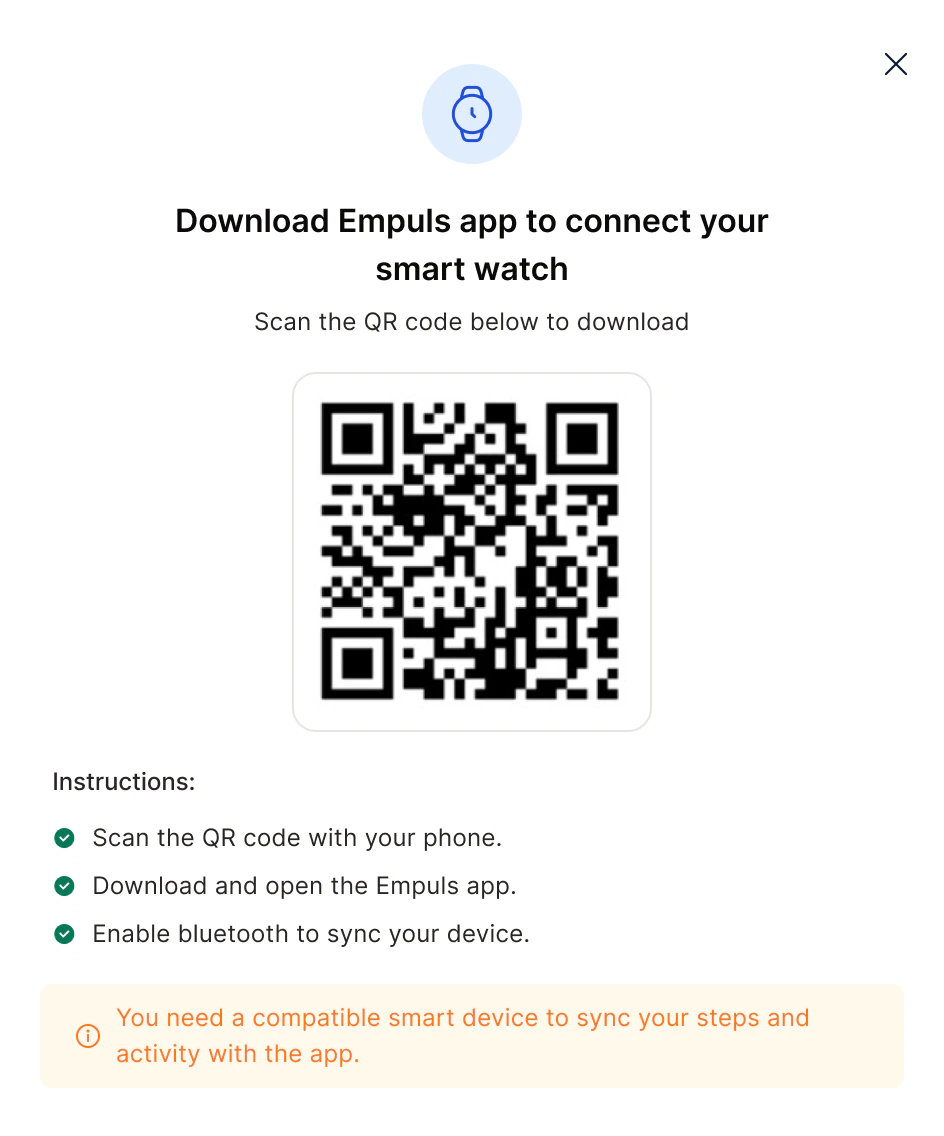 Launch the Empuls app on your phone and sign in with your work credentials.
Follow the in-app prompts to connect your smartwatch or fitness app. Your activity data will then sync automatically to Empuls.
Supported fitness platforms: **Apple Health**, **Google Fit**, **Fitbit**, **Strava**, **Samsung Health**, and **Garmin**. You need a compatible device or app to participate in activity-tracked challenges.
For help setting up the mobile app, see [Mobile app](/employees/getting-started/mobile-app).
## Track your progress
### Leaderboard
Open any challenge you've joined and click **View Scoreboard** to see how you rank against your colleagues.
* The **Monthly** tab shows rankings for the current period and lets you browse past periods using the date filter (this month, previous month, this quarter, previous quarter, calendar year, or custom dates).
* Each row shows participant name, designation, department, and total points or steps.
* Click **See All** to expand the full leaderboard in a searchable modal.
### Milestone rewards
Click the **Rewards** tab on the scoreboard to see your milestone progress.
* A road-map visualization shows each milestone in the challenge, with markers indicating the threshold you need to reach.
* Achieved milestones are highlighted. Milestones where rewards have already been distributed are also marked.
* Reward points are credited to your Empuls wallet automatically when you hit a milestone — no action needed on your part.
## Homepage fitness widget
A fitness carousel appears on your Empuls home page, showing up to three active challenges at a glance.
* For challenges **you've joined**: the widget displays the top four leaderboard entries so you can track your standing without navigating away.
* For challenges **you haven't joined**: the widget shows the challenge banner, description, and start date, with a **Join Challenge** button to enroll directly.
## Leave a challenge
Navigate to **Incentives > Fitness Challenges** and click the challenge you want to leave.
In the details modal, click **Leave Challenge**.
Confirm your decision in the dialog that appears.
Leaving a challenge removes you from the leaderboard immediately. You can rejoin the same challenge later, but your previous progress and ranking are not restored.
## FAQs
You need a compatible fitness device or app to participate in challenges that track steps, distance, or workout minutes. Supported platforms include Apple Health, Google Fit, Fitbit, Strava, Samsung Health, and Garmin. Without a connected device, your activity will not sync and your score will remain zero.
Empuls supports **Apple Health**, **Google Fit**, **Fitbit**, **Strava**, **Samsung Health**, and **Garmin**. Connect your preferred platform through the Empuls mobile app.
Activity data syncs automatically through the Empuls mobile app and your connected fitness platform. Sync frequency depends on your device settings. For the most up-to-date leaderboard position, open the Empuls mobile app to trigger a manual sync.
Yes, you can rejoin a challenge at any time while it is still active. However, your previous leaderboard position and accumulated score are not restored — you start fresh from the day you rejoin.
Go to the **Rewards** tab on the challenge scoreboard. Milestone rewards are also credited to your Empuls reward points wallet automatically. You can view your wallet balance under **Redeem > My Balance**.
The Fitness Challenges feature must be enabled by your organization's admin. If you do not see it under **Incentives**, contact your HR or admin team and ask them to enable a fitness challenge template for your organization.
## Related
Explore gym memberships, health checkups, and other wellness benefits available through Empuls.
Set up the Empuls mobile app to connect your fitness device and sync activity data.
Use the reward points you earn from fitness milestones to redeem gifts and benefits.
Launch the Empuls app on your phone and sign in with your work credentials.
Follow the in-app prompts to connect your smartwatch or fitness app. Your activity data will then sync automatically to Empuls.
Supported fitness platforms: **Apple Health**, **Google Fit**, **Fitbit**, **Strava**, **Samsung Health**, and **Garmin**. You need a compatible device or app to participate in activity-tracked challenges.
For help setting up the mobile app, see [Mobile app](/employees/getting-started/mobile-app).
## Track your progress
### Leaderboard
Open any challenge you've joined and click **View Scoreboard** to see how you rank against your colleagues.
* The **Monthly** tab shows rankings for the current period and lets you browse past periods using the date filter (this month, previous month, this quarter, previous quarter, calendar year, or custom dates).
* Each row shows participant name, designation, department, and total points or steps.
* Click **See All** to expand the full leaderboard in a searchable modal.
### Milestone rewards
Click the **Rewards** tab on the scoreboard to see your milestone progress.
* A road-map visualization shows each milestone in the challenge, with markers indicating the threshold you need to reach.
* Achieved milestones are highlighted. Milestones where rewards have already been distributed are also marked.
* Reward points are credited to your Empuls wallet automatically when you hit a milestone — no action needed on your part.
## Homepage fitness widget
A fitness carousel appears on your Empuls home page, showing up to three active challenges at a glance.
* For challenges **you've joined**: the widget displays the top four leaderboard entries so you can track your standing without navigating away.
* For challenges **you haven't joined**: the widget shows the challenge banner, description, and start date, with a **Join Challenge** button to enroll directly.
## Leave a challenge
Navigate to **Incentives > Fitness Challenges** and click the challenge you want to leave.
In the details modal, click **Leave Challenge**.
Confirm your decision in the dialog that appears.
Leaving a challenge removes you from the leaderboard immediately. You can rejoin the same challenge later, but your previous progress and ranking are not restored.
## FAQs
You need a compatible fitness device or app to participate in challenges that track steps, distance, or workout minutes. Supported platforms include Apple Health, Google Fit, Fitbit, Strava, Samsung Health, and Garmin. Without a connected device, your activity will not sync and your score will remain zero.
Empuls supports **Apple Health**, **Google Fit**, **Fitbit**, **Strava**, **Samsung Health**, and **Garmin**. Connect your preferred platform through the Empuls mobile app.
Activity data syncs automatically through the Empuls mobile app and your connected fitness platform. Sync frequency depends on your device settings. For the most up-to-date leaderboard position, open the Empuls mobile app to trigger a manual sync.
Yes, you can rejoin a challenge at any time while it is still active. However, your previous leaderboard position and accumulated score are not restored — you start fresh from the day you rejoin.
Go to the **Rewards** tab on the challenge scoreboard. Milestone rewards are also credited to your Empuls reward points wallet automatically. You can view your wallet balance under **Redeem > My Balance**.
The Fitness Challenges feature must be enabled by your organization's admin. If you do not see it under **Incentives**, contact your HR or admin team and ask them to enable a fitness challenge template for your organization.
## Related
Explore gym memberships, health checkups, and other wellness benefits available through Empuls.
Set up the Empuls mobile app to connect your fitness device and sync activity data.
Use the reward points you earn from fitness milestones to redeem gifts and benefits.