> ## Documentation Index
> Fetch the complete documentation index at: https://help-empuls.xoxoday.com/llms.txt
> Use this file to discover all available pages before exploring further.
# User delegation
> Grant another user temporary access to an admin or manager account so approvals, recognition, and admin tasks continue without interruption.
User delegation lets one user act on behalf of another inside Empuls — typically when an admin or manager is on leave and approvals, nominations, or admin tasks would otherwise pile up. The original account holder stays in control: every time the delegated user accesses the account, the owner is notified, and the delegation can be deactivated at any time.
## Before you start
* You must be a **Super Admin** or have the **Manage delegations** permission on a custom role.
* Both the **delegator** (account being delegated) and the **delegatee** (person getting access) must already exist as active users in Empuls.
* Delegations cannot be edited after creation. To change a delegation, deactivate it and create a new one.
## How delegation works
A Super Admin picks the account to delegate, the user who will access it, and records a reason.
The delegatee opens their profile menu, clicks **Switch User**, picks the granted account, and enters a reason. They now act inside Empuls as the delegator.
The original account holder receives a notification every time the delegatee switches into the account, with the reason entered.
Any Super Admin can deactivate the delegation at any time. The delegatee immediately loses the ability to switch into the account.
## Create a delegation
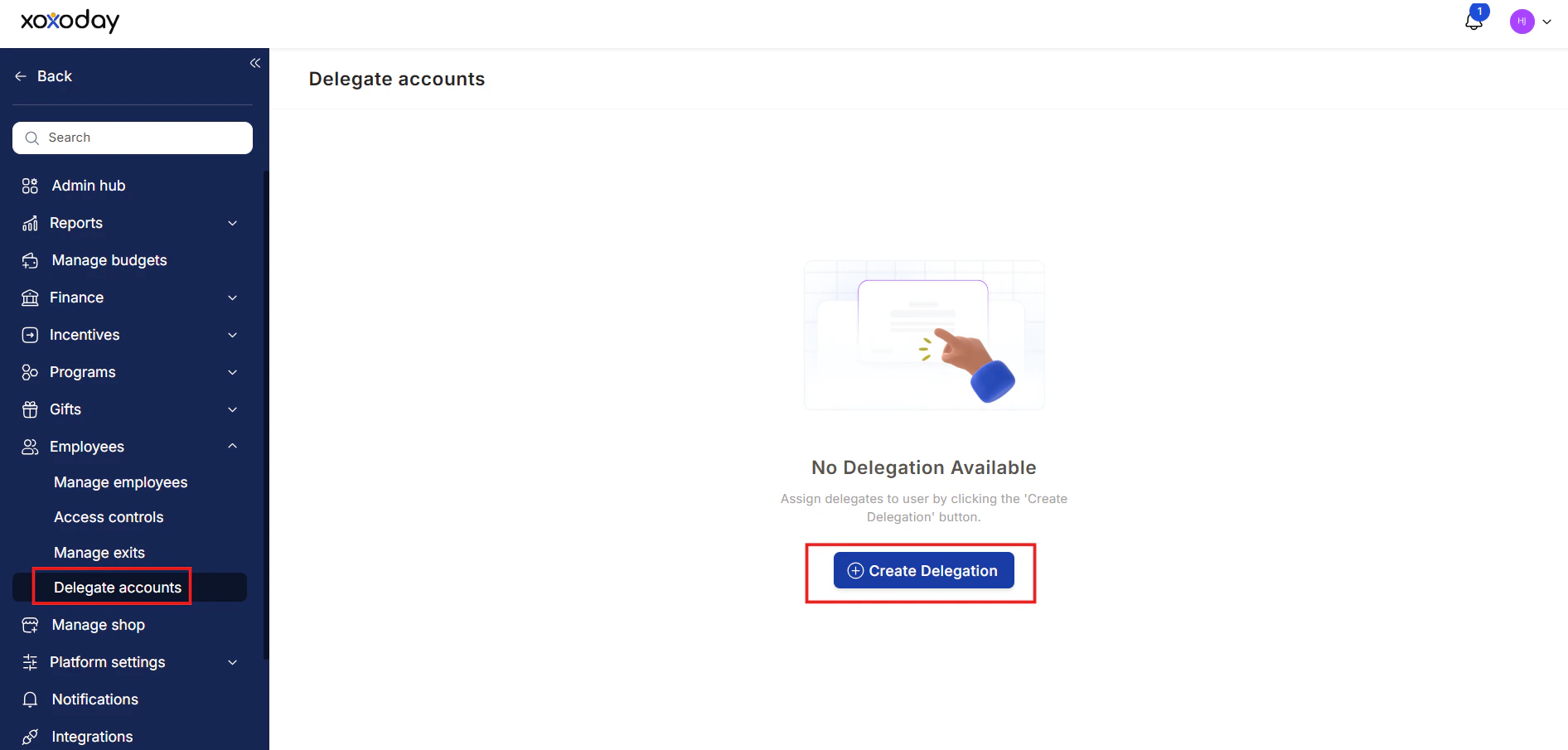
From the Admin Hub, navigate to **Employees → Delegate Accounts**. The page lists existing delegations with status, delegator, delegatee, and created-by columns.
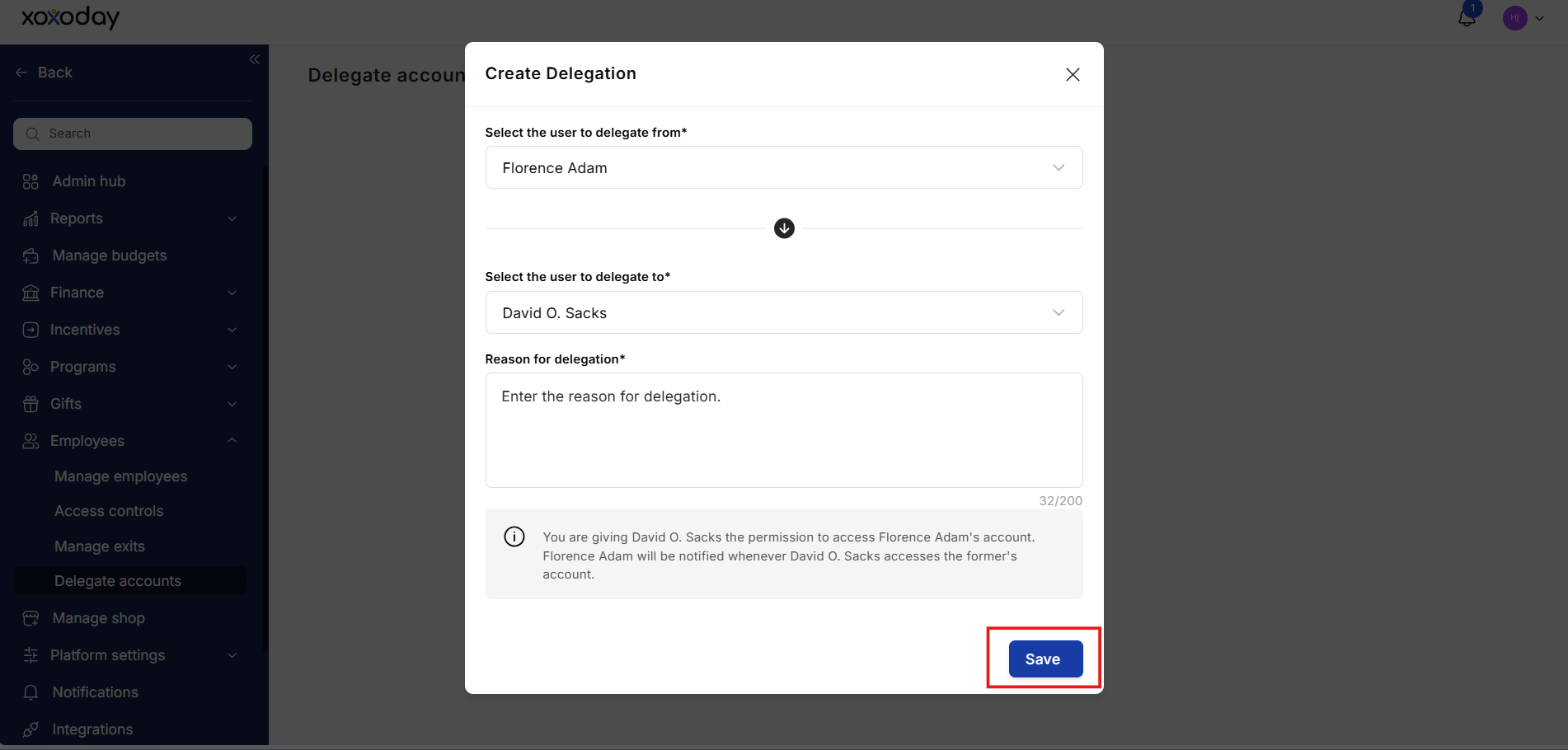
A modal opens with two search fields.
 In **Whose account should be accessed?**, search and pick the user whose account will be delegated. This is typically the admin or manager who is going on leave.
In **Who can access this account?**, search and pick the user who should get access during the delegation period.
Add a short reason — for example, "Cover approvals during Jane's parental leave." This appears in the delegations list and in the notification sent to the account holder each time the delegatee switches in.
The delegation is active immediately. The delegatee can now switch into the account.
In **Whose account should be accessed?**, search and pick the user whose account will be delegated. This is typically the admin or manager who is going on leave.
In **Who can access this account?**, search and pick the user who should get access during the delegation period.
Add a short reason — for example, "Cover approvals during Jane's parental leave." This appears in the delegations list and in the notification sent to the account holder each time the delegatee switches in.
The delegation is active immediately. The delegatee can now switch into the account.
 ## Switch into a delegated account
When you've been granted access to another user's account:
From any page in Empuls, click your profile picture in the top-right corner.
## Switch into a delegated account
When you've been granted access to another user's account:
From any page in Empuls, click your profile picture in the top-right corner.
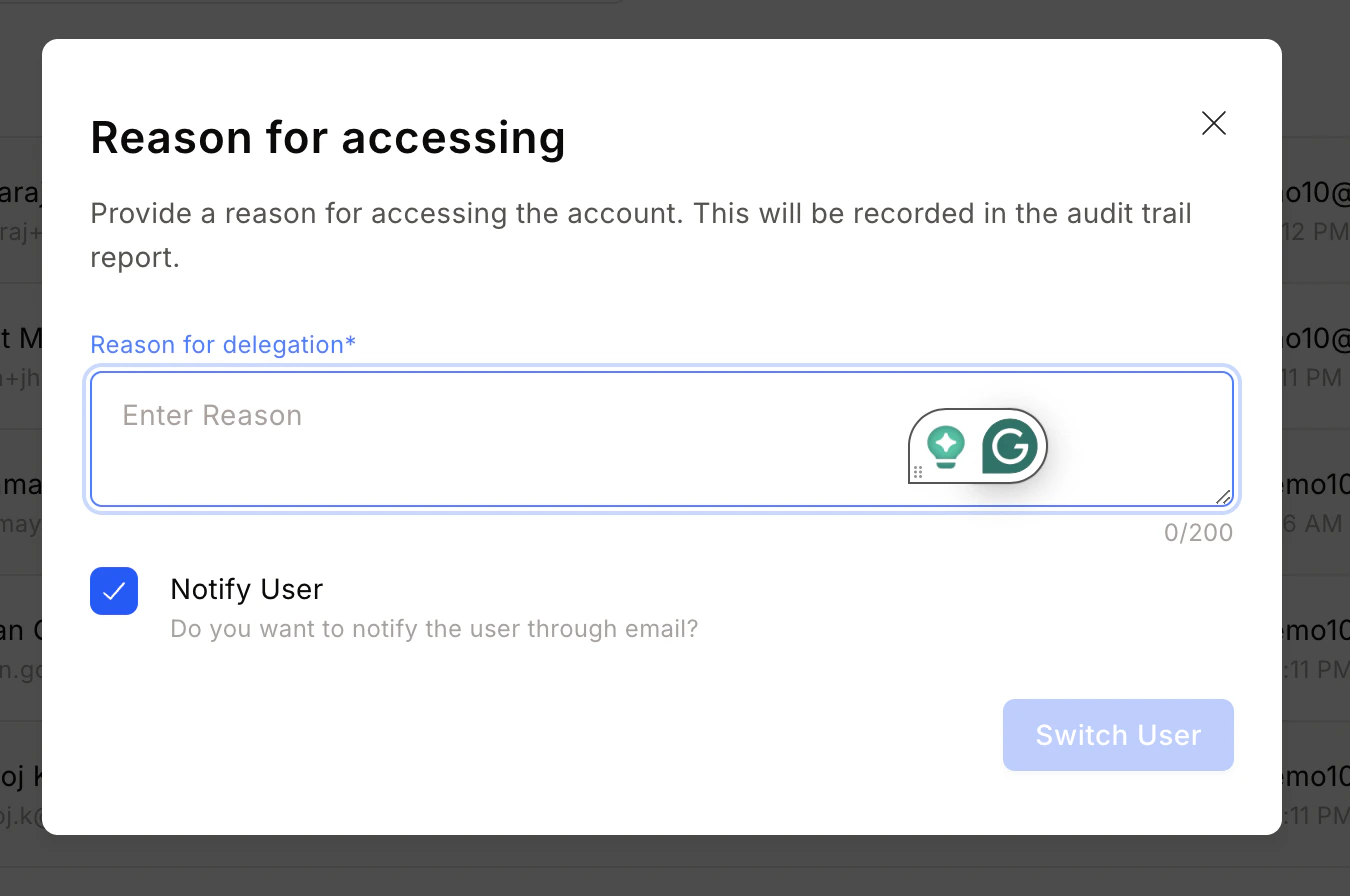 A list of accounts you can access appears. Pick the account you want to switch into.
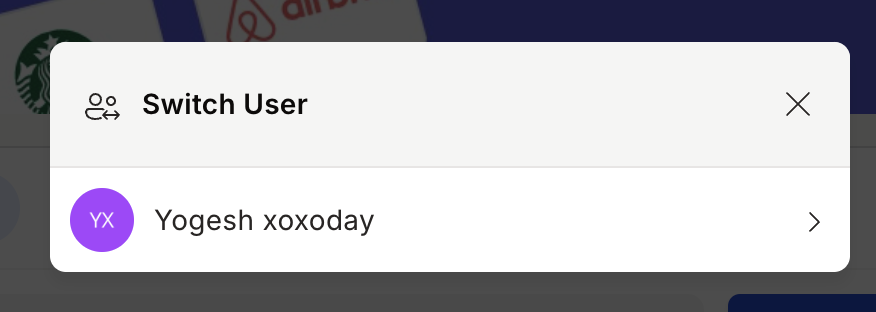 Empuls requires a reason every time you switch — for example, "Approving pending nominations." This is sent to the account owner.
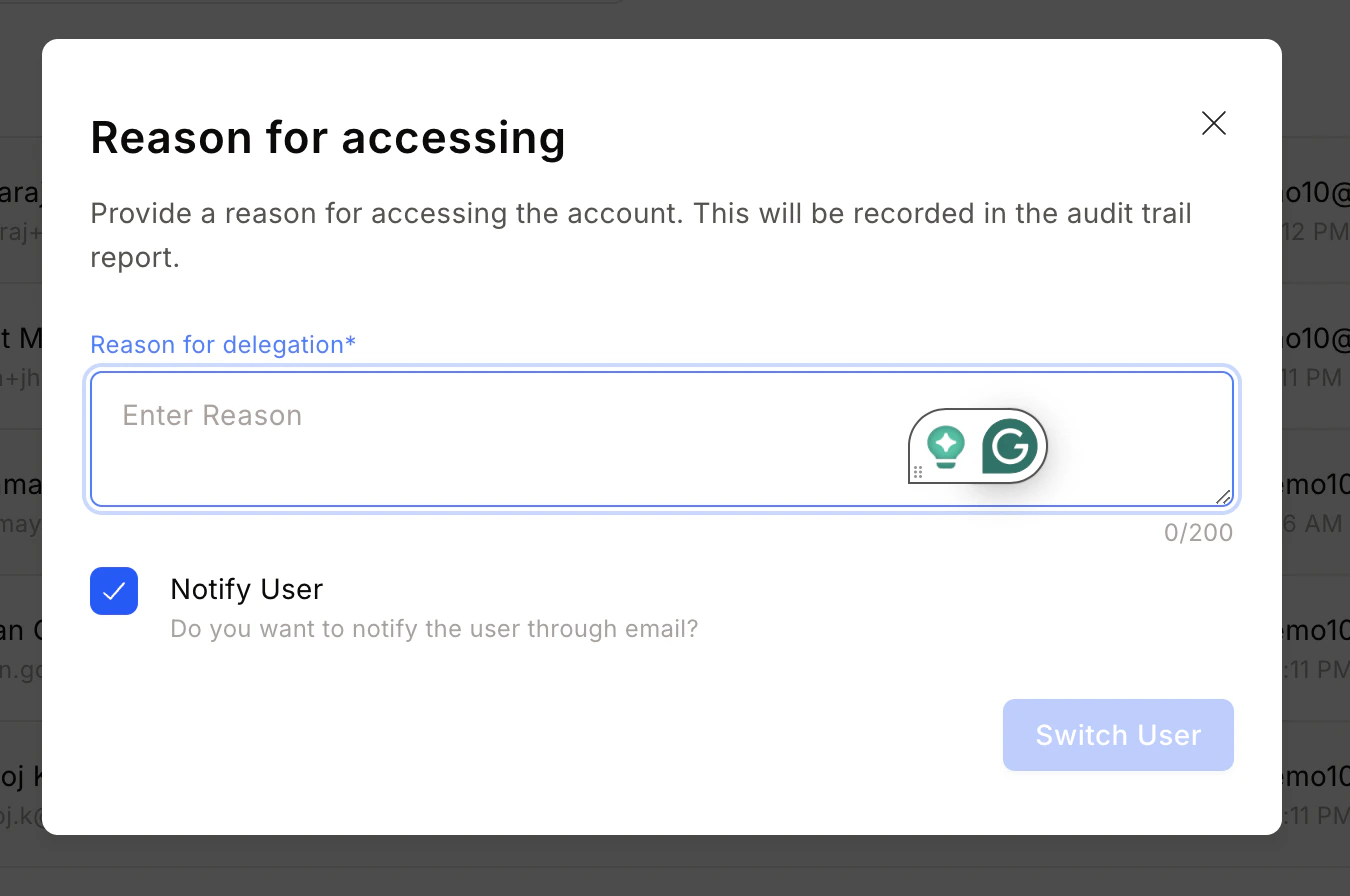 The interface now reflects the delegated account. To return to your own account, repeat the steps and pick your own user.
## Filter and search delegations
The Delegate Accounts list supports filtering:
* **By user** — Search for a delegator or delegatee by name or email.
* **By status** — Show **All statuses**, **Active**, or **Inactive** delegations.
Use the filters to audit who currently has access to which accounts, or to find a specific delegation you need to deactivate.
## Deactivate or reactivate a delegation
Use the search or status filter to locate the row.
Click the **more (⋮)** icon on the row.
Click **Deactivate**. A confirmation dialog summarizes the impact. Confirm to revoke access immediately.
The interface now reflects the delegated account. To return to your own account, repeat the steps and pick your own user.
## Filter and search delegations
The Delegate Accounts list supports filtering:
* **By user** — Search for a delegator or delegatee by name or email.
* **By status** — Show **All statuses**, **Active**, or **Inactive** delegations.
Use the filters to audit who currently has access to which accounts, or to find a specific delegation you need to deactivate.
## Deactivate or reactivate a delegation
Use the search or status filter to locate the row.
Click the **more (⋮)** icon on the row.
Click **Deactivate**. A confirmation dialog summarizes the impact. Confirm to revoke access immediately.
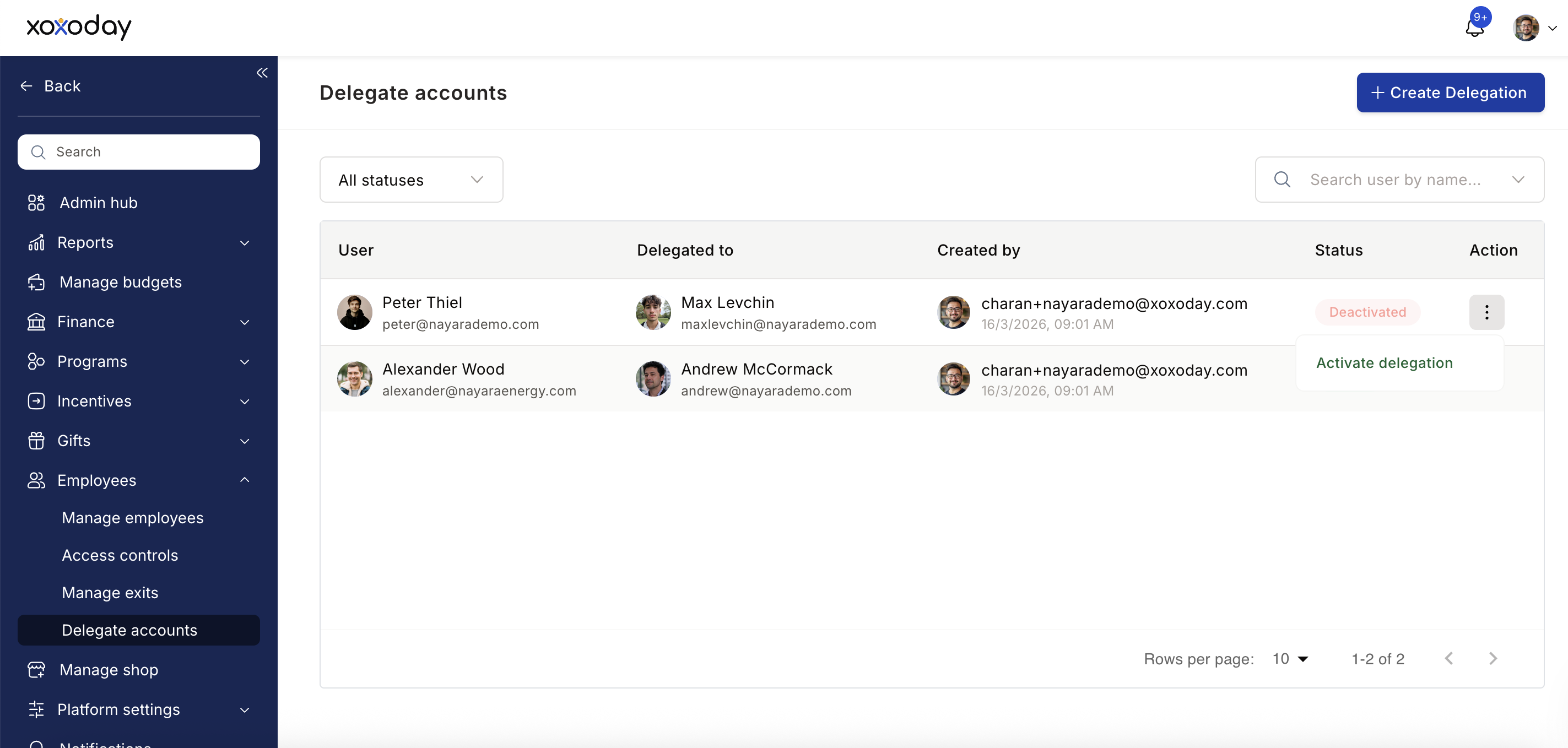 Deactivated delegations stay in the list with **Inactive** status for audit purposes. To restore access, create a new delegation — the original record cannot be reactivated.
## Limits and gotchas
* A delegation grants the delegatee everything the delegator can do. There is no scope limit (no "approvals only" or "recognition only" mode).
* The delegatee's own access role is unchanged when they switch back to their account.
* If the delegator's role changes after the delegation is created, the delegatee inherits the new role the next time they switch in.
* Delegations cannot be edited. Deactivate and recreate to change either party or the reason.
## Related
Create roles with specific permissions instead of delegating a full account.
Update employee records and reporting relationships.
Deactivated delegations stay in the list with **Inactive** status for audit purposes. To restore access, create a new delegation — the original record cannot be reactivated.
## Limits and gotchas
* A delegation grants the delegatee everything the delegator can do. There is no scope limit (no "approvals only" or "recognition only" mode).
* The delegatee's own access role is unchanged when they switch back to their account.
* If the delegator's role changes after the delegation is created, the delegatee inherits the new role the next time they switch in.
* Delegations cannot be edited. Deactivate and recreate to change either party or the reason.
## Related
Create roles with specific permissions instead of delegating a full account.
Update employee records and reporting relationships.