> ## Documentation Index
> Fetch the complete documentation index at: https://help-empuls.xoxoday.com/llms.txt
> Use this file to discover all available pages before exploring further.
# Manage exits
> Configure the rules for treating the unused budget point(s) left in the account of exit employees.
When an employee exits the organization, it's important to configure how unused budget points in their account will be treated. This ensures that points are properly managed and either transferred, deleted, or disabled based on your company's policies.
## Navigation
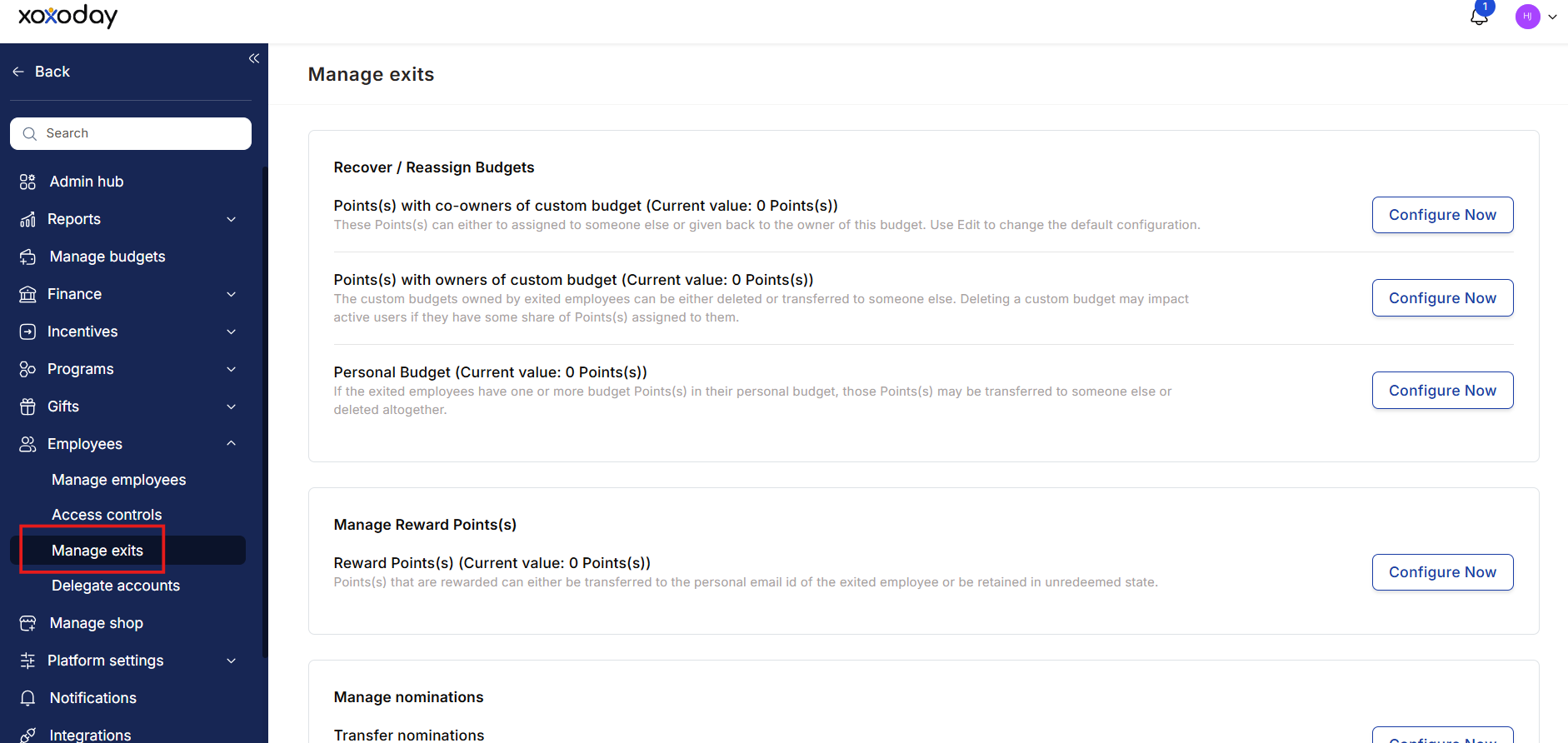
* To configure these rules, navigate to **Reports and Admins**.
* For the Admin Dashboard go to **Employees > Manage Exits** and set your preferred treatment for the unused points in the exited employee’s account.
 ## 1. Recover / Reassign Budgets
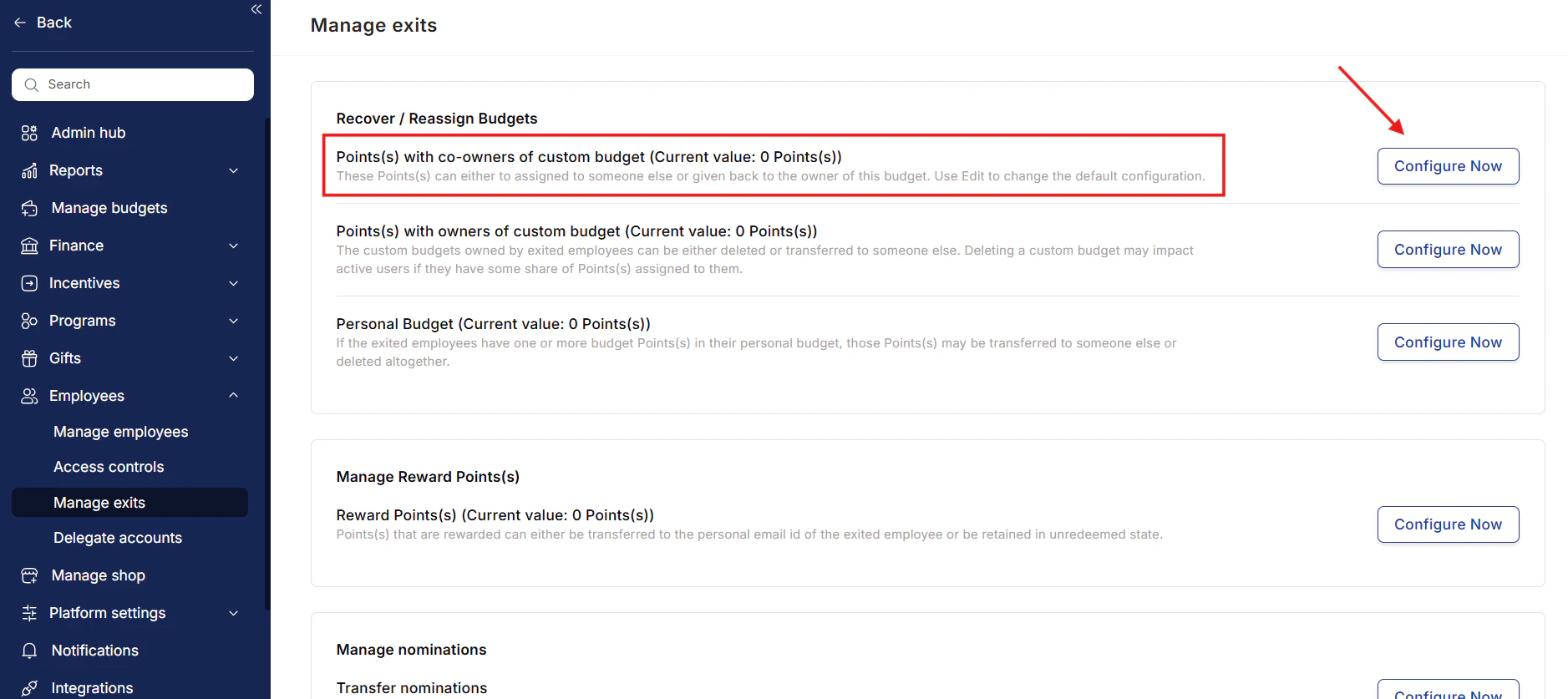
### 1.1 Manage budget points with custom budget co-owners
* The points can be transferred to a third party or returned to the budget owner by default.
* **Click on "Configure Now"** to modify or delete.
* Choose the desired option.
* Click **Save** to confirm your changes.
## 1. Recover / Reassign Budgets
### 1.1 Manage budget points with custom budget co-owners
* The points can be transferred to a third party or returned to the budget owner by default.
* **Click on "Configure Now"** to modify or delete.
* Choose the desired option.
* Click **Save** to confirm your changes.
 ### 1.2 Manage custom budget custom budget owners
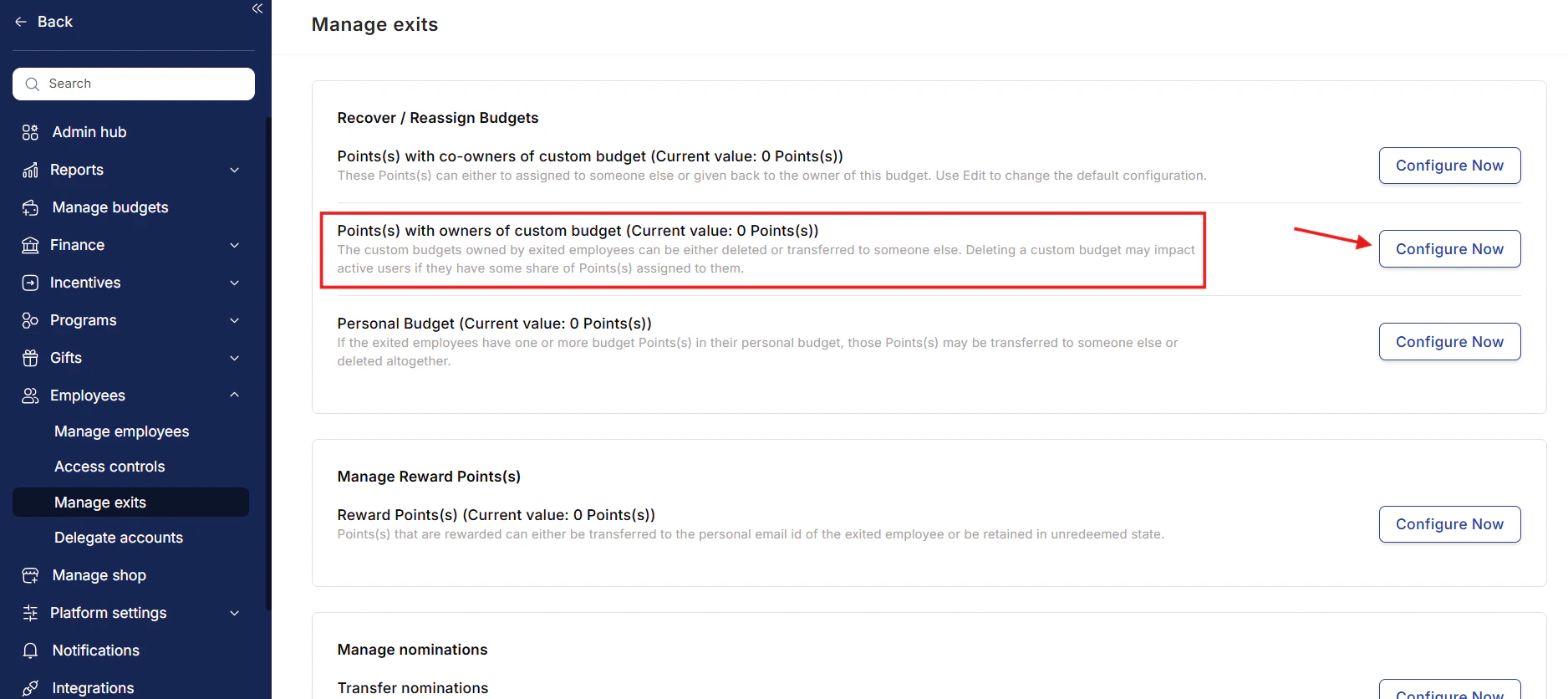
* **Click on "Configure Now"** next to the point(s) with the exited employee's custom budget.
### 1.2 Manage custom budget custom budget owners
* **Click on "Configure Now"** next to the point(s) with the exited employee's custom budget.
 * Choose an option:
* **Delete** Budgets.
* **Transfer ownership and point(s)** to someone else.
* Choose an option:
* **Delete** Budgets.
* **Transfer ownership and point(s)** to someone else.
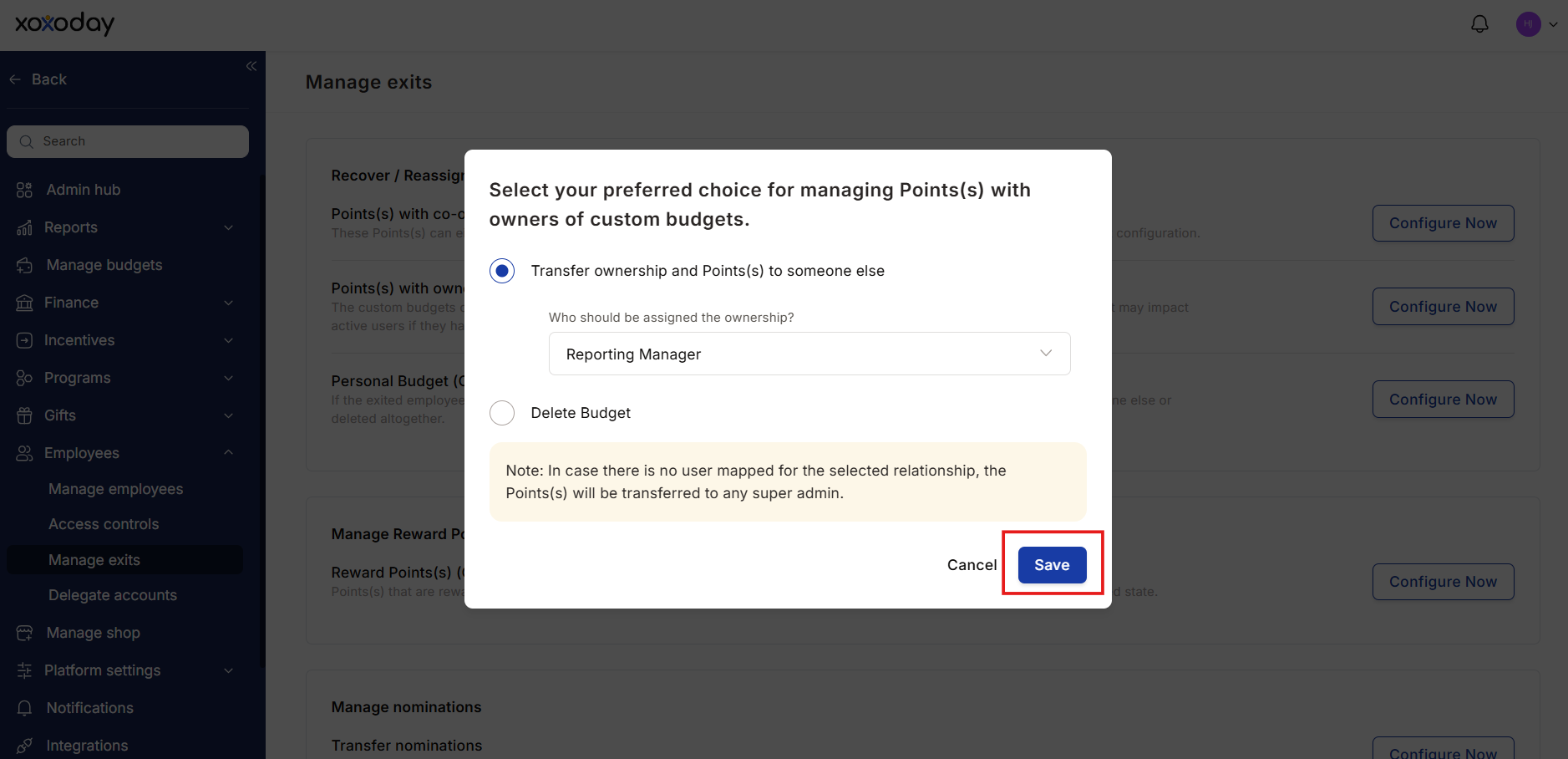 * Click **Save** to confirm the action.
### 1.3 Manage points under exited employee's personal budget
* **Click on "Configure Now"**. If configured, choose the **Edit** option to make changes.
* Click **Save** to confirm the action.
### 1.3 Manage points under exited employee's personal budget
* **Click on "Configure Now"**. If configured, choose the **Edit** option to make changes.
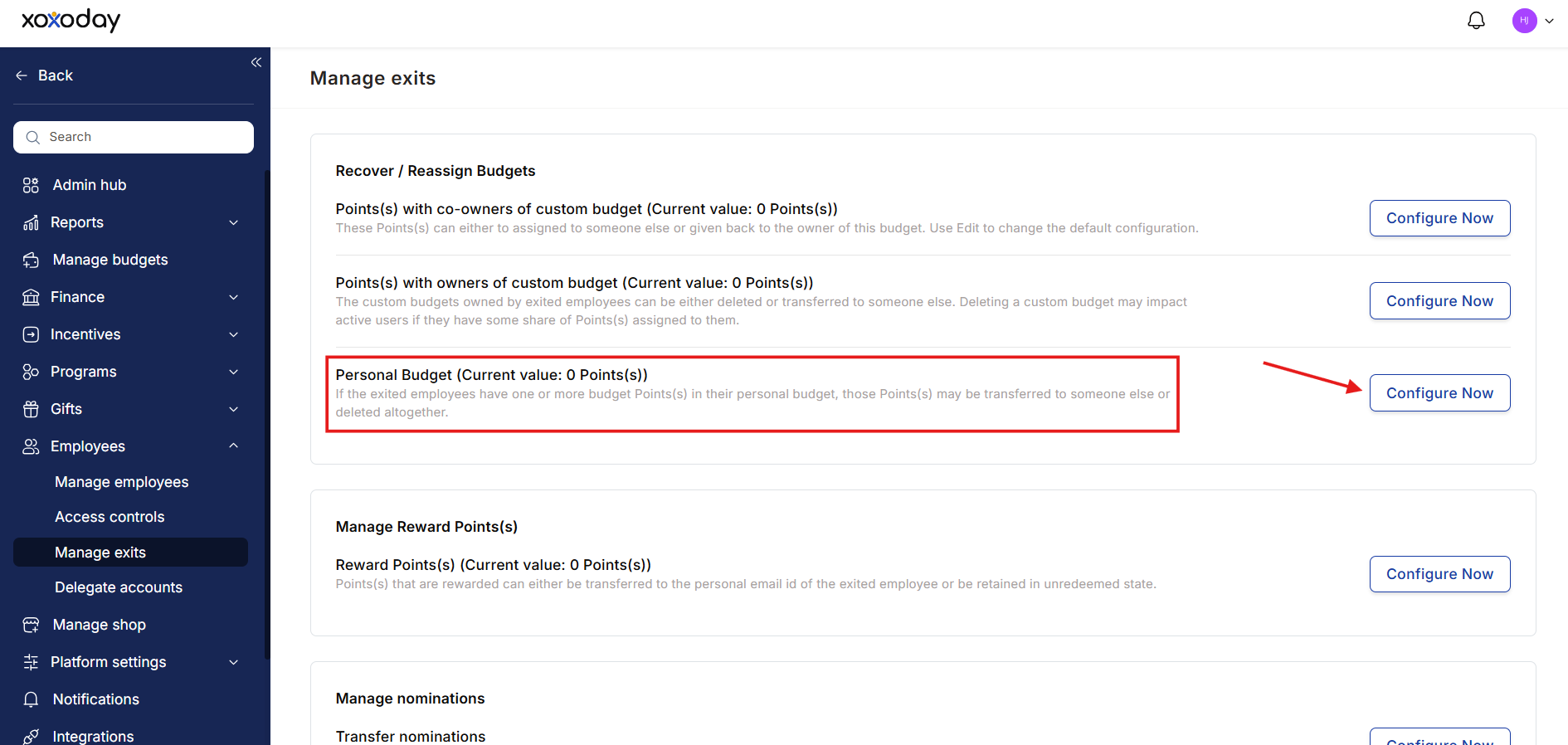 * Choose one of the options:
* **Transfer points** to another employee (select an employee name).
* **Destroy points**.
* Click **Save** to confirm.
* Choose one of the options:
* **Transfer points** to another employee (select an employee name).
* **Destroy points**.
* Click **Save** to confirm.
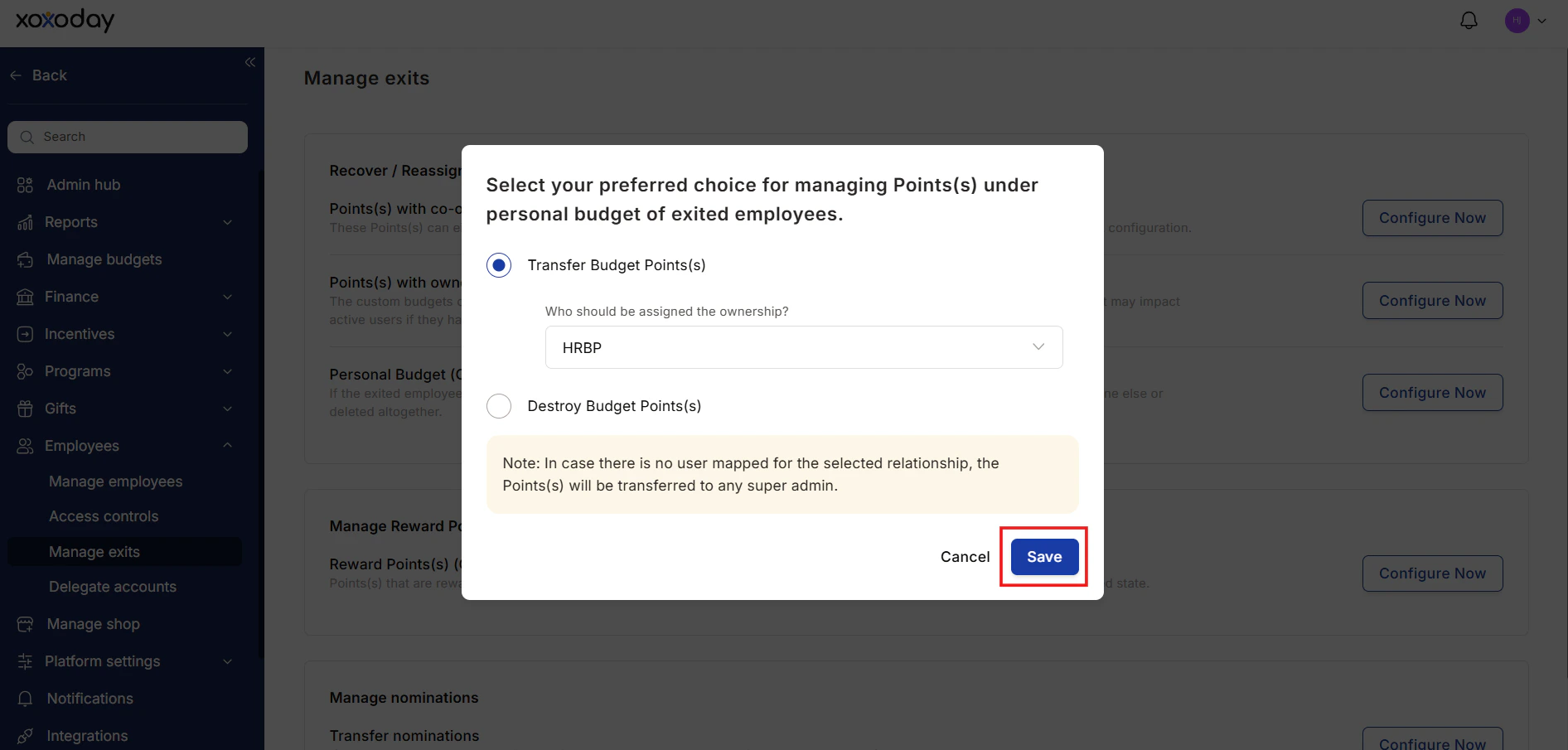 > If no employee is selected, points will automatically go to the Super Admins.
## 2. Manage reward point(s)
Reward points that are allocated to employees can be managed in two ways when an employee exits the organization. These points can either be:
* Transferred to the personal email ID of the exited employee.
* Retained in an unredeemed state or destroyed.
Follow the steps below to manage reward point(s) for exited employees:
### Step 1
Under the **Manage Reward point(s)** card, click on **Edit**.
> If no employee is selected, points will automatically go to the Super Admins.
## 2. Manage reward point(s)
Reward points that are allocated to employees can be managed in two ways when an employee exits the organization. These points can either be:
* Transferred to the personal email ID of the exited employee.
* Retained in an unredeemed state or destroyed.
Follow the steps below to manage reward point(s) for exited employees:
### Step 1
Under the **Manage Reward point(s)** card, click on **Edit**.
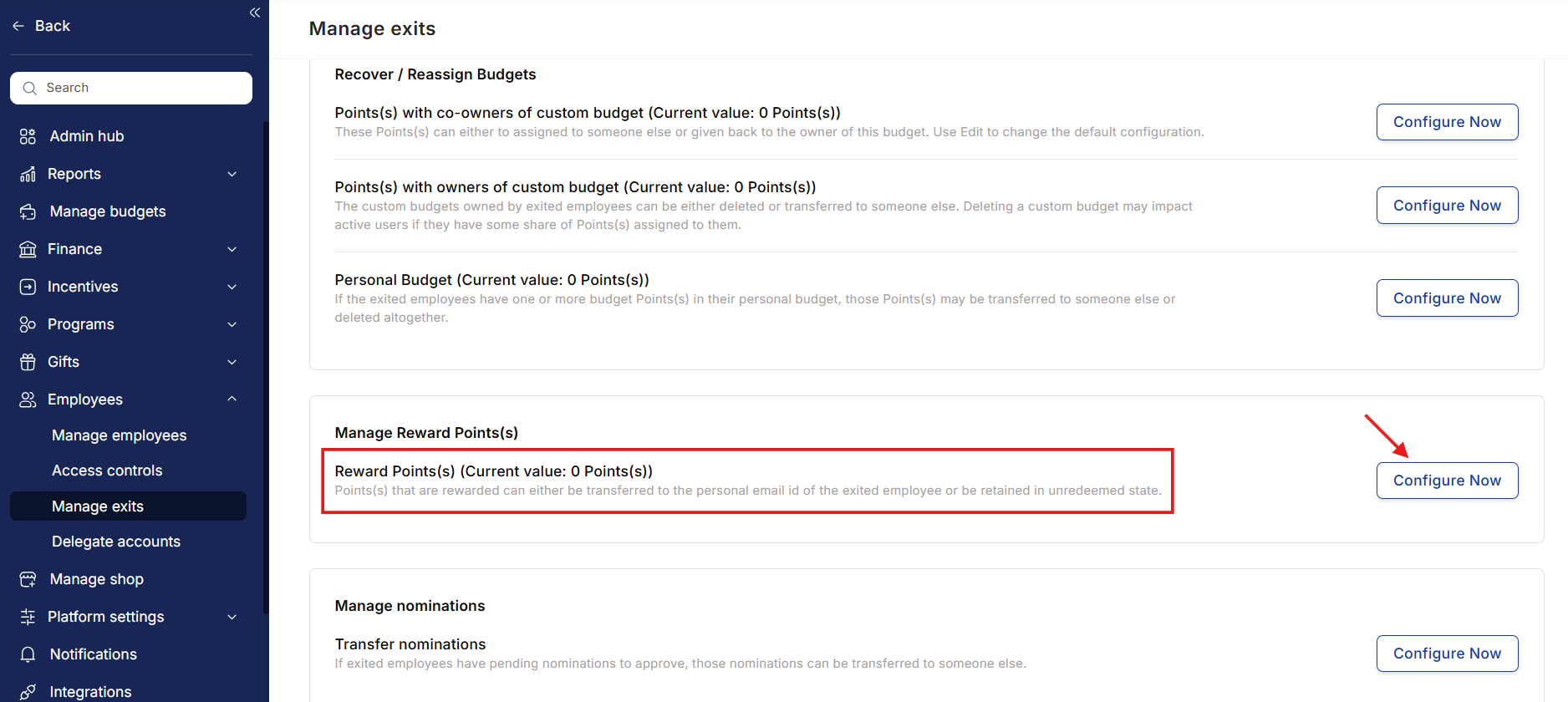 ### Step 2
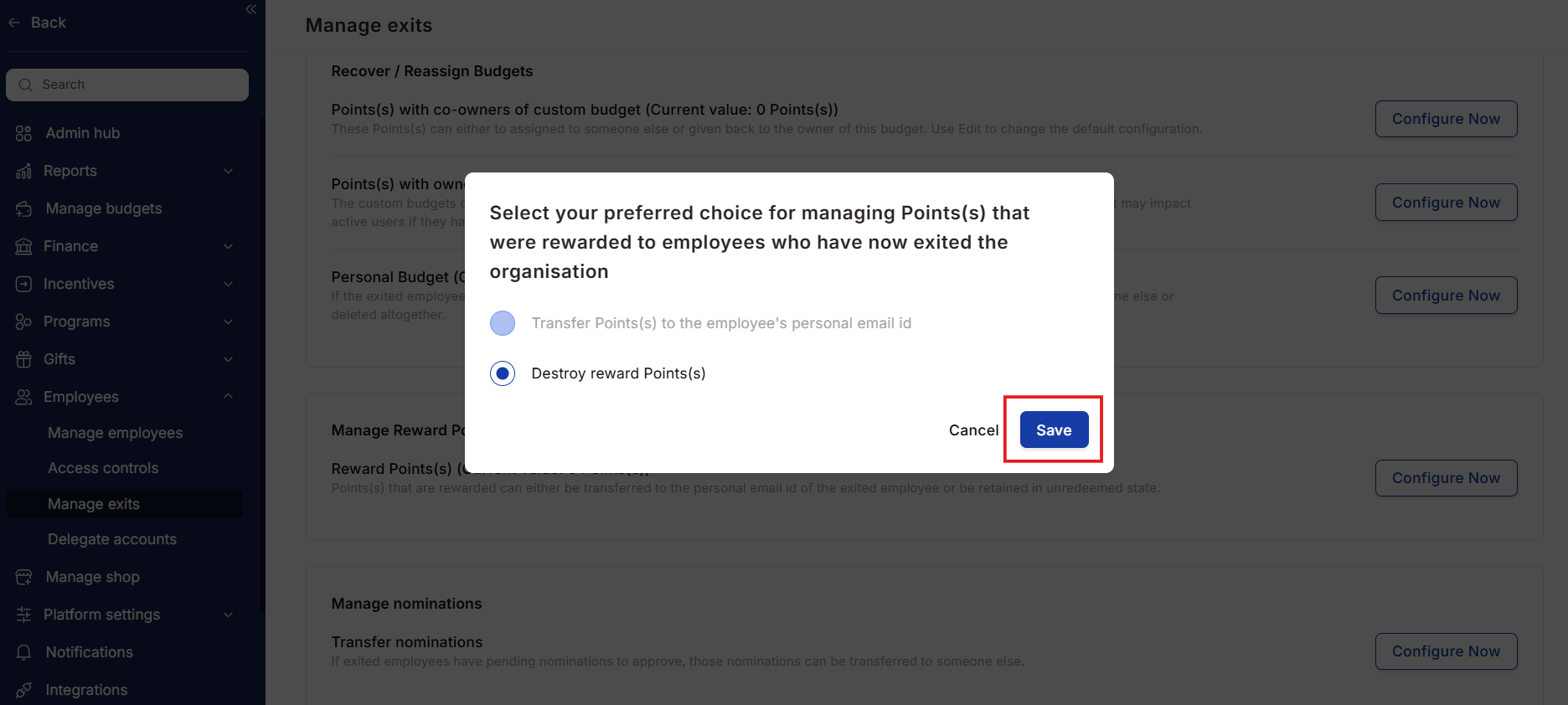
Select your preferred option.
Choose how you want to handle the reward point(s) of the exited employee:
* **Transfer Points to Exited Employee's Personal Email ID**
This option ensures that the reward points are transferred to the employee's personal email address for redemption.
* **Destroy Reward Point(s)**
Use this option if you prefer to invalidate the unredeemed points and remove them permanently.
### Step 2
Select your preferred option.
Choose how you want to handle the reward point(s) of the exited employee:
* **Transfer Points to Exited Employee's Personal Email ID**
This option ensures that the reward points are transferred to the employee's personal email address for redemption.
* **Destroy Reward Point(s)**
Use this option if you prefer to invalidate the unredeemed points and remove them permanently.
 ## 3. Manage nominations
In case an exited employee has some pending nominations to approve, those nominations can be transferred to someone else.
### Step 1
Navigate to **Employees > Manage Exits > Manage Nominations**.
## 3. Manage nominations
In case an exited employee has some pending nominations to approve, those nominations can be transferred to someone else.
### Step 1
Navigate to **Employees > Manage Exits > Manage Nominations**.
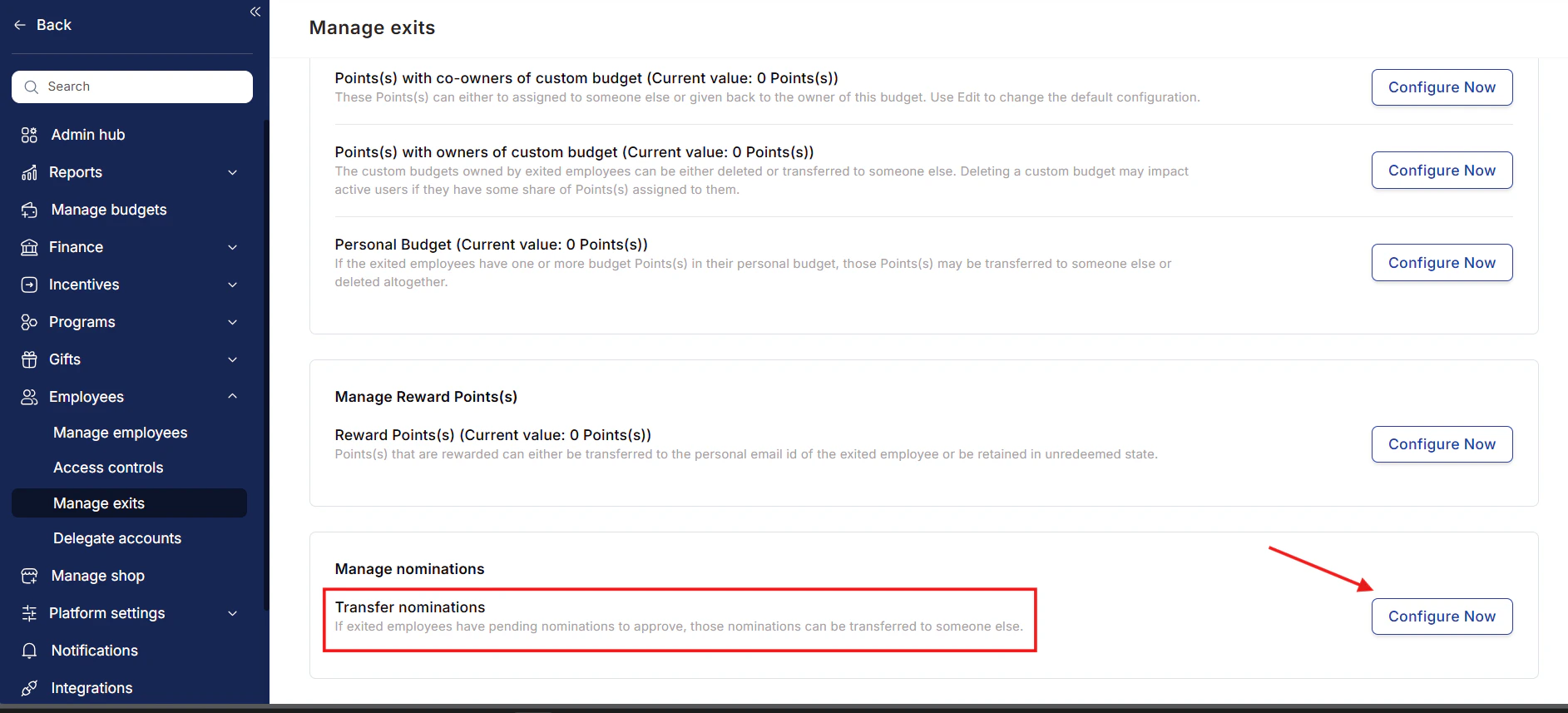 ### Step 2
Click on **Edit**.
### Step 3
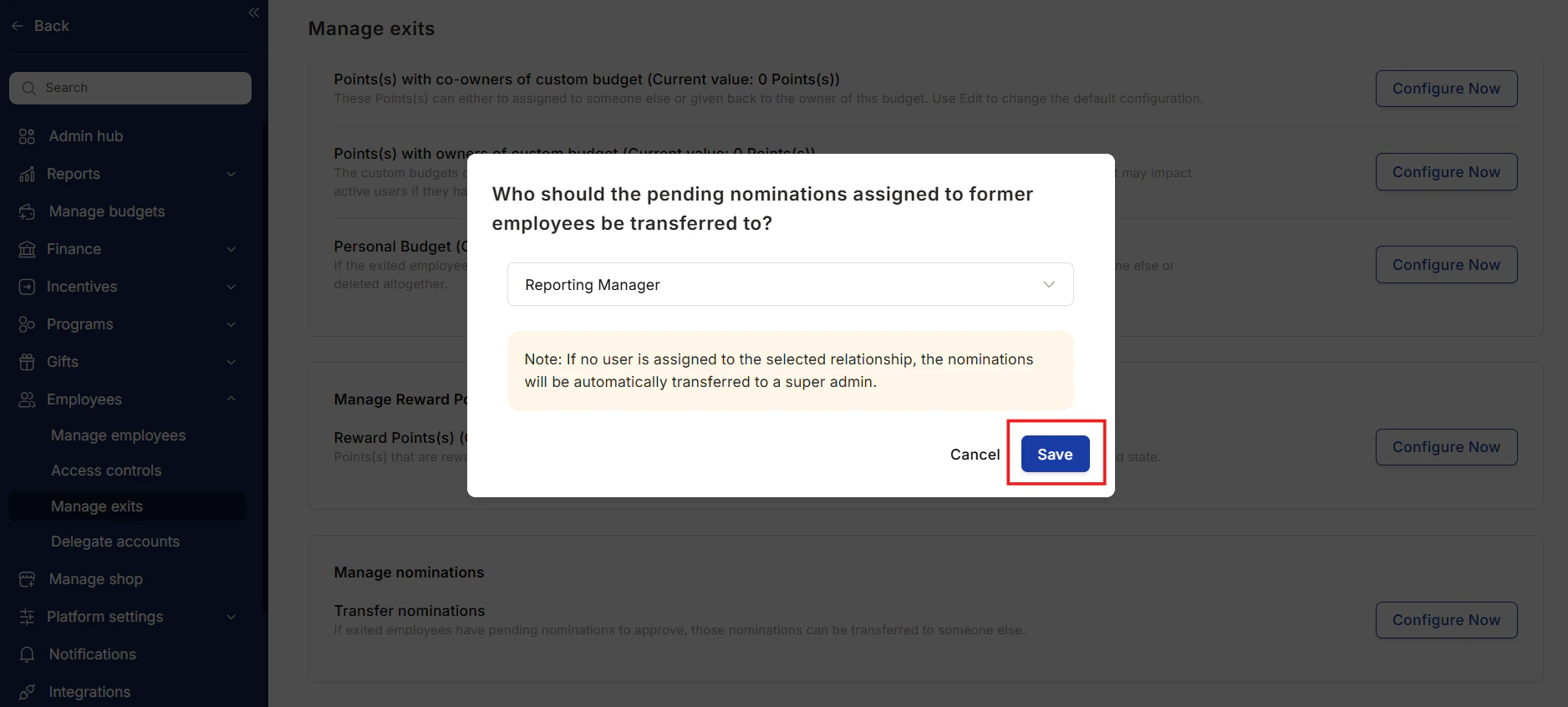
Select the person to whom you wish to transfer the nominations. You can choose from the following options:
* **Self** (the former employee who originally nominated)
* **Reporting Manager** of the nominated employee
* **HRBPO**
* **Department Head**
* **Business Unit Head**
* **Cost Center Head**
### Step 2
Click on **Edit**.
### Step 3
Select the person to whom you wish to transfer the nominations. You can choose from the following options:
* **Self** (the former employee who originally nominated)
* **Reporting Manager** of the nominated employee
* **HRBPO**
* **Department Head**
* **Business Unit Head**
* **Cost Center Head**
 ## FAQs
You can configure whether to transfer, delete, or disable these points under the *Manage Exits* settings.
Yes, you can choose to transfer unredeemed reward points to the employee’s personal email for later redemption.
If no recipient is selected, the points will automatically be transferred to the *Super Admins*.
Application URL:
`https://#{{tenant_url}}/home/manage-employee-exit`
> Questions, feedback or support? Email [cs@xoxoday.com](mailto:cs@xoxoday.com)
## FAQs
You can configure whether to transfer, delete, or disable these points under the *Manage Exits* settings.
Yes, you can choose to transfer unredeemed reward points to the employee’s personal email for later redemption.
If no recipient is selected, the points will automatically be transferred to the *Super Admins*.
Application URL:
`https://#{{tenant_url}}/home/manage-employee-exit`
> Questions, feedback or support? Email [cs@xoxoday.com](mailto:cs@xoxoday.com)