> ## Documentation Index
> Fetch the complete documentation index at: https://help-empuls.xoxoday.com/llms.txt
> Use this file to discover all available pages before exploring further.
# Mood-o-meter
> Run a daily one-tap emoji check-in to track real-time team sentiment, then read mood scores, question trends, and a sentiment heatmap that drills down to teams.
Mood-o-Meter is a one-question, emoji-based check-in that runs on a recurring schedule — daily by default — so you always have a fresh read on how your workforce is feeling. Employees tap one of five emojis (from 😍 to 😞) and optionally add a comment. The results aggregate into a mood score, a per-question breakdown, and a sentiment heatmap you can slice by team, department, or location.
Use Mood-o-Meter alongside (not instead of) eNPS and Pulse surveys — Mood-o-Meter captures *today*'s vibe, eNPS captures loyalty, and Pulse digs into specific themes.
## Before you start
* You must be a **Super Admin** or have the **Manage Surveys** permission.
* Mood-o-Meter is a separate survey type; you don't need to create a regular survey first.
* Decide the cadence before launch. Daily catches reactions to events; weekly or monthly reduces survey fatigue.
## How Mood-o-Meter differs from Pulse and eNPS
| Survey | Question count | Cadence | What it answers |
| ---------------- | ----------------------------------- | ------------------------- | ---------------------------------------- |
| **Mood-o-Meter** | 1 emoji-scale question | Daily, weekly, or monthly | "How is the team feeling right now?" |
| **Pulse** | Multi-question, themed | Weekly / bi-weekly | "What's driving engagement this period?" |
| **eNPS** | 1 NPS question + optional follow-up | Quarterly | "How loyal is our workforce?" |
See [Create surveys](/admin/surveys/create-surveys) and [eNPS and Pulse surveys](/admin/surveys/enps-pulse) for the other types.
## Set up Mood-o-Meter
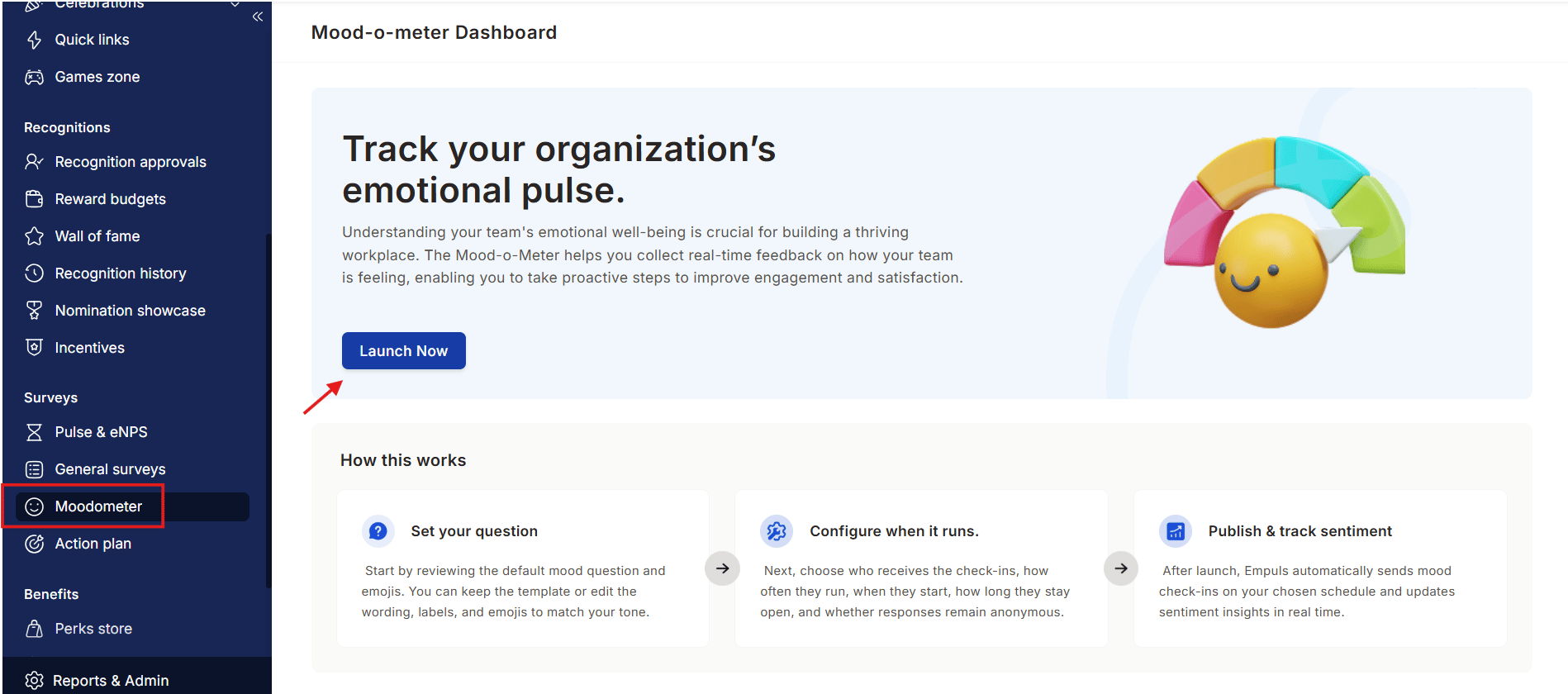
From the Admin Hub, navigate to **Surveys → Mood-o-Meter**. If you haven't run it before, you see a get-started landing page with a "How it works" explainer.
The create wizard opens with the question step first.
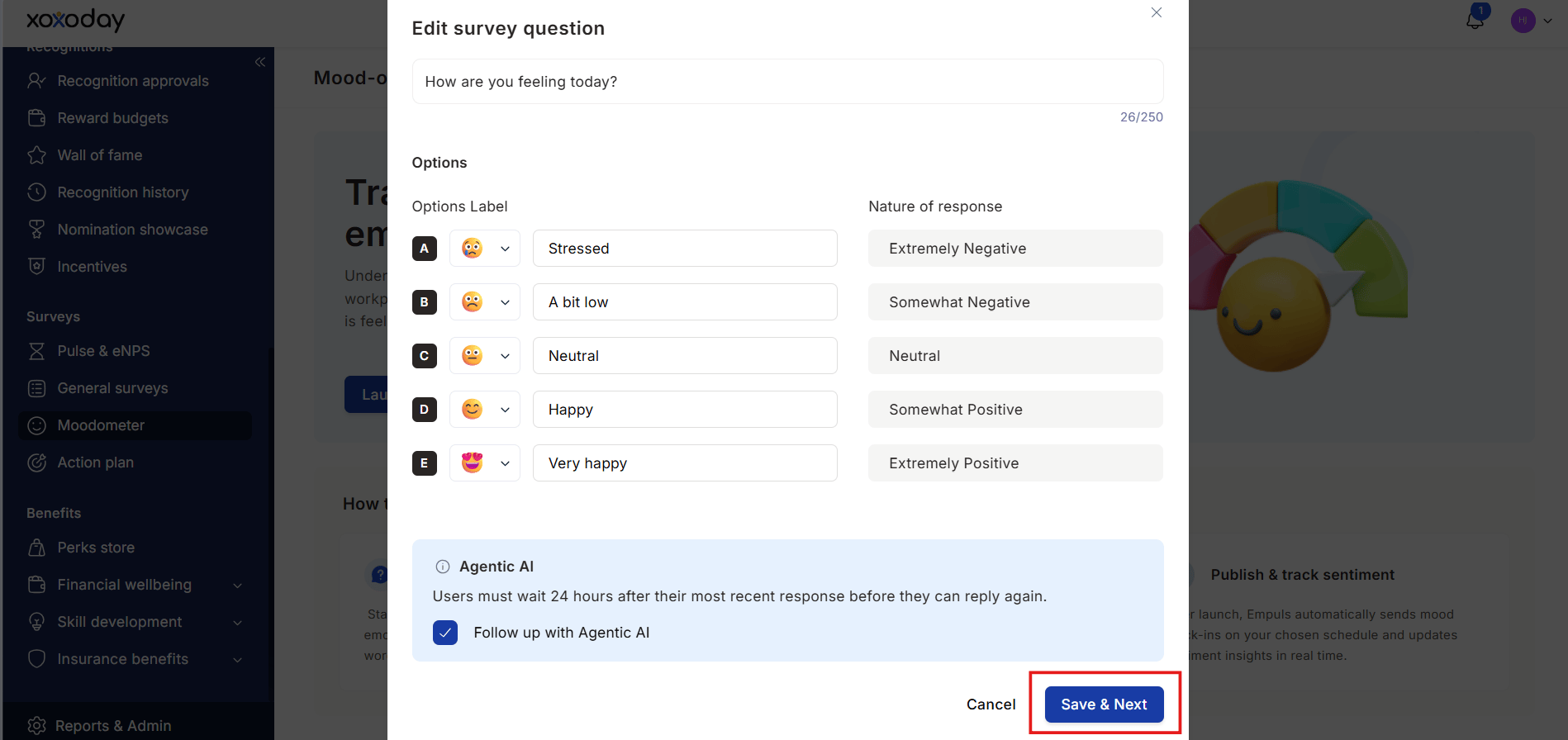
 Enter your check-in question — for example, **"How was your workday today?"** or **"How are you feeling about this week?"** Keep it short — employees tap and move on.
The default 5-point scale uses 😍 (5) → 😊 (4) → 😐 (3) → 😕 (2) → 😞 (1) with labels like "Strongly agree", "Agree", "Neutral", etc. You can:
* Pick a different emoji for each row from the emoji picker.
* Rename each label (e.g., "Energized", "Good", "Meh", "Drained", "Bad").
* Reorder the rows.
Enter your check-in question — for example, **"How was your workday today?"** or **"How are you feeling about this week?"** Keep it short — employees tap and move on.
The default 5-point scale uses 😍 (5) → 😊 (4) → 😐 (3) → 😕 (2) → 😞 (1) with labels like "Strongly agree", "Agree", "Neutral", etc. You can:
* Pick a different emoji for each row from the emoji picker.
* Rename each label (e.g., "Energized", "Good", "Meh", "Drained", "Bad").
* Reorder the rows.
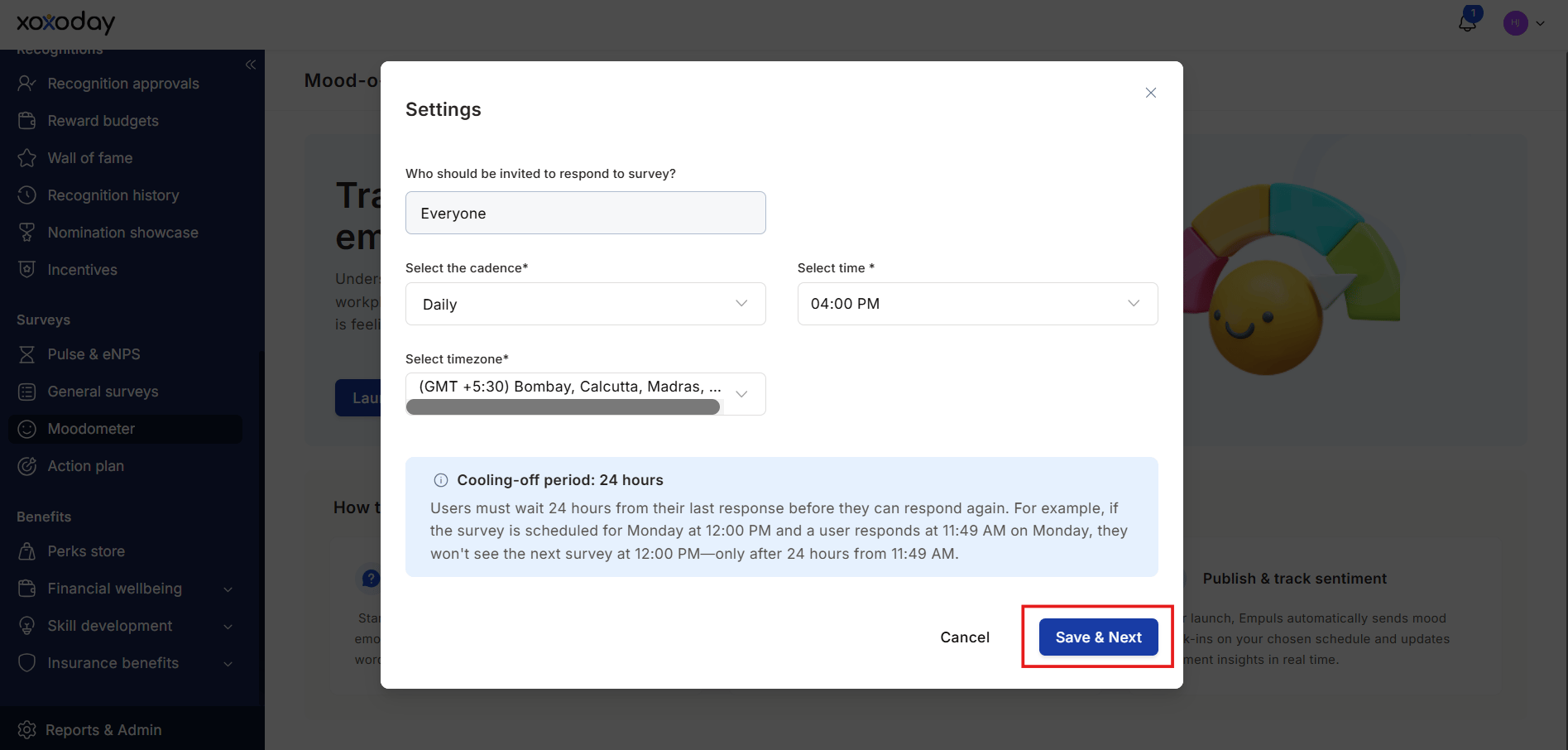
 On the **Settings** step, configure:
* **Audience** — Default is **Everyone**. Filter to specific departments, locations, or business units if needed.
* **Frequency** — Daily (default), weekly, or monthly.
* **Schedule** — For weekly or monthly, pick the day(s) of week or dates of month the prompt fires.
On the **Settings** step, configure:
* **Audience** — Default is **Everyone**. Filter to specific departments, locations, or business units if needed.
* **Frequency** — Daily (default), weekly, or monthly.
* **Schedule** — For weekly or monthly, pick the day(s) of week or dates of month the prompt fires.
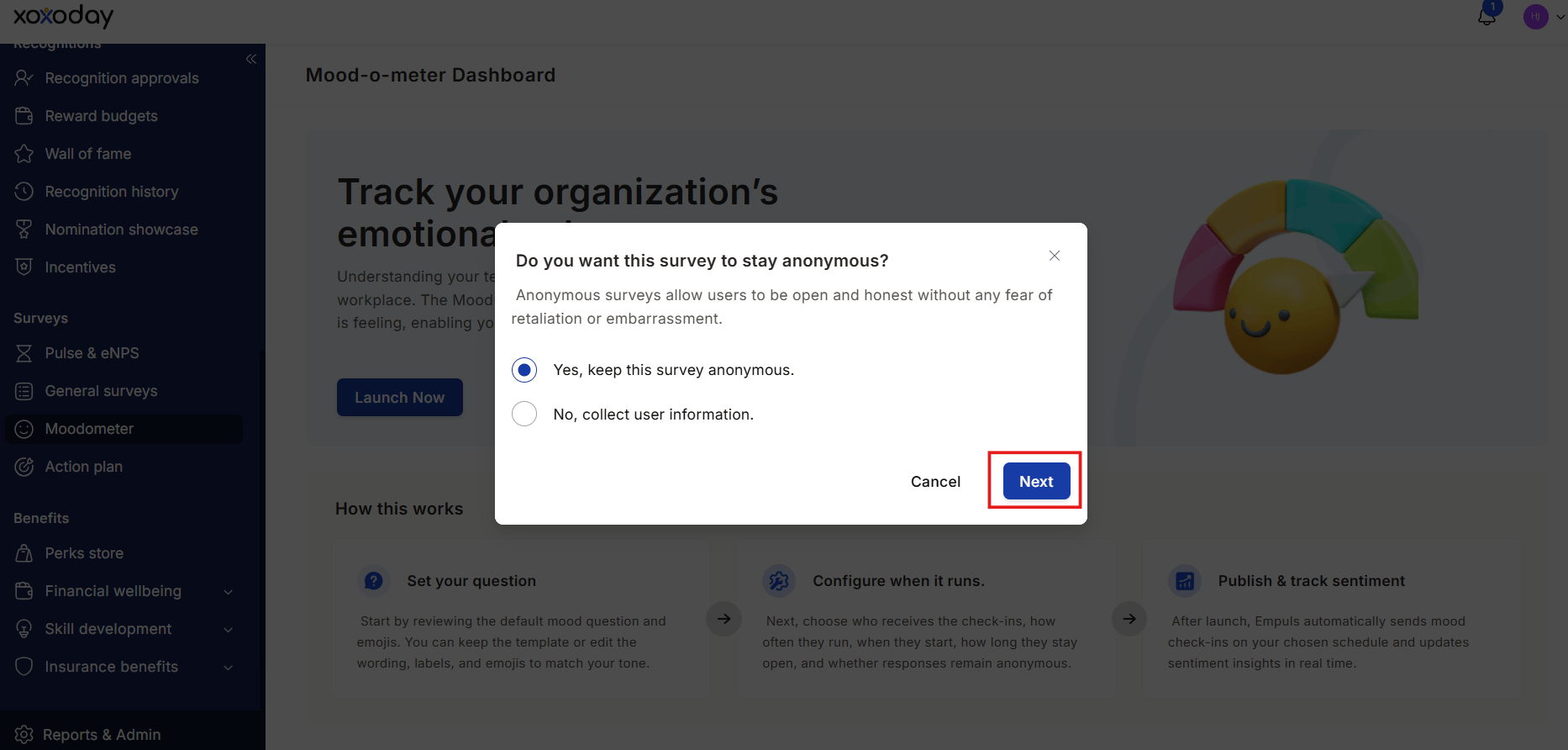
 On the **Anonymity** step, choose whether responses are anonymous. Anonymous surveys aggregate scores but never show individual responses; non-anonymous lets you see who answered what (useful for follow-ups but reduces candor).
 On the **Notification Settings** step, pick how the prompt reaches employees — in-app, email, Slack, Microsoft Teams. Configure reminder cadence for non-responders.
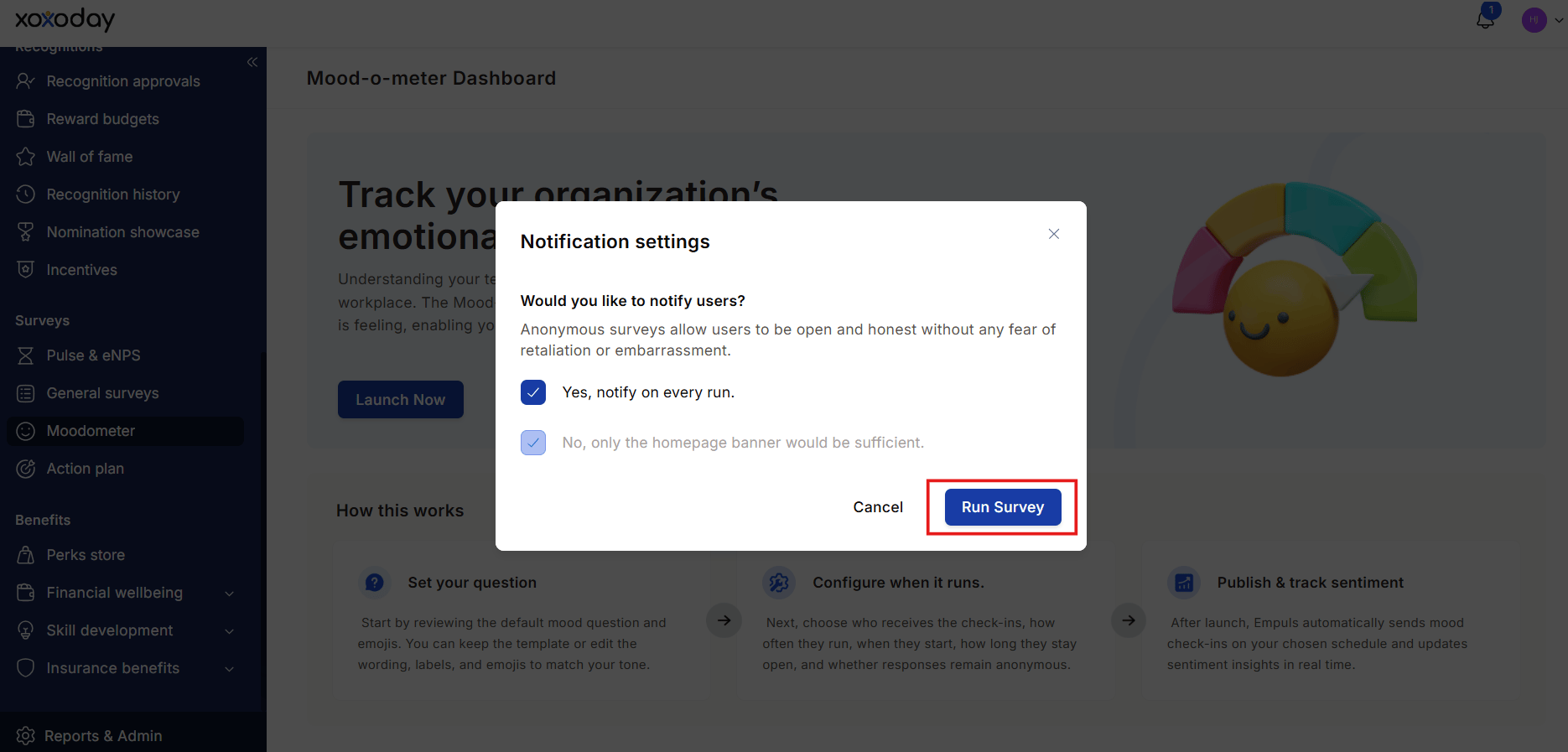 Save the configuration. The first prompt fires on the next scheduled trigger.
## What employees see
When the prompt fires, employees see a small card with the question and the five emoji buttons. They tap one and (optionally) add a comment, then submit. The whole interaction takes seconds.
If they miss a prompt and answer later from the survey list, the response is recorded against the date the prompt was issued, not when they answered.
## Read the results
The Mood-o-Meter detail page has three result views:
A headline number aggregated across all responses for the selected date range. Higher is better. Use the date filter to track day-over-day shifts.
The breakdown of responses across each emoji (% choosing 😍, % choosing 😊, etc.). Useful for spotting bimodal distributions — when scores look fine on average but the team is split.
A grid that slices mood by department, location, business unit, or team — color-coded green (positive) to red (negative). Click a cell to drill into that slice's response distribution.
## Archives
After a survey cycle ends (for example, after a week of daily Mood-o-Meter), the cycle moves to **Archives**. Open an archived survey to revisit its results without affecting the live survey. Archives keep historical mood data even if you change the live question or cadence.
## Tips
Run a daily Mood-o-Meter for two to three weeks around a major event — a reorg, a launch, an office reopening — to spot real-time impact. Pause it the rest of the year to avoid fatigue.
Pair Mood-o-Meter with [action plans](/admin/surveys/action-plan) — when the heatmap surfaces a low-scoring team, create an action plan tied to that team to follow up concretely.
## Limits and gotchas
* Mood-o-Meter is single-question by design. If you need multi-question themed surveys, use [Pulse](/admin/surveys/enps-pulse).
* Anonymous Mood-o-Meter responses cannot be exported with employee identifiers. The heatmap still shows aggregate scores per slice.
* Comments are stored with the response — they're anonymous when the survey is anonymous, identified when it isn't.
* Daily cadence can fatigue employees fast. Watch the response rate; if it drops below 50%, switch to weekly.
## Related
Other survey types (Custom, Lifecycle, Engagement).
Loyalty and engagement-driver surveys.
Cross-survey trends and AI summaries.
Turn survey insights into trackable actions.
Save the configuration. The first prompt fires on the next scheduled trigger.
## What employees see
When the prompt fires, employees see a small card with the question and the five emoji buttons. They tap one and (optionally) add a comment, then submit. The whole interaction takes seconds.
If they miss a prompt and answer later from the survey list, the response is recorded against the date the prompt was issued, not when they answered.
## Read the results
The Mood-o-Meter detail page has three result views:
A headline number aggregated across all responses for the selected date range. Higher is better. Use the date filter to track day-over-day shifts.
The breakdown of responses across each emoji (% choosing 😍, % choosing 😊, etc.). Useful for spotting bimodal distributions — when scores look fine on average but the team is split.
A grid that slices mood by department, location, business unit, or team — color-coded green (positive) to red (negative). Click a cell to drill into that slice's response distribution.
## Archives
After a survey cycle ends (for example, after a week of daily Mood-o-Meter), the cycle moves to **Archives**. Open an archived survey to revisit its results without affecting the live survey. Archives keep historical mood data even if you change the live question or cadence.
## Tips
Run a daily Mood-o-Meter for two to three weeks around a major event — a reorg, a launch, an office reopening — to spot real-time impact. Pause it the rest of the year to avoid fatigue.
Pair Mood-o-Meter with [action plans](/admin/surveys/action-plan) — when the heatmap surfaces a low-scoring team, create an action plan tied to that team to follow up concretely.
## Limits and gotchas
* Mood-o-Meter is single-question by design. If you need multi-question themed surveys, use [Pulse](/admin/surveys/enps-pulse).
* Anonymous Mood-o-Meter responses cannot be exported with employee identifiers. The heatmap still shows aggregate scores per slice.
* Comments are stored with the response — they're anonymous when the survey is anonymous, identified when it isn't.
* Daily cadence can fatigue employees fast. Watch the response rate; if it drops below 50%, switch to weekly.
## Related
Other survey types (Custom, Lifecycle, Engagement).
Loyalty and engagement-driver surveys.
Cross-survey trends and AI summaries.
Turn survey insights into trackable actions.